
You launch a video, music, or a call… and nothing. No sound comes out of your computer. This problem, as frustrating as it is common, fortunately has causes that are most often simple and solutions within your reach. Before imagining a serious failure, a few methodical checks usually suffice to restore the sound. This guide accompanies you step by step to diagnose and resolve the absence of sound on your computer.
Start with the obvious
First, let’s rule out the most common causes, responsible for a good portion of cases. Is the volume turned off or at minimum, on the computer as well as in the application? Isn’t the sound simply in mute mode? If you’re using headphones or speakers, are they properly connected and turned on? These basic checks are often overlooked while looking for a complicated solution: always start with the simplest.
Check the audio output
A very common case: the computer sends the sound to the wrong output. It tries to play on unplugged headphones, a screen without speakers, or a distant Bluetooth device. In the sound settings, check which output device is selected, and choose the correct one. This simple adjustment resolves many cases where « there’s no sound » even though everything is working, just in the wrong place.
Your computer might be sending sound to a device that’s not connected, like old headphones you unplugged. Always check the audio settings to make sure it’s using the right output (speakers, headphones, etc.).
The right reflex. Check in the audio settings which output device is active: this is the number one cause of « missing sound. » The computer often sends the sound to an unplugged headphone or a disconnected Bluetooth device. Selecting the correct output fixes the problem in an instant.
Restart and update
If the sound is still missing, two simple actions often help. Restarting the computer resets the audio system and resolves many temporary issues. Then, a driver problem — the software that manages the sound — may be the cause: updating or reinstalling it frequently restores functionality, especially if the issue appeared after a system update.
Isolate the problem
To pinpoint the cause, test different scenarios: is the sound missing everywhere, or just in one application? On the speakers and headphones, or just one of them? This diagnosis points to the source: a problem in a single application is different from a general failure. Testing with another headset or speakers also helps determine if the issue comes from the computer or the device itself.
To anticipate. If the sound disappeared right after a system update, the audio driver is likely the culprit: this is a classic case. Updating or reinstalling the driver, or reverting to a previous version, usually resolves the issue. Always note what changed just before the failure: it’s often the key.
The decision tree: three minutes to identify the issue
Follow the steps: Does the sound work with headphones? Yes → the problem is with the speakers or their selection as output; no → continue. Does the sound work in another application? Yes → adjust the settings of the muted application (internal volume, device); no → continue. After a restart, does the sound return? Yes → simple temporary issue, case closed; no → continue. Did the problem appear after an update? Yes → reinstall or update the audio driver; no → a hardware diagnosis is needed. This funnel approach avoids trying everything randomly — and locates the cause in the vast majority of cases.
You’re watching a YouTube video with no sound, but your Spotify app works fine. This means the issue is with YouTube’s volume settings or output selection, not your computer’s hardware. Check YouTube’s internal volume and make sure it’s not set to mute.
Frequently asked questions
The sound works in one application but not another, why?
The issue then comes from the settings of that application (volume, dedicated audio output) rather than the system. Check the audio settings of the concerned application.
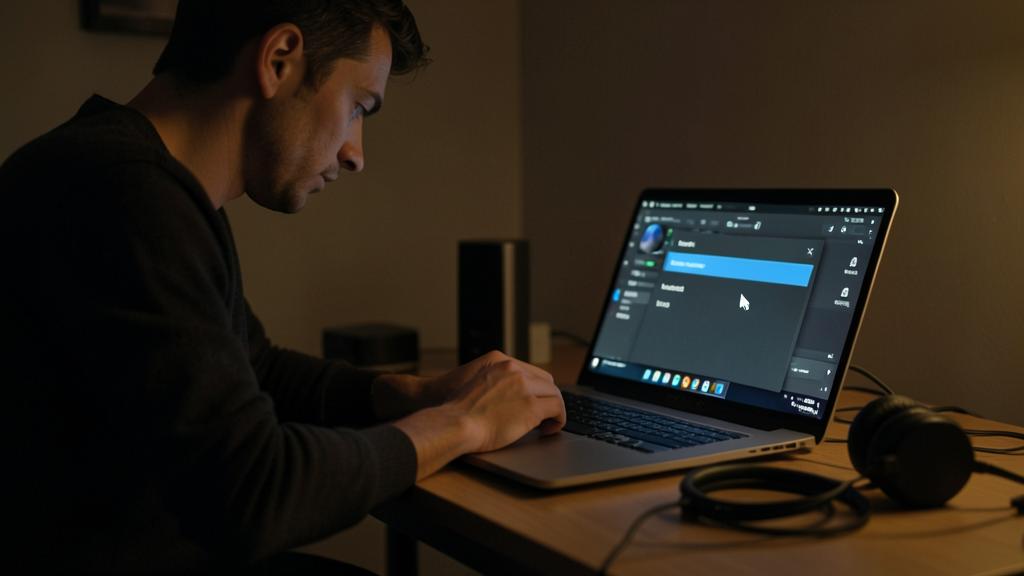
Should you worry about a hardware failure?
Rarely at first: most sound issues are software-related. Speaker hardware failure is possible but less frequent, and can be confirmed by testing a headset.

The sound is weak or crackles, is it the same approach?
The same steps apply (output, application, driver), with two additional checks: the volume level per application, and the physical condition of the speakers or headphones — constant crackling on all sources points to hardware.
What to remember
The absence of sound is a common problem with most often simple causes. Proceed step by step: first check the volume and connection, then the selected audio output (the #1 cause), restart, and update the driver if needed — especially if the issue follows an update. Isolate the issue by testing different applications and devices. In the vast majority of cases, one of these checks restores the sound. If the problem persists, a diagnosis will help rule out any potential hardware failure.

The problem persists? Our technicians will fix it.
Leave a Reply
You must be logged in to post a comment.