
Changing a phone should be a joy: new device, new possibilities. But transferring data from the old to the new—photos, contacts, messages, apps—can sometimes turn into a nightmare: interrupted transfer halfway through, missing data, process freezing. Panic sets in: what if we’ve lost everything? Rest assured: an interrupted transfer almost always resumes, and your old device’s data is generally intact. Here’s how to resume a failed transfer without losing anything, and how to put all the odds in your favor.
The golden rule: keep the old device intact
First, the reassuring truth to keep in mind: a transfer COPIES data from the old device to the new—it does not DELETE it from the old. So long as you haven’t reset or sold your old phone, your data is still there, intact, even if the transfer to the new device failed. This is your ABSOLUTE SAFETY NET: never rush to erase, sell, or return the old device until you’ve CONFIRMED that everything is indeed on the new and working. This simple rule eliminates most of the risk: a failed transfer is not a data loss, just a copy to be redone. Panic comes from the belief that « we’ve lost everything »; in reality, the original is safe. Keep the old phone charged and available until full transfer confirmation. Another reassuring point: much of your data is likely ALREADY backed up in the cloud (photos, contacts, synced emails) and will simply reappear when you log into your accounts on the new device—regardless of the direct transfer. Your data is thus often doubly protected: on the old device AND in the cloud. With this in mind, a failed transfer is nothing dramatic.
When you transfer data from an old phone to a new one, the process copies files, not deletes them. As long as you don’t reset or sell the old phone, your data is still safe there. Even if the transfer fails, you can restart it or recover data from the cloud. The key is to keep the old phone until you’re sure everything is on the new one.
Imagine transferring 50GB of photos from an iPhone 13 to an iPhone 15. The transfer fails at 80%. Instead of panicking, you restart the process. The iPhone’s built-in transfer tool resumes where it left off, and the remaining 20% completes in 30 minutes. Meanwhile, your iCloud backup ensures no photos are lost, even if the transfer fails again.
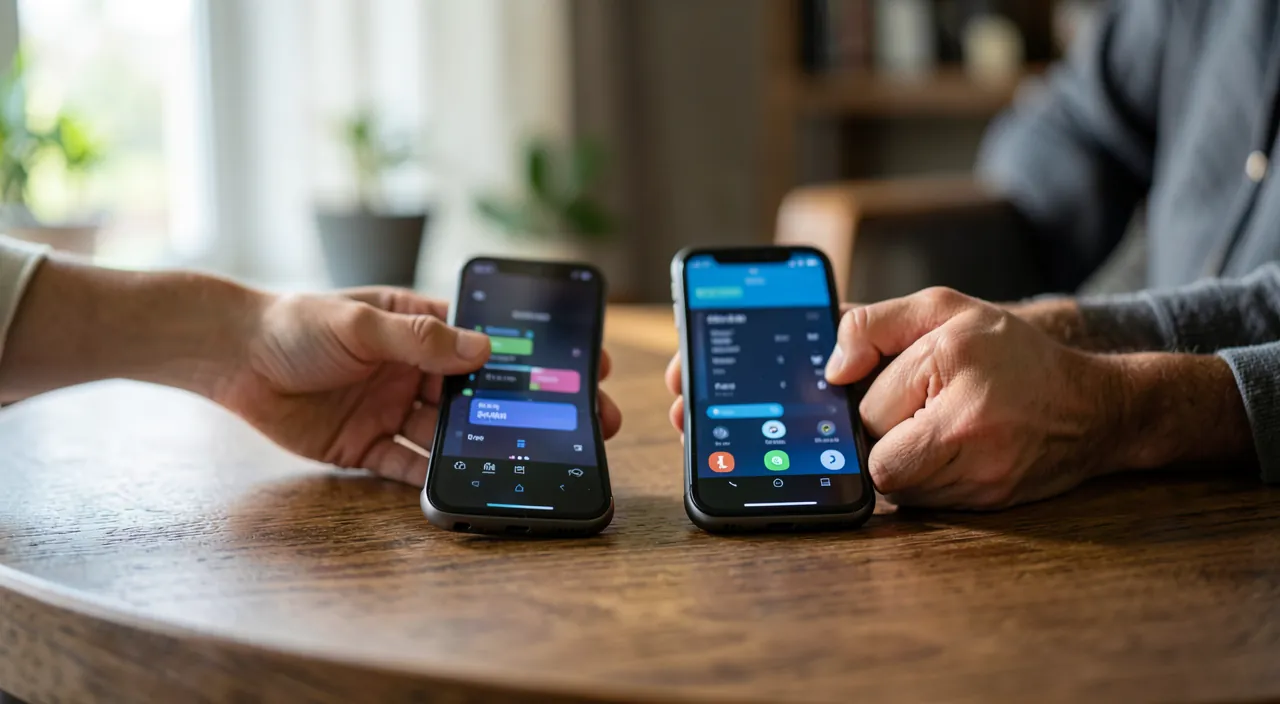
Resuming an interrupted transfer
Depending on the transfer method and where it got stuck:
- Do not panic, keep the old device intact (the golden rule above);
- RESTART the transfer—most transfer tools allow you to start over; often, starting from scratch works (what was already copied will be copied again, without harm);
- Check the conditions—common causes of interruption: both devices must remain ON, CHARGED (plug them in: a transfer can take a long time), and close to each other; a good CONNECTION (stable Wi-Fi if the transfer goes through the network—our guides optimize Wi-Fi); enough SPACE on the new device to receive everything;
- Restart both devices if the process is really stuck, then restart;
- Supplement with the CLOUD—if certain data does not pass through the direct transfer, log into your accounts (your phone account, messaging, services) on the new device: photos, contacts, emails, and synced data will download (our guides for cloud backup);
- Transfer what’s missing MANUALLY—for specific elements not transferred, existing methods exist (file transfer, sharing—our guides for sending large files);
- Reinstall apps—the apps re-download from the store (their data often linked to your account); some (messaging, games) have their own backup to restore.
Patience: a full transfer, especially with many photos, takes TIME: what seems « stuck » may still advance (give it a chance before concluding). By combining transfer resumption and cloud recovery, you recover all your data in most cases.
The right reflex. Do not reset, sell, or return your old phone until you have CONFIRMED, on the new one, that everything is indeed there and working: browse your photos (both old and recent), your contacts, your important messages, check that your key apps are working and that you are connected to your accounts. Take the time for this complete check over several days of real usage. The old device is your absolute safety net: as long as it retains your data intact, a failed transfer is not irreversible—you can always start over or recover what’s missing. Only once you are certain that nothing is missing on the new phone can you erase the old one with peace of mind (remember to properly reset it to erase your personal data before selling—our guides for protecting your data). The rush to get rid of the old device is the only real way to lose data during a phone change.
Properly preparing a transfer to avoid failures
The best way to handle a failed transfer is to prepare for its success:
- BACKUP before—before any phone change, ensure your data is backed up (in the cloud, on a computer—our guides for backup 3-2-1); thus, even the worst transfer won’t cost you anything;
- Check the SPACE on the new device (enough to receive everything);
- PLUG both devices in and keep them close throughout the transfer (do not touch or move them);
- Ensure a STABLE CONNECTION (Wi-Fi near the router if the transfer goes through the network);
- PLAN for TIME (a large transfer can take a long time: don’t start it in a rush);
- KEEP your credentials handy (you’ll need to reconnect to your accounts on the new device—our guides for password manager).
An important point: some apps have their OWN backup/transfer system (messaging, games with progress); save these specific data before the change, as they don’t always follow the general transfer. Finally, if a transfer fails persistently and you can’t recover certain data: cloud data remains accessible (connect to your accounts), the old device retains everything, and as a last resort, manufacturer or professional assistance can help for a stubborn case. But with proper preparation (backup before, devices plugged in and close, stable connection, time available) and the golden rule of keeping the old device until full verification, changing a phone goes smoothly—and an interrupted transfer is just a setback, never a disaster.
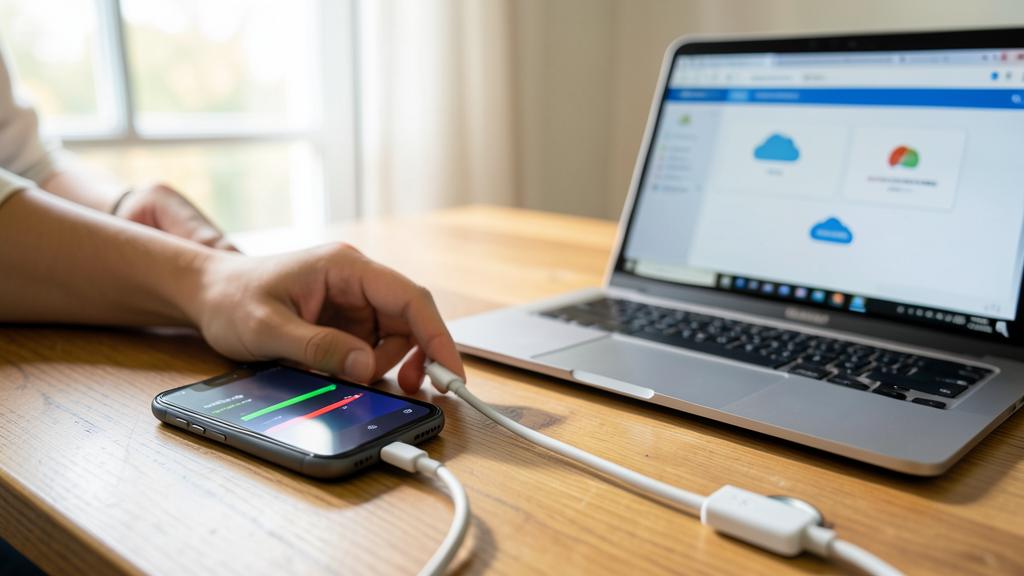
Caution: never rush to erase the old device, and back up before any transfer. The biggest danger during a phone change is not a failed transfer (which can be resumed), but erasing, selling, or returning the old device before verifying that everything is indeed on the new one: as long as the old device retains your data, nothing is lost; erasing it prematurely means losing what wasn’t transferred. Keep the old device intact and available until a complete check (photos, contacts, messages, apps) over several days. Second imperative: BACKUP your data before any transfer (cloud, computer—our guides for backup 3-2-1): this is your ultimate safety net, independent of the transfer itself. Think also of apps with their own backup (messaging, games) whose data don’t always follow the general transfer. Finally, when you finally give up the old phone, properly RESET it to erase your personal data (don’t leave your information on a device changing hands—our guides for protecting your data). The serenity of a phone change hinges on two rules: back up before, and don’t erase anything until everything is verified.
Frequently asked questions
My data transfer has been interrupted, have I lost everything?
No: a transfer COPIES data from the old device to the new, it does not delete it from the old. Your data is therefore still intact on the old phone (until you reset it), and often also in the cloud (photos, synced contacts). A failed transfer is not a loss, just a copy to be redone. Restart the transfer (keep the devices plugged in, close, well connected), and complete it with the cloud by logging into your accounts on the new device. Above all, do not touch the old phone until everything is verified on the new one.
How to resume a failed transfer?
Simply restart it: most tools allow you to start over without damage. Check the conditions that often cause a transfer to fail: both devices on, PLUGGED IN (a transfer can take a long time) and close, a stable connection, and enough space on the new device. Restart the devices if it’s really stuck, then restart. Complete it with the cloud for data that doesn’t pass through the direct transfer (log into your accounts), and redownload apps from the store. Be patient: a large transfer takes time and may seem « stuck » while it advances. By combining resumption and cloud, you recover everything in most cases.
When can I safely erase my old phone?
Only after you have CONFIRMED, on the new one, that everything is indeed there and working: browse your photos, contacts, and messages, test your key apps, confirm your connection to your accounts—ideally over several days of real usage. The old device is your safety net: as long as it retains your data, nothing is irreversible. It’s only once you are certain that nothing is missing that you can reset it, thinking to properly erase your personal data before selling (our guides for protecting your data). The rush to get rid of the old phone is the only real way to lose data during a device change: take your time.
What to remember
An interrupted data transfer during a phone change is almost never a disaster, because the golden rule protects everything: a transfer COPIES data, it does not delete it from the old device—which remains your safety net until you reset it. Never rush to erase, sell, or return the old phone until you have CONFIRMED that everything is indeed on the new one (photos, contacts, messages, apps), ideally over several days. To resume a failed transfer: restart it (devices plugged in, close, well connected, with enough space), restart if needed, and complete it with the CLOUD by logging into your accounts (much of the data is already synced). Prepare transfers for success: back up before, check the space, plug both devices in, ensure a stable connection, plan for time, and keep your credentials handy. Think of apps with their own backup (messaging, games). And when you finally give up the old phone, reset it to erase your personal data. Back up before, and don’t erase anything until everything is verified: these two rules make every phone change smooth.
Persistent failure, finicky device? Our remote troubleshooting service resolves your issue quickly, without jargon.
Leave a Reply
You must be logged in to post a comment.