
When you install an application, it often asks for PERMISSIONS: access to your location, your camera, your contacts, your microphone… You often accept them MECHANICALLY, without thinking. Yet, these permissions give the app access to sensitive parts of your digital life! An application doesn’t always need everything it asks for, and some take advantage to collect much more than necessary. Checking and controlling your apps’ permissions is one of the simplest and most effective ways to protect your privacy. Here’s how to do it.
App permissions: what are they?
Let’s understand what these permissions are and why they MATTER. When an app wants to access a function or SENSITIVE data on your device, it must ask for your PERMISSION; the system then displays a permission request (e.g., “This app wants to access your location”), which you ACCEPT or REFUSE. The most common permissions concern: LOCATION (knowing where you are), the CAMERA, the MICROPHONE, CONTACTS, PHOTOS, the CALENDAR, notifications, Bluetooth, health, microphones, and other data or sensors. Why this system exists: to PROTECT your privacy; without your consent, an app cannot, in principle, access these sensitive elements; it’s YOU who decides what each app is allowed to do. The PROBLEM: we often accept these requests MECHANICALLY, without thinking, in a hurry to use the app; yet not all requested permissions are JUSTIFIED; some apps ask for MUCH more than they actually need to function; and a granted permission can allow the app to collect data about you (your location, your contacts…), sometimes to exploit or share it for commercial purposes. The QUESTION to ask yourself: does this app REALLY need this access for what it does? A photo editing app logically needs your photos; a navigation app, your location; but a simple game that asks for your contacts, your microphone, and your permanent location? That’s suspicious and often unnecessary. The COMMON SENSE principle: only grant permissions that are COHERENT with the app’s function; refuse or limit the rest. What to remember to start: permissions give apps access to sensitive parts of your digital life (location, photos, microphone, contacts…); we often accept them without thinking, even though not all are justified; checking and controlling these permissions is a simple and powerful way to protect your privacy. Let’s see how to check and manage them.
Apps ask for permissions to access parts of your device, like your location or camera. You should only give them what they really need to work. If a game asks for your contacts, that’s probably unnecessary and could be used to collect your data.
A weather app asks for your location. That makes sense because it needs to know where you are to give you the forecast. But if a flashlight app asks for your location, that’s suspicious and you should refuse.
Checking and managing permissions
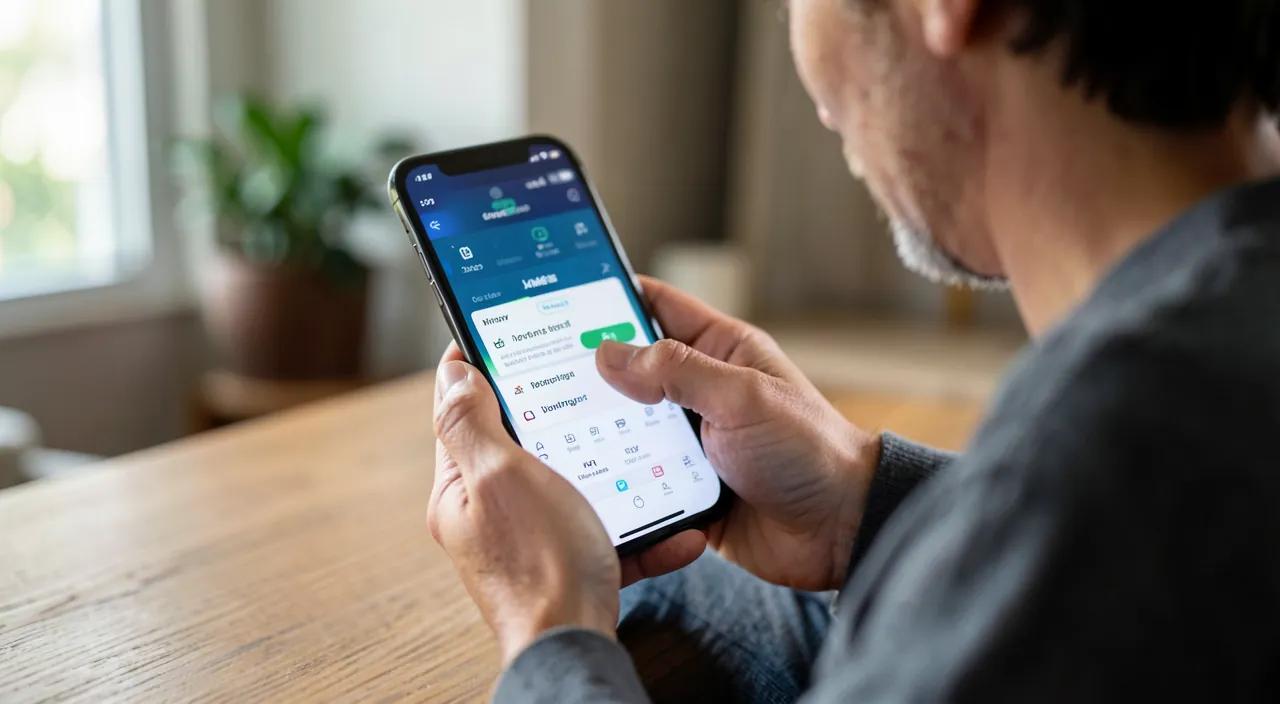
Good news: you’re in control; you can check and modify permissions at any time. WHERE TO FIND THEM: in your device’s SETTINGS, there’s a section dedicated to PRIVACY (and/or permissions); you’ll find there, organized by TYPE of permission (Location, Camera, Microphone, Contacts, Photos…), the list of apps that have requested/obtained each access; you can also often see, app by app, all the permissions it has. MODIFYING a permission: for each app and each type of access, you can ENABLE or DISABLE the permission; for example, remove location access from an app that doesn’t need it, or cut off microphone access from a suspicious app. FINE OPTIONS (especially for location): for some permissions like location, you often have a choice between: “Never” (access denied), “When I use the app” (access only when the app is open — a good compromise for many apps), or “Always” (permanent access, even in the background — to be reserved for apps that really need it); prefer “when I use the app” over “always” to limit permanent tracking. REGULARLY SORTING: periodically review permissions; for each app, ask yourself if the access is justified; remove unnecessary permissions; pay special attention to sensitive accesses (permanent location, microphone, camera, contacts). AT INSTALLATION: when an app asks for a permission, think before accepting; you can REFUSE a permission that doesn’t seem necessary; the app may still work (some functions will be limited, but it’s often not a problem); you can always grant it later if needed. ACCESS INDICATORS: modern systems often display a small light/indicator when an app uses the microphone or camera (a colored dot at the top of the screen); this helps detect if an app accesses them unexpectedly; pay attention to these indicators. ADVERTISING TRACKING: there’s also a setting to limit advertising tracking between apps (refuse to be tracked for advertising purposes); enable this limitation. Check what an app does: app stores often display a summary of the data an app collects; check it before installing. In summary: go to privacy settings to see and modify permissions (by type or by app); disable unnecessary ones; prefer “when I use the app” for location; think before accepting at installation; sort regularly; and monitor access indicators. You thus keep control over what your apps can see and do.
The question to ask yourself: does this app REALLY need this access? The most useful reflex to control your permissions lies in one question, to ask yourself for each request: “Is this permission COHERENT with what the app does?” Some requests are LOGICAL and justified: a navigation/maps app needs your POSITION; a photo editing or sharing app needs your PHOTOS; a video calling app needs the CAMERA and MICROPHONE; a messaging app may need CONTACTS; there, the access makes sense: grant it (ideally in a limited way). Other requests are SUSPICIOUS or disproportionate: a simple GAME that demands your contacts, your permanent location, and your microphone? A FLASHLIGHT app that wants access to your photos and location? A basic app that asks for a bunch of accesses unrelated to its function? Be wary: these accesses are probably not necessary for its operation, and the app might be trying to collect data about you; REFUSE them. The golden rule: only grant permissions the app actually needs for the function YOU want to use; in doubt, REFUSE: you can always grant access later if the app really needs it and asks again (when a specific function requires it, the context will be clear). Additional tips: for LOCATION, always prefer “When I use the app” over “Always” (few apps really need to track you permanently, even when closed); for PHOTOS, some systems allow you to grant access to a selection of photos rather than your entire photo library; take advantage of it. Refusing a permission generally doesn’t “break” the app: at worst, a specific function will be unavailable (and the app will tell you when the time comes); often, you won’t notice any difference. By systematically asking yourself this question — “is this really necessary?” — and refusing by default what isn’t justified, you significantly limit what apps can collect about you; it’s the simplest and most effective way to take back control of your privacy, without any technical knowledge. The principle is “minimum necessary”: each app only gets what it absolutely needs.
The most sensitive permissions to watch
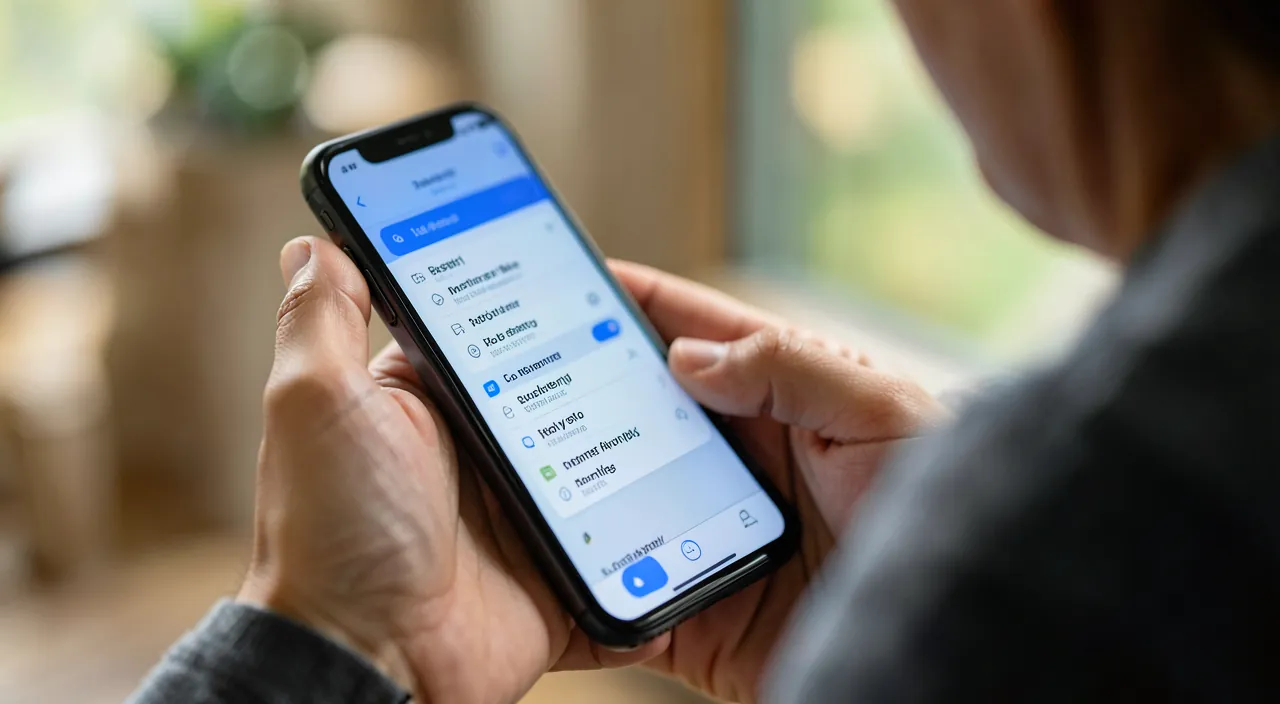
Some permissions deserve special attention, as they affect the most sensitive aspects: let’s review them. LOCATION: it reveals where you are, where you’re going, your habits; it’s one of the most sensitive; limit it to “When I use the app” (not “Always”) unless absolutely necessary; refuse it for apps that don’t need it; be wary of apps that want to track you permanently (see our guides on managing location sharing). MICROPHONE: access to the microphone theoretically allows listening; only grant it to apps with an obvious use (calls, video, dictation, recording); be wary of an unrelated app requesting it; monitor the microphone usage indicator. CAMERA: similarly, reserve it for apps that need it (photos, video, document/QR code scanning); an indicator signals when the camera is active. CONTACTS: granting access to your contacts means sharing the details of ALL your loved ones (not just yours!); it’s sensitive because it concerns third parties; only grant this access to apps that really need it and are trustworthy; many apps ask for it to “find your friends” while collecting these data; think twice. PHOTOS: your photos can contain personal information (faces, places, documents); if the system allows it, grant access to a SELECTION rather than your entire photo library. APP TRACKING: the permission to “track” you for advertising purposes; refuse it (limit tracking); it’s an important global setting for your privacy. NOTIFICATIONS: less sensitive for privacy, but manage them to avoid being overwhelmed (see our guides on disabling notifications). BLUETOOTH, LOCAL NETWORK: some apps request these accesses that can be used to locate you indoors or detect other devices; grant them with discernment. HEALTH, sensitive data: particularly important to protect; only grant access to trustworthy and relevant apps. MICROPHONES and background sensors: be attentive to apps that want permanent access, even when closed. The REFLEX: for these sensitive permissions (especially location, microphone, camera, contacts), be PARTICULARLY restrictive; only grant them in case of clear necessity and to trustworthy apps; regularly check who has access and remove what isn’t justified; monitor usage indicators (active microphone/camera). In summary: location, microphone, camera, and contacts are the most sensitive permissions; limit them to the strict minimum, prefer restricted access (location “when I use the app”, photos by selection), refuse advertising tracking, and monitor what accesses what; that’s where the essence of protecting your privacy against apps lies.
Warning: don’t grant permissions mechanically — each granted access can collect data about you. The main trap is to ACCEPT mechanically all permission requests, in a hurry to use the app; that’s how you give, without thinking, access to your location, contacts, microphone, to apps that don’t need them and that can take advantage to collect data. Take the REFLEX to ask yourself, for each request, if the access is REALLY justified by the app’s function; in doubt, REFUSE (you can grant it later if necessary). Be particularly wary of apps that request MANY accesses unrelated to their function: a game that wants your contacts and microphone, a flashlight that wants your location; these disproportionate requests are often a sign of data collection for commercial purposes (selling your data), or even an untrustworthy app. Be careful with CONTACTS: granting access to your contacts means sharing your LOVED ONES’ details (their name, number, email) — data that aren’t even yours; many apps ask for it under the pretext of “finding your friends” to collect your entire address book; think twice. Be careful with “ALWAYS” LOCATION: few apps need to track you PERMANENTLY (even when closed); prefer “When I use the app”; permanent location allows reconstructing all your movements. Be careful with MICROPHONE and CAMERA: these accesses are very sensitive; only grant them to apps with an obvious use, and monitor the INDICATORS (the colored dot that signals the microphone or camera is active); if an app accesses them unexpectedly, cut the permission. Don’t assume a “well-known” app is necessarily respectful; even major apps collect a lot of data; check and limit their accesses too. Be careful with apps INSTALLED outside official stores or untrustworthy ones: they can abuse permissions; prefer apps from official stores and check what they collect. A point for LOVED ONES: help less tech-savvy people (elderly, children) check their apps’ permissions; they often accept everything without knowing, exposing their privacy; sort with them. Finally, do a PERIODIC REVIEW: permissions accumulate over time and with new apps; regular control (in privacy settings) allows removing unnecessary accesses that have slipped in. By never granting permissions mechanically, refusing by default what isn’t justified, and monitoring sensitive accesses, you significantly limit data collection; it’s a simple gesture that effectively protects your privacy and that of your loved ones.
Frequent questions
Why do apps ask for so many permissions?
For two main reasons: some are LEGITIMATE, others much less so. LEGITIMATE reasons: an app sometimes really needs an access to function; a maps app needs your location, a photo app your photos, a calling app the microphone and camera; these requests are coherent with the function, and the access is justified. LESS AVOWABLE reasons: many apps ask for MUCH MORE than they need, because DATA has VALUE; your location, contacts, habits interest companies for targeted advertising, analysis, or resale to third parties; some apps are even designed around this data collection (the “free” app monetizes by collecting and exploiting your data — “if it’s free, you’re probably the product”). Hence disproportionate permission requests: a game that wants your contacts, a basic app that demands your permanent location. How to distinguish? Ask yourself: is this access COHERENT with what the app does and what you want to do with it? If yes (the navigation app wants my location), it’s logical; if no (the game wants my contacts), it’s suspicious, refuse. Only grant the NECESSARY; in doubt, refuse (you can grant it later if needed). It’s not because an app ASKS for a permission that it really needs it, nor that you must grant it: it’s up to YOU to judge and decide. Also check, in the app store, the summary of data the app collects (often displayed). By understanding that excessive permissions often serve to collect your data (a commercial resource), you’ll be more vigilant and only grant what’s really justified; your privacy is at stake.
Can I refuse a permission without breaking the app?
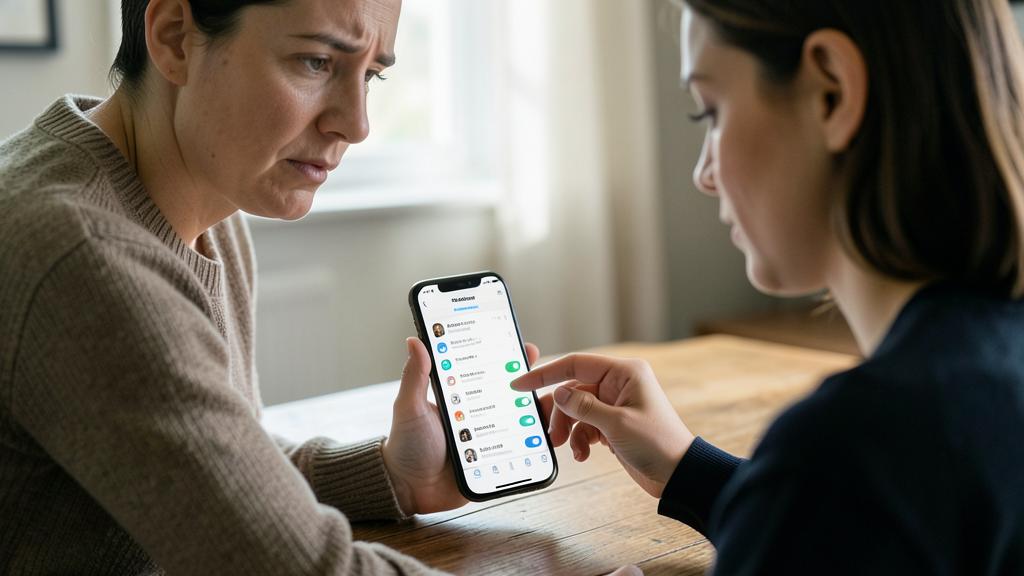
Yes, in most cases: refusing a permission generally doesn’t “break” the app. Two situations. If the refused permission is NOT necessary for what you want to do: the app will work normally, and you’ll often notice no difference (you’ve just avoided unnecessary data collection). If the refused permission is necessary for a SPECIFIC FUNCTION: only that function will be unavailable, not the whole app; for example, refusing camera access to an app will prevent taking photos with it, but the rest will work; and the app will usually REQUEST the permission again when you want to use that specific function (the context will then be clear, and you can grant access knowingly). That’s the advantage of refusing by default: you only grant access WHEN you actually need it, for a function you really use. It’s therefore PRUDENT to refuse in doubt: at worst, a function will be temporarily unavailable and you’ll grant access when you need it; at best (most often), you’ll notice no difference and you’ll have protected your data. You can modify your choices at any time in privacy settings: grant a permission you had refused, or remove a granted permission. Special case: very rare apps insist heavily or refuse to work without non-essential accesses (a form of permission blackmail); it’s a negative signal about the app’s respect for your privacy; you can look for a more respectful alternative. But in general: don’t hesitate to refuse suspicious permissions; the app will adapt in the vast majority of cases, or request access at the right time. Refuse by default, grant when needed: that’s the right principle.
How to know which apps access my location or microphone?
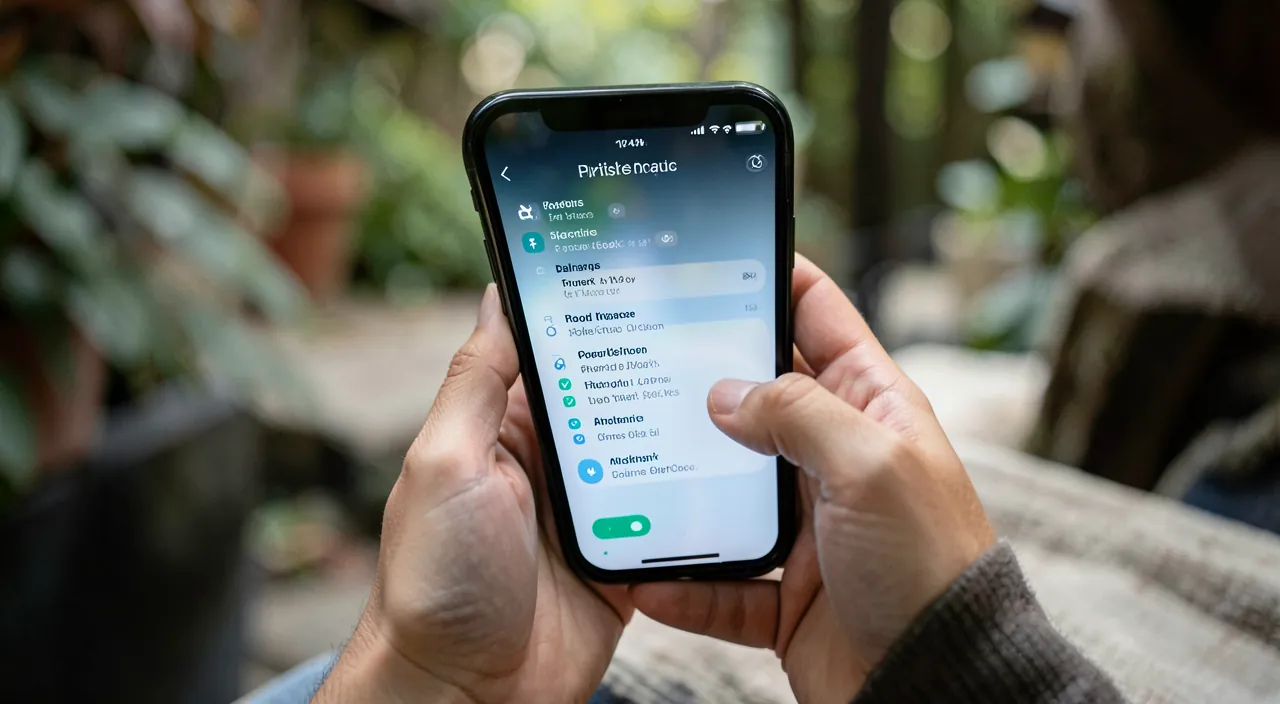
It’s easy to check in your device’s privacy settings. Go to SETTINGS, then to the PRIVACY section (and/or permissions); you’ll find permissions organized by TYPE: Location, Microphone, Camera, Contacts, etc. By tapping a type (e.g., “Location” or “Microphone”), you see the LIST of apps that have requested/obtained this access, and you can enable or disable the permission for each; it’s the way to know exactly who has access to what, and to clean up. For location, you’ll also see the level granted to each app (“Never”, “When I use the app”, “Always”); adjust it. You can also often consult, app by app, all the permissions it has. In addition, modern systems display REAL-TIME INDICATORS: a small colored dot or light appears at the top of the screen when an app uses the MICROPHONE or CAMERA; it’s very useful to detect if an app accesses them unexpectedly (if the light comes on while you’re not using any app that should, it’s suspicious); some systems even offer a “privacy report” summarizing which apps have accessed what recently. Monitor these indicators: they alert you in real time. Get into the habit of periodically reviewing these settings: check who has access to your location, microphone, camera, contacts; for each app, ask yourself if it’s justified; remove unnecessary accesses. In a few minutes, you know precisely which apps access your sensitive data, and you take back control. It’s a simple and quick gesture, to be repeated from time to time (permissions accumulate with new apps).
What to remember
PERMISSIONS give apps access to sensitive parts of your digital life: location, camera, microphone, contacts, photos… We often accept them MECHANICALLY, even though not all are justified, and some apps take advantage to collect much more than necessary (your data has commercial value). The KEY question to ask for each request: “does this app REALLY need this access for what it does?”; if the access is coherent (a maps app wants the location), grant it (in a limited way); if it’s disproportionate (a game wants your contacts and microphone), REFUSE. The principle: only grant the MINIMUM necessary; in doubt, refuse (you can grant it later if needed; refusing generally doesn’t break the app: at worst a function will be unavailable and requested again at the right time). To CHECK and MANAGE: go to Settings → Privacy; you’ll see, by permission type (Location, Microphone, Camera, Contacts…) or by app, who has access to what, and can enable/disable each permission. The most SENSITIVE permissions to watch: LOCATION (prefer “When I use the app” over “Always”), MICROPHONE and CAMERA (reserved for apps with obvious use; monitor the colored indicators that signal their usage), and CONTACTS (granting access shares your loved ones’ details, not just yours). Also refuse ADVERTISING TRACKING between apps, and for photos, grant access to a selection rather than your entire photo library if possible. Do a PERIODIC REVIEW (permissions accumulate), and help less tech-savvy loved ones (elderly, children) check theirs. Don’t assume a “well-known” app is necessarily respectful; prefer official stores. Checking and controlling permissions — by only granting what’s necessary and monitoring sensitive accesses — is one of the simplest and most effective ways to protect your privacy, without any technical skills: a few minutes in the settings, and you take back control of what your apps can see and do.
Doubts about your security, a device to check or clean up? Our support service guides you step by step.
Leave a Reply
You must be logged in to post a comment.