
Do you need to update your website, fix an issue, or perform technical work, and will it be temporarily unavailable? Instead of letting your visitors land on a worrying error page (or a broken site), plan a MAINTENANCE PAGE: a temporary, clean, and reassuring page that informs visitors the site is momentarily unavailable and will return soon. It’s a sign of professionalism that reassures your visitors, preserves your image, and avoids confusion. A good maintenance page is simple: a clear message, your brand identity, optionally an estimated return time, and a way to contact you. Most website creation tools allow you to activate it easily. Let’s see why you should plan a maintenance page, what it should contain, and how to set it up.
Why plan a maintenance page
A maintenance page serves several purposes; let’s see why it’s important. AVOID the error page: without it, visitors land on an error or a broken site; worrying and unprofessional; the maintenance page replaces that; essential. REASSURE visitors: a clear message “maintenance in progress, back soon” reassures; the visitor knows it’s temporary; soothing; useful. Preserve your IMAGE: a well-cared-for page shows professionalism, even offline; a broken site makes a bad impression; take care of your image; important. Avoid CONFUSION: the visitor doesn’t think the site is gone/permanently down; they understand; clarify; useful. KEEP in touch: a way to reach you despite the unavailability; don’t lose a contact; useful; pro. During WORK: updates, fixes, redesign; the page covers moments when the site isn’t available; practical; useful. A sign of SERIOUSNESS: planning a maintenance page shows you manage your site with care; reassuring for visitors; professional; valuable. Avoid LOSING visitors: a reassured visitor will return; a visitor facing an error leaves; retain; useful. SEO preserved (with the right code): a well-made maintenance page tells search engines “temporary”; preserve your ranking; technical but useful; to know. PLAN ahead: have a page ready for when you need it; anticipate; smart; wise. In summary, planning a maintenance page serves several important purposes: AVOID your visitors landing on a worrying ERROR page or a broken site (unprofessional), REASSURE them with a clear message (“maintenance in progress, back soon”: they understand it’s temporary), preserve your IMAGE (a well-cared-for page shows seriousness even offline), avoid CONFUSION (the visitor doesn’t think your site is gone or permanently down), and KEEP in touch (a way to reach you despite the unavailability, to not lose a customer). It covers WORK moments (updates, fixes, redesign), shows you manage your site with SERIOUSNESS, and avoids LOSING visitors (a reassured visitor returns; a visitor facing an error leaves). Well made (with the right technical code), it also preserves your ranking by telling search engines the unavailability is temporary. Best: PLAN this page in advance, ready for when you need it. A small effort that protects your image and your visitors.
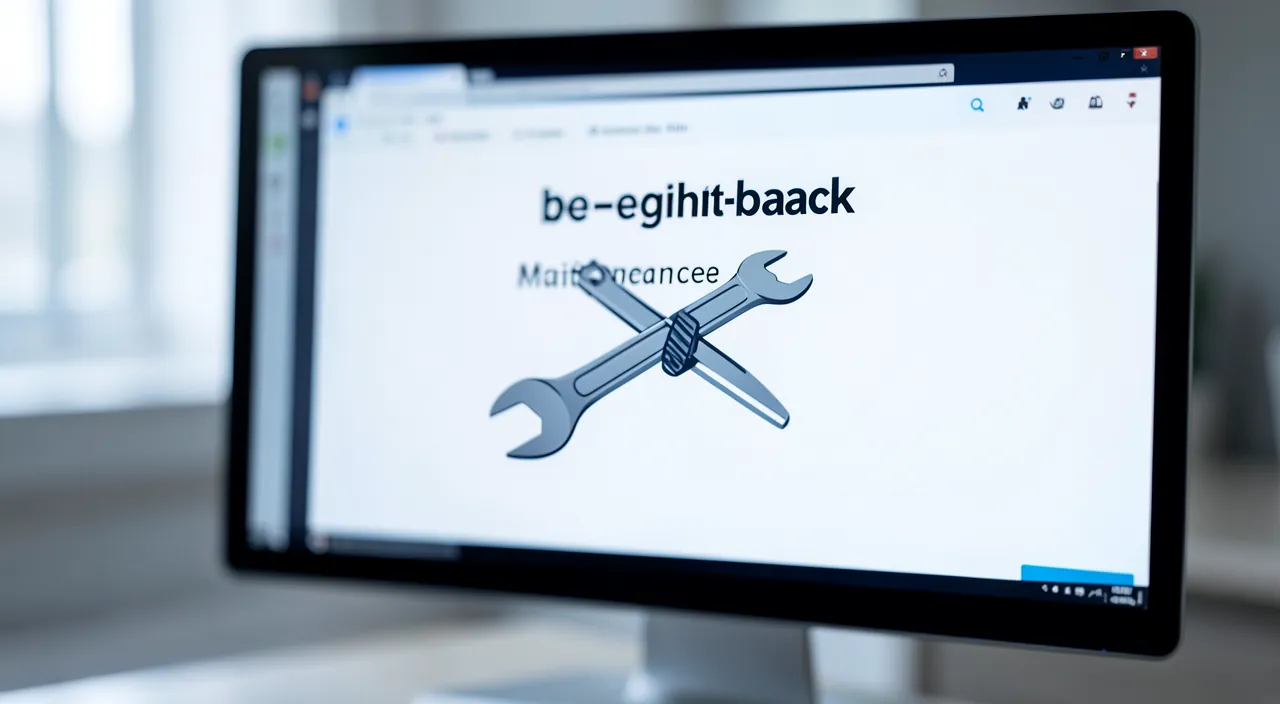
A maintenance page is like a “We’ll be right back” sign for your website. It tells visitors your site is temporarily down for updates, not broken forever. This keeps people from getting worried or thinking your business is gone. It’s a quick way to stay professional even when your site isn’t working.
Imagine you run an online store using Shopify. You need to update your product database, which will take 2 hours. Instead of letting customers see a blank page, you activate Shopify’s built-in maintenance mode. Visitors see your branded page saying “We’re updating our store – back in 2 hours!” with your logo and a contact email. This keeps customers informed and maintains trust in your business.
What a good maintenance page should contain
An effective maintenance page is simple but complete; here are its elements. A CLEAR message: “Site under maintenance,” “We’ll be back soon”; the visitor understands instantly; the essential; important. REASSURE: specify it’s temporary, voluntary (not a permanent outage); soothe; useful; key. Your VISUAL IDENTITY: logo, colors, brand style; the visitor recognizes it’s you; consistent; pro. An ESTIMATE (if possible): “back in a few hours,” or a date; give a reference; reassuring; useful (but realistic). A way to CONTACT: email, form, social media; keep the connection despite the unavailability; don’t lose a contact; important. A POSITIVE tone: warm, polite, optionally a touch of humor; soften the wait; pleasant; advice. SIMPLICITY: a simple and clear page is better than an overloaded one; the essential is enough; streamlined; elegant. SOCIAL MEDIA (optional): a link to your networks (where the visitor can follow you in the meantime); keep in touch another way; useful; smart. A GOOD technical aspect: ideally, the right code (status “temporary”) for SEO; preserve your ranking; technical; to know. STAY brief: no need for long texts; the key and reassuring info is enough; concise; effective. In summary, a good maintenance page is SIMPLE but complete, with a few key elements: a CLEAR and immediate message (“Site under maintenance,” “We’ll be back soon”: the visitor understands instantly), a REASSURING tone (specify it’s temporary and voluntary, not a permanent outage), your VISUAL IDENTITY (logo, colors, brand style: so the visitor recognizes it’s you), and, if possible, an ESTIMATE of the return (“back in a few hours”: a reassuring reference, as long as you’re realistic). Add a way to CONTACT (email, form, social media: to keep the connection despite the unavailability and not lose a customer), and optionally a link to your SOCIAL MEDIA (where the visitor can follow you in the meantime). Adopt a POSITIVE and polite tone (or even a touch of humor, to soften the wait), and prioritize SIMPLICITY (a simple and clear page is better than an overloaded one: stay brief, the essential is enough). Ideally, also take care of the technical aspect (the right status code “temporary” to preserve your ranking). In summary, the important thing is to convey three things: the site is temporarily unavailable, it’s temporary (reassuring), and here’s how to reach us — all in your image and with a smile.
The recipe for a good maintenance page: a clear and reassuring message, in your image, with a way to contact you. An effective maintenance page doesn’t need to be complicated — on the contrary, its strength lies in its SIMPLICITY and clarity. Here’s the recipe for the essential elements, and how to arrange them. Element 1: a CLEAR and immediate message. As soon as they arrive, the visitor must understand in one second what’s happening. A simple title is enough: “Site under maintenance,” “We’ll be back very soon,” “Quick technical break.” Add a REASSURING sentence that specifies it’s TEMPORARY and voluntary: “Our site is temporarily unavailable for an update. It will be back very soon.” The goal: the visitor understands the site isn’t broken, gone, but just undergoing temporary work. Element 2: your VISUAL IDENTITY. The page must LOOK LIKE your site: put your LOGO, your COLORS, your style. Thus, the visitor immediately recognizes they’re in the right place (and not on a generic error page or a hacked site), which reassures and preserves your professional image. Element 3: an ESTIMATE of the return, if you can. Giving a time reference reassures: “back in a few hours,” “available again tonight,” or a date. But be REALISTIC (or a bit generous): it’s better to announce a slightly late return and be on time than to promise “in 5 minutes” and make them wait much longer (which frustrates). If you can’t estimate, a simple “very soon” is enough. Element 4: a way to CONTACT you. This is important, especially for a business: offer an email, a form, or a link to your social media, so the visitor who needs you can reach you despite the site’s unavailability. You thus don’t lose an impatient customer, and you stay accessible. Element 5: a POSITIVE and polite tone, and SIMPLICITY. Adopt a warm and courteous tone (thank them for their patience: “Thank you for your understanding”), why not with a light touch of humor to soften the wait. And keep the page SIMPLE: no need for a long text or an overloaded page; the clear and reassuring essential is enough — a streamlined page is even more elegant. The typical structure: your logo at the top → a clear title (“Site under maintenance”) → a reassuring sentence (“back very soon”) → optionally an estimate → a contact method → a thank-you note. Simple, in your image, reassuring. In summary, the recipe for a good maintenance page boils down to a few elements: a CLEAR and reassuring message (the site is temporarily unavailable, it’s temporary), your VISUAL IDENTITY (logo, colors: so people recognize it’s you), a REALISTIC estimate of the return if possible, a way to CONTACT you (to not lose a visitor who needs you), all in a POSITIVE and polite tone and with SIMPLICITY. A simple page that says the essential — “we’ll be back soon, here’s how to reach us” — in your image and with a smile: that’s all you need to turn an unavailability into a managed and reassuring moment.

How to set up a maintenance page
Here’s how to activate a maintenance page, often easily depending on your tool. The INTEGRATED maintenance mode: many website creation tools have a “maintenance mode” to activate; a checkbox; the simplest; useful. A DEDICATED extension: on some platforms, a “maintenance page” extension allows you to create and activate a nice page; practical; useful. CUSTOMIZE the page: adapt the message, add your logo, your colors, a contact; in your image; important; customize. ACTIVATE during work: activate the maintenance mode just before the work, deactivate after; cover the unavailability period; simple; logical. PREPARE in advance: create the page now, ready to activate; don’t leave it to the last minute; anticipate; smart. Test the DISPLAY: check that the page displays correctly (message, contact, mobile); ensure it works; cautious; useful. An ACCESS for you: be able to see the site (to work) while visitors see the maintenance; work “behind”; practical; useful. The right TECHNICAL code: ideally, the page returns the right status (“temporary”); the good tools do this; preserve SEO; technical. DEACTIVATE after: don’t forget to deactivate the maintenance mode once the work is done; put the site back online; not to forget; important. Ask for HELP if needed: if you’re not comfortable, ask the person who manages your site; don’t tinker at the risk of breaking; cautious; wise. In summary, setting up a maintenance page is often simple depending on your tool. Most website creation tools have an INTEGRATED “MAINTENANCE MODE” to activate (a simple checkbox), and on some platforms, a DEDICATED extension allows you to create and activate a nice page. CUSTOMIZE it (message, logo, colors, contact: in your image), then ACTIVATE the maintenance mode just before the work and DEACTIVATE it after (don’t forget this last step to put the site back online!). Best: PREPARE the page in advance (ready to activate, to not leave it to the last minute), TEST its display (message, contact, on mobile too), and check that you keep an ACCESS to the site to work “behind” while visitors see the maintenance. Ideally, the page returns the right TECHNICAL code (status “temporary”) to preserve your ranking — the good tools handle this. Finally, if you’re not comfortable with these manipulations, ASK for help from the person who manages your site rather than tinkering at the risk of breaking something. Well prepared and tested in advance, your maintenance page will be ready to protect your image when you need it.
Warning: don’t forget to deactivate the maintenance mode after, be realistic about the return, and think about SEO. The maintenance page is useful, but a few pitfalls can turn it into a problem. Here are the points to watch out for. First, the classic pitfall: don’t FORGET to DEACTIVATE the maintenance mode once the work is done. This may seem obvious, but it’s a common mistake: you activate maintenance, do the work, then forget to deactivate it — and the site stays “under maintenance” for hours or days, invisible to all visitors, while it’s ready! Result: loss of visitors, customers, and ranking. So take the REFLEX, as soon as the work is done, to deactivate the maintenance mode and VERIFY that your site is indeed back online (visit it yourself, ideally from another device or in private browsing, to see what visitors see). Don’t consider the work done until the site is really back online. Second point: be REALISTIC about the announced return. If you indicate an estimate (“back in 1 hour”), keep it: announcing a quick return then making them wait much longer FRUSTRATES visitors and harms your credibility. Better to announce a slightly LARGE estimate (or not give a precise time, a simple “very soon” is enough) and respect or beat that deadline. And above all, don’t let the maintenance DRAG ON: a maintenance page displayed for weeks gives the impression of an abandoned site (the opposite of the desired effect). Maintenance must be SHORT and temporary; for long work, better solutions exist (work on a copy, a temporary site). Third point: think about RANKING (SEO). It’s technical but important for a site that relies on search engines. A well-made maintenance page must indicate to search engines that the unavailability is TEMPORARY (via an appropriate technical status code, often called “503”): thus, search engines understand they shouldn’t “dereference” your site, and they’ll come back later. Poorly managed maintenance, or too long, can harm your ranking. The good tools and maintenance extensions handle this code automatically: check it, or ask the person who manages your site. Fourth point: keep an ACCESS to the site for yourself during maintenance. Make sure you can continue to SEE and work on your site (via an admin access, or by excluding your address from maintenance) while visitors see the maintenance page: otherwise, you wouldn’t be able to do the work! Fifth point: TEST the page before D-day. Check that it displays correctly (the message, the contact, and especially on MOBILE too, where many visitors arrive), to avoid bad surprises. Don’t discover a display issue on the day your site is supposed to be “properly” under maintenance. Sixth point: if you’re not sure about the technical manipulations, have yourself HELPED by the person who manages your site: better not to risk breaking something. In summary: don’t FORGET to DEACTIVATE the maintenance mode after the work (the classic pitfall: check that the site is really back!), be REALISTIC about the announced return (keep your estimates; don’t let the maintenance drag on: it must be short), think about RANKING (the right technical code “temporary” to not harm SEO: the good tools handle it), keep an ACCESS to work “behind,” TEST the page before (display, mobile), and ask for help if needed. With these precautions, the maintenance page protects your image and your visitors; poorly managed, it can cost you visitors and ranking.
Frequent questions
Is a maintenance page really useful for a small site?
Yes: even for a small site, a maintenance page prevents your visitors from landing on a worrying error and preserves your image; it’s a sign of professionalism that’s simple to set up, reassures, and doesn’t lose contacts. Let’s see. YES, even for a small site: the maintenance page isn’t reserved for big sites; every site benefits from having one; useful to all; recommended. AVOID the worrying ERROR: without it, your visitors see an error page or a broken site; that worries and looks bad; the page avoids that; essential. Preserve your IMAGE: even small, a site represents your image; a well-cared-for page shows seriousness; image matters; important. DON’T lose contacts: a visitor/customer who needs you finds a way to reach you despite the unavailability; don’t lose them; useful; pro. REASSURE visitors: the visitor knows it’s temporary; they’ll come back; soothing; useful. EASY to set up: often a checkbox or an extension; little effort for a real benefit; accessible; easy. A sign of SERIOUSNESS: show you manage your site with care, even if it’s small; that reassures; professional; valuable. Rare but useful: you only need it occasionally (work), but then it’s precious; have it ready; anticipate; smart. The EFFORT/BENEFIT ratio: little effort, real image protection; a good investment; adopt; recommended. The ADVICE: yes, even for a small site; a maintenance page avoids worrying errors, preserves your image, and doesn’t lose contacts; easy to set up, it’s a useful sign of professionalism for all. In summary, yes, a maintenance page is useful EVEN for a small site — it’s not reserved for big sites or companies. The reasons apply to everyone. First, it AVOIDS your visitors landing on an ERROR page that’s worrying or a site that seems broken when you’re doing work: for a visitor, a site that shows an error may seem abandoned, down, or even hacked — a very bad impression, especially (even more) for a small site that’s trying to inspire confidence. Then, even if modest, your site REPRESENTS your image (personal or professional): a well-cared-for maintenance page shows you manage your site with SERIOUSNESS, which reassures; on the contrary, a broken site without explanation looks neglected. Then, it helps you NOT LOSE contacts: by indicating a way to reach you, you allow a visitor or customer who needs you to contact you despite the unavailability — for a small activity, every contact counts. And it simply REASSURES the visitor (they understand it’s temporary and will come back). The decisive argument: it’s VERY EASY to set up (often just a checkbox or an extension), for a real benefit of protecting your image. True, you only need it OCCASIONALLY (the time of a few works), but that’s exactly when it’s precious: better to have it ready. The ratio between the effort (minimal) and the benefit (protecting your image, not losing visitors) is excellent. In summary, no matter the size of your site, plan a maintenance page: it’s a small sign of professionalism that will save you from making a bad impression the day your site is temporarily unavailable.

How long can you leave a site in maintenance?
As briefly as possible: maintenance should be short and temporary (ideally a few minutes to a few hours); left too long, it gives the impression of an abandoned site and can harm ranking; for long work, prefer other solutions. Let’s see. AS SHORT AS POSSIBLE: maintenance is meant to be brief; aim for the shortest; temporary by nature; principle. Ideally, a few HOURS: most work is done in minutes or hours; maintenance covers this short period; brief; normal. The risk of TOO LONG: maintenance for several days/weeks gives the impression of an abandoned site; the opposite of the desired effect; to avoid; attention. SEO threatened: a long unavailability can harm ranking; search engines eventually penalize; preserve SEO; technical. CREDIBILITY: a site too long in maintenance loses credibility; visitors doubt; be brief; important. For LONG work: prefer other solutions (work on a copy, a temporary site, redesign in the background); don’t cut the site for long; smart. Keep the ANNOUNCED deadline: if you announce a return, respect it; exceeding frustrates; credibility; seriousness. ANNOUNCE on social media: for slightly long maintenance, announce it on your networks; keep the connection; communicate; useful. DEACTIVATE as soon as done: put the site back online as soon as the work is done; not a minute more; reflex; important. The ADVICE: as briefly as possible; maintenance should be short (minutes to hours ideally); too long, it makes “abandoned site” and harms ranking; for long work, work on a copy or in the background rather than cutting the site; and deactivate as soon as it’s done. In summary, the rule is simple: leave your site in maintenance FOR AS LITTLE TIME AS POSSIBLE. A maintenance page is meant to be SHORT and TEMPORARY — ideally a few minutes to a few hours, the time to do your work (an update, a fix). Most interventions are resolved in this short time. The PROBLEM arises when maintenance DRAGS ON: left displayed for several days, weeks, or more, it produces the OPPOSITE effect of what’s desired. Instead of reassuring, it gives the impression of an ABANDONED site, neglected, or even a ceased activity — which scares visitors and ruins your credibility. Moreover, a PROLONGED unavailability can harm your RANKING: if search engines find your site unavailable for too long, they eventually consider it less favorably. What to do then if your work is LONG (a complete redesign, a big project)? DON’T cut your site for the whole time: prefer other solutions — work on a COPY of the site (a test environment invisible to the public) and only switch the new version once ready, or use a temporary site. Thus, your public site stays online while you work in the background. A few good practices: if you announce a return time, KEEP it (exceeding frustrates and discredits); for slightly longer maintenance, ANNOUNCE it on your social media to keep in touch; and above all, DEACTIVATE maintenance as soon as the work is done, without leaving it on. In summary: maintenance should be as SHORT as possible (a few hours max in general); for anything that takes longer, work in the background rather than cutting your site — and put it back online as soon as possible.
How to put my site in maintenance without technical skills?
Many website creation tools have a “maintenance mode” to activate with one click, or a dedicated extension; look for this option in your tool; if you’re not comfortable, ask the person who manages your site. Let’s see. The INTEGRATED maintenance mode: many tools have a “maintenance mode” to activate; often a checkbox; no technical skills; accessible. LOOK for the option: check in your tool’s settings “maintenance,” “site under construction”; it’s often there; explore; simple. A DEDICATED extension: on some platforms, a “maintenance page” extension installs and creates a nice page; guided; practical; useful. CUSTOMIZE without coding: these tools allow you to adapt the message, the logo, the colors without technical skills; in your image easily; accessible; useful. ACTIVATE/DEACTIVATE simply: you activate before the work, deactivate after; with one click; no skills; simple. Test the DISPLAY: check that it displays correctly (another device, private browsing); ensure it works; cautious; useful. Follow a GUIDE: your tool’s help often explains the steps; follow it step by step; guided; reassuring. ASK for help: if you’re not sure, ask the person who manages your site (or a tech-savvy friend); don’t risk breaking; cautious; wise. PREPARE in advance: set up the page calmly before you need it; no stress; anticipate; smart. The ADVICE: look for the “maintenance mode” of your website creation tool (often a checkbox) or a dedicated extension; they allow you to create and activate a page without coding; follow your tool’s guide, test the display, and ask for help if you’re not comfortable. In summary, putting your site in maintenance generally requires NO technical skills — modern website creation tools have made this very simple. Most website creation tools (common platforms) offer an INTEGRATED “MAINTENANCE MODE”: you often just need to ACTIVATE an option (sometimes a simple checkbox) in the settings, and your site automatically displays a maintenance page to visitors. Look for this option in your tool’s parameters, under names like “Maintenance mode,” “Site under construction,” “Site under work.” On some platforms, you can also install a DEDICATED extension for the maintenance page: it installs easily (in a guided way) and allows you to create a personalized nice page. The big advantage: these tools allow you to CUSTOMIZE the page WITHOUT CODING — you can adapt the message, add your logo, choose your colors and a contact method, all via a simple interface. ACTIVATION and DEACTIVATION are then done with one click: you activate the maintenance mode just before your work, and you deactivate it once done (without forgetting this last step!). A few tips to do it well, even without technical skills: PREPARE the page calmly IN ADVANCE (before you really need it, without stress), TEST its display (look at your site from another device or in private browsing to see what visitors see), and follow the GUIDE or help of your tool, which usually explains the steps in detail. And if, despite everything, you don’t feel comfortable with these manipulations, don’t hesitate to ASK for help from the person who usually manages your site, or a tech-savvy friend: better to get help than to risk breaking something. In summary, activating a maintenance page is today within everyone’s reach, without technical skills: look for the maintenance mode or an extension in your tool, customize the page simply, and activate it with one click when needed.
What to remember
When you need to work on your site (update, fix, redesign) and it will be temporarily unavailable, plan a MAINTENANCE PAGE rather than letting your visitors land on a worrying error page or a broken site. It’s a sign of professionalism that REASSURES your visitors (they understand it’s temporary), preserves your IMAGE (a well-cared-for page shows seriousness, even offline), avoids CONFUSION, and helps you not lose contacts — and it’s useful even for a small site. A good maintenance page is SIMPLE but complete: a CLEAR and reassuring message (“Site under maintenance, we’ll be back soon”), your VISUAL IDENTITY (logo, colors: so people recognize it’s you), a REALISTIC estimate of the return if possible, a way to CONTACT you (to not lose a visitor who needs you), all in a positive and polite tone, and with simplicity. To set it up, no technical skills are generally needed: most website creation tools have a “maintenance mode” to activate with one click (or a dedicated extension), which allows you to customize the page without coding. Best: PREPARE the page in advance (ready to activate), TEST its display (including on mobile), and keep an access to the site to work “behind.” But beware of pitfalls. The most classic: don’t FORGET to DEACTIVATE the maintenance mode once the work is done (and check that your site is indeed back: otherwise it stays invisible while it’s ready!). Be REALISTIC about the announced return (keep your estimates; announce rather generously), and don’t let the maintenance DRAG ON: it must be SHORT (a few hours max ideally); too long maintenance gives the impression of an abandoned site and harms ranking — for long work, work on a copy or in the background rather than cutting your site. Also think about RANKING (a good maintenance page tells search engines the unavailability is temporary: the good tools handle this code automatically). And if you’re not comfortable with the manipulations, have yourself helped by the person who manages your site. In short, a maintenance page is a small tool of professionalism that turns an unavailability into a managed and reassuring moment: prepared in advance, in your image, clear and brief, it protects your image and your visitors the day you need it. Plan yours now — you’ll be glad to have it ready when the time comes.

Your business deserves a real online presence: showcase site, store, ranking — we create the site that suits you.
Leave a Reply
You must be logged in to post a comment.