
Tap the back of your iPhone to trigger an action: take a screenshot, turn on the flashlight, open an app, activate an accessibility command? That’s exactly what a little-known but very practical iPhone feature called “Back Tap” allows. It turns the back of your phone into an invisible, customizable button: you tap twice or three times on the back of the device, and the action you’ve chosen is triggered. It’s fast, discreet, and can really make certain everyday gestures easier. Yet, most users are completely unaware of its existence. Let’s see what this feature is, how to activate and configure it, and what clever uses it lends itself to.
“Back Tap”: what is it?
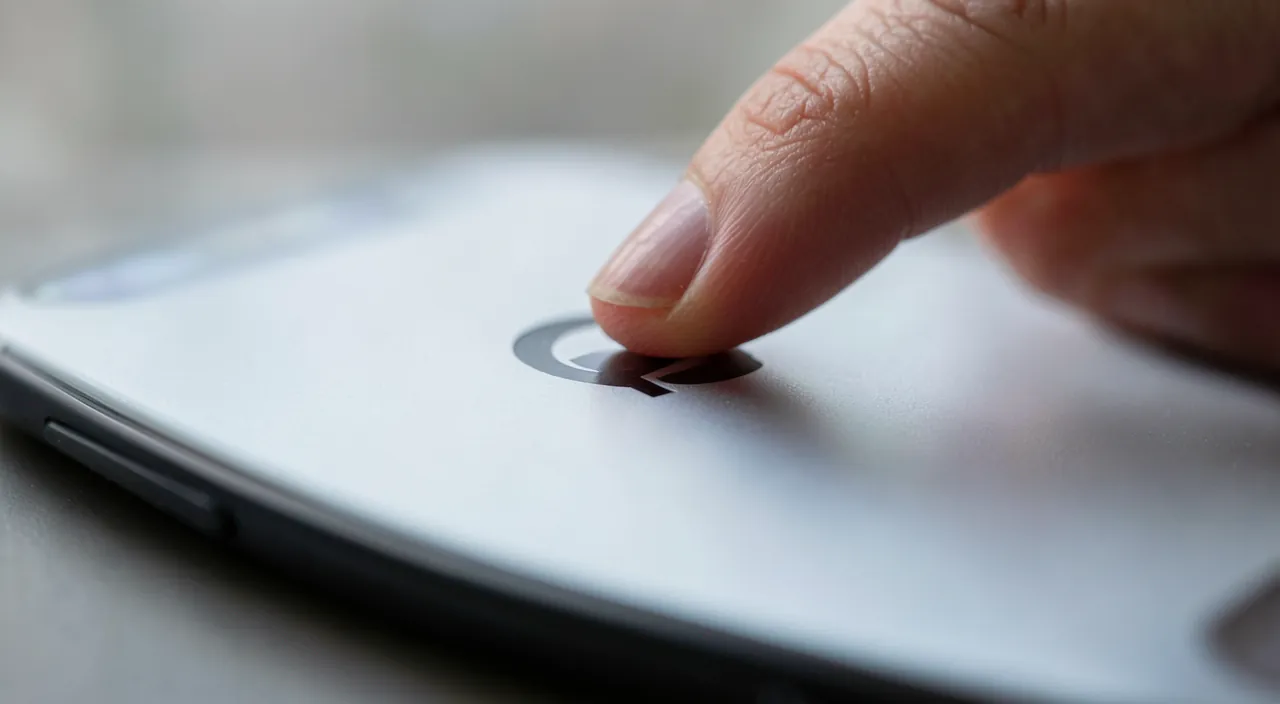
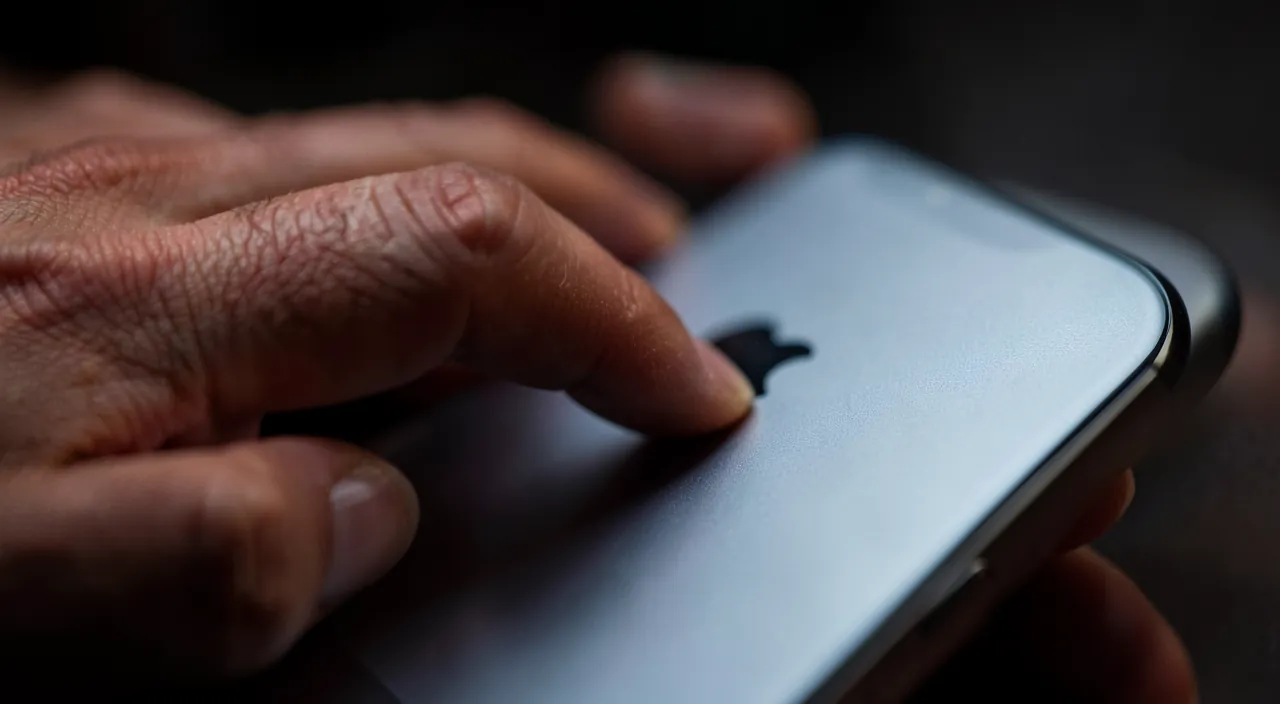
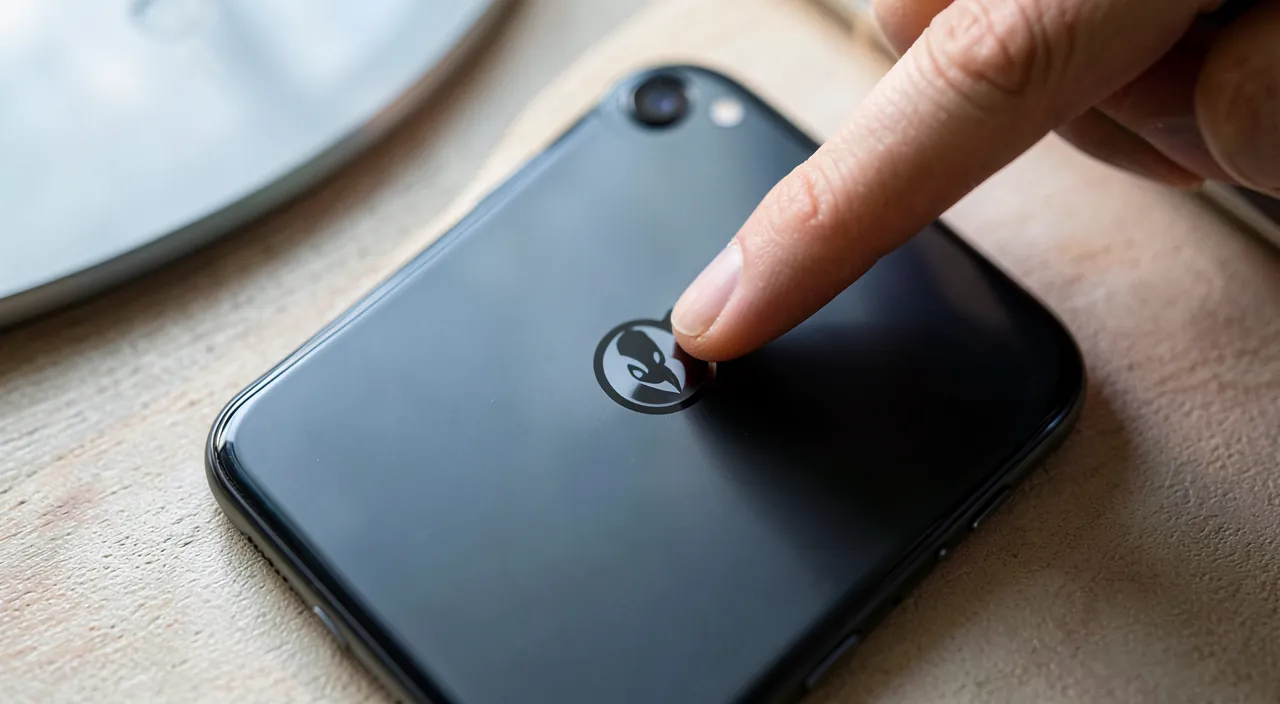
This feature turns the back of the iPhone into a button; let’s understand it. THE PRINCIPLE: the “Back Tap” function allows you to trigger an action by TAPPING twice (double tap) or three times (triple tap) on the BACK of your iPhone; the back becomes an invisible button; one gesture, one action; clever. WHAT IT TRIGGERS: you CHOOSE the action associated with each tap; screenshot, flashlight, open an app, adjust the volume, an accessibility command, a shortcut; customizable according to your needs (we’ll come back to that). DOUBLE or TRIPLE tap: you can configure TWO actions; one for the DOUBLE tap, one for the TRIPLE; two gestures, two different actions; the back becomes two buttons; practical. An INVISIBLE button: no need for a real physical button; the back of the iPhone (smooth) reacts to the tap thanks to the sensors; a “hidden” and practical “button”; the ingenuity of the feature. FAST and discreet: tapping the back is fast and discreet (no need to navigate through menus); a gesture shortcut; useful for a frequent action; time and gesture savings. An ACCESSIBILITY feature: “Back Tap” is found in the accessibility settings; designed to make usage easier (especially for those who struggle with buttons), it serves EVERYONE; useful far beyond accessibility. TOP USES: screenshot (very practical), flashlight, open a specific app, go back to the home screen, activate a command; the most common uses; adapt to your habits. Often UNKNOWN: hardly anyone knows this feature; it’s a “hidden gem”; discovering it surprises and delights; worth sharing; a little treasure of the iPhone. Easy to ACTIVATE: it’s activated and configured in a few moments in the settings; simple to set up; accessible to everyone; we’ll see how. WHAT IT’S FOR: to trigger a frequent action with a simple tap on the back, quickly and without navigating through menus; a customizable gesture shortcut; the comfort of a made-to-measure button. The main idea: the “Back Tap” feature turns the back of your iPhone into an INVISIBLE and customizable BUTTON: by tapping twice (double tap) or three times (triple tap) on the back of the device, you trigger the action of your choice. You configure what each gesture does: take a screenshot, turn on the flashlight, open an app, adjust the volume, activate an accessibility command or a shortcut — and you can associate two different actions (one for the double tap, one for the triple). It’s FAST and DISCREET: a gesture shortcut that avoids navigating through menus, ideal for a frequent action. Located in the accessibility settings, this feature is actually useful for everyone, and one of its most appreciated uses is taking a screenshot. Little-known but easy to activate, it’s a real “hidden gem” of the iPhone that, once discovered, makes many everyday gestures easier.
This feature lets you tap the back of your iPhone to do things like take a screenshot or turn on the flashlight. You can set it up to do two different things: one for a double tap, and another for a triple tap. It’s like having invisible buttons on the back of your phone that you can press with a simple tap.
How to activate and configure “Back Tap”
Here’s how to set up this feature and choose your actions. Go to the ACCESSIBILITY settings: the feature is found in the iPhone’s ACCESSIBILITY settings, usually in the section related to touch; look for “Back Tap”; that’s where everything is configured; the starting point. CHOOSE the action for the DOUBLE tap: select the action to trigger with a DOUBLE tap; browse the list of possible actions and choose the one you want; for example, “screenshot”; associate your favorite gesture. CHOOSE the action for the TRIPLE tap: similarly, associate an action with the TRIPLE tap (different if you want); you thus have two shortcuts; for example, double = screenshot, triple = flashlight; two useful gestures. AVAILABLE ACTIONS: the list includes; screenshot, flashlight, volume, lock the screen, go back to the home screen, control center/notifications, accessibility commands, and custom SHORTCUTS; a wide choice; explore it. ASSOCIATE a SHORTCUT: you can associate a “shortcut” (an automation from the Shortcuts app) with the tap; this opens advanced possibilities (open a specific app, a series of actions); powerful for custom uses (we’ll come back to that). TEST the gesture: after configuring, test; tap twice (or three times) on the back of the iPhone, firmly but without forcing, in the center of the back; the action should trigger; adjust your gesture if needed; practice a bit. The right GESTURE: tap the back with your finger (or the pad), in the center, in a clear way; not too light (otherwise not detected), not too hard; find the right tap; it comes quickly with practice. WITH a CASE: the feature usually works even with a case (thin to medium); a very thick case may interfere with detection; test with your case; adjust if necessary; most cases work. ADJUST if too/not sensitive enough: if the feature triggers by accident (too sensitive) or doesn’t detect well; adjust, change the action, or deactivate if it bothers you; adapt to your usage (we’ll come back to that); find your setting. DEACTIVATE if needed: if the feature doesn’t suit you (accidental triggers), deactivate it simply in the same settings; nothing is irreversible; you’re in control; try, keep or not. In summary, to activate and configure “Back Tap”: go to the ACCESSIBILITY settings (touch section, “Back Tap”), then CHOOSE the action for the DOUBLE tap and that for the TRIPLE (you have two shortcuts). Pick from the list of actions (screenshot, flashlight, volume, go back to the home screen, accessibility commands, or a custom SHORTCUT for advanced uses). TEST the gesture next — tap the back in the center, clearly — and adjust your tap (neither too light, nor too hard). The feature works even with most cases. If it triggers by accident or doesn’t suit you, adjust or deactivate it. These few settings turn the back of your iPhone into a made-to-measure button; the choice of actions, the right gesture, and adjusting the sensitivity are the keys.
You’re in a dark room and need to turn on the flashlight. Instead of fumbling to find the button, you simply triple-tap the back of your iPhone, and the flashlight turns on instantly. This is especially useful when you’re holding the phone with one hand or in a hurry.
The most appreciated use: taking a screenshot with a simple double tap. Among all the actions you can associate with “Back Tap,” one stands out as the most practical and popular: the SCREENSHOT. If you were to configure only one use of this feature, it would probably be this one. Why? Because taking a screenshot is a very FREQUENT action (you capture a conversation, a ticket, a reservation, a recipe, information to keep, a message to show someone), but the usual gesture isn’t always convenient: the classic method requires pressing SIMULTANEOUSLY on two buttons of the iPhone (the side button and a volume button), a combination that can be acrobatic to perform with one hand, which can fail (you press too long, you lock the screen by mistake, you change the volume), and which isn’t obvious for everyone, especially those with dexterity difficulties. By associating the screenshot with the DOUBLE TAP on the back, everything becomes much simpler: you tap twice on the back of your iPhone, and voilà, the screenshot is taken. One gesture, one hand, no buttons to press, no combination to succeed. It’s particularly appreciated in situations where you often capture, or when you hold the iPhone with one hand. To configure it: go to the accessibility settings, “Back Tap,” choose the “double tap,” and select “Screenshot” in the list. Then test: display any screen, tap twice on the back of the iPhone in the center, and you’ll see the screenshot trigger (with the usual small thumbnail at the bottom of the screen). Once this reflex is acquired, you won’t go back to the button combination. And as you also have the TRIPLE tap, you can associate a second frequent action with it. Popular combinations: double tap = screenshot, triple tap = flashlight (practical to turn on the light with a gesture in the dark, without looking for the button). Or double tap = screenshot, triple tap = opening an app you use often (via a shortcut). You compose according to your habits: identify the one or two actions you do most often and that would benefit from being triggered with a simple tap, and associate them. The screenshot remains the classic, the one to start with: it’s the use that, on its own, makes you discover and adopt this little-known feature. Try it, and you’ll be surprised to see how quickly this little gesture becomes natural and practical in everyday life — a real “screenshot button” invisible on the back of your iPhone.
Clever uses and good to know
This feature lends itself to many clever uses; here are the best and some practical points. The SCREENSHOT: the star use; double tap = screenshot, with one gesture, without button combination; for everything you often capture; the classic to configure first; very practical. The FLASHLIGHT: associating the flashlight with the back allows you to turn it on with a tap (in the dark, without looking for the button); practical and fast; a popular use; light with a gesture. OPEN an app: via a shortcut, tapping the back can directly open an app you use often (camera, notes, a specific app); express access; time savings; customize. An ACCESSIBILITY command: for those who use accessibility features (magnifier, reading, zoom), associating them with the back makes them accessible with a gesture; a precious shortcut; useful in everyday life; adapt to your needs. The VOLUME or locking: increasing the volume, locking the screen, going back to the home screen; basic actions accessible with a tap; useful if the physical buttons are hard to use; an alternative to the buttons. A COMPLEX SHORTCUT: via the Shortcuts app, the back can trigger a series of actions (for example, send a standard message, start a timer, a routine); powerful for advanced uses; explore the shortcuts; custom. For ACCESSIBILITY: the feature particularly helps people who struggle with physical buttons (dexterity); tapping the back is easier than a button combination; real help; think of it for concerned loved ones. BEWARE of accidental triggers: when placing the iPhone, handling it, the feature can trigger by mistake; if this happens often, associate actions “without consequences” or adjust; a minor inconvenience to manage (we’ll come back to that). CHOOSE USEFUL actions: associate the actions you REALLY do often (screenshot, flashlight); no need to associate something you won’t use; target your real needs; the feature serves if the action is frequent. TEST and adapt: try the feature for a few days; keep it if it serves you, adjust the actions, or deactivate if it bothers you; it’s to be customized according to your feel; adapt to your usage. In summary, the clever uses of “Back Tap”: the SCREENSHOT (the classic, with one gesture without button combination), the FLASHLIGHT (turning it on with a tap), OPENING a frequent app (via a shortcut), triggering an ACCESSIBILITY command (magnifier, zoom — precious for those who need it), basic actions (volume, locking, home — useful if the physical buttons are hard to use), or a COMPLEX SHORTCUT (series of actions). It’s real help for people who struggle with buttons. Be careful with accidental triggers (when placing the iPhone): choose useful and non-bothersome actions, test for a few days, and adjust or deactivate according to your feel. Well configured with the actions you really do often, this feature makes everyday life easier; the screenshot, the flashlight, and the accessibility commands are among the most useful uses.
Be careful with accidental triggers: choose actions without bothersome consequences, and don’t associate risky actions with the tap on the back. The main (and pretty much the only) drawback of the “Back Tap” feature is the risk of ACCIDENTAL TRIGGERS, which you need to anticipate to avoid being bothered. The back of your iPhone being sensitive to taps, the feature can sometimes trigger WITHOUT you wanting it: when placing the iPhone abruptly on a table, when taking it out or putting it in a pocket or bag, when handling it, when passing it from one hand to the other, or simply in contact with certain objects. These “false taps” can then trigger the action you’ve configured, at an unwanted moment. Depending on the associated action, this can range from harmless to really bothersome — and that’s where you need to think about YOUR choices. The first tip is therefore to PRIORITIZE actions without bothersome consequences in case of accidental trigger. A SCREENSHOT triggered by mistake, for example, is totally harmless: at worst, you’ll have a useless screenshot in your photos, which you’ll delete with a gesture — no problem. Similarly, turning on the FLASHLIGHT by accident is noticed and corrected immediately. These “reversible” and harmless actions are ideal for “Back Tap.” On the other hand, AVOID associating with the tap on the back actions that could cause problems if they triggered on their own: for example, an action that would send a message, make a call, make a purchase, delete something, change an important setting, or launch an automation with difficult-to-cancel consequences. Imagine a shortcut configured to send a standard message: if it triggers accidentally in your pocket, you could send an inappropriate message without knowing! Therefore, reserve the tap on the back for BENIGN and easily reversible actions. The second tip: if you notice frequent and bothersome accidental triggers, several solutions. You can prioritize the TRIPLE tap rather than the double for the action you want to make more reliable (an accidental triple tap is rarer than a double), even if the triple is a bit less practical to do voluntarily. You can also adjust your handling habits, or simply DEACTIVATE the feature if it causes you more hassle than help — nothing is irreversible, and the feature is only useful if it really makes your life easier. A third common-sense point: this feature is a COMFORT, not a necessity. If it suits you and saves you gestures (especially for the screenshot or for a person who struggles with physical buttons), great; if it bothers you with its untimely triggers, don’t force yourself to keep it. Try it for a few days with a harmless action like the screenshot: you’ll quickly see if it integrates well into your usage or if it triggers too often by accident in your case (it depends on how you handle the iPhone, your case, etc.). In summary: the only real pitfall of “Back Tap” is the accidental trigger; neutralize it by only associating it with BENIGN and reversible actions (the screenshot is perfect), by avoiding any action with bothersome consequences, and by adjusting (triple tap rather than double) or deactivating the feature if the false triggers become bothersome. With these precautions, you enjoy the comfort of this “invisible button” without suffering its drawbacks.
Frequently asked questions
The feature triggers on its own, how to avoid this?
Associate it with a harmless action (like the screenshot), prioritize the triple tap (less likely to be accidental), or deactivate it if the false triggers bother you too much: that’s the main setting to adjust. Let’s see the solutions. WHY IT HAPPENS: the back of the iPhone being sensitive to taps, the feature can trigger by mistake; when placing the iPhone, handling it, in a pocket; “false taps” trigger the action; that’s the main drawback of the feature. Solution #1 — HARMLESS action: associate with the tap an action WITHOUT bothersome consequences (screenshot, flashlight); thus, an accidental trigger is harmless (an unnecessary screenshot to delete, no big deal); choosing a harmless action neutralizes the problem. Prioritize the TRIPLE tap: an ACCIDENTAL triple tap is RARER than a double; if an action triggers too often with the double tap, put it on the triple tap; fewer false triggers; a bit less practical voluntarily, but more reliable. AVOID risky actions: never associate with the back an action with bothersome consequences (send a message, call, buy, delete); an accidental trigger would be problematic; reserve the back for reversible actions; caution in the choice. Adjust your HABITS: if you notice what triggers (placing the iPhone abruptly, a case); adjust a bit your handling; sometimes, changing how you place the iPhone reduces false triggers; observe and adapt. The role of the CASE: a case can influence detection (too thick: less sensitive; some: more false contacts); test with/without case; the case plays on the sensitivity; adjust accordingly. DEACTIVATE if too bothersome: if despite everything the false triggers bother you, DEACTIVATE the feature (in the accessibility settings); nothing forces you to keep it; it’s optional comfort; you’re in control. TEST before judging: try with a harmless action for a few days; see if the false triggers are frequent in YOUR case (it depends on your usage); then decide to keep, adjust or deactivate; experience guides. The right BALANCE: the feature is useful IF the false triggers remain rare and harmless; find the balance between its usefulness and its potential bother; keep it if it serves you more than it bothers you; you decide. The ADVICE: to avoid bothersome accidental triggers, associate a harmless action (screenshot), use the triple tap for more reliability, avoid risky actions, and deactivate the feature if it bothers you; test for a few days before deciding. In summary, if the “Back Tap” feature triggers on its own, that’s its main drawback (the back being sensitive to taps, it reacts sometimes to an involuntary contact — when placing the iPhone, handling it, in a pocket). Several solutions: the best is to associate it with a HARMLESS and reversible action (the SCREENSHOT is perfect — an accidental trigger only produces an unnecessary screenshot to delete, no consequence), and ABSOLUTELY avoid any action with bothersome consequences (send a message, call, buy, delete). If an action triggers too often with the double tap, put it rather on the TRIPLE tap, statistically much rarer accidentally (at the cost of a voluntary gesture a bit less convenient). Also observe what causes the false triggers (a way of placing the iPhone, a particular case) and adjust your habits or test with/without case. And if, despite everything, the false triggers bother you more than the feature helps you, DEACTIVATE it simply in the accessibility settings: it’s optional comfort, not an obligation. The best is to test for a few days with a harmless action to see if, in your specific case, the feature integrates well or triggers too often: you’ll then decide in full knowledge of the facts to keep it, adjust it or abandon it.
Does this feature work with a case on my iPhone?
Yes, generally, with a thin to medium case; a very thick or rigid case may interfere with detection; the best is to test with your case and adjust your tap. Let’s clarify. Generally YES: the “Back Tap” feature works in most cases EVEN with a case; the sensors detect the tap through a thin to medium case; most common cases don’t cause problems; rest assured. The case of THICK cases: a VERY thick, very rigid case, or with a lot of material on the back can attenuate detection; the tap “goes through” less well; in this case, you need to tap more clearly, or the feature is less reliable; thickness matters. TEST with your case: the best is to TEST directly with YOUR case; configure the feature, tap the back, see if it triggers well; the test will tell you if your case works; each case is different. ADJUST the tap: with a case, you may need to tap a bit more firmly and clearly, in the center of the back; adapt your gesture to your case; an adapted tap compensates for the thickness; find the right gesture. The TAPPING point: tap in the CENTER of the back (where detection is best); avoid the edges; the right location improves detection, with or without case; aim for the center. If it doesn’t WORK well: if with your case the feature is unreliable; try without the case (to confirm it’s the case), adjust the tap, or consider a less thick case if the feature is important to you; identify the cause. The MATERIAL of the case: some materials transmit the tap better than others; a thin flexible case works well, a very thick rigid case less so; material and thickness matter; test yours. Without case, MORE sensitive: without a case, detection is optimal (but the iPhone is less protected); it’s a trade-off; most people keep their case and it works; no need to remove the case in general. RELIABILITY depending on cases: reliability depends on your iPhone, your case, and your gesture; in most common cases, it works well; test for your specific configuration; experience decides. The ADVICE: the feature generally works with a case (thin to medium); test with yours, tap firmly in the center of the back, and adjust your gesture; if a very thick case interferes too much, adapt the tap or consider a less thick case. In summary, yes, the “Back Tap” feature generally works even with a case: the iPhone’s sensors detect the tap through a thin to medium case, which covers most common cases. The only case that may cause problems is a VERY THICK, very rigid case, or with a lot of material on the back: it can attenuate the detection of the tap, making the feature less reliable. The best way to know is to TEST directly with YOUR case: configure the feature, then tap the back of your iPhone (in the CENTER, where detection is best, and clearly) to see if the action triggers well. If it works poorly with your case, a few adjustments: tap a bit more firmly and clearly, aim well for the center of the back, and possibly try without the case to confirm it’s the cause. If your very thick case really prevents the feature from working and you care about it, you could consider a slightly less thick case. But in the vast majority of cases, there’s no need to remove your case: the feature works very well with normal protection, provided you slightly adapt your tap. Test with your specific configuration: that’s the only way to know for sure, and most often, the answer will be positive.
What are the most useful actions to associate?
The most appreciated: the screenshot (the classic), the flashlight, opening a frequent app, or an accessibility command; choose according to what you really do often. Here are the best tips. The SCREENSHOT (n°1): the most appreciated action; capture with a double tap, without the acrobatic button combination; we often capture (conversations, info, reservations); the classic to configure first; ultra practical. The FLASHLIGHT: turn on the light with a tap (in the dark, without looking for the button); fast and practical; a very appreciated use; ideal for the triple tap for example; light with a gesture. OPEN a frequent app: via a shortcut, directly open the camera, notes, or an app you use constantly; express access to your favorite app; time savings; customize according to your usage. An ACCESSIBILITY command: if you use the magnifier, zoom, screen reading; associating them with the back makes them accessible with a gesture; precious for those who need it; a real accessibility comfort. Go back to HOME / lock: basic actions (home, lock the screen, volume) useful if the physical buttons are hard to use; a gesture alternative to the buttons; practical in case of reduced dexterity. The CONTROL CENTER/notifications: open the control center or notifications with a tap; quick access to these panels; useful if you open them often; a practical shortcut. A CUSTOM SHORTCUT: for advanced uses, a shortcut (Shortcuts app) triggers a series of actions; launch a routine, a timer, a precise action; powerful and custom; explore according to your needs. CHOOSE according to YOUR frequency: the best action is the one YOU do most often and that would benefit from being faster; observe your habits; associate your real frequent gestures; usefulness depends on your usage. COMBINE double and triple: take advantage of the TWO gestures; for example double = screenshot, triple = flashlight (or app); two shortcuts for two useful actions; maximize the feature; two invisible buttons. AVOID risky actions: don’t associate actions with bothersome consequences in case of accidental trigger (message, call, purchase); stay on harmless and reversible actions; caution guides the choice. The ADVICE: associate the actions you really do often; the screenshot (the classic) and the flashlight are the most appreciated, completed by opening a favorite app or an accessibility command; take advantage of the double AND the triple tap, staying on harmless actions. In summary, the most useful actions to associate with “Back Tap” are those you really do VERY often and that would benefit from being triggered with a simple gesture. At the top, the classic: the SCREENSHOT (with a double tap, without the acrobatic button combination — perfect because we frequently capture, and an accidental trigger is harmless). Then come the FLASHLIGHT (turning it on with a tap in the dark, without looking for the button), OPENING an app you use constantly (camera, notes… via a shortcut, for express access), and the ACCESSIBILITY COMMANDS (magnifier, zoom, screen reading — precious for those who need it, accessible with a gesture). More basic actions (go back to home, lock the screen, adjust volume, open the control center) are useful especially if you struggle with physical buttons, offering a gesture alternative. For advanced uses, a CUSTOM SHORTCUT can trigger an entire series of actions. Take advantage of the fact that you have TWO gestures (double and triple tap) to associate two different actions — for example double tap = screenshot, triple tap = flashlight. The only principle to respect in your choices: stay on HARMLESS and reversible actions, avoiding any action with bothersome consequences in case of accidental trigger (send a message, call, purchase). In short, the best configuration is personal: identify your one or two most frequent actions, associate them, and enjoy these custom gesture shortcuts.
What to remember
“Back Tap” is a little-known but clever iPhone feature that turns its back into an INVISIBLE and customizable BUTTON: by tapping twice (double tap) or three times (triple tap) on the back of the device, you trigger the action of your choice, quickly and without navigating through menus. You configure what each gesture does — and you have two shortcuts, one for the double tap, one for the triple. To activate it: go to the ACCESSIBILITY settings (touch section, “Back Tap”), choose an action for the double tap and one for the triple, from a wide list (screenshot, flashlight, volume, go back to home, accessibility commands, or a custom shortcut for advanced uses), then test the gesture (tap in the center of the back, clearly). The most appreciated use, the one to start with, is the SCREENSHOT: associating it with the double tap allows you to capture with a simple gesture, without the usual acrobatic button combination — a real comfort for an action you do often. Other popular uses: the flashlight (turning it on with a tap in the dark), opening a favorite app (via a shortcut), and accessibility commands (magnifier, zoom — precious for those who need it). This feature is also real help for people who struggle with physical buttons (dexterity), tapping the back being easier than a button combination. The main point of vigilance is the risk of ACCIDENTAL TRIGGERS: the back being sensitive to taps, the feature can trigger by mistake (when placing the iPhone, handling it, in a pocket). To neutralize this risk: only associate HARMLESS and reversible actions (the screenshot is perfect — an accidental trigger only produces an unnecessary screenshot to delete), and ABSOLUTELY avoid any action with bothersome consequences (send a message, call, purchase, delete, which would cause problems if they triggered on their own). If an action triggers too often, prioritize the triple tap (less likely to be accidental) rather than the double. The feature generally works even with a case (thin to medium); a very thick case may interfere with detection — test with yours and adjust your tap. Remember finally that this feature is an OPTIONAL comfort, not a necessity: try it for a few days with a harmless action, keep it if it makes your life easier, adjust the actions according to your habits, or deactivate it simply if its untimely triggers bother you. In short, “Back Tap” is a little “hidden gem” of the iPhone that, once discovered and well configured with the actions you really do often, offers custom and practical gesture shortcuts in everyday life — starting with that famous screenshot with a simple double tap, which alone is worth the detour.
Want to unlock the full potential of your iPhone, iPad, or Mac? Our Apple training courses help you take the next step.
Leave a Reply
You must be logged in to post a comment.