
You are in a FaceTime video call with a loved one, and you’d like to SHOW them something on your screen: vacation photos, a webpage, a document, or even help them navigate an app. Instead of painstakingly describing it with words, you can simply SHARE YOUR SCREEN: your correspondent then sees, in real time, exactly what’s displayed on your iPhone, while you continue talking. It’s extremely practical—for sharing memories, shopping together, or especially HELPING a loved one remotely (guiding a parent lost in settings, for example). This feature is simple but little-known. Let’s see what screen sharing in FaceTime is, how to use it, and the valuable uses it lends itself to.
Screen sharing in FaceTime: what is it?
Screen sharing allows you to show your screen during a call; let’s understand it. The PRINCIPLE: during a FaceTime call, you can SHARE YOUR SCREEN; your correspondent then sees LIVE what’s displayed on your iPhone (or iPad, Mac); you show instead of describing; simple and powerful. What it ALLOWS: showing photos, a webpage, a document, an app, a route, anything on your screen; everything you see, your correspondent sees too; you share your view in real time. While you TALK: sharing happens DURING the video/audio call; you continue talking while sharing the screen; comment in real time on what you’re showing; the exchange remains fluid. SHOW rather than DESCRIBE: instead of painstakingly describing something with words (“go to settings, then… no, the other button”), you SHOW it directly; much clearer and faster; a picture is worth a thousand words; efficiency. The KEY USES: sharing PHOTOS/memories, shopping together (browsing a site as two), and especially HELPING a loved one remotely (guiding them, or seeing their screen to help); very practical uses (we’ll come back to them). In BOTH DIRECTIONS: you can share YOUR screen, but your correspondent can also share THEIRS; useful for a loved one to show you their problem; sharing works both ways; reciprocal. Between APPLE DEVICES: FaceTime screen sharing works between Apple devices (FaceTime being Apple’s calling service); for others, you need other tools; it’s an Apple ecosystem feature; check the devices. What it CHANGES for help: to help an elderly or less tech-savvy loved one, SEEING their screen (or showing them yours) changes everything; no more confusing explanations over the phone; remote assistance becomes effective; a precious use (we’ll come back to it). Often UNKNOWN: many people don’t know you can share your screen in FaceTime; it’s a shame given its usefulness; sharing it opens up great possibilities; a feature to discover. What it’s FOR: to show your correspondent, in real time during the call, what you have on your screen; to share, do things together, or help remotely; a visual bridge between you; very useful. The main idea: during a FaceTime call, screen sharing lets you SHOW your screen to your correspondent, who then sees LIVE what’s displayed on your iPhone, while you continue talking. No more painstakingly describing with words: you directly show photos, a webpage, a document, an app, a route—everything you have in front of you. Sharing works in BOTH DIRECTIONS (you can show your screen, or your correspondent can show you theirs). Its key uses: sharing memories (photos), doing something together remotely (shopping, choosing), and especially HELPING a loved one—seeing their screen or showing them yours transforms remote assistance, replacing confusing phone explanations with a clear visual demonstration. This feature, which works between Apple devices, is simple but little-known; once discovered, it opens up great possibilities for sharing, doing things together, and helping each other remotely.
When you share your screen in FaceTime, the other person sees exactly what you see on your iPhone in real time. You can show them photos, websites, or apps while talking to them. It’s like looking over their shoulder, but from far away. This is super useful for helping someone who’s stuck on their phone or just sharing memories together.
Imagine your grandparent can’t figure out how to adjust the brightness on their iPhone. Instead of trying to explain it over the phone, you ask them to share their screen in FaceTime. You see exactly what they see and guide them step by step: “Tap the Settings app, then Brightness & Display, and move the slider up.” They follow your instructions and solve the problem in minutes, all without you needing to be there in person.
How to share your screen in FaceTime
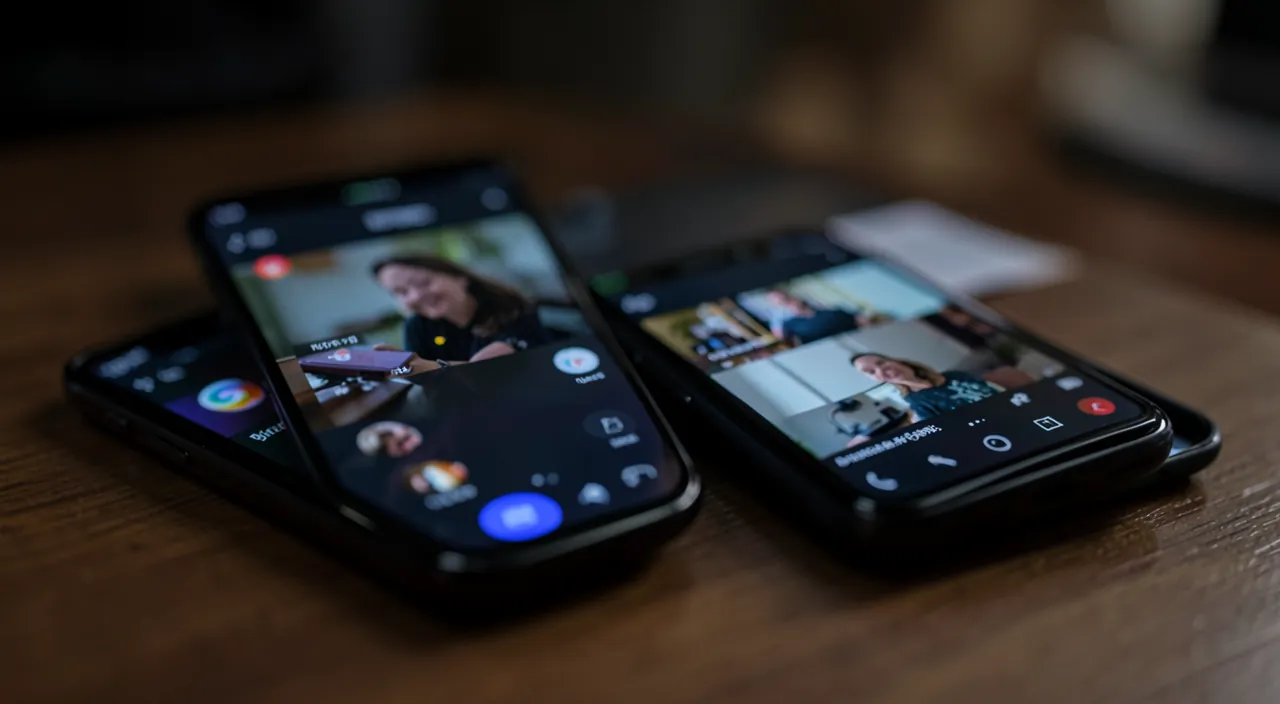
Here’s how to use screen sharing during a call, step by step. START a FaceTime call: first, start a FaceTime call with your correspondent (Apple device); once the video or audio call is established, you can share the screen; sharing happens during the call; start by calling. Find the SHARE option: during the call, access FaceTime commands (tap the screen to display them); look for the SCREEN SHARING icon (often a person in front of a screen, “SharePlay”/share screen); it’s the button to share. TOUCH “share my screen”: tap the screen sharing option; a short countdown may appear, then your screen is shared; your correspondent then sees your screen; it’s launched; simple. NAVIGATE normally: once sharing is active, use your iPhone NORMALLY; open your photos, a webpage, an app; your correspondent follows everything in real time; show what you want; you control, they watch. COMMENT while talking: continue talking during sharing; comment on what you’re showing, answer questions; the call audio continues; the exchange accompanies the demonstration; fluid. What the CORRESPONDENT sees: they see your screen in real time (what you’re displaying), but not necessarily everything (some sensitive things may be hidden; see vigilance); they follow your navigation; in real time. STOP sharing: to stop, tap the screen sharing icon again and choose to stop; your screen is no longer shared (the call continues); you regain private control; simple to interrupt. The OTHER WAY—see THEIR screen: for your correspondent to share THEIR screen (for example, to show you a problem), it’s THEM who tap sharing on THEIR device; guide them to this button; sharing works both ways; reciprocal. On DIFFERENT DEVICES: sharing works on iPhone, iPad, Mac; the option is similar; adapt according to the device; the principle is the same everywhere; versatile. If the option DOESN’T APPEAR: check that the devices are up to date, that FaceTime is working properly, and that you’re actually in a call; sharing requires recent versions; update if needed; ensure compatibility. In summary, to share your screen in FaceTime: start a FaceTime call with your correspondent (Apple device), then during the call, display the commands and tap the SCREEN SHARING icon (“share my screen”). Your screen is then shared: NAVIGATE normally (photos, webpage, app), your correspondent follows everything in real time, and COMMENT while continuing to talk. To STOP, tap the sharing icon again. Sharing works in BOTH DIRECTIONS: to see your correspondent’s screen, it’s them who launch sharing on their device (guide them). If the option doesn’t appear, check that the devices are up to date. These simple gestures open up visual sharing; the sharing icon during the call, free navigation, and voice commentary are the keys.
The most valuable use: helping a loved one remotely by seeing (or showing) the screen. If FaceTime screen sharing is pleasant for showing photos or shopping together, it’s for REMOTE ASSISTANCE that it becomes truly valuable—and it’s probably the strongest reason to discover and master it. You’ve probably experienced the scene: a parent, grandparent, or less tech-savvy loved one calls you, lost in their phone or computer—“I can’t find the button,” “it disappeared,” “I don’t know where to click.” You try to help over the phone, but it’s a nightmare: you don’t see their screen, they describe poorly what they see, you give instructions into the void (“go to settings… no, the gray icon… at the top… but no”), and frustration builds on both sides. FaceTime screen sharing elegantly solves this problem in two complementary ways. First way: YOUR loved one shares THEIR screen, and YOU see it. This is often the most useful for troubleshooting: in a FaceTime call, you ask your loved one to share their screen (guide them to this button once), and from then on, you SEE exactly what they see, in real time. No more confusing descriptions: you yourself see where they’re stuck, what’s displayed, where the button they’re looking for is, and you can guide them precisely (“do you see the blue icon at the top right? Tap it”) while following their gestures in real time. You diagnose and resolve their problem as if you were next to them. Second way: YOU share YOUR screen to SHOW them how to do it. You reproduce the manipulation on your own iPhone while they watch: “look, you do it like this, you tap here, then there.” They see the demonstration in real time and just have to do it on their device. It’s infinitely clearer than an oral explanation. These two uses make FaceTime screen sharing a formidable family support tool, especially for accompanying elderly or less tech-savvy loved ones remotely: you no longer need to travel for every little issue, and your loved one gains autonomy while feeling supported. A few tips for it to go well: the first time, take the time to SHOW your loved one how to launch sharing on THEIR device (it’s the gesture they’ll struggle to find alone); stay PATIENT and guide step by step; and take advantage of seeing their screen to EXPLAIN (not just do it for them), so they learn and gain confidence. You can also, once the problem is solved, show them a tip or two. This simple tool transforms frustrating phone assistance into effective and kind visual support: for many families, it’s a real revolution in how to help loved ones remotely. The next time a loved one calls you, lost in their device, think of FaceTime screen sharing: you’ll see the difference.
Other uses and good to know
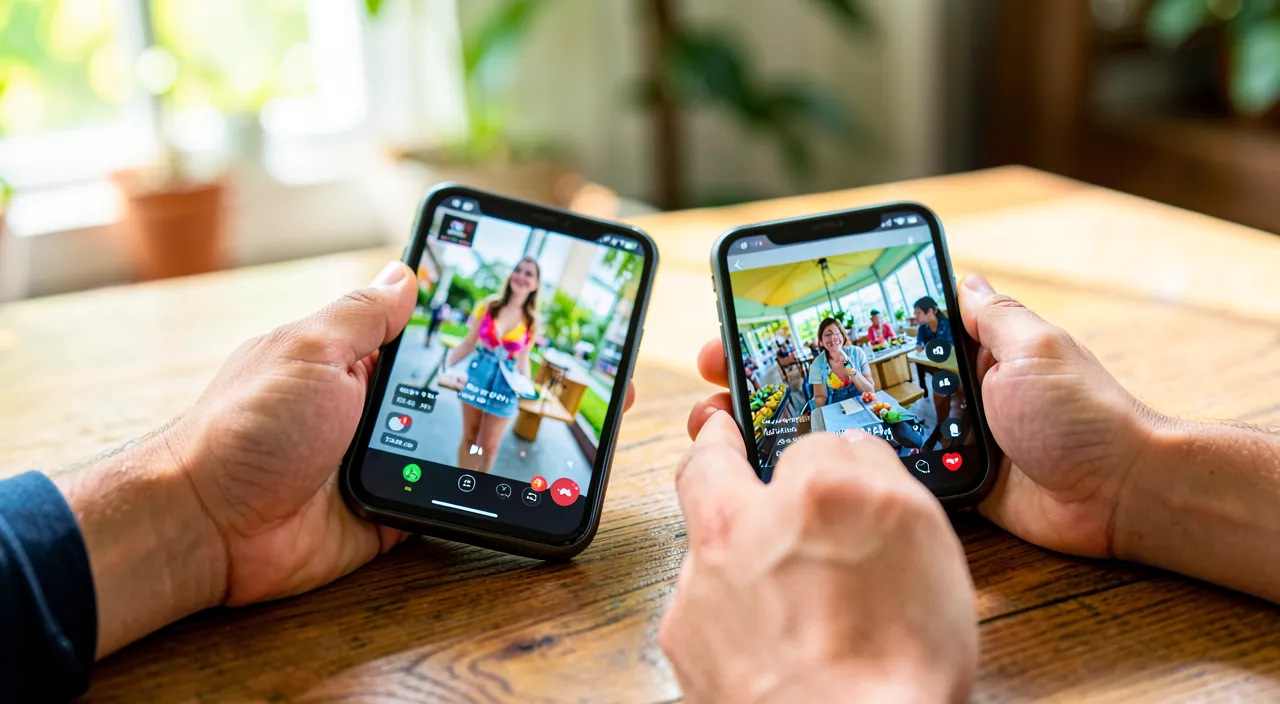
Beyond help, screen sharing lends itself to other uses and deserves a few precautions; here’s the essential. Share MEMORIES: show your vacation photos and videos, from an event, to a distant loved one; they see them in real time while you tell the story; sharing memories remotely, almost as if you were together; warm. Shop TOGETHER: browse a shopping site, compare items, choose together (a gift, a piece of furniture) by sharing the screen; decide together remotely; practical and friendly; like shopping together. Watch or READ together: show an article, a recipe, a document, a map; consult it as two while commenting; share a reading or info; useful for organizing, deciding, learning together. Help with WORK or procedures: guide someone through an online procedure, a form, a booking; by seeing the screen, you help them precisely; support for digital procedures; precious for the less comfortable. SHAREPLAY for content: FaceTime also offers “SharePlay” to watch a movie/listen to music SYNCHRONIZED remotely (beyond simple screen sharing); a friendly use; explore it to share content. ATTENTION to privacy: when sharing your screen, your correspondent sees what you display, including any notifications or private info; be aware of what you’re showing; protect your privacy (we’ll come back to it). Close SENSITIVE apps: before sharing, close the apps or content you don’t want to show; enable “do not disturb” to avoid notifications appearing; prepare your screen; discretion. QUALITY depends on the connection: sharing goes through the internet; a good connection ensures smooth sharing; a weak connection may stutter; good WiFi/cellular helps; the connection conditions the quality. Keep the call ACTIVE: sharing happens during the FaceTime call; if the call drops, sharing stops; ensure a stable connection for the call; sharing depends on the call. UPDATE to use it: screen sharing requires recent versions of devices; keep your devices up to date (and your loved ones’ too); software updates enable the feature; update. In summary, other uses of screen sharing: share MEMORIES (photos remotely while telling the story), shop or choose together, consult a document/recipe/map as two, help someone with an ONLINE PROCEDURE, or use SharePlay to watch synchronized content. On the precautions side: attention to PRIVACY (your correspondent sees everything you display, notifications included—close sensitive apps and enable “do not disturb” before sharing), ensure a good CONNECTION (for smooth sharing), keep the call active, and keep devices up to date. These uses and precautions make screen sharing a versatile tool; sharing memories, support, and vigilance on privacy are the key points.
Warning: when sharing your screen, your correspondent sees EVERYTHING you display—close the sensitive stuff and turn off notifications before sharing. This is the essential point of vigilance for screen sharing, and it concerns your PRIVACY. When you share your screen in FaceTime, your correspondent sees LIVE everything displayed on your iPhone—not only what you deliberately want to show them, but ALSO anything that might appear unexpectedly or that you might have forgotten on the screen. This requires a minimum of preparation and vigilance, to avoid inadvertently revealing personal information. The first risk: NOTIFICATIONS. While sharing your screen, a message may arrive, whose preview appears at the top of the screen; an email, an app alert, any kind of notification can pop up—and your correspondent will see it. It would be embarrassing if a personal message (from another loved one, a private context), a banking alert, or sensitive information appears in front of the person you’re sharing your screen with. The good reflex is therefore to enable a “DO NOT DISTURB” (or “focus”) mode BEFORE starting the sharing: thus, notifications won’t appear while you’re showing your screen. The second risk: CONTENT ALREADY OPEN or that you open during sharing. If you navigate during sharing, everything you open is visible: your browsing history that appears, your open tabs, your other conversations if you switch to a messaging app, your personal photos if you open the gallery (and you scroll beyond what you wanted to show), the information displayed in your apps. Before sharing, take the time to CLOSE the apps and content you don’t want to show, and during sharing, remain aware that every screen you open is seen. Be particularly careful with SENSITIVE information: never share your screen while consulting your banking app, entering a password, or displaying confidential personal information—or else, stop sharing while doing it. A third point, in the other direction: if it’s YOU helping a loved one and they share THEIR screen, the same vigilance applies to them—remind them not to display sensitive information while showing you their screen, and respect their privacy (don’t snoop in what doesn’t concern you, focus on the problem to solve). Mutual support requires respecting each other’s privacy. A few good practices for sharing peacefully: enable “do not disturb” before sharing (against notifications), prepare in advance what you want to show (open the right app, the right page), close the rest, and keep in mind throughout the sharing that your screen is “public” for your correspondent. Finally, remember that screen sharing is used with TRUSTED people: as it gives a live view of your device, only use it with loved ones you trust, and be wary of any suspicious request asking you to share your screen (a scam could try to get you to show sensitive information—stay vigilant, especially if the request comes from a stranger or a fake “technical support”). In summary: screen sharing exposes EVERYTHING on your screen to your correspondent; protect your privacy by enabling “do not disturb” before sharing, closing sensitive content, avoiding displaying confidential information during sharing, and only sharing with trusted people. This simple vigilance lets you fully enjoy screen sharing, without revealing what should stay private.
Frequently asked questions
Does my correspondent really see everything on my screen, including my notifications?
Yes, they see in real time what you display, including notifications that arrive: that’s why you need to enable “do not disturb” before sharing and close sensitive content. Let’s clarify. They see LIVE: when you share your screen, your correspondent sees in real time what’s displayed; your navigation, your apps, your photos; everything you show and do; sharing is a “window” onto your screen. NOTIFICATIONS too: yes, if a notification arrives during sharing (message, alert), its preview appears and your correspondent can see it; a real risk for privacy; a personal message could appear; anticipate. The solution—“DO NOT DISTURB”: enable “do not disturb” (or focus) mode BEFORE sharing; notifications won’t appear anymore during sharing; it’s THE precaution to take; simple and effective. CLOSE the sensitive stuff BEFORE: before sharing, close the apps and content you don’t want to show (private messaging, banking app); prepare your screen; don’t leave anything sensitive open; preparation protects. Stay AWARE during: during sharing, keep in mind that everything is seen; don’t scroll beyond what you want to show (in photos), don’t open private info; vigilance continues; your screen is “public”. What can be HIDDEN: some very sensitive information (like password entry) may be automatically hidden in sharing; but don’t count on it for everything; stay careful yourself; auto-protection is limited. Don’t display CONFIDENTIAL info: avoid displaying during sharing your banking details, passwords, confidential documents; or stop sharing while doing it; sensitive stuff is handled outside sharing; caution. STOP for private stuff: if you need to do something private during the call, STOP sharing for a moment (the call continues), do it, then restart; you regain private control; a sharing pause protects. Share with TRUST: only share your screen with TRUSTED people; as they see everything, trust is required; be wary of suspicious sharing requests; sharing requires trust. The ADVICE: yes, your correspondent sees everything on your screen, notifications included; protect yourself by enabling “do not disturb” before sharing, closing sensitive stuff, staying aware during sharing, and only sharing with trusted people. In summary, yes: when you share your screen, your correspondent sees LIVE everything displayed on your iPhone, including NOTIFICATIONS that arrive during sharing (a message preview, an alert). It’s a real privacy issue: a personal message or sensitive information could appear without your knowing. The essential precaution is therefore to enable “DO NOT DISTURB” (or focus) mode BEFORE starting the sharing, to block notification display. Complete with: CLOSE in advance the apps and content you don’t want to show (private messaging, banking app), stay AWARE throughout the sharing that your screen is “public” (don’t scroll your photos beyond what you want to show, don’t open confidential information), and NEVER display very sensitive information (banking details, passwords) during sharing—or stop it while doing it (the call continues, you restart afterward). Although some very sensitive information may sometimes be automatically hidden, don’t count on it: your vigilance remains the best protection. Finally, only share your screen with TRUSTED people, and be wary of any suspicious sharing request (a scam could try to get you to reveal information). With these reflexes, you enjoy sharing without revealing what should stay private.
Can I help an elderly loved one by seeing their screen?
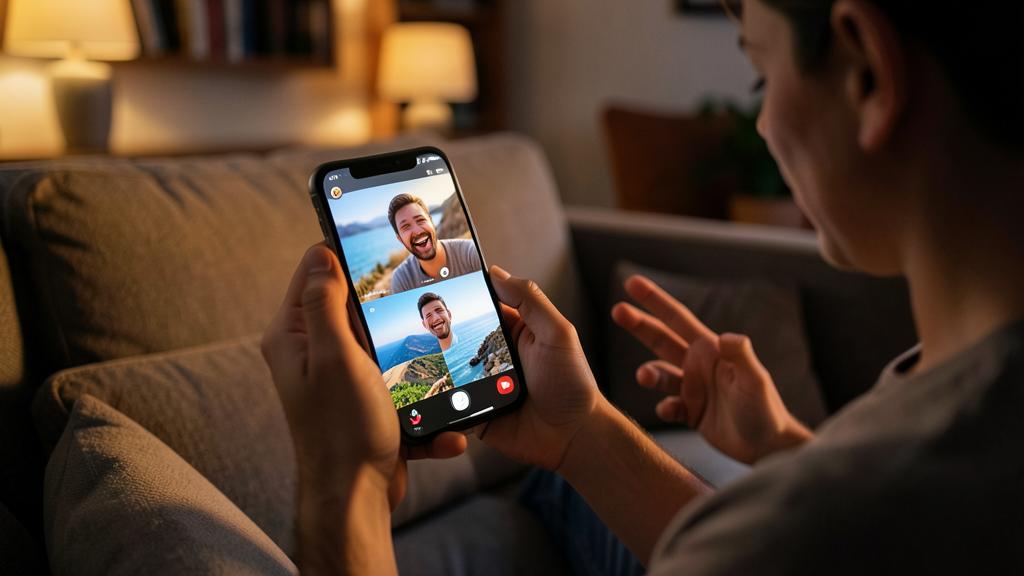
Yes, and it’s one of the best uses: ask them to share THEIR screen in FaceTime, and you’ll then see where they’re stuck and be able to guide them precisely; much better than a phone explanation. Let’s see how. The principle of HELP: in a FaceTime call, your loved one shares THEIR screen, and you SEE it in real time; you see exactly where they are, what’s displayed, where they’re stuck; no more confusing descriptions; you see as if you were next to them. Why it’s BETTER: helping over the phone without seeing the screen is a nightmare (instructions into the void, imprecise descriptions); by SEEING their screen, you guide precisely (“tap the blue icon at the top”); help becomes effective; a radical change. How to LAUNCH it: it’s YOUR loved one who must share THEIR screen (on THEIR device); the gesture they’ll struggle to find alone; guide them to this button once (sharing icon during the call); show them how to do it. SHOW them your screen too: conversely, you can share YOUR screen to SHOW them how to do it (reproduce the manipulation while they watch); “look, you do it like this”; the visual demonstration; both ways help. Guide STEP BY STEP: by seeing their screen, guide them step by step, calmly; let them do the gestures (so they learn); patience and clarity; accompany without rushing; educational. EXPLAIN, not just do: take advantage to EXPLAIN (not just solve); thus your loved one learns and gains autonomy/confidence; help that makes autonomous; a beautiful gift; pass it on. The FIRST TIME: the first time, take the time to teach them to launch sharing (the key gesture); once they know, future help will be easy; invest in this first learning; it pays off later. RESPECT their privacy: by seeing their screen, respect their privacy; focus on the problem, don’t snoop in their stuff; remind them not to display sensitive info; respect in mutual support. Avoid TRIPS: this use avoids traveling for every little issue; you help remotely effectively; a time-saver for you, autonomy for them; practical for distant families. The ADVICE: yes, help your loved one by asking them to share their screen (guide them to this button the first time); see where they’re stuck and guide them step by step, or show them your screen in demonstration; explain to make them autonomous, with patience and respect. In summary, yes, and it’s probably the best use of FaceTime screen sharing: helping an elderly (or less tech-savvy) loved one remotely. Ask them to share THEIR screen during the FaceTime call: you’ll then see LIVE exactly what they see, where they’re stuck, where the button they’re looking for is—and you’ll be able to guide them precisely (“tap the blue icon at the top right”), instead of giving them instructions into the void over the phone. It’s a radical change from classic phone help, often frustrating on both sides. You can also do the opposite: share YOUR screen to SHOW them how to do it (reproduce the manipulation while they watch, then they do it on their device). A few tips: the first time, take the time to teach them to launch sharing on THEIR device (it’s the gesture they’ll struggle to find alone, but once learned, everything becomes easy); guide them STEP BY STEP, with patience, letting them do the gestures themselves; and especially, EXPLAIN rather than just solving, so they learn and gain autonomy and confidence. Respect their privacy (focus on the problem, and remind them not to display sensitive information). This tool saves you from traveling for every little issue and transforms family mutual support remotely: for many families, it’s a real blessing.
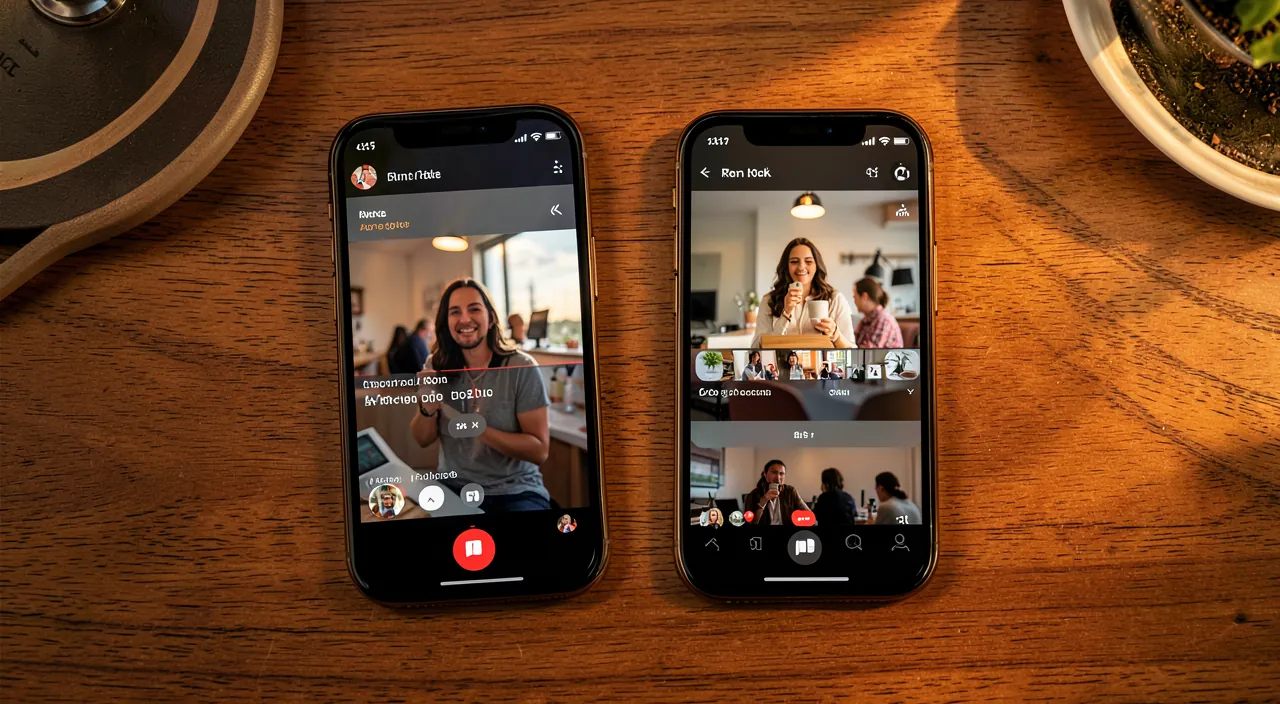
Does screen sharing work with someone who doesn’t have an iPhone?
FaceTime screen sharing works between Apple devices; to share with someone on Android or Windows, you need other tools (third-party videoconferencing with screen sharing). Let’s nuance. FaceTime = APPLE: FaceTime is Apple’s calling service; its screen sharing works between Apple devices (iPhone, iPad, Mac); it’s an Apple ecosystem feature; for two Apple devices, everything works; between Apple, perfect. The case of a FACETIME LINK: FaceTime now allows inviting people on Android/Windows via a LINK (they join the call from a browser); the video call works, but advanced features (including screen sharing) may be limited for them; the call yes, complete sharing not guaranteed. The LIMITS outside Apple: for someone without an Apple device, FaceTime screen sharing (especially FROM their device to you) is not guaranteed like between Apple devices; the Apple ecosystem offers the complete experience; outside Apple, it’s more limited; adjust your expectations. The ALTERNATIVES: to share a screen with someone on Android or Windows, use a third-party VIDEOCONFERENCING tool that handles multi-platform screen sharing (there are several, common for work); these tools work on all devices; the right tool for multi-platform. Choose according to DEVICES: if you and your correspondent are on Apple → FaceTime (simple, integrated); if one is on Android/Windows → a third-party multi-platform videoconferencing tool; choose according to the devices present; the tool follows the devices. To help a loved one on ANDROID: if you want to help a loved one who doesn’t have an iPhone, use a screen sharing tool compatible with their device (third-party video); mutual support remains possible, just with a different tool; adapt to their device. CHECK beforehand: before counting on screen sharing, check that you and your correspondent have compatible devices (Apple for FaceTime); otherwise, plan a third-party tool; anticipate according to devices; ensure compatibility. The APPLE ECOSYSTEM, its strength: FaceTime screen sharing is simple and integrated PRECISELY because you stay in the Apple universe; it’s an advantage between Apple users; outside this universe, you lose this simplicity; each ecosystem has its tools. The ADVICE: FaceTime screen sharing is designed for Apple devices between them; with someone on Android/Windows, the FaceTime call via link may work but complete sharing isn’t guaranteed; use a third-party multi-platform videoconferencing tool instead. In summary, FaceTime screen sharing is designed to work between APPLE DEVICES (iPhone, iPad, Mac): between two Apple users, it’s simple, integrated, and complete. FaceTime now allows inviting people on Android or Windows to join a call via a LINK (from a browser), but for these non-Apple participants, advanced features like screen sharing may be limited: the video call works, but the complete screen sharing experience is really guaranteed only between Apple devices. Therefore, if you want to share a screen with someone who DOESN’T have an iPhone (on Android or Windows), the most reliable option is to use a third-party VIDEOCONFERENCING TOOL that handles multi-platform screen sharing (there are several, very common especially for work, that work on all devices). The good reflex is therefore to choose the tool according to the devices present: FaceTime if you’re both on Apple (the simplest), a multi-platform video tool if one of you is on Android or Windows. To help a loved one who doesn’t have an iPhone, mutual support by screen sharing is entirely possible: you just need to use a tool compatible with their device rather than FaceTime. Therefore, before counting on screen sharing, check that your devices are compatible: the simplicity of FaceTime is an advantage between Apple users, but solutions exist for all cases.
What to remember
FaceTime screen sharing is a simple but precious and often little-known feature: during a call, it lets you SHOW your screen to your correspondent, who then sees LIVE what’s displayed on your iPhone, while you continue talking. No more painstakingly describing with words—you directly show photos, a webpage, a document, an app, a route. Sharing works in BOTH DIRECTIONS (you show your screen, or your correspondent shows you theirs). To use it: start a FaceTime call, then during the call, display the commands and tap the SCREEN SHARING icon; then navigate normally (your correspondent follows everything), comment while talking, and tap the icon to stop. The most VALUABLE use is remote assistance: when an elderly or less tech-savvy loved one is stuck, ask them to share THEIR screen, and you’ll see exactly where they are to guide them precisely (“tap the blue icon at the top”), instead of giving confusing instructions over the phone; you can also share YOUR screen to SHOW them how to do it. It’s a formidable family support tool that avoids many trips—think, the first time, to teach them to launch sharing on their device, guide them step by step with patience, and explain rather than do it for them, to make them autonomous. Other uses are numerous: sharing memories (photos remotely while telling the story), shopping or choosing together, consulting a document as two, or helping someone with an online procedure (FaceTime also offers “SharePlay” to watch synchronized content). The ESSENTIAL point of vigilance concerns PRIVACY: when sharing your screen, your correspondent sees EVERYTHING you display, including notifications that arrive. Before sharing, therefore enable “DO NOT DISTURB” (to block notifications), close sensitive apps and content, and during sharing, remain aware that your screen is “public” (don’t scroll your photos beyond what you want to show, never display confidential information like your banking details or a password—or stop sharing while doing it). Only share with TRUSTED people, and be wary of any suspicious screen sharing request (a scam could try to get you to reveal information). Finally, know that FaceTime screen sharing works between APPLE DEVICES: to share with someone on Android or Windows, use a third-party multi-platform videoconferencing tool instead. In short, FaceTime screen sharing transforms your calls into real shared moments and effective support tools: show instead of describe, help your loved ones remotely as if you were next to them, and share your memories and choices—all while staying vigilant about what you display. Once discovered, this feature quickly becomes a precious reflex for staying close and supporting each other, despite the distance.

Want to unlock the full potential of your iPhone, iPad, or Mac? Our Apple training courses take you to the next level.
Leave a Reply
You must be logged in to post a comment.