
While driving, your phone is a constant source of distraction: a vibrating message, a notification that lights up, a call that rings — and the temptation to glance at it, even for a second. Yet taking your eyes off the road, even briefly, is extremely dangerous: it’s one of the leading causes of accidents. Your iPhone has a valuable feature designed specifically for this: the « Driving Mode » (a dedicated focus mode). When you’re driving, it mutes notifications, prevents messages from displaying, and can automatically reply for you — so you stay focused on the road, without being tempted or disturbed. It’s a real safety tool, easy to activate. Let’s see what Driving Mode is, how to activate and configure it, and why it can literally protect you.
Driving Mode: what is it for?
Driving Mode protects your concentration while driving; let’s understand its role. The PRINCIPLE: the « Driving » mode is an iPhone FOCUS mode that, when you’re driving, MUTES notifications and distractions to keep you focused on the road; the phone stays discreet; safety first. What it DOES: it SILENCES notifications (messages, alerts, networks), prevents the screen from lighting up and displaying messages, reduces solicitations; your phone doesn’t tempt or disturb you while driving; calm on the road. The AUTOMATIC RESPONSE: it can AUTOMATICALLY REPLY to messages (« I’m driving, I’ll reply later »); thus, your correspondents know you’re driving, without you having to touch the phone; a reassuring automatic message (we’ll come back to this). Why it’s IMPORTANT: taking your eyes off the road, even for a second to look at your phone, is extremely dangerous (one of the leading causes of accidents); Driving Mode removes this temptation; it really protects; a major safety issue. What remains ACCESSIBLE: Driving Mode doesn’t cut everything off; NAVIGATION (GPS) works, music too, and you can receive important calls (especially via the car’s hands-free/Bluetooth kit); the essentials stay, distractions go; balanced. A FOCUS mode: Driving Mode is part of the iPhone’s « focus modes » (like « Do Not Disturb »); it’s specifically designed for driving; check out our guides on focus modes; a family of features. It ACTIVATES AUTOMATICALLY: Driving Mode can activate ON ITS OWN when the iPhone detects you’re driving (movement, car connection); or you can activate it manually; automatic is the safest (we’ll come back to this). For YOU and OTHERS: by avoiding distraction, Driving Mode protects you, but also other road users; a collective safety gesture; driving without distraction saves lives; the issue goes beyond comfort. Often UNKNOWN or deactivated: many people don’t know this mode, or deactivate it; it’s a shame given its usefulness; knowing and activating it is a real plus; a feature to adopt. What it’S FOR: to stay focused on the road by eliminating phone distractions, while keeping the essentials (GPS, hands-free calls); a simple and effective safety tool; peace of mind on the road. The main idea: the « Driving » mode is an iPhone FOCUS mode designed for your safety while driving: when you’re driving, it MUTES notifications and distractions (messages, alerts), prevents the screen from lighting up and displaying messages, and can AUTOMATICALLY REPLY to your correspondents (« I’m driving, I’ll reply later ») — so you stay focused on the road without being tempted or disturbed. It’s a major safety issue: taking your eyes off the road, even for a second, is one of the leading causes of accidents. The mode doesn’t cut everything off: NAVIGATION (GPS), music, and calls via the hands-free kit remain accessible — the essentials stay, only distractions go. It can activate AUTOMATICALLY when the iPhone detects you’re driving (the safest option), or manually. By avoiding distraction, it protects you and other road users. Often unknown, this simple-to-activate mode is a real safety tool that can literally save lives.
Driving Mode is like a safety shield for your phone while driving. It automatically silences notifications and messages so they don’t distract you. This is important because even a quick glance at your phone can cause accidents. The mode keeps your GPS and music working, but blocks messages that might tempt you to look away from the road.
Imagine you’re driving a Tesla Model 3 on a 3,000-meter highway at 120 km/h. Your phone rings, but you can’t answer it safely. With Driving Mode activated, the call is automatically rejected and your contact receives a message saying you’re driving. Meanwhile, your GPS continues to guide you to your destination without interruption. This prevents you from being tempted to check your phone while moving at high speed.
How to activate and configure Driving Mode
Here’s how to set up Driving Mode and adapt it to your needs. AUTOMATIC ACTIVATION (recommended): the safest option is to set Driving Mode to activate AUTOMATICALLY when you’re driving; the iPhone detects driving (movement, car Bluetooth connection) and activates it on its own; you don’t have to do anything; protection is automatic (we’ll come back to this). Set the TRIGGER: in the focus mode settings (Driving), choose how it activates; « automatically » (detection), « when connected to the car » (Bluetooth/CarPlay), or « manually »; automatic or car connection are the most practical. Via the CONTROL CENTER: you can also manually activate Driving Mode via the Control Center (the quick access panel, « focus » section); useful for activating it yourself before leaving; a quick manual access. Configure the AUTOMATIC RESPONSE: set the automatic reply message (the text sent to those who message you while you’re driving) and WHO it’s sent to (favorites, recent, everyone); customize this message; it informs your correspondents (we’ll come back to this). Choose ALLOWED CALLS: decide who can reach you while driving (no one, favorites, contacts); ideally, take calls via the car’s HANDS-FREE KIT (Bluetooth/CarPlay), without touching the phone; set according to your needs. KEEP navigation: make sure navigation (GPS) remains accessible (it is in Driving Mode); you follow your route without issues; GPS isn’t a distraction but a help; it works. Use CARPLAY if possible: if your car has CarPlay (iPhone on the car screen), Driving Mode integrates well; you use GPS, music, calls via the car screen, without handling the phone; check out our guides on CarPlay; the ideal for safety. TEST the setting: after configuration, check that the mode activates properly (automatically or when connected to the car) and that the auto-reply works; adjust if needed; make sure it works; test before relying on it. DON’T deactivate it reflexively: if the mode activates in the car, don’t deactivate it automatically; it’s there to protect you; let it do its job; resist the temptation to turn it off (we’ll come back to this). ADAPT, don’t DELETE: if the mode bothers you (too strict), adjust its settings (allowed calls, response) rather than deactivating it; find the right balance between safety and needs; keep it active, adapted. In summary, to activate and configure Driving Mode: set it to activate AUTOMATICALLY when you’re driving (detection or car connection — the safest), while being able to activate it manually via the Control Center. Configure the AUTOMATIC RESPONSE (the message sent to your correspondents and to whom), choose ALLOWED CALLS (ideally via the car’s hands-free kit), and check that NAVIGATION remains accessible. If you have CarPlay, use it (GPS, music, calls on the car screen, without touching the phone). Test that everything works, and above all, don’t deactivate it reflexively in the car: adapt its settings rather than deleting it. Well configured, Driving Mode protects you effortlessly; automatic activation, auto-reply, and CarPlay integration are the keys.
The best setting: automatic activation — to be protected without having to think about it. The most valuable feature of Driving Mode, the one that makes all the difference, is its AUTOMATIC ACTIVATION. Think about the problem: a safety mode that you have to remember to activate yourself for each trip isn’t very useful, because you forget to activate it precisely on the days you’re in a hurry, distracted, or stressed — that is, the days you need it most. Safety that depends on your vigilance and memory is fragile. That’s why the ideal is to configure Driving Mode to activate ON ITS OWN, automatically, as soon as you get behind the wheel, without you having to do anything. The iPhone has several ways to detect that you’re driving. The first: AUTOMATIC MOVEMENT DETECTION — the iPhone perceives, thanks to its sensors, that you’re moving at vehicle speed, and activates Driving Mode accordingly. The second, very reliable: TRIGGERING WHEN CONNECTED TO THE CAR — if your iPhone connects to your car’s Bluetooth (or CarPlay) when you get in, you can set Driving Mode to activate automatically at that moment. It’s a very reliable signal: if your phone is connected to your car, it means you’re driving (or about to). So configure, in the « Driving » focus mode settings, automatic activation (by detection and/or when connected to your car): once this setting is done, once and for all, you’re protected ON EVERY trip, without ever having to think about it. The phone mutes itself when you start, and reactivates normally when you arrive. That’s exactly the principle of good safety: it acts on its own, without relying on your memory of the moment. Two tips to get the most out of this automation. First, if you have CarPlay (the system that displays the iPhone on your car screen), use it fully: by combining it with Driving Mode, you access GPS, music, and calls directly on the car screen, with voice commands, without ever handling your phone — it’s the safest configuration possible. Then, and this is crucial: RESIST the temptation to DEACTIVATE the mode when it activates. It can be tempting, when you hear a message arrive and you’re curious, to turn off Driving Mode « just to check. » Don’t do it: that’s precisely where the danger lies. The mode activated to protect you; let it do its job, and check your phone once you’ve stopped. If the mode seems too strict to you (for example, you want to be able to receive calls from your loved ones), don’t cancel everything: adjust its settings instead (allow calls from favorites via the hands-free kit). In summary, the secret to a truly effective Driving Mode lies in one word: AUTOMATION. Set it to activate on its own (detection or car connection), and you’ll be protected on every trip without effort or risk of forgetting. Protection that doesn’t depend on your momentary vigilance is infinitely more reliable — and on the road, this reliability can make all the difference.
Road safety: why this mode really matters
Driving Mode isn’t a gadget: it’s a safety tool with real stakes; here’s why it matters. The DANGER of distraction: looking at your phone while driving, even for a second, diverts your gaze and attention from the road; at normal speed, you cover a great distance « blindly »; it’s one of the leading causes of accidents; the danger is real and major. A SECOND IS ENOUGH: an accident can happen in the instant you take your eyes off the road; there’s no « quick glance » without risk; every distraction counts; Driving Mode removes this temptation. The TENTATION removed: Driving Mode prevents notifications from displaying and tempting you; if the phone doesn’t solicit you, you’re not tempted to look at it; removing the temptation is the best protection; that’s its effectiveness. The AUTO-RESPONSE reassures: the automatic response informs your correspondents that you’re driving; they don’t expect an immediate response; you’re not « obliged » to reply; the social pressure to reply disappears; a real relief. Protecting OTHERS: a distracted driver endangers pedestrians, cyclists, other vehicles; driving without distraction protects everyone; it’s a collective responsibility; Driving Mode contributes to it; beyond yourself. The example for YOUNG drivers: for young people (more tempted by the phone), Driving Mode is particularly useful; parents, activate it on their phone; protection for new drivers; a responsible gesture. The LAW too: using your phone while driving is prohibited and penalized; Driving Mode helps you respect the law (and avoid fines); in addition to safety, compliance; a double interest. What remains POSSIBLE: Driving Mode doesn’t deprive you of the essentials; GPS, music, hands-free calls remain; you drive normally, without distraction; safety without excessive constraints; the balance is good. MANAGING calls SAFELY: if you need to take a call, do it via the HANDS-FREE KIT (Bluetooth, CarPlay), without touching or looking at the phone; hands on the wheel, eyes on the road; hands-free calls are the right practice. STOPPING for the phone: the golden rule; if you really need to use your phone (message, search), STOP in safety; never do it while driving; Driving Mode helps you by removing the urgency; stop, that’s all. In summary, Driving Mode really matters because it addresses a MAJOR DANGER: distraction while driving is one of the leading causes of accidents, and a single second of inattention is enough. By preventing notifications from displaying, it REMOVES THE TENTATION to look at your phone (the best protection); and its AUTO-RESPONSE removes the pressure to reply immediately (your correspondents know you’re driving). It protects you, but also OTHER road users (pedestrians, cyclists, vehicles) — it’s a collective responsibility. It’s particularly useful for YOUNG drivers (parents, activate it on their phone), and it helps you respect the LAW (using the phone while driving is prohibited and penalized). The mode doesn’t deprive you of the essentials (GPS, music, hands-free calls remain): the right practice is to take calls via the hands-free kit (Bluetooth/CarPlay, without touching the phone) and, if you really need to use your phone, to STOP in safety. This simple mode is a real safety tool, for you and for others.
Warning: no function replaces your vigilance — Driving Mode helps, but the only safe rule is to never handle your phone while driving. Driving Mode is an excellent tool, and this article can’t recommend its use enough. But it’s essential to understand what it is — a PRECIOUS HELP — and what it isn’t — permission to lower your guard. Driving Mode protects you by removing distractions and the temptation to look at your phone; that’s already huge, because it eliminates one of the major causes of inattention. But it can’t, on its own, guarantee your safety: that depends above all on YOUR behavior and YOUR vigilance. The fundamental rule, which nothing replaces, is simple and absolute: you NEVER HANDLE your phone while driving. Not to read a message, not to send one, not to « just check » something, not to change music by tapping the screen, not to enter an address in the GPS while moving. Taking your eyes off the road, even for a second, even at low speed, is a real risk: in one second at normal speed, a vehicle covers a considerable distance « blindly, » during which anything can happen (a pedestrian crossing, a braking in front, an obstacle). Driving Mode helps you respect this rule by removing the solicitations that would push you to break it — but it’s you who must respect it. Several practical consequences. First, never DEACTIVATE Driving Mode « just to check » a message that just arrived: this seemingly harmless gesture is precisely the dangerous behavior that the mode seeks to avoid. If a message or call seems really urgent to the point of needing to respond, the only good solution is to STOP in safety (a rest area, a place where parking is allowed and safe), deal with what you need to do while stopped, then leave. No message, no call is worth an accident: what’s urgent can wait a few minutes until you’re stopped. Then, for the functions you need while driving (GPS, music, calls), use them in the safest way: prepare your navigation BEFORE starting (enter your destination while stopped), use VOICE COMMANDS when possible (to avoid touching the screen), and take calls only via the HANDS-FREE KIT (Bluetooth, CarPlay), without ever picking up or looking at the phone. Ideally, if your car is equipped with it, use CarPlay to manage everything from the car screen with your voice. Finally, remember that Driving Mode is one tool among other good safety practices: it doesn’t replace careful, rested, attentive driving. It removes a major temptation, but your attention to the road remains your first protection. In summary: activate and use Driving Mode (it’s highly recommended, it really helps by removing distractions), but never forget that it’s a HELP, not a substitute for your vigilance. The golden rule remains unchanged: you never touch your phone while driving, and if you really need to use it, you stop. Driving Mode makes this rule easier to follow — it’s up to you to respect it. Your safety, and that of others, depends on it.
Frequent questions
Will Driving Mode prevent me from using my GPS?
No: Driving Mode keeps navigation (GPS) accessible; it only cuts off distractions (notifications, messages), not useful functions. You follow your route normally. Reassuring. NAVIGATION remains accessible: Driving Mode DOES NOT BLOCK GPS; navigation continues to work normally; you see your route, hear the directions; GPS isn’t a distraction but a help, it stays active. What the mode CUTS OFF: Driving Mode MUTES DISTRACTIONS (message notifications, networks, alerts that would distract you from the road); it doesn’t touch useful functions for driving; the distinction is clear; distractions cut, useful kept. MUSIC too: music and podcasts continue to play; Driving Mode doesn’t cut off your listening; you drive with music without issues; audio remains. HANDS-FREE CALLS: you can receive allowed calls, ideally via the hands-free kit (Bluetooth, CarPlay); the mode manages calls according to your settings, without cutting you off from the world; the essentials pass. PREPARE GPS beforehand: good practice; enter your destination BEFORE starting (while stopped); while driving, just follow the directions; don’t enter an address while driving (that’s dangerous); anticipate. VOICE COMMANDS: to modify the route while driving, use VOICE COMMANDS (say the destination) rather than touching the screen; voice avoids taking your eyes off the road; speak, don’t tap; safety. CARPLAY, the ideal: with CarPlay, GPS is displayed on the car screen (larger, better placed); you navigate without handling the phone; Driving Mode and CarPlay complement each other; the best configuration; take advantage of it. No CONFLICT: Driving Mode is designed for driving; it doesn’t conflict with GPS, on the contrary, it makes them coexist (navigation active, distractions cut); everything is designed for the road; harmonious. REASSURED: don’t hesitate to activate Driving Mode if you use GPS; both work perfectly together; you keep your navigation, in addition to safety; activate it without hesitation. The ADVICE: activate Driving Mode without fear for your GPS; navigation remains fully accessible (like music and hands-free calls); only the distracting superfluous is cut; prepare your route while stopped and use your voice while driving. In summary, no, Driving Mode won’t prevent you from using your GPS, quite the opposite: NAVIGATION remains fully accessible and works normally (you see your route and hear the directions). Driving Mode is intelligently designed: it only cuts off DISTRACTIONS (message notifications, social network alerts, alerts that would distract you from the road), and leaves intact the functions USEFUL for driving — GPS, but also music and calls via the hands-free kit. There’s therefore no conflict: active navigation and cut distractions coexist perfectly. To use your GPS safely, adopt good practices: enter your destination BEFORE starting (while stopped), and if you need to modify it while driving, use VOICE COMMANDS (say the destination) rather than touching the screen. If your car has CarPlay, it’s ideal: GPS is displayed on the car screen, larger and better placed, and you navigate without ever handling your phone. You can therefore activate Driving Mode with confidence: you keep your navigation, while benefiting from protection against distractions.
How does the automatic reply to messages work?
When someone messages you while you’re driving, the iPhone automatically sends them a message (« I’m driving, I’ll reply later »); you choose the text and who it’s sent to. Let’s detail. The PRINCIPLE: when Driving Mode is active and someone sends you a message, the iPhone AUTOMATICALLY REPLIES (without you doing anything) to inform them that you’re driving; your correspondent knows you can’t reply right away; automatic and practical. The TYPICAL MESSAGE: the message is of the type « I’m driving right now, I’ll reply later »; it simply informs; you can CUSTOMIZE this text in the settings; adapt it to your taste. WHO it’s sent to: you choose who receives the auto-reply; no one, your FAVORITES, your RECENT CONTACTS, or EVERYONE; set according to your preferences; for example, only to loved ones, or to everyone who messages. The REASSURING ROLE: the auto-reply removes the PRESSURE to reply; your correspondent, informed, doesn’t expect an immediate response; you’re not tempted to reply while driving; a psychological relief; you no longer feel « obliged. » You reply LATER: once stopped (Driving Mode deactivated), you see the received messages and reply calmly; nothing is lost, just postponed; you deal with it while stopped; the postponement is safe. A CASE of EMERGENCY: some settings allow a correspondent to insist (« emergency ») to get an important message through despite the mode; a safety valve for real emergencies; but even then, stop to reply; the emergency doesn’t justify driving while handling. CONFIGURE the message: in the Driving Mode settings, set the auto-reply (enabled, the text, the recipients); take a moment to configure it; once done, it’s automatic; customize once. For CALLS: the auto-reply concerns mainly messages; for calls, you set who can reach you (and take them hands-free); messages and calls are managed separately; configure both. SOCIAL ADVANTAGE: the auto-reply is also polite; your correspondent understands your silence (you’re driving), no misunderstanding; clear communication despite unavailability; courteous. The ADVICE: activate and customize the automatic reply (the message and its recipients); it informs your correspondents that you’re driving, removes the pressure to reply, and allows you to deal with messages once stopped; a real plus to stay focused. In summary, the automatic reply works like this: when Driving Mode is active and someone sends you a message, your iPhone REPLIES ON ITS OWN (without any action from you) with a message informing them that you’re driving — of the type « I’m driving, I’ll reply later. » You can CUSTOMIZE this text in the settings, and choose TO WHOM it’s sent (no one, your favorites, your recent contacts, or everyone). Its great interest is to remove the PRESSURE to reply immediately: your correspondent, knowing you’re at the wheel, doesn’t expect an instant response, and you’re therefore no longer tempted to pick up your phone while driving. Nothing is lost, everything is simply postponed: once stopped (and the mode deactivated), you check the received messages and reply calmly. Some settings provide a safety valve for real emergencies (a correspondent can insist to get an important message through), but even in this case, the rule remains to stop to reply. Take a moment to configure this automatic reply (the message and its recipients) according to your preferences: once set, it acts automatically on every trip, politely informing your correspondents and helping you stay focused on the road.
Driving Mode activates on its own, is that normal? Can I control it?
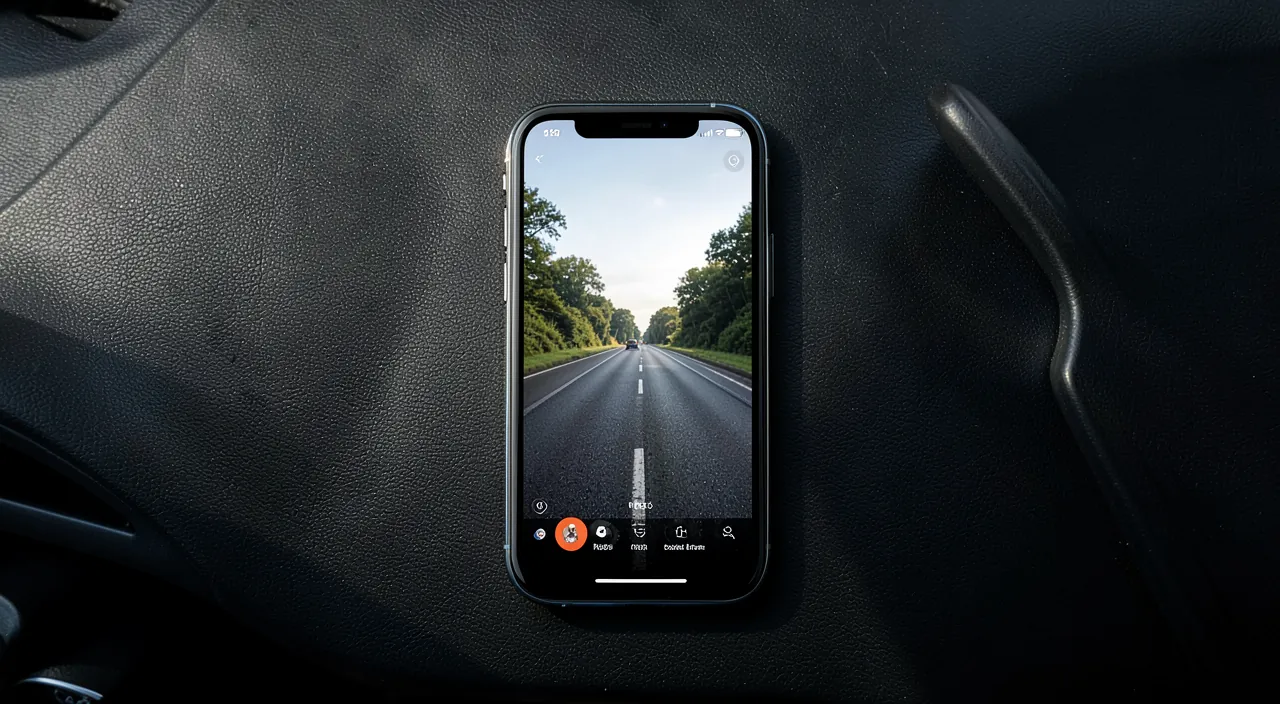
Yes, it’s normal and intended: set to automatic, it activates when the iPhone detects you’re driving; that’s its strength. You can adjust its triggering in the settings, but it’s better to keep it active. Let’s explain. IT’S INTENDED: if Driving Mode activates on its own, it’s because it’s set to AUTOMATIC; the iPhone detects you’re driving (movement, car connection) and activates it to protect you; it’s normal and that’s its greatest usefulness; not a bug, a feature. Why AUTOMATIC is good: automatic activation protects you WITHOUT you having to think about it; you don’t risk forgetting to activate it (precisely on the days you need it most); it’s the most reliable form of protection; appreciate it. It DEACTIVATES on its own too: when you stop driving (arrival, car disconnection), the mode deactivates and your phone returns to normal; you get your notifications back; the mode is temporary, linked to driving; automatic in both directions. ADJUST the triggering: if automatic triggers at unwanted times (as a passenger, on public transport), you can adjust how it activates in the settings (detection, car connection, manual); adapt to your situation; you keep control. The case of the PASSANGER: if the mode activates while you’re a passenger (not driving), the iPhone usually offers an option « I’m not driving » to deactivate it temporarily; use it when you’re not the driver; a flexibility provided. DON’T deactivate it REFLEXIVELY: when you’re driving, don’t deactivate the mode automatically (out of curiosity about a message); it’s there for you; leave it active while driving; resist the temptation; that’s the key point. ADAPT rather than DELETE: if it bothers you (too strict), adjust its settings (allowed calls, response, triggering) rather than deactivating it completely; keep the protection, adapted to your needs; balance, not deletion. MANUAL CONTROL: you can also activate/deactivate the mode manually via the Control Center; useful to activate it before a trip, or deactivate it while stopped; you keep the hand when you want; automatic and manual coexist. The ADVICE: yes, automatic activation is normal and desirable (it protects you without effort); adjust its triggering if needed (passenger case), use « I’m not driving » when you’re not at the wheel, but keep it active when you’re driving; don’t deactivate it reflexively. In summary, yes, it’s perfectly NORMAL — and intended — that Driving Mode activates on its own: this means it’s set to AUTOMATIC, and it detects you’re driving (by movement or car connection) to protect you without you having to think about it. That’s precisely its greatest strength: automatic protection doesn’t risk being forgotten. It deactivates on its own when you stop driving (your phone returns to normal upon arrival). You nevertheless keep CONTROL: you can adjust how it triggers in the settings (automatic detection, when connected to the car, or manual), which is useful if it activates at unwanted times. In particular, if the mode activates while you’re a PASSANGER (and not driving), the iPhone usually offers an option « I’m not driving » to deactivate it temporarily: use it in this case. You can also activate or deactivate it manually via the Control Center. The only real advice: when you’re DRIVING, don’t deactivate it reflexively (out of curiosity about a message) — it’s there to protect you, let it act. And if it seems too strict to you, adjust its settings (for example, allow calls from favorites hands-free) rather than deleting it. You thus keep control of the tool, while maintaining its protection.
What to remember
The iPhone’s « Driving » mode is a precious and often unknown safety tool that can literally protect you — and protect others. Its principle: when you’re driving, this focus mode MUTES notifications and distractions (messages, alerts), prevents the screen from lighting up and displaying messages, and can AUTOMATICALLY REPLY to your correspondents (« I’m driving, I’ll reply later »), so you stay focused on the road without being tempted or disturbed. The issue is major: distraction while driving is one of the leading causes of accidents, and taking your eyes off the road, even for a second, is enough to cause a tragedy. By removing the temptation to look at your phone, Driving Mode directly addresses this cause. The best setting, the one that makes all the difference, is AUTOMATIC ACTIVATION: configure the mode to activate on its own when you’re driving (by movement detection or, very reliable, when connected to your car’s Bluetooth/CarPlay). Thus, you’re protected ON EVERY trip without ever having to think about it — because safety that depends on your momentary memory is fragile, while automatic protection isn’t forgotten. It deactivates on its own upon arrival. Reassure yourself: the mode DOESN’T cut off functions useful for driving — NAVIGATION (GPS), music, and calls via the hands-free kit remain fully accessible; only distractions go. The automatic reply, for its part, removes the pressure to reply (your correspondents know you’re driving) and allows you to deal with messages once stopped. If you have CarPlay, use it: combined with Driving Mode, it allows you to manage GPS, music, and calls from the car screen, by voice, without ever touching your phone — the safest configuration. The essential point of vigilance: Driving Mode is a POWERFUL HELP, but it doesn’t replace your VIGILANCE. The golden rule, which nothing replaces, remains unchanged: you NEVER HANDLE your phone while driving. Don’t deactivate the mode « just to check » a message; if something seems urgent, STOP in safety to deal with it — no message or call is worth an accident. Prepare your GPS before starting, use voice commands while driving, and only take calls hands-free. This mode is particularly useful for YOUNG drivers (parents, activate it on their phone), and it helps you respect the law (using the phone while driving is prohibited and penalized). In short, Driving Mode is a simple gesture with immense benefits: it removes the main distraction of the modern driver, without depriving you of the essentials, and helps you follow the only rule that counts — keeping your eyes on the road and your hands on the wheel. Activate it automatically, let it protect you, and never forget that your attention remains your first safety. On the road, this tool can make all the difference.
Want to unlock the full potential of your iPhone, iPad, or Mac? Our Apple training courses take you to the next level.
Leave a Reply
You must be logged in to post a comment.