
You start a print job and nothing comes out: the printer appears as « OFFLINE » on your computer, even though it is turned on, plugged in, and ready. This is one of the most common—and most frustrating—issues in home computing! Rest assured: this « offline » status is almost always a COMMUNICATION issue between the computer and the printer, not a hardware failure; it can usually be resolved with a few simple steps. Here’s how to get your printer « online » again and retrieve your prints.
« OFFLINE »: what’s happening?
Understanding what this status means helps in resolving it. When your computer displays the printer as « OFFLINE » (or « offline »), it means it cannot COMMUNICATE with it: it doesn’t « see » the printer or can’t send documents to it; this doesn’t necessarily mean the printer is faulty—it may be fully functional, but the CONNECTION between it and the computer is broken or disrupted. It’s primarily a CONNECTION/communication issue. Common causes: a NETWORK problem (for a WiFi or network printer)—the printer and computer are no longer on the same network, the printer’s WiFi has dropped, or the address has changed; a LOOSE CABLE (USB printer); the printer in STANDBY or turned off (it appears offline because it’s sleeping); a « OFFLINE » status stuck in the system (a false status that persists even when everything is fine—very common!); a STUCK print queue (a jammed document blocking everything); a problem after an update or network change; sometimes, a genuine printer issue (jam, out of ink, error—but it would usually indicate this differently). Useful DISTINCTIONS: is the printer connected via USB (direct cable) or via NETWORK/WiFi (the causes differ—the WiFi adds network issues)? Did the problem appear after a change (new router, update, relocation)? The good news: the « offline » status is often a FALSE issue (a stuck state) or a simple connection problem, which can be fixed with basic steps: restart, reconnect, reboot, restart the queue; it’s rarely a real failure. The APPROACH: proceed step by step, from simplest to most complex (our troubleshooting guides for DIY fixes). What to remember first: « printer offline » = COMMUNICATION issue between the computer and the printer, almost always resolvable without repair; the printer itself is usually fine; the goal is to restore the connection. Let’s see how, step by step.
Your computer says the printer is “offline” when it can’t talk to it. This usually means the connection is broken, not that the printer is broken. Most of the time, you can fix it by checking the connection, restarting things, or clearing a stuck print job.
Your HP OfficeJet 8020e is connected via WiFi. After a router update, it shows as “offline.” You check the printer’s screen—it’s still connected to the old WiFi network. You reconnect it to the new network, restart the printer, and it works again.
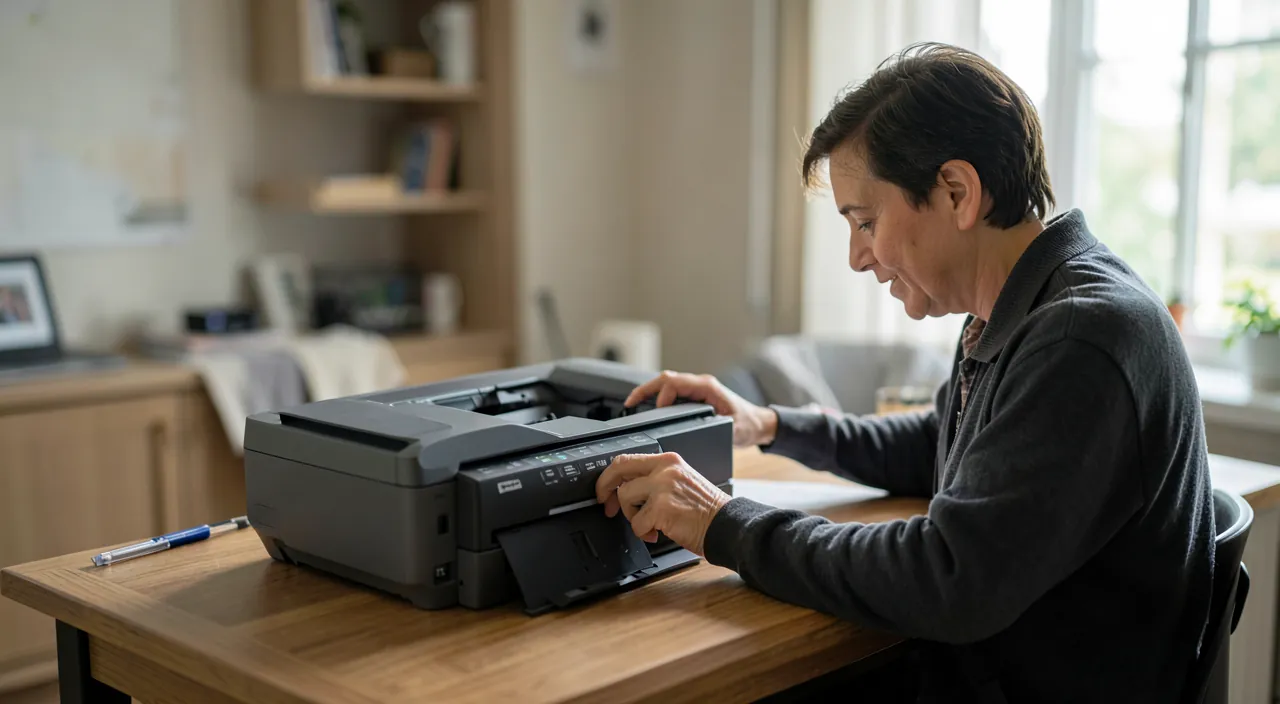
Checks to perform, in order
Test these solutions from simplest to most complex; try printing again after each step. STEP 1 — is the printer TURNED ON and awake? Check that it’s powered on, not in deep sleep; press a button to wake it; check its screen/indicators for any error messages (jam, ink, paper). STEP 2 — check the PHYSICAL CONNECTION (USB printer): is the USB cable properly plugged in on both ends (computer and printer)? Try unplugging and replugging it, or use a different USB port. STEP 3 — check the NETWORK (WiFi/network printer): is the printer properly connected to WiFi (its screen usually shows this)? On the SAME network as the computer (not a separate « guest » network or a different WiFi)? If the WiFi changed (new router), you need to reconnect the printer to the network. STEP 4 — uncheck the manual « OFFLINE » status: sometimes, a setting like « use printer offline » has been enabled (by mistake or by the system); in your system’s printer settings, check and UNCHECK this option if it’s active; this is a common cause of false « offline » status. STEP 5 — CLEAR the print queue: a stuck document in the queue can freeze everything and display « offline »; open the print queue (via printer settings), CANCEL all pending documents, and try again; this often solves the issue. STEP 6 — RESTART the printer: completely power off the printer, wait 30 seconds, then turn it back on; this simple restart fixes many false « offline » issues (it resets its connection). STEP 7 — RESTART the computer: rebooting the computer often restores communication (our guides explain why restarting fixes most bugs). STEP 8 — RESTART the router (WiFi printer): if the issue is network-related, restarting the router (unplug for 30 seconds) can fix everything. STEP 9 — RESTART the print service or reconnect the printer: in the settings, you can sometimes « reactivate » the printer, remove and re-add it; on some systems, a built-in printer troubleshooter diagnoses and fixes issues automatically. STEP 10 — check the DRIVER: rarely the cause of « offline » status, but updating the system or the printer driver may help if the issue persists. After these steps, the printer is almost always back « online »: most of the time, it was enough to restart it, clear the queue, uncheck offline mode, or restart the printer and computer. If nothing works—the printer remains unreachable despite everything, or shows a real hardware error—see the next section.
The winning trio against « offline »: restart the printer, clear the queue, uncheck offline mode. When facing an « offline » printer, three actions resolve the vast majority of cases; try them first. ONE: RESTART the printer. Completely power it off (power button, or unplug it), wait about 30 seconds, then turn it back on; this restart resets its connection (WiFi or USB) and clears stuck states; it’s often THE solution; take the opportunity to restart the computer as well, and the router if the printer is on WiFi. TWO: CLEAR the print queue. A « stuck » document in the queue (a failed print that remains stuck) can freeze all communication and display « offline »; open the print queue (in your system’s printer settings, or by clicking the printer icon), and CANCEL/delete all pending documents; then try printing again; very often, clearing the queue fixes the « offline » issue. THREE: UNCHECK the manual « offline » mode. There’s sometimes a setting « Use printer offline » that may have been enabled (by mistake, or by the system after an incident); as long as it’s checked, the printer will remain displayed as « offline » even if everything is fine; go to the printer’s settings/properties and UNCHECK this option if it’s active; this is a classic false « offline » issue and easy to fix. These three actions—restart (printer + computer + router), clear the queue, uncheck offline mode—resolve the vast majority of « offline » statuses, as this status is almost always a communication issue or a stuck state, not a real failure. First, obviously check that the printer is TURNED ON, awake, connected (USB cable plugged in, or WiFi active and on the correct network), and shows no error on its screen. With this basic reflex plus the winning trio, you’ll get your printer « online » in almost all cases, without repair.
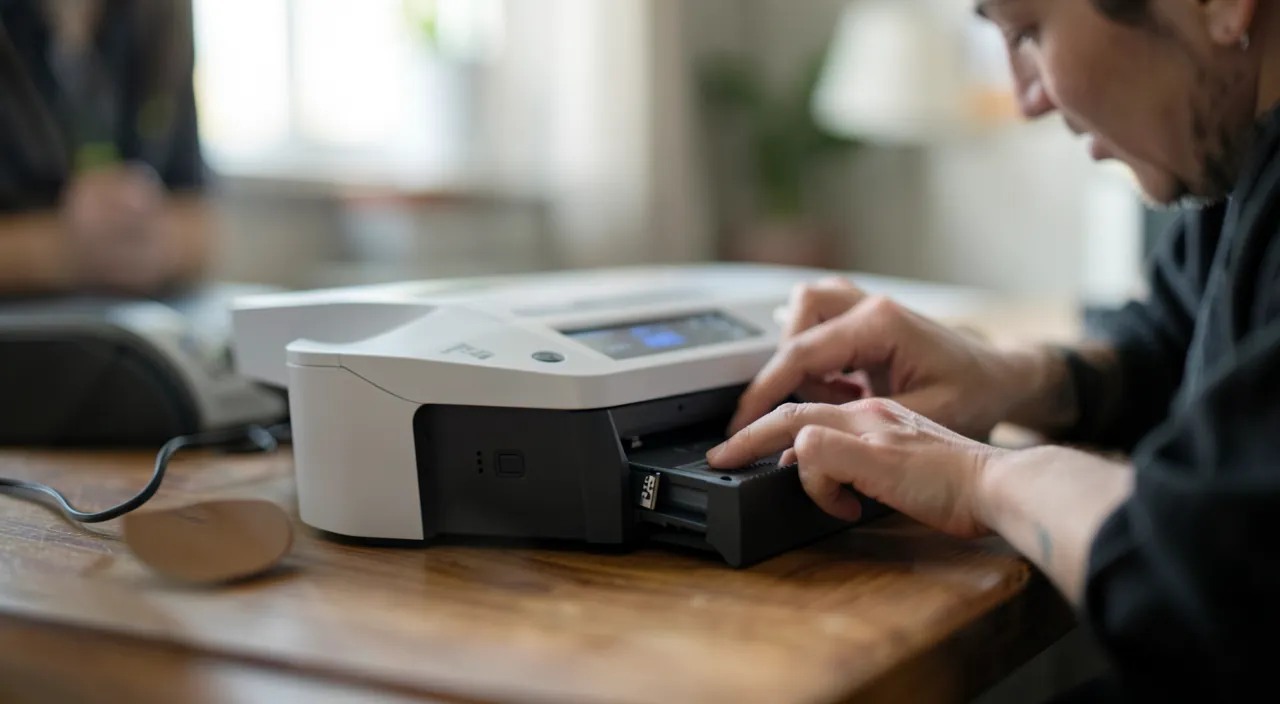
WiFi cases, advanced troubleshooting, and real failure
If the winning trio didn’t work, here are additional steps, especially for network printers. The WiFi printer case: WiFi printers are more prone to « offline » status because they depend on the NETWORK. Check that the printer is properly CONNECTED to WiFi (its screen shows this; otherwise, reconnect it to the network via its menus). Check that it’s on the SAME network as the computer (watch out for « guest » networks or routers that separate WiFi bands: the printer and computer must be on the same network). If you CHANGED your internet router, the printer no longer recognizes the new network: you must reconnect it to the new WiFi (via its screen or app). Restarting the router often fixes things. The printer’s ADDRESS may have changed on the network: removing and re-adding the printer in the system settings « finds » it again. REMOVE and REINSTALL the printer: in your system’s printer settings, delete the printer, then re-add it (the system redetects it); this starts fresh; effective when it remains undetectable. The BUILT-IN TROUBLESHOOTER: Windows offers a printer problem solver that automatically diagnoses and fixes many issues; run it. The MANUFACTURER’S APP: many printers have a dedicated app (from the manufacturer) that helps connect, diagnose, and manage prints; it can facilitate reconnection. A real HARDWARE ERROR: if the printer displays a real message on ITS screen (paper jam, out of ink/toner, open cover, specific error), first fix THAT issue (remove the jam, add paper, replace the cartridge); this isn’t a communication « offline » issue but a concrete problem to address. WHEN to consult: if after all this (restart, reconnect to network, clear queue, reboot, reinstall, troubleshooter) the printer remains inaccessible, there may be a hardware issue with the printer or its network connection; consult the manufacturer’s support or a professional; but this is rare: « offline » is usually resolved much earlier. WORKAROUND: in urgent troubleshooting, you can sometimes print via a USB CABLE (if the printer allows it) when WiFi is problematic, or from another device. In summary, for stubborn cases: reconnect the printer to the correct WiFi (especially after a router change), remove and reinstall it, use the built-in troubleshooter or the manufacturer’s app, and address any real error displayed on the printer; real hardware failure is rare.
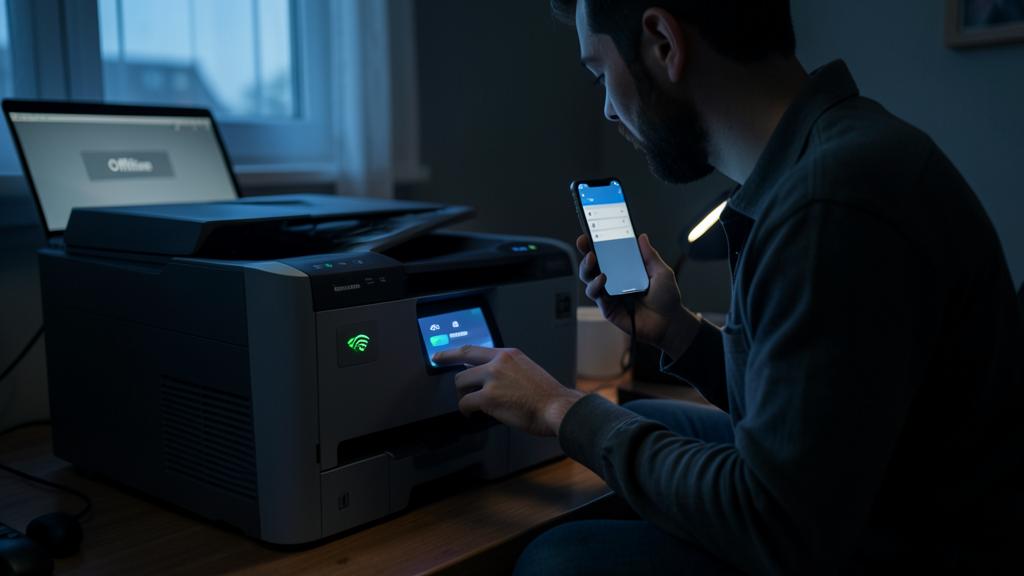
Warning: don’t jump to conclusions about a broken printer— »offline » is almost always a communication issue. The classic mistake is to think that « offline » means the printer is BROKEN; this is rarely the case: this status mainly indicates that the computer can’t COMMUNICATE with it; the printer is usually fine; before imagining a failure or buying a new printer, perform the simple steps (restart, check connection, clear queue, uncheck offline mode, restart printer/computer/router); they resolve the vast majority of cases. The trap of the false « offline » status stuck: often, the « offline » status REMAINS in the system even though the printer is perfectly operational (after an incident, sleep mode, a stuck document); don’t blindly trust it: clearing the queue, unchecking offline mode, and restarting the printer usually « wakes » the status. The trap of the NETWORK after a change: if you changed your internet router or WiFi network, your WiFi printer no longer recognizes the new network and appears offline; this isn’t a failure: you must RECONNECT it to the new WiFi; this is a very common and often overlooked cause. Also watch out for SEPARATE networks: if your printer is on a « guest » network or a different WiFi band than the computer, they can’t « see » each other; put them on the same network. For a real ERROR displayed on the printer (jam, ink, paper): this isn’t a communication issue but a concrete problem; don’t confuse it with a software « offline » issue, and address the real cause (clear the jam, add paper/ink). Beware of « printer repair » tools or drivers to download from dubious sites: download drivers ONLY from the manufacturer’s OFFICIAL website, never from unverified third-party sites (risk of unwanted software—our guides on avoiding unwanted software). Don’t repeatedly try to restart the same failed print: this piles up documents in the queue and worsens the jam; instead, clear the queue and start fresh. Finally, if you need to remove and reinstall the printer, note its model to find it easily. By understanding that « offline » is a communication issue (not a failure), by remembering to reconnect the printer after a network change, and by using simple steps instead of assuming the worst, you’ll get your printer working again in almost all cases, without spending money or repairs.
Frequently asked questions
What does « printer offline » mean?
This means your computer can’t COMMUNICATE with the printer: it doesn’t « see » it correctly or can’t send documents to print. Important point: this status doesn’t mean the printer is faulty; it may be fully functional; it’s the CONNECTION between them that is broken or disrupted. It’s primarily a connection/communication issue, almost always resolvable without repair. Possible causes: the printer is turned off or in standby; a disconnected USB cable; a WiFi issue (printer disconnected from WiFi, or not on the same network as the computer, especially after a router change); an « offline » status stuck in the system even though everything is fine (very common); a jammed print queue; a « use printer offline » setting enabled by mistake. To fix it: check that the printer is turned on and connected (cable or WiFi), clear the print queue, uncheck the « offline » mode in settings, and restart the printer, computer (and router if WiFi); these simple steps resolve the vast majority of cases. In short: « offline » = the computer isn’t communicating with the printer; it’s a connection issue, not a failure; the printer is usually fine, you just need to restore the link.
My WiFi printer is « offline » even though it’s turned on: why?
Almost always due to a NETWORK issue: the printer is on, but the network communication with the computer is broken. Common causes: the printer DISCONNECTED from WiFi (a WiFi printer can lose its connection; its screen usually shows its status; reconnect it to the network via its menus); it’s NOT on the same network as the computer (watch out for separate « guest » networks, or routers that distinguish multiple WiFi bands: the printer and computer must be on the SAME network); you CHANGED your internet router (the printer no longer recognizes the new WiFi and must be reconnected to it—very common and often overlooked cause); an « offline » status stuck in the system; or the printer’s address on the network changed. What to do? Restart the printer (turned off for 30 seconds, then back on—this restarts its WiFi connection), restart the internet router (unplug for 30 seconds), and the computer. Check on the printer’s screen that it’s properly connected to the correct WiFi; otherwise, reconnect it. Clear the queue and uncheck the « offline » mode in settings. If it remains undetectable: remove it and re-add it in the system’s printer settings (it redetects it on the network), or use the manufacturer’s app to reconnect it. WiFi printers are more prone to « offline » status than USB printers, precisely because they depend on the network; but these steps (restart, reconnect to the correct WiFi, reinstall) resolve almost all cases. Especially remember to reconnect to the network after any router change.

I’ve tried everything, the printer remains offline: what to do?
If basic steps didn’t work, here are advanced options before considering a failure. REMOVE and REINSTALL the printer: in your system’s printer settings, delete the printer, then re-add it (the system redetects and reconfigures the connection); this starts fresh and often unblocks stubborn cases. Use the BUILT-IN TROUBLESHOOTER: Windows offers a printer problem solver that automatically diagnoses and fixes many issues; run it. Install or use the MANUFACTURER’S APP for your printer: it often helps reconnect and diagnose connection issues. For a WiFi printer, explicitly reconnect it to the correct network (especially if you changed your router), and restart the router. Check the DRIVER: update the system, or reinstall the official driver from the manufacturer’s site (never from a dubious third-party site). Check that no real ERROR is displayed on the printer’s screen (jam, ink, paper), in which case it’s not a communication issue but a concrete problem to fix. EMERGENCY WORKAROUND: if the printer has a USB port, try connecting it directly via USB to the computer (this bypasses WiFi); or print from another device (a phone via the manufacturer’s app, for example). If NOTHING works after all this—the printer remains inaccessible despite reinstallation, network reconnection, troubleshooter—it may be a hardware issue with the printer or its network module; contact the MANUFACTURER’S SUPPORT (who often has procedures specific to your model) or a professional; but reassure yourself, this is rare: « offline » is usually resolved much earlier. Don’t buy a new printer without exhausting these options: the problem is almost always a communication issue to restore, not a failure.
What to remember
« Printer offline » means the computer can’t COMMUNICATE with the printer: it’s a CONNECTION issue, almost never a failure; the printer is usually fine, you just need to restore the link. The WINNING TRIO that resolves the vast majority of cases: 1) RESTART the printer (turned off for 30 seconds, then back on—restarts its connection; also restart the computer and router if WiFi); 2) CLEAR the print queue (a stuck document can block everything; cancel pending documents); 3) UNCHECK the « use printer offline » mode in settings (often enabled by mistake). First, check that the printer is TURNED ON, awake, connected (USB cable plugged in, or WiFi active on the SAME network as the computer), and shows no error on its screen. For a WiFi printer: the « offline » status often comes from the network; reconnect it to the correct WiFi (especially after a ROUTER CHANGE—common and overlooked cause), check it’s not on a separate « guest » network, and restart the router. Stubborn cases: REMOVE and reinstall the printer in settings (the system redetects it), use the BUILT-IN TROUBLESHOOTER (Windows) or the manufacturer’s app, and update the driver (only from the official site). For a real ERROR displayed on the printer (jam, ink, paper), address the concrete cause—this isn’t a communication « offline » issue. DON’T jump to conclusions about a failure: « offline » is often a false stuck status or a connection issue; don’t buy a new printer before trying everything. Don’t repeatedly try the same failed print (this piles up the queue); instead, clear the queue and start fresh. In urgent troubleshooting, a direct USB connection or printing from another device can bypass a WiFi issue. Real hardware failure is rare: by restoring communication with these simple steps, you’ll get your printer « online » in almost all cases.

Persistent failure, temperamental device? Our remote troubleshooting service quickly resolves your issue, without jargon.
Leave a Reply
You must be logged in to post a comment.