
Your home WiFi is the gateway to your entire connected household: computers, phones, TVs, and connected devices all pass through it, along with all your data. Poorly secured WiFi is like leaving your door open: a neighbor or a nearby hacker could connect to it, use your connection, or even access your devices and data. Yet, securing your WiFi only requires a few simple settings, done once. Here’s how to properly secure your home WiFi to protect your network, devices, and privacy.
Why secure your home WiFi
Understanding the stakes motivates you to make the necessary adjustments. Your WiFi is the access point to the INTERNET for all devices in your household: computers, smartphones, tablets, connected TVs, connected objects (speakers, cameras, thermostats, etc.); everything goes through it. If it is UNSAFE, several problems can arise. An INTRUDER can connect to it: a neighbor, or someone nearby (in the street, a building), could connect to your WiFi if it is not well protected; they would then USE your connection (slowing down yours, and above all, any illegal activity on their part would go through YOUR connection, with consequences for you). In the worst case, they could attempt to access your DEVICES and DATA on the network, or spy on your activity. Your connected objects and devices could be exposed. In short: an unsecured WiFi is an open door to your digital home. The GOOD news: today, internet boxes from service providers are generally delivered with BASIC security already activated (a WiFi password, encryption); the default security level is often correct; BUT a few adjustments allow you to STRENGTHEN it and avoid common weaknesses; and this is done once, then it’s set. The KEY points of WiFi security: a good WiFi PASSWORD (strong, not the default one if it is weak), MODERN encryption (the technology that protects exchanges), securing ACCESS to the box itself (its admin interface), and a few good practices (guest WiFi, updates). What you need to remember to start: your home WiFi is the gateway to your entire connected household; if poorly secured, it exposes your connection, devices, and data to a nearby intruder; securing it (good password, modern encryption, protected box) only requires a few simple settings, done once; it’s an important and easy step to protect your digital home. Let’s see how.
Your WiFi is like the front door to your digital home. If it’s not locked properly, strangers can walk in, use your internet, and even steal your data. The good news is that securing it is easy – just a few settings in your internet box. The main things to check are your WiFi password, the encryption type, and the admin password for your box. Once set up, you’re protected.
Imagine your neighbor notices your WiFi network named “MyHomeWiFi” with no password. They connect their devices, using your internet for streaming and downloads. Meanwhile, their illegal downloads get traced back to your IP address, and you get a warning from your internet provider. A strong password would have prevented this.
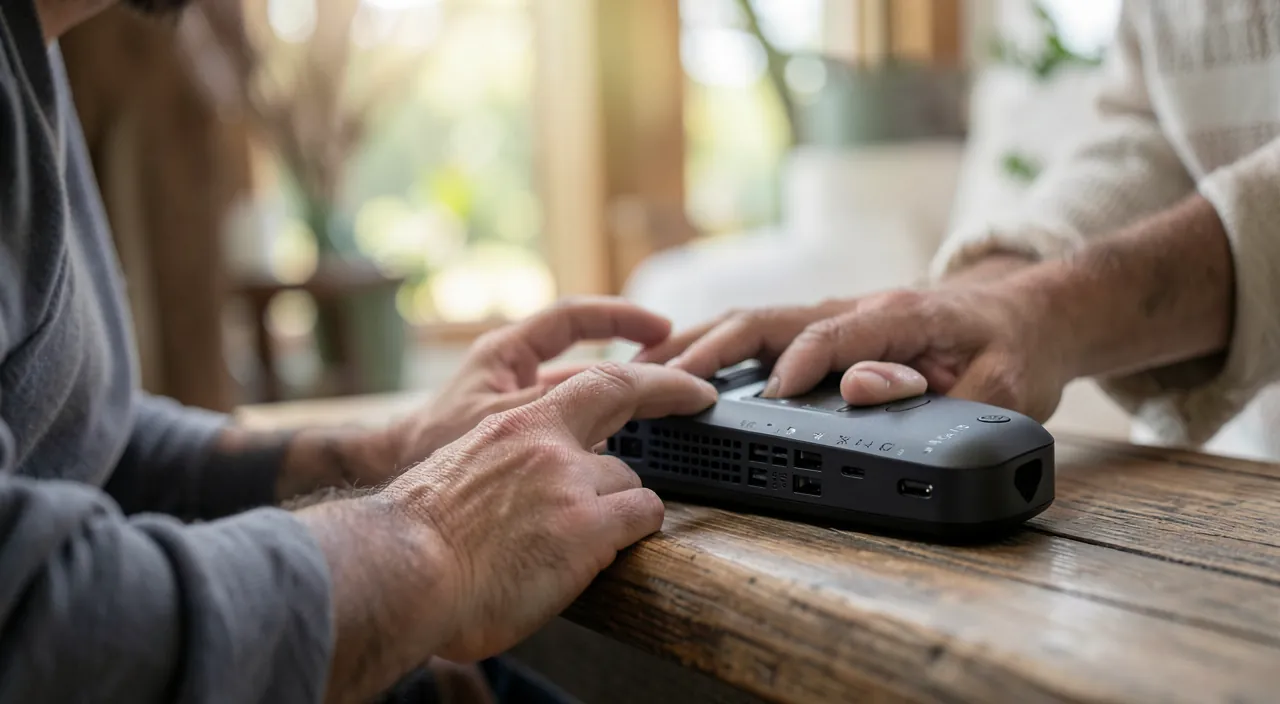
Essential settings to secure your WiFi
Here are the settings to check and adjust, usually in your internet box interface (accessible via its app or a browser address — see your box’s manual). A STRONG WiFi PASSWORD: this is the most important point; your WiFi network must be protected by a STRONG password (long, complex); recent boxes often have a correct default password (printed on the box), but if it is short or weak, CHANGE it for a strong password; NEVER leave a WiFi without a password (open). MODERN encryption: check that your WiFi uses RECENT encryption (current standards, often called WPA2 or WPA3); avoid old and obsolete encryption (like WEP, or lack of encryption); recent boxes use modern encryption by default, but check it in the settings. SECURE ACCESS to the BOX: the box has an ADMINISTRATION interface (to manage its settings); it is protected by an admin password; CHANGE the default admin password if it has been left as is (often weak or known); this is important: if someone accesses your box’s admin, they control your network. CHANGE the NETWORK NAME (optional): you can customize your WiFi name; avoid putting personal information (your name, address). UPDATE the box: the box’s software (its “firmware”) receives security updates; they are often automatic (operator-side), but check, and RESTART the box from time to time (this sometimes applies updates and refreshes the connection — see our guides on why updates protect). GUEST WiFi: many boxes allow you to create a separate “GUEST” WiFi network; this is very practical: you give this guest network to your visitors (and connected objects), who access the internet WITHOUT being on your main network (so without access to your devices and data); activate it for your guests rather than giving them your main password. DISABLE risky features: some “easy” connection features (like WPS, a button to connect without a password) can have weaknesses; you can disable them if you don’t use them. MANAGE connected devices: the box interface often shows the LIST of devices connected to your WiFi; check it from time to time: if you see an UNKNOWN device, it might be an intruder (then change your WiFi password). In summary, essential settings: a strong WiFi password, MODERN encryption (WPA2/WPA3), the box’s ADMIN password changed, the box UPDATED, and the use of GUEST WiFi for visitors; also check connected devices from time to time. These settings, done once, securely protect your WiFi.
- Strong WiFi password (long and complex, not the default)
- Modern encryption (WPA2 or WPA3, not WEP)
- Changed admin password (not the default one)
- Updated box (restart occasionally for updates)
- Guest WiFi (for visitors and connected devices)
- Check connected devices (look for unknown ones)
The priority steps: strong WiFi password, changed box password, and guest WiFi for visitors. Among all the settings, three cover the essentials of your WiFi’s security; focus on them. ONE, a STRONG WiFi PASSWORD. This is the top protection: without a good password, anyone nearby could connect to your network. Check that your WiFi is protected by a STRONG password (long and complex); recent boxes often have a correct default password (printed on a box label) — in this case, you can keep it; but if it is short, simple, or if you have doubts, CHANGE it for a strong password; and NEVER leave a WiFi open (without a password). TWO, change the BOX ADMINISTRATION PASSWORD. This is a point often FORGOTTEN but crucial: the box has an admin interface (to manage its settings), protected by a password SEPARATE from the WiFi password; this admin password is often left at its DEFAULT value (sometimes “admin” or a known/weak value); yet if someone accesses your box’s admin, they can CONTROL everything (change settings, see devices, open access); CHANGE this default admin password for a strong one; this is an important and little-known security step. THREE, activate GUEST WiFi for your visitors. Most boxes allow you to create a separate “guest” WiFi network from your main network; the benefit: when friends, family, or connected objects (TVs, speakers, smart home devices) connect, they access the internet WITHOUT being on your main network, so WITHOUT access to your computers, files, and data; give the guest WiFi to your visitors rather than your main network password; it’s safer (it isolates your personal devices) and practical; it’s also a good idea to put your connected objects there (often less secure), to isolate them from your main devices. These three steps — strong WiFi password, changed box admin password, and guest WiFi for visitors and connected objects — cover the essentials of your home network’s security. They are done once, in your box’s interface (via its app or a browser address; consult your box’s manual or your operator’s help), and they protect you durably. Add to this keeping the box updated (often automatic; restart it from time to time) and occasionally checking connected devices, and your WiFi will be securely protected.
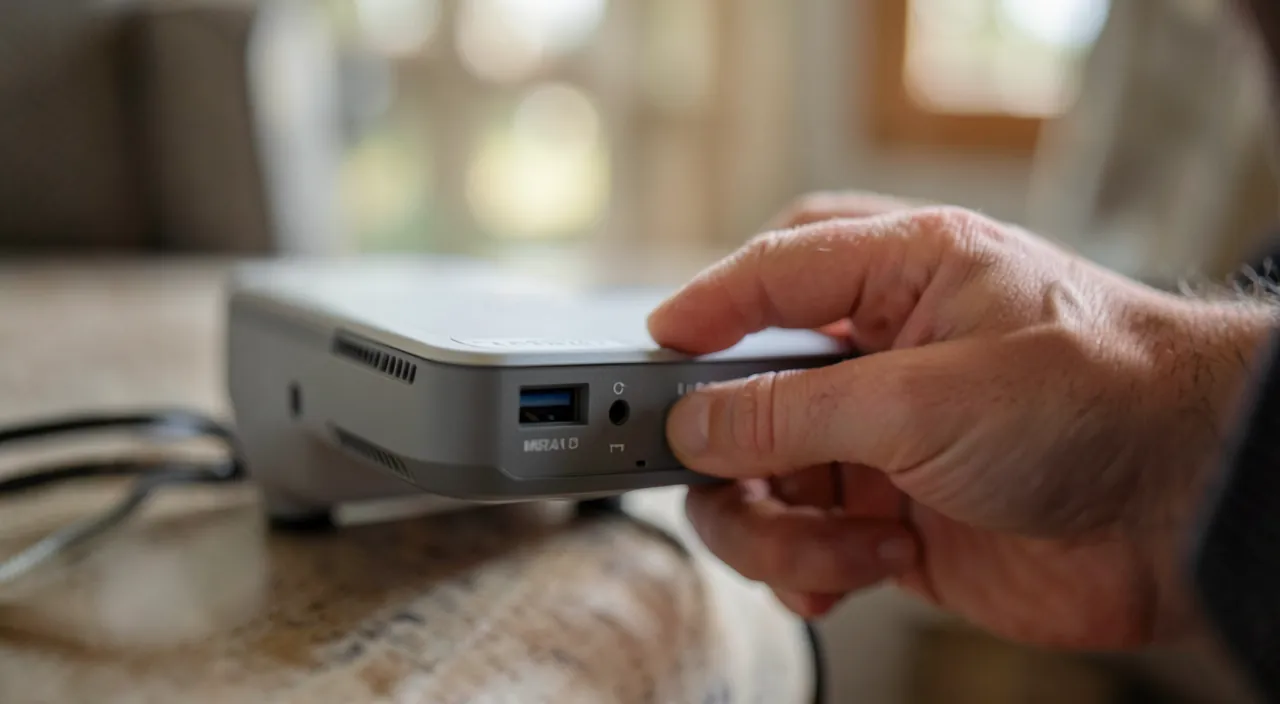
Going further and securing connected objects
A few additional points for enhanced security, especially with the proliferation of connected objects. CHECK CONNECTED DEVICES: your box’s interface generally displays the list of devices currently connected to your WiFi; check it from time to time; if you spot a device you do NOT RECOGNIZE, this may indicate an intruder; in this case, immediately change your WiFi password (this disconnects everyone; you’ll reconnect your devices with the new password). CONNECTED OBJECTS: speakers, cameras, TVs, thermostats, bulbs… these objects are practical but often LESS well secured than your computers and phones, and can be a weak link; a few precautions: change their default passwords (many have a weak or known factory password — CHANGE it!), keep them updated, buy objects from serious brands, and ISOLATE them on the GUEST network (so a compromised connected object doesn’t access your main devices). CONNECTED CAMERAS in particular: be very vigilant (strong and unique password, updates); a poorly secured camera could be hacked and expose your privacy; don’t take this lightly. PLACEMENT and range: the WiFi signal extends beyond your walls (to neighbors, the street); that’s why the password and encryption are essential (you can’t prevent the signal from leaving, but you can prevent connection). SEPARATE networks if possible: some create a dedicated network for connected objects (via guest WiFi), separate from personal devices; good practice. The box as the CENTRAL point: remember that the box is the heart of your network security; protect its access (strong admin password), keep it updated, and don’t let just anyone physically access it (the WiFi and admin passwords are often on the box: a visitor could see them). Updates for OBJECTS and the box: like any software, they receive security patches; keep them updated (see our guides on why updates protect). In case of DOUBT or trouble (suspected intruder, strange connection): change the WiFi password and the box’s admin password, restart the box, check connected devices; if the issue persists, contact your operator. SIMPLICITY above all: no need to dive into very technical configurations; the essential steps (good WiFi password, modern encryption, changed admin password, guest WiFi, updated box, secured connected objects) are enough for a household; they are accessible to everyone. In summary: regularly check connected devices (spot intruders), secure your connected objects (changed passwords, updates, isolated on guest network — special attention to cameras), protect box access, and keep everything updated; these precautions, in addition to the essential settings, enhance your connected home’s security without excessive complexity.
Warning: don’t leave your WiFi open or with default passwords, and secure your connected objects. Several common weaknesses expose a home WiFi; avoid them. NEVER leave your WiFi OPEN (without a password): this would be an open door; anyone nearby could connect to it, use your connection (with consequences if their activity is illegal: it goes through YOUR connection), and potentially access your network; your WiFi MUST ALWAYS be protected by a strong password and modern encryption. DON’T KEEP DEFAULT PASSWORDS if they are weak: this is especially true for the box’s ADMINISTRATION password, often left at its original value (sometimes “admin” or known), which would allow an intruder to take control of your box; change it; for the WiFi password, recent boxes’ default password is often correct, but change it if it is weak. Beware of OBSOLETE encryption: a WiFi using old encryption (like WEP) is easily crackable; ensure you have modern encryption (WPA2/WPA3). Beware of POORLY SECURED connected objects: speakers, cameras, smart home devices are often the WEAK LINK; many have weak or known default passwords (CHANGE them!), and are not always well updated; a compromised connected object can be a gateway to your network, or (for a CAMERA) expose your privacy; secure them (strong passwords, updates, serious brands) and ISOLATE them on a guest network; be particularly vigilant with connected cameras. Beware of INTRUDERS: if you notice unusually slow connection, or an UNKNOWN device in your box’s list of connected devices, an intruder may have connected; immediately change your WiFi password. Beware of who has ACCESS to passwords: the WiFi (and admin) password is often printed ON the box; a visitor could note it; hence the interest of guest WiFi for visitors (don’t give your main password). Don’t neglect the box and connected objects’ UPDATES: they fix vulnerabilities; restart the box from time to time. Finally, be wary of PUBLIC WiFi (outside your home): this is another topic, but remember that a public WiFi doesn’t offer the same security as your well-configured home WiFi; avoid sensitive operations there (see our guides on public WiFi security). By avoiding open WiFi, default passwords (especially the box’s), obsolete encryption, and by securing your connected objects, you close the main doors through which an intruder could enter; these simple precautions effectively protect your digital home.
Frequently asked questions
Is my box’s WiFi already secured by default?
Generally, basic security is already active — but a few checks and reinforcements are worth it. Modern internet boxes from service providers are most often delivered with: a default WiFi password (printed on a box label), and modern encryption activated; the default security level is therefore often CORRECT, and much better than an open WiFi; you are not totally exposed from the start. HOWEVER, a few points deserve verification or reinforcement: 1) the default WiFi password is often strong, but if it is short or simple, change it for a strong password; 2) especially, the box’s ADMINISTRATION password (the one protecting access to the box’s settings, different from the WiFi password) is often left at its DEFAULT value, sometimes weak or known: CHANGE it, this is an important point often neglected; 3) check that the encryption is indeed modern (WPA2/WPA3, not old WEP); 4) activate GUEST WiFi for your visitors and connected objects; 5) keep the box updated (often automatic; restart it from time to time). So: yes, your box is probably already secured by default (WiFi password + encryption), which is already good; but take a few minutes to check these points and STRENGTHEN (especially change the default admin password, activate guest WiFi); these simple steps fill common weaknesses. Default security is a good starting point, not a reason to do nothing: a few additional settings, done once, bring your WiFi to a good security level. Consult your box’s manual or your operator’s help to access these settings.
How to know if someone is using my WiFi?
Several clues and a verification method. CLUES of a possible intruder: unusually SLOW internet connection (someone using your WiFi consumes your bandwidth); unexplained slowdowns. But these clues are not certain (a slow connection can have other causes). The RELIABLE way to check: consult the LIST of devices connected to your WiFi, available in your box’s admin interface (via its app or by accessing the box in a browser — consult your box’s manual); this list shows all devices currently (or recently) connected to your network; REVIEW it: do you recognize all the devices? (your computers, phones, tablet, TV, connected objects); if you spot an UNKNOWN device you can’t identify as yours, this may indicate an INTRUDER connected to your WiFi. Note: identifying devices is not always easy (names can be obscure); make an inventory of YOUR connected devices to compare. If you SUSPECT an intruder: IMMEDIATELY change your WiFi password for a strong one (this disconnects ALL devices; you’ll reconnect yours with the new password, but not the intruder who doesn’t know it); also change the box’s admin password as a precaution; check the list again afterward. To PREVENT intrusions: a strong WiFi password and modern encryption make access very difficult for an intruder; this is the best protection. Check the list of connected devices from time to time, especially if you notice slowdowns: this is how to spot a potential intruder. In summary: slow connection = possible clue; the list of connected devices (in the box’s interface) = reliable way to check; an unknown device = possible intruder → change your WiFi password. A good password remains the best prevention.
Is guest WiFi really useful?
Yes, it’s a very practical feature and a real security plus; use it. The principle: the “guest” WiFi is a SEPARATE network from your main network, that most boxes allow you to create; devices that connect to it access the INTERNET, but are ISOLATED from your main network (they don’t have access to your computers, files, personal devices). Its BENEFITS: for your VISITORS (friends, family) — give them the guest WiFi rather than your main network password; they have internet, without being on your personal network (and without you having to share your main password, which they could note or that could circulate); for CONNECTED OBJECTS (TVs, speakers, cameras, smart home devices) — preferably connect them to the guest network; thus, these objects (often less well secured, potentially weak links) are ISOLATED from your main devices; if one of them were compromised, it wouldn’t access your computers and data. In short, guest WiFi SEPARATES: on one side your personal devices (on the main network, protected), on the other side visitors and connected objects (on the guest network, isolated); this is a good security practice that partitions your network. It’s also PRACTICAL: you can easily give the guest WiFi (often with a separate, simpler password to communicate) without exposing your main network. How to activate it: in your box’s interface (app or settings), look for the “guest WiFi” or “guest network” option; activate it, define a name and password for this guest network. So yes, guest WiFi is really useful; activate it, give it to your visitors, and connect your connected objects to it; it’s a simple step that enhances your digital home’s security by isolating your personal devices. If your box offers it (most do), take advantage of it: it’s one of the easiest and most effective good practices.
What to remember
Your home WiFi is the gateway to your entire connected household; if poorly secured, it exposes your connection, devices, and data to a nearby intruder (neighbor, someone nearby). Securing it only requires a few simple settings, done once, in your box’s interface (via its app or a browser address; consult your box’s manual). Good news: recent boxes are generally delivered with basic security (WiFi password + modern encryption), but a few reinforcements are worth it. PRIORITY STEPS: 1) a STRONG WiFi PASSWORD (never leave a WiFi open; change the default password if it is weak); 2) change the BOX ADMINISTRATION PASSWORD (often forgotten: left as default, it would allow an intruder to control your box); 3) activate GUEST WiFi for your visitors and connected objects (they are isolated from your main network, so from your devices and data). Add: MODERN encryption (WPA2/WPA3, not old WEP), the box UPDATED (often automatic; restart it from time to time), and occasional checking of CONNECTED DEVICES (an unknown device = possible intruder → change the WiFi password). Secure your CONNECTED OBJECTS (the often weak link): change their default passwords, keep them updated, isolate them on the guest network; be particularly vigilant with CONNECTED CAMERAS (strong password, updates: a hacked camera exposes your privacy). WEAKNESSES to avoid: open WiFi, default passwords (especially the box’s), obsolete encryption, unsecured connected objects. If you suspect an intruder (slow connection, unknown device): change the WiFi password and the box’s password, restart the box. No need to dive into very technical configurations: the essential steps are enough for a household and are accessible to everyone. By securing your WiFi (good password, modern encryption, protected box, guest WiFi, secured connected objects), you close the main entry points; it’s an important and easy step, done once, to durably protect your digital home, devices, and privacy.

Doubts about your security, a device to check or clean up? Our support service guides you step by step.
Leave a Reply
You must be logged in to post a comment.