
Your mouse jumps, pauses for a moment, then continues; your keyboard « swallows » letters or stops responding intermittently: a wireless mouse or keyboard that drops connection is a common yet annoying problem, as it disrupts even the slightest movement. The cause is almost always simple—batteries, a receiver, interference, or a connection to be re-established—and rarely a failure. Here’s how to diagnose and fix wireless mouse or keyboard dropouts in the correct order, to regain a stable connection without changing hardware unnecessarily.
Why a wireless device drops connection
A wireless mouse or keyboard communicates with the computer via radio waves (through a small receiver or Bluetooth); a dropout occurs when this communication is DISTURBED or INTERRUPTED. Common causes, almost always simple. LOW BATTERIES: The number one cause; a wireless device with weakening batteries becomes unpredictable—jumps, lags, dropouts—well before it completely dies; this is the first reflex to check. INCORRECT RECEIVER POSITIONING OR CONNECTION: The small USB receiver should have a good « view » of the device; placed behind a computer, hidden behind objects, or too far away, it captures poorly. INTERFERENCE: Other wireless devices (Wi-Fi, Bluetooth, phones, other peripherals), or metallic objects, can interfere with the signal. DISTANCE: Too far from the receiver, the signal weakens and drops. SURFACE (for a mouse): An optical mouse functions poorly on certain surfaces (glass, shiny, very dark, reflective) — which gives jumps that are taken for wireless dropout. RECONNECT: Especially in Bluetooth, pairing may be lost or become unstable and need to be redone. A computer in SLEEP mode or busy: Sometimes the device seems to drop connection while the computer momentarily « wakes up » or is overloaded. Less commonly: a driver to update, or a faulty device/receiver. How to orient yourself? A useful question: is the dropout CONSTANT (total disconnection) or INTERMITTENT (jumps, lags)? Intermittent points to batteries, interference, or surface issues; total, to a lost connection, an unplugged receiver, or empty batteries. The main idea: a wireless device that drops connection almost always has a simple and non-material cause—most often weak batteries, an incorrectly positioned receiver, interference, or an unsuitable surface—before thinking of a failure or buying new hardware, these basic causes explain the vast majority of dropouts and can be fixed with a few gestures.
A wireless mouse or keyboard drops connection when its signal is blocked or weakened. The most common reasons are low batteries, a poorly placed receiver, interference from other devices, or a bad surface for the mouse. It’s rarely a hardware failure.
A Logitech MX Master 3S mouse starts jumping on a glass desk. The user replaces the batteries, moves the receiver closer, and tries a mouse pad. The jumps stop, confirming the issue was a combination of low batteries and a bad surface.
How to fix dropouts
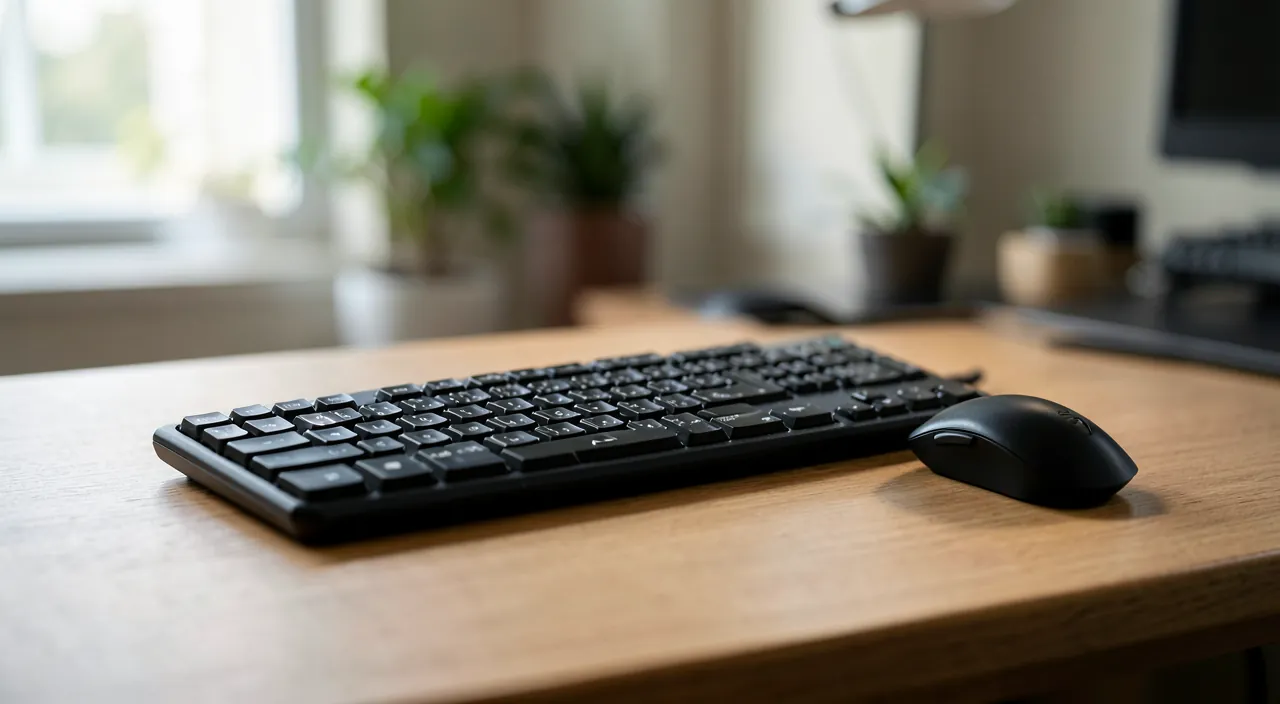
Here are the gestures to try, from the most common to the most advanced. Replace or recharge the BATTERIES — the first reflex: replace the batteries (or recharge the battery) of the keyboard or mouse; weak batteries are the most frequent cause of dropouts, and the symptom appears well before the device dies; it’s simple, fast, and often sufficient. Reposition the RECEIVER — if your device uses a small USB receiver: plug it into a more ACCESSIBLE and closer port (in front of the computer rather than hidden at the back), or use a USB extension to bring it closer to the keyboard/mouse and clear it of obstacles — a well-placed receiver makes all the difference. Move closer and clear the area — reduce the distance between the device and the receiver; clear metallic objects and other wireless devices that can interfere. Reconnect — unplug and replug the USB receiver; in Bluetooth, re-pair the device (remove it from the list of devices, then reconnect it); sometimes it’s enough to turn the device off and on (using the switch). Change the SURFACE (mouse) — if it’s a mouse that jumps: try it on another surface (a mouse pad, a flat and uniform surface)—glass, shiny, very dark, or reflective surfaces disturb the optical sensor. REBOOT the computer — a reboot resolves small connection and driver issues. Test on another computer / with another port — to isolate: if the device drops connection elsewhere, it’s the culprit; if it works elsewhere, the problem comes from your computer (port, interference, driver). Update / reinstall the DRIVER — if the issue persists, updating the device’s driver (or reinstalling it) may help; make sure the system is also up to date. A few TIPS: proceed from the simplest (batteries, receiver) to the most advanced (drivers, cross-test), stopping as soon as it stabilizes; avoid plugging the receiver into a USB hub that’s overloaded or just next to a port that emits interference; and keep spare batteries on hand (wireless dropout is so often an issue of batteries). If, after all this, a device still drops connection (new batteries, well-placed receiver, tested elsewhere): it may be faulty (the device or its receiver) — a replacement is then justified, but only after ruling out the simple causes. In summary, to fix dropouts: replace batteries (the classic), reposition and bring the receiver closer, clear interference, reconnect (unplug/replug the receiver; in Bluetooth, re-pair; or turn the device on/off), change the surface for a mouse, reboot, and test elsewhere to isolate. These simple gestures stabilize the vast majority of stubborn wireless keyboards and mice.
- Replace or recharge the BATTERIES — the first reflex: replace the batteries (or recharge the battery) of the keyboard or mouse; weak batteries are the most frequent cause of dropouts, and the symptom appears well before the device dies; it’s simple, fast, and often sufficient.
- Reposition the RECEIVER — if your device uses a small USB receiver: plug it into a more ACCESSIBLE and closer port (in front of the computer rather than hidden at the back), or use a USB extension to bring it closer to the keyboard/mouse and clear it of obstacles — a well-placed receiver makes all the difference.
- Move closer and clear the area — reduce the distance between the device and the receiver; clear metallic objects and other wireless devices that can interfere.
- Reconnect — unplug and replug the USB receiver; in Bluetooth, re-pair the device (remove it from the list of devices, then reconnect it); sometimes it’s enough to turn the device off and on (using the switch).
- Change the SURFACE (mouse) — if it’s a mouse that jumps: try it on another surface (a mouse pad, a flat and uniform surface)—glass, shiny, very dark, or reflective surfaces disturb the optical sensor.
- REBOOT the computer — a reboot resolves small connection and driver issues.
- Test on another computer / with another port — to isolate: if the device drops connection elsewhere, it’s the culprit; if it works elsewhere, the problem comes from your computer (port, interference, driver).
- Update / reinstall the DRIVER — if the issue persists, updating the device’s driver (or reinstalling it) may help; make sure the system is also up to date.
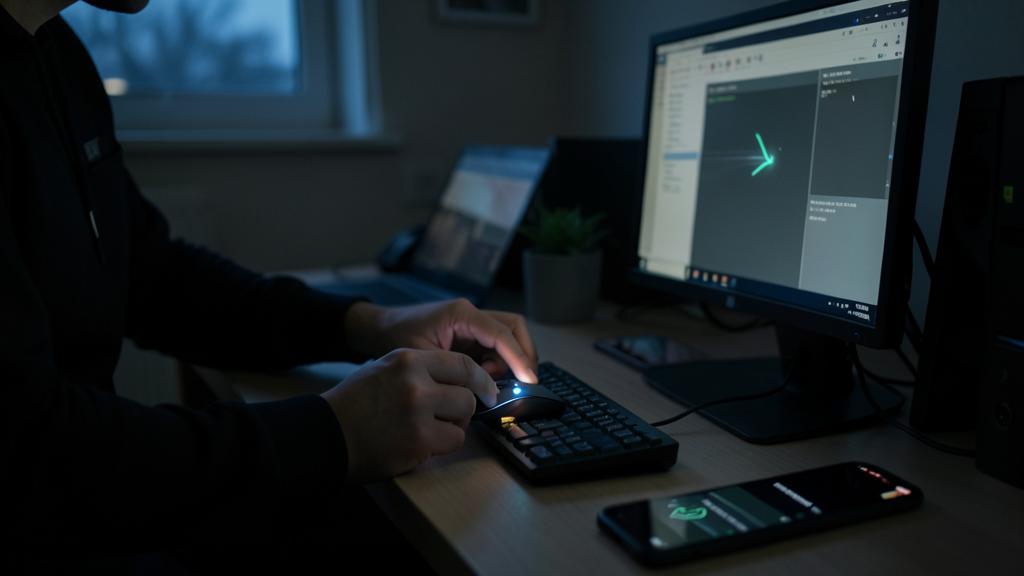
The right reflex. Before suspecting a failure or buying new hardware, start with the most common: the BATTERIES. A wireless keyboard or mouse with weakening batteries becomes unpredictable (jumps, lags, dropouts) well before it dies; replace the batteries or recharge the battery — it’s simple, fast, and often sufficient. Next, deal with the RECEIVER: if it’s a small USB receiver, plug it into an accessible and closer port (in front of the computer rather than hidden at the back), or use a USB extension to bring it closer to the device and clear it of obstacles and metallic objects — a well-placed receiver solves many dropouts. Move closer to the receiver, clear other wireless devices that can interfere, and reconnect (unplug/replug the receiver; in Bluetooth, re-pair; or turn the device on/off). If it’s a MOUSE that jumps, test it on another surface — glass, shiny, very dark, or reflective surfaces disturb the optical sensor — a mouse pad or a flat and uniform surface often fixes the problem. Reboot the computer (this resolves small connection and driver issues), and to isolate the cause, test the device on another computer or port — if it drops connection everywhere, it’s the culprit; if it works elsewhere, the problem comes from your computer. Proceed from the simplest to the most advanced and stop as soon as it stabilizes: in the vast majority of cases, it’s a matter of batteries, an incorrectly positioned receiver, interference, or an unsuitable surface — not a failure. Keep spare batteries on hand: it’s so often the solution.
Regaining a stable connection permanently
Once the dropout is fixed, a few habits keep your wireless keyboard and mouse reliable over time. Monitor the BATTERIES: since this is the most frequent cause, replace them (or recharge) as soon as the first signs of weakness (jumps, lags) appear, without waiting for a failure; keep spare batteries, or choose rechargeable equipment and remember to recharge it regularly. Care for the RECEIVER’S POSITION: a well-positioned USB receiver (accessible, clear, close) avoids most interference; a USB extension is a small but very effective investment to keep it away from sources of interference and closer to your desk. Limit INTERFERENCE: avoid piling the receiver among other wireless devices or metallic objects; a clear environment stabilizes the signal. Maintain the WORK SURFACE (mouse): a good mouse pad (flat, uniform) avoids jumps due to surface issues. Keep the SYSTEM and DRIVERS up to date: updates correct connection and compatibility issues. Choose reliable EQUIPMENT: a quality keyboard/mouse from a reputable brand is less prone to dropouts than a low-end model; and a wired device remains the most stable option if dropouts frustrate you (no batteries, no interference — a choice to consider for a fixed station). Know how to RECOGNIZE a genuine failure: if, despite new batteries, a well-placed receiver, and a test on another computer, the device still drops connection, it’s likely faulty (the device or its receiver) — a replacement is then justified. In summary, a wireless keyboard or mouse that drops connection is almost always a simple problem — weak batteries (the number one cause), an incorrectly positioned receiver, interference, or an unsuitable surface for a mouse — and rarely a failure. It’s solved by basic gestures: changing batteries, repositioning and bringing the receiver closer, clearing interference, reconnecting, changing the surface, rebooting, and testing elsewhere to isolate. For a lasting stability: monitor the batteries, care for the receiver’s position, limit interference, keep everything up to date, and choose reliable equipment. A replacement is only justified after ruling out all these simple causes — and often, it’s not needed: the comfort of a stable connection depends on a few simple gestures.
Caution: do not buy new equipment before verifying the batteries and the receiver, and be wary of interference and surface issues. Some pitfalls. Buying too soon — don’t conclude that a wireless keyboard or mouse is « dead » and buy a new one before verifying the simple causes: in the vast majority of cases, a dropout comes from weak batteries (the first reflex!), an incorrectly positioned receiver, interference, or an unsuitable surface — not a failure; change the batteries, reposition the receiver, and test before spending. Ignoring the BATTERIES — the most common mistake: looking for complex causes when weak batteries are enough to explain the jumps and lags; always start there, and keep spare batteries. Neglecting INTERFERENCE and RECEIVER POSITION — a USB receiver stuck behind the computer, hidden behind objects, or in the middle of other wireless devices, captures poorly; don’t leave the receiver in a bad position while looking elsewhere for the problem; a simple USB extension to clear it often solves everything. Forgetting the SURFACE (mouse) — a mouse that jumps on glass, a shiny, dark, or reflective surface doesn’t have a connection issue: it’s the SURFACE that disturbs the optical sensor; a flat and uniform mouse pad corrects this. Other pitfalls: plugging the receiver into an overloaded USB hub, letting a rechargeable device run out of battery without recharging, and neglecting system and driver updates (which correct connection issues). A wireless keyboard or mouse that drops connection is almost always fixed by simple and free gestures (batteries, receiver, surface, connection): rule out these simple causes first — a replacement is justified only if the device still drops connection with new batteries, a well-placed receiver, and a conclusive test on another computer. Test before buying: that’s the rule.
Frequently asked questions
My wireless mouse jumps and freezes, what should I do first?
First, change the BATTERIES (or recharge the battery): this is the number one cause of jumps and freezing in a wireless mouse, and the symptom appears well before complete failure. If the problem persists, check the SURFACE: an optical mouse functions poorly on glass, a shiny, very dark, or reflective surface — try it on a mouse pad or a flat and uniform surface (many « jumps » come from there, not the wireless). Then reposition the USB RECEIVER: plug it into the front of the computer or at the end of a USB extension to bring it closer and clear it of obstacles and interference. Reconnect the connection (unplug/replug the receiver, or re-pair in Bluetooth), and reboot the computer. These simple gestures — batteries, surface, receiver — fix the vast majority of jumping mice: start with them before considering a failure or buying a new one.
Where should I place the USB receiver to avoid dropouts?
Place it ACCESSIBLE, NEAR, and CLEAR. The small USB receiver communicates via radio waves with your keyboard/mouse: it captures better at the FRONT of the computer than hidden behind cables and objects. If it’s far or obstructed, use a USB EXTENSION to bring it closer to your desk and clear it of obstacles: it’s a small but very effective investment. Avoid blocking it: behind metallic objects, in the middle of other wireless devices (which interfere), or on an overloaded USB hub. Also reduce the distance between the device and the receiver, and clear sources of interference (other wireless devices, large metallic objects). A well-positioned receiver — clear, near, at the front or offset by a USB extension — eliminates much of the dropout related to placement and interference. This is, after batteries, the second most effective reflex.
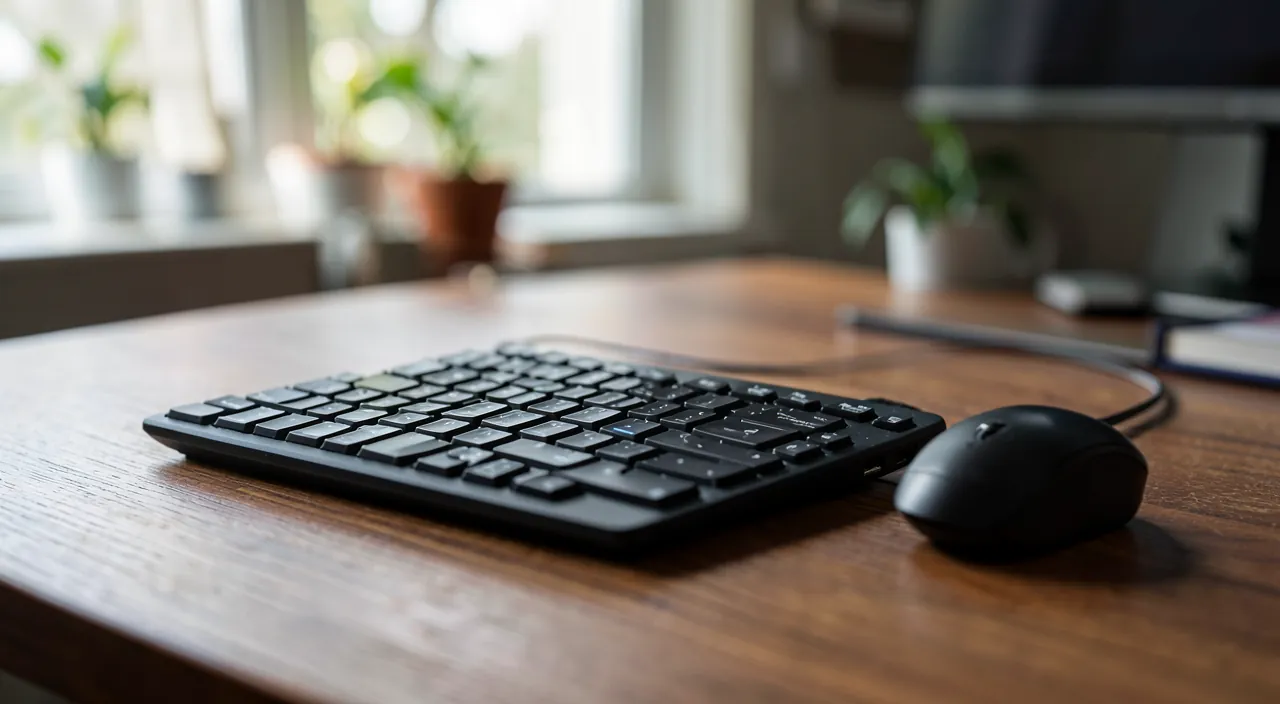
When should you replace a wireless keyboard or mouse?
Only after ruling out all simple causes. A dropout almost always comes from weak batteries, an incorrectly positioned receiver, interference, or an unsuitable surface (mouse) — not a failure. Before replacing: change the batteries (to new ones), reposition and bring the receiver closer (use a USB extension if needed), clear the interference, change the surface for a mouse, reconnect, reboot, update the system and drivers, and especially TEST the device on another computer. This cross-test is decisive: if the device works well elsewhere, the problem comes from your computer (port, interference, driver), not the hardware; if it drops connection everywhere, despite new batteries and a well-placed receiver, it’s likely faulty (the device or its receiver) — a replacement is justified. Don’t buy on a whim: most dropouts can be fixed for free, and a replacement makes sense only after confirming the simple causes are ruled out.
What to remember
A wireless keyboard or mouse that drops connection (jumps, lags, disconnections) is a common but almost always SIMPLE and non-material problem. The number one cause: WEAK BATTERIES — a wireless device becomes unpredictable well before it dies; replace them or recharge, it’s the first reflex and often the solution. Other frequent causes: INCORRECT USB RECEIVER POSITIONING (hidden behind, obstructed, too far), INTERFERENCE (other wireless devices, metallic objects), DISTANCE, RECONNECT (unplug/replug the receiver, re-pair Bluetooth), and for a mouse, an UNSUITABLE SURFACE (glass, shiny, dark, reflective — which gives jumps mistaken for wireless dropout). To fix, proceed from the simplest to the most advanced: replace batteries, reposition and bring the receiver closer (a USB extension to clear it is very effective), clear interference, reconnect, change the surface for a mouse, reboot, and TEST on another computer to isolate the cause (drops everywhere → the device; works elsewhere → your computer). Keep the system and drivers up to date. For lasting stability: monitor the batteries (keep spares), care for the receiver’s position, limit interference, maintain the work surface, and choose reliable equipment (a wired device remains the most stable option for a fixed station). Don’t buy new hardware before ruling out these simple causes: in the vast majority of cases, a few free gestures (batteries, receiver, surface, connection) suffice to regain a stable connection. A replacement is justified only if the device still drops connection with new batteries, a well-placed receiver, and a conclusive test on another computer. Test before buying: that’s the rule that saves you from unnecessary hardware.

Persistent failure, capricious device? Our remote troubleshooting service resolves your issue quickly, without jargon.
Leave a Reply
You must be logged in to post a comment.