
Print a train ticket, a document received by email, a photo, an attachment — directly from your phone, without going through a computer: this is possible and simple, but many people are unaware or struggle with it. Yet, your smartphone can send something to be printed with just a few taps, provided you know how. Here’s how to easily print from your phone, regardless of your printer, and without complicating your life — a daily gesture finally within your reach.
Print wirelessly: the simplest today
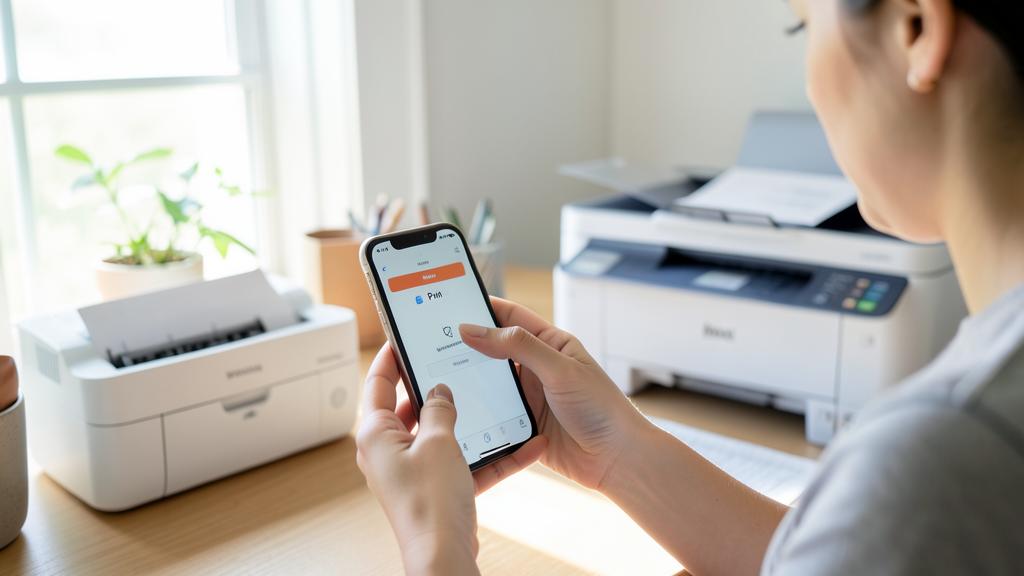
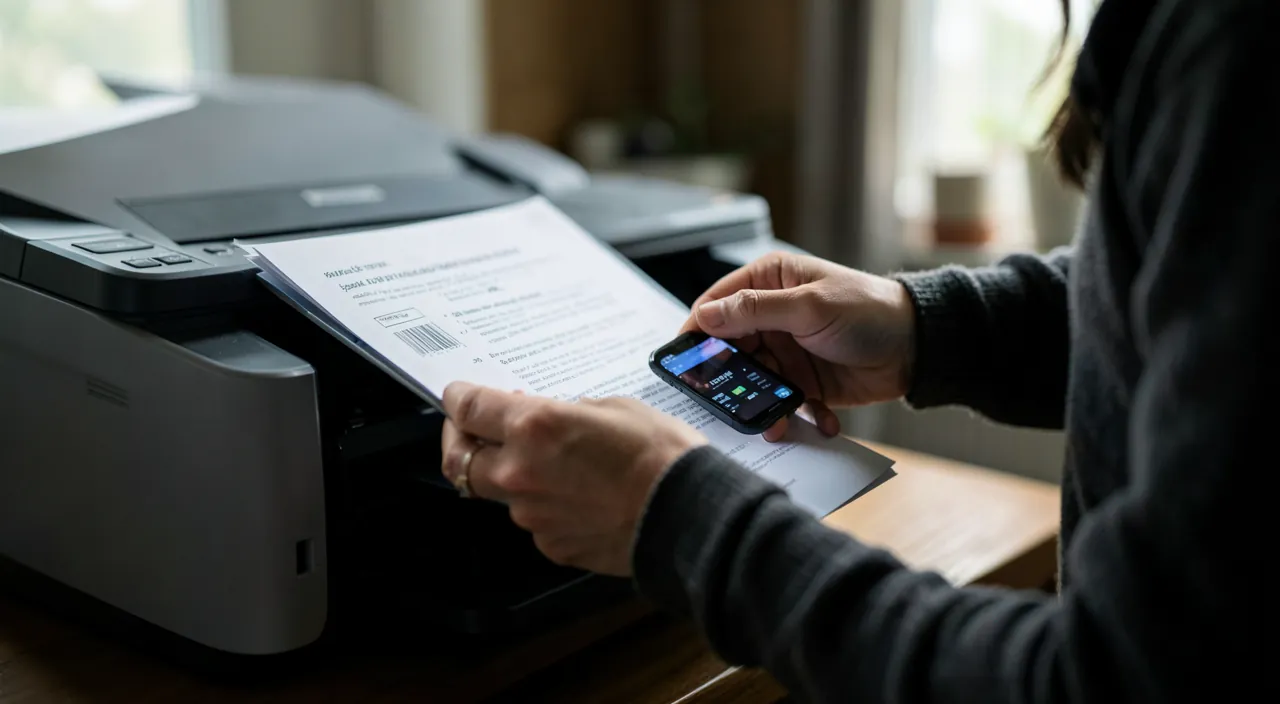
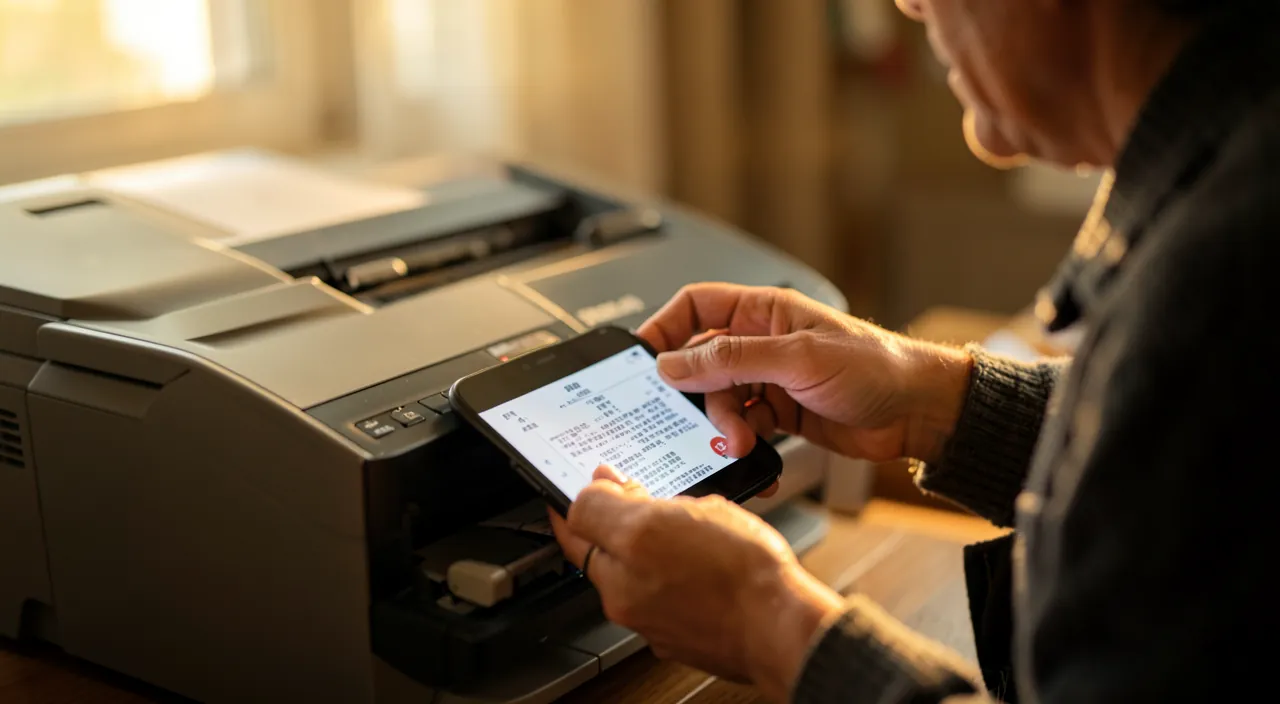
The most practical method relies on WIRELESS PRINTING: if your printer is connected to Wi-Fi (as most recent printers are), your phone can send documents directly to it, without a cable. The principle: both the phone and the printer must be on the SAME Wi-Fi network, and the phone detects the printer to send the print job. Practically, from any document, photo, email, or webpage on your phone: you tap the SHARE button (or an options menu), choose « Print, » the printer appears, you select the number of copies and options, and you launch it. That’s it: the document comes out of the printer. Modern phone systems integrate this printing function: in many cases, there’s no need to install anything, as the Wi-Fi printer is automatically recognized. For printers from certain brands, a MANUFACTURER-specific app may also be useful (it adds features: scanning, managing ink, more printing options). Wireless printing has become the standard: it makes printing from your phone as simple as sending a message. Once you understand the gesture (share → print → choose printer), you print everything from your phone: tickets, documents, photos, without ever turning on a computer. It’s particularly convenient for documents you receive or have on your phone (a ticket in an email, an attachment, a photo to print).
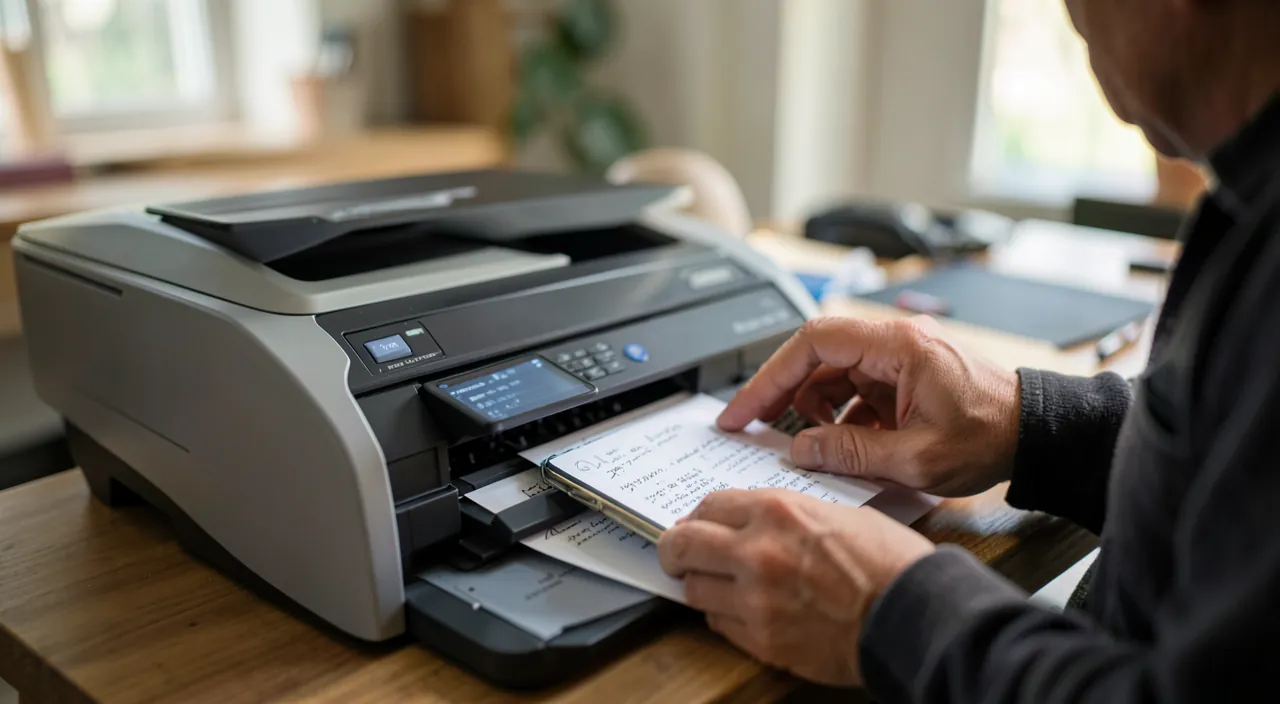
Wireless printing means your phone and printer talk over Wi-Fi. If they’re on the same network, you can print directly from your phone in a few taps. No cables, no computer needed.
You get a boarding pass on your phone. Tap the share button, choose “Print,” pick your HP Envy 6000 (on the same Wi-Fi), and print. The pass comes out in seconds, no computer involved.
All situations and alternatives
Depending on your equipment, several options: Wi-Fi printer — the direct wireless method described above (the simplest); old or non-Wi-Fi printer — if your printer is not connected, you can often go through a computer linked to the printer (send yourself the document by email or via the cloud, then print from the computer), or use a manufacturer-specific app that manages the connection; printing on the go — for printing away from home (a ticket, an urgent document), existing printing services exist (shops, print points) to which you send the file; and the cloud printing — some solutions allow remote printing. Some practical TIPS: make sure the phone and printer are on the same Wi-Fi network (the top reason for failures — our guides optimize Wi-Fi); check the OPTIONS before printing (color or black and white, double-sided, size — to avoid wasting ink and paper); and for PHOTOS, choose the right quality and format. If printing doesn’t work, common checks: is the printer on, connected to the right Wi-Fi, with paper and ink? Is the phone on the same network? A restart of the printer and phone often resolves many issues (our guides paper jam and finicky printer). A point on SECURITY and privacy: be cautious with public print services for sensitive documents (a confidential document sent to a shared printer may be seen; delete the file after printing on a public service — our guides privacy). In summary, printing from your phone is now simple and convenient: with a Wi-Fi printer, it’s just « share → print → choose printer » on the same network. For old or travel printers, alternatives exist (computer linked, manufacturer app, printing services). Once the gesture is mastered, you print tickets, documents, and photos directly from your phone, without ever turning on a computer.
The right reflex. The key to wireless printing, and the top reason for failures: the phone and printer must be on the SAME Wi-Fi network. Check this first if it doesn’t work — the phone may be connected to a different network (or on mobile data), or the printer to a different network. Once this is ensured, the gesture is simple everywhere: from any document, photo, email, or webpage on your phone, tap the SHARE button (or the options menu), choose « Print, » select your printer which appears, adjust the options (color or black and white, number of copies), and launch it. Get into the habit of CHECKING the options before printing: choose black and white when color is unnecessary, double-sided to save paper, the right size — to avoid wasting ink and paper. Many phones automatically recognize the Wi-Fi printer without needing to install anything; a manufacturer app can add features if needed (scanning, ink management). If printing is blocked, common checks (printer on, right Wi-Fi, paper and ink, restart) resolve most cases. Once this gesture is mastered, you print everything from your phone in a few taps: tickets, documents, photos, without ever turning on a computer.

Print well and stay vigilant
Some good practices for a successful and responsible print. Think about INK and PAPER conservation: print only what is necessary (many documents can remain digital — a ticket on the phone often suffices, no need to print it), choose black and white and double-sided when possible, and check the preview before printing (to avoid printing unnecessary pages). For QUALITY: photos deserve the right format and quality; text documents suffice in standard quality. On the SECURITY and privacy front: be cautious with SENSITIVE documents — do not print sensitive documents (ID papers, bank documents, personal data) on public or shared printers without precautions — on a public print service, delete the file after use (our guides protect your ID, privacy); and on your home network, your Wi-Fi printer is an object to secure like the others (our guides secure your router and home network). For PRINTER maintenance and malfunctions (paper jams, quality issues, « offline »), the same principles apply as for printing from a computer (our guides paper jam and finicky printer). A final point: keep in mind that the fully digital approach often reduces the need to print — the digital ticket, the document viewed on screen, the electronic signature can avoid many prints (our guides scan and archive your documents). In summary, printing from your phone has become simple thanks to wireless printing: « share → print, » on the same Wi-Fi network. For older or travel printers, alternatives exist. Print responsibly (conserving ink and paper, printing only what is necessary), and stay vigilant about privacy (sensitive documents, public printers). Once the gesture is mastered, printing from the phone becomes a practical daily reflex — while keeping in mind that in the digital age, many documents can often remain digital.
Caution: be careful with sensitive documents and public printers. An important privacy point: do not print sensitive documents (ID papers, bank documents, personal data, confidential papers) on public or shared printers without precautions — a document sent to a shared printer may be seen by others or remain in memory (our guides protect your ID, privacy); on a public print service, delete the file after use, and never leave a sensitive document uncollected immediately. At home, your Wi-Fi printer is an object to secure like the others (our guides secure your router and home network). Also, print responsibly: print only what is necessary (many documents can remain digital — a ticket on the phone often suffices), choose black and white and double-sided when possible, and check the preview before printing to avoid wasting ink and paper on unnecessary pages. Finally, if printing doesn’t work, don’t multiply attempts (which can queue up multiple prints) — first check that the phone and printer are on the same Wi-Fi network, that the printer is on with paper and ink, and restart if needed (our guides paper jam and finicky printer). Printing from your phone is convenient: just be mindful of the privacy of sensitive documents and avoid wasting paper.
Frequently asked questions
How do I print from my phone?
With a Wi-Fi printer (most recent ones), it’s simple: make sure the phone and printer are on the SAME Wi-Fi network, then, from any document, photo, email, or webpage, tap the SHARE button (or the options menu), choose « Print, » select your printer, adjust the options (color, copies), and launch it. Many phones automatically recognize the printer without needing to install anything. A manufacturer app can add features (scanning, ink management). The « share → print → choose printer » gesture allows you to print anything from your phone. If it doesn’t work, first check the same Wi-Fi network (the top reason), the printer is on with paper and ink, and restart if needed.
Can I print if my printer doesn’t have Wi-Fi?
Yes, by other means: the simplest is to go through a computer linked to the printer — send yourself the document from your phone (by email or via the cloud), then print from the computer. Some older printers also have a manufacturer-specific app that manages the connection. For printing on the go, existing printing services (shops, print points) allow you to send a file to print. Direct wireless printing from the phone requires a connected printer, but these alternatives cover other cases. When buying a new printer, Wi-Fi has become a practical standard: it makes printing from the phone direct and simple.
Is it risky to print sensitive documents from my phone?
On YOUR home printer, no: it’s just as secure as from a computer (just secure your connected printer like other objects in your network — our guides secure your router). The caution is for public or shared printers: do not print sensitive documents without precautions (a document sent to a shared printer may be seen by others or remain in memory), delete the file after use on a public service, and immediately collect your sensitive documents (our guides protect your ID, privacy). At home, print with confidence; in public, be cautious with sensitive documents. And remember that many sensitive documents can remain digital rather than printed.
What to remember
Printing from your phone is now simple and convenient thanks to WIRELESS PRINTING. With a Wi-Fi printer (most recent ones), the gesture is: from any document, photo, email, or webpage, « share → print → choose printer, » ensuring the phone and printer are on the SAME Wi-Fi network (the top reason for failures). Many phones recognize the printer automatically; a manufacturer app can add features. For older or travel printers, alternatives exist (computer linked, manufacturer app, printing services). Some good practices: check the options before printing (color or black and white, double-sided, preview) to avoid wasting ink and paper, and print only what is necessary (many documents can remain digital: a ticket on the phone often suffices). On the vigilance front: be cautious with SENSITIVE documents on public or shared printers (they may be seen; delete the file after use, collect your documents), and secure your home Wi-Fi printer like other objects in your network. If printing fails, common checks (same Wi-Fi, printer on with paper and ink, restart) resolve most cases. Once the gesture is mastered, printing from the phone becomes a daily reflex — convenient for documents you receive or have on your phone, without ever turning on a computer, while printing responsibly and staying vigilant about privacy.
Want to become more proficient with your digital tools? Our personalized training adapts to your level.
Leave a Reply
You must be logged in to post a comment.