
Start an email on an iPhone and finish it on a Mac, copy text on one and paste it on the other, answer a call from the computer, unlock your Mac with your watch: this is Apple’s « Continuity, » the suite of functions that make your devices work together as a cohesive whole. It’s one of Apple’s biggest assets in its ecosystem — and yet one of the least known. Here’s how to leverage Continuity to have your devices communicate with each other and save you precious time in your daily life.
Continuity: Your devices work together
The philosophy behind Continuity is simple: your Apple devices (iPhone, iPad, Mac, Apple Watch) are not isolated islands, but the links in a coherent system where work and data flow naturally. Concretely, this translates into a multitude of functions that erase the boundaries between devices: you no longer have to « transfer » things manually, reconnect everywhere, or start over on one device what you did on another — everything follows. This fluidity relies on a common Apple account across your devices, and on technologies that make them communicate when they are close (and connected to the same network). The result is remarkable comfort: the right device at the right moment, without friction. You read an article on the phone while commuting, find it on the Mac when you arrive; you copy an information on the computer, paste it on the phone; a call comes in, you answer from the closest device. Continuity is the embodiment of Apple’s promise of an ecosystem where « everything works together »: once you get used to it, you can’t imagine working any other way. Still, you need to know these functions — because many are active without you knowing, or require a setting to reveal themselves. Let’s discover the main ones.

The most useful Continuity functions
The main functions to know: the universal clipboard — copy text, an image, or a file on one device, paste it on another: the copy automatically circulates (magical and very practical); Handoff (task resumption) — start a task on one device (an email, a document, a webpage) and continue it on another where you left off; calls and messages on all devices — receive and make phone calls and SMS from your Mac or iPad, not just the phone (convenient when the phone is in another room); AirDrop — instant file sharing between nearby devices (our AirDrop guides); connection sharing — use your iPhone’s internet connection on your Mac or iPad while on the move; the Continuity Camera — use your iPhone as a high-quality webcam for your Mac, or scan a document with the phone that appears directly on the computer; the watch unlock — automatically unlock your Mac when you wear your watch; the Sidecar — use your iPad as a secondary screen or graphics tablet for your Mac; and iCloud synchronization which keeps your photos, notes, contacts, calendars, documents up to date everywhere (our iCloud management guides, Notes app, Photos app). All these functions share the same principle: erasing the boundaries between your devices. Some are active by default, others require a setting; all rely on using the same Apple account and having the devices nearby, connected (Wi-Fi and Bluetooth enabled).
Continuity makes your Apple devices work together seamlessly. You can copy on one device and paste on another, continue tasks across devices, and even answer calls from your Mac. It all works automatically when your devices are close and connected to the same network.
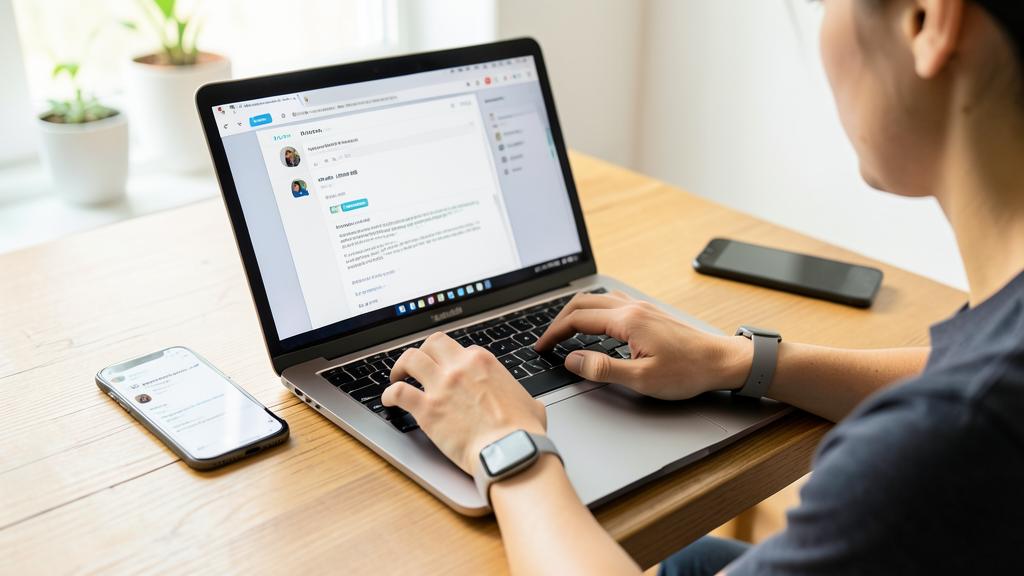
You start writing an email on your iPhone while commuting. When you get to your office, you sit at your Mac and continue typing the same email exactly where you left off. The email draft is automatically available on both devices.
The right reflex. Test the universal clipboard today, it’s the most impressive and immediately useful Continuity function: copy text, a link, or an image on your iPhone, then paste directly on your Mac (or the other way around) — the copy circulates automatically between your devices, without any manipulation. Once you’ve taken this reflex, you’ll use it constantly: to pass an address, a temporary password, a paragraph, a photo from one device to the other in an instant. To make Continuity work, just ensure that your devices use the SAME Apple account, are NEAR each other, and have Wi-Fi and Bluetooth enabled. Explore the other functions (receive calls on the Mac, Handoff to continue a task, the iPhone as a webcam) — each will save you time. Continuity is one of Apple’s biggest assets: the universal clipboard is the perfect entry point to experience its magic.

Properly configure and secure your Continuity
To fully enjoy Continuity: make sure your devices use the SAME Apple account (this is the base: it ties them together), have Wi-Fi and Bluetooth enabled (proximity functions depend on them), and are up to date (Continuity functions enrich with versions). Some functions have a specific setting to activate (Handoff, calls on other devices…): explore the settings to find them. If a function doesn’t work, check these prerequisites first (same account, proximity, Wi-Fi/Bluetooth, updates). An important point concerns SECURITY, as Continuity relies on your connected ecosystem: the keystone is your Apple account, which ties all your devices and gives access to your synchronized data: protect it absolutely (strong, unique password and two-factor authentication — our guides on two-factor authentication, security). Also think about CONFIDENTIALITY in shared contexts: if you receive calls and messages on a Mac shared with others, or if your universal clipboard transports sensitive information, be aware of what could be seen (our privacy guides). With these precautions in place, Continuity is a formidable asset: it transforms a set of distinct devices into a fluid and coherent system, where you work with the right device at the right moment, without friction or manual transfer. It’s one of the main advantages of staying in the Apple ecosystem, and one of the reasons why its users are attached to it. Take the time to discover and activate these functions: the daily gain in comfort and time is considerable — your devices stop being separate tools to become facets of a single digital work and life environment.
Be careful: your Apple account is the key to everything, and think about confidentiality in shared contexts. Continuity relies entirely on your Apple account, which ties your devices and synchronizes your data: it is the keystone of the entire ecosystem: if compromised, it exposes all your devices and data. Protect it absolutely with a strong, unique password and two-factor authentication (our guides on two-factor authentication, security), and keep your recovery information up to date. Second point: CONFIDENTIALITY in shared contexts. Continuity functions circulate your data between devices: if you receive calls and messages on a Mac shared with others, or if your universal clipboard carries sensitive information, be aware of what could be seen (our privacy guides). Think about which devices you connect to your account, especially if they are not strictly personal. Finally, Continuity requires Wi-Fi and Bluetooth enabled and devices nearby: this is normal, but keep in mind that these functions rely on communication between your devices. Properly secured (protected account) and used with a sense of confidentiality, Continuity is a major asset with no risk: vigilance mainly concerns the account that ties everything together.

Frequently asked questions
What is Apple Continuity, concretely?
It’s the suite of functions that make your Apple devices (iPhone, iPad, Mac, Watch) work together as a cohesive whole: copy on one device and paste on another (universal clipboard), continue a task where you left off (Handoff), receive calls and messages on the Mac, share files instantly (AirDrop), use the iPhone as a webcam, unlock the Mac with your watch, and more. Work and data flow naturally, without manual transfer. It relies on a common Apple account and the proximity of devices. It’s one of Apple’s biggest assets: once adopted, you can’t imagine working any other way.
Why doesn’t a Continuity function work?
Check the prerequisites: your devices must use the SAME Apple account (this is the base that ties them together), have Wi-Fi AND Bluetooth enabled (proximity functions depend on them), be close to each other, and be up to date (functions enrich with versions). Some functions also have a specific setting to activate (Handoff, calls on other devices…): explore the settings to find them. If everything is in order and a function still resists, a restart of the devices often helps. Most Continuity issues come from one of these prerequisites: same account, proximity, Wi-Fi/Bluetooth, updates.

Does Continuity present security risks?
The main issue is the protection of your Apple account, the keystone that ties all your devices and gives access to your synchronized data: secure it absolutely (strong, unique password and two-factor authentication — our guides on two-factor authentication). Also think about confidentiality in shared contexts: if you receive calls and messages on a Mac shared with others, or if your universal clipboard carries sensitive information, be aware of what could be seen (our privacy guides). Think about which devices you connect to your account. With these precautions in place (protected account, confidentiality awareness), Continuity is a risk-free asset: vigilance mainly concerns the account that ties everything together.
What to remember
Apple Continuity makes your devices work together as a cohesive whole where data and work flow naturally, without manual transfer. The most useful functions: the universal clipboard (copy on one device, paste on another), Handoff (continue a task where you left off), calls and messages on all devices, AirDrop (instant file sharing), connection sharing, iPhone as a webcam or scanner, watch unlock, Sidecar, and iCloud synchronization. All rely on the same Apple account, the proximity of devices, and Wi-Fi/Bluetooth enabled. The universal clipboard is the perfect entry point to experience this magic. Two points of vigilance: protect your Apple account absolutely (keystone of the entire ecosystem: strong, unique password and two-factor authentication), and think about confidentiality in shared contexts (calls on a shared Mac, sensitive clipboard). Properly secured and used with a sense of confidentiality, Continuity is one of Apple’s biggest assets: it transforms separate devices into a fluid environment where you work with the right device at the right moment. The daily gain in comfort is considerable.


Want to fully exploit the potential of your iPhone, iPad, or Mac? Our Apple training courses will take you to the next level.
Leave a Reply
You must be logged in to post a comment.