
« Say Siri… »: the voice assistant on iPhone, iPad, Mac, and Apple Watch can do much more than just answer the weather question. Set an alarm, send a message, start a timer, control the home, add a reminder, call someone, all by voice and without touching the screen: Siri is an unexpectedly useful productivity and accessibility tool when you know its capabilities. Many have given it up after a few tries. Here’s how to use your iPhone by voice and make Siri a real part of your daily life.
What Siri Can Do (And Why It’s Useful)
Siri excels at QUICK tasks you want to do without stopping: with hands busy (in the kitchen, driving, walking), or simply to go faster than navigating menus. Its most useful uses: REMINDERS and ALARMS — « remind me to buy bread when I get home, », « set an alarm for 7am, », « 10-minute timer » (perfect in the kitchen); MESSAGES and CALLS — « send a message to [contact] saying I’m on my way, », « call [contact] » (without touching the screen, ideal while driving); CALENDAR — « what’s my next appointment? » « add an appointment tomorrow at 2pm »; QUICK INFORMATION — weather, time in another city, calculation, conversion, definition; NAVIGATION — « take me to [address] »; DEVICE CONTROL — « turn on airplane mode, » « dim the screen, » « turn on do not disturb » — our smart home guides; MUSIC — « play my playlist, » « turn up the volume » — and LAUNCH SHORTCUTS — trigger your automations by voice (our iPhone automation guides). The point of Siri isn’t to do everything, but to do QUICK and HANDS-FREE tasks quickly: a reminder you set while walking, a timer you start with your hands in the flour, a message you dictate while driving. Used well for these purposes, Siri saves time and makes the device more accessible.
Siri is best for small, fast tasks you can do with your voice instead of tapping on the screen. It’s great for setting reminders, timers, or sending messages when your hands are busy, like while cooking or driving. Think of it as a quick helper, not a full conversation partner.
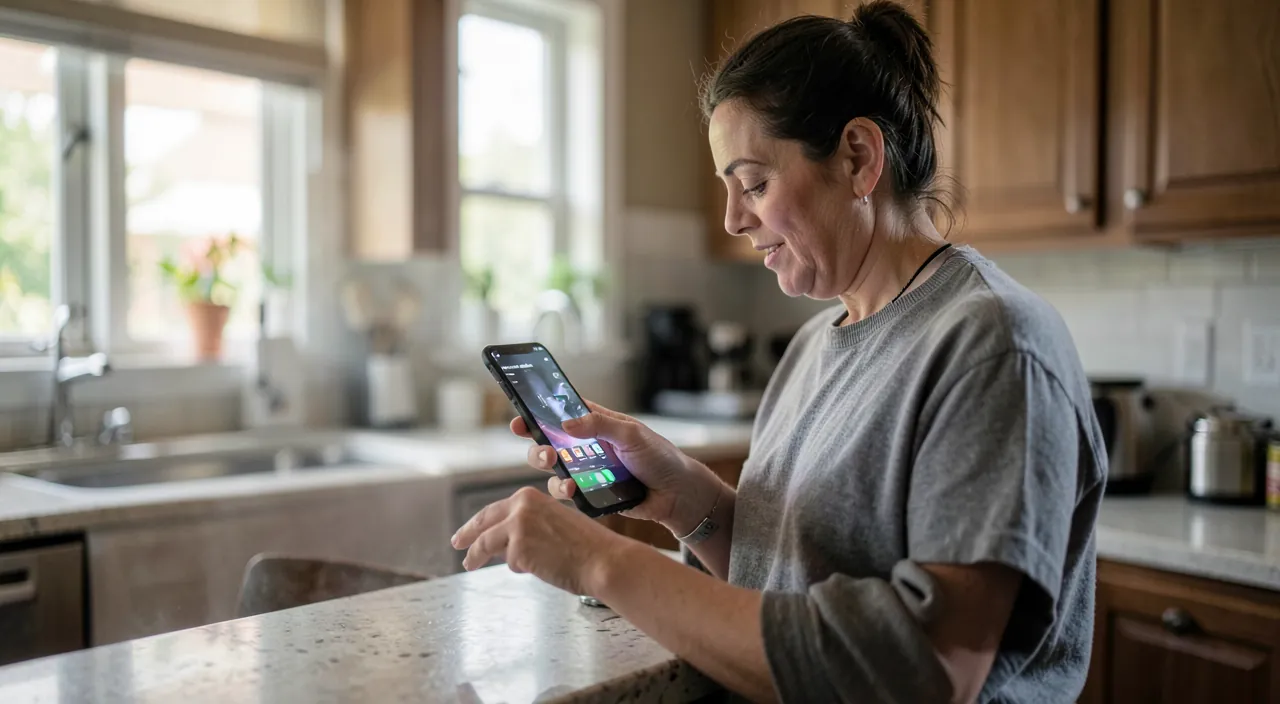
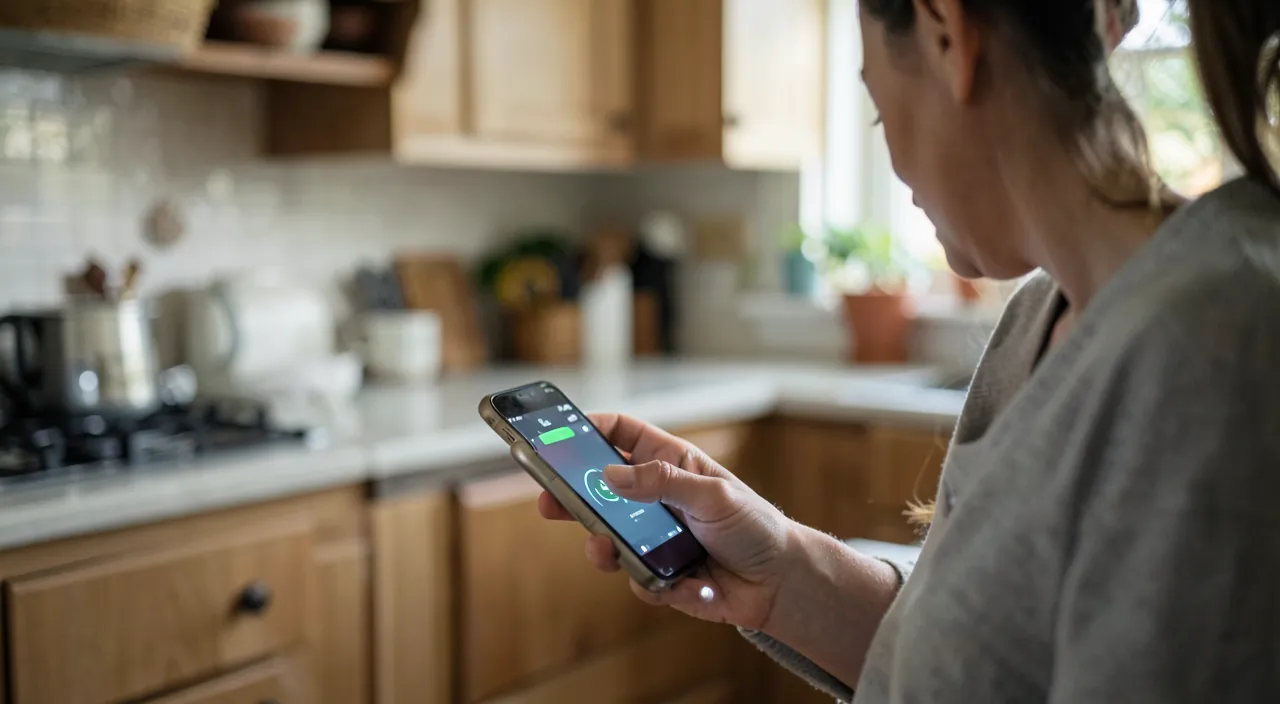
You’re cooking and need a 10-minute timer. Instead of tapping through menus, you say, « Hey Siri, set a 10-minute timer. » Siri starts it instantly, freeing your hands to stir the sauce. Or, while driving, you say, « Hey Siri, call Mom. » Siri dials the number without you touching the phone, keeping your focus on the road.
Using Siri Well and Activating It
Some keys for a good experience: the ACTIVATION — Siri triggers by voice (« Say Siri… » or « Siri… » depending on the version) or by a button — enable voice calling in settings for hands-free use (the most convenient) — speak NATURALLY — there’s no need for robotic sentences — Siri understands everyday language (« remind me to call mom this evening ») — CHAIN — you can often specify or correct on the fly — USE CONTACTS — teach Siri your relationships (« call my sister » works if you’ve indicated who your sister is) — and EXPLORE — ask Siri « what can you do? » to discover its capabilities. Siri works on all your Apple devices (iPhone, iPad, Mac, Apple Watch — convenient to control from the watch), and integrates into the ecosystem (our Continuity between devices guides). An important point: Siri has greatly improved, but remains an assistant with its LIMITATIONS: it excels at clear commands and defined tasks (reminders, timers, messages, device control), and is less at ease with complex questions or elaborate conversations (for which conversational AI assistants are more effective — our daily AI guides). Use Siri for what it does well: quick actions and voice control of your device. If your first attempts disappointed you, try again on these concrete and well-defined uses: it’s where Siri shines and truly serves daily life.
The Good Reflex. Reserve Siri for QUICK and HANDS-FREE tasks where it excels: the timer you start in the kitchen (hands busy), the reminder you set while walking, the message you dictate while driving, the evening alarm, the smart home command. These concrete uses — doing a quick small action without stopping or touching the screen — make Siri a truly useful assistant. Enable voice calling (« Say Siri ») in settings to trigger it without hands, and get used to delegating these frequent micro-tasks to it. If Siri disappointed you in the past, it’s often because you tested it on complex questions where it’s less at ease: focus it on clear and defined commands, and you’ll discover its real usefulness. A reminder set by voice while your hands are occupied, that’s the kind of small service that, repeated, changes daily life: Siri is made for that.
Siri, Accessibility, and Privacy
Siri also plays an important role in ACCESSIBILITY: voice controlling your device is valuable for people with motor or visual difficulties (our accessibility guides) — combined with dictation (our keyboard and dictation guides), it allows you to use an iPhone largely without hands. This is one of the most useful aspects of a voice assistant. A key word on PRIVACY, since a voice assistant « listens » — Siri triggers on an activation command, and Apple emphasizes a privacy-conscious approach (part of the processing happens on the device, and settings limit data usage) — it’s useful to understand and adjust Siri and privacy settings according to your comfort (our privacy guides) — and to know that you keep control of these settings. Also, think that Siri on a locked screen, depending on the settings, can give access to certain information or actions without unlocking the device — adjust what Siri can do without unlocking if that concerns you. These settings adjusted according to your preferences, Siri is a practical and privacy-conscious voice assistant: it saves time on quick tasks, controls your device without hands, and makes technology more accessible. It doesn’t replace conversational AI assistants for complex tasks, but it excels in its domain: clear daily commands. Rediscover it on these concrete uses: well used, Siri is a discreet but effective companion, integrated into your entire Apple ecosystem, which saves you these small minutes and gestures that, added up, really count.
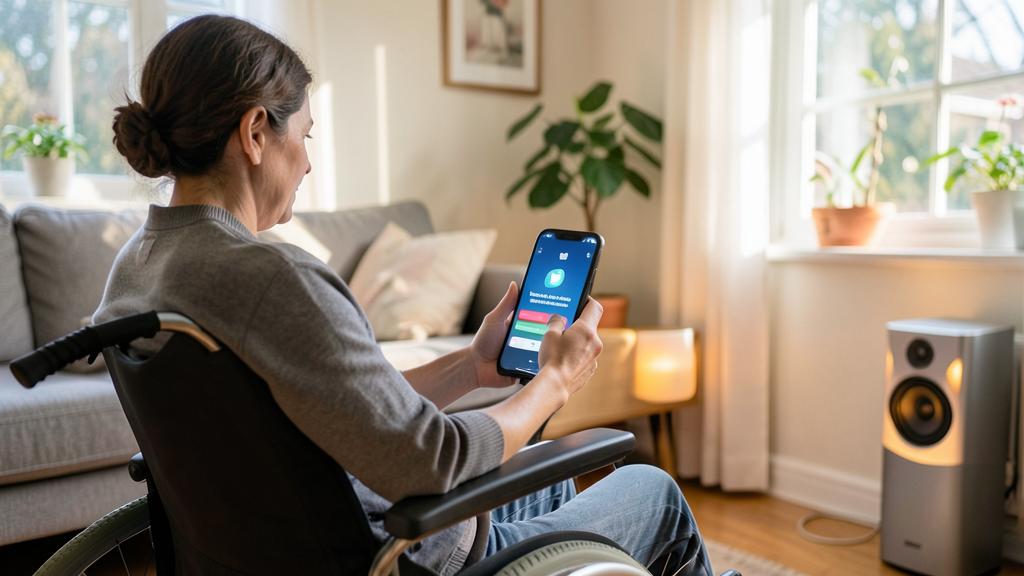
Warning: A voice assistant listens — understand its privacy and screen lock settings.
Frequently Asked Questions
What is Siri really useful for in daily life?
For QUICK and HANDS-FREE tasks: setting a reminder (« remind me to buy bread »), starting a timer or alarm (perfect in the kitchen), sending a message or calling someone by voice (ideal while driving), checking your calendar, getting quick information (weather, calculation), controlling the device (airplane mode, screen brightness), controlling the smart home, playing your music or automations. Its advantage is not to do everything, but to do QUICK and HANDS-FREE these frequent small actions. Used for these concrete and well-defined uses, Siri saves time and makes the device more accessible: that’s where it shines.
Is Siri up to par with conversational AI assistants?
They have different roles. Siri excels at CLEAR commands and defined actions (reminders, timers, messages, device control, smart home) — the quick voice control of your device. Conversational AI assistants are better at complex questions, detailed explanations, and writing (our daily AI guides). Don’t ask Siri for what it’s not made for: focus it on daily quick tasks, and use a conversational AI assistant for the rest. Each excels in its domain: Siri for quick actions without hands, conversational AI for thinking and writing.
Does Siri respect my privacy?
Like all voice assistants, Siri relies on listening to its activation command. Apple emphasizes a privacy-conscious approach (part of the processing happens on the device, settings limit data usage). It’s useful to understand and adjust Siri and privacy settings according to your comfort (our privacy guides) — you keep control over these parameters. Also, think about what Siri can do on a locked screen (adjustable if it concerns you). Set according to your preferences, Siri is a practical assistant: just take the time to understand its privacy settings for a peaceful use.
What to Remember
Siri is a useful voice assistant when used for what it does well: QUICK and HANDS-FREE tasks. Its best uses: reminders and alarms (the kitchen timer, the reminder while walking), voice messages and calls (ideal while driving), calendar check, quick information (weather, calculation), navigation, device control, smart home control, music, and launching shortcuts. Its advantage is to do QUICK and hands-free these frequent small actions — not everything. Enable voice calling (« Say Siri ») for hands-free use, speak naturally, and teach it your contacts. Siri also plays a valuable role in accessibility (voice controlling the device). Two points of vigilance: understand and adjust its privacy settings (a voice assistant listens; you keep control over the parameters) and what it can do on a locked screen. Siri excels at clear commands but remains weak on complex questions (where conversational AI assistants are more appropriate — our daily AI guides). If Siri disappointed you, focus it on these concrete and well-defined uses: well used, it’s a discreet but effective companion, integrated into your entire Apple ecosystem, which saves you these small minutes that really count.
Want to fully exploit the potential of your iPhone, iPad, or Mac? Our Apple training courses will take you to the next level.
Leave a Reply
You must be logged in to post a comment.