
The crackling, popping, intermittent cutting, or complete disappearance of sound: audio issues are among the most confusing problems, as you don’t know where to start. Is it the speaker? The headphones? The software? The settings? The good news is that most audio problems have simple causes and can be fixed with a few methodical checks, without any special equipment or skills. Here’s how to diagnose and repair crackling, cutting, or non-functioning sound on computers and phones alike.
Isolating the issue: hardware, settings, or software?
The key to troubleshooting audio is to ISOLATE the source among three main categories: HARDWARE (speaker, headphones, cable, port), SETTINGS (volume, selected audio output, mute), or SOFTWARE (app, driver, system). To quickly narrow it down, ask the right questions: does the issue occur EVERYWHERE (in all apps, all sounds) or only in ONE app (in which case the problem is with that app, not the system)? On ALL devices (speakers AND headphones) or just one (in which case it’s that device)? Since WHEN (after an update? a connection? a shock)? These questions immediately point you in the right direction: crackling on a single headset suggests the headset or its cable; missing sound everywhere after an update points to a setting or software issue; sound cutting in one app points to that app. This isolation method prevents you from looking in the wrong place: before suspecting an expensive hardware failure, check if the problem is GENERAL (system/settings) or LOCALIZED (a device or app). Most of the time, this initial sorting already identifies the culprit—and often, it’s just a simple setting or device, not a real failure.
Audio problems are usually simple. Start by checking if the issue is everywhere (system problem) or just in one app or device (local problem). This helps you know where to look first.
Your phone has no sound. You check the volume (it’s not muted), but the sound is still going to a Bluetooth headset you forgot to disconnect. Changing the audio output fixes it instantly.

Checks, from simplest to most advanced
Proceed in order: 1. BASIC SETTINGS—volume (of the device AND the app, sometimes separate), muted sound (the infamous “mute” accidentally activated), and especially the SELECTED AUDIO OUTPUT: is the device sending sound to the right device? (a common issue: sound goes to a forgotten Bluetooth headset or an inactive output—check and select the correct output in the sound settings); 2. THE DEVICE and connections—for wired headphones/speakers, check the cable (worn out? poorly connected?), the port (dirty?), try ANOTHER headset or speaker to see if the problem persists (decisive test for hardware vs. the rest); for Bluetooth, check pairing and connection (our Bluetooth guides), the wireless device’s battery, and distance/interference (Bluetooth sound that crackles or cuts is often due to an unstable connection or low battery); 3. RESTARTING—restarting the device fixes many temporary audio bugs (a reflex that often works); 4. THE APP—if the issue is limited to one app, close and reopen it, check its sound settings, update it; 5. SYSTEM SOFTWARE—an update can disrupt audio; check that the system is up to date, and for a computer, the “driver” may need reinstallation or an update; 6. CLEANING—on a phone, a speaker that crackles or sounds muffled is sometimes due to dust/lint in the speaker grille (delicate cleaning). This progression identifies the cause in the vast majority of cases—and often, everything is fixed in the first steps: an incorrect audio output selected, muted volume, or a simple restart.
The right reflex. First, check the SELECTED AUDIO OUTPUT—this is by far the most common cause of unexplained “no sound”: your device may be sending sound to the wrong device (a Bluetooth headset or speaker still connected but turned off or out of range, an inactive output). In the sound settings, check which output is active and select the correct one (the speakers, or the headset you’re actually using). This simple check resolves a surprising number of cases where “there’s no sound” when everything else is working—the sound was just going elsewhere. Do this BEFORE suspecting a failure: it’s free, immediate, and avoids a lot of unnecessary worries. Combined with checking the volume/mute and a restart, it eliminates the majority of sound issues in seconds.
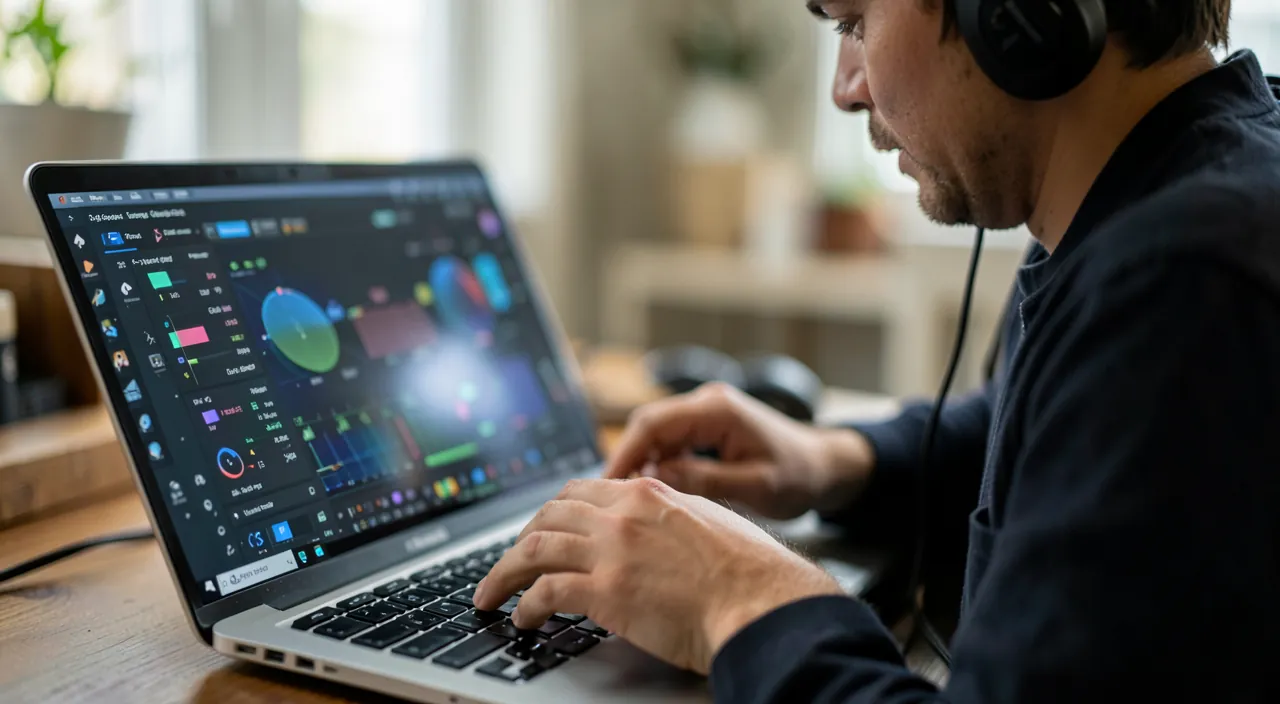
Special cases and when to consult a professional
Some specific situations: PERSISTENT CRACKLING on a single headset/speaker—if it crackles on another device, the device itself is the issue (internal cable, transducer): repair or replacement; SOUND CUTTING in Bluetooth—often due to an unstable connection: move the devices closer, reduce interference, check the battery, and re-pair if needed (our Bluetooth guides); MUFFLED or CRACKLING PHONE SOUND—a speaker grille clogged with dust/lint is common: delicate cleaning (no sharp objects) can restore sound; ISSUE APPEARING AFTER AN UPDATE—a restart, checking settings, or waiting for a publisher’s patch often fixes this; MICROPHONE NOT WORKING (in video calls)—check the app’s permissions and the correct microphone selection (our video conferencing, camera, and microphone failure guides). When should you consult a professional? If, after ruling out settings, outputs, tested devices, and software, the issue persists and seems to be HARDWARE (built-in speaker crackling on all sounds, damaged audio port), a repair may be necessary—especially if it’s an internal component of the device. But in the vast majority of cases, “failed” sound is just an incorrect output selected, muted volume, a device to check, or a bug that a restart fixes. Audio troubleshooting rewards method: by calmly isolating the issue, you almost always find a simple, free solution.
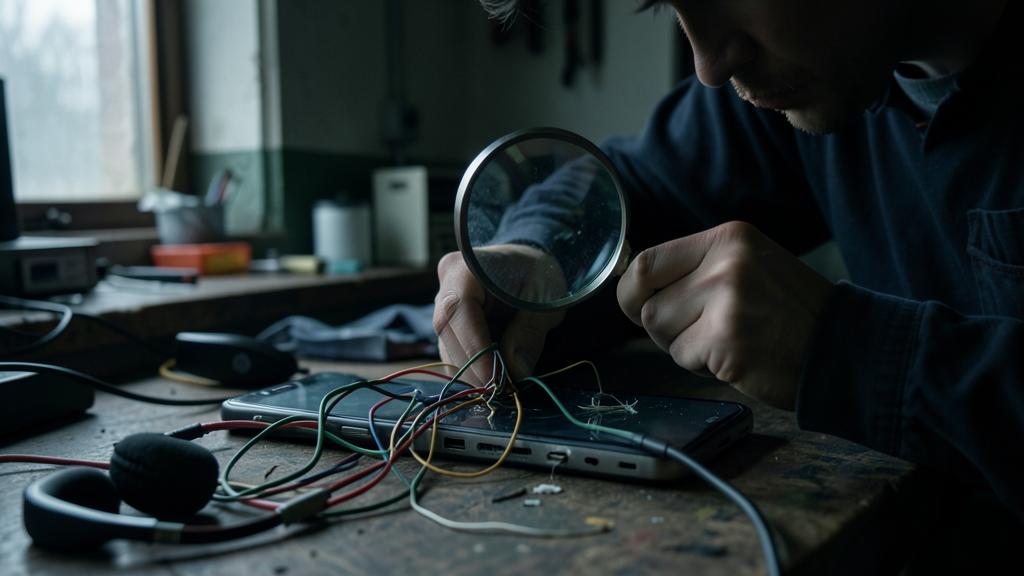
Warning: be careful with high volume, and handle grilles with care. Two points: during audio tests, PROTECT YOUR EARS—don’t push the volume to maximum to “check,” especially with headphones: sound suddenly returning at full volume can be painful and dangerous for your hearing (increase gradually). And to CLEAN a clogged speaker grille (phone with muffled sound), proceed CAREFULLY: device turned off, without inserting a sharp or metal object that could damage the speaker, without liquid. A gentle puff of air or a very soft brush is enough; don’t force it. Also, before concluding that there’s a hardware failure and considering a repair or replacement, methodically rule out simple causes (audio output, volume, device, software): devices are replaced or repaired too often for what was just a setting. If there’s still doubt about an internal component (speaker, audio port), a professional will diagnose precisely before any intervention: no need to disassemble the device yourself for a problem that could just be software-related.

Frequently asked questions
I have no sound at all, where do I start?
With basic settings, in this order: check that the volume isn’t at zero or muted (the “mute” accidentally activated), then—especially—the SELECTED AUDIO OUTPUT: your device may be sending sound to a forgotten Bluetooth headset or speaker, or an incorrect output; choose the correct one in the sound settings. A restart also fixes many audio bugs. These three checks—volume/mute, audio output, restart—resolve the vast majority of “no sound” issues. Only then do you test the devices and software. Start simple: most of the time, the sound was just going to the wrong place.
My Bluetooth headset crackles or cuts out, why?
Most often due to an unstable Bluetooth connection: move the headset closer to the device (distance and obstacles degrade the signal), move away from sources of interference, and check the HEADSET’S BATTERY (low charge causes cutouts and crackling). Re-pairing (forgetting and reconnecting the device) often fixes persistent issues (our Bluetooth guides). Also test the headset with another device: if it crackles everywhere, it’s the headset itself; if it only crackles with one device, the issue is with that device’s connection. This simple test distinguishes a connection problem from a hardware failure.

My phone’s sound is muffled, what should I do?
First, check that no setting is causing the issue (volume, mode, audio output) and that no case is blocking the speaker. Very often, muffled or crackling sound is due to the SPEAKER GRILLE clogged with dust and lint: clean it CAREFULLY (device turned off, very soft brush or dry air, never a sharp object or liquid). A restart also rules out temporary bugs. If the sound remains muffled in all uses despite this, the speaker may be the issue: a professional can check it. But start with the grille: it’s a common and easy-to-fix cause.
What to remember
An audio issue is solved by method: first ISOLATE the source—is the problem everywhere or in just one app? on all devices or just one? since when? This immediately points you toward hardware, a setting, or software. Then check from simplest to most advanced: basic settings (volume, mute, and especially the SELECTED AUDIO OUTPUT—the number one cause of “no sound,” as sound often goes to the wrong device), connections and the device (test another headset/speaker), a restart (which fixes many bugs), the affected app, system software and drivers, and on phones, the delicate cleaning of the speaker grille. Common issues: Bluetooth cutting out (unstable connection, low battery) and a clogged speaker. Only suspect a hardware failure (and thus a repair) AFTER ruling out settings, outputs, devices, and software—because devices are repaired too often for a simple setting. Be careful with volume during tests (protect your ears) and with the gentleness of cleaning. In the vast majority of cases, “failed” sound is just an incorrect output, muted volume, or a bug that a restart fixes: method pays off, the solution is almost always simple and free.

Persistent issue, finicky device? Our remote troubleshooting service quickly resolves your problem, without jargon.
Leave a Reply
You must be logged in to post a comment.