
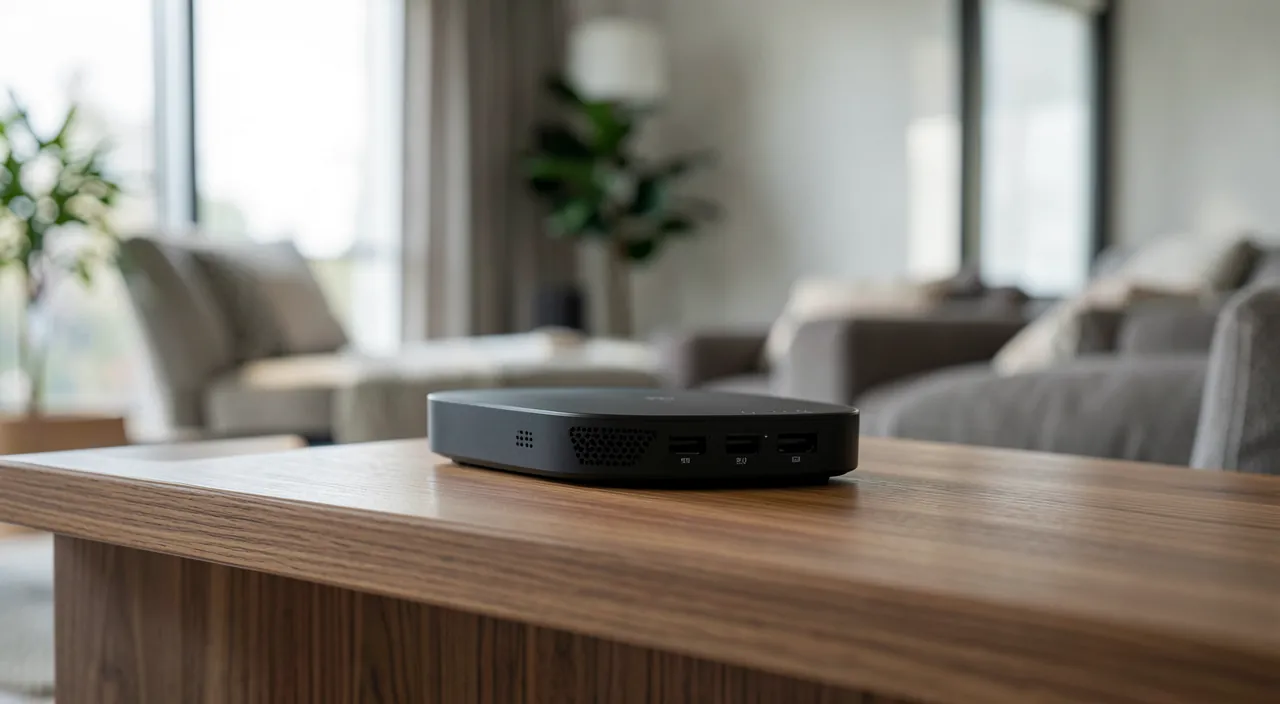
Your Wi-Fi box is the digital gateway to your home: computers, phones, cameras, TV — everything goes through it. Yet many home networks still run with factory settings, a password stuck under the box, and default options never questioned. An unsecured network means a nosy neighbor squatting your connection, or worse, an intruder spying on your devices. The good news: securing your Wi-Fi takes just half an hour, once and for all. This guide walks you through each setting.
Why bother
An open or poorly protected Wi-Fi exposes you to three real risks. Connection squatting: third parties use your subscription, slow down your network — and their online activities, including illegal ones, trace back to your address. Traffic spying: an intruder on your network may try to monitor exchanges and attack your devices. And access to equipment: cameras, network storage, connected objects become accessible from within. Since the box is the single point of passage, securing it protects everything connected to it.
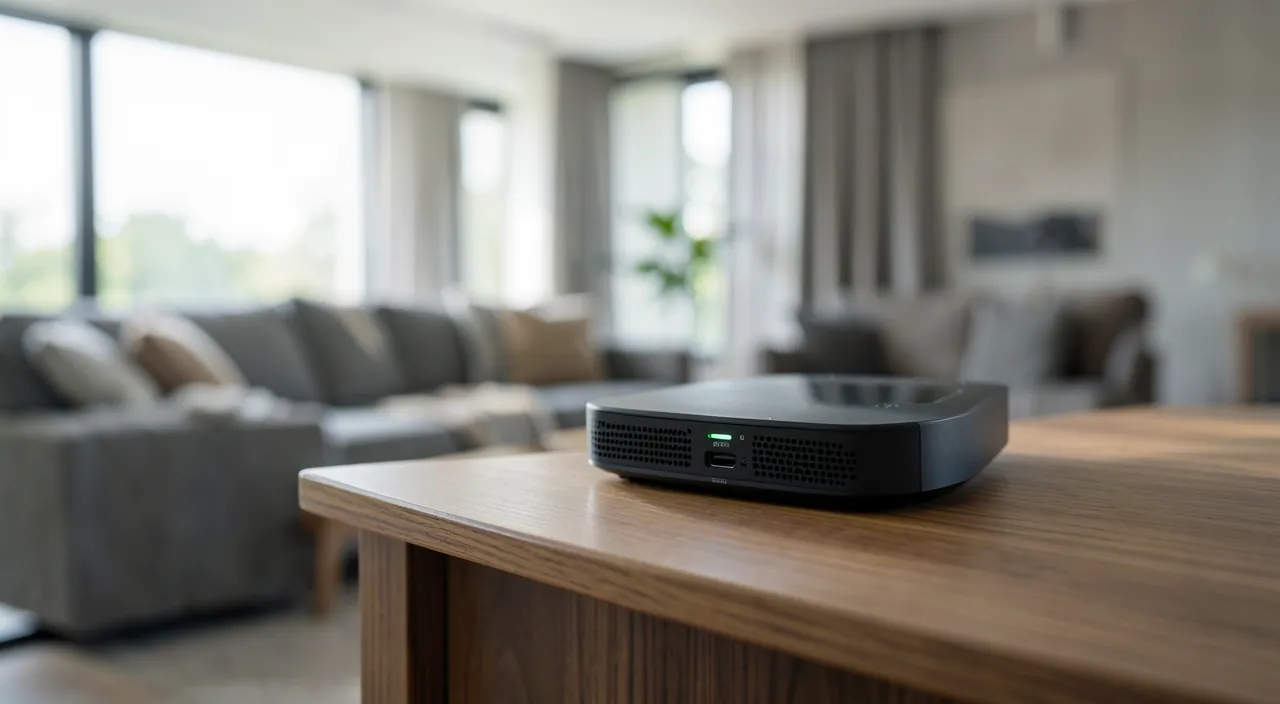
Essential settings, in order
- Change the factory Wi-Fi password: the one printed under the box may have been noted by all your visitors. Choose a long, unique passphrase.
- Also change the box administration password — the one that grants access to settings. Often left as default (« admin »), it’s the one that controls everything.
- Check the encryption: your network should use the most recent encryption standard offered by the box (older standards can be cracked in minutes).
- Enable box updates: like any device, it receives security patches. Most operator boxes update automatically — verify that’s the case.
- Disable unused risky functions: simplified button pairing (vulnerable), remote administration if you don’t use it.
The right reflex. Create a guest network: a second Wi-Fi, with its own password, isolated from your main network. Visitors connect without ever touching your devices — and it’s also the perfect place to park connected objects (cameras, bulbs, TV). Your main password, meanwhile, never leaves the family.
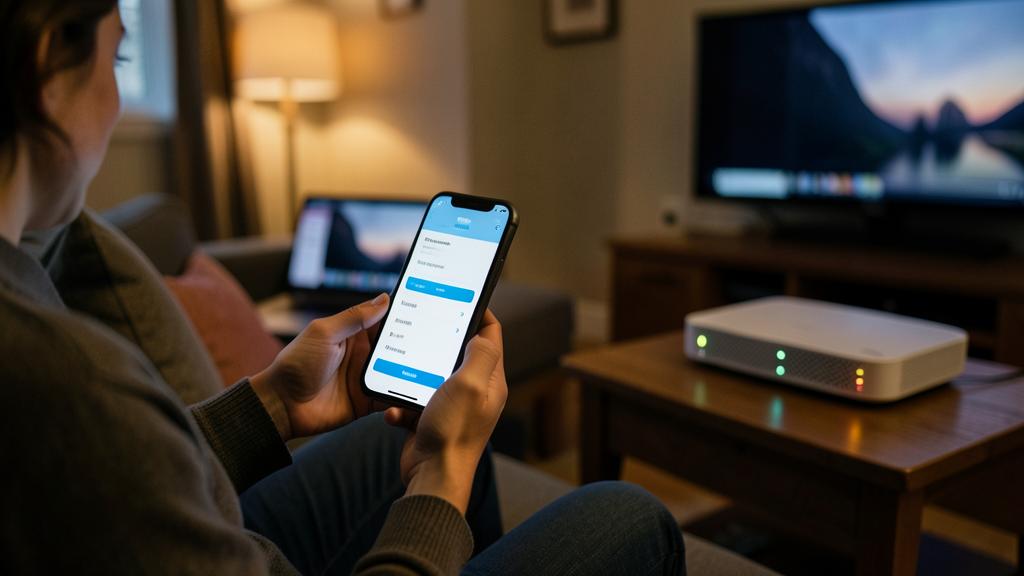
Your Wi-Fi box is like the front door to your digital home. If it’s not locked properly, anyone can walk in. Changing passwords, using strong encryption, and keeping the box updated are like installing good locks and checking them regularly. It’s the best way to keep your data and devices safe.
Imagine your Wi-Fi box is a TP-Link Archer AX6000, and you’ve kept the default password “admin” for the admin panel. A neighbor could easily access your settings, change your network name, or even redirect your traffic to malicious sites. By changing the admin password to a strong, unique one and enabling WPA3 encryption, you make it nearly impossible for anyone to take control of your network.
Taking inventory of connected devices
The box interface displays the list of connected devices: make it a habit to check. You’ll recognize your equipment — and immediately spot an intruder. An unknown device? Change the Wi-Fi password: all connected devices are disconnected, and only those you reconnect with the new password return. It’s the simplest reset possible. Use the inventory to disconnect unused devices from the network: fewer connected devices mean fewer attack surfaces.
Placement, between comfort and discretion
Little-known detail: your Wi-Fi’s range extends beyond your home — even to the street or neighbors. You can’t prevent it entirely, but good placement (box in the center of the home rather than against the street-facing window) optimizes indoor coverage while limiting external leakage. The essential remains encryption and the password: a well-protected network can be « visible » without being vulnerable. Don’t waste energy hiding the network name — a fake protection easily bypassed that mostly complicates your own use.
Watch out. If your connection slows inexplicably, the box blinks with activity in the middle of the night for no reason, or unknown devices appear in the list, don’t ignore it: change both passwords (Wi-Fi and administration), update the box, and retake inventory. Ten minutes of cleanup are better than a permanent intruder.
Frequently asked questions
How do I know if someone is using my Wi-Fi?
Check the list of connected devices in the box interface and compare with your equipment. If in doubt, change the Wi-Fi password: only those you explicitly reconnect regain access.
Is the guest network really useful?
Yes, doubly so: it avoids sharing your main password with visitors, and it isolates connected objects from your computers and data. It’s the best effort/protection ratio in the whole house.
Should I turn off my box at night?
It’s not a decisive security measure, but nothing prevents it — energy savings and cutting off connected objects during sleep. Real protection remains encryption, passwords, and updates.
What to remember
Securing your home Wi-Fi is locking the digital front door to your entire home: replace factory passwords (Wi-Fi AND administration), enable recent encryption, ensure box updates, disable risky functions. Add the guest network — for visitors and connected objects — and regular inventory of connected devices to spot any intruders. Half an hour of settings, a few minutes of occasional checks: that’s all a healthy home network requires. Your box protects everything connected to it — give it that half hour.

Need to secure your home network?
Leave a Reply
You must be logged in to post a comment.