
The fan that spins out of control, a burning hot case, sudden slowdowns, unexpected shutdowns, sometimes a frozen screen: an overheating computer sends signals that should not be ignored. Excessive heat is not just a nuisance: in the long run, it wears out and damages components. The good news is that overheating has well-identified causes, and most can be easily fixed. Here’s how to diagnose why your computer is overheating and how to remedy it before it gets damaged.
Recognizing and understanding overheating
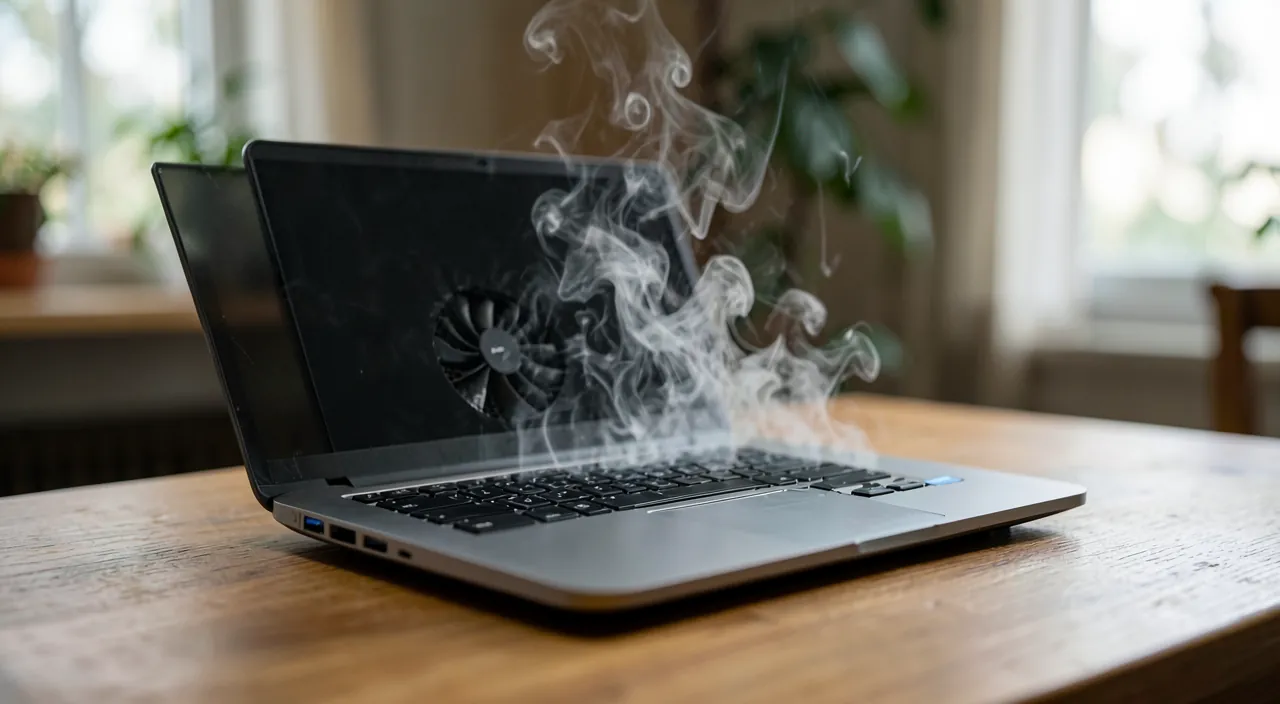
The SIGNS of an overheating computer: a loud fan running at full speed constantly (the device struggles to cool down), a case or underside abnormally hot, sudden SLOWDOWNS (to protect itself, the computer reduces performance when it overheats—this is « thermal throttling »), abrupt and unexplained shutdowns or restarts (safety triggered at a critical temperature), or even frozen screens. Why is heat a problem? Because electronic components generate heat while operating, normally dissipated by a cooling system (fans, heat sinks). When this dissipation fails, the temperature rises: the computer first protects itself (throttling, shutdown), but chronic heat WEARS out components prematurely and shortens the machine’s lifespan. Overheating must be taken seriously. The causes fall into two categories: IMPAIRED cooling (dust, blocked ventilation) and EXCESSIVE strain (the computer is working too hard due to software or intensive use). Identifying which one is at play guides you to the right solution: often, it’s dust and ventilation, the most common and easiest to fix.
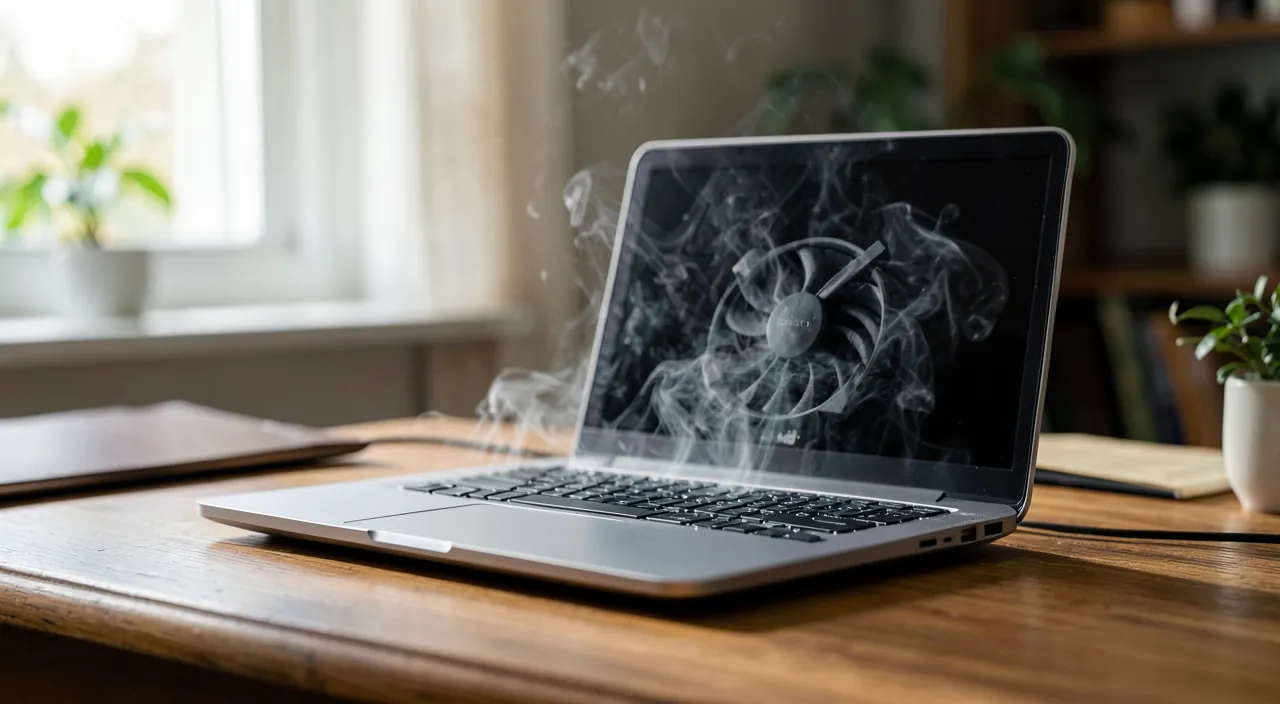
Your computer overheats because it can’t cool itself properly. Either the cooling system (fans, vents) is blocked by dust or poor placement, or the computer is working too hard. Both problems can be fixed, but ignoring them can damage your machine over time.
A gaming laptop running a demanding game like Cyberpunk 2077 on a soft bed may overheat. The vents are blocked, and the CPU/GPU temperatures rise to 90°C, triggering thermal throttling. Moving it to a hard surface and cleaning the vents with compressed air brings temperatures down to 70°C, restoring full performance.
Common causes and their solutions
Let’s review the culprits, from the most common to the most technical: DUST—the number one cause: it accumulates in vents, fans, and heat sinks, forming an insulating layer that prevents heat dissipation; solution: gently clean the air intakes and vents (dusting, compressed air for hard-to-reach areas—device turned off and unplugged); BLOCKED VENTILATION—a laptop placed on a bed, sofa, or blanket blocks the air intakes on the underside; use it on a HARD and flat surface, clear the vents; a desktop computer should have space around its vents (not stuck to the wall, not in a closed cabinet); TOO DEMANDING SOFTWARE—a program that pushes the computer to its limits (or even hidden malware—our security guides), or too many open applications, cause overheating: check what’s running and close unnecessary programs (our guides for a slow computer, to free up resources); a HOT ENVIRONMENT—an overheated room, direct sunlight, summer: these factors make everything worse; avoid exposing the device to heat; updates and software maintenance—an up-to-date and healthy system manages resources better; and for more technical cases (dried thermal paste on an old device, faulty fan), a more in-depth intervention may be necessary. Always START with the simplest and most frequent issue: dusting and ventilation resolve most overheating problems, at no cost. A clean, well-ventilated, and not overloaded computer rarely overheats abnormally.
The right reflex. First, check VENTILATION—the simplest and most common cause, especially on laptops: ensure that air intakes and outlets are not blocked, and never use a laptop placed on a soft surface (bed, sofa, cushion, covered knees) that clogs the underside vents and traps heat. Place it on a HARD and flat surface, or on a stand that allows air to circulate. This simple action resolves a surprising number of overheating and fan-spinning issues: many « overheating » computers simply breathe poorly. Combined with regular dusting of the vents (device turned off), you eliminate the two most common causes without spending a penny. A computer needs to breathe to cool down: restoring that breath is often all it takes.
Preventing and knowing when to worry
It’s better to prevent overheating than to suffer from it: DUST regularly (a few times a year depending on the environment—interiors with pets or smoking get dirtier faster), always ensure proper VENTILATION (hard surface, space around), keep your system and software UP TO DATE and HEALTHY (our guides for a slow computer, security), avoid exposing the device to HEAT (sunlight, overheated room), and don’t unnecessarily overload the machine. These habits significantly extend your computer’s lifespan. But also KNOW WHEN TO RECOGNIZE the limits of DIY troubleshooting: if, despite a clean and well-ventilated device, overheating persists (frequent shutdowns, constant slowdowns), the issue may be more technical—thermal paste to be reapplied, faulty fan, failing component—and warrant a professional’s opinion (our guides for a failing drive, for other signs of hardware aging). NEVER IGNORE chronic overheating: it’s time to act before heat permanently damages components (a machine that shuts down due to overheating does so to protect itself: it’s a serious warning). And think about BACKING UP your data if the device shows signs of weakness (our backup guides): overheating may signal an impending failure. Well-maintained and well-ventilated, a computer stays cool and reliable for years; neglected, it suffocates under dust and wears out prematurely. Cooling is not a detail: it’s what keeps your machine alive.
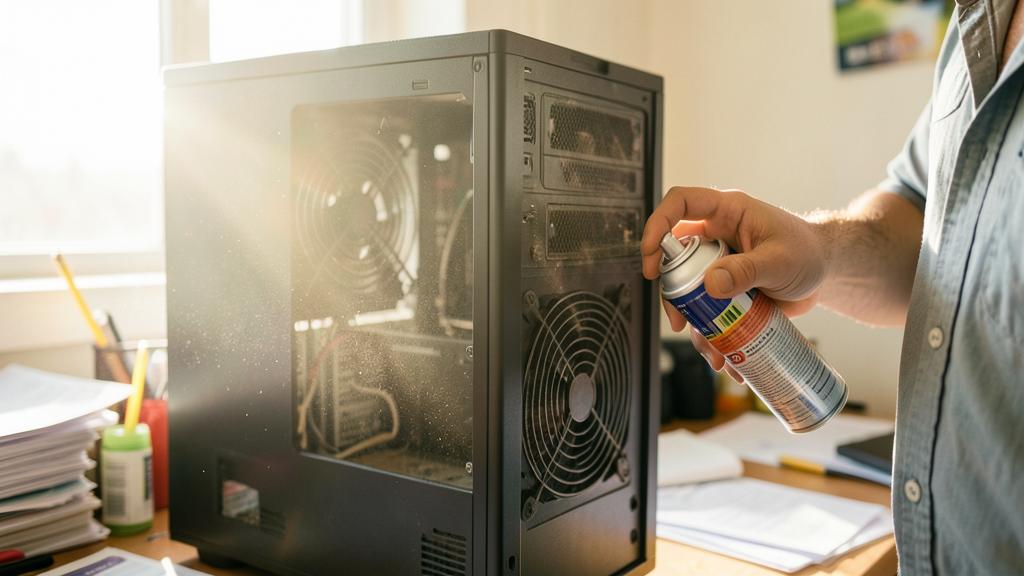
Warning: never neglect chronic overheating, and handle with care. Two points of vigilance: REPEATED overheating is not harmless—the automatic shutdowns and throttling are PROTECTION mechanisms signaling a dangerous temperature; ignored, chronic heat wears out and permanently damages components, leading to failure (act at the first signs, don’t just endure a fan screaming constantly). And for CLEANING: always intervene with the device TURNED OFF and UNPLUGGED, dust gently (no liquids, no objects that could damage components or fans); more in-depth internal interventions (opening the machine, reapplying thermal paste, replacing a fan) require precautions and may affect the warranty: in case of doubt, entrust them to a professional (our guides). Finally, if overheating is accompanied by other signs of weakness, BACK UP your data immediately (our backup guides): a device that overheats abnormally may be warning you of an upcoming failure. Heat is the worst enemy of electronics: taking it seriously is how you extend your computer’s life.
Frequent questions
Why does my computer’s fan keep running at full speed?
Because the computer is struggling to dissipate heat: either cooling is impaired (accumulated dust, blocked ventilation—especially a laptop on a soft surface), or the machine is overworked (demanding software, too many applications, or even malware). Start by checking ventilation (hard surface, clear vents) and dusting, then look at what’s running and close unnecessary programs (our guides for a slow computer). A constantly running fan is a signal: the device is hot and trying to cool down. Addressing the cause (breathing or overload) will silence it and protect the machine.
Can overheating damage my computer?
Yes, in the long run: excessive and chronic heat prematurely wears out components and shortens the machine’s lifespan. In the short term, the computer protects itself (it slows down or shuts down at a critical temperature); but these repeated protections are a serious warning not to ignore. That’s why you should act at the first signs of persistent overheating, starting with simple causes (dust, ventilation). Never let a computer overheat for long: heat is the worst enemy of electronics, and prevention costs infinitely less than replacing damaged components.
When should I call a professional?
When overheating PERSISTS despite a clean and well-ventilated device (frequent shutdowns, constant slowdowns). The issue is then likely more technical: dried thermal paste to be reapplied, faulty fan, or failing component—interventions requiring skills, tools, and that may affect the warranty. Also if you’re not comfortable opening or deeply cleaning the machine. A professional diagnoses and fixes without risk of worsening the issue. Start with simple steps (ventilation, dusting) that resolve most cases; if that’s not enough, an expert’s opinion prevents further damage to a device that’s warning you.
Key takeaways
An overheating computer signals it: spinning fan, burning case, sudden slowdowns (thermal throttling), abrupt shutdowns (protection). Not to be ignored, as chronic heat wears out components and shortens the machine’s lifespan. The causes fall into two categories: IMPAIRED cooling (dust, blocked ventilation) and EXCESSIVE strain (demanding software, overload, sometimes malware). The solutions, from simplest to most technical: check VENTILATION (never on a soft surface, clear vents, space around—the most common and free fix), DUST regularly (device turned off), close demanding software, avoid ambient heat, keep the system up to date and healthy. Always start with ventilation and dust, which resolve most cases. Prevent with these habits, and know your limits: if overheating persists despite everything, a technical issue (thermal paste, fan) warrants a professional. Never ignore repeated overheating, and back up your data at the first sign of weakness. Cooling keeps your computer alive: letting it breathe is how you make it last.
Persistent issue, temperamental device? Our remote troubleshooting service resolves your problem quickly, without jargon.
Leave a Reply
You must be logged in to post a comment.