
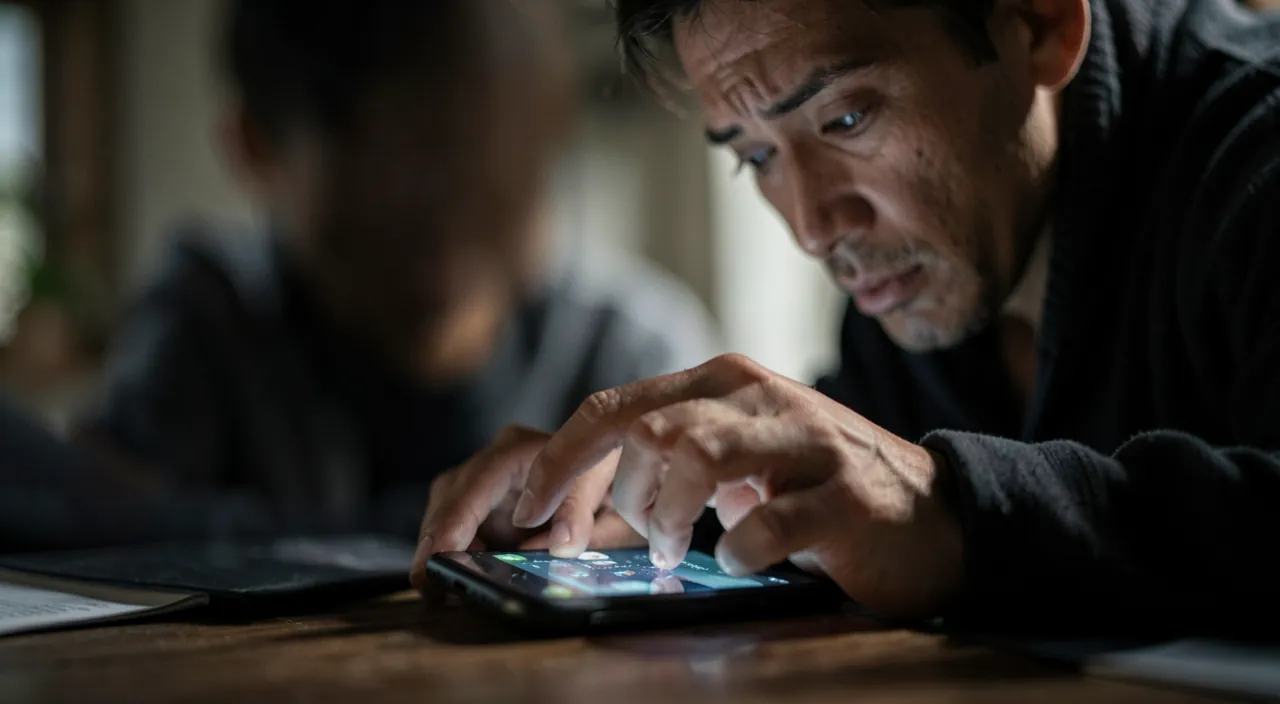
The screen that no longer obeys the finger, that clicks by itself at midnight, that ignores an entire area or opens three apps when you aimed for one: a malfunctioning touchscreen makes a phone or tablet literally unusable—and unsettling (the « ghost screen » that types a code on its own has a possessed feel). Yet the causes range from trivial (a drop of water, a poorly applied film) to hardware (the screen after a fall), and the method quickly distinguishes them. Diagnosis, remedies, and how to regain control of a screen that no longer listens.
First, the silly causes: the surface
The touchscreen measures tiny electrical variations on the surface—anything that interferes with this surface interferes with the touch: moisture—the number one cause of « ghost clicks »: a few raindrops, damp fingers, or bathroom steam are enough to make the screen click on its own—wipe both the screen AND your fingers (completely dry), and the ghost disappears (persistent after a serious wet episode: our guides for wet devices—the internal moisture requires different treatment); dirt—grease, sunscreen, residue: cleaning with a lightly damp microfiber cloth (never harsh products) is a real lifesaver; the film or protective glass—poorly applied (bubbles, peeling edge creating a bridge), too thick, low quality, or aged: the definitive test—REMOVE it: if the touchscreen works perfectly again, the culprit is found (reapply a quality protection, properly—they exist and don’t degrade anything); gloves and objects—a sleeve corner, another finger brushing against it, a case overlapping the screen: common and frequent; and the dubious charger—the great unknown: a low-quality charger or cable injects electrical noise that makes the touchscreen go haywire DURING charging (erratic screen only when plugged in = the test is done): switch to a certified charger (our guides for accessories), and the symptom disappears with it.
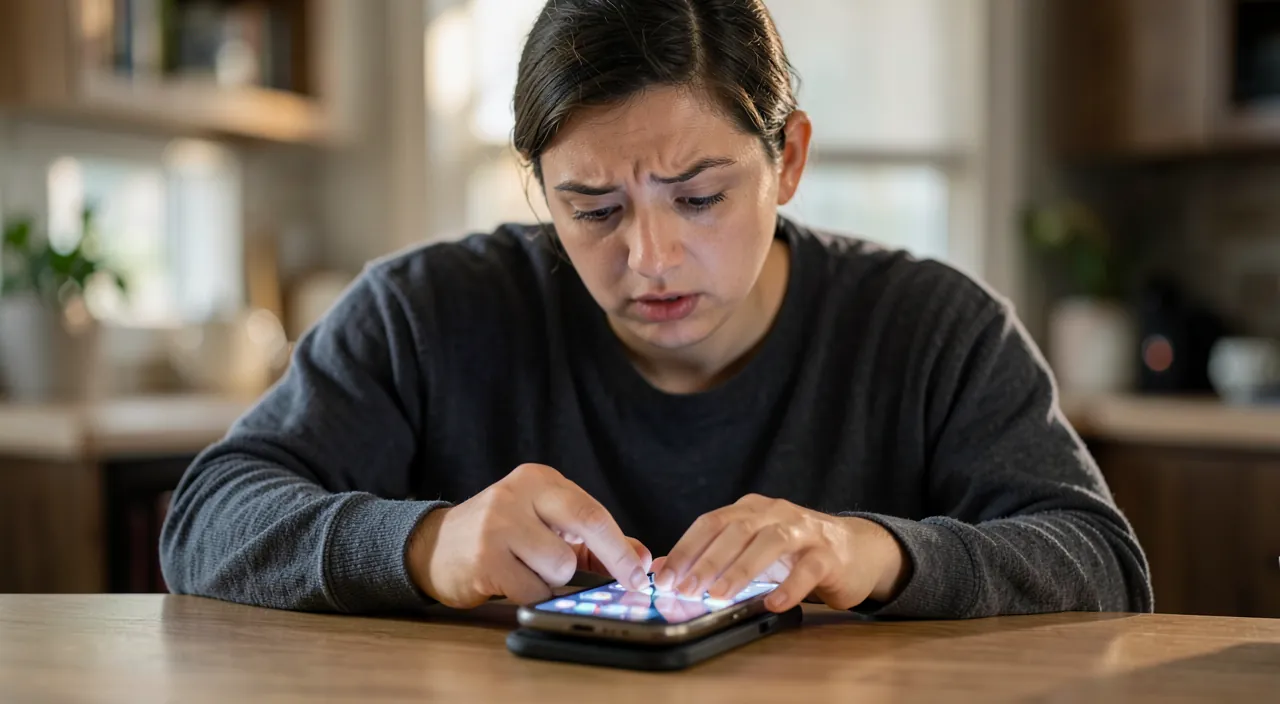
A touchscreen works by detecting tiny electrical changes when you touch it. If something gets in the way—like water, dirt, or a bad screen protector—it can stop working right. Cleaning or removing the problem usually fixes it.
Your phone starts clicking by itself after a rainy day. You wipe the screen and your fingers dry, and the problem disappears. The water was interfering with the touchscreen’s sensors.
The software layer: when the system stutters
Surface ruled out? The software is tested step by step: the forced restart—the screen that no longer responds AT ALL prevents normal shutdown: each device has its own button combination to force it (search « forced restart + [model] »: on recent iPhones: volume up, volume down, then hold the side button; Androids have their own variations): the gesture to know BEFORE you need it, which fixes temporary freezes; the problematic app—the touchscreen that malfunctions in ONLY ONE app (the game, the third-party keyboard) blames the app, not the screen: update or reinstall the app (and our guides for crashing apps); the system update—massive touchscreen bugs sometimes follow an update… and are fixed by the next one (the symptom shared by thousands of users is verified by searching « [model] touchscreen [version] »: if it’s an epidemic, wait for the update); the sensitivity and accessibility settings—a touch setting accidentally modified (press duration, gesture control, activated assistive functions) mimics the failure: a quick check of Accessibility → Touch settings sets things right; and the final artillery—system restore (backup first—our guides: ALWAYS) definitively separates software from hardware: the screen still acting up on a fresh system is a sick screen—time for hardware.
The right reflex. Locate the issue with a drawing test: open a drawing (or notes) app and slowly hatch the ENTIRE screen with your finger—the map draws itself: areas that don’t register (dead zone, silent corner) or lines that jump reveal a LOCALIZED failure—signature of hardware (screen or flex cable, often after impact); the line that bleeds everywhere in bursts suggests the surface or software. Two minutes, and you arrive at the repair shop (or customer service) with a drawn diagnosis—literally.
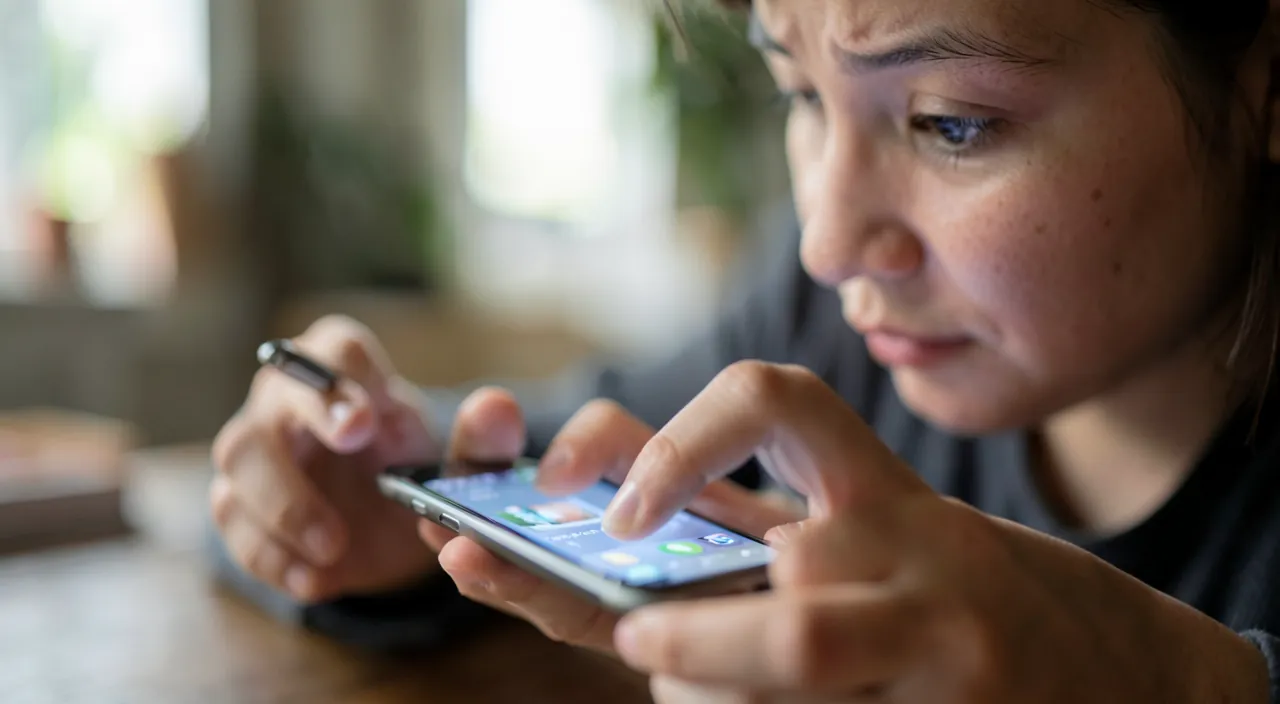
Regaining control when the screen no longer responds at all
The practical emergency—the device works but the screen refuses everything: emergency options exist: the voice assistant works without touch (« call… », « turn off… » depending on the platform—the voice controls the essentials: our guides for assistants), a mouse can be connected (USB-C or pre-paired Bluetooth) on phones and tablets—the cursor that appears restores ALL control (the magical fix almost no one knows: the $10 mouse from the drawer saves the evening—and allows backup before repair), and the keyboard too; the emergency backup—this is THE priority as soon as any control returns (mouse, or the computer—the cable and local backup tools work with a dead screen, if the device was already « trusted »): our backup guides repeat it—the screen can be replaced, photos can’t; the partially dead touchscreen can be worked around in the meantime—the screen rotation moves buttons out of the dead zone (the trick for the keyboardist whose bottom row is unresponsive: landscape, and you type), software assist buttons can be repositioned; and the lock—a dead screen with a code becomes a safe: biometrics save (face/fingerprint unlock without touch—a reason more to enable them), and the trusted device already known to the computer remains backup-able: the worst stories of lost data on a broken screen are stories of disabled biometrics and missing backups—prevention comes down to two settings.
Hardware: fall, age, and the repair verdict
When everything points to the screen: the hardware signatures—the failure caused by a FALL or pressure (even without visible cracks: internal cables disconnect or crack), the stable dead zone in the drawing test, associated colored lines or flickering, the touchscreen that dies in patches depending on temperature or bending (the tablet that works « when you bend it a little »—typically the flex cable); the economic verdict—screen replacement is THE most common repair in the world: get a quote from a certified repair shop (bonus repair deduction—our guides on the right to repair detail), discuss the quality of original or compatible parts frankly, against the value of the device (our guides for repair/replace trade-offs): on a recent phone, repair almost always wins; on an old one, refurbished competes; the self-repair—accessible to careful, well-equipped users on some models (official kits—our guides), knowing the pitfalls (lost waterproofing, biometrics sometimes tied to the original screen: research YOUR model first); and the crack you « let live »—the starry screen that still works is protected (film over it: shards in fingers and infiltrating moisture don’t wait) and repaired before winter (cold spreads cracks—the small October crack is January’s spiderweb): our guides for cracked screens complete the picture.
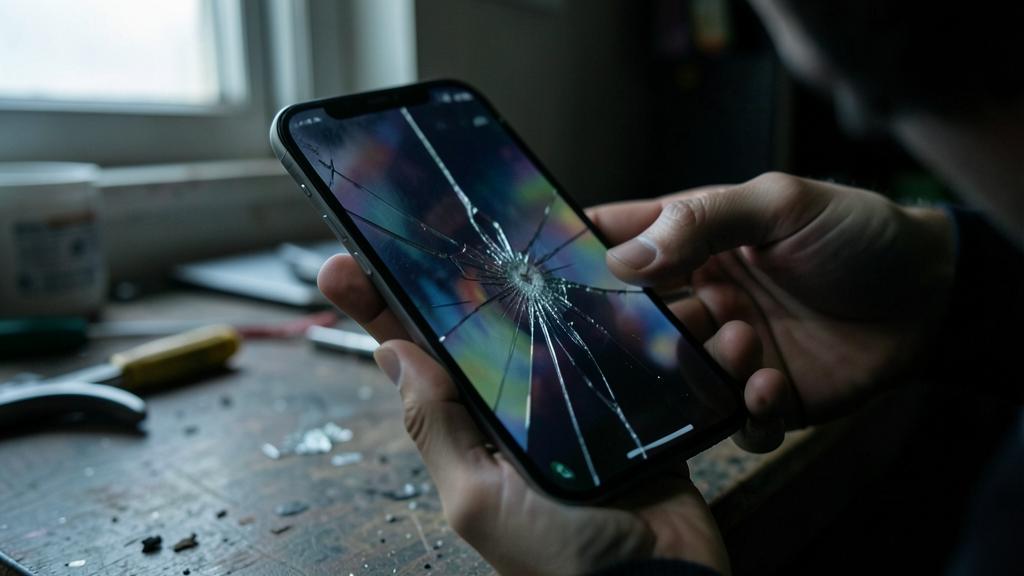
Beware of the ghost screen that does whatever—including the worst. A touchscreen that clicks on its own isn’t just annoying: it PRESSES—it can call, write, buy, delete, and especially exhaust code attempts until lockout, or even wipe if the « erase after X failures » option is active: at the first signs of ghost clicks, don’t LEAVE the device on unattended—turn it off (forced restart if needed) between diagnostic sessions, and back up at the first lull. And the security mirror: a screen that « does things on its own » in a COHERENT way (actions that logically follow each other) isn’t a ghost touch—it’s potentially remote access (our guides for hacked accounts: the reflex changes—airplane mode, passwords from another device). Randomness clicks randomly; coherence, however, should raise alarms.
Frequent questions
Does cold or heat really mess up the touchscreen?
Yes—the extremes slow down the screen (sharp cold makes the touchscreen sluggish, full sun makes it glitch): it’s temporary and normal—the device returned to temperature regains its senses. The PERSISTENT symptom at normal temperature, however, follows the method of this guide.

My screen has become less sensitive with age: adjustable?
A bit: sensitivity settings exist (accessibility, and the « gloves » mode/increased sensitivity of some models—designed for thick films), and a thorough cleaning + protection change work wonders. The screen that wears out electrically also exists on older devices—the drawing test documents, the repair/renewal trade-off decides.
Can the stylus work where the finger fails (or vice versa)?
Yes—fingers and active styluses use different paths: one working without the other is a diagnostic clue (and a temporary workaround). The active stylus that malfunctions alone also has its own fixes: charging, re-pairing, worn-out tip to replace—the trio that fixes most capricious pens.
What to remember
The crazy touchscreen is diagnosed in layers: the surface first (moisture and dry fingers, cleaning, protection removed for testing, dubious charger unplugged—half the cases stop there), the software next (forced restart—the gesture to know in advance—, problematic app, updates, accessibility settings, restore last), the hardware finally (the drawing test that maps, the signature of the fall, the bonus-deducted quote—the screen is THE queen of repairs). In an emergency, emergency options restore control (the voice, and the connected mouse—the fix almost no one knows) for the priority action: the backup. And ghost clicks are monitored—a screen that presses on its own can lock, erase, or reveal worse. The screen is your only door to the device: when it jams, you don’t force it—you diagnose, layer by layer. The door almost always reopens.

Persistent failure, temperamental device? Our remote troubleshooting service solves your problem quickly, without jargon.
Leave a Reply
You must be logged in to post a comment.