
Modern TV is an app store — and like any store, it’s either organized or cluttered: scattered streaming apps, accounts to retype letter by letter on the remote, mixed profiles where cartoons pollute your recommendations, ads invading the home screen. One hour of setup transforms everything: organized apps, clean accounts, profiles per person, kids restricted, image and privacy settings done. The complete installation guide — for new TVs, inherited TVs, or streaming boxes.
The basics: the right ecosystem and accounts
First structuring choice: where your apps live — the smart TV itself (all recent TVs have their own store) or a streaming box/key plugged in (Apple TV, keys and boxes from major players): the box often wins — smoother interface and longer lifespan (the TV ages through its software before its screen: a 30-150€ box revives a 10-year-old TV — our guides), ecosystem consistency (native AirPlay, already-known accounts), and less built-in ads depending on the platform; then, clean connections: the main ecosystem account first (it brings the store, secure payments, and syncs), then each streaming app — and the remote typing chore is gone: all major apps offer code login (a short code displayed on screen, entered on your phone where you’re already logged in — or the QR code): never type a password with arrow keys again — and never store it on a TV that isn’t yours (our travel guides). Finally, install the thoughtful app base: your active subscriptions (and only them — our streaming guide rotation applies: the app for the canceled service is deleted, it will come back), channel replays (free and underrated), and the “aggregator” app from your ecosystem that searches all catalogs at once — the “which platform is it on?” question solved at the source.
Your TV is like a smartphone: you need to pick where your apps live (TV or box), log in properly (with codes, not typing), and only keep the apps you actually use. This makes everything faster and cleaner.
You have a 2015 Samsung TV with a slow interface. Instead of buying a new TV, you plug in a 50€ Apple TV 4K. Now, your apps load instantly, you log in via code on your iPhone, and you only keep Netflix, Disney+, and the Samsung TV Plus (free) app. No more ads, no more lag.
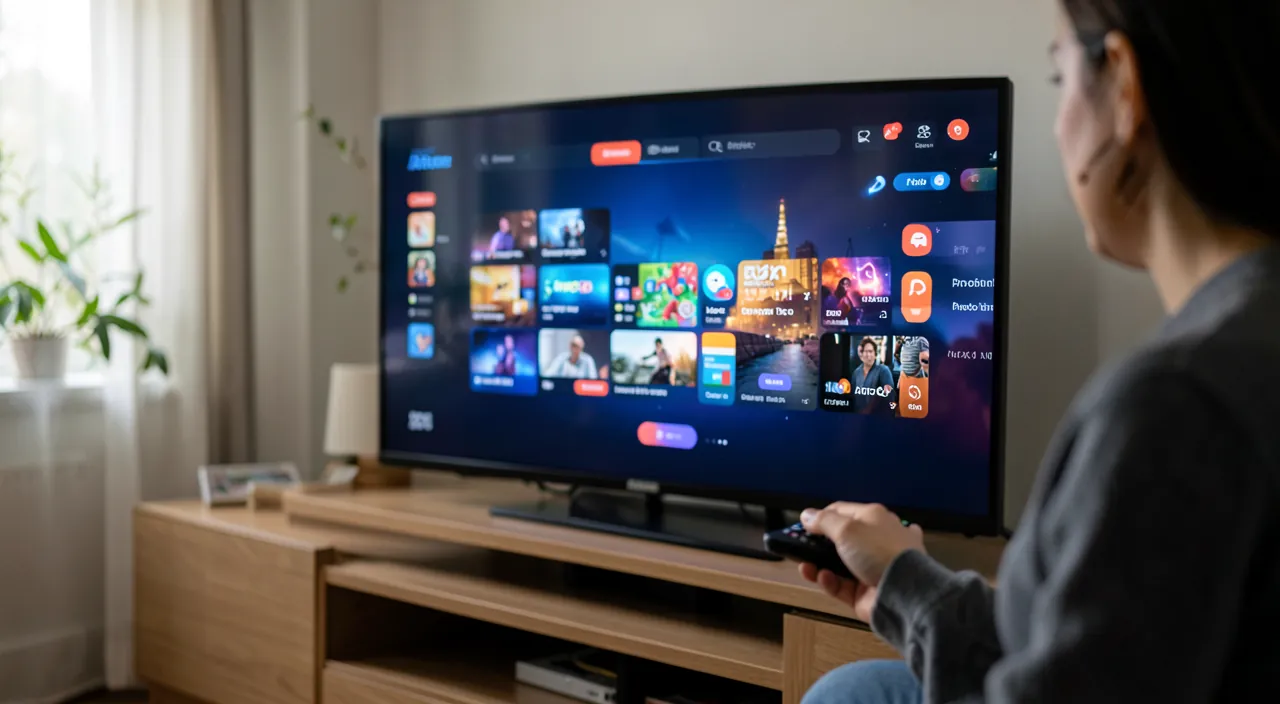
Organizing the home screen: the obedient TV
The home screen is organized like a phone: the first row for daily apps (the 3-4 services actually watched + replays): on all platforms, a long press on the icon lets you move/reorder — five minutes that save years of navigation; dormant apps deleted or moved (TVs preinstall dozens of sponsored services: uninstall or hide — it’s YOUR screen); remote shortcuts — dedicated buttons for services (often sponsored) can be remapped on some models, and universal remotes simplify three-box living rooms; home screen ads — smart TVs live on sponsored recommendations: settings can reduce some (disable personalized ads, limit suggestions — see the privacy box); and the default input — the TV that turns on directly to the box or last used source (set “source on startup” + HDMI-CEC enabled: the box remote turns everything on, controls volume — ONE remote for everything, the holy grail of peaceful living rooms and grandparent-proof setups). The success test: anyone in the household turns it on and starts their program in three clicks — otherwise, simplify further.
The right reflex. Create profiles per person in each streaming app — two minutes per app, with three immediate benefits: recommendations become relevant again (your thrillers no longer mix with cartoons), “resume playback” finds YOUR episode, and the locked kids’ profile (PIN on adult profiles — the setting that matters: without it, the kids’ profile is decorative since it’s enough to click outside). Name them, choose avatars as a family — kids’ buy-in to “their” profile does half the rule-following.

Kids and TV: setting boundaries without fighting
The living room TV is the most shared screen — its kids’ mode is set at three levels: the kids’ profiles in apps (age-filtered catalogs — set the real age, not “generic kid”: a 6-year-old and 10-year-old profile don’t see the same content) locked with a PIN on the adult side; the parental controls of the platform (TV or box): age restrictions for apps and purchases requiring a code — the TV store also sells, and in-app TV game purchases exist (mandatory purchase code avoids surprises — our guides); and the usage rules that remain the real structure: agreed times (some platforms’ timers help, words do the rest), autoplay disabled in kids’ profiles (the most effective anti-marathon setting: the end of an episode becomes an actual end — look for “autoplay” in profile settings), and the living room screen as a SOCIAL screen — cartoons are watched together or in presence, TV isn’t the upstairs babysitter (age recommendations for content and screens — our guides — apply first here). Grandparent bonus: the same setup hour at their place (profiles, simplicity, ONE remote) transforms Wednesdays — and their phone as a backup remote when the object gets lost in the couch.
Image, sound, and finishing touches: the TV you deserve
Since we’re here, the settings 90% of living rooms never do: the image — get out of the store’s “Dynamic/Vivid” mode (garish colors, orange faces): the “Cinema/Filmmaker” mode is the faithful setting (just adjust brightness to your room), and disable motion smoothing for movies (the interpolation that gives the “soap opera” effect — cinephiles curse it, it’s turned off in image settings: keep it maybe for sports); the sound — flat TV speakers are weak by physics: an entry-level soundbar changes lives (dialogues finally intelligible — and the “dialogue clarity/night” mode in settings helps in the meantime); the subtitles — properly set once (size, style) for profiles that want them (our accessibility guides: the TV benefits too); the network — Ethernet for the TV if possible (our Wi-Fi guides: stable 4K streaming is at that price), or 5GHz nearby otherwise; and the updates — TV and box up to date, automatic updates enabled (security and app compatibility — the TV is a computer, it ages the same way). Twenty minutes of finishing touches — and the difference is literally seen every night.
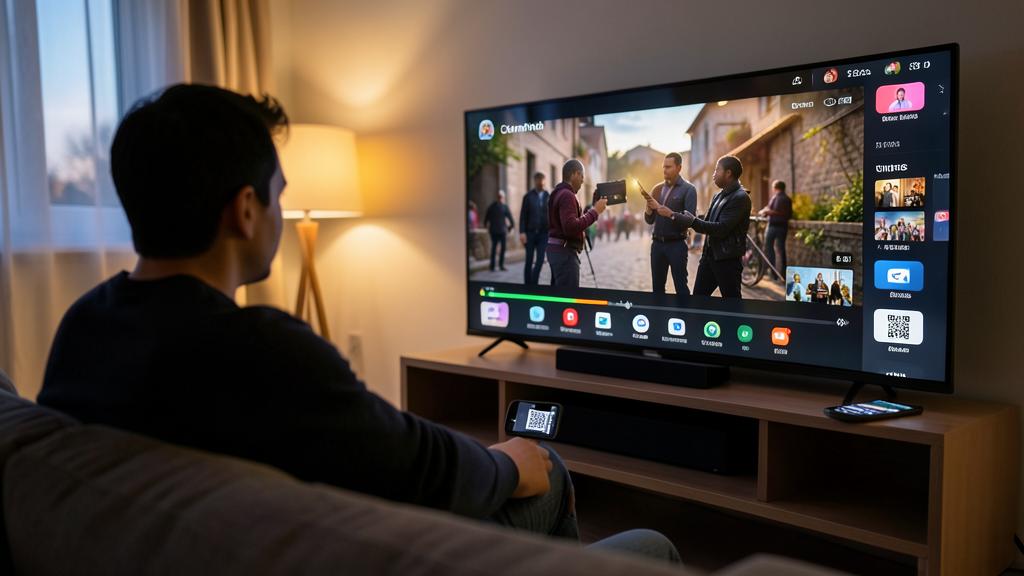
Beware of the TV that watches you. Connected TVs fund their margins through data: content recognition (ACR — the TV identifies what you’re watching, all sources combined, for ad profiling) is often enabled by default: it’s disabled (look for “viewing data,” “content information,” “personalized ads” in privacy/terms — refuse what can be refused at setup: initial consent revisited in settings); the mic of voice remotes is cut with a switch on many models if you dislike its use; and guest accounts — never your credentials on someone else’s TV, and on yours, disconnecting unknown sessions is done in each account’s settings (“manage devices”): the annual audit applies to the living room too. The TV is the biggest screen in the house — it shouldn’t be the biggest data leak.
Frequently asked questions
My TV is slow and its apps crash: should I replace it?
No — this is the textbook case for a streaming box: the screen is good, the brain is old — a recent key or box (30-150€) brings fluidity, up-to-date apps, and years of extended life (plug it in, set default source, never use the TV’s “smart” feature again). The best value tech purchase for your living room.
Should I pay for the TV store’s “premium” apps?
Beware: the TV store also has fake apps and bait subscriptions (premium players, paid screensavers, fake channel apps): install the OFFICIAL apps from services (check the publisher), and any subscription is ideally subscribed from the service’s website — not in an unknown app. The real free gems: replays, FAST channels, and the ecosystem’s aggregator app.
How do I watch my own files (movies, photos) on the TV?
Three options: streaming/copying from phone or computer (our projection guides — the easiest), a USB key plugged into the TV (common formats natively supported), and for organized libraries — media server apps (the home computer or NAS streams to the TV: this topic deserves its own guide, but basic setup is done in one evening).
What to remember
One hour of setup changes TV for years: the right base (streaming box if the TV is aging, code logins — never password with arrow keys), organized home screen (first row useful, sponsored apps removed, default source + one remote via HDMI-CEC), profiles per person with PIN on adults and autoplay off for kids (the setting duo that protects recommendations, episodes AND evenings), kids’ mode at three levels (profiles, purchase code, spoken rules), and visible finishing touches (Cinema mode, smoothing off, soundbar, Ethernet, updates) — plus privacy taken back (ACR disabled, consent revisited). The living room TV is the only screen the whole family shares: it deserves to be set up as such — and it never will if no one takes the hour. Take it this weekend: the “which app was it on again?” won’t come back.
Want to gain confidence with your digital tools? Our personalized training adapts to your level.
Leave a Reply
You must be logged in to post a comment.