
Spending time juggling overlapping windows, searching for the right one, copying from one document to another: working on a single screen has its limits. Adding a second screen is one of the most effective and affordable productivity improvements out there. More space, more comfort, fewer manipulations. This guide explains how to make the most of two screens and why it’s such a daily game-changer.
Why Two Screens Change Everything
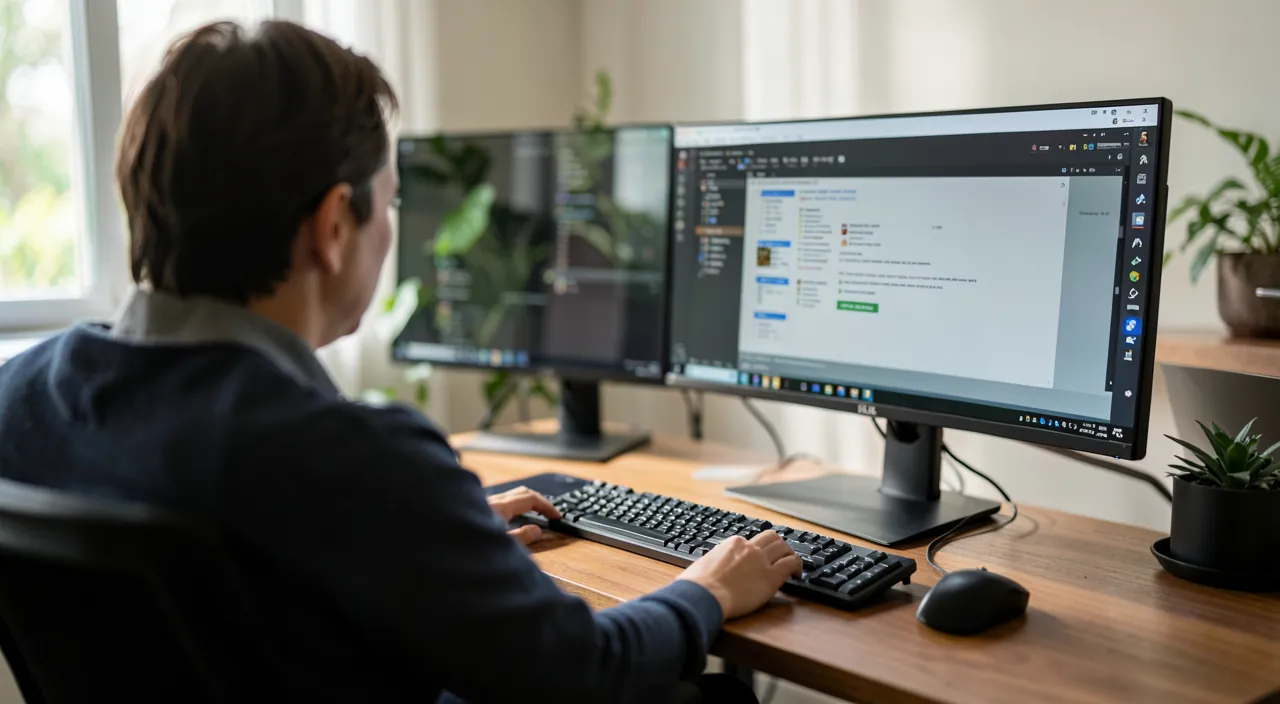
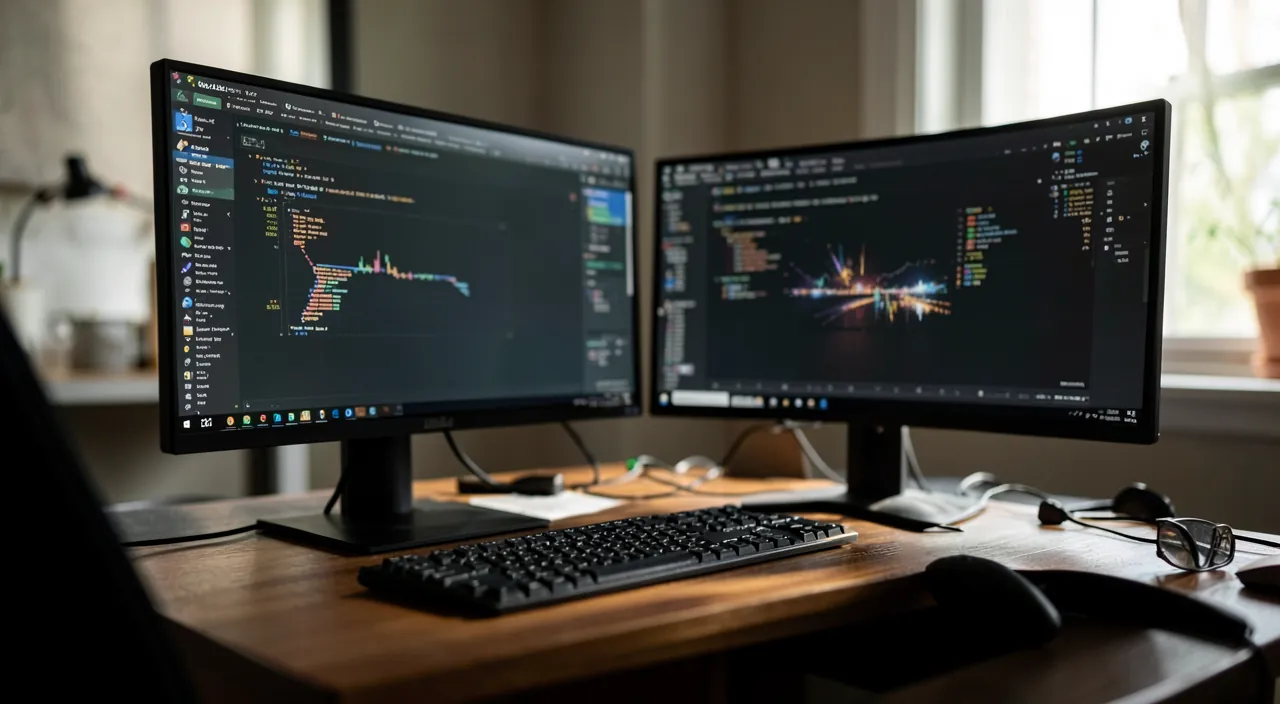
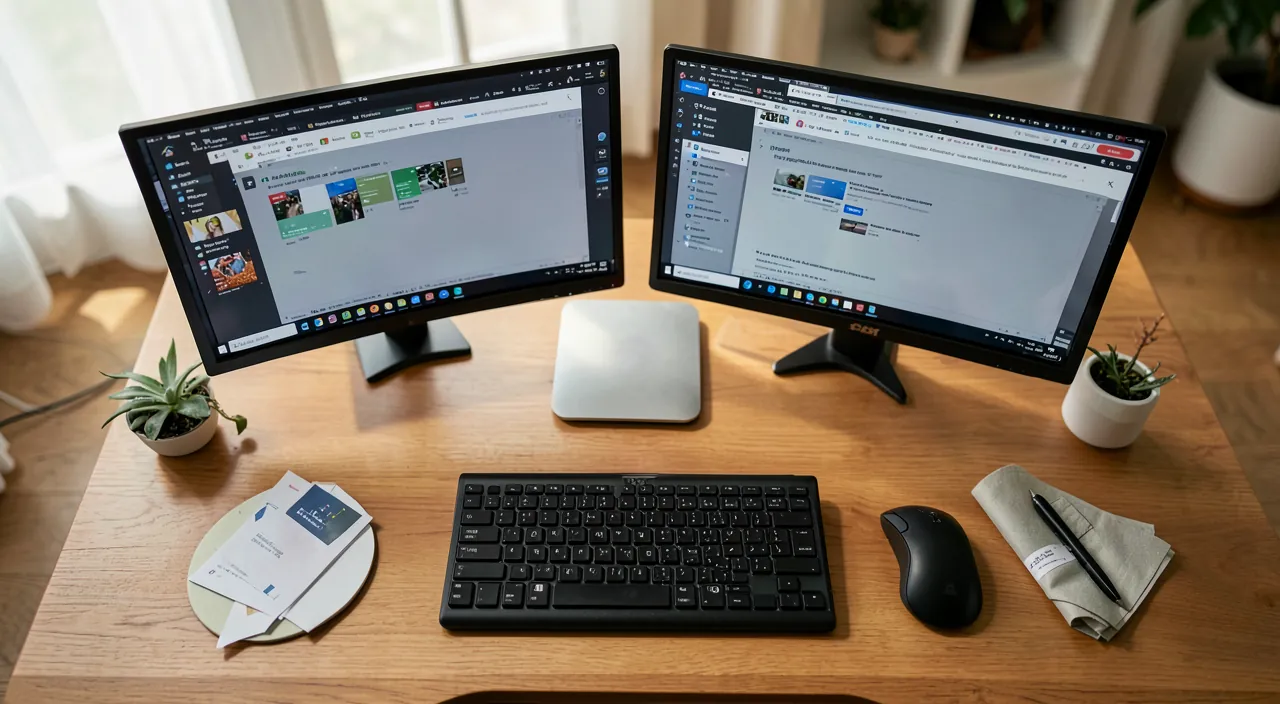
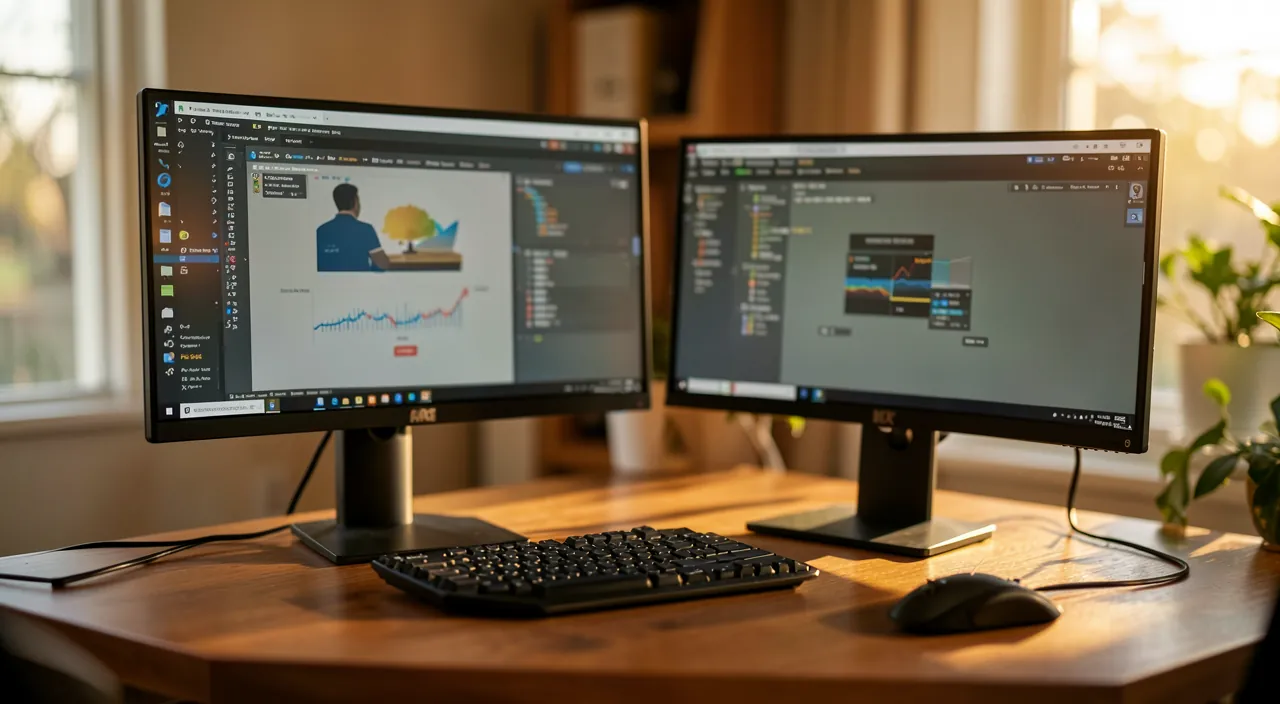
The benefit is immediate: you double your workspace. No more constantly switching between windows: keep a document open on one screen and work on the other, follow a video call on one side while taking notes on the other, compare two files side by side. This fluidity translates into real time savings and a noticeable comfort, reducing the mental fatigue of constant manipulations.
Two screens let you see more at once, so you don’t waste time switching between windows. It’s like having two desks instead of one.
How to Set It Up
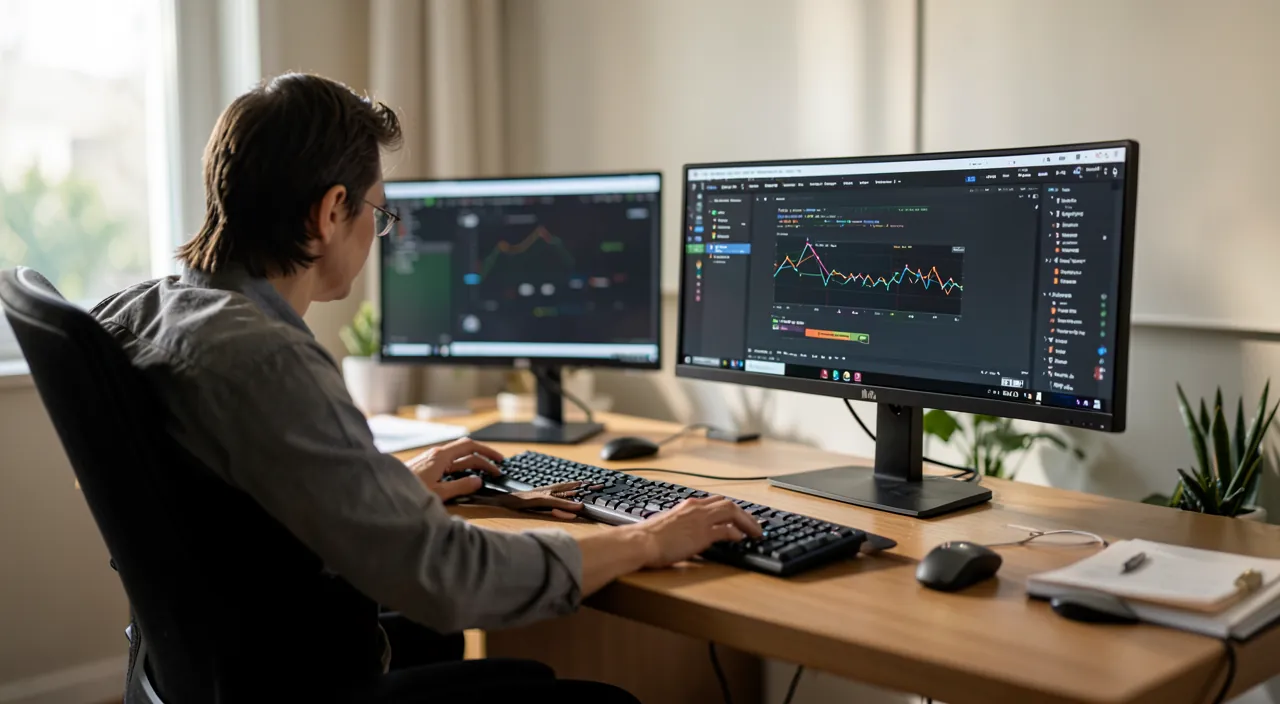
Adding a screen is simple: connect the second screen to your computer with the appropriate cable, and the system usually detects it automatically. All that’s left is to choose the layout: extend the desktop (for two distinct spaces) rather than duplicate it. You can also adjust the relative position of the screens so that moving from one to the other feels natural. A few minutes of setup is all it takes.
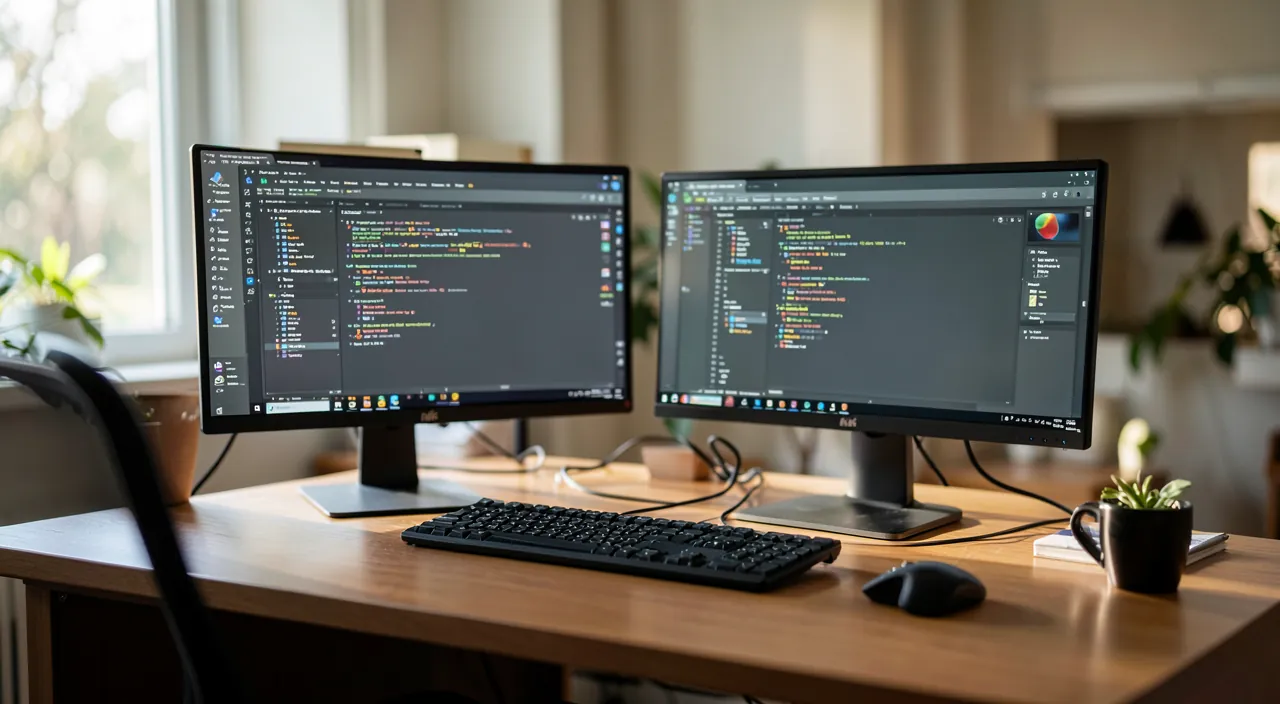
If you’re using a 24-inch main screen and a 27-inch secondary screen, set the main one in front of you and the second to the right. Adjust the height so the top edges align, and your cursor will move smoothly between them.

The Right Reflex. Configure your screens in « extended » mode (not « duplicated ») to have two distinct workspaces. Place the main screen in front of you and the second one to the side, and adjust their alignment so that the cursor moves naturally from one to the other. This small adjustment makes the experience much smoother.
Organizing Your Two Screens Effectively
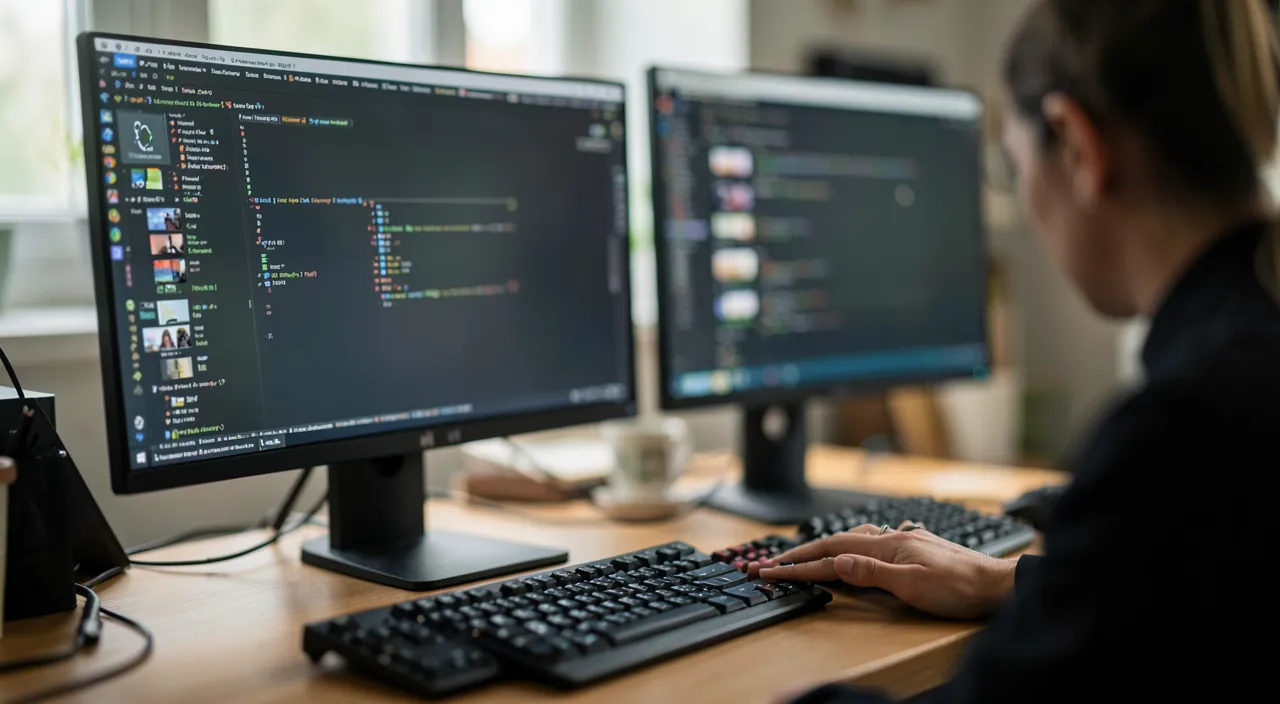
To get the most out of two screens, adopt a thoughtful organization: the main screen for your active task, the second for resources—documentation, email, tracking tools. This division prevents distractions and gives each screen a purpose. You can also dedicate one screen to communication (emails, messaging) to keep an eye on it without it interfering with your main work.
An Alternative Without a Second Screen
No second screen on hand? Some tablets can serve as a secondary screen, and your system’s virtual desktops offer an « spaces » organization that comes close to the comfort of dual screens. It’s not quite the same, but it already significantly improves the comfort of working on a single machine, without buying anything.
To Anticipate. Check that your computer has the right video output and that you have the appropriate cable before buying a screen. Connectors vary: a quick check avoids ending up with an incompatible screen. If in doubt, an adapter can often solve the problem.
Winning Layouts Based on Your Activity
Office Work and Management: working document on the main screen, email and calendar on the second—you handle everything without juggling. Writing and Analysis: sources and references on one side, your work on the other—the back-and-forth between copying and reading becomes a simple eye movement. Video Conferencing: the meeting on one screen, your notes and documents on the other—no more screen sharing that hides everything. Creative Work: the canvas in full view on the main screen, palettes and layers moved to the second. Universal tip: learn the shortcut that moves a window from one screen to the other—it’s the gesture that makes dual screens truly fluid on a daily basis.
Frequently Asked Questions
Do I need a powerful computer?
No, most recent computers handle a second screen without issue for office work. Power only becomes a concern for very demanding uses.
Do I need identical screens?
No: you can perfectly pair two different screens. What matters is comfort, not perfect uniformity of the hardware.
Is an external screen with a laptop a true dual setup?
Yes, and it’s actually the most common configuration: the laptop screen becomes the secondary one (email, notes) and the external one the main. Elevate the laptop to align the heights: your neck will thank you.
Key Takeaways
Adding a second screen is one of the most cost-effective productivity improvements: you double your workspace, stop juggling windows, and gain fluidity and comfort. Setup is simple: plug in the screen, choose « extended » mode, and organize your spaces with a role for each screen. Without a second screen, secondary tablets and virtual desktops offer an alternative. Just check the connectivity before buying. A modest investment for a significant daily gain.
Need advice to equip your workspace?
Leave a Reply
You must be logged in to post a comment.