
A USB key that doesn’t appear, a mouse that no longer responds, a headset not recognized, an invisible printer: device issues are among the most common and frustrating. You plug it in, and… nothing. Fortunately, these problems usually have simple causes and quick solutions. This guide helps you diagnose why a device is not recognized and restore its functionality methodically.
Immediate checks
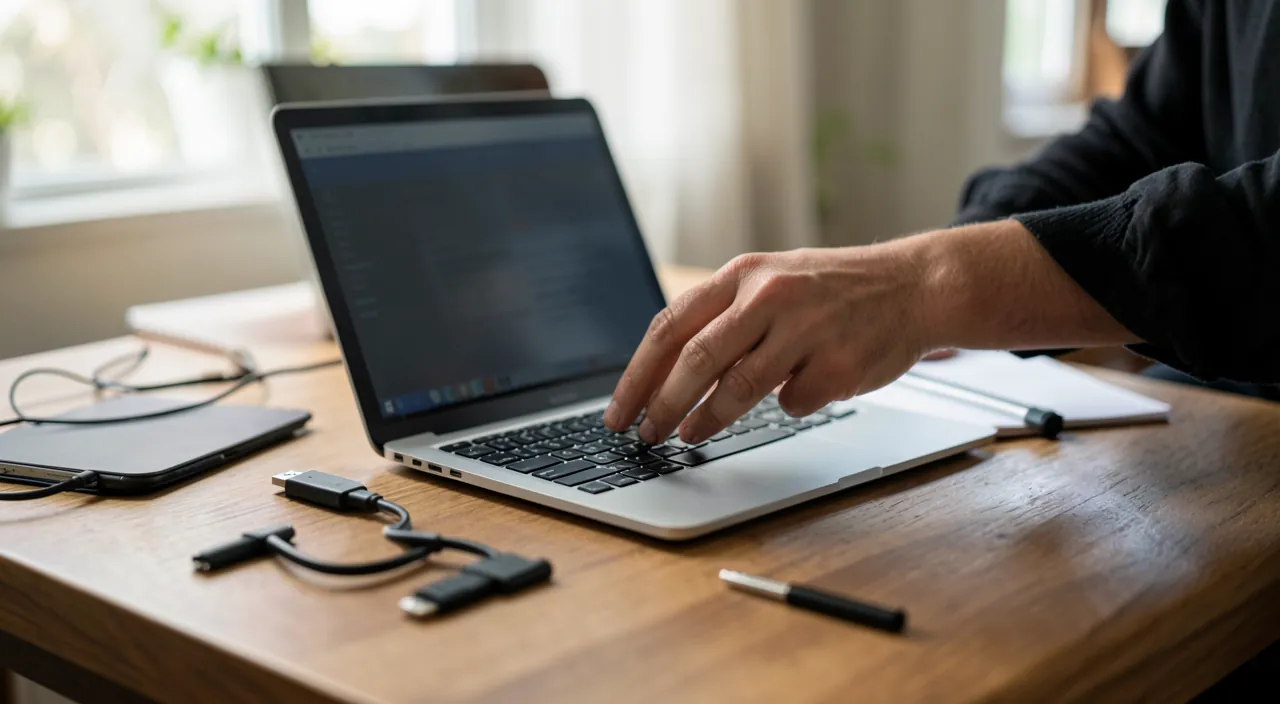
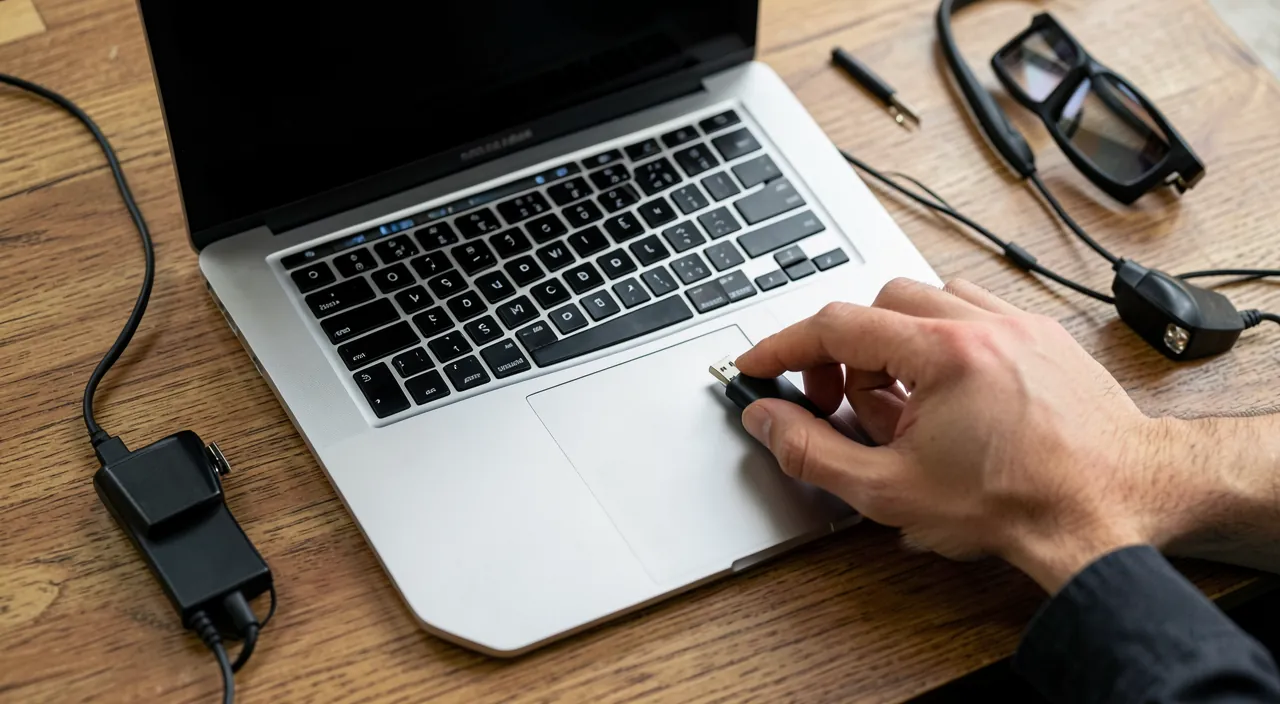
First of all, rule out obvious hardware causes. Is the device properly plugged in, and is the cable in good condition? Try another port: a faulty port is quickly identified. If possible, test the device on another computer to determine if the issue comes from the device or the machine. These common-sense checks resolve a large number of cases and avoid overcomplicating things.
The role of the driver
A device communicates with the computer thanks to a driver, a small dedicated software. When a device is not recognized, it’s often because this driver is missing, corrupted, or outdated. Most common devices install automatically, but sometimes you need to intervene. Reinstalling or updating the driver resolves many recognition issues, especially after a system update.
The right reflex. When facing a stubborn device, unplug it, restart the computer, then plug it back in. This simple cycle forces the system to properly redetect it and resolves a surprising proportion of recognition issues, without technical manipulation.

A driver is like a translator between your device and your computer. If it’s broken or missing, the two can’t talk, and the device won’t work. Updating or reinstalling it usually fixes the problem.
When the system detects nothing
If a device remains completely invisible despite proper connection, several options exist. A restart of the machine resets detection. A conflict with another device or a faulty driver may block recognition: unplugging other devices helps isolate the issue. Finally, some devices require sufficient power: plugged into an overloaded USB hub, they may not receive enough current to function.
You plug a USB hard drive into a hub with four other devices. The drive doesn’t appear. Unplugging two devices from the hub makes it work. The hub couldn’t supply enough power to all five devices at once.
Wireless devices
Mice, headsets, and Bluetooth keyboards add their own subtleties. Check that the device is charged or powered, that it is in pairing mode, and that it is not already connected to another nearby device. Interferences and distance also play a role: moving the device closer sometimes fixes unexpected disconnections. Removing and re-pairing the device resolves most persistent issues.
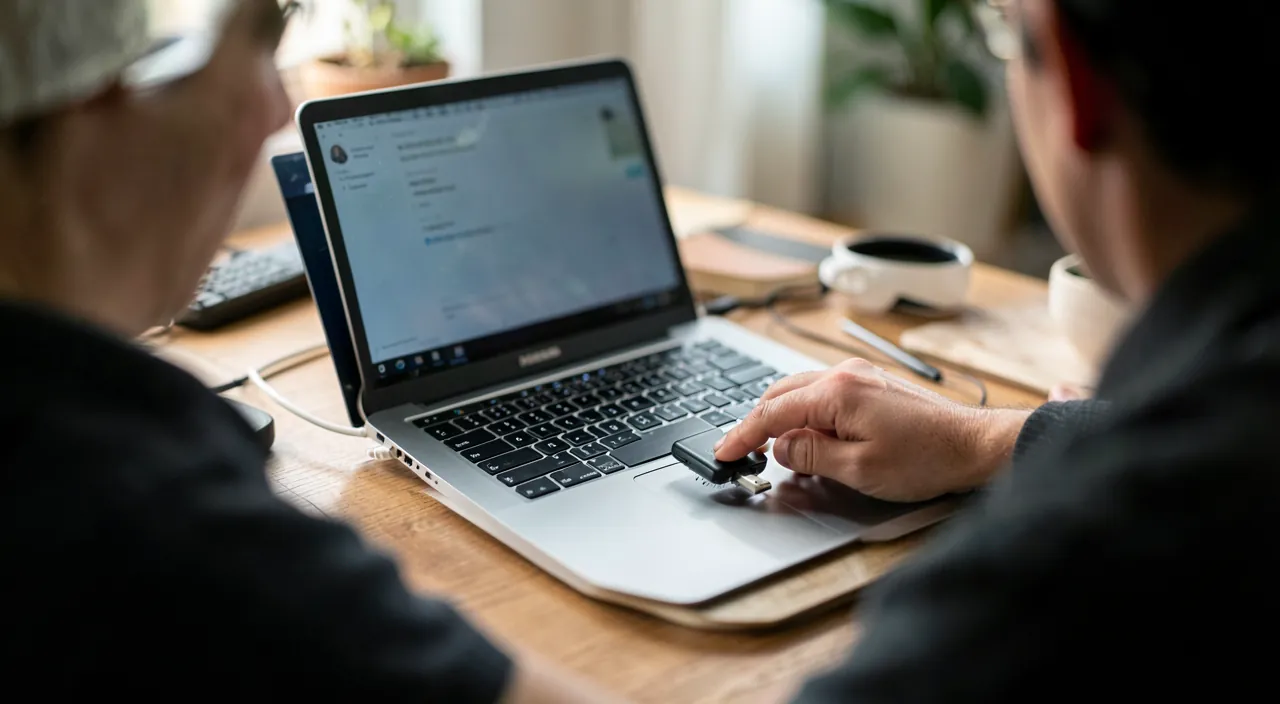
To check. Be careful with overloaded USB hubs and multi-sockets: plugging too many power-hungry devices into the same port can prevent some from working due to insufficient power. For demanding devices (external drives, in particular), prefer a direct connection to the computer.
Frequently asked questions
My device works on another PC but not on mine, why?
The issue then comes from your computer: often a missing or corrupted driver, or a faulty port. Reinstalling the driver is the first lead.

Should you always install the provided software?
Not always: many devices work without additional software. But for some specific devices, the manufacturer’s official driver is necessary.
What to remember
An unrecognized device is most often easily fixed: check the connection and the cable, test another port, restart, and monitor the driver — often the real culprit. For wireless devices, think about pairing, charging, and interferences. Also beware of overloaded USB ports. These methodical reflexes resolve the vast majority of cases; beyond that, a diagnosis will identify the exact cause without difficulty.

A device that resists? We help you quickly.
Leave a Reply
You must be logged in to post a comment.