
Constantly switching between windows, wasting time switching between applications, lacking space to work comfortably: a single screen quickly shows its **limitations**. Adding a SECOND screen to your computer is one of the best investments in comfort and productivity— and it’s much simpler than you think. Seeing two things at the same time, spreading out your work, gaining fluidity: here’s how to install and use a dual screen, without being a technician, to transform your way of working.
Why a second screen makes all the difference
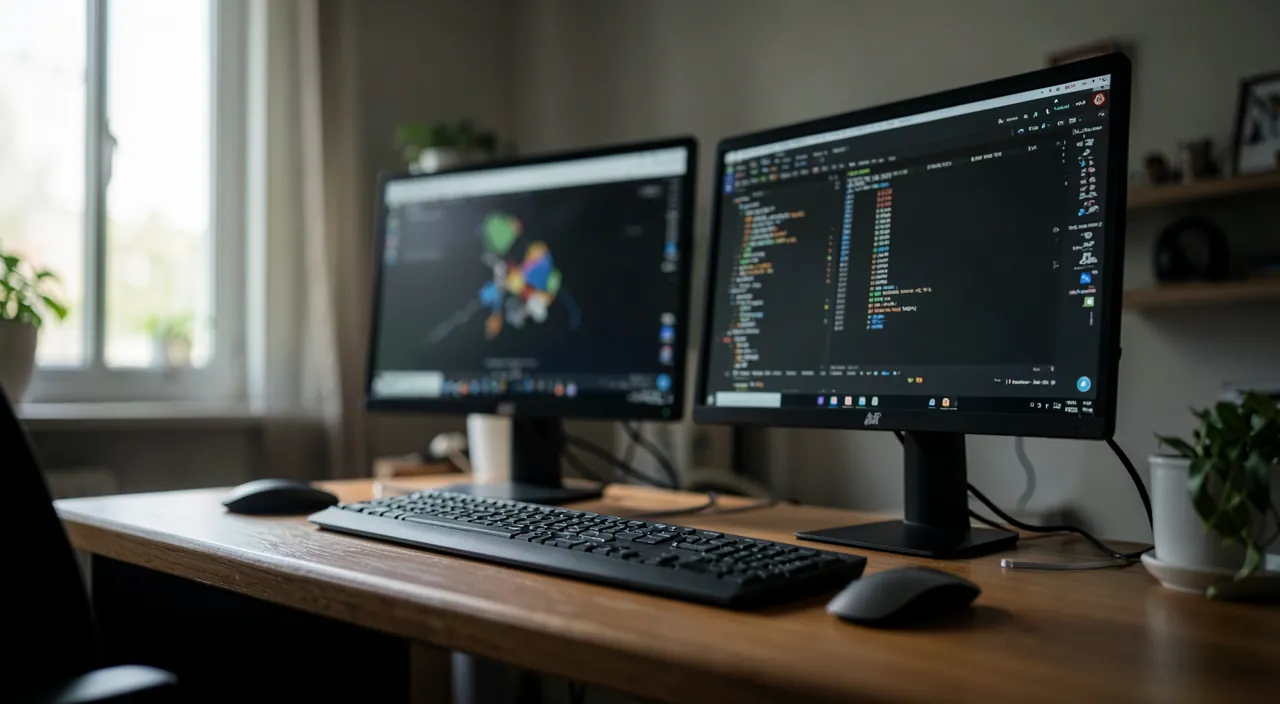
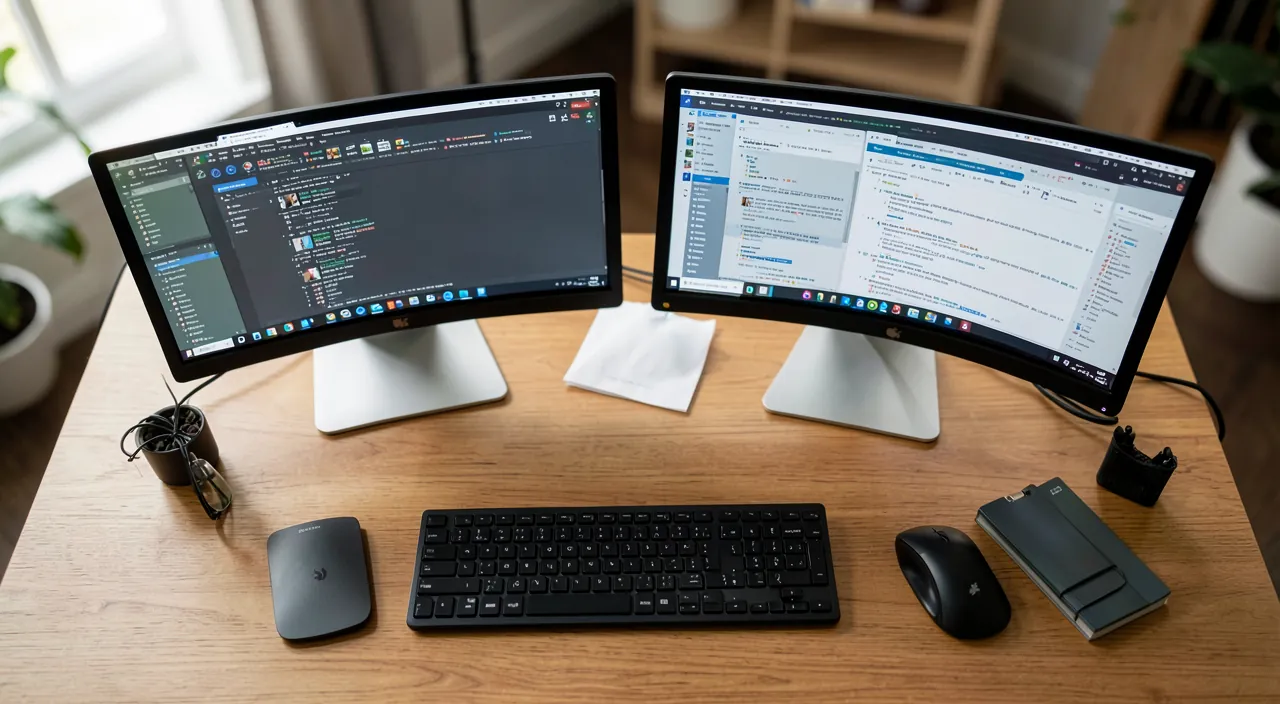
The comfort of a dual screen surprises those who try it: you never go back. The reason is simple: with a single screen, you spend your time switching between windows (the document and the browser, the email and the spreadsheet, the video call and your notes), which fragments attention and wastes time. With TWO screens, you see both things AT THE SAME TIME: no more switching, everything is in front of your eyes. The concrete benefits: PRODUCTIVITY (working on a document while consulting a source, following a video call while taking notes, comparing two files side by side—our guides for successful video conferences); COMFORT (more space, fewer stacked windows, an overall view); FLUIDITY (keeping an application open on one screen and working on the other); and TIME SAVINGS (no more endless back-and-forth between windows). It’s particularly useful for: document work (writing on one side, consulting on the other), comparison (two files, two versions), multitasking (following several things), and any use where you juggle between applications. A dual screen fits into a good organization of your workspace (our guides for keyboard shortcuts, for window management). And contrary to what one might imagine, the installation is SIMPLE and inexpensive: a second screen (even an affordable model, or an old screen recovered) and a cable suffice. The comfort-to-cost ratio is excellent: for a modest investment, you gain a transformed workspace. Many people work for hours on a single screen out of habit, without knowing how much a second one would improve their comfort and efficiency.
A second screen lets you see two things at once, like a document and a research page. This saves time because you don’t have to keep switching between windows. It’s not expensive and easy to set up.
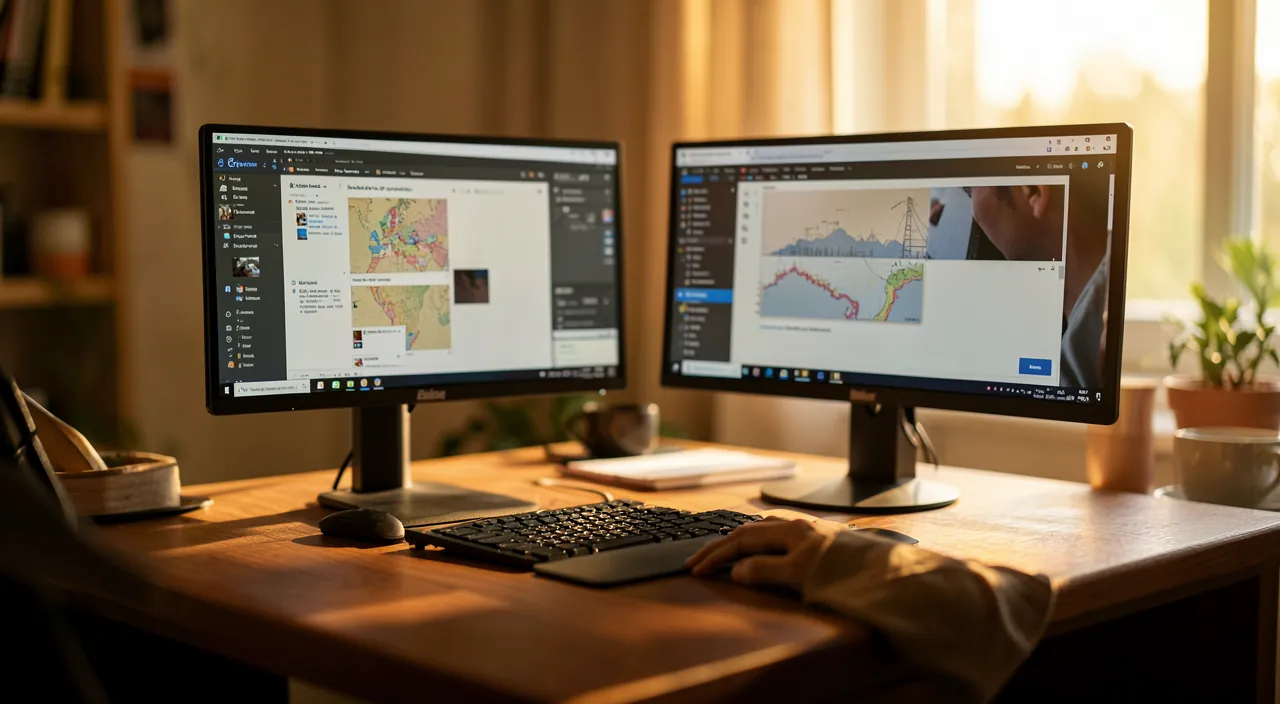
A writer working on a novel can have their manuscript on one screen and research articles on the other. Instead of constantly switching tabs, they can see both at the same time, making editing and fact-checking much faster.
Installing a dual screen, simply
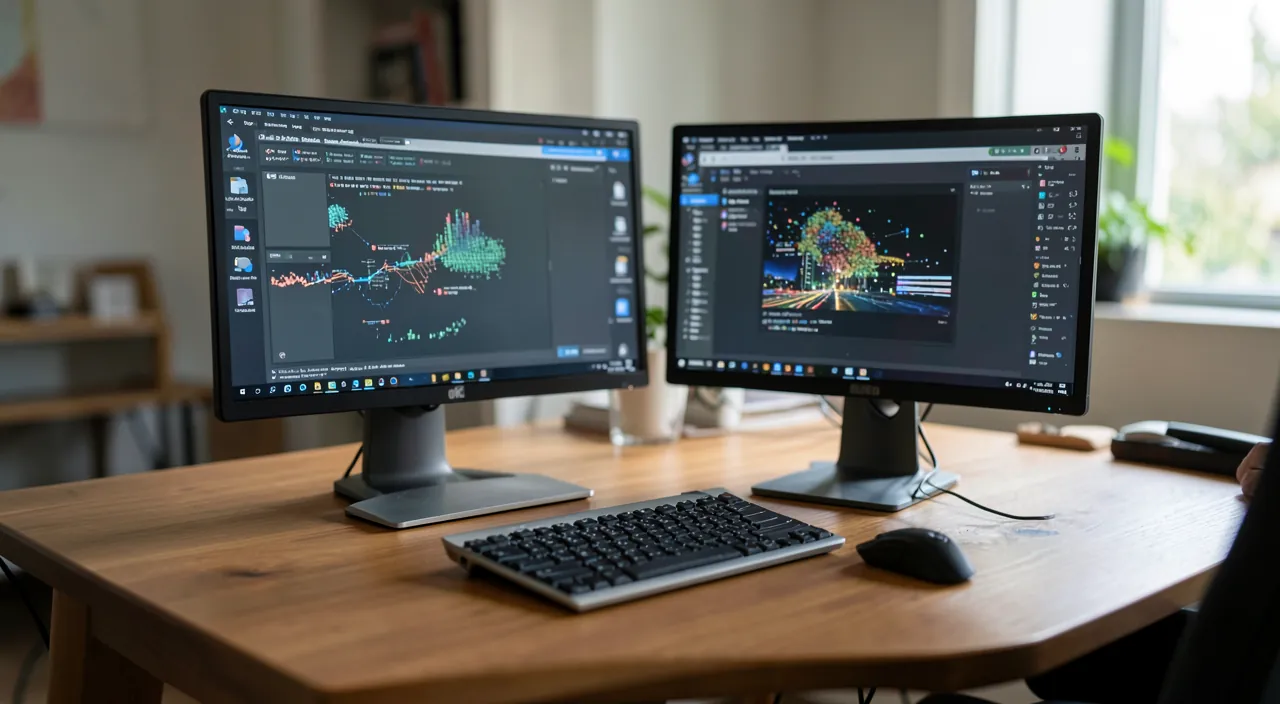
The installation is within reach of all: 1. The hardware — you need a SECOND screen (new, used, or recovered) and the right CABLE to connect it to your computer (the type of cable depends on the connectors of your computer and the screen—check the available ports; an adapter may be necessary); 2. The connection — simply connect the screen to the computer with the cable, and plug the screen into the power source; the computer usually detects the second screen AUTOMATICALLY; 3. The settings — in your computer’s display settings, you can organize the two screens: choose their layout (which is on the left, which on the right, so that the mouse naturally switches between them), and the mode (EXTEND the desktop — the most useful, the two screens form a large continuous space — rather than DUPLICATE, which shows the same thing on both). That’s it: in a few minutes, you have two functional screens. For a LAPTOP, the principle is the same: you plug in an external screen that adds to the laptop screen (you can then use both, or close the laptop and use only the external screen). A few TIPS: position the screens comfortably (at a good height, at a good distance, to avoid strain—our guides for ergonomics); set the layout in the settings so that the mouse naturally switches between them; and learn to MOVE windows from one screen to the other (dragging, or with keyboard shortcuts—our guides for keyboard shortcuts). If the second screen is not detected: check the cable (properly connected on both ends), try another cable or port, and look at the display settings (our guides for a second screen not detected). Installing a dual screen is one of the simplest and most satisfying improvements to your workspace: a few minutes for a daily comfort transformation.
The right reflex. Choose the EXTEND mode (and not DUPLICATE) in the display settings: this is what makes the dual screen so interesting. In EXTEND mode, the two screens form a large continuous workspace — you spread your windows across both, the mouse switches between them, and you see two things at the same time (a document and its source, a video call and your notes). The DUPLICATE mode (the same thing on both screens) is only for presentations, not for working. Take the time to set the LAYOUT of the screens in the settings to match their physical position (the left screen on the left, the right screen on the right) so that the mouse naturally switches between them without confusion. Position the screens comfortably (at a good height and distance, to avoid strain—our guides for ergonomics); set the layout in the settings so that the mouse naturally switches between them; and learn to move windows from one screen to the other (dragging, or with keyboard shortcuts—our guides for keyboard shortcuts). A second screen doesn’t need to be new or expensive: an affordable model or a recovered screen is enough to transform your comfort. The comfort-to-cost ratio is excellent: for a modest investment and a few minutes of installation, you gain a workspace that changes the way you work—no more endless back-and-forth between windows.

Working well with two screens
Once installed, a few habits to get the most out of your dual screen: ORGANIZE your work between the screens—e.g., the main screen for the active task, the second for references, communication, or tracking—adapt to your use; master the MOVEMENT of windows (dragging from one screen to the other, or keyboard shortcuts—our guides for keyboard shortcuts), and window organization side by side; take CARE of ERGONOMICS—two screens mean more surface, so pay attention to posture, height, distance, and lighting to avoid visual fatigue and strain (well-positioned screens preserve your comfort over time); and avoid DILUTION—two screens multiply the space available, but don’t fill them with distractions—the goal of the dual screen is PRODUCTIVITY (seeing two useful things at the same time), not multiplying distractions (emails, social media, notifications on the second screen while working on the first)—keep the second screen for what SERVES your task, and avoid it becoming a permanent source of distraction (our guides for concentration modes). The dual screen is particularly beneficial for remote work and extended computer work: it transforms daily comfort. For a laptop, plugging in an external screen at home offers the best of both worlds: the mobility of the laptop on the go, the comfort of a large screen (or dual screen) at the desk. In summary, adding a second screen is one of the simplest, most affordable, and satisfying improvements to your workspace: you see two things at the same time, no more back-and-forth between windows, you gain in comfort, fluidity, and productivity. The installation is easy: a screen, a cable, the EXTEND mode, and a layout setting, in a few minutes. Well used—organized work between screens, well-managed windows, good ergonomics, no dilution—the dual screen changes the way you work. Many people work for hours on a single screen out of habit: try a second one, and discover a comfort you won’t want to go back to. For a modest investment, it’s one of the best gains in comfort and efficiency you can offer yourself at your workspace.
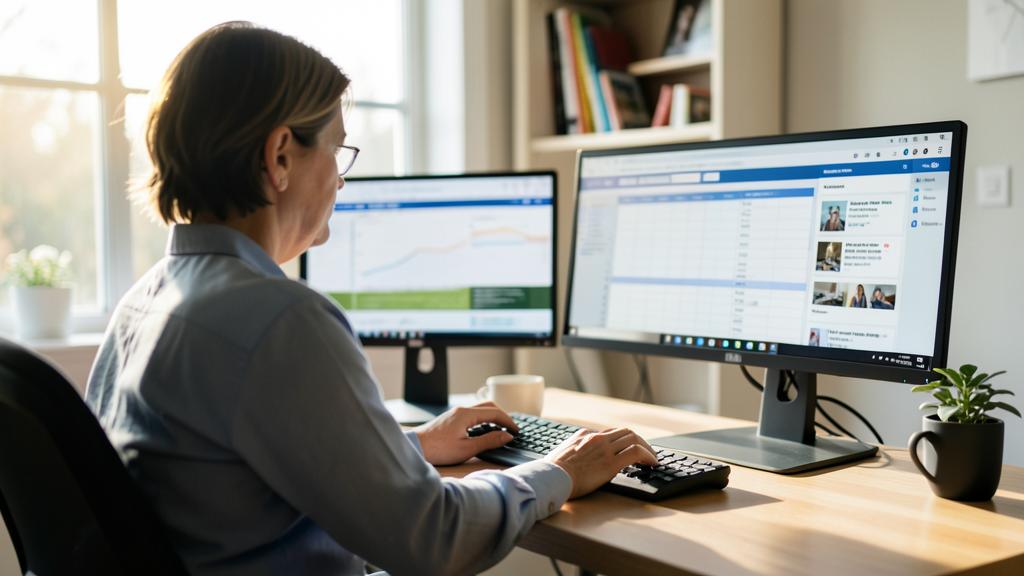
Be mindful of ergonomics and dilution. Two points of vigilance to enjoy the dual screen without drawbacks: ERGONOMICS—two screens represent more surface and eye movements; ensure they are well positioned (at a good height, so that the top of the screen is roughly at eye level; at a good distance; with good lighting without reflections) to avoid visual fatigue, neck and back strain, and long-term discomfort. A well-adjusted workstation preserves your comfort; a poorly positioned workstation can create pain over hours of work. And DILUTION—two screens multiply the available space, but this is not an invitation to open ten windows and get distracted; the goal of the dual screen is PRODUCTIVITY (seeing two useful things at the same time), not multiplying distractions (emails, social media, notifications on the second screen while working on the first); keep the second screen for what SERVES your task, and avoid it becoming a permanent source of distraction (our guides for concentration modes). Finally, if the second screen is not detected during installation, don’t panic: check the cable (properly connected on both ends), try another cable or port, and look at the display settings (our guides for a second screen not detected). Well positioned and well used—good ergonomics, no dilution—the dual screen is a great gain in comfort and productivity; poorly positioned or turned into a space of distraction, it would lose its value.
Frequently asked questions
Is it complicated to install a dual screen?
No, it’s very simple: you need a second screen and the right cable to connect it to your computer (check the available connectors). You plug the screen into the computer and the power source; the computer usually detects it automatically. In the display settings, choose the EXTEND mode (the two screens form a large continuous space—the most useful) and set the layout (which on the left, which on the right). That’s it, in a few minutes. For a laptop, it’s the same: you plug in an external screen that adds to the laptop screen. If the screen is not detected, check the cable and settings (our guides for a second screen not detected). Installing a dual screen is one of the simplest and most satisfying improvements to your workspace: no need to be a technician.
Do you need an expensive screen for a dual screen setup?
No: a second screen doesn’t need to be new or expensive. An affordable model, a used screen, or a recovered screen is sufficient to gain in comfort and productivity. The comfort-to-cost ratio is excellent: for a modest investment and a few minutes of installation, you transform your workspace. Simply ensure the screen is compatible with your computer’s connectors (an adapter may be necessary). There’s no need to go for the top-of-the-line for everyday office use: a good screen does the job for seeing two things at the same time. The benefit comes from the additional space, not the premium quality of the screen: it’s one of the most cost-effective improvements you can make to your workspace. The benefit comes from the additional space, not the premium quality of the screen: it’s one of the most cost-effective improvements you can make to your workspace.
Is a dual screen really useful?
For most people who work on a computer, yes, and the comfort is surprising: with a single screen, you spend your time switching between windows (document and source, email and spreadsheet, video call and notes); with two, you see everything at the same time, no more back-and-forth. The benefits: productivity, comfort, fluidity, time savings. It’s particularly useful for document work, file comparison, multitasking, and remote work. Many people work for hours on a single screen out of habit, without knowing how much a second one would improve their comfort. For a modest investment, it’s one of the best gains in comfort and efficiency. Those who try a dual screen never go back: it’s the kind of improvement you wonder how you managed without.
What to remember
Adding a second screen to your computer is one of the simplest, most affordable, and satisfying improvements to your workspace. With a single screen, you spend your time switching between windows (document and source, email and spreadsheet, video call and notes), which fragments attention and wastes time; with TWO screens, you see everything at the same time—no more back-and-forth, you gain in productivity, comfort, fluidity, and time. The installation is EASY: a second screen (new, used, or recovered) and the right cable; you plug it in, the computer usually detects it automatically, and in the display settings, you choose the EXTEND mode (the two screens form a large continuous space—the most useful) and the layout (left/right). In a few minutes, two functional screens. For a laptop, you plug in an external screen that adds to the laptop screen. Two points of vigilance: ERGONOMICS (properly positioning the screens—height, distance, lighting—to avoid strain) and DILUTION (the second screen for what serves the task, not for multiplying distractions—the goal is productivity). If the screen is not detected, check the cable and settings. The comfort-to-cost ratio is excellent: for a modest investment, you transform your workspace. Many people work on a single screen out of habit without knowing the comfort of a second one: try it, and discover an improvement you won’t want to go back to—the best gains in comfort and efficiency you can offer yourself at your workspace.
Want to work more smoothly with your digital tools? Our personalized training adapts to your level.
Leave a Reply
You must be logged in to post a comment.