
You press the button, and nothing: a black screen, no sound, or the computer turns on but gets stuck before reaching the desktop. A computer that won’t start is worrying—fear for the device and its data is common. However, before concluding a serious failure, several simple checks resolve a good portion of cases: a power issue, a faulty peripheral, or a stuck restart. Here’s how to react methodically to a computer that refuses to start, what you can try yourself, and when to call a professional.
Understand when it gets stuck
« The computer won’t start » covers different situations, and identifying WHEN it gets stuck directs you to the cause. Three major cases. NOTHING happens: you press the button and the computer remains completely inactive (no light, no fan noise, black screen) — this directs towards a POWER ISSUE (the device is not receiving power or is not turning on). The computer STARTS but shows NOTHING or gets stuck very early: fans spin, lights come on, but the screen remains black or displays a logo/message without progressing further — this directs towards a STARTUP ISSUE (internal hardware, screen, or boot sequence). The computer STARTS but gets stuck before the desktop: it begins loading the system but freezes, restarts in a loop, or displays an error message — this points more towards a SOFTWARE ISSUE (operating system). This distinction is useful as it avoids looking in the wrong place: a total black screen is not fixed like a system that crashes during loading. Before panicking: the MAJORITY of « won’t start » cases have simple and non-catastrophic causes — a cable, a power supply, a peripheral that interferes, a restart to be initiated — serious hardware failures do exist but are less frequent than feared. And an important point: a computer that won’t start does NOT necessarily mean your data are lost — even in a failure, data on the disk are often recoverable (our guides on recovering your data). The main idea: before concluding the worst, observe WHEN it gets stuck (nothing / starts without showing anything / gets stuck during loading), as this directs the checks; and keep in mind that most cases are resolved by simple gestures, and your data are generally preserved.

When your computer won’t start, it’s usually not a disaster. Most of the time, it’s a simple problem like a loose cable, a drained battery, or a stuck restart. By checking when it gets stuck (nothing at all, starts but no screen, or freezes during loading), you can figure out what’s wrong and fix it easily. Your data are usually safe, even if the computer seems dead.
Imagine your laptop won’t turn on at all. You check the charger, and it’s not plugged in properly. After fixing the cable, the laptop starts normally. This is a common issue where the problem was just a loose power connection, not a serious failure.
The checks to do yourself
Here are the simple checks to try, in order, before concluding a serious failure. Check the POWER SOURCE (if nothing happens) — for a desktop computer: is the power cable properly plugged in on both sides (socket and computer)? Is the power switch at the back on « on »? Does the socket work (test with another device)? Is a power strip off or faulty? For a laptop: the battery may be completely drained — plug in the charger, check that a charging light comes on, and wait a moment before trying again (a very drained laptop may not react immediately — our guides on laptops that won’t charge). Unplug the PERIPHERALS — a plugged-in peripheral (USB key, external drive, printer) may sometimes prevent the start-up: unplug everything except the essentials (monitor, keyboard, mouse) and try again. Force a shutdown then restart — if the computer is stuck or in a strange state: hold down the power button for a few seconds to force a complete shutdown, wait, then turn it back on — this simple forced restart resolves many blocks. Check the SCREEN (if the computer seems to start but nothing shows) — is the screen on, properly plugged in (video cable), on the right source? For a desktop, the problem may come from the screen, not the main unit (test with another screen if possible). Try a « rescue » boot (if the system gets stuck during loading) — modern systems often offer, after several failures, a repair mode or a safe boot mode — let it try an automatic repair. Some TIPS: proceed one step at a time (to identify what unblocks) — note any error messages displayed (they help with diagnosis) — do not force anything physically (do not open the device, do not unplug internal components if you are not comfortable) — and stay calm (panic leads to rushed actions). If these checks do not unblock anything, it is time to move to the next step: a professional’s advice. In summary, facing a computer that won’t start, try first the simple: power source (cables, socket, battery), unplugged peripherals, forced restart, screen check, rescue boot — a good part of the cases are resolved this way.
- Check the power source (cables, socket, battery, power strip).
- Unplug unnecessary peripherals (USB keys, external drives, printers).
- Force a shutdown and restart (hold the power button for a few seconds).
- Check the screen (on, plugged in, right source; test another screen for a desktop).
- Try a rescue boot (repair mode or safe boot if available).
The right reflex. Before panicking, observe WHEN it gets stuck, then try the simple checks one by one. If nothing happens (no light, no sound): it is probably the power source — check the cables on both sides, the socket (test with another device), the back switch (for desktops), or plug in the charger and wait a moment (for a very drained laptop). If the computer starts but the screen remains black: check the screen (on, plugged in, right source; test another screen for a desktop) and unplug all unnecessary peripherals (USB key, external drive) that may block the start-up. If the system gets stuck during loading or restarts in a loop: force the shutdown (hold the power button for a few seconds), wait, then turn it back on — and let the automatic repair mode try its luck if it appears. Note any error messages displayed (valuable for diagnosis), proceed one step at a time to identify what unblocks, and do not force anything physically (do not open the device if you are not comfortable). Stay calm: the majority of « won’t start » cases have simple causes (a cable, a drained battery, a peripheral, a restart to be initiated), and a computer in failure generally does NOT mean your data are lost (they are often recoverable even after a failure). If these simple steps do not unblock anything, do not persist and do not tamper with the inside: seek professional help, who will diagnose precisely and preserve your data.

When to call a professional
If simple checks have not yielded results, it is reasonable to seek professional help rather than persist or tamper with the inside of the device (risking to worsen the problem). Here are the guidelines. SEEK HELP when: the power source, peripherals, forced restart, and screen check have not changed anything; the computer displays material error messages you do not understand; you hear abnormal noises (disk clicking, repeated beeps at start-up); or simply you are not comfortable going further. What a PROFESSIONAL brings: a precise diagnosis (identify if it is the power source, the disk, the memory, the screen, or the system), the means to repair or replace the faulty component, and especially the ability to RECOVER your data even if the device is severely damaged (a crucial point — our guides on recovering your data, on-home repair). What to AVOID: opening the device and handling internal components without knowing (risk of worsening, or injuring yourself or permanently damaging them); multiplying attempts at « repair » software solutions found online (some can erase your data); and giving in to panic by making hasty decisions. A reassuring point: a computer that won’t start rarely means the loss of your data; the disk, where your data are stored, often survives the failure (which usually affects another component), and even a failing disk often allows professional recovery. Do not give up on your data in a panic. In summary, facing a computer that won’t start: identify WHEN it gets stuck, try the simple checks (power source, peripherals, forced restart, screen, repair mode), and if nothing unblocks, seek professional help rather than tampering with the inside. Most cases have non-catastrophic causes, your data are generally preserved, and a professional diagnosis restores the device or recovers your data safely. Stay calm: a failed start-up is not always a disaster.
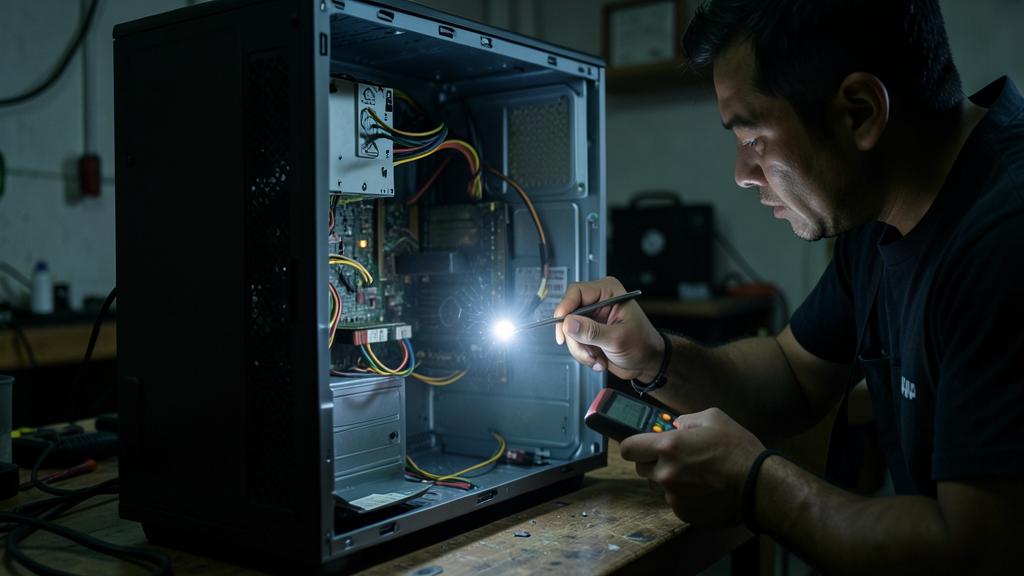
Be careful: do not open the device at random, do not attempt risky « repairs, » and do not despair for your data. Three pitfalls. RANDOMLY OPENING AND TINKERING INSIDE — if simple checks (cables, socket, battery, peripherals, forced restart, screen) have not yielded results, do not open the computer to handle internal components without knowing what you are doing: you risk worsening the failure, creating a short circuit, or injuring yourself (a power supply can store current); leave this to a professional. RISKY « REPAIRS » — beware of miracle solutions found online (obscure commands, reinstallation, formatting) applied without understanding: some can ERASE your data or worsen the problem; in doubt, do nothing irreversible. DESPAIR FOR THE DATA — do not hastily conclude that your data are lost: a computer that won’t start rarely loses its data (the disk often survives the failure, which usually affects another component); do not make hasty decisions (like reformatting or discarding the device) under the pressure of panic; a professional can usually recover your data, even on a severely damaged device. Also avoid: forcing repeated power-on attempts roughly, ignoring abnormal noises (clicking, beeps — signs of material issues to diagnose), and losing patience to the point of unplugging everything haphazardly. A computer that won’t start is treated with METHOD (first simple checks) and CAUTION (do not force anything or tinker beyond your skills): try the simple, and for the rest, seek a professional who will diagnose without risk and preserve your data. Panic and risky tinkering do more damage than the failure itself.

Frequently asked questions
My computer does not turn on at all, what should I do first?
Check the POWER SOURCE, the most frequent cause when nothing happens (no light, no sound). For a desktop computer: is the power cable properly plugged in on both sides (socket and computer)? Is the back power switch on « on »? Does the socket work (test with another device)? Is a power strip off? For a laptop: the battery may be completely drained — plug in the charger, check that a charging light comes on, and wait a moment before trying again (a very drained laptop may not react immediately). Unplug any unnecessary peripherals (they may block the start-up) and try a forced restart (hold the power button for a few seconds). These simple gestures resolve a good portion of cases where the computer seems « dead. »
If my computer won’t start, are my data lost?
Generally no, and it is important: a computer that won’t start rarely means the loss of your data. The disk, where your data are stored, often survives the failure, which usually affects another component (power supply, screen, memory, system). And even in the case of a failing disk, recovery is often possible by a professional. Do not make hasty decisions under the pressure of panic (like reformatting or discarding the device), and do not attempt risky « repairs » found online that could erase your data. If your data are valuable and the computer does not restart despite simple checks, entrust it to a professional: they can diagnose the failure and recover your data safely. This is also a good reminder of the importance of regular backups, your best insurance.

When should I call a professional?
Seek professional help when simple checks have not yielded results (power source, peripherals unplugged, forced restart, screen, repair mode), when the computer displays material error messages you do not understand, when you hear abnormal noises (disk clicking, repeated beeps), or simply when you are not comfortable going further. Do not persist and do not open the device to tinker inside without knowing: you could worsen the failure. A professional brings a precise diagnosis (identifying the faulty component), the means to repair, and especially the ability to recover your data even on a severely damaged device. It is better to have a competent opinion than a risky tinker that can do more damage than the failure itself. Try the simple yourself, entrust the rest to a professional: this is the safest approach.
What to remember
A computer that won’t start is worrying, but before concluding the worst, a simple method resolves a good portion of cases. First, observe WHEN it gets stuck: nothing happens (points towards the POWER SOURCE), the computer starts but the screen remains black (points towards the screen or hardware), or the system gets stuck during loading (points towards the software). Then try the SIMPLE CHECKS, one by one: the power source (cables on both sides, socket tested, switch, or charger plugged in and battery left to charge for a laptop), unplugging unnecessary peripherals (which may block the start-up), a forced restart (hold the power button for a few seconds), screen check, and the repair mode if it appears. Note any error messages, proceed methodically, and do not force anything physically. If nothing unblocks, seek a PROFESSIONAL rather than tinker inside: they will diagnose precisely, repair, and can recover your data. Two reassuring points to keep in mind: the MAJORITY of « won’t start » cases have NON-CATASTROPHIC causes (a cable, a drained battery, a peripheral, a restart to be initiated), and a computer in failure generally does NOT mean the loss of your data (the disk often survives, and recovery is generally possible). Avoid the random opening of the device, risky « repairs » that can erase your data, and hasty decisions dictated by panic. Try the simple with method and calm, entrust the rest to a professional: this is the approach that restores your computer without worsening things or risking your data.



Persistent failure, fussy device? Our remote troubleshooting service solves your problem quickly, no jargon.
Leave a Reply
You must be logged in to post a comment.