
« You can’t be heard, » « Your camera is off, » « You are frozen »: Video call trouble always strikes at 8:58 for the 9:00 meeting—job interview, client meeting, grandchild call. The good news: missing camera and microphone follow three or four well-known scenarios (permissions, wrong peripheral selected, app monopolizing), and a five-minute checklist fixes most of them. Here it is—plus the preventive test that will make you never have to go through this again.
The Triangle of Troubles: Permissions, Selection, Occupation
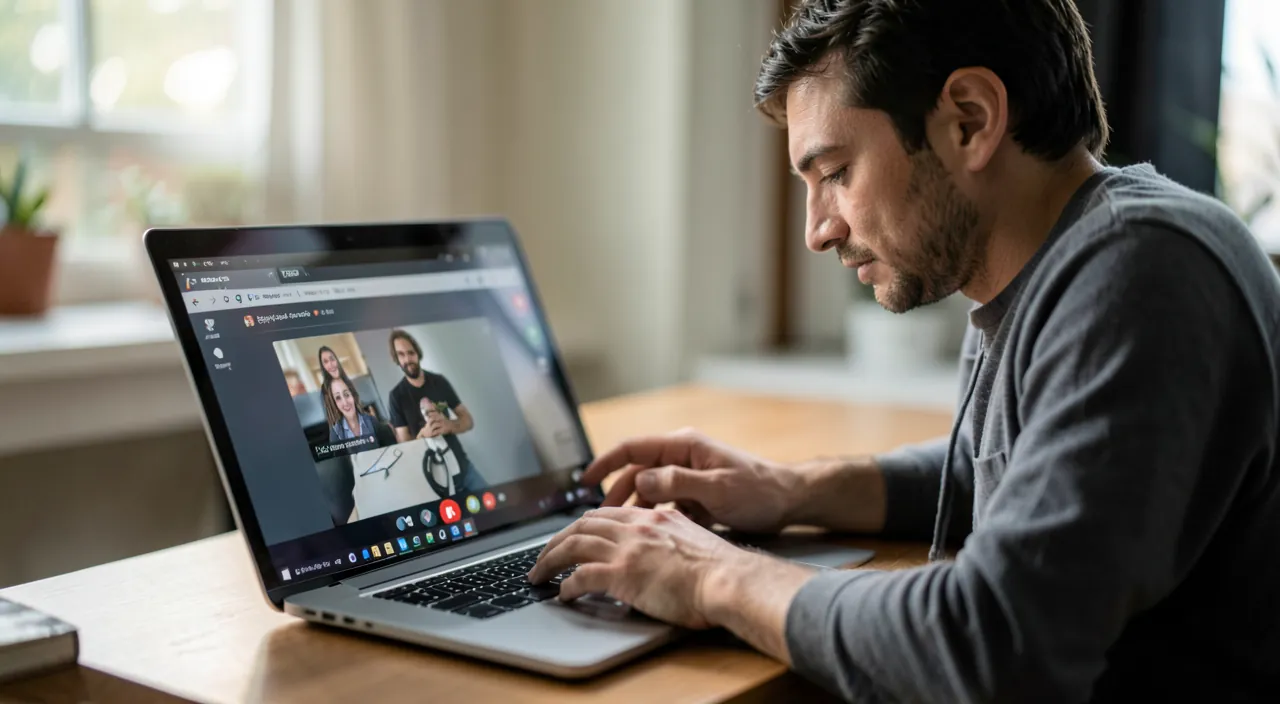
Three causes cover the vast majority—check in order: the permissions—the system blocks camera/micro to the app that doesn’t (or no longer has) permission: on Mac (Settings → Privacy & Security → Camera/Micro: is the video app checked? ), Windows (Settings → Privacy → Camera/Micro permissions), phone (Settings → App → Permissions): the permission denied on the first bad-tempered launch is the classic (« I had clicked Deny without reading »)—check, RESTART the app (the permission takes effect on app restart: the detail that makes it seem like it didn’t work); the selection of the peripheral—the app uses the wrong microphone or camera: the Bluetooth headset left in a drawer (which picks up the silence of the drawer—most frequent explanation for « you can’t hear me »), the external screen with mediocre microphone chosen automatically, the virtual camera of a software installed one day: ALL video apps have their selector (the gear icon → audio/video—learn its location in YOUR app: it’s the most useful setting for video)—explicitly choose the right microphone and camera, speak—movement of the level confirms; and the occupation—camera and microphone are only for one app at a time (on some systems): the other video app left open, the browser tab that keeps the hand, the photo app: close everything that can film/listen (a restart clears the mess when you can’t find the squatter): the camera light on without video is the sign that an app is holding it (and a small security topic—our webcam guides).
Most video call issues come down to three things: your system blocking access, the app using the wrong microphone or camera, or another app already using them. Check these in order, and you’ll fix 90% of problems.
You’re on a Zoom call, but your colleagues can’t hear you. You check permissions (they’re granted), then realize your laptop is using the built-in microphone instead of your wired headset. You switch the input in Zoom’s settings, and suddenly, your voice comes through clearly.
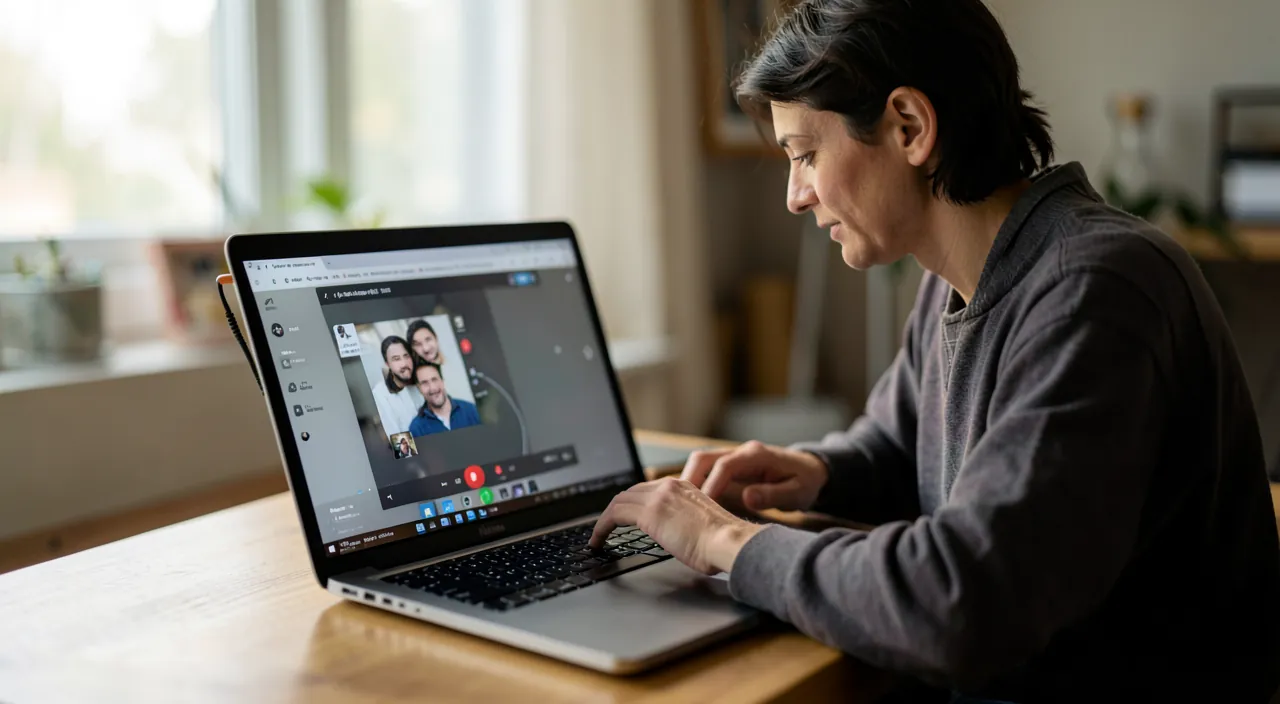
The Five-Minute Pre-Meeting Checklist
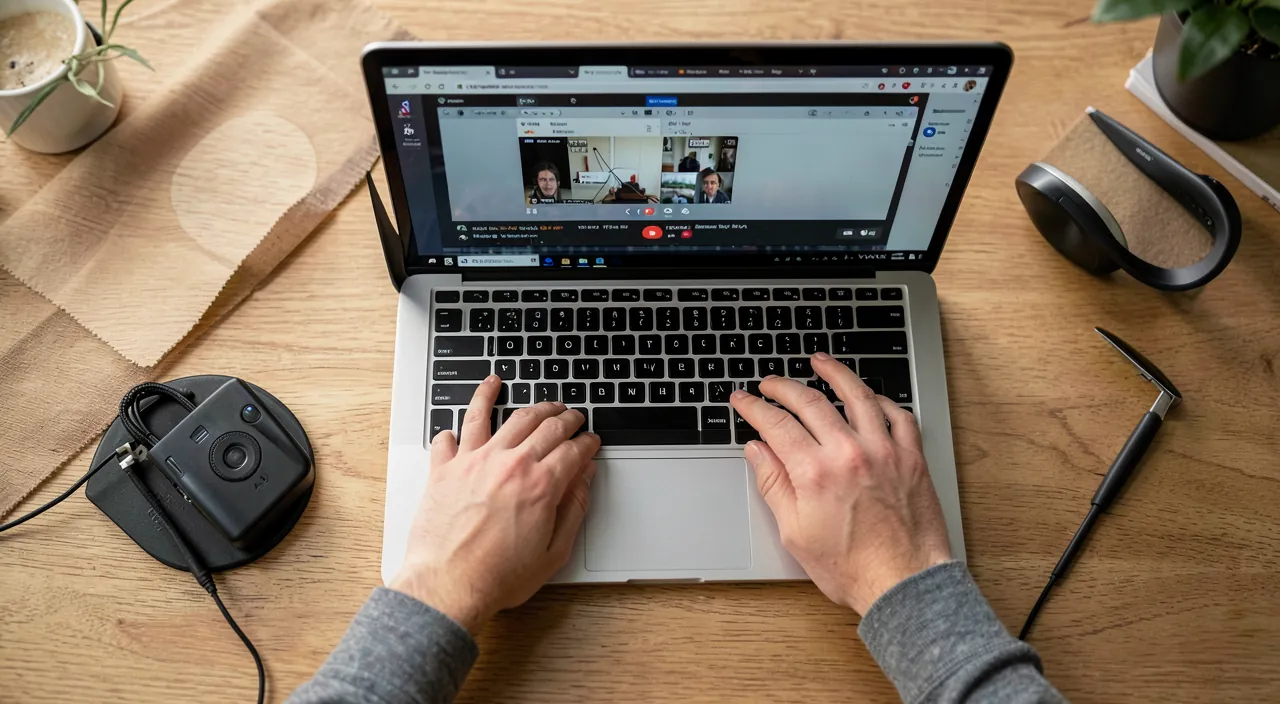
The full sequence, to be run calmly: 1) the hardware—the headset CHARGED and really connected (Bluetooth that shows connected but is sleeping: our Bluetooth guides), the external microphone plugged in ALL THE WAY (the half-inserted jack is a classic), the camera not blocked (the physical shutter closed—laugh, until the day it doesn’t)—2) the built-in test—ALL major video apps have an audio/video test (waiting room, preview, « sound test »): microphone that moves the level, speaker that plays the ringtone, preview camera—three green lights in thirty seconds—3) permissions and selection (the triangle above)—4) the browser if the video lives there—the padlock in the address bar manages the site permissions (allowed? blocked one day? ), and the browser is up to date (the video on an old browser stutters)—the dedicated app, when it exists, is often more stable than the tab—5) the network—the video that freezes is rarely the camera: it’s the bandwidth (our Wi-Fi guides: Ethernet or nearby 5 GHz, video prioritized, big downloads paused—mobile sharing as a backup when the router is sick)—6) the Plan B ready—the phone with the meeting app installed and connected—switch in thirty seconds that saves the interviews (the meeting link opens on mobile too—test it once).
The Good Reflex. Do the cold test the night before for any important meeting: most platforms offer a public test page (search « test » + app name) or a solo meeting—five minutes that check the entire chain (hardware, permissions, network) without stress. And keep the settings map in mind: where is the microphone/camera selector in your app, where are the system permissions—the two locations that fix 80% of troubles are found in ten seconds when you revisit them calmly.
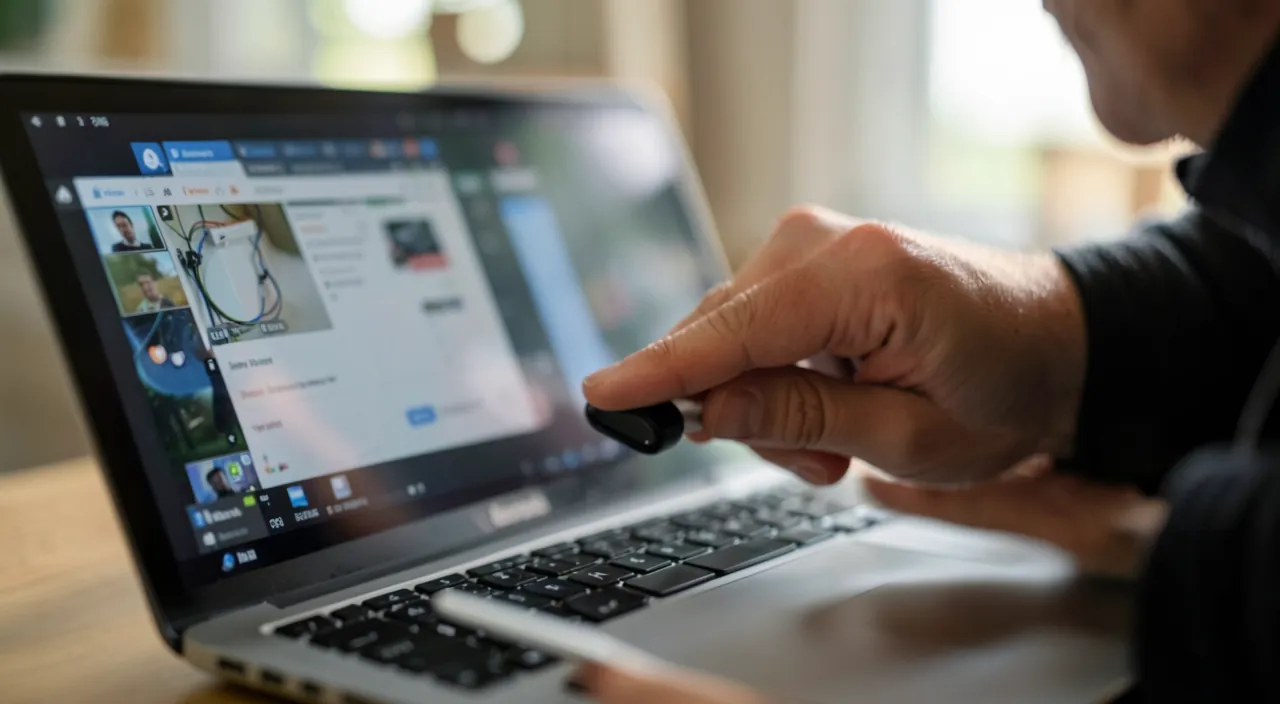
« I can’t hear you well »: quality, beyond the glitch
The microphone works but the quality is off—real levers: the distance and the room—the integrated microphone at two meters in a resonant room makes a cave voice: move closer (the computer at 50-70 cm), and soft surfaces dampen (the curtain, the rug—the video from the tiled kitchen is heard)—the headset, almost always—even modest, the headset or earbuds with microphone beat the ambient microphone (voice close to the mouth, echo eliminated—the echo others hear often comes from YOUR speakers: the headset kills it at the root)—the software treatments—modern app noise reduction (the neighbor’s vacuum cleaner erased: activate it in audio settings—and the recent system voice isolation modes do wonders), cut for music (it eats the nuances)—the light for the image—the average camera well-lit beats the expensive camera backlit: a window facing you (never behind—our photo guides are valuable in video)—or a lamp behind the screen—and the frame—camera at eye level (the stack of books under the laptop: goodbye nose shot), background organized or blurred (the function exists everywhere). A $20 headset, a window facing you, a stack of books: the professional video call holds in three free gestures—our hardware guides for those who want to step up (micro USB, webcam) when video calls become a job.
Stubborn cases: when the checklist isn’t enough
For the remaining 10%: the camera absent from the system (no app sees it) on a laptop, the keyboard shortcut that cuts the camera/micro (the F key muted by mistake—orange mic light off on some keyboards), the Windows device manager (the camera disabled or in error: reactivate, update the driver, or uninstall/re-detect—our peripheral guides), and the test that decides: a simple system app (the Camera app)—if it sees nothing, it’s system/hardware, not video—2) the phantom microphone after an update—major updates sometimes reset permissions and peripherals by default: go through the motions (the classic day-after-update scenario)—3) the software with virtual camera (effects, streaming) that inserts itself—uninstall what’s no longer needed—4) the antivirus or privacy tools that block camera/micro silently (their settings have their own list of permissions—the second floor that everyone forgets)—5) the hardware finally—the external webcam tests on another port and another computer (two minutes that decide)—the internal microphone dead on all systems after software tests is a workshop affair (and the immediate workaround exists: the headset microphone, or the phone as camera/micro—recent systems know how to use the phone as a webcam for the computer—the native function that saves and films better than most webcams).
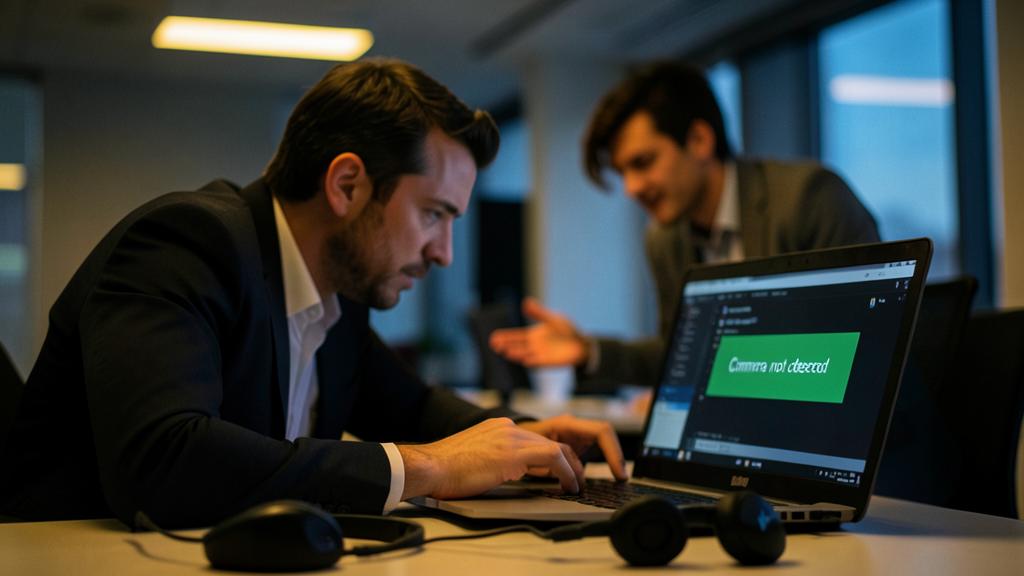
Be wary of the false fix that invites itself during the meeting. Video call trouble at the wrong moment makes you vulnerable—and two traps wait: the hasty installation—downloading an « webcam driver » or « microphone fix » from the first search result installs at best the unnecessary, at worst malware (fake utilities target exactly these panicked searches—our false alert guides): all is fixed by system settings and the official app—NO third-party « video fixer » exists legitimately—2) the false support—« support » that offers to take control remotely to « fix your camera » follows the rules of our false tech support guides: never a remote control request by an unknown. Video call trouble is frustrating—it’s never an emergency that justifies opening your machine to anyone.
Frequently Asked Questions
My video call cuts the music sound or lowers the volume of other apps:
It’s intentional—the system « prioritizes » communication audio (and some apps activate a mode that attenuates the rest). The app and system audio settings allow adjustment—and the end-of-meeting sound that leaves the sound « strange » is fixed by completely closing the video call app (the communication mode that sticks is a classic bug: a restart unsticks it).
How can I tell if my problem is ME or the other participants?
Cross-checking clues: ALL frozen/mute = your reception (network issue); can’t hear but are heard = your microphone; one participant in trouble = their problem. The platform status page test (service outages exist) and « quit/rejoin » (re-joining fixes a third of session issues) complete the quick diagnosis.
Grandparents and video calls: how to make it reliable from a distance?
The setup once in place (permissions granted, app pinned, test successful together), maximum simplicity (calling from the tablet rather than the computer—and integrated video calls in the messaging apps they already use), and the ritual that maintains it (Sunday call: regular practice is the best anti-trouble). Our accessibility and first steps guides complement— and the remote mouse also fixes from a distance, by phone: « click on the little gear ».
What to remember
Missing camera or microphone is fixed by the triangle—permissions (system AND browser, app restarted after), selection (the right peripheral chosen in the app—the ghost headset from the drawer revealed), occupation (the squatting app closed)—run in the five-minute checklist: hardware plugged-in-charged, app integrated test, network wired or boosted, mobile backup ready. Quality follows three free gestures (headset, window facing you, camera at eye level), hard cases have their tools (keyboard camera key, drivers, system app in judgment, phone-webcam as savior)—and never, NEVER a « video fixer » downloaded in panic. The real secret is in one sentence: the 9:00 video call tests the night before at 6:00—five minutes calm against a quarter hour of public anxiety. Your next meeting starts on time, green camera, moving level.
Persistent glitch, finicky device? Our remote troubleshooting service resolves your issue quickly, no jargon.
Leave a Reply
You must be logged in to post a comment.