
The cursor that trembles, jumps to the other end of the screen, refuses to move, or clicks on its own; the trackpad that ignores your fingers or interprets every brush: an erratic mouse turns even the simplest task into a test of skill—and makes you doubt your entire machine, when the cause is almost always trivial. Unsuitable surface, dirty sensor, weak batteries, interference, settings: this guide provides a complete diagnosis, from the mouse to the trackpad, from the cleaning gesture to the little-known setting—to regain a pointer that obeys.
Mouse: the four usual suspects
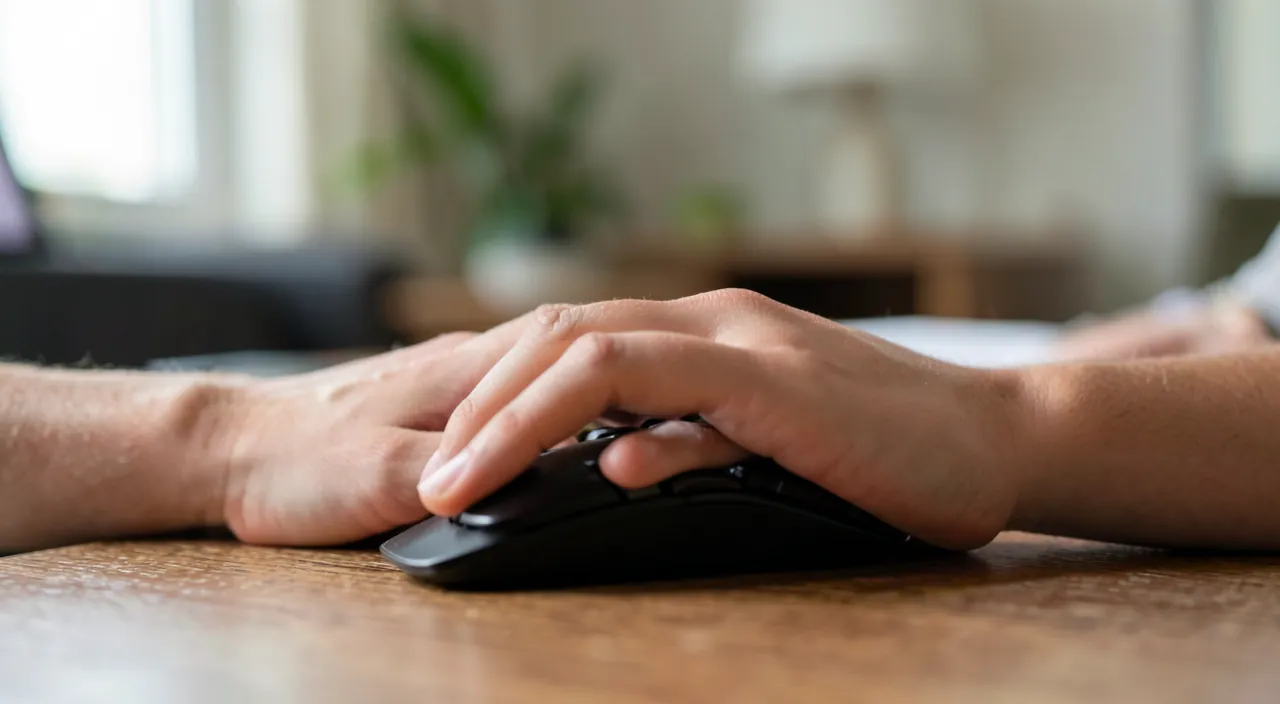
In order of probability: 1. The surface — optical sensors hate glass, shiny, reflective, or too uniform surfaces: the cursor trembles and jumps there; test for thirty seconds on a mat or a matte paper sheet—if everything returns to normal, the matter is settled (and a mouse pad for a few euros too). 2. The dirty sensor — a hair, a speck of dust, or a deposit in front of the optical eye under the mouse is enough: flip it over, blow, and gently clean the lens (slightly damp cotton swab); sticky pads slow down the glide—clean them at the same time. 3. The power — on a wireless mouse, weak batteries produce exactly these erratic symptoms long before complete failure: new batteries or recharge, the first systematic reflex. 4. The connection — USB dongle too far or hidden (bring it closer, avoid extensions and overloaded hubs), interference (other wireless devices, USB 3 immediately next to the dongle—move it to another port), or tired Bluetooth pairing: delete and re-pair. These four checks resolve the overwhelming majority of crazy mice—without a single software setting.
Most mouse problems come from physical issues like dirty sensors, weak batteries, or bad surfaces. Software settings are rarely the cause of erratic behavior.
A Logitech MX Master 3S starts jumping randomly on a glass desk. After 30 seconds on a mouse pad, the cursor moves smoothly again. The problem was the reflective surface, not the mouse itself.
Trackpad: different causes, same method
The trackpad has its own culprits: moisture and residues — damp fingers, cream, greasy traces: the touch becomes deaf or whimsical; clean the surface (barely damp microfiber cloth) and wipe your hands—the simplest and most frequent remedy; static electricity and jewelry — rings and bracelets that brush against it create ghost touches; the palm that drags while typing—activate palm rejection or reduce sensitivity if your texts are full of cursor jumps; and the serious case: the warped or poorly clicking trackpad — if the surface lifts, immediately think swollen battery underneath (see our dedicated guide): it’s a safety signal, not a touchpad whim. Finally, an external device may interfere: a mouse placed sensor against the table or an object on the external trackpad makes it « click » in the air—unplug external pointers to isolate.

The right reflex. Isolate by cross-testing: the erratic mouse on another computer—crazy too? It’s her; calm? It’s your machine (port, settings, system). And vice versa: another mouse on your computer. Two minutes of cross-testing that definitively settle between hardware and software—and avoid buying a new mouse for a USB port problem, or reinstalling a system for a dusty sensor.

Software side: settings and drivers
If the hardware is not at fault, head to the settings: the pointer speed and precision — excessive sensitivity turns every micro-movement into a jump: lower it and test; the trackpad gestures — deactivate those that trigger unintentionally while checking which one is causing the issue; the drivers — on mice with dedicated software (gaming, advanced office), updating or reinstalling the driver fixes strange behaviors, and a conflict between two mouse software (the old one never uninstalled…) is a classic; and the updated system — touchpad and Bluetooth patches are frequent. A final discriminating test: behavior in safe mode or a new session—calm there, crazy in your session? A software in your environment is the culprit (utilities, startup applications): deactivate them in halves until you identify it.
Repair, replace, prevent
Hardware verdict confirmed? The decision is quick for a mouse: outside high-end models, replacement costs less than repair time—recycle the old one in the electronics channel. The integrated trackpad, if defective, is repaired in a workshop (flex cable, replacement)—and an external mouse perfectly helps in the meantime, or even permanently. On the prevention side: a proper mouse pad, a semiannual blast of air under the mouse, dry hands on the trackpad, and rotating rechargeable batteries to never suffer from weak battery agony again. The pointer is the most used part of the computer: these tiny attentions give it years of docility.

The symptom not to downplay. Ghost clicks that open, move, or validate on their own are not just annoying: on an unlocked device, they can send, delete, or buy on your behalf. While waiting for the diagnosis, unplug the faulty peripheral or deactivate the trackpad (setting available when a mouse is connected)—and if the ghost actions coincide with a warped trackpad, stop using it: the swollen battery track takes precedence over everything else.
Frequent questions
My mouse stutters only in certain games or software:
The cause is software-related: sensitivity settings specific to the software, vertical synchronization, or system load (an overloaded system makes the cursor stutter everywhere). Test the load (close the rest) and the settings of the concerned software before blaming the mouse.
The cursor moves on its own in regular jerks:
Look for the second pointer: forgotten mouse sensor against a surface, brushed trackpad, connected graphics tablet, or even remote control software. Unplug everything except one pointer—the ghost disappears with its emitter.
Trackpad or mouse: which one « preserves » the wrist?
A matter of individual ergonomics: the important thing is the neutral position of the wrist and alternation—many relieve tension by varying pointers and gestures. If pain sets in, it’s the entire workstation that needs to be adjusted, not just the pointer.
What to remember
The erratic mouse is cured by the order of evidence: suitable surface, cleaned sensor and pads, fresh batteries, healthy connection—then, for the trackpad: clean surface, dry hands, palm rejection, and the battery alert if the surface warps. Cross-testing (another mouse, another machine) settles hardware against software; settings, drivers, and the new session test complete the diagnosis. Replace without hesitation a condemned mouse, have a defective trackpad repaired, and give your pointer the three attentions that prevent everything: a pad, semiannual cleaning, rotating batteries. The cursor then becomes what it should never have ceased to be: the docile extension of your hand.

Persistent failure, capricious computer? Our remote troubleshooting service quickly resolves your problem, without jargon.
Leave a Reply
You must be logged in to post a comment.