
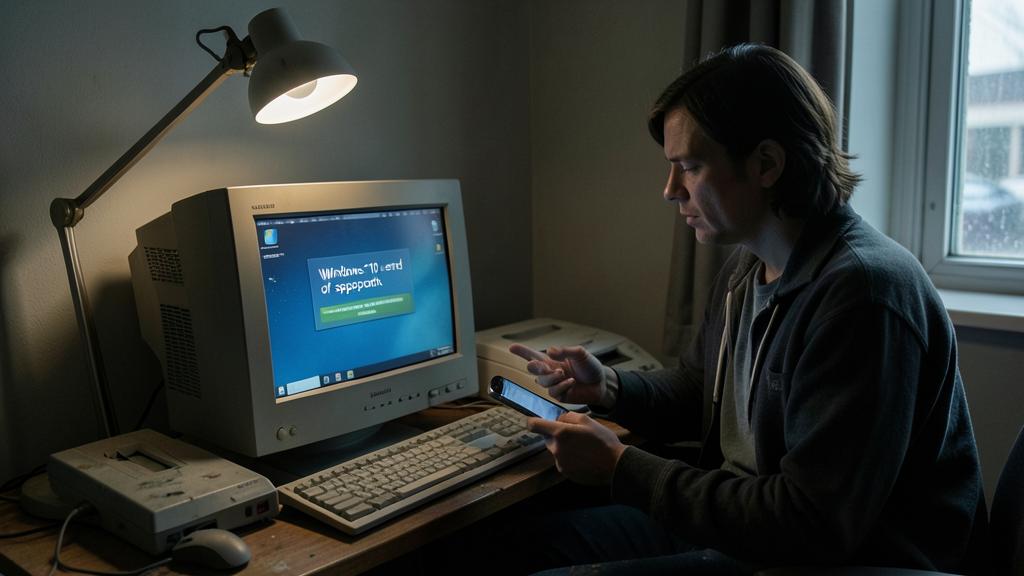
Your PC works perfectly — and Microsoft has stopped protecting it: the end of Windows 10 support has left hundreds of millions of perfectly healthy machines without security updates, many of which CANNOT upgrade to Windows 11, rejected by controversial hardware requirements. Throw away a working computer? Pay for patches? Switch to something else? The Windows 10 case has become the symbol of software obsolescence — and a practical case that millions of households must decide. Here are your options, honestly compared.
Understanding the situation: what « end of support » means
Since the October 2025 deadline, Windows 10 continues to work — nothing shuts down — but no longer receives free security fixes: every discovered vulnerability remains open, and a widespread unpatched system becomes a target that worsens over time (attackers recycle fixes from Windows 11 against frozen Windows 10). Microsoft has planned a paid extension: Extended Security Updates (ESU) — one additional year for individuals (free under conditions — backup linked to Microsoft account — or for a small fee/loyalty points), up to three years for businesses: a reprieve to organize the transition, not a lasting solution. The core of the scandal: Windows 11 refuses to install on machines that are still fast (requirement for TPM 2.0 chip and recent processors) — PCs less than ten years old, perfectly capable, are declared unfit: it’s this artificial barrier that has turned a standard end of support into a case of planned obsolescence, denounced by consumer and environmental associations. First step for you: check if your PC is eligible (Microsoft’s PC Health Check tool answers in one minute) — the answer determines everything else.
When Windows 10 support ends, your PC still works, but it won’t get security updates. This makes it vulnerable to hackers. Microsoft offers paid updates for a while, but many PCs can’t upgrade to Windows 11 because they don’t meet new hardware rules. This forces people to buy new computers, even if their old ones are still good.
A 2018 Dell Latitude 5490 with an 8th-gen Intel Core i5 and TPM 1.2 can’t install Windows 11. It’s only 5 years old but is blocked by the TPM 2.0 requirement. The PC runs Windows 10 fine, but without updates, it’s at risk for malware. The user must choose between paying for ESU, installing Linux, or buying a new PC.

Eligible PC: the smooth migration to Windows 11
If your machine passes the test: the migration is free and drama-free — Windows 11 is a rebranded Windows 10 more than a revolution (centered menu, a few habits to relearn — our references are found in a week): back up first (the unbreakable rule before any migration — full copy of documents and photos, verified), launch the upgrade via Windows Update, plan for an hour, and find your files and software in place (residual incompatibilities mainly concern old peripherals — check the drivers of an old printer before migrating); the first useful settings afterward: sorting out imposed apps, reviewing privacy settings (data collection is adjustable), and the new features worth exploring (virtual desktops, window anchoring — and the built-in AI functions, to adopt or disable according to your preferences). For those still hesitating: staying on Windows 10 with the ESU extension is defensible for a while — but the eligible has no lasting reason to pay to stay behind: the free migration is the path of least effort and least risk. The real subject of this article is everyone ELSE.
The right reflex. Before any decision, take an inventory of your real uses: list what this PC actually does every week — browsing, emails, office work, photos, a business app, a game? This list is your compass: it tells you if a Chromebook-like device would suffice, if Linux would cover everything, if the PC deserves an upgrade, or if replacement is necessary. Nine out of ten decisions are made poorly because we think machine (« it’s still good ») instead of thinking uses (« what do I need »).

Non-eligible PC: the four paths (including one fantastic one)
For the rejected machine, four options in increasing order of disruption: 1. The ESU extension — one year of security to decide without rushing: legitimate as a step, not as a destination; 2. The workaround — installing Windows 11 anyway (documented methods exist to bypass checks): technically feasible, but not supported by Microsoft (updates not guaranteed in the long term) — for tech-savvy users only; 3. Linux — the fantastic and now mature option for the general public: modern and user-friendly distributions (Linux Mint at the forefront for Windows users, and projects dedicated to refurbishment) turn an « obsolete » PC into a fast, secure, and up-to-date machine for years — for free: for the majority of uses (browser, emails, office work with free or online suites, photos, video calls), the transition is much smoother than imagined — the browser is identical, and that’s where most people live (honest limits: some specific software and games will require adaptations or won’t follow — the usage inventory decides); initiatives and workshops (associations, Repair Cafés) also support conversions — this is THE moment for Linux in the general public, and anti-waste finds its champion; 4. Replacement — sometimes reasonable (machine really worn out, demanding uses): thinking refurbished first (a refurbished pro PC eligible for Windows 11 costs a fraction of new), and giving the old one a second life — donation (associations, schools with Linux), trade-in, recycling in the proper channel (never the trash: see our article on electronic recycling).
If your PC can’t run Windows 11, you have four choices: buy extra security updates for a year, try to install Windows 11 anyway (risky), switch to Linux (free and easy for basic tasks), or buy a new computer. Linux is a great option if you mostly use the internet, emails, and office apps.
A 2016 HP EliteBook 840 G3 with an 6th-gen Intel Core i5 and TPM 1.2 can’t run Windows 11. The user installs Linux Mint 22, which runs smoothly for web browsing, emails, and LibreOffice. The PC, which would have been thrown away, now has a new life with free updates and better security.
The deeper lesson: software obsolescence, a new front
The Windows 10 case goes beyond Windows: it illustrates the shift in obsolescence — yesterday hardware (the part that breaks), today software (the support that stops, the app that requires a recent OS, the healthy device downgraded by decision): smartphones deprived of updates, connected objects orphaned from their servers, consoles and e-readers disconnected from their stores — the pattern is everywhere, and the solution is being built: regulation is advancing (minimum update durations displayed and enforced — Europe again — and planned obsolescence is a crime in France: associations document the cases); the purchasing criterion is changing — the guaranteed support duration becomes as important a feature as the technical specs (some manufacturers now commit to seven years and more for phones: reward them); and the open ecosystem proves its long-term insurance role — Linux that revives PCs, alternative firmwares, communities that maintain what manufacturers abandon: free software is to software obsolescence what spare parts are to breakdown. The 2026 consumer has an interest in asking at every purchase the uncomfortable question: « how long will this product be maintained — and what happens to it after? » — it’s this question, asked en masse, that will change practices.

Beware of transition vultures. The end of Windows 10 feeds its ecosystem of scams: fake alerts « your PC is no longer protected — install this protection » (malware disguised as antivirus), phone calls from fake Microsoft support (Microsoft never calls), sites selling « Windows 11 licenses compatible with all PCs » of questionable origin, and stores pushing the replacement of machines perfectly eligible for the free upgrade. Safe references: the official upgrade is free (be wary of anyone charging for it), the eligibility tool is Microsoft’s, and a Windows 10 PC on extension remains usable with caution (updated browser, increased vigilance) — panic is the only product these actors sell.
Frequently asked questions
Is continuing with Windows 10 without updates really dangerous?
The risk grows over time — no apocalypse on day one, but an exposure that accumulates (unpatched vulnerabilities, third-party software that also stops support). For active online use (banking, shopping, emails), the situation becomes unreasonable in the medium term: the ESU extension then one of the four options. For an offline machine (music, local office work, machine tool): the risk is low — it can serve for years like this.

Linux, really, for my parents?
If their uses are browser + emails + video calls + photos (the typical case): yes, remarkably — a simple distribution, configured by you or a workshop, often proves EASIER to maintain than a Windows (no false alerts, discreet updates, almost no malware). The point of vigilance: support for the first days of change and any specific software (the inventory, always). Thousands of households have already made the leap on this occasion.
Does my Windows 10 PC still have resale value?
Real depreciation but not zero: machines eligible for Windows 11 are resold normally (upgrade done, it’s an argument); non-eligible ones find buyers among tinkerers and Linux enthusiasts — advertise honestly. And donating to a refurbishment association (which will install Linux) is often better than selling at a low price: social value against market value.

What to remember
The end of Windows 10 presents a choice to millions of households — and it is resolved by the inventory of uses, not by panic: eligible PC → free migration to Windows 11 after backup (the simple path); rejected PC → ESU extension to catch your breath, then Linux (the anti-waste option now for the general public — fast, secure, free for common use) or replacement with refurbished and organized second life for the old one — never the dumpster for a working machine. The lesson goes beyond the case: obsolescence has become software, support duration a major purchasing criterion, and free software a long-term insurance. Your « expired » PC probably has years ahead of it — it’s the system that needs to change, not necessarily the machine.


Want to understand and master the technologies that change your daily life? Our training courses will enlighten you.
Leave a Reply
You must be logged in to post a comment.