
Vacation photos commented on in the family on the phone screen that everyone squints to see; the evening movie on the laptop placed on a chair; the video call with cousins where grandma goes out of frame: all of this has a solution as old as television — the living room big screen, which all our devices know how to join, by cable or wirelessly. Screen mirroring, casting, HDMI cable: here are all the ways to display phone, tablet, and computer on the TV — and which one to choose depending on the situation.
Understanding the three methods (to choose the right one)
All sending to the TV falls under one of these three logics: casting (cast) — the phone only DESIGNATES the content: “play this video” — the TV (or its box) fetches it itself from the internet: the phone is free again (calls, other apps, standby) and the quality is maximum — this is the queen method for streaming (the casting icon in video and music apps); screen mirroring (mirroring) — the TV displays EXACTLY your screen, everything that happens on it: photos, apps, documents, websites — universal but more resource-intensive (slight latency, quality linked to Wi-Fi): the method for family photos, presentations, and everything that doesn’t have a cast button; and the cable — HDMI from the computer (or USB-C/HDMI adapter from compatible phones and tablets): zero latency, zero network dependency, total reliability — the method for gaming, long sessions, and situations where “it must work” (and troubleshooting when wireless is being difficult). Remember the decision tree: platform content (movie, series, YouTube) → casting; your personal content and browsing → mirroring; gaming, prolonged work, or finicky wireless → cable.
There are three ways to show your phone or computer on the TV: casting (where the TV plays the content directly), mirroring (where the TV copies your screen exactly), and a cable (which is the most reliable but requires a physical connection). Choose based on what you’re doing.

From an iPhone or iPad: AirPlay and its shortcuts
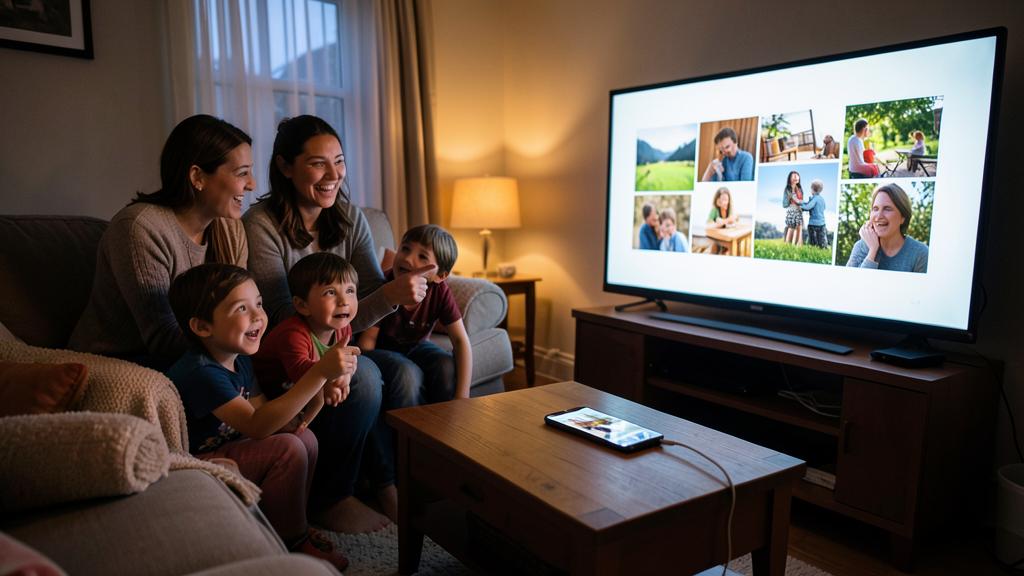
In the Apple ecosystem, everything goes through AirPlay — integrated into Apple TVs and most recent TVs (check for the AirPlay mention in the TV settings): to cast, the AirPlay icon in the app (video, music, photos — YouTube video or streaming service content goes to the TV, the phone acts as a remote control); to mirror, the control center → Screen Mirroring → choose the TV (same Wi-Fi required — the detail that explains 90% of “my TV doesn’t appear”: the guest connected to the guest network doesn’t see the TV on the main network — our guest Wi-Fi guides); the Photos app deserves a mention: the family slideshow starts with AirPlay from the album, scrolling with your finger, or automatic slideshow — THE use case that justifies teaching the gesture to parents; and the Mac follows the same logic (mirroring or extended screen to the TV — the desktop spilling onto the TV to sort photos in large). Comfort tips: the phone’s landscape orientation fills the screen, Do Not Disturb mode prevents displaying your notifications to the whole family (reflex before any mirroring!), and stopping is done in the same place as starting.
The right reflex. Prepare the projection evening in three gestures BEFORE the living room gets impatient: 1) phone and TV on the SAME Wi-Fi (the guest network is the classic trap for visitors who want to show their photos — temporarily switch them); 2) Do Not Disturb activated (your messages have nothing to do on a 140 cm screen); 3) a ten-second test beforehand. And for regulars: the shared event album cast from the TV itself (photo service TV apps) avoids even monopolizing a phone — everyone watches, no one holds the screen.

During a family reunion, you want to show vacation photos on the TV. You use AirPlay from your iPhone to cast a slideshow of the album. The TV plays the photos while your phone remains free to take calls or check messages. The slideshow is in landscape mode, and Do Not Disturb is on to avoid any notifications popping up.
From Android, Windows, and the rest: cast, Miracast, and boxes
Outside of Apple, two standards share the work: Google’s cast — integrated into Android/Google TVs and dedicated boxes: the casting icon in apps (same logic — the TV plays, the phone controls), and screen mirroring from the Android phone’s quick settings (“Cast”/“Smart View” depending on brands); Miracast — direct mirroring without a box or home Wi-Fi (the phone talks to the TV directly): integrated into many TVs and Windows (Windows + K key — “Connect to a wireless display”: the presentation or movie from the laptop sent to the compatible TV, very underused); and streaming boxes (keys and boxes from major players, recent operator decoders) that bring ALL these protocols to a TV that has none — the low-cost upgrade of a ten-year-old TV (our Apple TV and streaming guides). Cross-cutting cases: video calls on the TV — screen mirroring from the phone placed facing the sofa (wide framing: the whole family in the call — the Sunday ritual with grandparents transformed), or video call apps integrated into TVs with cameras; digital documents and board games in mirroring; and hotels or rentals — beware of unknown TVs (see the box): the travel HDMI cable is king there.
The cable: the underestimated method
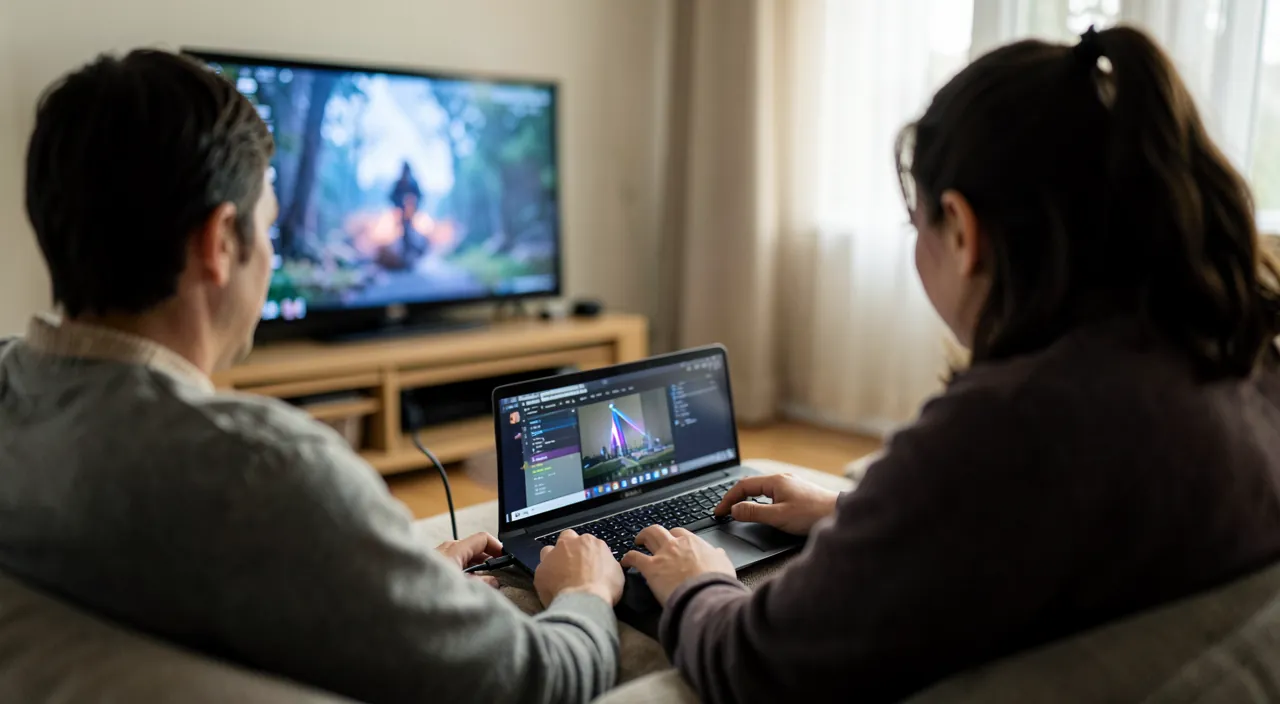
In the wireless era, the cable still has decisive arguments: the computer in the living room — an HDMI (a few euros, 3-5 m depending on the room) between the laptop and the TV: the instant giant screen for the downloaded movie, editing vacation videos with the family, doing paperwork together (the computer screen finally readable by the spouse from the sofa) — set the TV to HDMI source, and on the computer choose mirroring or extension (extension turns the TV into a second monitor — our dual-screen guides); the phone/tablet via adapter — USB-C to HDMI for compatible models (most recent ones): the presentation that can’t crash, the children’s cartoon in the vacation home without Wi-Fi; gaming — wireless latency disqualifies mirroring for gaming: consoles or PCs are wired, period (and cloud gaming on TV — our guides — is played via the TV app, not in mirroring); and universal troubleshooting — when wireless refuses (hotel networks, old TVs, mysterious failures), the cable always works: in the travel bag of regulars, a flat HDMI and a USB-C adapter weigh 100 grams and save evenings. Only real limit: some streaming apps block wired output from mobile (content protection) — their territory is casting; the cable is for YOUR content.
Be careful what the TV remembers — and displays. Two common-sense precautions: in mirroring, everything is displayed — notifications, incoming messages, gallery thumbnails: activate Do Not Disturb and close sensitive apps before projecting (the private message popping up in front of the in-laws is a classic); and on TVs that aren’t yours (hotel, rental, common room): don’t log in to apps with your credentials (the TV remembers — the streaming account left open for the next guests is the most frequent travel oversight: if it happens, disconnect remotely from the account settings, “manage devices”), prefer casting from your phone or the cable, and refuse strange authorization requests from an unknown TV. The big screen is a pleasure; it doesn’t need your passwords.
Frequent questions
My TV doesn’t appear in the casting list:
The checklist in order: exactly the same Wi-Fi network (the guest/main trap and separate 2.4/5 GHz networks), TV turned on and its network mode active (some cut network standby — “wake up by apps” setting), restart the phone then the TV, and update both. Nine out of ten cases fall at the first line — the tenth at the restart.

Mirroring is choppy or cuts out:
It’s the Wi-Fi that’s struggling (mirroring is resource-intensive): move the phone and TV closer to the router, switch to casting where possible (the app does better than mirroring for video), and for regular use in weak Wi-Fi zones — the cable or a mesh node near the living room (our Wi-Fi guides) solve this definitively.
Can I send only the audio to the TV or sound system?
Yes — audio casting (AirPlay/cast) also targets speakers, soundbars, and TVs: the dinner playlist on the best speaker in the house, controlled from the phone. And multiroom (multiple synchronized rooms) works in each ecosystem — the complete guide to wireless sound is a subject in itself.

What to remember
Three methods, three uses: casting for platform content (the TV plays, the phone controls, quality is king), mirroring for YOUR content (photos, apps, video calls — same Wi-Fi, Do Not Disturb, landscape orientation), the cable for serious matters (gaming, work, travel, troubleshooting — the backup HDMI weighs nothing and always works). Each ecosystem has its gestures (AirPlay, cast, Windows+K) and streaming boxes offer all this to old TVs. The two reflexes that save evenings: the ten-second test before the audience, and never your credentials on a TV that isn’t yours. The living room big screen is the most beautiful screen in the house — your photos, your movies, and your calls deserve better than six inches squinted at: they now all have the path.

Want to gain confidence with your digital tools? Our personalized training adapts to your level.
Leave a Reply
You must be logged in to post a comment.