
You’re launching an important video conference, a family call, and… your webcam isn’t working: black screen, « no camera detected, » or another application seems to have taken it over. Nothing is more stressful during a call! Rest assured: in most cases, this is not a hardware failure, but an AUTHORIZATION issue, a camera already in use elsewhere, or a setting— and it can be fixed quickly. Here’s how to diagnose and repair a webcam that’s not working, methodically, so you’re never caught off guard.
Why the webcam isn’t working
Understanding the possible causes helps solve the problem without panicking. Rest assured right away: a webcam that doesn’t work is most often a software or setting issue, NOT a failure. Common causes: the MISSING AUTHORIZATION—the NUMBER ONE cause; modern systems control which applications are allowed to access the camera (for privacy protection); if the application (your video software) doesn’t have this PERMISSION, it won’t see any camera. The camera ALREADY IN USE by another application—the camera can usually only serve ONE application at a time; if another software is using it (or has « locked » it in the background), yours can’t access it. The wrong CAMERA selected—if you have multiple cameras (built-in + external), the application might be using the wrong one. A physical SHUTTER lowered—many computers have a small privacy cover on the webcam; if it’s closed, the image is black. A SWITCH or shortcut to disable it—some laptops have a key to turn off the camera. An external webcam not properly connected. A software/DRIVER issue, or a need to RESTART. More rarely, a real hardware problem. Useful DISTINCTIONS for diagnosis: does the webcam work in NO application, or only in ONE? (if it’s one app: issue with that app’s authorization or settings; if it’s everywhere: more general issue). Built-in (laptop) or EXTERNAL (plugged-in) webcam? Did the problem appear after an update or change? The APPROACH: proceed step by step, from simplest to most likely (our method guides for self-troubleshooting). What to remember to start: a webcam that doesn’t work is almost always an AUTHORIZATION issue, a camera already taken by another application, or a setting; before assuming a failure, a few simple checks solve most cases. And a good reflex: TEST your webcam BEFORE important calls to avoid discovering the issue mid-meeting (our guides to properly set up your webcam). Let’s look at the checks.
Your webcam is probably fine, but your computer or app doesn’t have permission to use it. Another app might be using it, or you might have the wrong camera selected. Most of the time, it’s not a broken webcam—just a setting to fix.
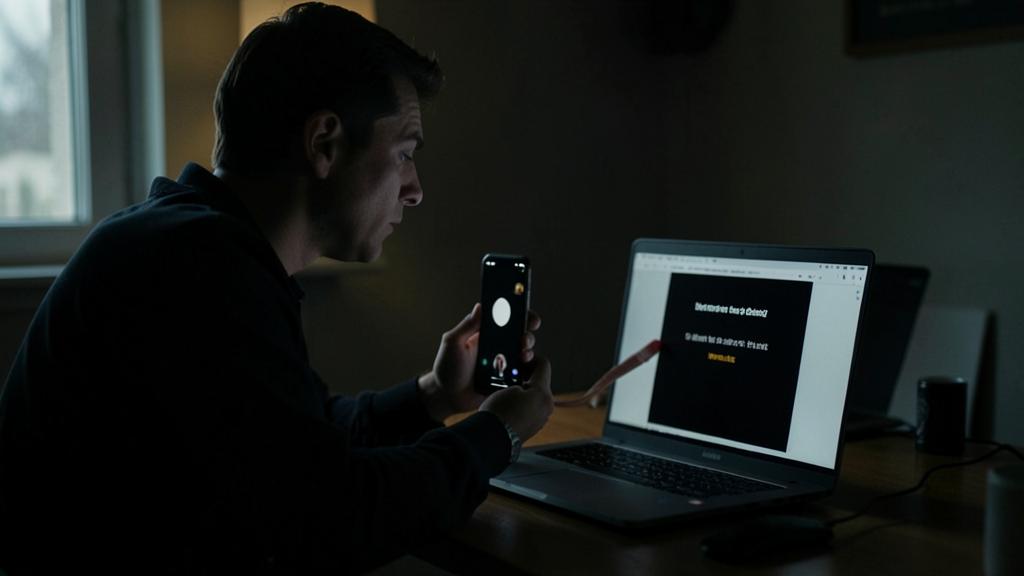
You’re about to join a Zoom meeting, but your webcam shows a black screen. You check the privacy settings and realize Zoom wasn’t allowed to use the camera. After granting permission, it works perfectly.

Checks to perform, in order
Test these checks from simplest to most likely; retry after each step. STEP 1 — the physical SHUTTER and switch: check that a small PRIVACY COVER isn’t lowered on the webcam (many computers have one; if it’s closed, the image is black); also check that a key or switch hasn’t disabled the camera (some laptops). STEP 2 — the AUTHORIZATION: the number one cause; go to your system’s PRIVACY settings (Camera section), and verify that camera access is ENABLED globally AND that the concerned application (your video software) has the PERMISSION to access it; enable it if not; this is the most frequent cause of « no camera detected. » STEP 3 — is the camera IN USE elsewhere? The camera can often only serve ONE application at a time; CLOSE other applications that might be using it (other video software, camera app, background apps); sometimes an app « holds » the camera even in the background: close it completely. STEP 4 — the correct CAMERA selected: in your video app’s settings (video/camera section), verify that the RIGHT camera is chosen (especially if you have multiple: built-in, external); select the correct one. STEP 5 — the EXTERNAL webcam: if it’s external, verify that it’s properly CONNECTED (USB cable), try another USB port, and that any indicator light turns on. STEP 6 — RESTART the application: completely close the video software and reopen it; this frees the camera and resets the connection. STEP 7 — RESTART the computer: a restart fixes many issues, including a camera « stuck » by a process (our guides on why restarting fixes most bugs). STEP 8 — TEST in another application: try the webcam in another app (the built-in system camera, another video software); if it works there, the issue is specific to the first app (its authorization or settings); if it doesn’t work ANYWHERE, the issue is more general (global authorization, driver, hardware). STEP 9 — UPDATES: verify that your system and video app are up to date; updates fix camera bugs. STEP 10 — the DRIVER (especially for external webcams): rarely necessary, but reinstalling/updating the webcam driver can help if it remains undetectable. After these checks, the webcam almost always works again: most often, it was a missing authorization, a camera taken by another app, or the wrong camera selected. The most important point remains the AUTHORIZATION (step 2), to check first. If nothing works after all this, see the next steps.
- STEP 1 — Check the physical shutter and switch.
- STEP 2 — Verify authorization in privacy settings.
- STEP 3 — Close other apps using the camera.
- STEP 4 — Ensure the correct camera is selected.
- STEP 5 — Test the external webcam connection.
- STEP 6 — Restart the video application.
- STEP 7 — Restart the computer.
- STEP 8 — Test the webcam in another app.
- STEP 9 — Update the system and video app.
- STEP 10 — Reinstall or update the webcam driver.
The two main causes: missing authorization and camera already in use. First, check these two points: they explain the vast majority of webcams that « don’t work. » FIRST cause, the AUTHORIZATION. Modern systems protect your privacy by STRICTLY controlling which applications can access the camera; if your video software hasn’t received the PERMISSION, it will display « no camera » or a black screen, even if the webcam works perfectly. The solution: go to your system’s PRIVACY settings, Camera section; verify two things: that camera access is enabled globally (sometimes disabled for the entire system), AND that the CONCERNED APPLICATION (your specific video software) is listed in the authorized apps, with access ENABLED; if authorization is missing, enable it, and relaunch the app. This is by far the most frequent cause, especially the first time you use a new video app (you may have refused or ignored the initial authorization request). SECOND cause, the camera ALREADY IN USE. The webcam can usually only serve ONE application at a time; if another software is already using it (another video tool open, the camera app, a background app that « holds » the camera), your app won’t be able to access it—hence the black screen or error. The solution: COMPLETELY CLOSE all other apps that might use the camera (not just minimize them: close them); if you don’t know which one, a COMPUTER RESTART will definitely free the camera. These two checks—authorization granted to your app, and camera not taken by another—resolve the vast majority of cases in seconds. A crucial bonus: TEST your webcam BEFORE important calls (open the camera app or your video software’s video settings a few minutes before); this way, you discover and fix any potential issue calmly, rather than during a stressful meeting (our guides to properly set up your webcam). Authorization + free camera + prior test: this combo will avoid almost all webcam surprises.

If the webcam remains undetectable
If, after basic checks, the webcam still doesn’t work, here are the next steps. The decisive test: does the webcam work in ANOTHER application? Open the system’s built-in camera app (a « Camera » app often exists) or another video software; if the webcam WORKS there: the issue is specific to your first app (its authorization, camera settings: check them, possibly reinstall it); if the webcam doesn’t work in ANY application: the issue is more general (global authorization disabled, driver, or hardware). The webcam DRIVER: the driver is the software that allows the system to communicate with the camera; if it malfunctions, the webcam may be undetectable; SYSTEM UPDATES often fix this; for an external webcam, reinstalling its driver (from the manufacturer’s official site) can help; you can also, in advanced system settings, verify that the camera is properly recognized and enabled (not « disabled »). The built-in TROUBLESHOOTER: some systems have a camera issue resolution utility that automatically diagnoses. The EXTERNAL webcam: test it on ANOTHER USB port, and if possible on another computer (to determine if it’s the webcam or your computer that’s the issue); check its cable; some require their own software. The case of the camera DISABLED at the system level: in rare cases, the camera has been disabled in hardware settings; verify that it’s enabled. UPDATES or a reinstall of the video app: if a specific app doesn’t see the camera despite authorization, updating or reinstalling it may resolve the issue. WHEN it might be HARDWARE: if the webcam doesn’t work in ANY application, on this computer, despite granted authorization, updated driver, and restart; and especially if an EXTERNAL webcam doesn’t work on ANY computer (it’s then defective)—then hardware is the issue. For a defective built-in camera: a repairer can intervene, but the simplest and most economical solution is often to use an EXTERNAL WEBCAM (they’re inexpensive and of good quality); it’s also an excellent immediate workaround. For a dead external webcam: it’s replaced at low cost. In summary, if the webcam remains undetectable: test it in another app (to distinguish « one app » from « general »), check/reinstall the driver, use the built-in troubleshooter, test an external webcam on another port/computer; real hardware issues are rare, and an inexpensive external webcam fixes most cases of a defective built-in camera.
Warning: first check authorizations, test before calls, and respect your privacy. A few essential points about webcams. First, don’t conclude a failure before checking the AUTHORIZATION: it’s THE number one cause of a webcam that « doesn’t work, » and yet it’s often forgotten; first, go to privacy settings (camera) and verify that access is enabled and that your video app is authorized; it would be absurd to think your camera is broken when all it needed was a permission check. Then, think about the camera ALREADY IN USE: another app monopolizing the webcam in the background is a common and confusing cause; close other software, or restart. The most important reflex to avoid stress: TEST your webcam BEFORE important calls; discovering mid-professional meeting that the camera doesn’t work is the worst scenario; a few minutes before, open your video software’s video preview or the camera app to verify everything works (our guides to properly set up your webcam). On SECURITY and privacy, several precautions: the fact that systems require authorization for the camera is a good thing—only grant it to TRUSTED apps that truly need it, and remove access from apps that have no reason to use your camera; an unknown app requesting camera access should raise suspicion. Many people use a physical COVER (a small shutter or sticker) on their webcam when not in use, as a precaution against unauthorized access; it’s a healthy reflex— but don’t forget to open it before a call (a forgotten cover is a common cause of « black screen »!). Be wary of « webcam drivers » or miracle software to download from dubious sites: download drivers ONLY from the manufacturer’s official site; a fake « camera driver » can be malicious (our guides to avoiding unwanted software). Test on another app or computer before concluding hardware, to avoid unnecessary replacement. Finally, if your built-in webcam is truly defective: an inexpensive EXTERNAL WEBCAM is an excellent solution, often of better quality than the built-in, and immediate. By first checking authorizations, testing before calls, and managing camera access wisely (for your privacy), you’ll avoid almost all webcam issues—and the rare hardware cases are easily bypassed.
Frequent questions
My video software says « no camera detected »: why?
The most frequent cause is a MISSING AUTHORIZATION: your app doesn’t have permission to access the camera. Modern systems protect your privacy by requiring each app to be explicitly authorized to use the camera; if this permission hasn’t been granted (or was refused or disabled), the app displays « no camera detected » even if your webcam works perfectly. The solution: go to your system’s PRIVACY settings, Camera section; verify that camera access is enabled globally, AND that your video software is listed in the authorized apps with access enabled; enable it if needed, then relaunch the app. Other possible causes: the camera is ALREADY IN USE by another app (the webcam only serves one app at a time; close other video software or the camera app); a physical COVER is lowered on the webcam (open it); the wrong camera is selected in the app’s settings (choose the correct one); an external webcam is not properly connected; or a simple need to restart. To diagnose: test the webcam in ANOTHER application (the system’s camera app); if it works there, the issue is the authorization or settings of your video software; if it doesn’t work anywhere, it’s more general. But always start with authorization: in the vast majority of « no camera detected » cases, it’s simply a permission to grant to the app in privacy settings.
My webcam works in one app but not in another: why?
This is a clear sign: if the webcam works in some apps but not in another, the issue is SPECIFIC to that app (your webcam is fine, since it works elsewhere: good news). Two main causes. The APP-SPECIFIC AUTHORIZATION: each app must be individually authorized to access the camera; the one that doesn’t work may not have this permission; go to privacy settings (camera) and verify that THIS specific app is properly authorized. The camera ALREADY IN USE by the other app: if the webcam works in app A, it’s perhaps because A MONOPOLISES it; app B can’t then access it (one app at a time); completely close app A before using B. Other clues specific to the faulty app: check its internal video settings (is the CORRECT camera selected?); update or reinstall it (a bug in the app may prevent it from seeing the camera); restart it. To troubleshoot, focus on the problematic app: its camera authorization, the fact that another app isn’t monopolizing the webcam, its video settings, and its update. No need to touch general settings or believe the webcam is broken: it works (since other apps use it). This distinction—webcam OK in one app, not in another—saves you time by directly targeting the right place: the authorization and settings of the concerned app, and freeing the camera from other apps.
How to know if my webcam is really broken?
Before concluding a failure, rule out all software causes; real hardware failure is rare. Perform the decisive test: does the webcam work in AT LEAST one application? Open the system’s « Camera »/built-in camera app, or several video software; if the webcam works in even ONE application, it’s NOT broken: the issue is software (authorization, setting, or conflict in apps where it doesn’t work). If the webcam doesn’t work in ANY application, despite: camera authorization enabled (globally and for apps), physical cover open, no other app using it, driver updated, and restart performed—then only can you suspect hardware. For an EXTERNAL webcam: test it on ANOTHER computer; if it doesn’t work on any, it’s defective (replace it, it’s inexpensive); if it works elsewhere, it was your computer (setting/driver). For a BUILT-IN webcam (laptop): if it doesn’t work in any app after checking everything, it may be a hardware issue (flex cable, camera module); a repairer can intervene, but the simplest and most economical solution is often to use an EXTERNAL WEBCAM (inexpensive, often of better quality, and immediately functional). Don’t forget to check the « dumb » causes before concluding: a privacy cover forgotten in the closed position, or a camera disable switch/key, give a « black screen » mistaken for a failure. In summary: the webcam is truly broken only if it doesn’t work in ANY application after ruling out authorizations, cover, app conflicts, driver, and restart; and even then, an inexpensive external webcam solves the problem without repair.
What to remember
A webcam that doesn’t work is most often a software or setting issue, NOT a failure. The two MAIN causes: the MISSING AUTHORIZATION (the number one cause: modern systems require each app to be authorized to access the camera; check in privacy settings → Camera that access is enabled and that your video app is authorized), and the camera ALREADY IN USE by another app (the webcam only serves one app at a time; close others, or restart to free it). Other checks: a physical PRIVACY COVER lowered (open it—common cause of black screen!), the correct CAMERA selected in the app, an external webcam properly connected, a restart of the app then the computer. The TEST that guides diagnosis: does the webcam work in ANOTHER application (the system’s camera app)? If yes, the issue is specific to your video software (its authorization/settings); if it doesn’t work anywhere, it’s more general (global authorization, driver, hardware). If it remains undetectable: check/reinstall the driver (only from the manufacturer’s official site), use the built-in troubleshooter, test an external webcam on another port/computer. Real hardware failure is RARE: it’s only suspected if the webcam doesn’t work in ANY application after ruling out everything; and an inexpensive EXTERNAL WEBCAM (often of better quality) easily solves the case of a defective built-in camera. The key reflex to avoid stress: TEST your webcam BEFORE important calls, to avoid discovering the issue mid-meeting. On privacy: only grant camera access to trusted apps, remove it from others, and the physical cover is a healthy reflex (remember to open it before a call). By first checking authorizations and freeing the camera, you’ll resolve almost all webcam issues in moments—it was almost always perfectly functional.


Persistent issue, temperamental device? Our remote troubleshooting service quickly resolves your problem, without jargon.
Leave a Reply
You must be logged in to post a comment.