
You only think about backups after losing everything — when it’s too late. Hardware failure, theft, ransomware, accidental deletion: the causes of data loss are numerous, and just one is enough to erase years of photos and documents. The solution is simple and within everyone’s reach: an automatic backup. Once set up, it works silently for you. This guide explains how to implement it, without any technical skills.
Why automate?
A manual backup relies on your memory and discipline: you promise to do it « soon, » and never do. As a result, when the problem occurs, the last backup is six months old — or doesn’t exist. Automation eliminates this risk: the backup happens automatically, regularly, without you having to think about it. It’s the only truly reliable approach in the long run.
The golden rule of backups
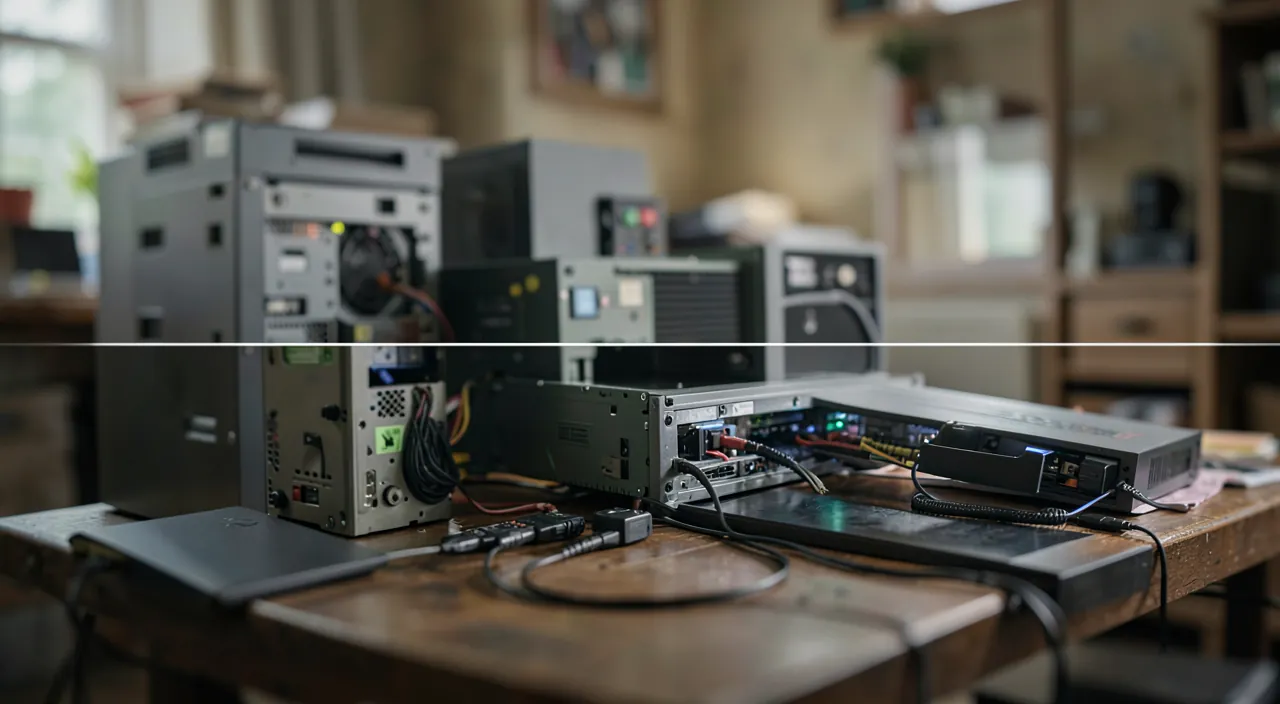
Experts recommend a simple approach: multiple copies of your data, on different media, with at least one stored off-site or disconnected. This way, no single event — theft, fire, hardware failure, ransomware — can destroy everything. A single copy, even on a good disk, is not enough: it’s redundancy that truly protects your precious data.
A backup is only safe if you have more than one copy in different places. If something happens to one, you still have the others.
The right reflex. Combine two automatic backups: one local (on an external drive, quick to restore) and one online (protected in case of a disaster at home). This double protection covers almost all loss scenarios, without any effort once configured.
Possible solutions
- Built-in backup: your system often includes an automatic backup tool to activate.
- External drive: for a quick local copy, configured to run on its own.
- Online storage: for an off-site copy, automatically synchronized.
- Encrypted backup: to protect your data even if the storage medium is stolen.
Setting it up, step by step
The process is simple. First, identify what truly matters: photos, documents, important files. Then, choose your method — built-in tool, external drive, cloud, or a combination. Enable automatic backup and set its frequency (daily for data that changes often). Finally, let it work. Most of the work is done once; afterward, everything is automatic and transparent.

If you have 500GB of important files, use a 1TB external drive for local backups and a 1TB cloud storage plan. Set both to update daily. This way, even if your computer crashes, you can restore everything from either source.
Absolutely check this. A backup is only valuable if it works. Occasionally test that you can actually restore your files: nothing worse than discovering, at a critical moment, an empty or corrupted backup. An untested backup is a false sense of security.

Your typical backup plan, depending on your profile
The essential-minimal (photos and a few documents): automatic phone backup enabled + photo synchronization to the cloud — ten minutes of setup, already real protection. The family standard: the same base, plus an external drive connected once a month for a full computer backup — then stored outside the machine. The thorough (work, valuable data): continuous computer backup to a local drive + encrypted cloud copy + a second drive kept elsewhere (office, family) exchanged regularly. Move up a level the day you think, « I’d be bothered to lose this »: that signal never lies.
Frequently asked questions
Is it complicated to set up?
No: modern tools make configuration accessible in a few steps. Once in place, everything is automatic; you don’t have to think about it anymore.
Do you need to pay?
Not necessarily: built-in tools and an external drive are enough for a solid base. Online storage often has a free plan to get started.
How much space should you allocate for backups?
The simple rule: a storage medium at least twice the size of the data to protect, to keep multiple versions over time. Version history is valuable: it allows you to retrieve a file from before an error or corruption.

What to remember
Automatic backup is your best insurance against data loss — and the only truly reliable one, as it doesn’t depend on your memory. Follow the golden rule: multiple copies, on different media, with at least one off-site or disconnected. Ideally, combine a local and an online backup, enable automation, and regularly test restoration. A few minutes of setup save you the nightmare of losing everything. Don’t put off this essential protection.
Need help setting up your backups?
Leave a Reply
You must be logged in to post a comment.