
A Mac is reputed to be safe, but a few settings make all the difference. Here’s the essentials, in 10 minutes.
1. Enable FileVault
Disk encryption protects your data if your Mac is lost or stolen. (Settings → Privacy & Security → FileVault)
2. Update everything
System and apps: updates fix vulnerabilities. Enable automatic updates.
3. A password manager
iCloud Keychain or a dedicated app: unique and strong passwords, without memorizing them.
4. Back up (rule 3-2-1)
Time Machine + a cloud. A disk failure is no longer a disaster. See our backup article.
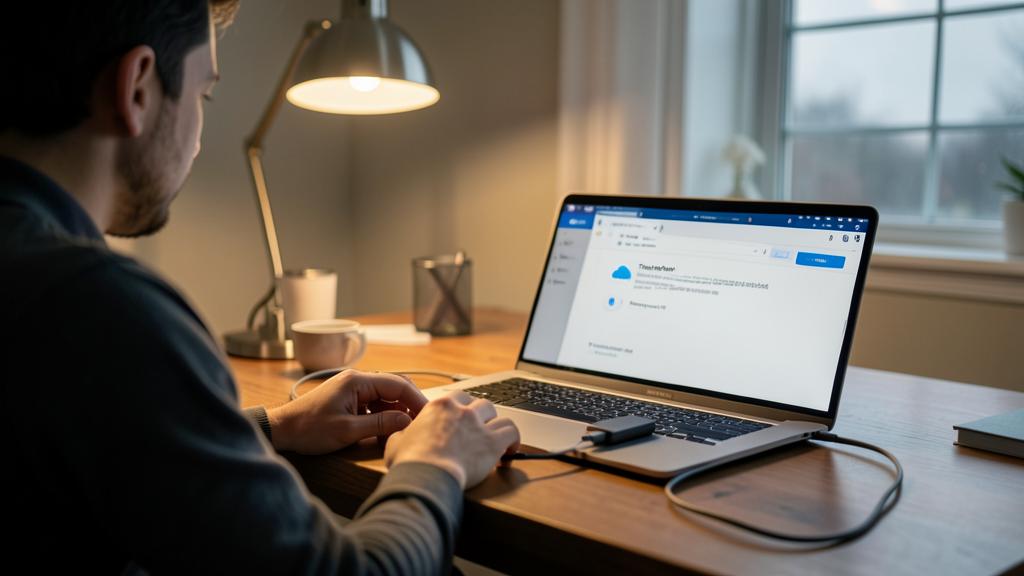
If your Mac is stolen, encryption stops thieves from reading your files. Updates patch security holes. A password manager keeps your accounts safe. And backups mean you never lose important data.
Imagine your MacBook Pro is stolen at an airport. Without FileVault, the thief could access your emails, photos, and work files. With FileVault enabled, your data stays locked—even if they try to reset the password.
Any doubt? Our repair service can set everything up remotely.
Leave a Reply
You must be logged in to post a comment.