
Looking for an app in pages of icons, digging through your contacts, retyping an address, opening multiple apps to find information: you waste a lot of time navigating your iPhone. Yet, there is a universal, discreet, and incredibly effective shortcut that too few people use: Spotlight, the built-in search. With a simple gesture, type what you’re looking for, and the iPhone finds it—a app, a contact, a message, a file, a definition, a calculation, and much more. It’s the fastest way to find and launch everything. Here’s how to use Spotlight to save precious time every day.
What Spotlight can find
Spotlight is the universal search function of the iPhone (and iPad, Mac): a field where you type, and it searches EVERYWHERE at once. What it finds:
- APPLICATIONS: instead of looking for an app in pages of icons, type its name and launch it; unbeatable when you have many apps.
- CONTACTS: find a person and call or write to them directly.
- MESSAGES and EMAILS: find a conversation, an email by a word.
- FILES and NOTES: search for a document, a note.
- PHOTOS: find photos by their content, a location, a date.
- SETTINGS: access a specific setting directly without navigating through menus.
- APP CONTENT: calendar events, reminders, and more.
- WEB INFORMATION: definitions, search results, news, suggestions.
- PRACTICAL TOOLS: do a CALCULATION directly (type an operation), a conversion (units, currencies), check the weather, a course; Spotlight often responds without even opening an app.
How to OPEN it: usually by swiping down from the middle of the home screen, or via a dedicated search field; then you type. What is it for? To LAUNCH an app in two seconds (instead of searching for it); to FIND anything (contact, message, file, photo, setting) with a word; to get QUICK INFORMATION (calculation, definition, weather) without opening an app; and generally, to SAVE TIME on any navigation. The key idea: Spotlight is a universal shortcut that finds almost EVERYTHING on your iPhone—apps, contacts, messages, files, photos, settings—and even answers questions (calculations, definitions, weather), all with a single typed word. It’s by far the FASTEST way to launch an app or find information, much more efficient than navigating through menus and pages of icons. Yet, many people ignore it. By taking the habit of « searching instead of navigating, » you save a considerable amount of time every day; it’s one of the simplest and most profitable iPhone tips.
Spotlight is like a super search tool on your iPhone. It can find anything—apps, messages, photos, settings—just by typing a few words. It can even do quick math or show you the weather without opening other apps. The trick is to use it instead of scrolling through menus, which saves you tons of time every day.
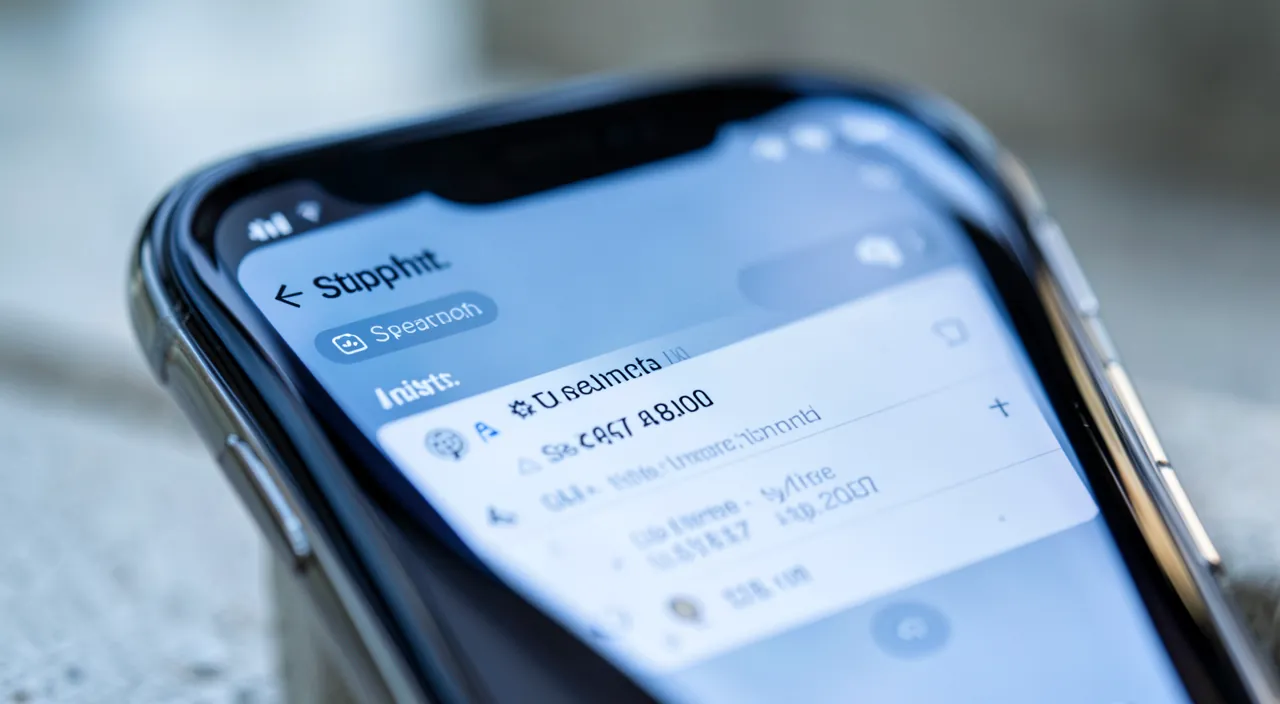
Imagine you need to quickly check the weather, calculate 15% of 200, and open your banking app. Instead of opening three different apps, you swipe down to open Spotlight, type “weather” to see the forecast, then type “15% of 200” to get 30, and finally type “bank” to open your banking app—all in seconds.
How to use Spotlight daily
Here’s how to integrate Spotlight into your habits. OPEN it easily—the most common gesture: swipe DOWN from the middle of the home screen (or use the search field if it’s displayed); the search field appears, ready to receive your input. LAUNCH an app by typing it—instead of looking for an app in your pages of icons, open Spotlight, type the first letters of its name, and tap on it; it’s the fastest way, especially if you have many applications. FIND a contact, a message, a file—type a person’s name to contact them, a word from a message to find the conversation, the name of a document; Spotlight searches everywhere. ACCESS a SETTING directly—instead of digging through the settings menus, type the name of the setting you’re looking for (for example, « brightness, » « WiFi ») in Spotlight, which takes you there directly. DO a CALCULATION or a conversion—type an operation (an addition, a multiplication) or a conversion; Spotlight instantly displays the result, without opening the calculator. SEARCH for INFORMATION—a definition, the weather, general information: type it, Spotlight often provides a direct answer or web results. FIND PHOTOS—search by content, location, or date; Spotlight also searches through your photos. TAKE the « search » REFLEX—the real habit change: whenever you want to launch something or find information, think of Spotlight BEFORE navigating; this reflex will save you a lot of time. Customize if needed—in the settings, you can choose what Spotlight includes in its results (which apps, which content); useful to refine or for privacy (see below). A few TIPS: take the habit of searching instead of navigating (that’s THE gain); type just a few letters, it’s enough; and discover its direct answers (calculations, definitions). In summary: open Spotlight with a downward swipe, type what you’re looking for (an app, a contact, a message, a setting, a calculation, info), and let it find; take the habit of searching instead of navigating, and customize what it includes. You thus transform the way you use your iPhone, gaining speed.
The right reflex. The real secret of Spotlight isn’t a technical trick: it’s a CHANGE OF HABIT. Take the habit of SEARCHING instead of NAVIGATING. Most people, to launch an application, scroll through pages of icons looking for the right one; to find a contact, they open the Contacts app and scroll; to access a setting, they dig through the menus. All of this takes time, every time. With Spotlight, these gestures become instantaneous: swipe down from the middle of the home screen, type a few letters of what you’re looking for, and it’s found. To launch an app: type the first letters of its name and tap—much faster than visually searching for it, especially if you have dozens of apps spread over several pages. To reach someone: type their name, and call or write directly. For a specific setting (brightness, WiFi, a buried setting): type its name in Spotlight instead of navigating through the settings hierarchy. And discover the DIRECT ANSWERS that save even more time: type a math operation and Spotlight displays the result without opening the calculator; type a word to get its definition; type « weather » for a preview. A practical point: no need to type the full name or without mistakes; a few letters usually suffice for Spotlight to find what you want. This simple habit change— »when I want something, I search for it with Spotlight instead of manually looking for it »—is one of the most profitable iPhone tips: applied dozens of times a day, it saves you a considerable amount of time and makes phone use much smoother. Try for a few days to systematically search instead of navigate: you won’t be able to do without it.
Customization and privacy of search
Spotlight is very practical, but a few settings allow you to adapt it and control your privacy. CUSTOMIZE the results: in the settings (often in the « Search » or « Siri and Search » section), you can choose what Spotlight includes in its results: which applications are searched, whether web suggestions are displayed, etc.; useful to refine what appears and avoid the superfluous. SUGGESTIONS and the WEB: Spotlight sometimes offers suggestions from the web or apps; it’s practical, but if you prefer to limit this (for privacy or simplicity reasons), you can disable certain suggestions in the settings. PRIVACY: search on the device (your apps, contacts, files) remains local; but searches that query the web can transmit information; Apple emphasizes a privacy-respecting approach for Spotlight, but if you want to limit the link with the web, adjust the suggestion settings. What Spotlight DISPLAYS: be careful, if your iPhone is unlocked, Spotlight gives access to a lot of content; make sure your phone is well protected (code, biometrics) so that this powerful search isn’t accessible to just anyone; it’s another reason to properly lock your device (our guides on choosing a good lock code). SENSITIVE RESULTS: Spotlight can display content from your messages, notes, etc.; it’s practical for you, but it means that anyone who has access to your unlocked phone can search through your data; hence the importance of locking. Search from the LOCK SCREEN: depending on the settings, part of the search may be accessible from the lock screen; you can adjust this for your privacy comfort. Don’t GET DISTRACTED: Spotlight is so complete that it can display a lot of things; customize it so that it mainly shows you what’s useful. In summary: customize what Spotlight includes (apps, web suggestions) in the settings according to your needs and your taste for privacy; know that the search gives access to a lot of your content, so protect your phone well (code, biometrics); and adjust what’s accessible from the lock screen. Thus configured, Spotlight remains a powerful and mastered tool.
Warning: Spotlight gives access to a lot of your content — a well-locked phone is essential. Spotlight is a wonderfully practical tool, precisely because it searches EVERYWHERE and finds almost everything that’s on your iPhone: your applications, but also your contacts, your messages, your emails, your notes, your photos, your files, your events. It’s this power that makes it interesting; but it’s also what calls for a privacy precaution. Think about it: if your phone is UNLOCKED and in someone else’s hands, that person can, with Spotlight, search and bring up the content of your messages, your notes, your emails—all indexed content—much more easily than by opening each application one by one. Spotlight, in short, puts your digital life within reach of a simple search. The conclusion is clear: the power of Spotlight makes it all the more ESSENTIAL to properly protect your phone. Make sure it’s locked by a STRONG CODE and biometrics (face or fingerprint recognition), and that it locks automatically after a short period of inactivity: thus, no one can browse your data via Spotlight without your authorization. Don’t leave your phone unlocked in sight or within reach of others. You can also adjust what’s accessible from the LOCK SCREEN: depending on the settings, part of the search may be available without unlocking; check this point in the settings and limit it if it concerns you. Another aspect to know: some Spotlight searches query the WEB (for suggestions, definitions, results); these queries can transmit information to the outside, unlike purely local search on your device. If you prefer to limit this link with the web for privacy reasons, you can disable web suggestions in the search settings. In summary, fully enjoy Spotlight—it’s a huge time saver—but keep in mind that it opens access to all your content: a well-locked phone (code, biometrics, automatic locking) is the essential safeguard that makes this powerful search a tool at your sole service, and not an open door for anyone who gets their hands on your device.
Frequently asked questions
How to open Spotlight search on my iPhone?
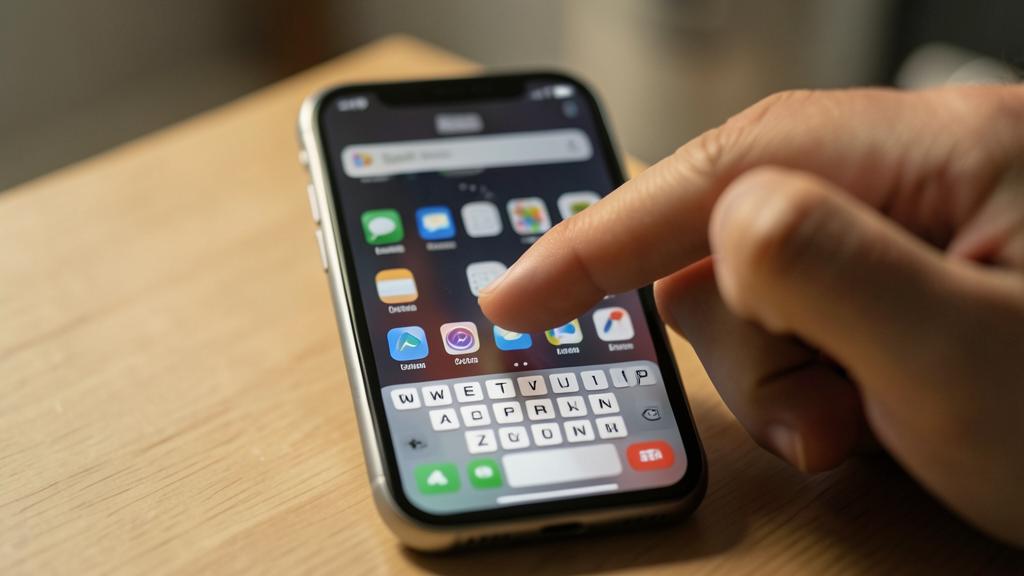
It’s very simple, and once you know the gesture, you’ll use it dozens of times a day. The most common method: from your home screen, place your finger in the MIDDLE of the screen and swipe DOWN; the Spotlight search field then appears at the top, with the keyboard ready to receive your input. Be careful to start from the middle of the screen: if you swipe from the very top, you open another panel (notifications or control center depending on the location); it’s from the center of the home screen that you must pull down. On some iPhones, a « Search » button or field is also displayed at the bottom of the home screen: you just need to tap on it. Once the field is open, type what you’re looking for: the name of an application, a contact, a word from a message, a setting, a calculation, a question; the results appear as you type, and often a few letters are enough. Then tap on the desired result to open it (launch the app, open the conversation, go to the setting). To exit the search, simply return to the home screen. This gesture—swiping down from the middle of the screen—is your gateway to everything your iPhone contains; take the habit of using it whenever you want to launch an app or find something, rather than navigating through menus or pages of icons. In a few days of use, this gesture will become automatic, and you’ll notice the time you save. If you have trouble finding the right gesture, search « Spotlight search » in your device’s help: the access method may vary slightly depending on versions, but the principle remains the same—a field where you type, which searches everywhere.
Can Spotlight do calculations and provide information?
Yes, and it’s one of its most practical and unknown functions: Spotlight doesn’t just find your content, it also answers certain questions, directly, without you having to open an application. For CALCULATIONS: simply type an operation in the search field (for example, an addition, subtraction, multiplication), and Spotlight instantly displays the result at the top of the results; it’s faster than opening the calculator for a simple calculation. It also often handles CONVERSIONS: type a unit conversion (lengths, weights, temperatures) or currencies, and it gives you the equivalent. For INFORMATION: type a word to get its DEFINITION; type « weather » for a preview of the conditions; it can also offer results on common topics, news, or web suggestions. Spotlight thus becomes a kind of Swiss Army knife: a single search can give you a calculation result, a definition, weather info, without navigating from app to app. It’s particularly practical for these little everyday questions you ask yourself without wanting to open an entire software. The exact capabilities evolve with system versions, but the principle is there: try typing an operation, a word to define, a simple question, and see what Spotlight offers you directly. A point to note: the answers that come from the WEB (general information, suggestions) involve a query to the outside, unlike calculations and the search of your content which remain local; if you prefer to limit web suggestions for privacy, you can disable them in the search settings. In summary, yes, Spotlight does calculations, conversions, provides definitions and quick information: take the habit of asking it these little questions directly, it will save you from opening several applications and save you time.
Is search a risk for my privacy?
Spotlight search itself is designed in a rather privacy-respecting way, but it calls for two points of attention: the web, and especially the locking of your phone. Distinguish two types of search. Searching YOUR CONTENT (applications, contacts, messages, notes, photos, files) is done locally, on your device: this information is not sent outside to be searched, which is good for your privacy. On the other hand, some searches query the WEB (for suggestions, definitions, general results): these queries transmit information to the outside, like any online search; Apple emphasizes a privacy-conscious approach for these suggestions, but if you prefer to limit this link with the web, you can disable web suggestions in the search settings. But the real privacy issue isn’t so much the search itself as what it GIVES ACCESS TO. Spotlight, being very complete, allows you to easily find all your content: it’s practical for you, but it means that anyone who gets their hands on your UNLOCKED phone can, via Spotlight, search through your messages, notes, emails. The risk isn’t that Spotlight « spies, » but that it facilitates access to your data for someone else if your phone isn’t protected. The solution is simple and essential: protect your iPhone well with a STRONG CODE and biometrics, with automatic locking after inactivity, and don’t leave it unlocked; thus, only YOU can use this search on your data. You can also adjust what’s accessible from the lock screen and customize what Spotlight includes in its results. In summary, the search isn’t a risk in itself: local search is private, web suggestions can be adjusted, and the real safeguard is a well-locked phone. With a properly protected device and settings adjusted to your taste, you enjoy all the power of Spotlight without compromising your privacy.
What to remember
Spotlight, the built-in search of the iPhone, is a universal shortcut too little used, yet one of the most profitable tips daily. It finds almost EVERYTHING: applications, contacts, messages, emails, files, notes, photos, settings; and it even answers questions—calculations, conversions, definitions, weather—without having to open an application. You open it with a simple gesture (swipe down from the middle of the home screen), then you type: a few letters are enough. The real benefit isn’t technical, it’s a CHANGE OF HABIT: taking the habit of SEARCHING instead of NAVIGATING. Instead of digging through pages of icons to launch an app, through menus for a setting, or through a list for a contact, type what you want in Spotlight: it’s instantaneous. Applied dozens of times a day, this habit saves a considerable amount of time and makes phone use much smoother; discover also its direct answers (a typed calculation gives the result, a word gives its definition). You can customize what Spotlight includes in its results (apps, web suggestions) according to your needs. But keep in mind a privacy precaution: the power of Spotlight, which searches through all your content, means that anyone who has access to your UNLOCKED phone can easily find your messages, notes, and emails. The essential safeguard is therefore a well-LOCKED phone: a strong code, biometrics, automatic locking after inactivity, and the habit of not leaving your device unlocked. Also know that searching your content remains local (private), while web suggestions transmit information to the outside (deactivatable in the settings if you wish), and adjust what’s accessible from the lock screen. By adopting the « search instead of navigate » reflex while keeping a well-protected phone, you make Spotlight a powerful tool at your sole service: the fastest way to find and launch everything on your iPhone, safely. Try it systematically for a few days: you won’t go back.
Want to unlock the full potential of your iPhone, iPad, or Mac? Our Apple training courses take you to the next level.
Leave a Reply
You must be logged in to post a comment.