
You may have already received a birthday message that made BALLONS or confetti burst across the entire screen, or a “Congratulations” accompanied by fireworks? These are message effects, a fun and festive feature of the Messages app on iPhone (in iMessage conversations). With a simple gesture, you can accompany a message with a small animation: balloons, confetti, fireworks, a heart, a bubble that arrives gently or with a bang… It’s fun, it adds emotion to your messages, and it’s very easy to do, even if you’re not comfortable with technology. Perfect for wishing someone a happy birthday, congratulating them, or just making a loved one smile. Let’s see what these effects are, how to send them, and a few tips to make the most of them.
What are message effects?
First, let’s understand what these effects are and what they bring. ANIMATIONS: small animations that accompany a sent message; the basics; to know. Two TYPES: “bubble” effects (on the message) and “screen” effects (on the entire screen); two families; to know. Festive SCREEN effects: balloons, confetti, fireworks, lasers, heart… a show; fun. BUBBLE effects: the message bubble arrives gently, with a bang, in large or small… to nuance the tone; nice. For SPECIAL moments: birthday, congratulations, party; to mark the occasion; usage. Adding EMOTION: an effect expresses joy, surprise; more than text; the interest. On iPHONE (iMessage): feature of the Messages app, between Apple devices; to know; compatibility. FREE, integrated: nothing to install; included; reassuring. EASY to send: a few taps; accessible; reassuring. FUN: it’s for pleasure, no obligation; spirit; to know. In summary, message effects are small ANIMATIONS that accompany a message you send in the Messages app (in iMessage conversations, between Apple devices). There are two main families. SCREEN effects: spectacular animations that take over the ENTIRE screen of your recipient upon receipt—BALLONS flying away, CONFETTI raining down, FIREWORKS, lasers, a big HEART, a “rain”… (perfect for big occasions). BUBBLE effects: more discreet animations that affect the message BUBBLE itself—it can arrive “gently” (very softly), “with a bang” (it pops up!), “big” (the text appears in large), or “discreetly” (very small)—to nuance the TONE of your message. What are they for? To add EMOTION and FANTASY to your messages: wish a HAPPY BIRTHDAY with balloons, CONGRATULATE with fireworks, express joy, surprise, tenderness… It’s much more lively than a simple text. It’s a feature of the Messages app on iPhone (fully active in iMessage, between Apple devices), FREE, integrated (nothing to install), EASY to send, and purely FUN (for pleasure, no obligation). Let’s see how to send them—it’s very simple.
Message effects are like little animations that make your texts more fun. There are two types: ones that make the whole screen light up (like balloons or fireworks) and ones that change how the text bubble looks (like making it pop up loudly or arrive softly). They’re free, easy to use, and perfect for special moments like birthdays or congratulations.
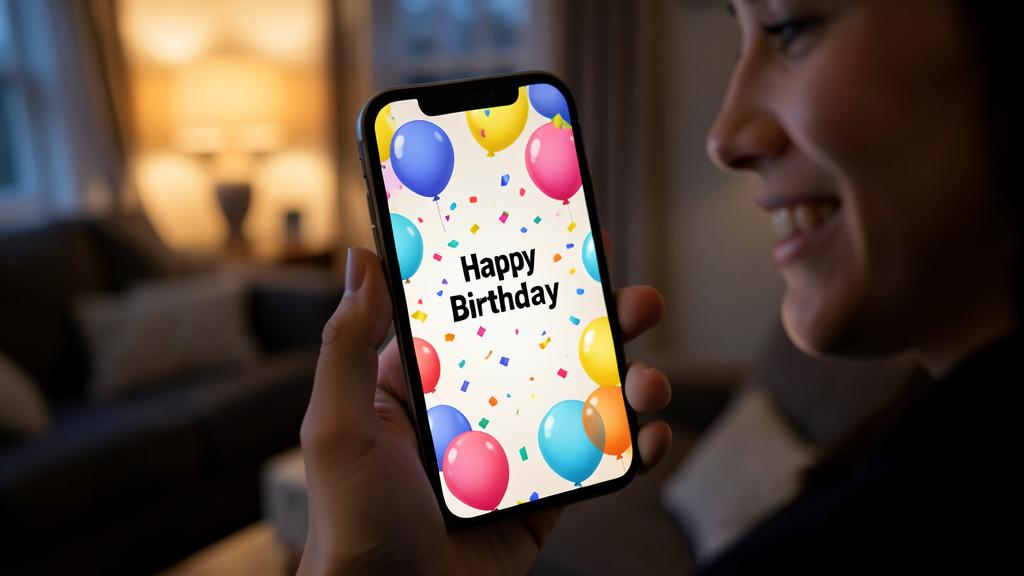
Imagine sending “Happy Birthday” to your friend Sarah. When she opens it, her whole screen fills with colorful balloons and confetti. That’s a screen effect! Or if you send “I’m so excited!!!” with the “with a bang” bubble effect, the text will pop up dramatically on her screen.
How to send a message with an effect
Sending an effect is simple; let’s follow the steps. WRITE your message: type your text as usual (don’t send it yet); the basics; step. LONG PRESS on the send arrow: hold your finger on the send button (the arrow); open the effects; the key gesture; step. CHOOSE “Bubble” or “Screen”: two tabs appear at the top; select the type of effect; step. A BUBBLE effect: choose “gently,” “with a bang,” “big,” “discreet”; to nuance; option. A SCREEN effect: swipe to the “Screen” tab and scroll (balloons, confetti, fireworks…); a show; option. PREVIEW: the effect plays in a preview before sending; see before; useful. SEND: tap the send arrow (blue) to send with the effect; here we go; step. CANCEL if needed: tap the “×” to go back without an effect; change your mind; option. The recipient SEES the effect: the animation plays on their end upon receipt; the effect produced; to know. EASY to repeat: you can do it as many times as you want; no fear; reassuring. In summary, sending a message with an effect is done in a few simple gestures. 1) WRITE your message normally in the text box (but don’t SEND it yet). 2) Instead of briefly tapping the send button, do a LONG PRESS (hold your finger) on the SEND ARROW (the upward arrow, next to your message). 3) An effects screen opens, with two TABS at the top: “BUBBLE” and “SCREEN.” 4) For a BUBBLE effect (on the message): stay on the “Bubble” tab and choose from “gently,” “with a bang,” “big,” “discreet” (tap each to see a preview). 5) For a SCREEN effect (on the entire screen): tap the “SCREEN” tab, then SWIPE the screen to the side to scroll through the effects (balloons, confetti, fireworks, lasers, heart…): each PREVIEWS on the screen. 6) Once the effect is chosen, tap the SEND ARROW (blue) next to the preview to SEND your message with that effect. If you change your mind, tap the “×” to go back (and send without an effect, or choose another). Your recipient WILL SEE the animation play on their end upon receipt: that’s all the fun! It may seem like a lot of steps written out, but in practice, it’s quick: the trick to remember is the LONG PRESS on the send arrow—everything starts there. And you can REPEAT it as many times as you want, without any fear.
The secret: instead of quickly tapping the send arrow, HOLD your finger down (long press). The effects then appear: choose “Screen” for balloons/confetti, or “Bubble” for the effect on the message, and send. Message effects seem “magical” when you receive them, but sending them comes down to ONE simple gesture that many people don’t know. Once you know it, it’s a breeze. The key gesture to remember: the LONG PRESS on the send arrow. Here’s the secret: when you’ve written your message, instead of TAPPING QUICKLY the send arrow (which sends the message normally), HOLD your finger PRESSED on it (a long press, for about a second). That’s the gesture that brings up the EFFECTS screen. That’s all the mystery: the same arrow that sends also, when held, lets you choose an effect. Just remember this: for an effect, you LONG PRESS the arrow. Two families of effects to distinguish. Once the effects screen is open, you see two TABS at the top, “BUBBLE” and “SCREEN”—that’s where you choose the TYPE of effect. “SCREEN” effects (the most spectacular): these are the big FESTIVE animations that take over your recipient’s entire screen—the famous BALLOONS (perfect for a birthday), CONFETTI (to congratulate), FIREWORKS, lasers, a big HEART (to express affection)… To see them, tap the “Screen” tab, then SWIPE (swipe the screen to the side) to scroll through the different effects, each playing in a preview. “BUBBLE” effects (more subtle): they affect the message BUBBLE itself and serve to nuance the TONE—“with a bang” (the bubble suddenly appears, to emphasize!), “gently” (it arrives very softly, for a tender message), “big” (the text appears in LARGE, to shout something), “discreet” (the text arrives very small, like a whisper or a secret: you have to tap to reveal it). Preview, then send. The advantage: before sending, each effect PREVIEWS (you see what it will look like). When an effect pleases you, tap the BLUE SEND ARROW (next to the effect preview) to send it. And if you ultimately don’t want it, tap the “×” to go back. Nothing is risky: experiment! The REASSURING point: you can’t “break” anything by exploring the effects. As long as you haven’t tapped the final send arrow, nothing is sent: you can try all the effects, preview them, change your mind, cancel with the “×.” So HAVE FUN: test the balloons, the confetti, the “big” text… It’s made for pleasure. In summary: the secret is the LONG PRESS on the send arrow (instead of a brief press); this opens the effects, where you choose “SCREEN” (balloons, confetti, fireworks…) or “BUBBLE” (bang, gently, big, discreet); preview, then tap the blue arrow to send, or the “×” to cancel. Once you know this gesture, sending a festive message becomes a real pleasure, within everyone’s reach.
Making the most of message effects
Here’s how to get the most out of the effects and when to use them; let’s see. For BIRTHDAYS: balloons, confetti; joyfully mark the occasion; star usage; nice. To CONGRATULATE: fireworks, confetti; celebrate a success; suitable; pleasant. For TENDERNESS: the heart, “gently”; express affection; touching; nice. To EMPHASIZE: “with a bang” or “big”; highlight a message; expressive; useful. An AUTOMATIC word: some words (“Happy Birthday,” “Congratulations”) sometimes trigger an effect on their own; magical; to know. AMUSE loved ones: kids, grandchildren love it; bonding; pleasant. Without OVERDOING it: a well-placed effect stands out more than in every message; moderate; advice. PREVIEW first: see the effect before sending; choose the right one; advice. REPLAY the effect: you can “replay” a received effect by tapping/responding; to know; tip. For FUN: above all, a game; no pressure; spirit. In summary, to make the most of message effects, adapt them to OCCASIONS and moderate their use. The perfect moments: a BIRTHDAY (send BALLOONS or confetti with your “Happy Birthday”—the star effect), CONGRATULATIONS for a success (FIREWORKS or confetti celebrate nicely), a TENDER message (the big HEART, or the “gently” effect, to express affection), or a message to EMPHASIZE (the “with a bang” or “big” effect to emphasize, attract attention, make someone react). Good to know: some KEYWORDS sometimes trigger an effect AUTOMATICALLY—for example, writing “Happy Birthday” or “Congratulations” may make balloons or confetti appear on their own for your recipient (a nice surprise!). The effects are particularly APPRECIATED in families: kids and grandchildren LOVE receiving (and sending) them, which creates bonding. Two tips for doing it right: don’t OVERDO it (a well-placed effect, for a real occasion, stands out much more than if you put it in every message—moderate to keep the surprise), and ALWAYS PREVIEW before sending (to choose the effect that fits the tone). Little tip: if you receive a message with an effect and the animation went by too fast, you can often “REPLAY” it (by tapping the message, or via a “replay” button). Above all, keep the spirit: the effects are there for FUN and fantasy—have fun with them without pressure, to make your loved ones smile. In short, a well-chosen effect transforms a simple message into a little moment of joy.
Good to know: effects work mainly between Apple devices (iMessage); a non-Apple recipient may not see the animation; and if your effects don’t work, check an accessibility setting that may disable them. A few clarifications to avoid disappointments with message effects. First point: effects work mainly in iMESSAGE (between Apple devices). Message effects are a feature of iMessage, the messaging system between APPLE devices (the BLUE bubbles). They therefore display fully when you write to someone who also has an iPhone (or iPad, Mac). If you send an effect to someone who DOESN’T have an Apple device (an Android phone, via a classic SMS—green bubbles), they probably WON’T see the animation: they’ll receive the text, sometimes accompanied by a written note like “(sent with confetti),” but without the visual spectacle. This isn’t a flaw in your iPhone: it’s simply that the effects don’t “cross over” to other systems. So make sure your recipient is on Apple (blue bubble) for the effect to work. Second point: if your effects DON’T display (on your end), think about an ACCESSIBILITY setting. There’s a setting (in Settings → Accessibility → “Motion” → “Reduce motion”) that, if ACTIVATED, DISABLES or reduces message effects (as well as other iPhone animations). If you never see the effects you receive, or if you can’t play with them, check this setting: deactivate “Reduce motion” to restore the effects. This is the most common cause of “effects that don’t work.” Third point: it’s ENTERTAINMENT, with no obligation. The effects are purely FUN: no obligation to send them or to know how to use them all. If it amuses you, great; otherwise, you’re not missing anything important. Don’t feel “left behind” if you don’t use them: your messages work perfectly without. Fourth point: watch out for the “discreet” effect (invisible ink). One of the bubble effects, “discreet” (sometimes called “invisible ink”), sends the message BLURRED: your recipient must SWIPE their finger over it to reveal it. It’s fun for a secret or a surprise, but know that some people, not knowing the trick, might not understand how to READ the message (they just see a blurry text). So use it with people who will know (or explain it to them). Fifth point: the effects don’t suit all contexts. A festive effect is charming for a joyful personal message, but keep it for the right occasions: avoid sending confetti on a serious, sad, or professional message (the tone wouldn’t match). The right effect, at the right time. Sixth point: rest assured, the effects pose NO RISK. Sending or receiving an effect causes no security or data issues: it’s just an animation. You can send as many as you want, without fear (just without overdoing it, to keep the surprise). In summary: effects work mainly in iMESSAGE, between Apple devices (a non-Apple recipient may only see a written note, not the animation—check the blue bubble), if your effects don’t display, check the “Reduce motion” setting in Accessibility (to deactivate), it’s pure ENTERTAINMENT with no obligation, watch out for the “discreet” effect (blurred message to reveal, that not everyone knows how to read), reserve festive effects for the right occasions (not on a serious message), and rest assured, they pose no risk. Keeping these points in mind, you fully enjoy the effects, without any bad surprises.
Frequently asked questions
Why doesn’t my recipient see the effect I sent?
Most often because they don’t have an Apple device: effects only work in iMessage (between Apple devices, blue bubbles); a recipient on Android (SMS, green bubble) won’t see the animation. Another possible cause: an “reduce motion” setting activated on their end. Let’s see. A NON-Apple recipient: on Android/SMS, the effect doesn’t display; the most common cause; to know. GREEN bubbles: green message = classic SMS (not iMessage); effects don’t pass; indicator; important. iMessage between APPLE: effects only work between Apple devices (blue bubbles); the condition; to know. A WRITTEN note: the non-Apple recipient sometimes sees “(sent with confetti)”; the text passes, not the animation; to know. Their MOTION setting: if they’ve activated “reduce motion,” they won’t see them; another possible cause; possible. CHECK the bubble: blue = Apple (effect OK); green = no effect; simple diagnosis; advice. Not YOUR fault: this isn’t a flaw in your iPhone; just an incompatibility; reassuring. NOTHING to do on your end: you can’t force the effect to a non-Apple device; that’s how it is; to accept. The TEXT still arrives: your message is well received, without the animation; the essential passes; reassuring. The ADVICE: most often, the recipient doesn’t have an Apple device (green bubble/SMS); effects only work in iMessage (blue bubbles, between Apple); check the bubble color; it’s not a flaw in your iPhone. In summary, if your recipient doesn’t see the effect, the most common reason is that they DON’T use an APPLE device. Message effects are an iMESSAGE feature, which only activates BETWEEN Apple devices. The indicator is SIMPLE: the color of the BUBBLE in your messages with that person. If your messages with them are in BLUE (iMessage, they have an iPhone/iPad/Mac), the effects WORK: they should see them. If your messages are in GREEN (classic SMS, they have an Android phone or don’t use iMessage), the effects DON’T PASS: they’ll receive your TEXT, but without the visual animation (they’ll sometimes see a WRITTEN note like “(sent with confetti),” without the spectacle). That’s the #1 cause, and it’s NOT a flaw in your iPhone: it’s simply that the effects, specific to Apple, don’t “cross over” to other systems. You can’t do anything about it on your end: the important thing is that your message is well received (just without the effect). ANOTHER possible cause, if your recipient IS on Apple (blue bubble) but still doesn’t see the animation: they may have ACTIVATED the “Reduce motion” setting on their end (in Settings → Accessibility → Motion), which disables the effects. In that case, it’s up TO THEM to deactivate it if they want to see them. In summary: most often, your recipient doesn’t see the effect because they don’t have an Apple device (GREEN bubble/SMS); effects only work in iMessage (BLUE bubbles, between Apple devices)—check the bubble color; if it’s blue but they don’t see anything, it may be their “reduce motion” setting. It’s never a flaw in your iPhone, and your message always arrives.
How to replay an effect I received but that went by too fast?
It’s easy: you just have to “replay” the effect; tap the message in question (or look for a small “replay” button under the bubble) and the animation restarts; you can watch it as many times as you want. Let’s see. The REPLAYABLE effect: a received animation can be relaunched; no panic if it went by too fast; reassuring; to know. The “REPLAY” button: under the message bubble, a small “replay” relaunches the effect; look for it; useful. Tap the MESSAGE: sometimes, tapping the bubble relaunches the animation; simple; to try. AS MANY times: you can replay without limit; to fully enjoy; to know. FIND the message: scroll up the conversation to the message with the effect; then replay; advice. For SCREEN effects: balloons, confetti can be replayed this way; watch the show; to know. SHOW it to a loved one: replaying allows you to share it live; nice; tip. If no BUTTON: the effect may not have been a “real” effect, or motion setting; check; nuance. No STRESS: nothing is “lost,” the effect remains replayable; reassuring; to know. The ADVICE: tap the received message, or the small “replay” button under the bubble; the effect restarts; you can watch it as many times as you want. In summary, if a received effect went by too FAST (the animation only plays once upon receipt, and you can miss it), rest assured: you can easily REWATCH it by “REPLAYING” it. The method is simple: find the MESSAGE in question in the conversation (scroll up if needed), then look, right UNDER the message bubble, for a small “replay” button or link (or “↻”): tap it, and the animation RESTARTS. In some cases, you just have to TAP the message bubble to relaunch the effect. And you can replay it AS MANY TIMES as you want: the effect is never “lost” or “consumed”—it remains attached to the message and replayable at will. This applies to SCREEN effects (rewatch the balloons, confetti, fireworks that went by too fast) as well as, often, to bubble effects. Little bonus: this replay feature is practical to SHOW the effect to someone next to you (a loved one you want to show the pretty animated birthday message you received: replay it live!). If you don’t find a “replay” button: either the message didn’t have a “real” effect (maybe just a note), or a “reduce motion” setting is active on your end (to deactivate in Accessibility to enjoy the effects). In summary: to rewatch an effect that went by too fast, tap the message in question or the small “replay” button under the bubble; the animation restarts, as many times as you want; nothing is lost, the effect remains replayable—also practical to show to a loved one. Never stress about “missing” an effect: it’s waiting for you, ready to replay.
Are message effects free?
Yes, completely free: message effects are a feature integrated into the Messages app on iPhone, included and with no cost; they don’t consume any particular plan beyond the normal message sending. Let’s see. TOTALLY free: no cost to send an effect; included; reassuring; important. INTEGRATED into Messages: it’s a native feature of the Messages app; nothing to buy/install; to know. No PURCHASE: no paid effects, no options to unlock; everything is there; to know. Like a NORMAL message: the effect accompanies a classic iMessage; same “cost” (nothing more); to know. iMessage via INTERNET: iMessage goes through the internet (WiFi/data), not paid SMS; economical; to know. A bit of DATA: like any internet message, it uses a bit of data (negligible); to put into perspective; nuance. No SURPRISES: no hidden billing for an effect; calm; reassuring. ENJOY freely: send as many as you want, for free; without counting; advice. BEWARE elsewhere: if a third-party app charges for “effects,” it’s not necessary (those in iMessage are enough); caution; to know. The ADVICE: yes, completely free; integrated feature in Messages, included and with no cost; they accompany a normal iMessage (via the internet), with no particular billing; enjoy freely. In summary, YES, message effects are TOTALLY FREE—rest assured, there’s no cost or surprise. They are an INTEGRATED (native) feature of the Messages app on your iPhone: it’s included by default, you have NOTHING to buy, to install, or to “unlock.” All effects (balloons, confetti, fireworks, heart, bubble effects…) are available for free, with no paid options. Regarding the “cost” of sending: an effect simply accompanies a normal iMESSAGE, and iMessage goes through the INTERNET (your WiFi or mobile data), and NOT through paid SMS: sending a message with an effect therefore doesn’t cost you more than a classic iMessage (i.e., in practice, nothing special). It uses, like any internet message, a VERY SMALL amount of data—absolutely negligible. There’s NO HIDDEN BILLING for an effect: you can send as many as you want, with complete peace of mind. One warning, for caution: if you come across a THIRD-PARTY APP (to download) that offers “message effects” or “animations” FOR PAYMENT, know that you DON’T need them—the effects integrated into iMessage are free and more than enough. Be wary of apps that charge for what already exists for free on your iPhone. In summary: yes, message effects are entirely free (integrated feature in the Messages app, included, with no purchase or paid option); they accompany a normal iMessage that goes through the internet (no paid SMS), with no extra cost or hidden billing; enjoy them freely, and only be wary of third-party apps that would charge for effects, which are unnecessary since those in iMessage are free. Have fun without counting: it’s free.
What to remember
Message EFFECTS are a fun and festive feature of the Messages app on iPhone (in iMessage): small ANIMATIONS that accompany your messages to add emotion and fantasy. There are two families: SCREEN effects (spectacular: balloons, confetti, fireworks, heart… that take over the entire screen—perfect for a birthday or congratulations) and BUBBLE effects (more subtle: “with a bang,” “gently,” “big,” “discreet”—to nuance the tone). It’s free, integrated, and purely fun. The SECRET to sending them comes down to ONE gesture: instead of quickly tapping the send arrow, HOLD your finger down (LONG PRESS)—the effects then appear, with the “Bubble” and “Screen” tabs. Choose your effect (it previews), then tap the blue arrow to send (or the “×” to cancel). Nothing is risky: as long as you haven’t sent, you can try everything—have fun! Use them for the RIGHT occasions (birthdays, congratulations, tenderness), without OVERDOING it (a well-placed effect stands out more), and know that some words (“Happy Birthday”) sometimes trigger an effect automatically. They particularly delight families. Good to know: effects work mainly in iMESSAGE, between APPLE devices (blue bubbles); a non-Apple recipient (green bubble/SMS) probably won’t see the animation (just a written note)—this isn’t a flaw in your iPhone. If YOUR effects don’t display, check the “Reduce motion” setting in Settings → Accessibility (to deactivate). A received effect that went by too fast can be REPLAYED (tap the message or the “replay” button). In short, message effects are a little touch of joy and fantasy, easy to send once you know the long press on the arrow, free and risk-free: a charming way to make your loved ones smile and mark beautiful moments—for pleasure, simply.
Want to unlock the full potential of your iPhone, iPad, or Mac? Our Apple training courses help you take the next step.
Leave a Reply
You must be logged in to post a comment.