
You’ve surely already seen these small animated characters that look like you, sent in messages: they’re Memoji, the personalized avatar that the iPhone offers. It’s fun, cute, and it adds a personal touch to your conversations—not to mention that a Memoji can also serve as a profile picture or funny stickers. Good news: creating your Memoji is very simple, entirely free, and accessible to everyone, even without being comfortable with technology. In a few minutes, you compose a character in your image (hairstyle, eyes, outfit…) and then you can use it everywhere in your messages. Let’s see what a Memoji is, how to create it step by step, and how to use it on a daily basis.
What is a Memoji?
Before creating yours, let’s understand what a Memoji is and what it’s used for. A PERSONALIZED AVATAR: a small character that you compose in your image; your « digital double »; the basis; to know. On iPHONE (and iPad): it’s a feature built into recent Apple devices; no app to install; practical. FREE: creating and using a Memoji costs nothing; included; reassuring. CUSTOMIZABLE: hairstyle, skin color, eyes, glasses, outfit, etc.; to your taste; the interest. In MESSAGES: it’s mainly used in the Messages app (sending your Memoji, stickers); the main use; to know. STICKERS: the Memoji generates stickers with lots of expressions; to stick in conversations; fun. POSSIBLE ANIMATION: on some models, the Memoji can animate and follow your expressions; playful; bonus. As a PROFILE PICTURE: you can make it your picture (in Messages, contacts); personalize; option. MULTIPLE POSSIBLE: you can create multiple Memoji; vary; to know. NOT OBLIGATORY: it’s a playful addition, not a necessity; for fun; to know. In summary, a Memoji is a PERSONALIZED AVATAR: a small character that YOU compose to look like you (or to create the character of your choice). It’s a feature INTEGRATED into recent iPhones (and iPads): nothing to install, and it’s entirely FREE. Its main interest is PERSONALIZATION: you choose the hairstyle, skin and hair color, eye shape, glasses, hats, outfit, and many other details—for a character in your image. What is it used for? Mainly in the MESSAGES app: you can send your Memoji, and especially use the STICKERS it automatically generates—a collection of funny expressions (happy, surprised, thumbs up, heart…) to stick in your conversations to liven them up. On some models, the Memoji can even ANIMATE and follow your facial expressions in real time (playful). You can also make it your PROFILE PICTURE (in Messages, in your contacts), and create MULTIPLE different Memoji. It’s NOT an essential feature: it’s a PLAYFUL addition, to add a personal and fun touch to your exchanges. Now that you know what it is, let’s see how to create yours—it’s very simple.
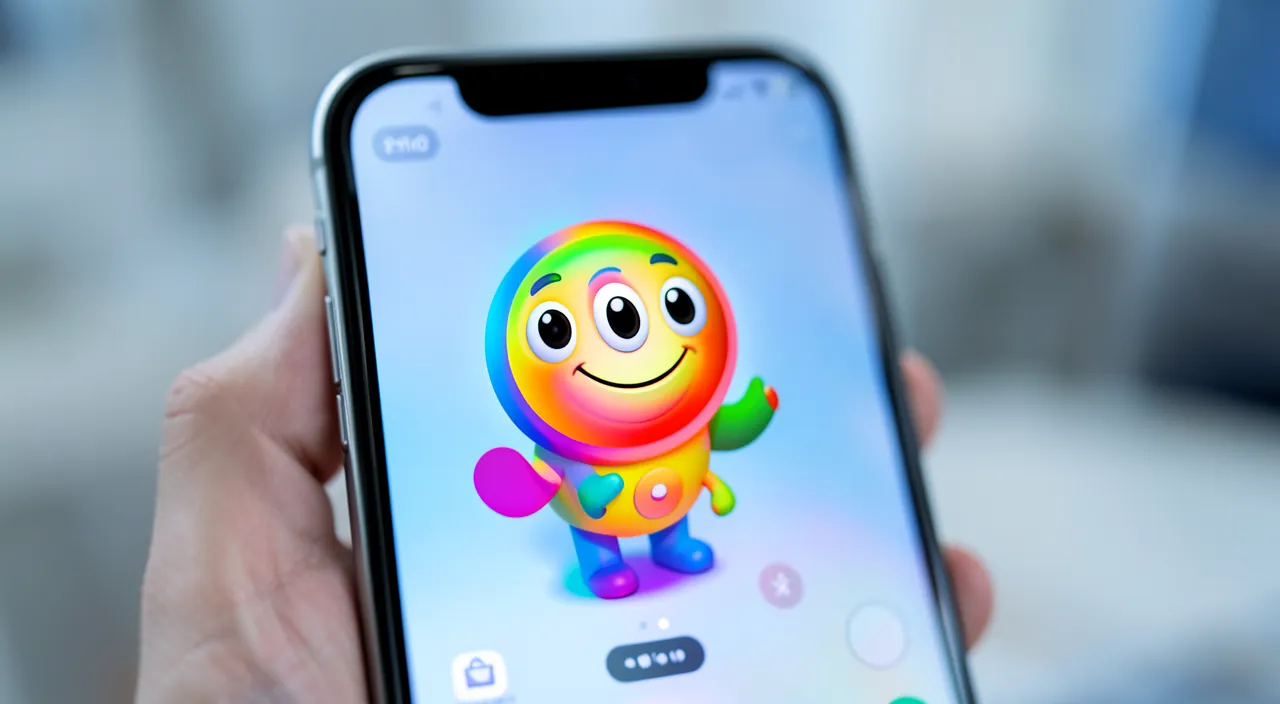
A Memoji is like a cartoon version of you that you can create on your iPhone. It’s free and built into the Messages app. You can customize it to look like you or create any character you want. The main use is to send fun stickers in your messages that express emotions like happiness or surprise. Some iPhones can even make it move with your face. It’s just for fun, not something you have to use.
Imagine you’re texting a friend and want to say “I’m so happy for you!” Instead of typing the words, you can send a sticker of your Memoji doing a happy dance. If you have an iPhone 12 or newer, you could even record a short video where your Memoji mimics your face saying “Congratulations!” in your voice.
How to create your Memoji step by step
Creating a Memoji is simple and done in the Messages app; let’s follow the steps. OPEN a conversation: in the Messages app, open a conversation (or a new message); the starting point; to do. Touch the MEMOJI/stickers icon: touch the stickers/Memoji icon above the keyboard (often a little face); access the Memoji; step. “NEW Memoji”: touch “+” or “New Memoji” to create one; start the creation; step. CHOOSE the skin: select the skin color; customize; step. The HAIRSTYLE: choose hair (style, color); in your image; step. The EYES, eyebrows: shape and color of the eyes, eyebrows; detail; step. The NOSE, mouth: adjust the facial features; refine; step. GLASSES, headgear: add glasses, hat, earrings; accessorize; step. The OUTFIT: choose the clothes; dress; step. VALIDATE (“OK/Done”): touch “Done” to save; it’s created; end. In summary, creating your Memoji takes a few minutes, in the MESSAGES app. Step by step: 1) Open the MESSAGES app and enter a conversation (or create a new message). 2) Above the keyboard (or via the app icon next to the text area), touch the MEMOJI/STICKERS icon (it looks like a little face or a sticker). 3) Touch the “+” button (or “New Memoji”) to start the creation. 4) You then arrive on the customization screen, organized by CATEGORIES (skin, hairstyle, eyes, head, eyebrows, nose, mouth, ears, facial hair, glasses, hats, outfit…): browse each category and CHOOSE what you like. Start with the SKIN color, then the HAIRSTYLE (style and color of the hair), the EYES (shape and color), the facial features (nose, mouth, eyebrows), then add ACCESSORIES (GLASSES, hat, earrings) and an OUTFIT. Take your time: that’s all the fun! 5) When your character suits you, touch “Done” (or “OK”) to SAVE it. There you go, your Memoji is created! It is now available to be used in your messages. You will always be able to MODIFY it later, or create OTHERS in the same way. It’s as simple as that: no technical skills required, just a bit of imagination.
Everything happens in the Messages app: touch the stickers/Memoji icon, then “+” to create a new character, and have fun choosing each detail. Take your time, nothing is final: you can change everything later. Creating a Memoji can seem intimidating if you’re not comfortable with technology, but it’s actually one of the SIMPLEST and MOST FUN features of the iPhone. Here’s how to get started with confidence. The starting point: the MESSAGES app. Contrary to what you might think, you don’t create a Memoji in Settings, but directly in the MESSAGES app (the one where you send your SMS and iMessages). Open any CONVERSATION (or start a new one). Just above the keyboard, or by touching the small icon next to the text area, you’ll find the STICKERS/MEMOJI icon (a smiling face, or a sticker icon). Touch it. Creating a new character: touch the “+”. Once in the Memoji space, you may already see existing Memoji: to create a new one (YOURS), look for the “+” button or the mention “New Memoji,” and touch it. You’re now on the creation screen. The customization workshop: have fun! This is the fun part. The screen is organized in CATEGORIES that you scroll through (they are presented as tabs or a list): SKIN, HAIRSTYLE, EYEBROWS, EYES, HEAD, NOSE, MOUTH, EARS, FACIAL HAIR (beard, mustache), GLASSES, HEADGEAR, EARRINGS, OUTFIT… For EACH category, you’re offered plenty of options: touch the one you like, and you see IMMEDIATELY the result on your character at the top of the screen. You can often also choose COLORS (for the hair, skin, clothes). Take your TIME, explore, try: try to look like yourself, or on the contrary create a whimsical character—it’s up to you. Nothing is final: no stress. Here’s the MOST REASSURING point: NOTHING is FINAL. You don’t have to “succeed on the first try.” Once your Memoji is created (button “Done”), you can at any time MODIFY it (change its hairstyle, outfit, a detail), DUPLICATE it, or DELETE it to start over. You can also create MULTIPLE Memoji (one that looks like you, one whimsical, one for the holidays…). So go ahead without fear of making a mistake: it’s a game, not an exam. To finish: touch “Done.” When your character pleases you, simply touch “Done” (or “OK”) at the top of the screen: your Memoji is saved and ready to use. In summary: everything happens in the MESSAGES app (stickers/Memoji icon, then “+” for a new one); have fun choosing each detail in the categories (skin, hairstyle, eyes, outfit…), seeing the result in real time; take your time, without stress, because NOTHING is final (you can modify, duplicate, or redo everything later); then touch “Done.” It’s a fun, free, and risk-free activity: the best way to tame this little nice feature of your iPhone.
Using and managing your Memoji on a daily basis
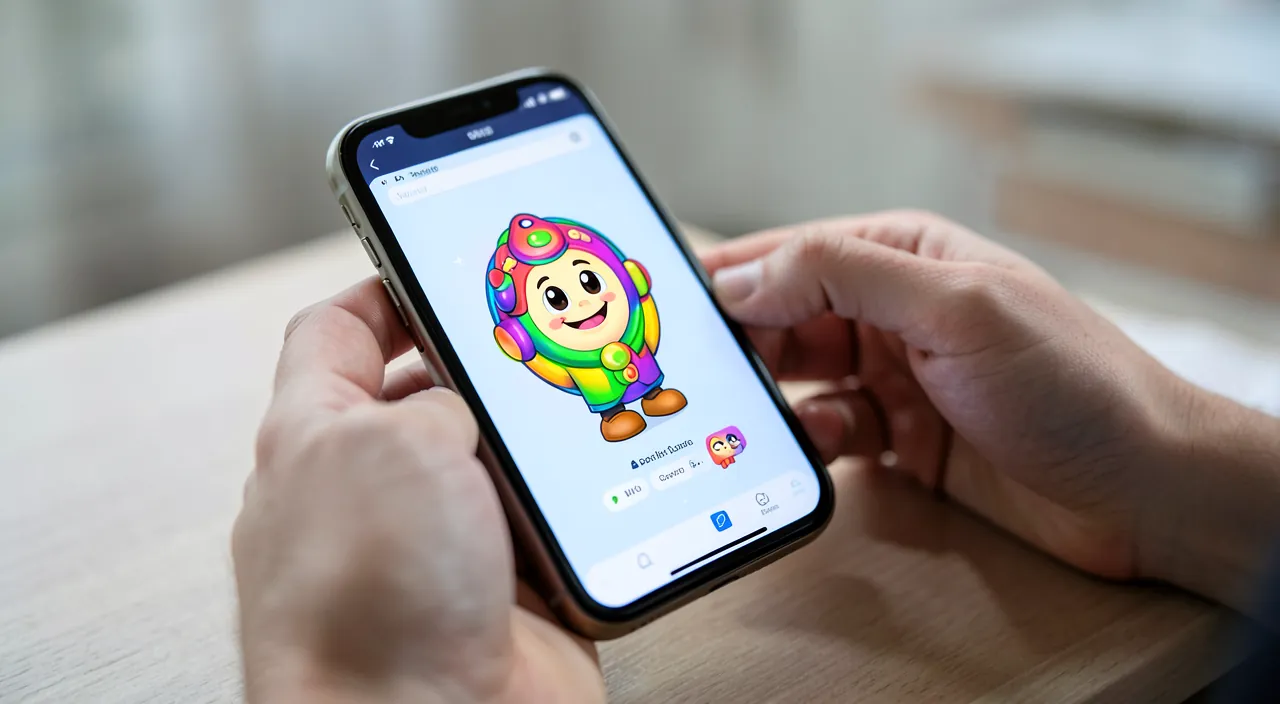
Once created, your Memoji can be used in several ways; let’s see how to take advantage of it and manage it. Sending STICKERS: in a conversation, choose a Memoji sticker (an expression) and send it; liven up exchanges; the main use; fun. VARIED EXPRESSIONS: the Memoji generates lots of stickers (happy, laughing, thumbs up, heart…); variety; to explore. As a PROFILE PICTURE: set your Memoji as a picture in Messages/contacts; present yourself as an avatar; option; nice. An ANIMATED Memoji: on some models, record a small animated message that follows your face; playful; bonus. MODIFY the Memoji: go back to the Memoji space to edit it (hairstyle, outfit…); make it evolve; easy. Create OTHERS: add multiple characters; vary the avatars; to know. DUPLICATE, delete: copy to vary, or delete those you no longer want; manage; option. Adapt to the SEASON: change outfit/accessories according to mood or holidays; have fun; idea. In OTHER apps: Memoji stickers can sometimes be used elsewhere (via the sticker keyboard); extend the use; possible. For FUN: it’s mainly playful and personal; enjoy it without pressure; mindset. In summary, once your Memoji is created, you can use and manage it in several ways. The MAIN use is the STICKERS (stickers): in a Messages conversation, open the Memoji stickers space, and you’ll find a whole collection of EXPRESSIONS of your character (happy, burst of laughter, thumbs up, heart, surprise, wink…): touch the one that suits you to SEND it in the conversation, and liven up your exchanges. You can also set your Memoji as a PROFILE PICTURE (in Messages, or for your contact card: your correspondents then see you in the form of your avatar). On some models, you can record a small VIDEO MESSAGE where the Memoji follows your expressions and your voice (very fun to send). On the MANAGEMENT side: you can at any time MODIFY your Memoji (go back to the Memoji space, select it, and edit its hairstyle, outfit, accessories—practical to make it evolve, or adapt it to a SEASON, a mood, a holiday), create OTHERS (several different characters), DUPLICATE or DELETE them. Memoji stickers can sometimes be used in OTHER apps as well (via the sticker keyboard). Remember the spirit: the Memoji is mainly PLAYFUL and personal—there is no “correct use,” just the pleasure of adding a personal touch to your conversations. Have fun with it without pressure: that’s what it’s for.
Good to know: Memoji is an Apple feature, mainly useful between Apple devices; it requires a fairly recent iPhone; and it’s just entertainment, with no obligation. A few clarifications to avoid disappointments or misunderstandings with Memoji. First point: Memoji is an APPLE feature. Memoji are specific to the Apple universe (iPhone, iPad): they work particularly well when you exchange with other iPhone users (via iMessage, blue bubbles). If you send a Memoji sticker to someone who DOESN’T have an iPhone (an Android phone, for example), they will generally receive it as an IMAGE (a photo of the sticker), which works, but without the animated aspect or full integration. So don’t be surprised if the rendering differs depending on the recipient: it’s normal, it’s due to the differences between systems. Second point: you need a fairly RECENT iPhone (or iPad). Creating and using Memoji requires a relatively recent and up-to-date Apple device. On an OLDER iPhone, the feature may be ABSENT, LIMITED (for example, fixed stickers without the animation that follows the face), or require a system update. If you don’t find Memoji on your device, check that it’s up to date; if it’s really old, the feature may not be available (it’s not a failure: just a device limitation). Third point: don’t confuse Memoji and Animoji. You may hear about “Animoji”: these are PRE-EXISTING ANIMATED characters (animals, robots…) that follow your face, while the MEMOJI is the avatar that YOU personalize in your image. It’s similar and they are mixed in the same space: don’t worry about the names, the essential thing is that you know how to create YOUR character. Fourth point: it’s ENTERTAINMENT, with no obligation. Memoji is purely PLAYFUL: there is NO OBLIGATION to create one or to use it. If it amuses you, great; if it doesn’t interest you, you don’t lose ANYTHING important (it’s neither useful nor necessary for your phone’s operation). Don’t feel “left behind” for not using it: it’s an optional little pleasure, nothing more. Fifth point: be careful with shared photos/expressions. If you use the ANIMATED Memoji (which records your voice and follows your face), know that you’re sending a small video message: as with any sharing, send it to the right people (nothing sensitive here, but it’s a good general reflex). The Memoji itself does not collect any particular information: it’s just a simple animated drawing. Sixth point: if you can’t find your Memoji or the icon, no worries: they are in the Messages app (stickers icon), and are linked to your device/account; an update or a restart fixes most small display issues (consult our iPhone guides to learn more). In summary: Memoji is an APPLE feature (fully useful between Apple devices; a non-Apple recipient receives a simple image), it requires a fairly RECENT and up-to-date iPhone/iPad (absent or limited on an old device—it’s not a failure), not to be confused with “Animoji” (pre-existing animated characters), and it’s pure ENTERTAINMENT with no obligation (you don’t lose anything by not using it). Create it and use it for fun, in all simplicity: it’s a nice little fantasy, without any stakes.
Frequently asked questions
Do I need a recent iPhone to create a Memoji?
Yes, you need a fairly recent and up-to-date iPhone (or iPad): on an older model, the feature may be absent or limited; first check that your device is up to date, and if you don’t find Memoji, it’s probably because your device is too old for this feature. Let’s see. A RECENT ENOUGH device: Memoji require a fairly recent iPhone/iPad; constraint; to know. UP TO DATE: make sure the system is up to date; an update can activate/improve the feature; advice. On an OLD one, limited/absent: on an old model, the feature may be missing or reduced; not a failure; to know. ANIMATION requires more: the animated Memoji (which follows the face) requires a more recent model; the fixed stickers, less; nuance. CHECK in Messages: look for the stickers/Memoji icon in Messages; if absent, the device is probably too old; diagnosis. UPDATE first: before concluding, do the updates; sometimes it unlocks; advice. No FAILURE: the absence on an old model is normal, not a defect; reassuring; to know. NOTHING to install: on a compatible device, it’s integrated (no app to download); simple; to know. In case of DOUBT: check the compatibility of your model; or ask for help; useful. FUN first: if your device doesn’t have it, you don’t lose anything essential; it’s playful; relativize. The ADVICE: yes, you need a fairly recent and up-to-date iPhone/iPad; on an old one, the feature may be missing or limited (not a failure); update, check the stickers icon in Messages, and know that you don’t lose anything essential if the device doesn’t have it. In summary, YES, creating a Memoji requires a fairly RECENT and UP-TO-DATE iPhone (or iPad). It’s a fairly modern feature, so not all devices offer it, or not in all its possibilities. Concretely: on a RECENT iPhone, you’ll have the full feature (creation of the Memoji AND stickers AND, on suitable models, the animation that follows your face). On a slightly OLDER iPhone, you may be able to create a Memoji and use its STICKERS (the fixed stickers), but without the real-time animation (which requires more recent hardware). On a VERY old iPhone, the feature may be completely ABSENT. Before concluding anything, first do the UPDATES of your device: sometimes, a simple system update activates or improves the feature. Then, check its presence: open the MESSAGES app, enter a conversation, and look for the STICKERS/MEMOJI icon (a little face) above the keyboard or next to the text area. If you find it, you can create your Memoji; if it’s absent despite an up-to-date device, it’s probably because your model is too old for this feature. REASSURING POINT: the absence of Memoji on an old device is NOT a failure or a defect—it’s simply a NORMAL LIMIT of older devices. And as Memoji is purely PLAYFUL, you don’t lose ANYTHING essential if your device doesn’t offer it: your phone works perfectly without it. In summary: yes, you need a fairly recent and up-to-date iPhone/iPad (animation requires a more recent model than simple stickers); first update your device, check the presence of the stickers icon in Messages, and if the feature is missing on an old model, it’s normal (not a failure) and without consequence, since it’s just entertainment. On a compatible device, everything is integrated and free: nothing to install.
Can I modify or delete a Memoji that has already been created?
Yes, absolutely: go back to the Memoji space (in Messages), select the Memoji in question, and you’ll be able to modify it (change hairstyle, outfit, accessories…), duplicate it, or delete it; nothing is final, you can make it evolve as much as you want. Let’s see. MODIFIABLE at will: a created Memoji is not fixed; you can retouch it whenever you want; reassuring; important. Go back to the MEMOJI space: in Messages, reopen the stickers/Memoji space; the access point; step. SELECT the Memoji: choose the one to change; then look for “Modify” (often via “…” or a button); step. MODIFY the details: change hairstyle, color, outfit, accessories; make it evolve; easy. DUPLICATE: copy a Memoji to make a variant; save time; option. DELETE: remove a Memoji you no longer want; clean up; option. Have SEVERAL: keep several, modify them independently; vary; to know. ADAPT it: change its outfit according to the season/mood; have fun; idea. No LOSS: modifying doesn’t break anything; it’s designed for; reassuring. EXPERIMENT: try, go back, redo; without fear; mindset. The ADVICE: yes; go back to the Memoji space (Messages), select it, and modify/duplicate/delete at will; nothing is final, make it evolve as you want. In summary, YES, you can absolutely MODIFY or DELETE a Memoji that has already been created—nothing is final, and that’s one of the nice aspects of this feature. To do this, go back to the MEMOJI SPACE: open the MESSAGES app, enter a conversation, touch the stickers/Memoji icon, and you’ll find your existing Memoji. SELECT the one you want to change, then look for the “MODIFY” option (often accessible via a “…” button—three small dots—or a menu associated with the Memoji). You then return to the customization screen, where you can change EVERYTHING you want: the hairstyle, the color of the hair or skin, the eyes, the outfit, the accessories (glasses, hat…). Practical to make your avatar EVOLVE—for example, change its outfit according to the SEASON, add an accessory for the holidays, or adjust it if your look has changed. In the same menu, you’ll also find the options to DUPLICATE a Memoji (make a copy, practical to create a variant without starting from scratch) or DELETE it (to remove a character you no longer want, or start over with a new creation). You can manage SEVERAL Memoji independently. REASSURING POINT: modifying a Memoji doesn’t “break” anything and involves no risk—it’s designed for. So don’t hesitate to EXPERIMENT: try a hairstyle, change it if you don’t like it, redo, adjust… It’s a game, and you can come back to it as many times as you want. In summary: yes, a Memoji can be modified and deleted at will; go back to the Memoji space (in Messages), select it, and use the “Modify” option (via “…”) to change its details, duplicate it, or delete it; nothing is final, you can make it evolve and experiment without any fear. It’s a feature designed to have fun freely.
What is a Memoji concretely used for?
It’s mainly used to personalize and liven up your conversations: send funny stickers in your image (with lots of expressions), serve as a profile picture, or (on some models) create small animated messages; it’s a playful and personal touch, with no “serious” use or obligation. Let’s see. LIVEN UP messages: the #1 use is to animate your conversations with stickers in your image; fun; main. EXPRESSIVE STICKERS: send stickers (happy, laughing, thumbs up, heart…) that represent you; more alive than a simple word; nice. PROFILE PICTURE: use your Memoji as an avatar (Messages, contact); present yourself with fantasy; option. ANIMATED MESSAGES: on some models, a small clip where the Memoji follows your face/voice; playful; bonus. A PERSONAL TOUCH: add “you” to exchanges; personalize; the idea. AMUSE loved ones: children, grandchildren love it; connection; pleasant. No “serious” use: it’s neither a practical tool nor an obligation; it’s for fun; to know. OPTIONAL: you can very well do without it; no consequence; reassuring. Express a MOOD: a sticker conveys an emotion at a glance; expressive; useful. THE FUN: at the end of the day, it’s entertainment; enjoy it freely; mindset. The ADVICE: the Memoji is used to personalize and liven up your conversations (expressive stickers in your image, profile picture, animated messages); it’s playful and personal, with no serious use or obligation; enjoy it for fun. In summary, concretely, a Memoji is mainly used to PERSONALIZE and LIVEN UP your conversations—it’s a playful pleasure, not a “serious” tool. Its main use is the STICKERS (stickers): instead of simply writing “great!” or “bravo,” you can send a small sticker of YOUR character that gives a thumbs up, laughs out loud, sends a heart, or makes a face. It’s more ALIVE, more EXPRESSIVE, and more personal than a simple word: in a glance, your correspondent “sees” your reaction and your mood, in your own image. It’s particularly FUN in families: children and grandchildren love receiving (and sending) these little characters, which creates a bond and complicity in exchanges. Another use: the PROFILE PICTURE. You can use your Memoji as an avatar in Messages or for your contact card: your correspondents then see you in the form of your character, a nice and slightly whimsical way to present yourself (without putting a real photo of you, if you prefer). On some models, you can even create small ANIMATED MESSAGES: a mini-clip where your Memoji reproduces your facial expressions and your voice—very fun to send to surprise a loved one. But let’s be clear: the Memoji has NO “practical” or “serious” use (it’s neither a work tool, nor a feature useful in everyday life)—and there is NO OBLIGATION to use it. It’s ENTERTAINMENT, a little personal and fun touch, nothing more: you can perfectly do without it without losing anything. In summary: a Memoji is used to personalize and liven up conversations (send expressive stickers in your image, serve as a profile picture, create animated messages); it’s a playful and personal touch, especially appreciated in families, but with no “serious” use or obligation; use it simply for fun, if the mood strikes you.
What to remember
The Memoji is the PERSONALIZED AVATAR of the iPhone: a small character that you compose in your image (or according to your fantasy), to liven up your conversations. It’s a feature INTEGRATED into recent iPhones and iPads, entirely FREE, and accessible to everyone—no technical skills required. To CREATE it: everything happens in the MESSAGES app. Open a conversation, touch the stickers/Memoji icon (a little face) above the keyboard, then “+” (or “New Memoji”), and have fun choosing each detail in the categories: skin, hairstyle, eyes, facial features, glasses, hat, outfit… while seeing the result in real time. Take your time: that’s the fun of it! Key reassuring point: NOTHING is final—you’ll always be able to MODIFY your Memoji (hairstyle, outfit…), duplicate it, delete it, or create others, as many times as you want. So go ahead without fear of making a mistake. To USE it: its main use is the STICKERS (stickers)—a collection of expressions of your character (happy, laughing, thumbs up, heart…) to send in your conversations to make them more lively and personal (a delight in families). You can also make it your PROFILE PICTURE, or, on some models, create small ANIMATED messages. Good to know: the Memoji is an APPLE feature (fully useful between Apple devices; a non-Apple recipient receives a simple image), it requires a fairly RECENT and up-to-date iPhone/iPad (absent or limited on an old device—it’s not a failure, and you don’t lose anything essential), and it’s pure ENTERTAINMENT: no obligation to use it. In short, creating your Memoji is a simple, free, and fun activity, with no risk: a little playful workshop to create a character in your image, and add a touch of fantasy and personality to your exchanges—for fun, and nothing but that.
Want to unlock the full potential of your iPhone, iPad, or Mac? Our Apple training courses help you take the next step.
Leave a Reply
You must be logged in to post a comment.