
Your touchscreen isn’t responding correctly? You touch it and nothing happens, or the device reacts on its own, off to the side, or in fits and starts? A temperamental touchscreen is very frustrating, but don’t worry: the cause is often minor and easy to fix—a dirty screen, a poorly placed case or screen protector, damp fingers, a minor software bug. Before worrying about a hardware failure, a few simple checks solve most cases. By following steps, from the most obvious to the most technical, you usually identify the problem without being an expert. Let’s see why a touchscreen responds poorly, the simple gestures to fix it, and when you should consider a repair.
Why a touchscreen responds poorly
Several causes can explain a temperamental touchscreen; let’s look at them. A DIRTY screen: fingerprints, grease, dust interfere with the touchscreen; dirt disrupts detection; the most common cause; check this first. DAMP/dirty fingers: wet, greasy, or creamy fingers; the touchscreen responds poorly; dry them; common. A poorly placed FILM or case: low-quality screen protector, air bubbles, case that overlaps; they interfere with the touchscreen; check; common. A minor SOFTWARE BUG: the system temporarily freezes; a restart often helps; common; simple. HUMIDITY: water/condensation on or inside the screen; the touchscreen malfunctions; dry it; possible. EXTREME HEAT/COLD: extreme temperatures sometimes disrupt the touchscreen; a factor; possible; to know. OVERLOAD: device is overloaded, slow; the touchscreen seems to respond poorly (slowness); lighten the load; common. A DAMAGED screen: cracked screen, impact, water infiltration; a real hardware issue; more serious; to diagnose. GHOST TOUCH: the screen reacts on its own (ghost touches); often linked to a hardware/electrical issue; to monitor; serious. Often BENIGN: most causes (dirt, film, bug) are easily fixed; reassuring; proceed step by step; positive. In summary, several causes can explain a touchscreen that responds poorly, and most are BENIGN. The most frequent: a DIRTY screen (fingerprints, grease, dust that disrupt detection: the most common cause, check this first), damp, greasy, or creamy fingers (the touchscreen responds poorly), a poorly placed SCREEN PROTECTOR or CASE (low-quality, with air bubbles, or overlapping the screen: they interfere with the touchscreen), and a minor TEMPORARY SOFTWARE BUG (which a restart often fixes). Other causes: HUMIDITY (water or condensation on or inside the screen), EXTREME TEMPERATURES (heat or cold), device OVERLOAD (which makes it slow, giving the impression that the touchscreen responds poorly), or a DAMAGED screen (cracked, impact, water infiltration: there, it’s a real hardware issue). A special case: the « GHOST TOUCH » (the screen reacts on its own, touches are triggered without you touching); often linked to a hardware or electrical issue—more serious. Don’t worry: most causes (dirt, fingers, film, bug) are easily fixed, without being an expert. Let’s see how.
Most touchscreen problems come from simple things like dirt, wet fingers, or a bad screen protector. These are easy to fix. Only a few cases (like cracks or ghost touches) need a repair.
Your iPhone screen suddenly stops responding after eating greasy food. Wiping the screen with a microfiber cloth fixes it immediately – the grease was blocking the touch detection.

Simple gestures to restore a responsive touchscreen
Here are the checks and solutions, from the simplest to the most technical; let’s follow them. CLEAN the screen: wipe the screen with a soft cloth (dry or slightly damp); remove fingerprints and grease; the first step; effective. DRY your fingers: make sure your fingers are dry and clean; the touchscreen responds better; simple; useful. CHECK the film/case: a damaged film, air bubble, overlapping case; remove them to test; isolate the cause; important. RESTART the device: a restart often fixes a touchscreen bug; the magic gesture; simple; effective. TEST after drying: if there’s humidity, dry and test; water disrupts; let it dry; useful. REMOVE the film/case to test: if it works better without, the film/case was the issue; replace with a better one; diagnosis; advice. LIGHTEN the device: close apps, free up space; if slowness gave the impression of a slow touchscreen; useful. UPDATE: an update may fix a touchscreen bug; maintenance; useful; advice. Avoid extremes: bring the device to normal temperature (not burning, not frozen); the touchscreen returns; possible; useful. OBSERVE the type of issue: doesn’t respond / reacts on its own / off to the side; the symptom guides; useful; methodical. In summary, to restore a responsive touchscreen, proceed from the SIMPLEST to the most technical. The first step: CLEAN the screen (with a soft cloth, dry or slightly damp: to remove fingerprints, grease, and dust that disrupt the touchscreen), and make sure your fingers are DRY and clean (damp, greasy, or creamy fingers make the touchscreen respond poorly). Then, CHECK the SCREEN PROTECTOR and CASE: remove them to test—if the touchscreen works better without, they were the issue (damaged film, air bubble, overlapping case: replace with better-quality material). The often magical gesture: RESTART the device (a simple restart often fixes a temporary touchscreen bug). If HUMIDITY is the issue, DRY and let it dry before testing; if the device is overloaded and slow, LIGHTEN it (close apps, free up space); bring it to NORMAL TEMPERATURE if it was too hot or too cold; and UPDATE (an update may fix a touchscreen bug). Finally, OBSERVE the TYPE of issue (the screen doesn’t respond at all? reacts on its own? off to the side of where you touch?—the symptom guides the diagnosis). By proceeding methodically, you’ll fix most temperamental touchscreen issues; otherwise, you’ll need to consider a repair.
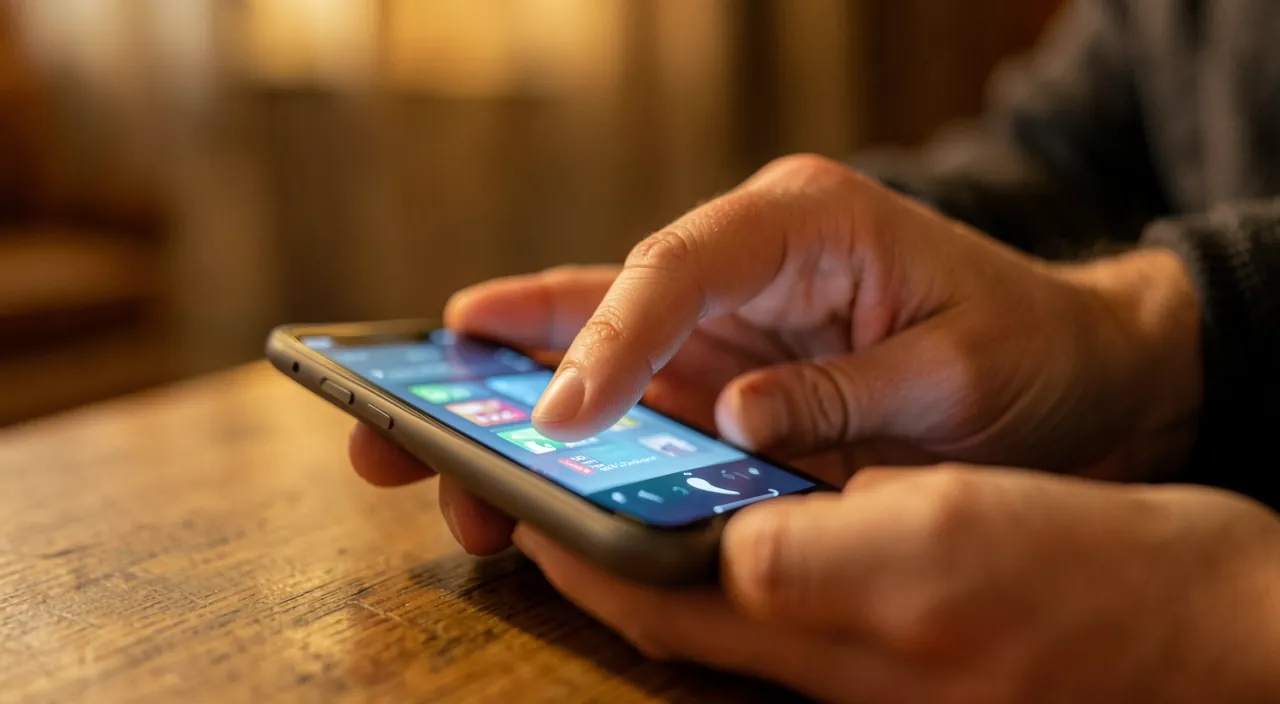
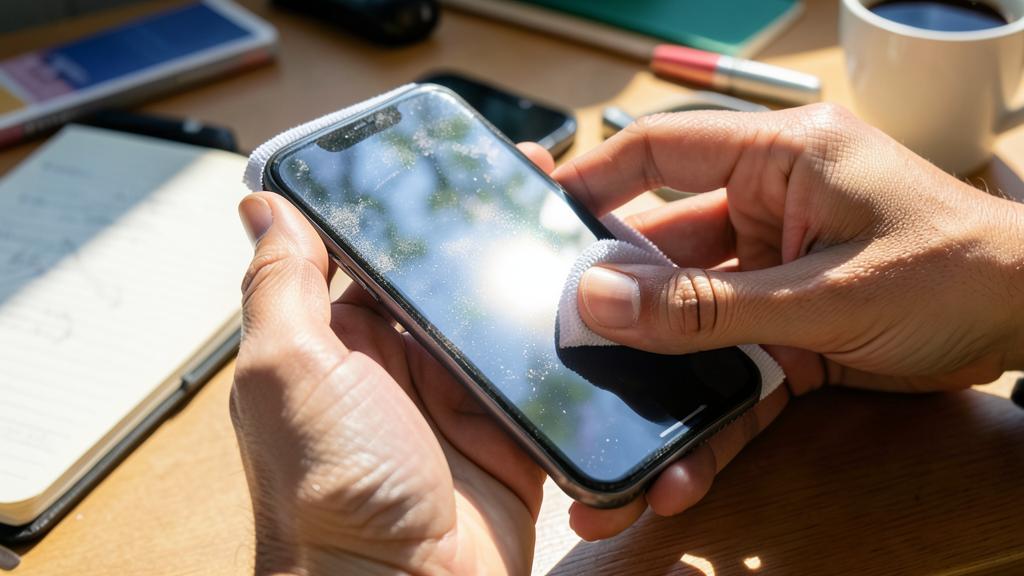
Winning reflexes: clean the screen, dry your fingers, remove the film/case to test, and restart the device. Before worrying about a failure, four simple gestures resolve most temperamental touchscreen issues. Test them in this order. Step 1: CLEAN the screen. This is the most common and easiest cause to fix. A screen covered with fingerprints, grease, dust, or residue disrupts touch detection: the device « sees » your fingers poorly through the dirt. Wipe the screen with a SOFT cloth (microfiber type), dry or slightly damp (not soaked, and avoid aggressive products): in many cases, a clean screen regains its full responsiveness. Step 2: DRY and clean your FINGERS. The touchscreen works thanks to the contact of your skin: DAMP (wet, sweaty), GREASY (after eating), or CREAMY fingers make the screen respond poorly. Make sure your fingers are DRY and CLEAN—a simple but often overlooked gesture that sometimes fixes everything. (Note: the touchscreen also works poorly with ordinary gloves, or if the screen itself is wet.) Step 3: REMOVE the screen protector and case to test. A poorly placed or low-quality accessory is a very common and often unsuspected cause. A damaged, poorly adhered, or too thick screen protector with air bubbles can interfere with the touchscreen; a case that OVERLAPS the edges of the screen can create unintended touches or block areas. The test: TEMPORARILY remove the film and case, then try the touchscreen. If the screen becomes responsive WITHOUT them, you’ve found the culprit: replace the film with a well-adhered, high-quality model, or the case with a better-fitting one. Step 4: RESTART the device. The « magical » gesture that fixes so many issues: a simple restart often resolves a TEMPORARY SOFTWARE BUG that was blocking the touchscreen. Turn the device completely off, wait a few seconds, and turn it back on. It’s quick, risk-free, and surprisingly effective for temporary issues. In addition, if these gestures aren’t enough: check for HUMIDITY (dry the device and screen, let it dry), that the device isn’t OVERLOADED and slow (close apps, free up space—the slowness can give the impression of a touchscreen that responds poorly), that it’s at NORMAL TEMPERATURE (not burning or freezing), and INSTALL updates (which sometimes fix touchscreen bugs). In summary, the winning reflexes for a temperamental touchscreen: CLEAN the screen (soft cloth: the #1 cause), DRY and clean your FINGERS (dry and clean: the touchscreen needs good contact), REMOVE the film and case to test (poorly placed accessories: common unsuspected cause—if it works better without, replace them), and RESTART the device (often fixes a temporary bug). Supplement with: drying if there’s humidity, lightening if it’s slow, normal temperature, and updates. These simple gestures, tested in order, resolve most cases—before even thinking about a failure. Always start with them.
Recognizing a real problem and reacting properly
If the simple gestures aren’t enough, here’s how to interpret and react; let’s follow these guidelines. A TEMPORARY issue: if it only happens occasionally and is fixed; not serious; monitor; reassuring. A PERSISTENT issue: if the touchscreen responds poorly permanently despite the gestures; a real problem; to address; important. GHOST TOUCH: the screen reacts on its own, without you; often a hardware/electrical issue; serious; to have checked. After an IMPACT/fall: if the issue follows a fall; the screen may be damaged; hardware; repair. After contact with WATER: water infiltration; this can damage the touchscreen; dry, then have it checked; important. A CRACKED screen: cracks can disrupt the touchscreen; physical damage; screen repair; serious. A DEAD ZONE: a part of the screen no longer responds; often hardware; to diagnose; serious. BACK UP your data: if the touchscreen weakens, back up while it still works; don’t get stuck; cautious; advice. TEMPORARY WORKAROUND: (voice assistance, other modes) to use the device while waiting; temporary fix; useful; possible. Have it REPAIRED: for a hardware issue (impact, water, dead zone), a professional; screen repair; wise; important. In summary, if the simple gestures aren’t enough, know how to interpret the problem and react properly. A TEMPORARY issue (that only happens occasionally and is fixed) isn’t serious: monitor. But a PERSISTENT issue (the touchscreen responds poorly permanently despite all gestures) is a real problem to address, often HARDWARE. Some signs clearly indicate a hardware issue: the « GHOST TOUCH » (the screen reacts on its own, touches are triggered without you: often a hardware or electrical problem), an issue that appeared after an IMPACT or FALL (the screen may be damaged), after contact with WATER (infiltrated water that damages the touchscreen: dry then have it checked), a CRACKED screen (cracks disrupt the touchscreen), or a DEAD ZONE (a part of the screen no longer responds). In these cases, two reflexes: first, BACK UP your data while the device still works (to avoid being stuck if the touchscreen completely fails), possibly using a TEMPORARY WORKAROUND (voice assistance or other accessibility modes, to control the device without the touchscreen while waiting). Then, have it REPAIRED by a professional (a hardware issue—impact, water, dead zone, crack—requires a repair, often of the screen). In summary: distinguish the temporary (monitor) from the persistent (address); recognize the signs of a hardware issue (ghost touch, after impact/water, crack, dead zone); back up your data as a precaution; and call a professional for hardware problems.
Warning: don’t clean the screen with aggressive products, back up your data if the touchscreen weakens, and have a damaged screen repaired by a professional. A few important precautions for a temperamental touchscreen. First point: CLEAN the screen with CARE, without aggressive products. Cleaning is the first useful step, but it must be done correctly to avoid DAMAGING the screen. Use a SOFT cloth (microfiber), DRY or slightly dampened with water (or a product specifically designed for screens): NEVER use AGGRESSIVE PRODUCTS (strong alcohol, solvents, household cleaners, abrasives) or materials that scratch—they can damage the screen coating (and sometimes the touchscreen). Don’t soak the screen, and don’t apply liquid directly to it (put a little on the cloth if needed). A gentle cleaning is enough; a harsh or chemical cleaning can cause damage. Second point, essential: BACK UP your data if the touchscreen WEAKENS. If your touchscreen shows signs of weakness (it responds worse and worse, intermittently), act WHILE it still works: BACK UP your important data (photos, contacts, documents). Because if the touchscreen COMPLETELY FAILS, you might be UNABLE to use your device to recover anything—a very annoying situation. Don’t wait for total failure: back up as soon as the first signs of weakness appear, while it’s still possible. Tip: if the touchscreen is partially defective, you can sometimes control the device another way (voice assistance, accessibility modes, or by connecting it to a computer) long enough to back up. Third point: have a DAMAGED screen repaired by a PROFESSIONAL. If the problem comes from PHYSICAL DAMAGE—cracked screen, device dropped, contact with water, dead zone, persistent ghost touch—this isn’t something you’ll fix with simple gestures: it requires a repair. Have it done by a PROFESSIONAL: repairing or replacing a touchscreen requires specific skills and equipment—don’t try to open or repair it yourself without knowing (risk of worsening, injuring yourself, or voiding the warranty). A professional will diagnose precisely and repair safely. Fourth point: be careful with WATER and HUMIDITY. If your device has been in contact with water and the touchscreen malfunctions, don’t use it while wet, dry it, let it dry completely, and especially don’t charge it while damp (risk). If the issue persists after drying, have it checked: water may have infiltrated and damaged components. Fifth point: beware of « miracle » tips found online. Some « miracle » solutions to fix a touchscreen (hazardous manipulations, dubious apps) can worsen the situation or do nothing: stick to simple and safe gestures, and a real professional for the rest. Sixth point: weigh repair vs. replacement. For an old device, the cost of a screen repair may approach that of a replacement: find out the cost of the repair before deciding, and weigh it according to the age and value of the device. In summary: CLEAN the screen with care (soft cloth, dry or slightly damp; never aggressive products that damage the screen), BACK UP your data as soon as the touchscreen weakens (before it completely fails and locks you out), have a DAMAGED screen (crack, impact, water, dead zone, ghost touch) repaired by a PROFESSIONAL (don’t tinker with the screen yourself), be careful with WATER (dry, don’t charge while damp, have it checked if it persists), beware of dubious tips, and weigh repair against replacement according to the device’s age. These precautions prevent you from worsening the problem, losing your data, or exposing yourself: they allow you to handle a temperamental touchscreen safely.
Frequent questions
My touchscreen reacts on its own: what should I do?
A screen that reacts on its own (« GHOST TOUCH ») often comes from a problem: first try cleaning the screen, removing the film/case, and restarting; if it persists, it’s often a hardware or electrical issue (impact, water, damaged screen) that requires a professional. Let’s see. The « GHOST TOUCH »: the screen activates on its own, without you touching; a known symptom; to address; annoying. First, the SIMPLE GESTURES: clean the screen, remove film/case, restart; sometimes that’s enough; start there; useful. A FILM/CASE at fault: a poorly placed film or case can create false contacts; remove to test; possible cause; advice. HUMIDITY: water/condensation on the screen makes it react on its own; dry it; to rule out; possible. A FAULTY CHARGER: sometimes, a low-quality charger causes ghost touches while charging; test with/without another; to check; possible. Often HARDWARE: if it persists, it’s often a hardware/electrical issue (screen, after impact/water); more serious; to have checked; important. After an IMPACT/water: if it follows a fall or water; the screen is probably damaged; repair; serious. BACK UP: ghost touch can hinder use; back up your data; as a precaution; advice. Have it REPAIRED: if the simple gestures fail, a professional; ghost touch is often hardware; wise; important. The ADVICE: first try the simple gestures (clean, remove film/case, restart, test without the charger); if the ghost touch persists, it’s often a hardware/electrical issue (especially after an impact or water) that requires a professional; back up your data. In summary, a screen that reacts ON ITS OWN—what we call « ghost touch » (touches are triggered without you touching the screen)—is a known and annoying symptom, to be addressed methodically. Start with the SIMPLE GESTURES, which sometimes fix the problem: CLEAN the screen (residue can create false contacts), REMOVE the screen protector and case to test (a poorly placed film or overlapping case can cause unintended touches: if it stops without them, you’ve found the culprit), RESTART the device (to rule out a temporary bug), and rule out HUMIDITY (water or condensation on the screen makes it react on its own: dry it well). One point to check: the CHARGER—a low-quality or faulty charger sometimes causes ghost touches while charging; test if the problem mainly occurs while charging, and try without the charger or with another (quality). If, despite all these gestures, the ghost touch PERSISTS, it’s unfortunately often the sign of a HARDWARE or ELECTRICAL ISSUE—a problem with the screen itself, especially if it appeared after an IMPACT, FALL, or CONTACT WITH WATER (all causes that damage the screen or infiltrate moisture). In this case, two reflexes: first, BACK UP your data, as ghost touch can make the device difficult to use (touches triggering on their own can even perform unintended actions: be careful). Then, have it REPAIRED by a PROFESSIONAL: ghost touch of hardware origin requires a diagnosis and repair (often of the screen) that you don’t do yourself. In summary: for a screen that reacts on its own, first try the simple gestures (clean, remove film and case, restart, test without the charger, rule out humidity); if it persists—especially after an impact or water—it’s often a hardware issue that requires a professional, so back up your data and have it repaired.
Should I really remove the screen protector to test?
Yes, it’s worth it: a poorly placed or low-quality film or case is a frequent and often overlooked cause of a temperamental touchscreen; remove them to test—if the touchscreen becomes responsive without them, you’ve found the culprit and can replace them. Let’s see. YES, it’s worth it: the film/case is a frequent and often forgotten cause; the test is simple and revealing; do it; advice. A FILM at fault: damaged film, air bubbles, low quality, too thick; it interferes with the touchscreen; a real possible culprit; check. An OVERLAPPING CASE: a case that encroaches on the screen blocks areas or creates touches; also check; possible. The SIMPLE TEST: remove film and case, try the touchscreen; compare with/without; revealing; effective. If BETTER WITHOUT: the touchscreen becomes responsive → the film/case was at fault; you’ve found it; conclusive; useful. REPLACE with better quality: put back a well-placed, high-quality film, a well-fitted case; keep the protection without interference; advice. A WELL-PLACED FILM: a good film, well applied (no air bubbles), shouldn’t interfere; quality and placement matter; take care; useful. Often UNSUSPECTED: many people don’t think of the film/case; hence the interest in testing; a discreet cause; don’t forget. Easy to DO: removing a film/case is simple and risk-free; a quick test; accessible; practical. The ADVICE: yes, remove the film and case to test; a poorly placed or low-quality film or case often interferes with the touchscreen; if the touchscreen works better without, they were at fault; replace them with well-placed, high-quality material. In summary, yes, it’s really worth REMOVING the screen protector (and the case) to test—because they are FREQUENT and often UNSUSPECTED causes of a temperamental touchscreen, which many people don’t think of. Why a film or case can interfere with the touchscreen? A SCREEN PROTECTOR can cause problems if it’s DAMAGED (scratched, peeled), POORLY PLACED (with trapped air bubbles), LOW QUALITY, or too THICK: in all these cases, it can disrupt touch detection (the screen « feels » your fingers poorly through it). A CASE, on the other hand, can cause problems if it OVERLAPS the edges of the screen: it can then block certain touch areas or create unintended touches by pressing on the edge. The test is SIMPLE and REVEALING: temporarily remove the film AND the case, then try your touchscreen. If the screen becomes RESPONSIVE without them, you’ve identified the culprit! You just need to REPLACE them with well-placed, high-quality material: a high-quality screen protector, properly applied (no air bubbles), shouldn’t INTERFERE with the touchscreen—the quality and placement are key. Similarly, choose a case well suited to your model, which doesn’t overlap the screen. This test has all the advantages: it’s EASY to do (removing a film or case is simple and risk-free), QUICK, and it allows you to rule out (or confirm) a very frequent cause in a few seconds. It’s precisely because the film and case are often UNSUSPECTED that you shouldn’t forget to test them: we sometimes look for a complicated failure when the culprit is a poorly adhered film! In summary: yes, remove the film and case to test—it’s a simple reflex that reveals a frequent and discreet cause; if the touchscreen works better without them, replace them with well-placed, high-quality material that won’t interfere with detection. Never neglect this check.
How to back up my data if the touchscreen no longer responds?
Act while the touchscreen still works (at the first sign of weakness); if it’s already defective, try voice assistance, accessibility modes, or connect the device to a computer to recover your data; otherwise, a professional can help. Let’s see. ACT while it works: back up as soon as the first signs of weakness appear; don’t wait for total failure; anticipate; essential. AUTOMATIC BACKUP: if your data is already synced (online account), it may be safe; check; reassuring; useful. VOICE ASSISTANCE: control the device by voice (if activable); bypass the touchscreen; an option; useful. ACCESSIBILITY MODES: some modes allow navigating differently; use without touchscreen; possible; useful. CONNECT to a computer: plug the device into a computer to recover photos/files; without the touchscreen; effective; advice. PARTIALLY FUNCTIONAL TOUCHSCREEN: if a part responds, use it to start the backup; exploit what works; possible; clever. MOUSE/KEYBOARD (sometimes): some devices accept an external mouse; control differently; depending on the device; possible. Ask for HELP: a professional can recover your data from a device with a non-functional touchscreen; as a last resort; useful. The LESSON: regularly backing up avoids this stress; don’t depend on a single device; prevent; advice. The ADVICE: act as soon as the first signs of weakness appear (back up while the touchscreen works); if it’s already non-functional, try voice assistance, accessibility modes, or connect the device to a computer to recover your data; a professional can help as a last resort; and back up regularly in the future. In summary, to back up your data when the touchscreen no longer responds (or responds poorly), the ideal is to ACT EARLY, but solutions exist even if the touchscreen is already defective. The best reflex: act WHILE the touchscreen still works. At the FIRST SIGNS of weakness (the touchscreen responding worse and worse, intermittently), don’t wait for total failure: IMMEDIATELY back up your important data (photos, contacts, documents), while you can still use the screen. Good news beforehand: if your data is already AUTOMATICALLY SYNCED with an online account (your photos, contacts backed up in the cloud), they may already be SAFE—check what you’ve already backed up. If the touchscreen is ALREADY DEFECTIVE and you can no longer use the screen normally, several workarounds can help. VOICE ASSISTANCE: if it’s (or can be) activated, it allows controlling the device by voice, without the touchscreen. ACCESSIBILITY MODES: some devices offer alternative navigation modes (control by different gestures, by an external accessory) that bypass the touchscreen. Connecting the device to a COMPUTER: this is often the most effective solution—by plugging your device into a computer (via cable), you can often RECOVER your photos, files, and data without needing the touchscreen. On some devices, connecting an external MOUSE or keyboard also allows controlling them. If the touchscreen is PARTIALLY FUNCTIONAL (a zone still responds), use this part to start a backup. And if nothing works? A PROFESSIONAL can often recover data from a device whose touchscreen is out of service: it’s the last resort. The LESSON to learn, for the future: REGULARLY back up your data and automatically (in an online account, for example)—thus, a touchscreen failure (or any other failure) will never make you risk losing everything. In summary: act as soon as the first signs of weakness appear (back up while the touchscreen works); if it’s already non-functional, try voice assistance, accessibility modes, or especially connect the device to a computer to recover your data; a professional can help as a last resort. And in the future, back up regularly to never again depend on the health of a single device.
What to remember
A touchscreen that responds poorly—doesn’t react, reacts on its own, off to the side, or in fits and starts—is very annoying, but its cause is most often BENIGN and easy to fix. Frequent causes: a DIRTY screen (fingerprints, grease: the #1 cause), damp or greasy fingers, a poorly placed SCREEN PROTECTOR or CASE (frequent and unsuspected cause), a minor SOFTWARE BUG, humidity, device overload, or extreme temperatures. Winning reflexes, to test in order: CLEAN the screen (soft cloth: often enough), DRY and clean your FINGERS (the touchscreen needs good contact), REMOVE the film and case to test (if the touchscreen works better without, they were at fault: replace them with well-placed, high-quality material), and RESTART the device (often fixes a temporary bug). Supplement if needed with: drying in case of humidity, lightening if the device is overloaded and slow, returning to normal temperature, and installing updates. These simple gestures resolve most cases—before even thinking about a failure. But know how to recognize a real problem and react properly: a TEMPORARY issue isn’t serious (monitor), but a PERSISTENT issue despite all gestures is often HARDWARE. Some signs clearly indicate it: the « GHOST TOUCH » (the screen reacts on its own: often electrical/hardware—also check the charger), an issue that appeared after an IMPACT, FALL, or CONTACT WITH WATER, a CRACKED screen, or a DEAD ZONE. In these cases, two essential reflexes: BACK UP your data as soon as the first signs of weakness appear, while the touchscreen still works (if you wait for total failure, you might no longer be able to recover your data: if the touchscreen is already defective, try voice assistance, accessibility modes, or connect the device to a computer); and have a DAMAGED screen repaired by a PROFESSIONAL (a hardware issue—impact, water, crack, dead zone, persistent ghost touch—requires a repair you don’t do yourself). Precautions: clean the screen with care (soft cloth, dry or slightly damp; NEVER aggressive products that damage the screen), be careful with water (dry, don’t charge while damp), beware of dubious tips found online, and weigh repair against replacement according to the device’s age. In short, for a temperamental touchscreen, don’t worry too quickly: always start with the simple gestures (clean the screen, dry your fingers, remove film and case, restart), which fix most cases. If the problem persists or reveals hardware damage, back up your data and call a professional. And for the future, regularly back up your data: thus, no failure will ever make you lose everything.
Persistent failure, temperamental device? Our remote troubleshooting service quickly resolves your problem, without jargon.
Leave a Reply
You must be logged in to post a comment.