
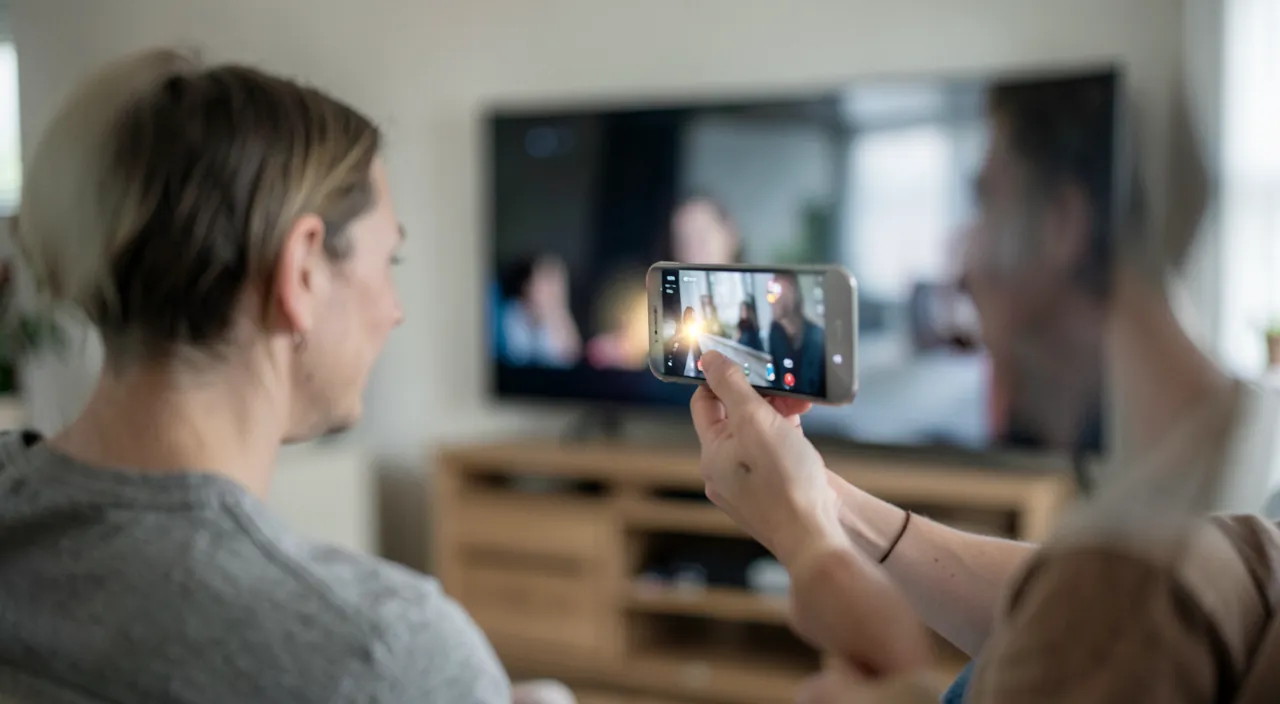
You’re watching a video, vacation photos, or a movie on your iPhone, and you’d like to enjoy the large screen of your TV instead of the small phone screen? Or listen to your music on a nice speaker instead of the iPhone’s speaker? AirPlay is made for this: this Apple feature allows you to STREAM wirelessly, with a single gesture, what’s on your iPhone (or iPad, Mac) to your TV or compatible speakers. No more cables: video, music, and photos go from the small screen to the big one, or to a good speaker, with a simple tap. It’s a very practical feature, but many people don’t dare to use it, for lack of knowing how. Let’s see what AirPlay is, how to use it concretely, and how to get the most out of it.
AirPlay: what is it?
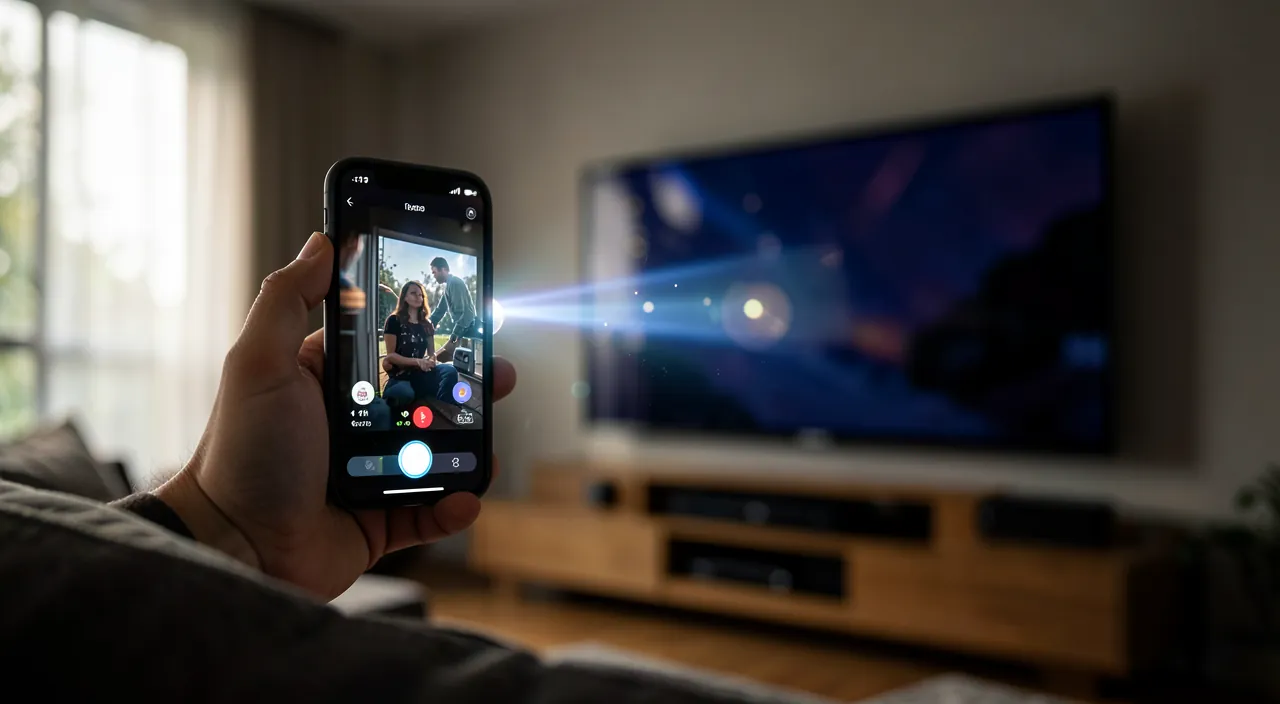
AirPlay allows you to stream wirelessly to a TV or speakers; let’s understand it. The PRINCIPLE: AirPlay is an Apple feature that allows you to STREAM WIRELESSLY the content of your iPhone (or iPad, Mac) to a TELEVISION or compatible SPEAKERS; videos, music, and photos go from the device to the big screen or speaker; no cable, with a gesture. What you can STREAM: VIDEOS (movies, series, YouTube), MUSIC, PHOTOS, and even the ENTIRE iPhone screen (to show anything); a wide range of content; almost everything streams. TO WHAT: to a compatible AirPlay TV (many recent TVs are), an Apple TV (the box), or compatible speakers (including Apple speakers and many others); check the compatibility of your equipment (we’ll come back to this). WIRELESS: everything goes through WiFi (your home network); no cable between the iPhone and the TV/speaker; the convenience of wireless; the iPhone stays in your hand. Two MAIN USES: STREAM a specific content (a video, music to the TV/speaker, the iPhone keeping its freedom), or COPY the screen (display the entire iPhone screen on the TV); two complementary modes (we’ll come back to this). The COMFORT of the big screen: watching a video or photos on the TV instead of the small iPhone screen is much more enjoyable, especially with others; AirPlay brings this comfort; share on a big screen. The COMFORT of good sound: listening to your music on a real speaker instead of the iPhone’s speaker greatly improves the sound; AirPlay streams to the speaker; better sound without effort. EASY once UNDERSTOOD: AirPlay is used with a gesture once you know where to find the icon; it’s simple, but many people don’t dare; discovering it changes the usage; an accessible convenience. The COMMON NETWORK: generally, the iPhone and the TV/speaker must be on the SAME WiFi network; this is the basic condition; they « see » each other this way; check the network (we’ll come back to this). What it’S FOR: to enjoy the big screen and good sound for your videos, photos, and music, without cables, with a simple gesture; a daily comfort; the iPhone becomes a remote control for your screens and speakers. The main idea: AirPlay is an Apple feature that allows you to STREAM WIRELESSLY (via WiFi) the content of your iPhone, iPad, or Mac to a TELEVISION or compatible SPEAKERS. You can thus send a video (movie, series, YouTube), music, photos, or even copy the entire screen of your iPhone to the big screen of the TV — with a simple gesture, without cables. Its two main uses: stream specific content to the TV or a speaker (the iPhone keeping its freedom), or copy the entire screen (to show anything). The benefit: enjoy the comfort of the big screen (videos, photos with others) and good sound (music on a real speaker rather than the small speaker of the iPhone). It works with AirPlay-compatible televisions, Apple TV, and compatible speakers, provided they are on the same WiFi network. Easy to use once you know where to find the icon, AirPlay is a convenience that many people don’t dare to use but which really facilitates daily life.
AirPlay lets you send videos, music, or photos from your iPhone to your TV or speakers without wires. You can either send just one thing (like a movie) while still using your phone, or mirror your whole screen (like showing a presentation). Both your phone and the TV need to be on the same WiFi network for it to work.
You’re watching a 4K movie on your iPhone 15 Pro Max. Using AirPlay, you send it to your 65-inch Samsung QLED TV (which supports AirPlay 2) while your phone stays on the same WiFi network. The movie plays in full quality on the big screen, and you can still check messages on your phone without interrupting playback.
How to use AirPlay
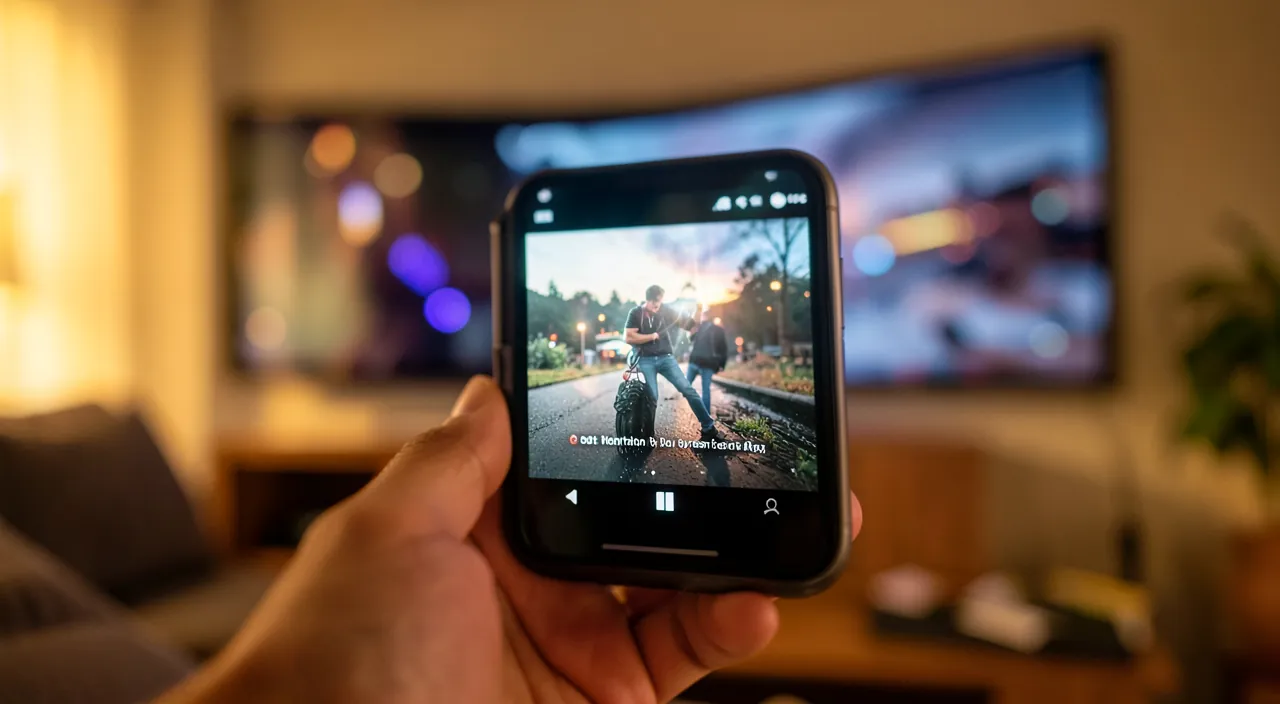
Here’s how to stream your content with AirPlay, step by step. Check the SAME WiFi network: first, make sure your iPhone AND the TV/speaker are on the SAME WiFi network; this is the condition for them to « see » each other; check this point first; without a common network, it doesn’t work. Spot the AIRPLAY icon: the AirPlay icon (a rectangle with a triangle at the bottom, like a screen) appears in apps and the Control Center; it’s the button to stream; learn to recognize it; it’s your access point. STREAM a VIDEO: in a video app (or YouTube), tap the AirPlay icon; choose your TV/Apple TV from the list; the video displays on the TV; you control it from the iPhone; simple and fluid. STREAM MUSIC: in a music app, tap the AirPlay icon (often near the play controls); choose your speaker; the music comes out of the speaker; enjoy the best sound; with a gesture. STREAM PHOTOS: in the Photos app, open a photo/slideshow, tap the share button, then AirPlay; choose the TV; your photos display in large; ideal with others; share your memories. COPY the SCREEN: to display the ENTIRE iPhone screen on the TV, open the Control Center, tap « Screen Mirroring, » choose the TV; your entire screen displays; useful to show anything (we’ll come back to this). CHOOSE the destination: when you tap AirPlay, a LIST of available devices appears (your TVs, speakers); choose the right one; if there are several, select the desired one; the list guides you. CONTROL from the iPhone: once streaming is started, you control it from the iPhone (play, pause, volume, change content); the iPhone is your remote control; practical; keep control. STOP the streaming: to stop, tap the AirPlay icon again and choose « iPhone » (return to the device), or stop screen mirroring; the streaming stops; simple to interrupt; resume on the iPhone. If the device DOESN’T APPEAR: if your TV/speaker is not in the list; check the same WiFi network, that the device is on and compatible with AirPlay, try again; several points to check (we’ll come back to this). In summary, to use AirPlay: first, make sure the iPhone and the TV/speaker are on the SAME WiFi network. Spot the AIRPLAY icon (a screen with a triangle). To stream a VIDEO or MUSIC, tap the AirPlay icon in the app and choose your TV or speaker; for PHOTOS, go through the share button then AirPlay; to display the ENTIRE iPhone screen, use « Screen Mirroring » in the Control Center. Choose the destination in the list, control playback from your iPhone (your remote control), and stop the streaming by tapping the icon again. If a device doesn’t appear, check the common network and that it is on and compatible. These simple gestures open up the big screen and good sound to you; the AirPlay icon, the same WiFi network, and the choice of destination are the keys.
The useful distinction: « stream content » or « copy the entire screen » — two different uses. To master AirPlay, you need to understand that there are two ways to use it, adapted to different needs. Distinguishing them well allows you to choose the right one according to the situation. The first way, the most common: STREAM A SPECIFIC CONTENT. Here, you send a PARTICULAR element — a video, a song, a photo slideshow — to the TV or speaker, by tapping the AirPlay icon directly IN the relevant app (the video app, the music app, the Photos app). The great advantage of this mode: only the chosen content goes to the big screen or speaker, and your iPhone remains FREE. While the movie plays on the TV, you can continue to use your iPhone normally — respond to a message, browse, without interrupting or displaying all that on the TV. The iPhone becomes a simple remote control: you control playback (pause, volume, next content), but the device keeps its own life. This is the ideal mode to watch a movie or series on the TV, listen to music on a nice speaker while doing something else, or launch a photo slideshow: you send the content, and you keep your phone available. It’s also generally the best QUALITY for these contents (the video is streamed directly in good definition). The second way: COPY THE SCREEN (also called « screen mirroring »). Here, it’s the ENTIRE screen of your iPhone that is reproduced in real time on the TV: absolutely everything you do on the iPhone is displayed on the big screen, identically. You activate this mode from the Control Center (the « Screen Mirroring » button), by choosing the TV. This mode is precious when you want to show on a big screen something that doesn’t have a dedicated AirPlay button, or your entire navigation: present an app, show a web page, scroll through photos while commenting, display a document, show a game, or make a demonstration to several people. Everything that appears on your iPhone appears on the TV. The downside: since it’s your entire screen that is projected, everyone sees WHAT YOU ARE DOING (including your notifications that arrive, your messages); your iPhone is no longer « free » for private use during this time. The choice between the two modes is therefore simple: do you just want to send content (movie, music, photos) while keeping your iPhone free? Use DIRECT streaming (AirPlay icon in the app). Do you want to show on a big screen everything you are doing, or something that doesn’t have an AirPlay button? Use SCREEN COPYING (Control Center). To watch a movie: direct streaming is better (quality, iPhone free). For a presentation or to show an app: screen mirroring is essential. By understanding this distinction, you will always use the right mode and get the most out of AirPlay: the comfort of sending content without immobilizing your phone on the one hand, the flexibility of projecting everything on the other.
Compatibility, troubleshooting, and good usage
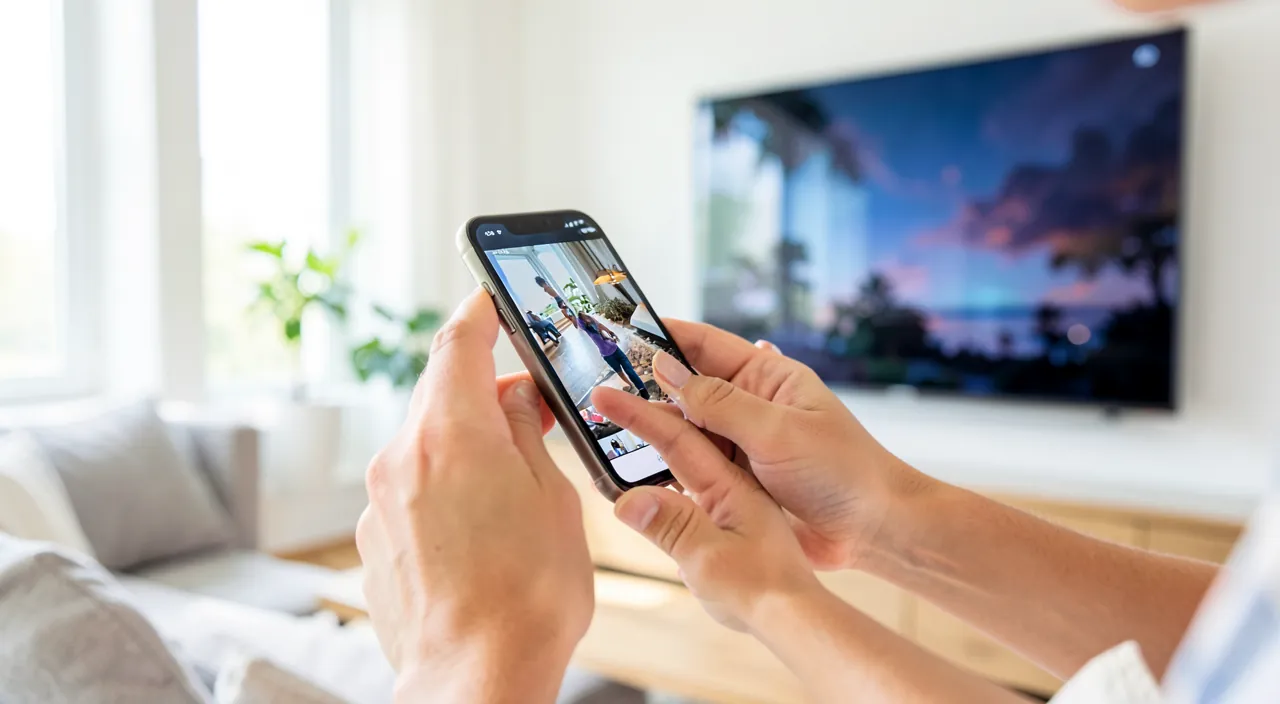
To enjoy AirPlay without any issues, here are the points of COMPATIBILITY, troubleshooting, and comfort. Check COMPATIBILITY: for receiving AirPlay, your TV/speaker must be AIRPLAY COMPATIBLE; many recent TVs are (look for « AirPlay » in their specs), an Apple TV (box) makes any TV compatible; check your equipment; compatibility is required. THE APPLE TV, the universal solution: if your TV is not AirPlay compatible, an Apple TV box connected to it allows it; it adds AirPlay (and much more) to any TV; a solution if your TV doesn’t natively support AirPlay; to consider. THE SAME WiFi NETWORK: the number one condition; the iPhone and the TV/speaker must be on the SAME WiFi network; if they are on different networks (e.g.: TV on another WiFi), they don’t see each other; check this point first; it’s the number one cause of issues. If the device DOESN’T APPEAR: check; same WiFi network? TV/speaker on and compatible? WiFi enabled on the iPhone? try again, move closer, restart if needed; these checks resolve most cases; proceed by elimination. RESTART in case of issues: if AirPlay is buggy (cutting out, not launching), restart the iPhone and the TV/speaker, check the WiFi; a restart resolves many issues; simple and effective; reset the connection. QUALITY depends on WiFi: streaming goes through WiFi; a weak or saturated WiFi can cause cutouts or reduced quality (especially video); a good WiFi ensures smooth streaming; consult our WiFi guides; the network conditions the quality. MULTI-ROOM AUDIO: AirPlay even allows you to stream the SAME music to SEVERAL compatible speakers at once (in different rooms); a nice feature to soundproof the house; explore this possibility; sound everywhere. Stream from APPS: most video/music apps (including major streaming platforms) have the AirPlay icon; look for it; you can stream your subscriptions to the TV; widely supported. Don’t CONFUSE with other systems: AirPlay is the Apple system; there are other streaming systems (Chromecast for Android, etc.); on a TV, several can coexist; use AirPlay from an Apple device; each ecosystem has its own. SECURITY/privacy: some TVs ask for a code at the first AirPlay connection (to prevent anyone from streaming); this is a security measure; in screen mirroring, remember that your entire screen is visible (notifications included); be aware of what you display. In summary, to enjoy AirPlay: check the COMPATIBILITY of your TV/speaker (many recent TVs are; otherwise, an Apple TV adds it to any TV), and especially that the iPhone and the device are on the SAME WiFi network (the number one cause of issues). If a device doesn’t appear, check the common network, that it is on and compatible, and restart if needed. Quality depends on good WiFi (a weak network causes cutouts). Explore multi-room audio (same music on several speakers), stream from your streaming apps, and keep in mind privacy in screen mirroring (everything is visible). These points ensure a smooth AirPlay experience; compatibility, the same WiFi network, and a good signal are the keys.
Warning: AirPlay needs a good WiFi and the same network on both sides; and in screen mirroring, everything that appears on your iPhone is visible on the TV. Three points of vigilance will avoid common disappointments with AirPlay. The first, and by far the number one cause of problems: the SAME WiFi NETWORK. For AirPlay to work, your iPhone and the TV (or speaker) to which you want to stream must be IMPERATIVELY connected to the SAME WiFi network. It is through this common network that they « see » and communicate with each other. However, it often happens, without realizing it, that the two devices are on different networks: for example, your iPhone connected to a « guest » network or a different network from the TV, or a box that broadcasts two distinct networks. In this case, the TV will simply not appear in the AirPlay list, and you will vainly search for why « it doesn’t work. » The very first reflex, if a device doesn’t appear, is therefore to CHECK that the iPhone and the TV are indeed on the same WiFi network: this is the solution to the majority of cases. The second point: the QUALITY of the WiFi. As AirPlay streams everything via WiFi, the fluidity of the streaming depends directly on the quality of your network. On a weak, distant, or saturated WiFi (many devices connected, congested network), you risk CUTOUTS, stuttering, lower image quality, or delays between the image and the sound — particularly for video, more demanding than music. If your streaming is unstable, the cause is often there: move the devices closer to the box, reduce the number of devices that are using the network, or improve your WiFi. A good signal is the condition for smooth streaming; a capricious WiFi spoils the experience. The third point of vigilance concerns PRIVACY, and specifically SCREEN MIRRORING. Remember that, in this mode, EVERYTHING that appears on your iPhone is reproduced in real time on the TV, in front of all the people present in the room. This includes not only what you want to show, but ALSO everything that appears unexpectedly: the NOTIFICATIONS that arrive (a message whose preview is displayed, an email, an alert), the content of your apps if you navigate, your photos if you open the gallery. It would be embarrassing for a personal message, a private notification, or sensitive information to be displayed in large on the TV in front of your guests! Before launching a screen mirroring in front of people, therefore have a few reflexes: think about activating a « focus » or « do not disturb » mode to block the display of notifications during the projection, close the apps and private contents that you do not want to show, and keep in mind that every gesture on your iPhone is seen by everyone. This point does NOT concern the direct streaming of a content (movie, music, chosen photos), where only the sent content is visible and where your iPhone remains private — reason more to prefer direct streaming when you just want to show a movie while keeping your phone for yourself. In summary: for AirPlay to work, make sure the iPhone and the TV are on the SAME WiFi (number one cause of issues) and that this WiFi is of good quality (to avoid cutouts and stuttering); and in screen mirroring, remember that YOUR ENTIRE SCREEN is visible to everyone (notifications included) — protect your privacy by activating « do not disturb » and by only showing what you want. With these precautions, AirPlay remains a pleasure without any bad surprises.

Frequently asked questions
Is my television AirPlay compatible?
Many recent televisions are (look for « AirPlay » in their specifications); if yours is not, an Apple TV box connected to it adds AirPlay to any TV. Let’s see how to know. RECENT TVs: many recent connected (« smart TV ») televisions natively integrate AirPlay; it has become common; there is a good chance that yours is if it is recent; check. HOW to check: look for « AirPlay » in the specifications of your TV (manual, product sheet), or in its SETTINGS (an AirPlay or « screen sharing » section); its presence confirms compatibility; the info is there. The DIRECT TEST: the simplest; on your iPhone (same WiFi network as the TV), tap the AirPlay icon or « Screen Mirroring »; if your TV appears in the list, it is compatible; an immediate test; try. If it IS NOT compatible: if your TV does not support AirPlay, no panic; a solution exists (the Apple TV); or other methods depending on your needs; you are not stuck; there are options. THE APPLE TV, the solution: an Apple TV box connected to any TV (via HDMI) adds AirPlay (and access to apps, streaming) to it; it makes a TV that is not compatible compatible; an investment that brings AirPlay and more; to consider. BRANDS and models: many TV brands offer AirPlay on their recent models; it is no longer reserved for Apple; consult the specs of your model; compatibility has spread. An UPDATE can help: sometimes, a software update of the TV adds or activates AirPlay; check the updates of your TV; it could become compatible; update it. THE SAME network required: even compatible, the TV must be on the same WiFi as the iPhone to appear; if it is compatible but does not appear, check the network; compatibility is not enough without a common network. SPEAKERS too: for audio, check if your speakers are AirPlay compatible (many are); the principle is the same; test with the AirPlay icon in a music app; audio follows the same logic. The ADVICE: check the compatibility of your TV (specs, settings, or direct test via the AirPlay icon on the iPhone on the same network); if it is not compatible, an Apple TV box adds it to any TV; a TV update can also help. In summary, there is a good chance that your television is AirPlay compatible if it is recent: many current « smart TVs » integrate it natively, all brands combined (it is no longer reserved for Apple). To check, three means: look for « AirPlay » in the specifications of your TV or in its settings (an AirPlay or « screen sharing » section); or, simpler, do the DIRECT TEST — on your iPhone connected to the same WiFi network as the TV, tap the AirPlay icon or « Screen Mirroring, » and if your TV appears in the list, it is compatible. Also check for updates to your TV, as a software update can sometimes add or activate AirPlay. If your TV is NOT compatible, the universal solution is the Apple TV box: connected via HDMI to any television, it adds AirPlay (as well as access to applications and streaming). The same principle applies to speakers (many are AirPlay compatible for audio; test with the AirPlay icon in a music app). Remember that, even compatible, the TV must be on the same WiFi network as your iPhone to appear in the list. Between recent TVs already compatible and the Apple TV for others, enjoying AirPlay is within reach of almost all setups.
Why does my AirPlay streaming cut or stutter?
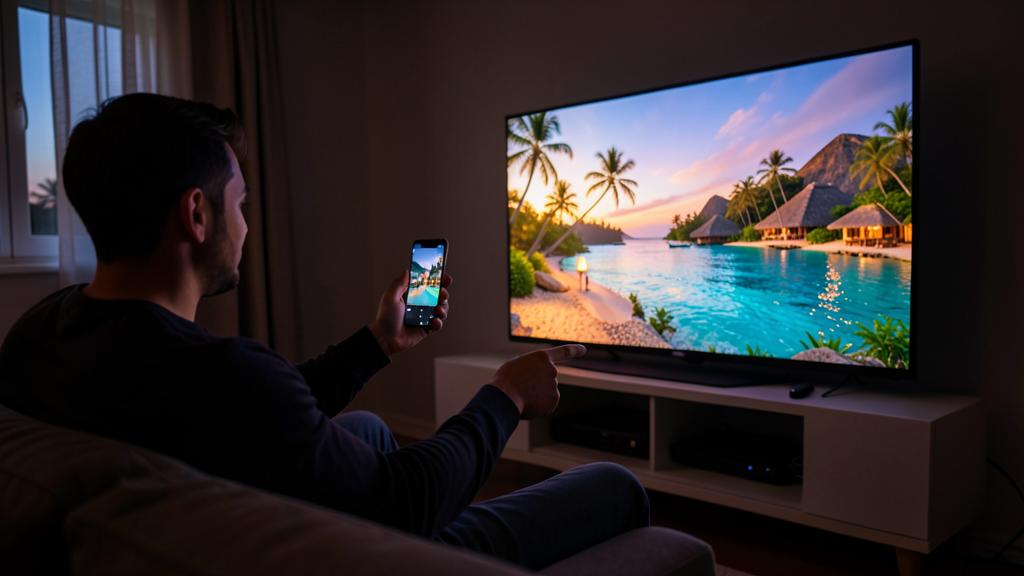
It’s almost always the WiFi: a weak, distant, or saturated network causes cutouts and stuttering; move the devices closer to the box, reduce the network load, and restart if needed. Let’s analyze. The number one cause — the WIFI: AirPlay streams via WiFi; if your network is WEAK, DISTANT, or SATURATED, the streaming cuts out, stutters, or loses quality; this is by far the most frequent cause; look at this first. MOVE CLOSER to the box: move the iPhone and/or the TV closer to the WiFi box (or the box closer to the devices); a better signal smooths the streaming; distance and obstacles weaken the WiFi; improve the range. REDUCE the network load: if many devices are using the WiFi at the same time (downloads, other videos), the network is saturated; reduce the load during streaming; a less congested network streams better; free up bandwidth. VIDEO is more demanding: video (especially in high quality) requires more from the WiFi than music; stuttering mainly affects video; a good WiFi is all the more necessary to stream movies; demand a good signal. RESTART the devices: restart the iPhone, the TV/speaker, and possibly the box; a restart resolves many connection issues; reset the streaming; simple and often effective. Check the SAME network: make sure the devices are on the same network (and a stable network); a network switch can cut out; check the stability of the connection; the common network must be reliable. IMPROVE the WiFi: if the cutouts persist, your WiFi may be insufficient (range, speed); improve it (repeater, better box, wired for the TV); consult our WiFi guides; a good network solves the problem durably. WIRED for the TV: if possible, connect the TV (or the Apple TV) via cable (network cable) rather than WiFi; the wired connection is more stable to receive the streaming; reduces cutouts on the TV side; a robust solution. Close the RESOURCE-HUNGRY apps: on the iPhone, close the apps that consume the network in the background during streaming; free up resources; the iPhone streams better; lighten the load. The ADVICE: AirPlay cutouts almost always come from the WiFi; move the devices closer to the box, reduce the network load, restart, and improve your WiFi (or switch the TV to wired) if it persists; a good signal ensures smooth streaming. In summary, if your AirPlay streaming cuts out or stutters, the cause is almost always the WIFI, since all streaming goes through it. A WEAK network (distant signal, obstacles), SATURATED (many connected devices that consume bandwidth) or unstable network causes cutouts, stuttering, degraded image, or image/sound delays — especially for video, much more demanding than music. The solutions: MOVE the iPhone and the TV closer to the WiFi box (or vice versa) for a better signal; REDUCE the network load during streaming (pause downloads and other video streams); RESTART the iPhone, the TV, and the box (this resolves many connection issues); and close the applications that are resource-hungry on the iPhone. If the cutouts persist, it’s because your WiFi is probably insufficient: consider improving it (a repeater to extend the range, a better box), or, robust solution, connect the TV (or the Apple TV box) via CABLE (network cable) rather than WiFi — the reception gains a lot in stability. Also check that the devices are on the same network and that it is stable. By improving the quality and stability of your WiFi, you will regain smooth streaming: it’s the key to a successful AirPlay experience.
Can I continue to use my iPhone while I stream?
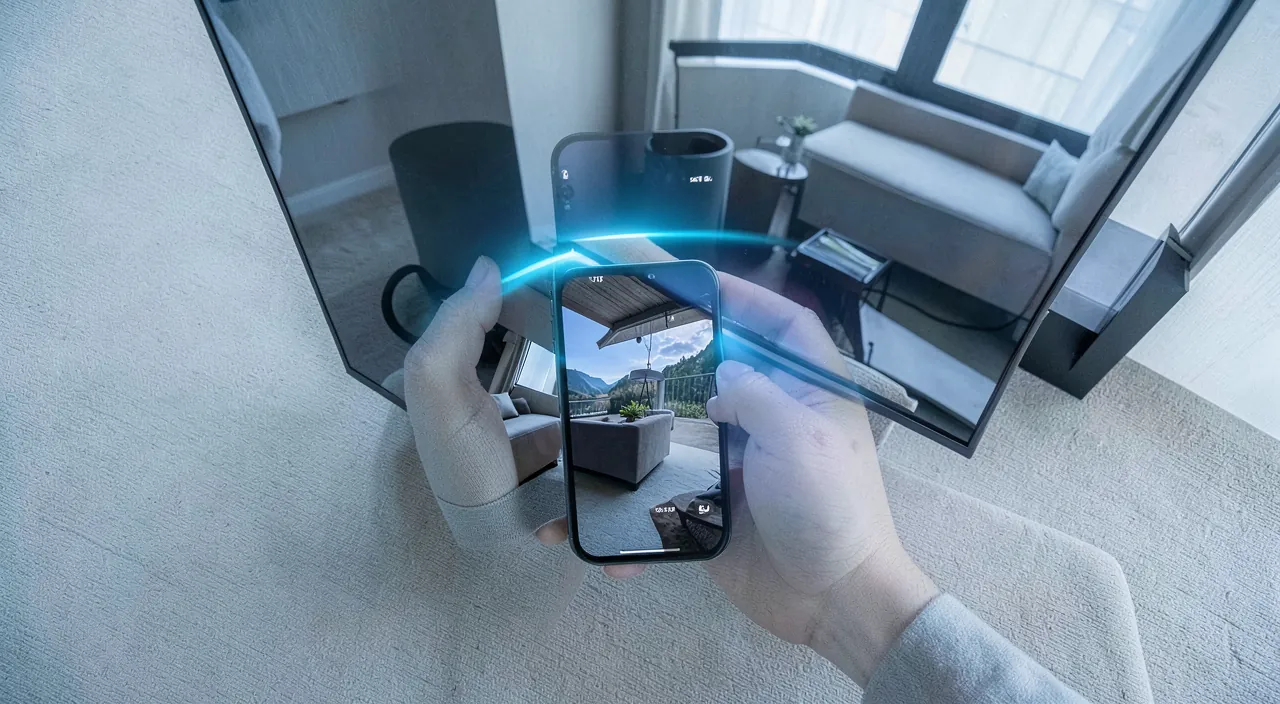
It depends on the mode: in direct streaming of content (video, music), yes, your iPhone remains free; in screen mirroring, no, because everything you do is displayed on the TV. Let’s distinguish. In DIRECT STREAMING — YES: if you stream SPECIFIC CONTENT (a video, music via the AirPlay icon in the app), your iPhone remains FREE; the content plays on the TV/speaker, and you can use the iPhone for something else; a great advantage; the iPhone is just the remote control. What you can DO: while a movie plays on the TV (direct streaming), respond to a message, browse, consult an app; without interrupting or displaying that on the TV; your iPhone keeps its own life; practical and discreet. In SCREEN MIRRORING — NO: if you COPY the screen (the entire iPhone screen to the TV), then EVERYTHING you do is displayed on the TV; you cannot do something else in private; the screen is « shared »; that’s the principle of this mode. Why this DIFFERENCE: in direct streaming, only the sent content goes to the TV (the iPhone is free); in screen mirroring, it’s the entire screen that is reproduced (nothing is private); two modes, two behaviors; choose according to the need. CHOOSE the right mode: if you want to keep your iPhone free during streaming (watch a movie and do something else), use DIRECT STREAMING; if you need to show everything, use screen mirroring; the mode determines the freedom of the iPhone. CONTROL PLAYBACK: even in direct streaming (iPhone free), you keep control of playback (pause, volume, content) from the iPhone; you control without being « stuck »; the best of both; remote control and freedom. PRIVACY in screen mirroring: in screen mirroring, be careful; your notifications, messages, everything is displayed on the TV; activate « do not disturb » and only show what you want; the screen mirroring mode exposes everything (important reminder). Lock the iPhone in STREAMING: in direct streaming, you can often lock the iPhone or turn off its screen; the streaming continues on the TV/speaker; practical for music (the iPhone in standby, the music plays); economical. The ADVICE: to keep your iPhone free during streaming, use DIRECT STREAMING of content (the iPhone remains usable, you only control playback); screen mirroring, on the other hand, displays everything you do (nothing private); choose the mode according to your need. In summary, it entirely depends on the MODE you use. In DIRECT STREAMING of content (when you send a video, music, or photos via the AirPlay icon in the application), YES, your iPhone remains completely FREE: the content plays on the TV or speaker, and you can during this time use your iPhone normally for something else (respond to a message, browse, consult an application), without interrupting the streaming or displaying it on the TV. Your iPhone is then just a remote control: you keep control of playback (pause, volume) but the device keeps its own life — you can even lock it or turn off its screen (practical for music, which continues to play). In SCREEN MIRRORING, on the other hand, the answer is NO: since this mode reproduces YOUR ENTIRE SCREEN on the TV in real time, everything you do on the iPhone is seen by everyone — you cannot therefore do something private in parallel, and you must also be careful that your notifications do not display (activate « do not disturb »). The choice of mode therefore determines the freedom of your iPhone: if you want to watch a movie on the TV while keeping your phone available, prefer direct streaming; if you need to show your entire screen (a presentation, an application), it’s screen mirroring, accepting that nothing remains private. This is one of the great strengths of direct streaming: enjoying the big screen without immobilizing your iPhone.
What to remember
AirPlay is a precious Apple feature yet underused: it allows you to STREAM WIRELESSLY (via WiFi) the content of your iPhone, iPad, or Mac to a TELEVISION or compatible SPEAKERS — videos, music, photos, or even the entire screen of the iPhone — with a simple gesture and without cables. The benefit is immediate: enjoy the comfort of the big screen (watch a movie, vacation photos with others) and good sound (listen to your music on a real speaker rather than the small speaker of the iPhone). To use it, spot the AIRPLAY icon (a screen with a triangle): tap it in a video or music app to send the content to your TV or speaker, go through the share button for photos, or use « Screen Mirroring » in the Control Center to project your entire screen. A key distinction to understand: there are two uses. DIRECT STREAMING of content (a movie, a song) keeps your iPhone FREE — the content plays on the TV while you continue to use your phone, which is just a remote control — and offers the best quality; this is the ideal mode to watch a movie or listen to music. SCREEN MIRRORING reproduces YOUR ENTIRE SCREEN on the TV: perfect for showing an app, a presentation, or your entire navigation, but then nothing is private. Choose the mode according to the need. On conditions and troubleshooting, remember the essentials: the iPhone and the TV/speaker must be on the SAME WiFi network (this is the number one cause of problems — if a device doesn’t appear, check this first), the TV must be AIRPLAY COMPATIBLE (many recent TVs are; otherwise, an Apple TV box adds it to any television), and the quality of the streaming depends on a GOOD WiFi (a weak or saturated network causes cutouts and stuttering, especially in video — move the devices closer to the box, reduce the network load, restart, or switch the TV to wired). An important point of vigilance regarding privacy: in screen mirroring, EVERYTHING that appears on your iPhone is visible to everyone on the TV, including your notifications and messages that arrive — think about activating « do not disturb » and only showing what you want (this concern does not apply to direct streaming, where only the chosen content is visible). Also explore advanced possibilities, such as streaming the same music to several speakers at once to soundproof the entire house. In short, AirPlay turns your iPhone into a remote control for your screens and speakers, to enjoy the big screen and good sound without any cables. Easy to use once you know the icon and the principle of the two modes, it’s a daily convenience that many people don’t dare to use but which, once adopted, becomes a reflex: the next time you want to show a video or photos to your loved ones, or listen to your music on a nice speaker, think of AirPlay.
Want to unlock the full potential of your iPhone, iPad, or Mac? Our Apple training courses take you to the next level.
Leave a Reply
You must be logged in to post a comment.