
Your iPhone contains ten years of photos, your conversations, your codes, your documents — and it can disappear in a second: theft, fatal fall, breakdown, forgotten on a car roof. The only difference between the anecdote and the drama lies in one word: backup. Well set up, it is invisible, automatic, complete — and when the day comes, a new iPhone becomes yours again in an hour, photos and conversations included. This guide sets up this insurance once and for all: main method, checks, second copy, and restoration.
iCloud: the backup that does itself
The royal way for the vast majority: the iCloud backup — every night, iPhone plugged in, locked, and on Wi-Fi, everything that matters is automatically uploaded: settings, messages, photos (depending on your configuration), app data, Health history, home screen layout. Activate it (Settings → your name → iCloud → Backup) and above all check it: the last backup date must be recent — “last backup: 8 months ago” is the classic trap discovered on the day of the disaster. The crux of the matter is the space: the few free gigabytes are never enough for a lived phone — the adapted storage subscription (a few euros per month) is the cheapest insurance premium of your digital life, compared to what it protects. With iCloud Photo Library active, your photos are doubly covered: continuously synced AND included in the backed-up ecosystem.
iCloud backup works automatically at night if your phone is plugged in, locked, and on Wi-Fi. It saves your settings, messages, photos, and more. But you need enough storage space, or it won’t work. A small monthly fee buys you enough space to keep everything safe.
If you have a 256GB iPhone with 100GB of photos, you’ll need at least 100GB of iCloud storage. A 200GB iCloud plan costs about €3.50/month and ensures your backups keep working without interruptions.

What is covered (and what is not)
Understanding the scope avoids bad surprises: the iCloud backup restores the complete state of the phone — apps (re-downloaded), their data, messages, settings, wallpapers, passwords (via the keychain). NOT included: what already lives in the cloud via synchronization (emails, contacts, calendars — re-synced upon connection), and some notable exclusions: certain app data that manage their own backup (encrypted messaging conversations often require separate activation in the app — check yours!), licensed content, and banking app money (which lives with the bank). The useful reflex: in the two or three apps that matter most to you (messaging, notes, authentication), check once their own backup or export mechanism — five minutes that complete the net.
The right reflex. The two-factor authentication app deserves special treatment: if its codes are not backed up (setting specific to each app), a lost phone locks you out of ALL your accounts at the same time. Check today that your 2FA app syncs or exports its tokens — and keep the printed backup codes of critical accounts in a safe place. It’s the most frequent — and most painful — hole in the net.
The second copy: the computer as a backup
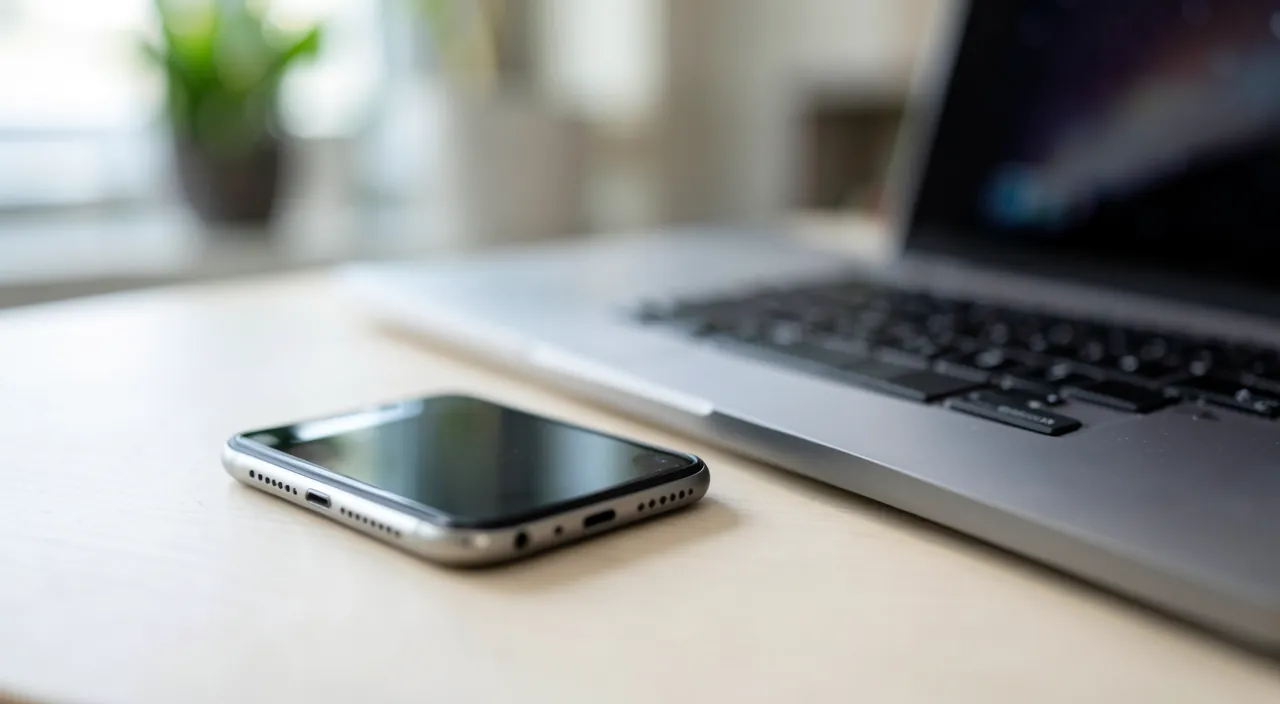
For most uses, iCloud is enough. The local backup on computer (Finder on Mac, dedicated app on PC) adds a layer for the cautious: a full copy at home, very fast restoration (local network), independent of the subscription — check “encrypt the local backup” (with a password you keep carefully): only the encrypted version includes passwords, Health history, and sensitive data. Reasonable pace: a monthly connection, and systematically before major jumps — major system update, phone change, repair. Both methods complement each other: iCloud for daily automation, the computer for security archive and urgent restorations.
On the big day: restore without stress
New, lost, or reset phone — the procedure is the same and it’s simple: at startup, choose “Restore from iCloud” (or from the computer), log in to the account, select the most recent backup — and let it happen: the essentials return in less than an hour, apps and photos continue to download in the background afterward. Keys to success: knowing your Apple ID and password (the moment you frantically search for them — password manager!), having access to the second factor (another trusted device or backup number), and patience on Wi-Fi. In case of theft, the prerequisite: “Find My” allows you to lock and erase the device remotely — your data remains unreadable, and the restoration on the replacement starts from the last nightly backup. Maximum theoretical loss: one day.


Warning. The backup protects against phone loss — not against account loss: a forgotten Apple password with an outdated recovery number can make the backup inaccessible precisely on the day everything depends on it. Check your recovery information once a year (number, backup email, trusted devices) and consider designating a recovery contact. And never deactivate the backup “temporarily” to free up space — it’s the insurance you cancel the day before the fire.
Frequently asked questions
My iCloud storage is full: the backup stopped without me knowing.
The most common case. Two solutions: upgrade to the next storage tier (recommended — everything becomes automatic again), or lighten the backup (exclude non-critical bulky apps). Then check that the last backup date becomes daily — not just once.

Changing iPhones: backup or direct transfer?
Direct transfer from device to device (both phones side by side) is excellent and complete. But still make a backup before the migration: it’s the net if the transfer fails — and the old phone should only be erased after confirming that everything has arrived.
How long are my backups kept?
iCloud keeps the backup as long as the device backs up regularly (and a grace period after the last one). Old backups from lost devices are also safely deleted — it’s often several gigabytes recovered in a saturated storage.

What to remember
A proper iPhone backup comes down to four checks: iCloud backup active and dated today (not from eight months ago), sufficient storage space (the modest subscription is the best phone insurance), apps with their own mechanism checked once (encrypted messengers, 2FA authentication — the classic hole in the net), and account recovery information up to date — because the backup is only worth it if the account remains accessible. The cautious add the monthly encrypted local copy, and everyone backs up before major jumps. Set once, checked twice a year: the day the phone falls into the port, you lose an object — not a digital life.
Want to unlock the full potential of your iPhone, iPad, or Mac? Our Apple training courses help you take the next step.
Leave a Reply
You must be logged in to post a comment.