
Connected to WiFi but no internet access: this confusing situation is actually very common, and the good news is that it almost always resolves easily. The key is understanding the difference: being connected to WiFi (to your box, to your local network) is not the same as having internet access (to the global network, beyond your box). The problem therefore lies somewhere between your device and the vast internet. Let’s explore why you might be “connected without internet,” the steps to restore access, and how to prevent this from happening again.
Understanding “Connected to WiFi but no internet”
This paradox is explained by an essential distinction; let’s break it down. The KEY DIFFERENCE: being connected to WIFI means your device is linked to your BOX (your local network); having INTERNET means your box is connected to the GLOBAL NETWORK; these are two separate things; you can have one without the other; that’s the key to the paradox. The WIFI connects you to the BOX: WiFi is the link between your device and your box (wirelessly); this connection can be perfect (WiFi “connected”) independently of internet access; hence the WiFi icon appears even without internet; WiFi is one thing, internet is another. The BOX connects you to INTERNET: it’s your box that links you to the internet (via your internet service provider); if this box-internet link is cut (outage, provider issue), you’re connected to WiFi but WITHOUT internet; the box-internet link is often the culprit. WHERE is the PROBLEM: the issue lies between your box and the vast internet (not between your device and the box, since WiFi works); this is a valuable clue; targeting this link guides troubleshooting. An OUTAGE from the provider: sometimes, it’s your INTERNET SERVICE PROVIDER that has an outage (in your area); your box no longer has internet to transmit; this isn’t your fault; you’ll have to wait for the restoration (we’ll come back to this). An issue with the BOX: the box may have a temporary problem (needs a restart), a line disconnection, a technical issue; restarting the box often resolves it; the box is frequently the cause (we’ll come back to this). A problem with the DEVICE: more rarely, a device setting (incorrect date, DNS, VPN, network settings) prevents access while WiFi is connected; the device may be the issue; check if only one device is affected. ONE or ALL devices: if ALL your devices are “without internet,” the problem is global (box or provider); if ONLY ONE is affected (others have internet), the issue is with that device; this test guides the diagnosis (we’ll come back to this). A LINE issue: sometimes, the line itself (cable, fiber, outlet) has a problem; the box often indicates this (status lights); this is more technical; the box lights provide information. WHY this MATTERS: knowing the problem is between the box and internet (not in WiFi) helps target the right action—often restarting the box—rather than struggling with the device’s WiFi. The main idea: “Connected to WiFi but no internet” is explained by an essential distinction: being connected to WIFI means your device is linked to your BOX (the local network), while having INTERNET means your box is connected to the GLOBAL NETWORK—two separate things that can exist independently. WiFi can therefore be perfect (icon present) while the link between your box and the internet is cut. The problem then lies between your BOX and the vast internet: it’s most often a temporary box issue (needs a restart) or an OUTAGE from your internet service provider (in which case, it’s not your fault). More rarely, it’s a device setting. A key test to locate the problem: are ALL your devices without internet (global issue: box or provider) or just ONE (issue with that device)? Understanding this WiFi/internet distinction directly guides you to the right solution—most often, a simple box restart.
Your WiFi connects your device to your internet box, but your box needs to connect to the internet provider for you to actually access the web. If the box can’t reach the provider, you’ll see WiFi but no internet. The fix is usually restarting the box or checking for a provider outage.
Imagine your router (box) is like a phone: it connects to your devices (WiFi) and to your internet provider (like calling a friend). If the phone line is down, you can still talk to people in your house (WiFi works), but you can’t call outside (no internet). The fix is checking the phone line (provider) or restarting the phone (router).
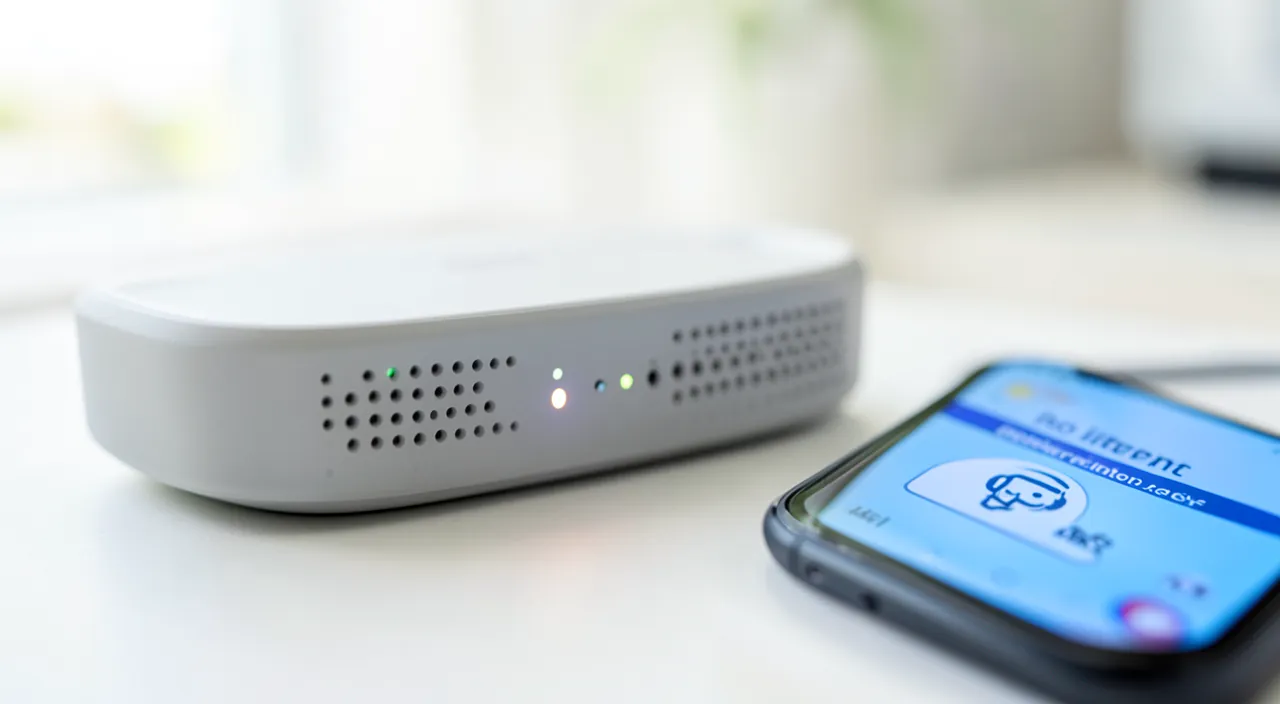
How to restore internet access
Here’s the step-by-step process, from simplest to most advanced, to regain internet. CHECK if it’s ONE or ALL devices: first, does another device have internet on the same WiFi? If ALL are without internet → global problem (box, provider); if ONLY ONE → problem with that device; this test guides all troubleshooting; start here. RESTART the device: if only one device is affected, restart it; disable/re-enable its WiFi, or “forget” and reconnect to the network; a device bug often resolves this way; simple and effective. RESTART the BOX: the king move if all devices are affected; turn off the box, wait a minute, then turn it back on; let it fully restart (a few minutes); restarting the box resolves most cases (we’ll come back to this). Check the BOX LIGHTS: look at the box lights; are they normal (internet/line green) or abnormal (red, flashing, off)? abnormal lights indicate a line or provider issue; the lights inform you of the status. Check for a PROVIDER OUTAGE: if the lights indicate a line/internet issue, check if your provider has an outage (via mobile data: provider’s website/app, social networks); an outage in your area explains everything; you’ll then have to wait (we’ll come back to this). WAIT a moment: sometimes, access returns on its own after a few minutes (temporary network or provider issue); a little patience sometimes avoids any manipulation; try again after a while. Check the TIME and date: an incorrect date can block access to sites (security errors); check the device’s time; consult our guides on time; an often overlooked culprit to rule out. Disable a VPN: if you use a VPN, it may block access if it has an issue; disable it to test; a faulty VPN cuts access while keeping WiFi; check this possibility. Check NETWORK SETTINGS (one device): if only one device is affected, a network setting (DNS, proxy, partial airplane mode) may be the cause; resetting the device’s network settings can help; a possibility for an isolated device. TEST via wired or another WiFi: if possible, test a wired connection (cable) or another network (mobile data); this helps locate the problem; if wired works, it’s the WiFi; if nothing works, it’s the line/provider. Check the BOX CABLES: ensure the box cables (power, line/fiber) are properly connected; a loose cable cuts internet; check the physical connections; a simple cause sometimes. CONTACT the provider: if nothing works and the issue persists (abnormal lights, no known outage), contact your internet service provider; they can diagnose the line; for a persistent technical issue, they’re the right contact. In summary, to restore internet access: first check if ONE or ALL devices are affected (the key test); if one, restart it and reconnect its WiFi; if all, RESTART THE BOX (the move that resolves most cases), check its LIGHTS, and look for a possible PROVIDER OUTAGE (via mobile data). Wait a moment (access sometimes returns on its own), check the time and any VPN, test via wired or mobile data to locate the problem, check the box cables, and contact the provider if the issue persists. This approach, from simplest to most advanced, restores access in the vast majority of cases; the “one or all” test and restarting the box are the keys.
The two essential reflexes: test “one or all devices,” then restart the box. Faced with “connected without internet,” two simple actions resolve or diagnose the vast majority of cases. Do them first; they’ll save you from struggling in the wrong place. First reflex, the BASIC DIAGNOSIS: check if the issue affects ONE DEVICE or ALL your devices. This is the most important test, as it instantly splits the problem into two very different situations, with distinct solutions. Take another device (a second phone, a tablet, a computer) and see if it has internet access on the same WiFi. Two cases. If ALL your devices are “connected without internet,” then the problem is GLOBAL: it doesn’t come from a specific device, but from your BOX or your INTERNET SERVICE PROVIDER (the link between your box and the internet). This is the most common case, and the solution lies with the box (see below). If, on the other hand, ONLY ONE device is deprived of internet while the others work normally, the problem is LOCALIZED to that specific device: a setting, a bug, a VPN, an incorrect date. In this case, there’s no need to touch the box (it’s fine, the other devices prove it); focus on the faulty device: restart it, disable then re-enable its WiFi, “forget” the network and reconnect, check its time and any VPN. This simple “one or all” test immediately tells you where to look, saving you precious time. Second reflex, THE most effective solution when all devices are affected: RESTART THE BOX. This is the king move of internet troubleshooting, the one that resolves most “connected without internet” issues on its own. Your box is a small computer that runs continuously, often for weeks or months without interruption; like any device, it can “get stuck,” lose its internet connection, or accumulate small bugs that cut access while maintaining WiFi. A restart resets it: it properly reestablishes its connection with your internet service provider. How to do it correctly: completely turn off the box (via its switch, or by unplugging it), wait a good minute (time for it to “fully shut down” and for the line to reset), then turn it back on. Important point: let it fully restart—this usually takes a few minutes, during which its lights flash and stabilize. Don’t be impatient: wait until all the lights (especially the internet or line light) are back to steady green before testing. Once the box is fully restarted, reconnect your devices and check: in the majority of cases, internet is back. By combining these two reflexes—first testing “one or all” to know where the problem is, then restarting the box if all devices are affected (or the faulty device if only one is)—you resolve most “connected without internet” situations without technical skills. It’s only if restarting the box doesn’t work (persistent abnormal lights) that you need to look further: an outage from the provider, a line issue. But always start with these two simple actions: they’re effective, quick, and cover the vast majority of cases.
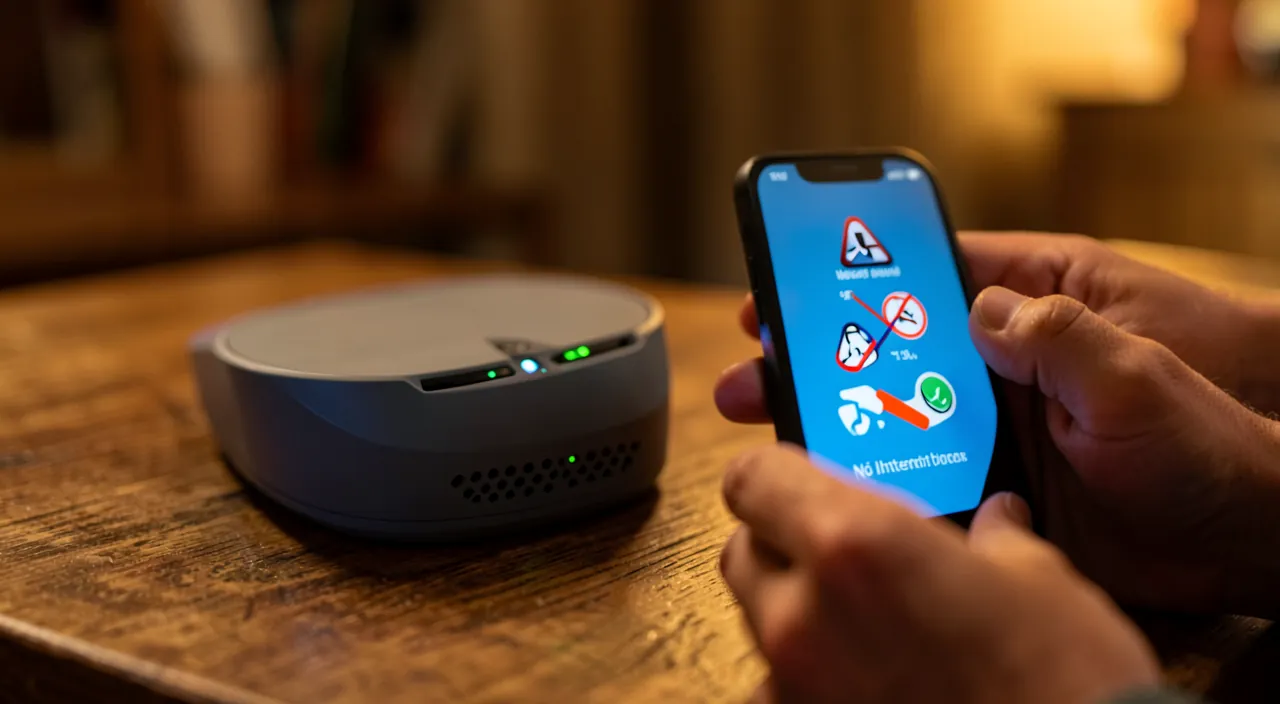
When it’s not your fault, and how to prevent it
Sometimes the problem comes from the provider, not you; and a few habits limit outages. The PROVIDER OUTAGE: sometimes, your internet service provider has an OUTAGE (in your area, on their network); your box then no longer has internet to transmit, no matter what you do; it’s NOT your fault; no need to re-test everything; you’ll have to wait. How to CHECK for an outage: to check for a provider outage, use your MOBILE DATA (not the out-of-service WiFi); consult your provider’s website or app (network status), social networks, outage reporting sites; a known outage explains everything. What to DO in case of an outage: in case of a provider outage, you mainly have to WAIT for the restoration; the provider is working on repairs; you can report the outage (confirming helps); in the meantime, use mobile data if needed; patience is required. The CONNECTION SHARING as a workaround: while waiting for internet to return (box or provider), you can share your phone’s connection (mobile data) with a computer; a practical workaround; “connection sharing” temporarily saves the day. Prevention—RESTART the box periodically: restarting the box from time to time (not just during outages) prevents accumulated freezes; a box running for months without a restart “wears out”; a periodic restart prevents this. PROPERLY PLACE and VENTILATE the box: place the box in a well-ventilated area (it heats up); an overheating box can glitch; don’t enclose it; good ventilation keeps it stable; placement matters. CHECK the connections: ensure the box cables (power, line/fiber) are properly connected and in good condition; a loose cable cuts the connection; secure connections prevent issues; check them. KEEP the box updated: boxes usually update automatically (firmware); these updates fix bugs; let them happen; an updated box is more stable; don’t unplug during an update. KEEP devices updated: keep your devices updated (system, network settings); updates fix connection bugs; software updates also help on the device side; keep everything updated. Know the PROVIDER’S CONTACT: keep your provider’s contact info handy (phone, app); in case of a persistent issue, you’ll be able to reach them quickly; anticipation eases troubleshooting; have their details. A BACKUP SOLUTION: having a mobile plan with data (for connection sharing) is a good backup in case of home internet outages; this prevents being completely cut off; a useful spare tire. In summary, when it’s not your fault: a PROVIDER OUTAGE (to check via mobile data: provider’s website/app, social networks, reports) sometimes explains everything—in this case, you have to WAIT for the restoration (and you can work around it by sharing your phone’s connection). To prevent outages: periodically restart the box, place it in a well-ventilated area, check its connections, let it update, keep your devices updated, have the provider’s contact info handy, and have a mobile data backup. These habits limit “connected without internet” issues and let you react quickly; knowing how to recognize a provider outage (to avoid futile efforts) and maintaining your box are key.
Warning: don’t reset your box “to factory settings” lightly, and distinguish a real issue at your end from a provider outage. Two points of caution will save you from unnecessary complications. The first, important one: don’t confuse RESTARTING the box and RESETTING it “to factory settings.” These are two very different things, and the confusion can seriously complicate your life. RESTARTING the box (turning it off and on) is a RISK-FREE and recommended action: it simply restarts the device without erasing anything; your settings and WiFi password are preserved. This is the right troubleshooting move. On the other hand, RESETTING the box to factory settings (often via a small “reset” button to hold down, or a dedicated option) ERASES all the box’s configuration and returns it to its factory state: this usually changes the WiFi network name and especially the WiFi PASSWORD (which reverts to its original value), and may erase custom settings. Result: after a reset, all your devices are disconnected (they no longer recognize the network, or the password has changed), and you have to reconfigure and reconnect everything—a tedious operation, and sometimes tricky if you don’t know the new credentials. Worse, a poorly reconfigured box may no longer work properly. The rule: for a “connected without internet” issue, RESTARTING is enough in almost all cases; NEVER reset to factory settings out of reflex or panic. Factory resetting is a last-resort operation, to be reserved for very specific cases and ideally done with guidance from your provider (who can give you the correct credentials and assist you). If you’re unsure which button to press, don’t hold it down long; just turn the box off and on normally. The second point of caution: know how to DISTINGUISH an issue at your end from a PROVIDER OUTAGE, to avoid wasting time on useless manipulations. It’s frustrating to spend an hour restarting your box, resetting your devices, checking all your cables… only to realize the problem isn’t at your end at all, but due to an outage on your internet service provider’s network. Before diving into in-depth troubleshooting, take the reflex to CHECK if there’s a known outage. How? Using your MOBILE DATA (since your WiFi is out of service): consult your provider’s website or app (which often indicate the network status in your area), social networks (where outages are quickly reported), or outage reporting sites. Another clue: if your box’s LIGHTS indicate a line or internet issue (red, flashing, or off light that should be green) while the box is properly powered on and restarted, this points to a line or provider issue rather than your devices. In case of a confirmed provider outage, the only thing to do is WAIT for the restoration (the provider is working on it; you can report the outage to help); no need to multiply manipulations at your end, they won’t change anything since the problem is upstream. In the meantime, work around it by sharing your phone’s data connection. In summary: restarting the box, yes (no risk); resetting it to factory settings, no (unless in an exceptional case guided by the provider—this erases your configuration and disconnects everything). And before struggling, always check if it’s not a provider outage, in which case patience is the only solution. These two precautions save you from many complications and wasted time.
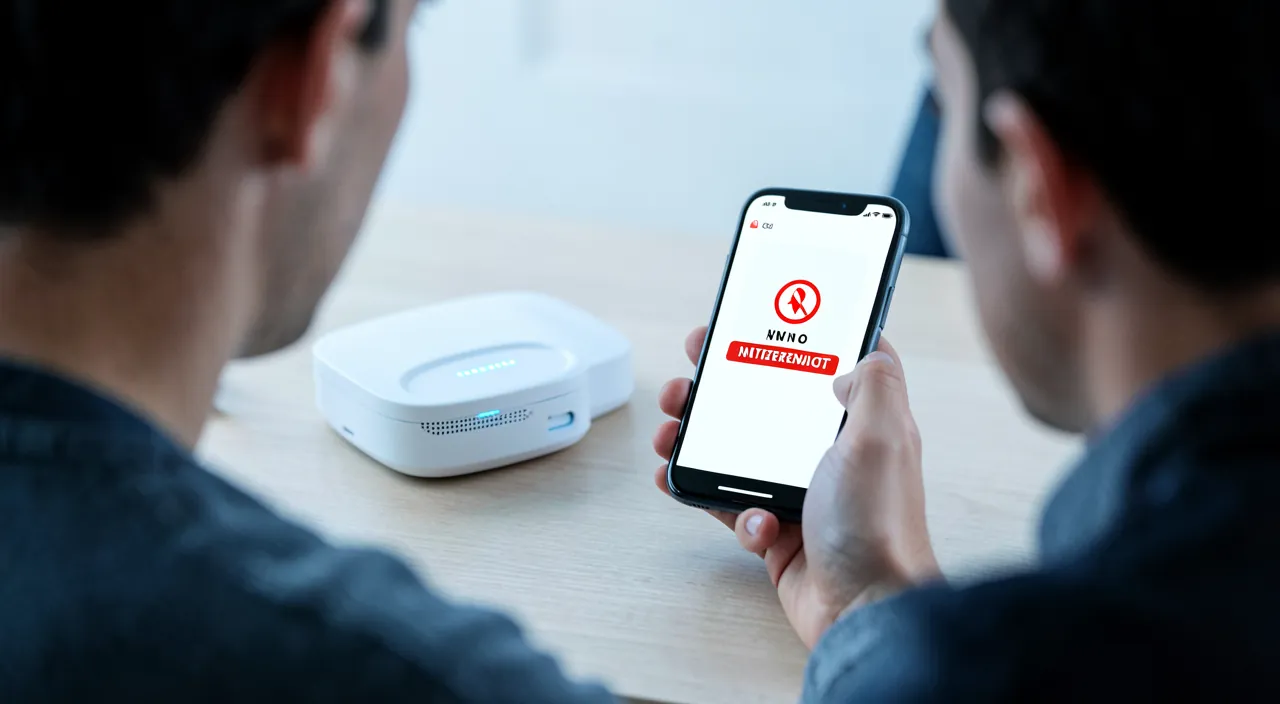
Frequently asked questions
WiFi is connected but one device has no internet: what to do?
The problem is with that specific device (others have internet, so the box is fine): restart it, reconnect its WiFi, check its time, a VPN, or reset its network settings. Here’s the approach. WHAT THIS MEANS: if ONLY ONE device is “connected without internet” while the others work, the problem is LOCALIZED to that device (not the box or provider, since the rest works); no need to touch the box; focus on the faulty device. RESTART the device: the first move; restart the device (turn off/on); a temporary connection bug often resolves this way; simple and effective; start here. Disable/re-enable WIFI: disable then re-enable the device’s WiFi; this forces a clean reconnection; sometimes sufficient; a quick move to try. “FORGET” and reconnect the network: in the device’s settings, “forget” the WiFi network, then reconnect (with the password); this starts fresh; effective for a corrupted network setting; have the password handy. Check the TIME and date: an incorrect date blocks access to sites (security errors) while keeping WiFi; check the device’s time; correct it (auto-sync); an often overlooked culprit; consult our guides on time. Disable a VPN: if the device uses a VPN, it may cut access if it has an issue; disable it to test; a faulty VPN is a common cause on a single device; check this possibility. Check AIRPLANE MODE: ensure airplane mode isn’t partially activated, or that a setting hasn’t cut data; an unintended setting may interfere; check the device’s network settings. RESET network settings: if nothing works, reset the DEVICE’S NETWORK SETTINGS (option in settings); this resets network parameters to default (without erasing your data); you’ll have to reconnect to WiFi; effective for a corrupted network setting. Check DNS/proxy: an advanced setting (manual DNS, proxy) misconfigured can block access; if you changed them, revert to automatic; these advanced settings can cut access; check them. UPDATE the device: an updated system manages connections better; check for updates; software updates fix network bugs; keep it updated. THE ADVICE: since the problem is with this device (others have internet), restart it, reconnect its WiFi (“forget” + reconnect), check time and VPN, and reset its network settings if needed; don’t touch the box. In summary, if WiFi is connected but ONLY ONE device has no internet (others working normally), the problem is LOCALIZED to that device; no need to touch the box, which is clearly fine. Focus on the faulty device, from simplest to most advanced: RESTART it, disable then re-enable its WiFi, have it “FORGET” the network then reconnect (with the password). Then check the usual suspects on an isolated device: its TIME and date (an incorrect date blocks access to secure sites while keeping WiFi), an active VPN (which may cut access if it’s bugging—disable it to test), and any unintended network setting (partial airplane mode, manual DNS or proxy misconfigured—revert to automatic). If nothing works, RESET the device’s network settings (this resets network parameters to default without erasing personal data; you’ll have to reconnect to WiFi). Also check for device updates. The fact that only one device is affected is actually good news: the diagnosis is simple (it’s the device), and the solutions are within your reach, without having to touch your internet setup.

I restarted the box but still no internet: what next?
Check the box lights (abnormal?) and a provider outage (via mobile data): if it’s a provider outage, you’ll have to wait; otherwise, contact your provider for a line diagnosis. Let’s detail this. Check the BOX LIGHTS: after the restart, look at the lights; are they normal (internet/line steady green) or abnormal (red, flashing, off)? abnormal lights indicate a line or provider issue (not a simple box bug); the lights are a precious diagnostic. Check for a PROVIDER OUTAGE: with your MOBILE DATA (WiFi out of service), check if your provider has an outage; consult their website/app (network status), social networks, outage sites; a known outage in your area explains everything; this is common. If it’s a PROVIDER OUTAGE: in case of a confirmed outage, you’ll have to WAIT for the restoration; the provider is repairing; you can report the outage; no need to multiply manipulations (the problem is upstream); patience is required; it’s not your fault. Check the BOX CABLES: ensure the cables (power, line/fiber) are properly connected and in good condition; a loose cable cuts internet; reconnect firmly; a simple physical cause sometimes overlooked. WAIT a bit longer: after a restart, reconnecting to the internet can take a few extra minutes; let the box fully stabilize (steady lights) before concluding; patience avoids false conclusions. TEST via wired: if possible, connect a device via cable (wired) to the box; if wired also has no internet, the issue is the line/box/provider (not WiFi); this test locates the problem more precisely. Restart AGAIN: sometimes a second restart (leaving the box off longer, a minute or two) helps; let the line fully reset; a longer restart may succeed where a quick one failed. CONTACT the provider: if the lights are abnormal, there’s no known outage, and nothing works, CONTACT your internet service provider; they can diagnose the line remotely, identify a technical issue, or send a technician; they’re the right contact for a persistent issue. DON’T reset to factory settings: don’t reset the box “to factory settings” on your own (this erases the config, disconnects everything); only do this if the provider guides you; restarting is enough, resetting is risky. THE ADVICE: if restarting the box didn’t work, check the lights (abnormal?) and a provider outage (mobile data); if it’s an outage, wait; otherwise, check the cables, test via wired, and contact the provider for a line diagnosis. In summary, if you restarted the box without regaining internet, the next step is deeper diagnostics. First, check the BOX LIGHTS: if they’re abnormal (red, flashing, or off where they should be green), this points to a line or provider issue, not a simple bug. Then, check with your MOBILE DATA for a PROVIDER OUTAGE (their website/app, social networks, outage reporting sites): if an outage is known in your area, it explains everything, and the only solution is to WAIT for the restoration (no need to struggle, the problem is upstream). If it’s not a known outage, continue: ensure the BOX CABLES (power, line/fiber) are properly connected, wait a few more minutes for the box to stabilize, test a wired connection if possible (to confirm the issue isn’t WiFi), and try a second restart, leaving the box off a bit longer. If nothing works and the lights remain abnormal, CONTACT your internet service provider; they can diagnose your line remotely, detect a technical issue, or send a technician. Above all, don’t reset the box “to factory settings” on your own (this would erase your configuration and disconnect all devices); reserve this for provider-guided assistance. When a restart isn’t enough, it’s often because the problem goes beyond your setup: the provider then becomes your best ally.
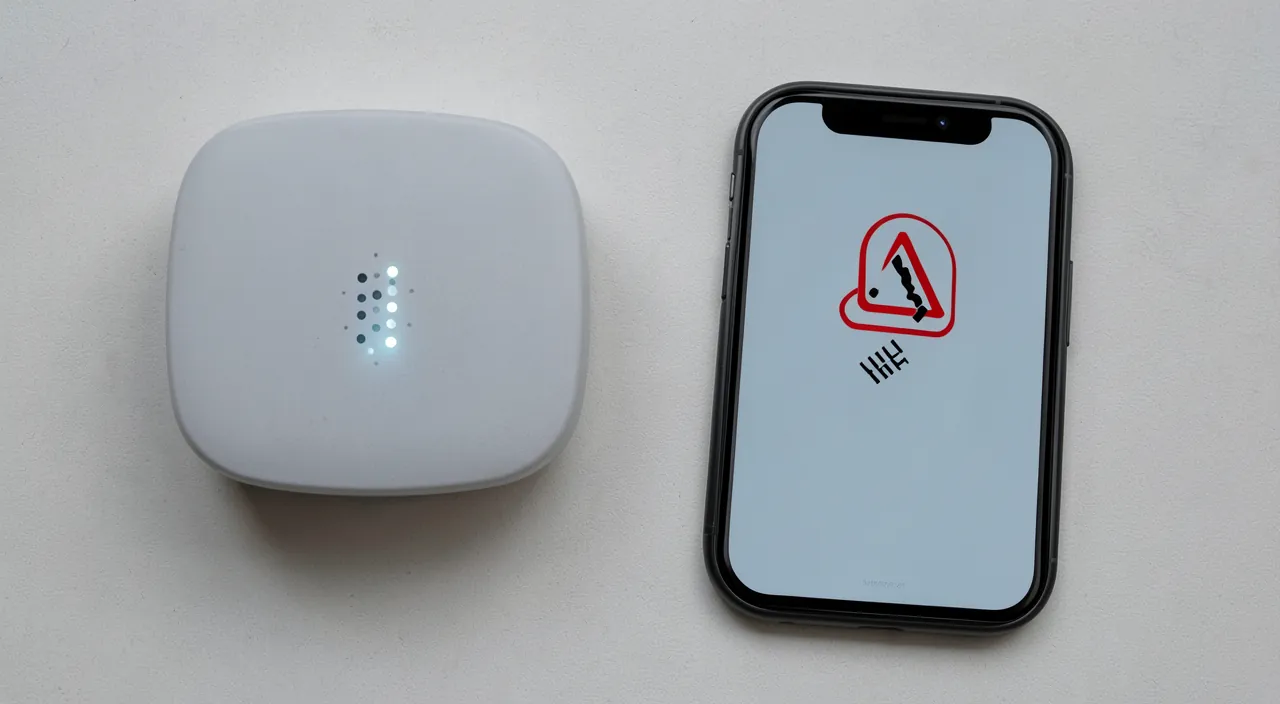
How can I work around the issue to have internet while waiting for it to return?
Use your phone’s CONNECTION SHARING: its mobile data can provide internet to your computer or tablet while waiting for WiFi to return; a practical and quick workaround. Let’s see. CONNECTION SHARING: your phone, via its MOBILE DATA (4G/5G), can SHARE its internet connection with other devices (computer, tablet); this is called “connection sharing” or “hotspot”; it’s a very practical workaround when home WiFi is down. How to ACTIVATE it: in your phone’s settings, look for “connection sharing” or “mobile hotspot”; enable it; your phone then creates a small WiFi network (or via cable/Bluetooth) to which your other devices connect; they then use the phone’s mobile data. CONNECT the computer: on your computer or tablet, connect to the network shared by the phone (like a normal WiFi, with the displayed password); you then have internet via mobile data; an immediate workaround. Watch out for DATA CONSUMPTION: sharing uses your mobile data (your plan); be careful not to exhaust your plan (especially with a computer, which consumes more); avoid large downloads/videos; monitor your usage; mobile data is limited. For ESSENTIAL tasks: reserve sharing for important tasks (emails, messages, a search, urgent work); avoid streaming or large files that would drain your plan; the workaround is for essentials; save data. Check your PLAN: ensure your mobile plan includes enough data and allows sharing (most do); a plan with data is a good backup; know your plan; anticipate this need. The PHONE’S BATTERY: connection sharing drains the phone’s battery (it’s continuously transmitting); plug in the phone if the workaround lasts; monitor its charge; sharing is battery-intensive. A TEMPORARY solution: sharing is a TEMPORARY workaround while waiting for home WiFi/internet to return; it’s not meant for prolonged intensive use (limited data); use it as needed; then return to WiFi. Plan this BACKUP: knowing how to activate connection sharing in advance (and having a data plan) prepares you for outages; it’s a precious “spare tire”; anticipate to avoid being caught off guard. THE ADVICE: while waiting for internet to return, activate your phone’s connection sharing (mobile data) to work around the issue on your other devices; reserve it for essential tasks (watch out for your plan and battery); it’s an effective temporary solution. In summary, to work around the issue while waiting for internet to return, use your PHONE’S CONNECTION SHARING: thanks to its mobile data (4G/5G), your phone can provide internet to your computer or tablet. Activate it in the phone’s settings (look for “connection sharing” or “mobile hotspot”): the phone then creates a small network to which your other devices connect like a normal WiFi, using the plan’s data. It’s an immediate and practical backup solution. Two precautions: monitor your DATA CONSUMPTION (sharing uses your mobile plan, which is limited; a computer consumes quickly—reserve it for essential tasks like emails, messages, or urgent work, and avoid streaming and large downloads that would drain your plan), and monitor the PHONE’S BATTERY (sharing is intensive; plug it in if the workaround lasts). Ensure your plan includes data and allows sharing (most do). It’s a TEMPORARY solution, until home WiFi returns, not a permanent replacement. The best is to learn how to activate this sharing BEFORE needing it: knowing how and having a data plan constitute a precious “spare tire” that will prevent you from being completely cut off during an internet outage.
What to remember
“Connected to WiFi but no internet” is a confusing but very common situation that almost always resolves easily once you understand the essential distinction: being connected to WIFI means your device is linked to your BOX (the local network), while having INTERNET means your box is connected to the GLOBAL NETWORK—two separate things. WiFi can therefore be perfect (icon present) while the link between your box and the internet is cut; the problem then lies between your box and the vast internet. Two essential reflexes resolve most cases. First, the DIAGNOSTIC TEST: check if ONE DEVICE or ALL are affected. If ALL are without internet, the problem is GLOBAL (the box or the provider); if ONLY ONE is affected while the others work, the problem is with that specific device (restart it, reconnect its WiFi, check its time and any VPN, reset its network settings—without touching the box). Then, when all devices are affected, THE queen solution: RESTART THE BOX (turn off, wait a minute, turn on, and let it fully restart for a few minutes until the lights are steady green). This simple move alone resolves most “connected without internet” issues. If restarting doesn’t work, continue diagnostics: check the BOX LIGHTS (abnormal?), and especially, with your MOBILE DATA, look for a possible PROVIDER OUTAGE (their website/app, social networks, outage reporting sites): if an outage is known, it’s NOT your fault, and the only solution is to WAIT for the restoration (no need to struggle). Also check the box cables, test via wired to locate the problem, and if the lights remain abnormal with no known outage, CONTACT your provider (they’ll diagnose the line). Crucial point of caution: never confuse RESTARTING the box (no risk, recommended, nothing is lost) and RESETTING it “to factory settings” (which erases all configuration, changes the WiFi password, and disconnects all devices): never reset to factory settings out of reflex or panic; reserve this for provider-guided assistance. Also check the DEVICE’S TIME (an incorrect date blocks sites) and disable a faulty VPN. While waiting for internet to return, work around it with your PHONE’S CONNECTION SHARING (its mobile data provides internet to your other devices—while monitoring your plan and battery: reserve it for essential tasks). To prevent outages: periodically restart the box, place it in a well-ventilated area, check its connections, let it update, have the provider’s contact info handy, and have a mobile data backup. In short, “connected without internet” is nothing unsolvable: understand the problem is between your box and the internet (not in WiFi), test “one or all devices” to know where to look, restart the box (or the faulty device), and check for a provider outage before struggling. These simple actions, in the right order, restore access in the vast majority of cases.
Persistent issue, temperamental device? Our remote troubleshooting service quickly resolves your problem, without jargon.
Leave a Reply
You must be logged in to post a comment.