
What if your iPhone automatically performed a series of actions with a single gesture or a simple phrase? « Hey, prepare my morning route » which launches the itinerary, the weather, and your playlist; a tap that puts the phone in night mode and starts a sleep timer. This is what Apple’s Shortcuts app allows: automating repetitive gestures to save time. It has a reputation for being complicated, but you can use it very simply, without being an expert, thanks to ready-made shortcuts. Here’s how to discover the Shortcuts app, use it without overcomplicating things, and automate what saves you time.
What the Shortcuts app is and what it’s for
The Shortcuts app (available on iPhone, iPad, and Mac) allows you to create « shortcuts »: sequences of automatic actions, triggered by a gesture, a phrase, or even automatically based on conditions. Concretely, what is it for? AUTOMATE repetitive tasks: instead of performing multiple operations in sequence, a shortcut chains them with a single trigger. SAVE time: the small daily gestures we repeat (sending a standard message, launching a routine, adjusting settings) become instantaneous. Some CONCRETE EXAMPLES: a « Go home » shortcut that launches the return route, sends a « I’m on my way » message to a loved one, and plays your music; a « Reading mode » shortcut that puts the phone in Do Not Disturb, lowers the brightness, and opens your reading app; a shortcut that resizes a photo or turns it into a PDF; a shortcut that displays your agenda and the day’s weather. How to TRIGGER a shortcut: by tapping on it (an icon), by voice (via the voice assistant: « Hey, launch such a shortcut »), from a widget or a button, or AUTOMATICALLY based on conditions (a time, a location, an event: for example, activating a setting upon arrival somewhere). Two levels of use: SIMPLE — use READY-MADE shortcuts (the app offers a gallery of pre-designed shortcuts that you just need to add and use); ADVANCED — create your own custom shortcuts (more powerful, but more technical). What is it for? To SAVE time on repetitive gestures; to SIMPLIFY sequences of actions; to personalize your usage; and to automate certain things based on context. The main idea: the Shortcuts app allows you to automate sequences of actions to save time on what you do often. It has a reputation for complexity, but this is misleading: you can perfectly use it in a SIMPLE way, by simply using the ready-made shortcuts offered in its gallery, without ever programming anything yourself. Creating custom shortcuts is more advanced, but optional. Start simple: discover the ready-to-use shortcuts, adopt those that save you time, and then see if you want to go further.
The Shortcuts app lets your iPhone do multiple things at once with one command. You can use pre-made shortcuts without any technical skills, or create your own if you want. It’s like having a personal assistant that handles repetitive tasks for you.
Imagine you have a “Morning Routine” shortcut that, when you say “Hey Siri, good morning,” automatically opens your calendar, checks the weather, starts your favorite playlist, and displays your daily news briefing. This sequence that normally takes 2-3 minutes becomes instantaneous.

How to use the Shortcuts app, simply
Here’s how to get started without overcomplicating things. Start with the GALLERY — the Shortcuts app offers a GALLERY of READY-MADE shortcuts, categorized by theme; browse through it: you’ll find useful shortcuts already designed, which you just need to add; no need to create anything. ADD those that appeal to you — when a shortcut seems useful to you (for example « travel time to home », « battery saver », « make a GIF »), add it to your collection; it then appears in your shortcuts, ready to use. TRIGGER them easily — use your shortcuts by tapping on them in the app, or better: add them to your home screen (like an app), in a widget, or trigger them by VOICE (ask the assistant to launch such a shortcut); the voice usage is particularly practical. Test before adopting — try a shortcut to see what it does; keep those that are really useful to you, delete the others. Personalize SIMPLY if you want — many ready-made shortcuts can be easily adjusted (change a contact, a destination, a setting); it’s often a simple modification, without programming. Explore the SUGGESTIONS — the iPhone sometimes suggests shortcuts based on your habits; take a look, they can be relevant. To go further: AUTOMATIONS — you can create automations that trigger automatically based on conditions (at a time, upon arrival somewhere, when connecting an accessory); for example, activate a mode in the evening; it’s a more advanced step, to explore if the mood takes you. Create your own shortcuts (optional) — if you want a custom shortcut, the app allows you to assemble actions; it’s more technical, but you can start with small things; don’t force yourself if it puts you off, the ready-made shortcuts are largely sufficient. Don’t COMPLICATE your life — the goal is to SAVE time, not to lose it by automating everything; only automate what really saves you (the truly repetitive gestures). Some TIPS: start with the gallery of ready-made shortcuts (the simplest); adopt those that save you time; and only automate what is useful. In short: explore the gallery of ready-made shortcuts, add and test those that appeal to you, trigger them easily (home screen, widget, voice), personalize them simply if needed, and only go to custom creation or automations if you feel like it. The Shortcuts app saves you time, at your own pace.
- Start with the gallery of ready-made shortcuts
- Add shortcuts that seem useful
- Trigger them easily (home screen, widget, voice)
- Test before adopting
- Personalize simply if needed
- Explore suggestions from the iPhone
- Consider automations for advanced use
- Create custom shortcuts only if you want
- Don’t complicate – only automate what saves time
The right reflex. Don’t be intimidated by the « complicated » reputation of the Shortcuts app: the secret is to start SIMPLE, completely forgetting the idea of « programming » anything. Your starting point is the GALLERY of READY-MADE shortcuts that the app offers: dozens of shortcuts already designed, categorized by theme, which you just need to ADD and use, without creating or understanding anything technical. Browse this gallery like a catalog: when a shortcut seems useful to you (calculate a tip, resize a photo, know the travel time to home, launch an evening routine…), add it, try it, and keep it if it saves you time. It’s as simple as installing a small ready-made function. For your shortcuts to be really practical, make them EASY to trigger: place those you use often on your home screen (like an application), in a widget, or — the most convenient — trigger them by VOICE by asking the voice assistant to launch them. Many ready-made shortcuts can also be personalized very simply (change a contact, a destination), without any programming. Always keep the goal in mind: SAVE time on what you do OFTEN. Only automate the gestures that are really repetitive and bother you; don’t fall into the trap of wanting to automate everything, which would mean spending more time configuring than saving. If, with experience, the desire to go further takes you — create your own custom shortcuts or automations that trigger automatically (in the evening, upon arrival somewhere) —, you can explore these more advanced possibilities at your own pace. But this is absolutely not necessary: the ready-made shortcuts from the gallery are largely sufficient to benefit from the app and simplify your life. Start with the gallery, adopt the useful, trigger by voice: automation then becomes accessible to everyone, without the slightest complexity.
The limits and precautions
The Shortcuts app is powerful, but let’s keep a few nuances and precautions in mind. The COMPLEXITY of custom creation: if using ready-made shortcuts is simple, CREATING complex ones yourself requires logic and patience; don’t be discouraged if it seems difficult; stick to ready-made shortcuts if creation puts you off; there is no obligation. Don’t AUTOMATE just to automate: the goal is to save time; spending hours configuring a shortcut that you’ll use twice doesn’t make sense; only automate what is really repetitive and useful; excessive automation is counterproductive. Third-party shortcuts: you can find online shortcuts shared by other users; some are excellent, but beware of shortcuts from UNKNOWN SOURCES: a shortcut can perform actions on your device (access data, send things); only add shortcuts from reliable sources, and check what they do (our guides verify an app before installing it). PERMISSIONS: a shortcut sometimes asks for permission to access certain things (your contacts, your location, an app); understand what it asks before accepting; a shortcut that requests access unrelated to its function should raise suspicion. AUTOMATIONS to monitor: an automation that triggers automatically (at a time, a location) is practical, but make sure it does exactly what you want; a poorly configured automation can have unintended effects. DEPENDENCE on the ecosystem: shortcuts are specific to the Apple universe; they don’t transfer elsewhere; keep that in mind. CHANGES: the app’s functions evolve with updates; a shortcut may require adjustment after a major update. Don’t TRUST a sensitive shortcut completely: for really important or sensitive actions (payments, critical data), keep control rather than automating blindly. In short: stick to ready-made shortcuts if creation puts you off (no obligation); only automate what is useful (no excess); beware of shortcuts from unknown sources and check the permissions they request; monitor your automatic automations; and keep control over sensitive actions. Thus, the Shortcuts app remains a time saver, without risk or hassle.
Warning: beware of shortcuts shared by unknown sources, and check the permissions they request. The Shortcuts app is very practical, but one point of vigilance deserves your attention, especially if you start downloading shortcuts created by others. On the internet, many users SHARE their shortcuts, and many are excellent and perfectly safe. But keep in mind that a shortcut is not just a simple button: it’s a sequence of ACTIONS that are executed on your device, and it can, depending on what it contains, access your data (contacts, photos, location), send information, or perform various operations. A malicious shortcut, from a dubious source, could therefore do things you wouldn’t have wanted. The rule of prudence: only add shortcuts from RELIABLE and recognized sources, and beware of those found randomly on obscure sites or forums. Before adding a shared shortcut, it’s good to check what it CONTAINS (the actions it chains); if you don’t understand what it does, or if it seems to access things unrelated to its announced function, it’s better to abstain. Second point: PERMISSIONS. When you use a shortcut, it may ask for permission to access certain elements of your device (your contacts, your position, an application, your messages). Take the time to understand what it asks before accepting: a permission consistent with the function of the shortcut is normal (a route shortcut needs the location); on the other hand, a shortcut that would request access unrelated to what it is supposed to do should raise your suspicion. Finally, if you create AUTOMATIONS that trigger automatically (at a given time, upon arrival somewhere), make sure they do exactly what you want, because a poorly configured automation can produce unintended effects at a time when you don’t expect it. For a peaceful use: stay on the ready-made shortcuts of the official gallery and reliable sources, check what the shortcuts you add do, understand the permissions requested, and keep control over sensitive actions. With these common sense reflexes, the Shortcuts app remains a formidable time-saving tool, without any bad surprises.
Frequently asked questions
Is the Shortcuts app reserved for experts?
No, absolutely not: it’s a persistent misconception, but you can perfectly use it without any technical skills. The confusion comes from the fact that the app allows TWO very different levels of use. On the one hand, the CREATION of custom shortcuts: assembling actions yourself, with logic; this, yes, can become technical and discourage, and it’s what gives the app its reputation for complexity. But on the other hand, there is the SIMPLE use, accessible to everyone: using the READY-MADE shortcuts that the app offers in its gallery. There, no programming, no logic to understand: you browse a catalog of already designed shortcuts, you add those that are useful to you, and you use them, period. It’s as simple as installing a small ready-made function. The vast majority of people can benefit from the Shortcuts app by staying at this simple level, without ever creating anything. You can thus add practical shortcuts (calculate a tip, resize a photo, launch an evening routine, know your travel time), place them on your home screen or trigger them by voice, and save time — all without being an « expert ». Custom creation and advanced automations remain available for those who are interested and want to go further; but it’s totally optional. So, if the Shortcuts app intimidated you, forget this apprehension: start with the gallery of ready-made shortcuts, adopt the useful, and you’ll see that automating a few daily gestures is within everyone’s reach. Complexity is only for those who want to tinker with their own shortcuts; everyday use, on the other hand, is simple.
What simple shortcuts can save me time?
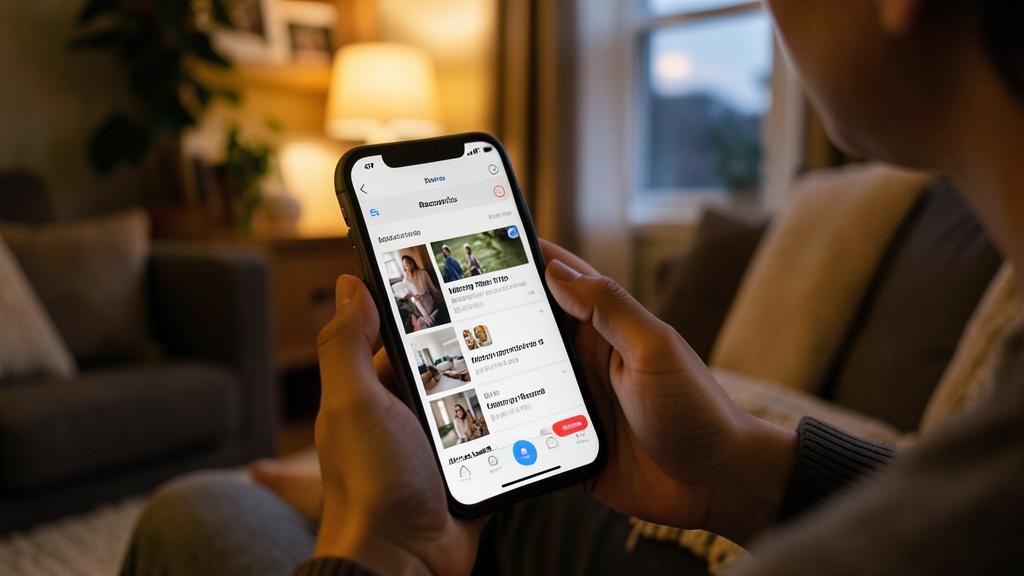
Many ready-to-use shortcuts target the small repetitive gestures of everyday life; here are examples of what can save you time, to give you ideas. ROUTE shortcuts: « travel time to home » or « to work », which instantly give you the route and duration; a « I’m on my way » shortcut that sends a standard message to a loved one while you launch the navigation. ROUTINE shortcuts: an « evening » or « good night » shortcut that, with one gesture, puts the phone in Do Not Disturb, lowers the brightness, and for example plays soft music or a timer; a « morning » shortcut that displays the weather and your agenda for the day. PRACTICAL shortcuts for files and photos: resize an image, turn it into a PDF, create a GIF, extract text from a photo. UTILITY shortcuts: calculate a tip or split a bill, convert units, a battery saver that activates with one gesture the settings that save energy. COMMUNICATION shortcuts: quickly send a standard message to a specific contact, call someone with a gesture. The general idea: identify, in your daily life, the sequences of manipulations that you repeat often (the same settings to change, the same message to send, the same app to open in the same context), because these are the ones that a shortcut can advantageously automate. Browse the app’s gallery with this question in mind: « what do I do often that could be done with a single gesture? ». Adopt the shortcuts that match YOUR habits; no need to accumulate dozens, keep those that really serve you. By starting with these simple and concrete shortcuts, you discover all the interest of the app without complexity: a few daily gestures become instantaneous, and the time saved, day after day, ends up counting.
Is it risky to add shortcuts found on the internet?
It can be if you’re not careful, so yes, a minimum of caution is required, while keeping things in perspective. Most of the shortcuts shared by the user community are useful and perfectly safe; sharing shortcuts is a common and enriching practice. But you need to understand that a shortcut is not trivial: it’s a sequence of actions that are executed on your device, and depending on what it contains, it can access your data or perform various operations. A malicious shortcut, from a dubious source, could therefore do unwanted things. Good reflexes to add shortcuts without risk: favor RELIABLE and recognized SOURCES (the official app gallery is the safest; for shared shortcuts, prefer reputable sites and communities rather than obscure links); before adding a shared shortcut, CHECK what it contains (the app shows you the actions it chains before adding it); if you don’t understand what it does, or if it seems to access things unrelated to its function, abstain. Then, in use, pay attention to the PERMISSIONS that a shortcut requests: if it asks for access to your contacts, your location, your messages, make sure it’s consistent with what it’s supposed to do, and beware of unjustified requests. In short: adding a shortcut found on the internet is not dangerous in itself if you stick to reliable sources and check what the shortcut does before using it; it’s a bit like installing an app — the vast majority are safe, but you choose trusted sources and stay attentive to permissions. With this common sense, you can enjoy the shortcuts shared by the community without fear; without this vigilance, it’s better to stick to the official shortcuts from the gallery, which are already largely sufficient.
What to remember
Apple’s Shortcuts app allows you to AUTOMATE sequences of actions to save time on what you do often: a gesture or a phrase, and several manipulations are chained automatically. Despite its reputation for complexity, you can perfectly use it in a SIMPLE way, without ever programming anything: this is the key point. The app offers two levels: simple use, accessible to everyone (using the READY-MADE shortcuts from its gallery), and advanced use, optional (creating your own shortcuts and automations). To get started and benefit from the app without effort: browse the GALLERY of ready-made shortcuts like a catalog, add and test those that are useful to you (travel time, evening routine, resizing a photo, calculating a tip…), and make them easy to trigger — on the home screen, in a widget, or by VOICE. Many can be personalized simply. Always keep the goal in mind: save time on truly REPETITIVE gestures; only automate what is useful, without falling into the excess of wanting to automate everything. If the desire to go further takes you (create custom shortcuts, automations that trigger automatically based on time or location), you can do so at your own pace; but it’s not necessary, the ready-made shortcuts are largely sufficient. Some precautions: if custom creation puts you off, stick to ready-made shortcuts (no obligation); and above all, beware of shortcuts shared by UNKNOWN SOURCES — a shortcut executes actions on your device, so only add those from reliable sources, check what they do, and be attentive to the permissions they request (a shortcut requesting access unrelated to its function should raise suspicion). Also monitor your automatic automations, and keep control over sensitive actions. Often perceived as reserved for experts, the Shortcuts app is in reality accessible to everyone in its simple use: by adopting a few ready-to-use shortcuts that match your habits, you transform repetitive daily gestures into instantaneous actions — a real time saver, without any complexity, provided you stick to reliable sources.

Want to unlock the full potential of your iPhone, iPad, or Mac? Our Apple training courses will take you to the next level.
Leave a Reply
You must be logged in to post a comment.