
The iPhone Clock app is one of the most used daily: you set your alarm, start a timer in the kitchen, check the time in other countries. Yet, many only know the basics and miss out on very practical functions: multiple alarms, gentle wake-up, chained timers, time zones, stopwatch. Mastering this small app saves comfort and organization every day. Here’s how to get the most out of the Clock app on your iPhone, between alarms, timer, and time zones.
The Clock app: four tools in one
The Clock app groups four distinct functions, accessible via tabs at the bottom of the screen: knowing each one helps you get the most out of it. WORLD CLOCK: displays the time in different cities around the world; practical for keeping track of your loved ones abroad, professional contacts, or preparing a trip; you add the cities that interest you and see their time at a glance (with the difference from your location, and day/night). ALARMS: the most used function — your wake-up call; you can create MULTIPLE alarms, schedule them for certain days (e.g., weekdays only), choose the ringtone, volume, the « snooze » option, and give them a name; we’ll come back to this in detail. STOPWATCH: to measure elapsed time (a sports activity, any duration); with the ability to mark « laps » (intermediate times). TIMER: for a COUNTDOWN — you set a duration, and the iPhone rings at the end; ideal for cooking, a break, a one-time reminder; recent versions even allow multiple simultaneous timers. These four tools cover most daily time-related needs. A useful note: most of these functions are also accessible via SIRI (the voice assistant) — « set an alarm for 7 a.m., » « 10-minute timer » — which is often the fastest, especially when your hands are busy (our guides use a voice assistant). And many are accessible from the lock screen or control center. What to remember to start: the Clock app is not just a simple alarm clock; it’s four tools (world clock, alarms, stopwatch, timer) that provide real services daily; knowing them and being able to trigger them quickly (via the app or Siri) saves comfort and organization. Let’s explore the most useful ones.
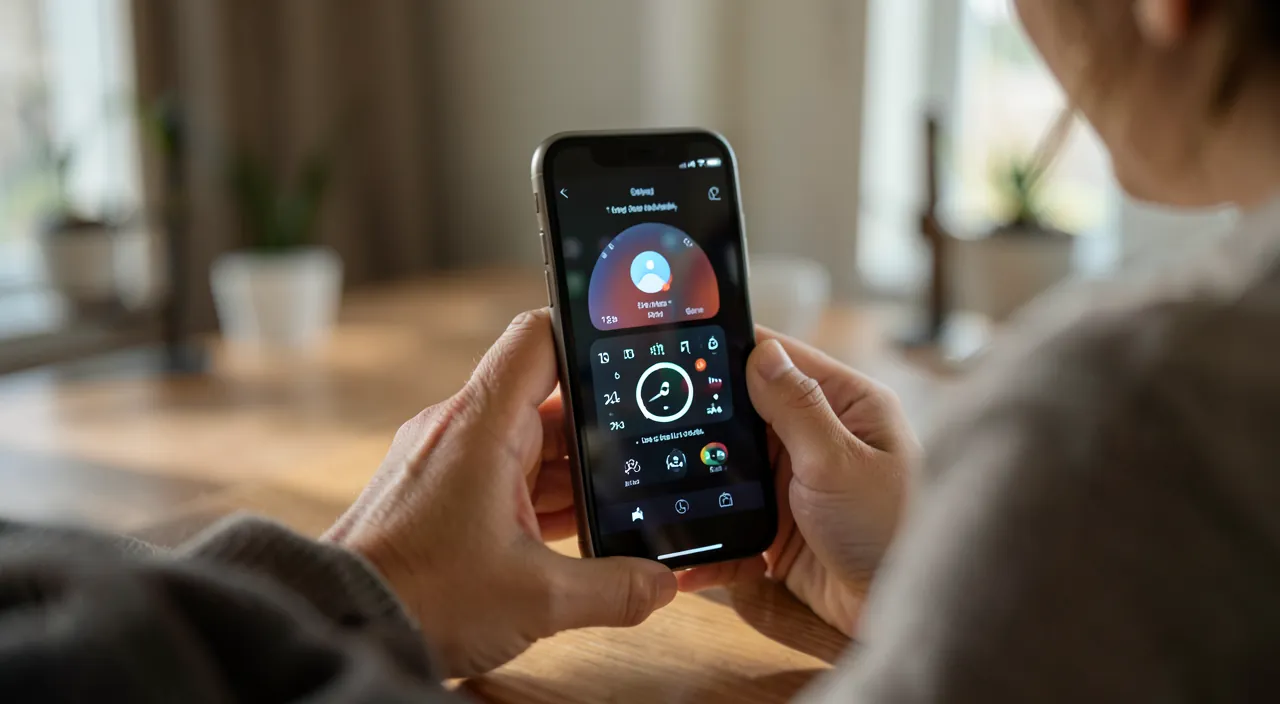
Setting up your alarms and wake-up calls properly
The alarm is the star function: here’s how to get the most out of it for your wake-ups. CREATE an alarm: in the Alarm tab, tap the « + », set the time, and confirm; you can create AS MANY as you want. SCHEDULE the repetition: for each alarm, choose the DAYS it should ring (every day, weekdays only, specific days); thus, a « weekday » alarm won’t wake you up on the weekend. NAME the alarm: give it a label (« Work, » « Medication, » « Appointment ») to know what it’s for when it rings. Choose the RINGTONE and VOLUME: select the ringtone (from those offered, or a song), at a volume that’s neither too low (you wouldn’t hear it) nor too aggressive. The SNOOZE option: enable it if you want to be able to « snooze » the alarm for a few minutes; disable it if you prefer to get up at the first ring. MANAGE MULTIPLE alarms: you can have multiple active alarms (e.g., a first one to wake up, a second « backup » a bit later); enable/disable each one with its switch, without having to delete it. GENTLE WAKE-UP: recent iPhones offer, via the Health/Sleep app, a wake-up integrated into a « sleep schedule » that can wake you up more gently and track your bedtime; it’s an alternative to the classic alarm, more focused on well-being. MODIFY or DELETE: tap an alarm to modify it; swipe to delete it; or simply disable it if you want to keep it for later. SIRI tip: « Wake me up at 6:30 a.m., » « Delete all my alarms » — the assistant manages alarms vocally, very practical. An IMPORTANT point about the sound: an alarm rings normally even if the phone is in SILENT mode (it’s intentional, so you don’t miss your wake-up call); however, beware of the VOLUME set too low, or a connected headset (the sound might come out in the headset). In summary for alarms: create as many as needed, schedule the repetition days, name them, set the ringtone and volume, and use multiple alarms or the « sleep » wake-up according to your needs; Siri speeds everything up. Well set, your alarms become a real organization tool, not just a wake-up call.
Practical tips: multiple timers, named alarms, and Siri to control everything. Some clever uses of the Clock app that change your daily life. MULTIPLE TIMERS: recent iPhones allow you to launch SEVERAL timers at the same time and NAME them; a delight in the kitchen (a « Pasta 8 min » timer and another « Oven 25 min » simultaneously), or to manage multiple tasks; no more juggling with a single timer. NAMED and scheduled alarms: instead of an anonymous alarm, name them according to their role (« Wake-up, » « Take the train, » « Evening medication ») and schedule the right days; you can thus have a set of recurring alarms to pace your days (weekday wake-up, regular appointment reminders, treatment intake); it’s a real organization tool. SIRI to control everything: it’s often the fastest, especially when your hands are busy (in the kitchen, while driving); simply say « Hey Siri, 15-minute timer, » « Wake me up at 7 a.m., » « Set a 6-minute timer for the eggs » (it names it!), « What time is it in Tokyo? »; the assistant instantly creates the alarm or timer (our guides use a voice assistant). WORLD CLOCK for loved ones abroad: add the cities of your loved ones or contacts; at a glance, you know if it’s a decent time to call them (avoids waking someone up!). STOPWATCH with laps: useful for sports (measuring sets) or any timed activity. SHORTCUTS: the timer and stopwatch are quickly accessible from the CONTROL CENTER (the panel you slide down); no need to open the app each time (our guides customize the control center). Finally, for wake-up, explore the « Sleep » function (in the Health app) that offers a gentle wake-up and tracking of your bedtime, if well-being interests you. These tips — named multiple timers, organized alarms, Siri control, world clock, quick access via the control center — transform a basic app into a daily assistant; they require no skill, just knowing they exist.
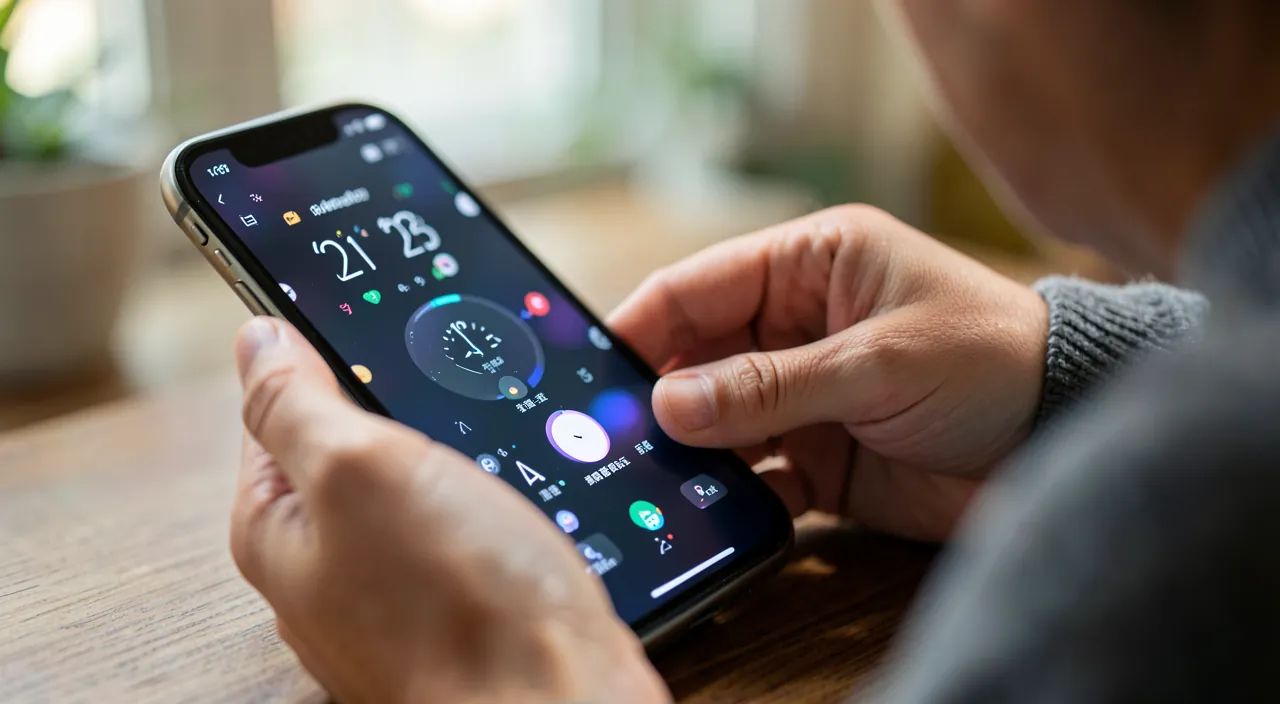
The Clock app is like a Swiss Army knife for time management. It has four main tools: alarms, timers, a stopwatch, and a world clock. Each one helps with different daily tasks, from waking up on time to cooking multiple dishes at once. The key is knowing how to use them all together.
Imagine you’re cooking dinner: you set a 10-minute timer for the pasta and a 20-minute timer for the chicken. You name them “Pasta” and “Chicken” so you know which one is which. Meanwhile, your alarm is set to remind you to take your medication at 8 p.m. and another one to wake up at 6:30 a.m. tomorrow. The world clock shows it’s 9 a.m. in Paris, so you know it’s a good time to call your friend there. All these features work together to make your day run smoother.
Timer, stopwatch, and world clock
Beyond alarms, the other three functions provide real services daily: let’s detail them. TIMER (countdown): in the Timer tab, set a duration (hours, minutes, seconds) and start; the iPhone will ring at the end; ideal for cooking, a work break, a playtime for kids, or any one-time reminder. Practical function: « At the end of the timer, » you can choose not only a ringtone but also « Stop playback » — perfect for falling asleep to music: playback stops automatically after the chosen delay. On recent iPhones, multiple simultaneous and named timers are possible (see above). STOPWATCH: in the Stopwatch tab, start to measure elapsed time; the « Lap » button records intermediate times (useful for sports: measure each lap, each set); pause, resume, reset. WORLD CLOCK: in the Clock tab, add cities (tap « + » and search for the city); you then see the time of each, with a light background (day) or dark (night) and the difference from your time; very practical for: knowing if it’s a decent time to call a loved one abroad, coordinating an appointment with contacts in other time zones, or preparing a trip; reorganize cities by order of preference. The link with SLEEP: the management of the « well-being » wake-up is actually in the Health app (sleep schedule), not in the classic Clock app; it offers regular bedtime/wake-up, gentle wake-up, and tracking; both coexist, choose according to your needs. TIME ZONES while traveling: when you change time zones, the iPhone normally updates the time automatically (if set to automatic); your alarms follow the local time; useful to know to avoid missing your wake-up call while traveling. In summary: the timer for countdowns (cooking, breaks, falling asleep to music), the stopwatch to measure time (sports), the world clock to follow time zones (loved ones abroad, travel); each of these functions, often unknown, is useful in specific daily situations. Knowing them is having the right tool at the right time.
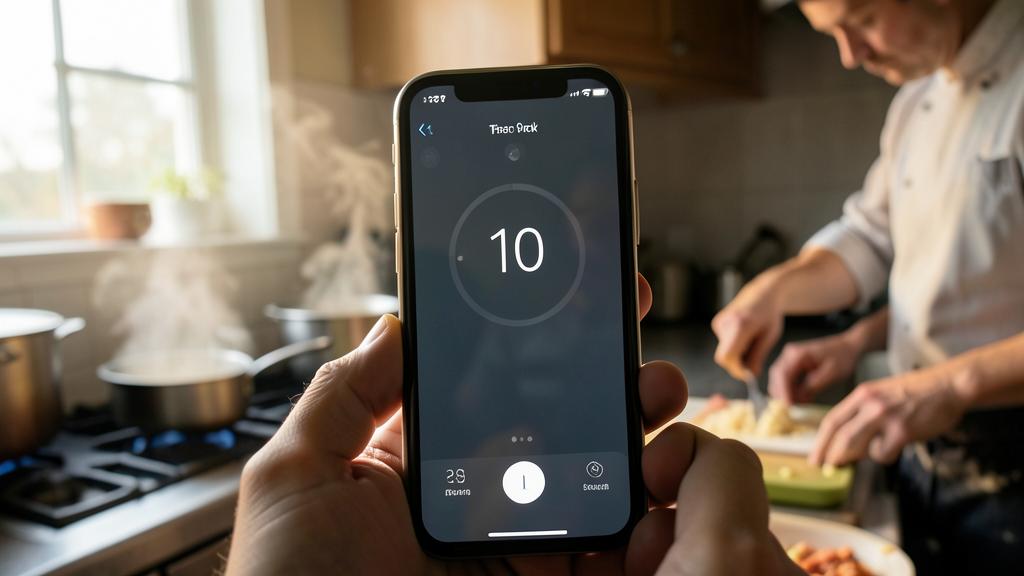
Warning: don’t miss your wake-up call — check the volume, headset, and automatic time. Some pitfalls to avoid with the Clock app, especially to not miss an important alarm. ALARM VOLUME: an alarm set to a volume that’s too LOW may not wake you up; check the ringtone volume of your alarms; good to know: an alarm rings normally EVEN if the phone is in silent or « Do Not Disturb » mode (it’s intentional, so you don’t miss your wake-up call), but the ringtone volume still matters. The HEADSET trap: if headphones or a headset (wired or Bluetooth) are connected when the alarm rings, the sound may come out in the HEADSET rather than the speaker — you may not hear it; be careful when falling asleep with headphones. CHARGE: an iPhone turned off due to a dead battery won’t ring; make sure it has enough charge for the night (or plug it in) if you rely on its wake-up call. AUTOMATIC TIME while traveling: when changing time zones, the iPhone adjusts the time automatically (if set to automatic); your alarms then follow the LOCAL TIME; it’s generally practical, but check it to avoid surprises (an alarm set to « 7 a.m. » will ring at 7 a.m. local time). Don’t rely ONLY on a single alarm for a crucial event (flight, exam): as a precaution, set TWO alarms a few minutes apart, just in case. Make sure the alarm is ACTIVATED (the switch) and scheduled for the RIGHT day: a « weekday » alarm won’t ring on the weekend, and vice versa; common mistake. Also, don’t confuse the Clock app’s wake-up call and the « Sleep » function of the Health app (which has its own wake-up call): if you’ve set a sleep schedule, it might be the one managing your wake-up; don’t create confusion between the two. Finally, for the kitchen timer: don’t walk away too far; if the phone is in another room, you might not hear the end of the countdown. By checking the volume, the absence of a headset, the charge, the correct repetition day, and automatic time, you ensure that your alarms and timers fulfill their role — and you won’t miss an important wake-up call.
Frequently asked questions
Can I have multiple different alarms?
Yes, as many as you want: it’s one of the great advantages of the Clock app. You can create MULTIPLE alarms, each with its own settings: a different time, different REPETITION DAYS (one on weekdays, another on weekends, a third on a specific day), a specific ringtone, a name (« Wake-up, » « Medication, » « Appointment »). This allows you to cover all your needs: for example, a 7 a.m. wake-up on weekdays, another at 9 a.m. on weekends, a daily reminder for treatment, and a one-time alarm for an event. You can ACTIVATE or DEACTIVATE each alarm independently with its switch, without having to delete it: practical to keep a configured alarm and only activate it when needed. A common tip: set TWO close alarms (e.g., 6:30 a.m. and 6:40 a.m.) for an important wake-up, as a backup if you don’t hear the first one. You manage all your alarms from the Alarm tab, where they are displayed in a list; tap one to modify it. And Siri makes everything easier: « Set an alarm for 6 a.m., » « Disable my 7 a.m. alarm, » « Delete all my alarms. » So yes: multiply alarms according to your needs, name them, schedule their days, and activate/deactivate them as you wish; it’s a real organization tool, far beyond a simple single alarm.
Will my alarm ring if my phone is on silent?
Yes: it’s a DELIBERATE feature of the iPhone; the alarms of the Clock app ring NORMALLY even when the phone is in silent mode (the side switch on silent) or in « Do Not Disturb » mode; it’s intentional, precisely so you don’t miss your wake-up call because you left the phone on silent. You can therefore sleep with the phone on silent (to not be disturbed by notifications at night) while still relying on your alarm: it will still ring. BEWARE, however, of two points that could prevent you from hearing it. RINGTONE VOLUME: even when ringing, the alarm uses a certain volume; if it’s set very low, you may not hear it; check the volume of your alarms in the settings. HEADSET or earbuds: if earbuds (wired or Bluetooth) are connected when the alarm rings, the sound may come out IN the headset rather than through the phone’s speaker; if you fall asleep with earbuds, you may not hear the alarm; unplug them before sleeping if you rely on your wake-up call. Finally, a TURNED OFF phone (dead battery) obviously won’t ring: make sure it has enough charge, or plug it in for the night. In summary: yes, the alarm rings in silent mode; you can count on it; just make sure the volume is sufficient, that no headset is connected, and that the battery is sufficient.
How to launch multiple timers at once?
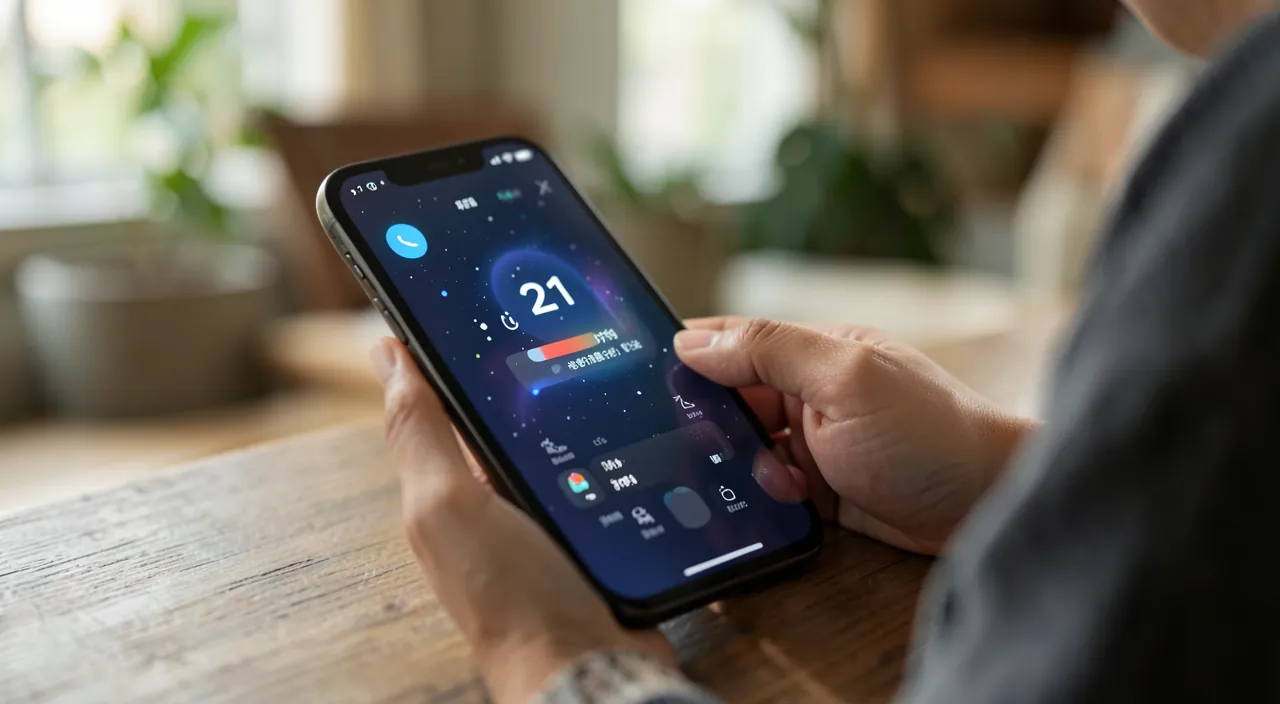
On recent iPhones, it’s possible and very practical; on older ones, there are alternatives. Recent versions of the system allow you to launch SEVERAL simultaneous timers and NAME them: ideal in the kitchen (a « Pasta » timer for 8 minutes and an « Oven » timer for 25 minutes at the same time) or to manage multiple tasks. The easiest way to create them is often SIRI: say « Set an 8-minute timer for the pasta » then « Set a 25-minute timer for the oven »; the assistant creates two distinct named timers, which you then follow in the app or via Siri (« How much time is left on the pasta timer? »). You can also create them manually in the Clock app (Timer tab), which then displays your active timers side by side. If your iPhone is OLDER and only manages one timer at a time: the alternatives are to use ALARMS (set multiple alarms at the desired end times), or a third-party timer app that manages multiple timers. But on an up-to-date iPhone, multiple named timers are integrated: take advantage of them, especially in the kitchen where you often juggle multiple cooking times. It’s one of those small functions that really simplify daily life once you know they exist. Tip: naming each timer (via Siri or in the app) avoids wondering « which one just rang? » when you have several.
What to remember
The iPhone Clock app is much more than an alarm clock: it’s four tools in one — WORLD CLOCK (time in other cities), ALARMS, STOPWATCH, and TIMER — that provide real daily services. For ALARMS: create as many as needed, schedule the REPETITION DAYS (weekdays, weekends, specific days), name them according to their role, set the ringtone and volume, enable/disable each one as you wish; use multiple close alarms for a crucial wake-up. The TIMER is for countdowns (cooking, breaks; with the « stop playback » option to fall asleep to music); recent iPhones allow multiple simultaneous and named timers (perfect in the kitchen). The STOPWATCH measures elapsed time with « laps » (useful for sports). The WORLD CLOCK follows time zones (knowing if it’s a decent time to call a loved one abroad, preparing a trip). Key tips: control everything via SIRI (« wake me up at 7 a.m., » « 10-minute timer ») — often the fastest, especially when your hands are busy; access the timer and stopwatch from the CONTROL CENTER; for the « well-being » wake-up, explore the Sleep function of the Health app. VIGILANCE points to not miss an alarm: check the VOLUME (an alarm rings even in silent mode, but a volume that’s too low won’t wake you up), beware of a connected HEADSET (the sound would come out in it), ensure sufficient BATTERY, check the correct repetition day, and while traveling, know that the time (and therefore the alarms) follows the LOCAL time zone automatically. For a crucial event, set two alarms for safety. By knowing these functions and tips, you transform a basic small app into a real daily organization assistant — without any technical skill, just by knowing what it can do.
Want to unlock the full potential of your iPhone, iPad, or Mac? Our Apple training courses will take you to the next level.
Leave a Reply
You must be logged in to post a comment.