
Your wireless headphones that refuse to connect, a Bluetooth speaker that can’t be found, a keyboard that won’t pair, a car that no longer recognizes your phone: Bluetooth issues are among the most common — and the most frustrating. Good news: they almost always resolve with a few simple steps, no technical skills required. Bluetooth is finicky by nature, but the fixes are well-established. Here’s how to troubleshoot when Bluetooth refuses to connect, step by step, to get your wireless devices working again.
Understanding why Bluetooth is failing
Bluetooth allows wirelessly connecting two nearby devices (phone and headphones, computer and mouse, car and phone); simple in theory, it’s finicky in practice, for reasons worth knowing. How it works: to connect, two devices must first be “PAIRED” (linked) — an initial setup where they recognize each other; then, they reconnect automatically when in range. COMMON causes of failure: Bluetooth is DISABLED on one device; the device isn’t in PAIRING mode (for first-time pairing, the accessory must be made “discoverable”); the devices are too FAR APART (Bluetooth has limited range, a few meters); the accessory is already CONNECTED to another device (many headphones only connect to one at a time); the accessory’s BATTERY is dead; a temporary connection bug; a “corrupted” previous pairing (the device remembers the accessory poorly); interference; an incompatible or turned-off accessory. USEFUL distinctions: is this a FIRST pairing (the accessory has never connected to this device: pairing mode is needed) or a RECONNECTION (they were paired but no longer reconnect: often a bug to fix)? The good news: most Bluetooth issues are resolved by simple, well-known steps (enable/disable, move closer, forget and re-pair, restart); it’s rarely a real failure. THE APPROACH: proceed step by step, from simplest to most complex (our method guides for self-troubleshooting). What to remember: Bluetooth is finicky, but its issues are usually minor and easy to fix; before getting frustrated or assuming the accessory is broken, a few simple steps resolve the vast majority of cases. You just need to know the right reflexes — here they are.
Bluetooth is a wireless connection that needs two devices to “shake hands” first (pairing). If they stop talking, it’s usually because one is off, too far, or already talking to someone else. Most fixes are simple: turn things on, move closer, or “forget” the device and start over.
Your AirPods won’t connect to your iPhone. You check: Bluetooth is on, the case is charged, and they’re right next to the phone. But they still don’t pair. The fix? “Forget” the AirPods in your iPhone’s Bluetooth settings, then hold the button on the case to reset them. They’ll reconnect instantly.
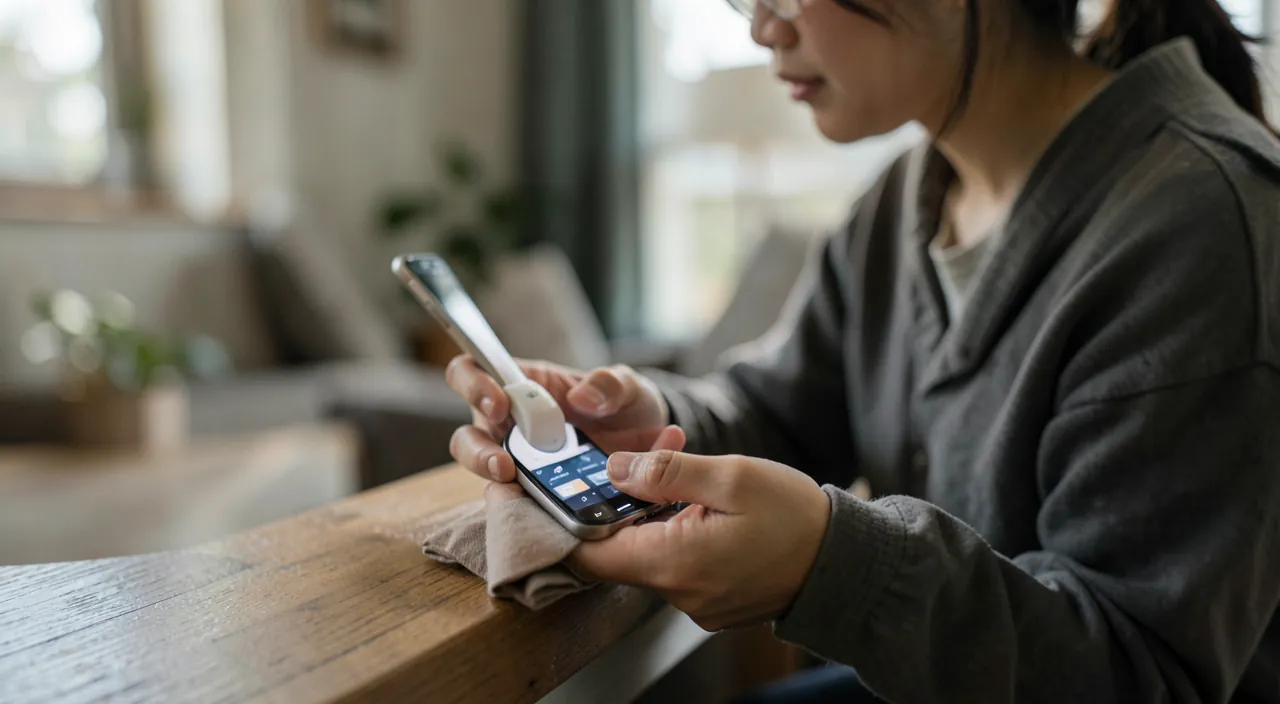
The solutions, in order
Try these solutions from simplest to most complex; retry the connection after each step. SOLUTION 1 — is Bluetooth ENABLED? Check that Bluetooth is turned on for BOTH devices (on the phone/computer, in settings or quick panel; and on the accessory, that it’s powered on). This seems obvious, but it’s a common cause. SOLUTION 2 — is the accessory POWERED ON, CHARGED, and in PAIRING mode? Ensure the accessory (headphones, speaker) is on and charged; for FIRST pairing, put it in PAIRING/discoverable mode: the process varies (often holding a button for a few seconds until an indicator blinks in a certain way); check the accessory’s manual; without this mode, your phone won’t “see” it. SOLUTION 3 — MOVE the devices closer: Bluetooth has a short range; bring the accessory near the device (less than a meter for pairing), with no obstacles between them. SOLUTION 4 — is the accessory connected ELSEWHERE? Many accessories (headphones especially) only connect to ONE device at a time; if it’s already connected to another nearby phone/computer, it won’t connect to yours; disconnect it from the other device, or turn off Bluetooth on the other device. SOLUTION 5 — disable/re-enable Bluetooth: turn off Bluetooth on your device, wait a few seconds, then turn it back on; this simple “restart” of Bluetooth fixes many connection bugs; enabling/disabling airplane mode has a similar effect. SOLUTION 6 — RESTART the devices: restart your phone/computer, and power off/on the accessory; a restart fixes many issues (our guides on why restarting resolves most bugs). SOLUTION 7 — “FORGET” and re-pair: this is THE go-to solution for failed reconnections; in Bluetooth settings, “forget”/delete the accessory from the list of known devices, then re-pair from scratch (like a first-time pairing); this erases a “corrupted” pairing and starts fresh; extremely effective when a previously connected device no longer reconnects. SOLUTION 8 — INTERFERENCE: move away from sources of interference (other wireless devices, some electrical appliances); rare, but possible. SOLUTION 9 — UPDATES: check that your device (and sometimes the accessory, via its app) is up to date; updates fix Bluetooth bugs. After these steps, the connection is almost always restored: most often, it’s enough to enable Bluetooth, put the accessory in pairing mode, or “forget” and re-pair. If nothing works after all this — the accessory won’t connect to ANY device, or won’t enter pairing mode despite the correct steps — it may be defective; test it with another device to confirm. But in the vast majority of cases, one of these simple steps resolves the issue.
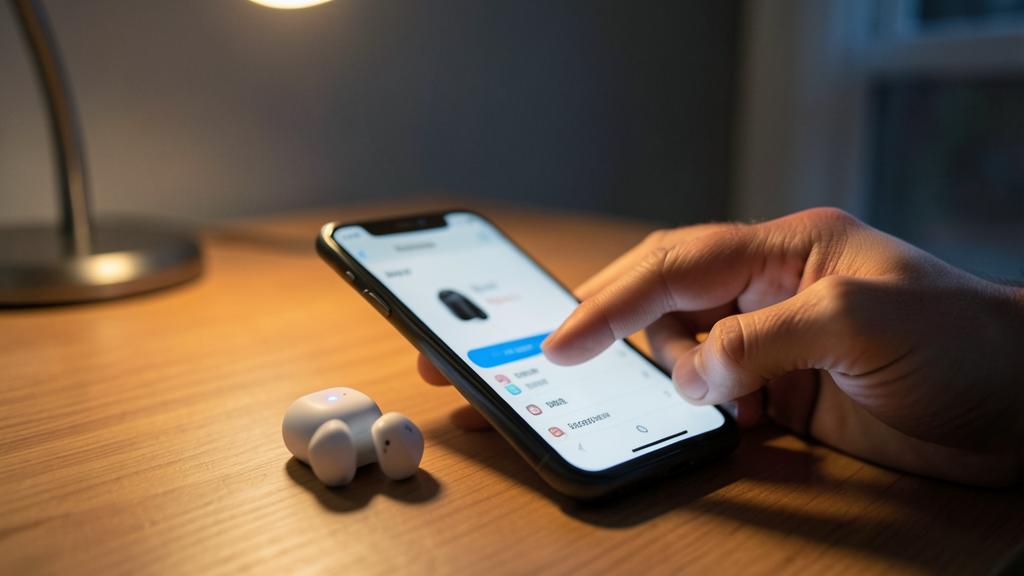
The ultimate Bluetooth fix: “forget” the device and re-pair it. When a Bluetooth accessory refuses to connect, especially if it WORKED BEFORE and no longer reconnects, the most effective step is to “FORGET” the device and re-pair it from scratch. Why? Because the saved pairing can become “corrupted”: your phone or computer remembers a connection with the accessory, but this memory becomes unreliable (after an update, a change, or for no clear reason), and reconnection fails in a loop. The fix: start over. How to do it: go to your device’s BLUETOOTH settings, find the accessory in the list of known/paired devices, and choose “Forget this device” (or “Disconnect,” “Remove,” “Disconnect and forget,” depending on the wording); this completely erases the pairing. Then, put the accessory in PAIRING mode (powered on, charged, in discoverable mode — often by holding a button until an indicator blinks) and reconnect as if it were a first-time pairing: your device should find and connect to it properly. This “forget + re-pair” step resolves A LOT of stubborn Bluetooth issues; it’s the reflex to know absolutely. Before that, quick steps to try: check that Bluetooth is enabled on both sides, that the accessory is powered on/charged, move the devices closer, and do a “disable/re-enable Bluetooth” cycle (or a restart), which sometimes works. But if these simple steps fail, don’t keep trying the same connection endlessly: move to “forget + re-pair,” which resets the counter. Also watch out for this common trap: many accessories (headphones especially) only connect to ONE device at a time; if they’re already connected to another nearby phone/computer, they won’t connect to yours; disconnect them from the other device first. With “forget + re-pair” in your toolkit, you’ll resolve the vast majority of Bluetooth blocks.
Special cases and good reflexes
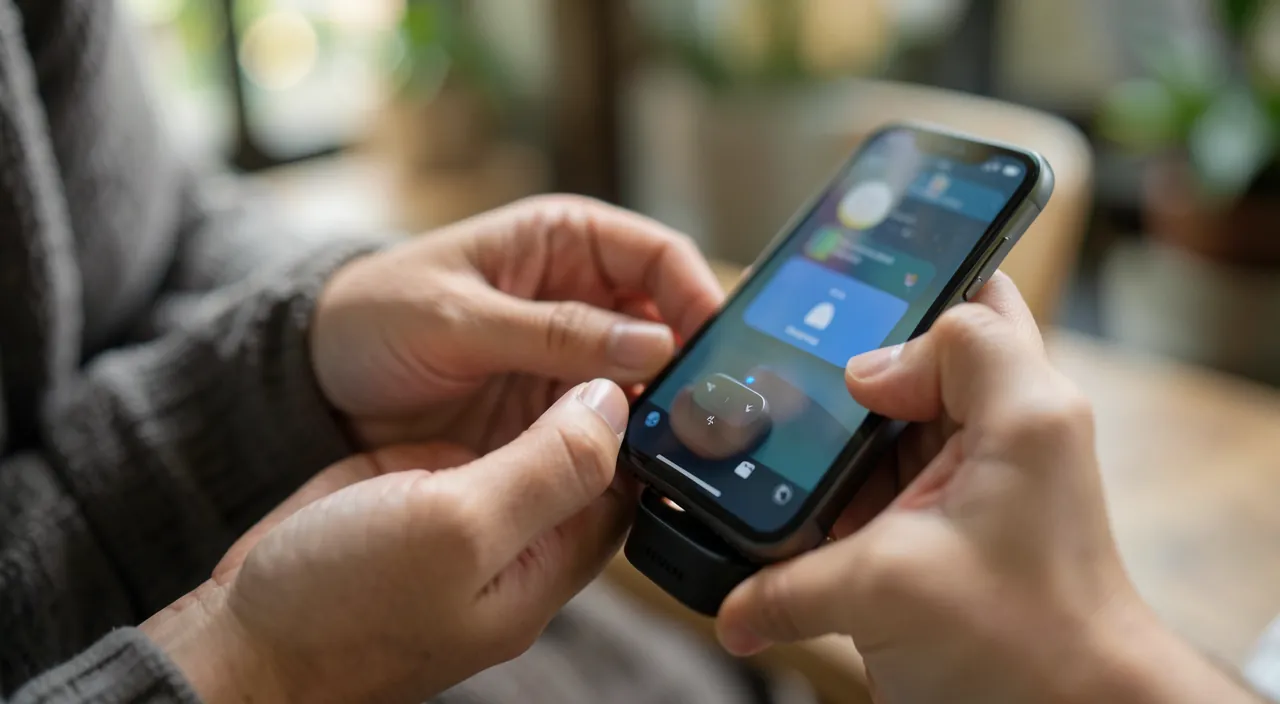
A few specific situations and tips for hassle-free Bluetooth. FIRST pairing vs. RECONNECTION: for first-time pairing, the key is the accessory’s PAIRING mode (making it discoverable: check its manual for the exact steps); for a known accessory that no longer reconnects, the reflex is “forget + re-pair.” WIRELESS HEADPHONES: often, putting them back in their CASE then taking them out restarts pairing; check their charge; some have a pairing button on the case; if they only connect to one device at a time, disconnect them from others. CAR: to connect the phone to the car stereo, you often need to enable a pairing mode on the car side (in its Bluetooth menu); if there’s an issue, forget the phone in the car AND the car in the phone, then re-pair; it’s a classic. KEYBOARD/MOUSE: ensure they’re powered on, charged/battery-installed, and in pairing mode; on a computer, pairing is done in Bluetooth settings. MULTI-CONNECTION: some newer accessories can connect to multiple devices and switch between them; understand how YOUR accessory works (via its manual or app). PAIRING CODE: some pairings require confirming an identical code on both devices (common with cars, keyboards); follow the prompt. ACCESSORY APP: many headphones/speakers have a dedicated app that simplifies pairing, updates the accessory, and manages connections; it can help. RANGE and OBSTACLES: keep devices close; walls, your body, other devices can interfere. BATTERY: an accessory with a low battery won’t connect or disconnects; charge it. GOOD GENERAL REFLEXES: keep your devices updated; don’t multiply unnecessary pairings (clean up the list of known devices occasionally); when stuck, the winning trio is “disable/re-enable Bluetooth → restart → forget + re-pair.” In short: adapt based on the case (first pairing: discoverable mode; reconnection: forget + re-pair), know your accessories’ specifics (headphones, car, keyboard), and keep the basic good reflexes. Once you know these steps, Bluetooth stops being a mystery: most issues are resolved in moments.
Warning: don’t jump to conclusions that the accessory is broken, and watch out for a few traps. When faced with stubborn Bluetooth, stay calm. First, DON’T assume your accessory is BROKEN too quickly: the vast majority of Bluetooth issues are connection problems (device not in pairing mode, already connected elsewhere, corrupted pairing, dead battery), not hardware failures; before buying new headphones or a speaker, do the basic steps (enable Bluetooth, pairing mode, move closer, disable/re-enable, restart, forget + re-pair); also test the accessory with ANOTHER device (phone, computer): if it connects, it’s fine, the issue was with your device or the connection; if it connects to NOTHING despite everything, then it may be defective. THE TRAP of single connection: many accessories (headphones especially) only connect to ONE device at a time; if they’ve stayed connected to another nearby phone/computer/tablet (or a home device), they’ll refuse to connect to yours; this is a VERY common cause of “it won’t connect” when the accessory is actually fine; remember to disconnect it from the other device (or turn off Bluetooth on that device). The trap of PERSISTENCE: repeatedly trying the same failed connection is useless; if simple steps don’t work, move to “forget + re-pair” instead of repeating the same action. Beware of “Bluetooth repair” apps or miracle solutions: they’re useless; the real fixes are the described steps, free and built-in. Also watch out for SECURITY: don’t pair your device with UNKNOWN Bluetooth devices or in public places without reason; refuse unsolicited pairing requests; Bluetooth should stay between YOUR trusted devices (our guides on securing your connections). Turn off Bluetooth when you’re not using it: a small plus for battery and security. Finally, for a truly old or low-quality accessory, INCOMPATIBILITY is possible (too different Bluetooth versions); it’s rare, but if an old accessory refuses to work with a new device (or vice versa), that may be the reason. By staying calm, testing on another device before concluding a failure, and knowing the single-connection trap, you’ll resolve almost all Bluetooth issues — and avoid replacing an accessory that was fine.
Frequently asked questions
My Bluetooth accessory no longer connects even though it worked before: what to do?
The most effective reflex in this case is to “FORGET” the accessory and re-pair it. When a previously connected accessory no longer reconnects, it’s often because the saved pairing has become “corrupted” (your device has a faulty memory of the connection). The fix: go to Bluetooth settings, find the accessory in the list of known devices, choose “Forget this device” (or “Disconnect”/“Remove”), then put the accessory in pairing mode and reconnect it like a first-time pairing; this starts fresh and resolves most of these cases. Before that, try quick steps: check that Bluetooth is enabled on both sides, that the accessory is powered on and charged, move them closer, and do a “disable/re-enable Bluetooth” cycle on your device (or a restart) — sometimes that’s enough. Also check the COMMON TRAP: isn’t the accessory already connected to ANOTHER nearby device? Many headphones only connect to one device at a time; if they’ve stayed linked to another phone/computer, they’ll refuse yours; disconnect them from the other device. If after “forget + re-pair” and these checks the accessory still won’t connect, test it with another device to see if it’s defective. But in the vast majority of “it worked before, not now” cases, the “forget + re-pair” step fixes the issue: it’s the reflex to remember first.
How to put a device in pairing mode?
Pairing mode (or “discoverable mode”) makes the accessory visible for first-time pairing; the process depends on the accessory, but follows a common logic. Generally, you need to HOLD a button for a few seconds until an INDICATOR starts blinking in a certain way (often blue, or alternating blue and red); this blinking signals that the accessory is in pairing mode and waiting to be found. For WIRELESS HEADPHONES: it’s often a button on the charging case (held for a few seconds, headphones inside or depending on the model), or the headphones themselves; sometimes, just taking them out of the case for the first time is enough. For a SPEAKER: usually a dedicated Bluetooth button to hold. For a KEYBOARD/MOUSE: a pairing button, often underneath or on the side. For a CAR: this is done in the car stereo’s Bluetooth menu (an option “pair a device”). The best reflex: check the accessory’s MANUAL (or search “[accessory name] pairing mode”), as the exact steps vary by model; it’s often a simple long press on the right button. Once the accessory is in pairing mode (blinking indicator), go to your phone/computer’s Bluetooth settings, start scanning for devices, and select the accessory when it appears in the list; confirm any required code. Important note: pairing mode is needed for FIRST pairing; afterward, the accessory reconnects automatically without repeating the process (unless you “forgot” it or want to connect it to a new device). If you can’t find how to enable this mode, the manual is your best friend.
Why do my headphones connect to one device but not another?
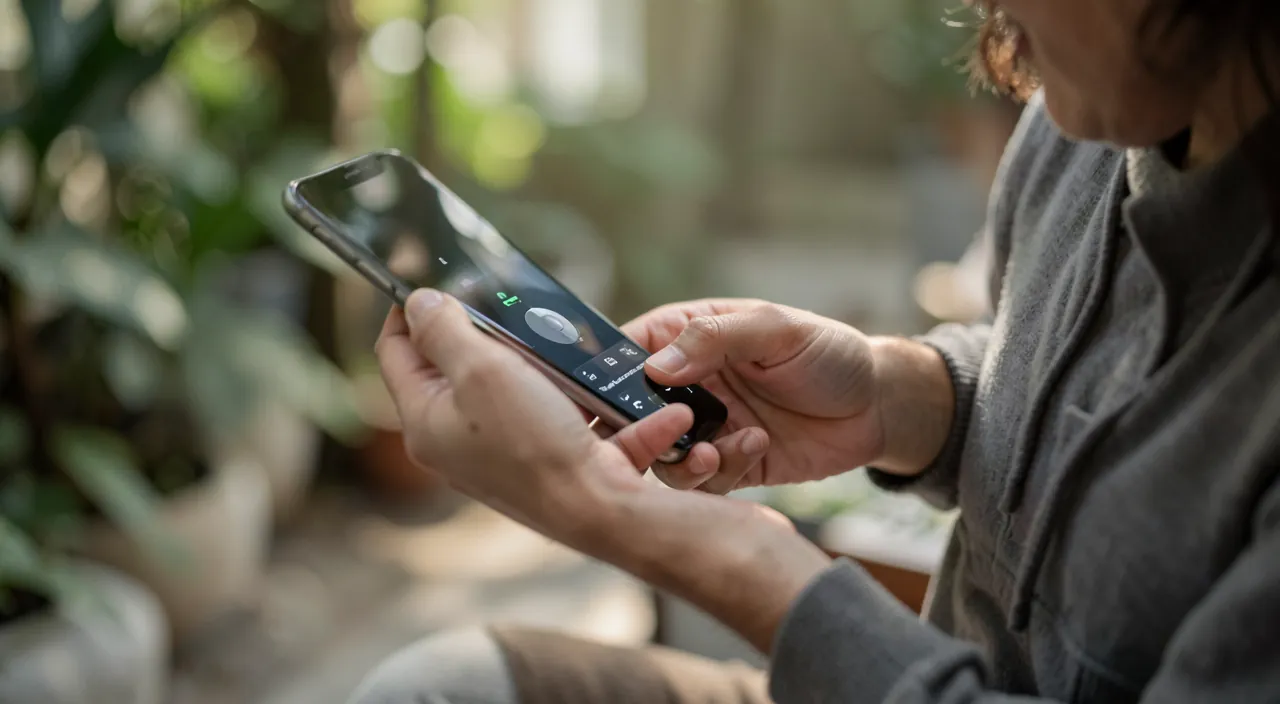
It’s almost always due to SINGLE CONNECTION: most Bluetooth headphones can only connect to ONE DEVICE at a time. If your headphones are already connected to a device (your phone, for example), they WON’T connect to another (your computer, your tablet) as long as they’re linked to the first; they “refuse” the second not because of a failure, but because they’re busy. The fix: DISCONNECT the headphones from the current device (disconnect them in its Bluetooth settings, or turn off Bluetooth on that device), then connect them to the desired device; they should then link to it. It’s a classic: you think your headphones are “finicky” when they’re simply already taken by another device at home or the office within range. Tip: if you often switch between multiple devices, remember to disconnect the headphones from one before using them on another; or check if your headphones support MULTI-CONNECTION (some newer models can be linked to two devices and switch between them: check their manual or app to enable and manage this feature). Other checks if the issue persists on a specific device: on that device, is Bluetooth enabled? Are the headphones already paired to it (if not, do the pairing)? A “forget + re-pair” on that device may help if there’s a bug. But in most cases, the culprit is single connection: your headphones are just already connected elsewhere; disconnect them from the other device, and everything works again.
What to remember
Bluetooth issues (accessory that won’t connect or reconnect) are among the most common, but almost always MINOR and easy to fix: rarely a real failure. Reminder: to connect, two devices must first be PAIRED (linked), then they reconnect automatically. The solutions, IN ORDER: 1) check that Bluetooth is ENABLED on both sides; 2) is the accessory powered on, charged, and (for first pairing) in PAIRING/discoverable mode? 3) MOVE the devices closer (short range); 4) isn’t the accessory already connected ELSEWHERE (many headphones only link to one device at a time — disconnect them from the other); 5) DISABLE/re-enable Bluetooth; 6) RESTART the devices; 7) “FORGET” the accessory and re-pair it (THE go-to solution for failed reconnections: erases a corrupted pairing and starts fresh); 8) move away from interference; 9) update your devices. The step to absolutely know: “forget + re-pair,” which resolves the vast majority of stubborn cases, especially an accessory that worked before and no longer reconnects. The most frequent trap: SINGLE CONNECTION — your headphones refuse a device because they’re already connected to another nearby one; disconnect them from that one. Special cases: headphones (putting them back in the case often restarts pairing), car (forget on both sides then re-pair), keyboard/mouse (pairing mode + possible code). DON’T assume the accessory is broken too quickly: test it with ANOTHER device; if it connects, it’s fine, the issue was with the connection. Don’t keep trying the same connection: move to “forget + re-pair.” Beware of “Bluetooth repair” apps (useless), and for security, only pair with your trusted devices. By knowing these simple steps — especially “forget + re-pair” and the single-connection trap — you’ll resolve almost all Bluetooth blocks in moments, without stress or expense.
Persistent issue, finicky device? Our remote troubleshooting service resolves your problem quickly, without jargon.
Leave a Reply
You must be logged in to post a comment.