
Losing an iPhone, forgetting an iPad somewhere, having a Mac stolen: it’s a small panic, as our devices contain our digital life. Fortunately, Apple offers a useful function for these moments: « Find My. » It allows you to locate a lost device on a map, make it ring, lock it remotely, and protect your data if it is truly lost or stolen. You must have it activated beforehand — because after, it’s too late. Here’s how Find My works, how to locate a device, and how to prepare everything for the day it happens.
What « Find My » Can Do
« Find My » is the Apple function that helps you RETRIEVE your devices (iPhone, iPad, Mac, Apple Watch, AirPods) and, with dedicated accessories (AirTag), certain objects. It relies on a simple principle: your devices signal their POSITION, which you can check from another of your devices or from an Apple website to know where the one you’re looking for is. What « Find My » actually does. SEE the position of your devices on a MAP: where is your lost iPhone, forgotten iPad. Make a device RING: very useful when it’s nearby but unfindable (under a cushion, in another room)—it emits a sound even in silent mode. Activate the Lost Mode: lock the device remotely, display a message on the screen (with a number to contact you), and track it. ERASE the device remotely: as a last resort, if the device is definitively lost or stolen, erase your data so they don’t fall into the wrong hands. Find NEARBY people (with their consent): the function also allows you to share your location with people nearby, and see theirs — handy in a family setting to find each other or reassure each other. Find OBJECTS: with a small accessory (AirTag) attached to keys, a bag, a suitcase, you can find them the same way. A KEY SECURITY POINT: « Find My » is also a theft protection; linked to your Apple account, it prevents a stolen device from being easily reused (the famous activation lock: the device remains locked to your account, unusable without your credentials). It’s a real deterrent against theft, and a protection of your data. The CONDITION for all of this to work: « Find My » must be ACTIVATED on the device BEFORE its loss; it can’t be activated remotely after the fact. That’s why it’s important to prepare everything in advance (see below). The MAIN IDEA: « Find My » is a valuable tool that allows you to retrieve a lost device (map, ring, security), secure it remotely (lock, message, erase), and protect your data and device against theft; it’s one of the most reassuring functions of the Apple ecosystem — provided you have activated it before you need it.
« Find My » lets you track your Apple devices or AirTags on a map, make them ring, lock them, or erase them remotely. The key point is that it must be set up before your device goes missing. Without this preparation, you won’t be able to use these features when you need them most.
Imagine you left your iPhone in a café. Using « Find My » on your iPad, you see it’s still there. You make it ring (even though it was on silent) and hear it under a chair. You ask the staff to retrieve it, and all your data remain safe because you had « Find My » activated.
Retrieve and Secure a Lost Device
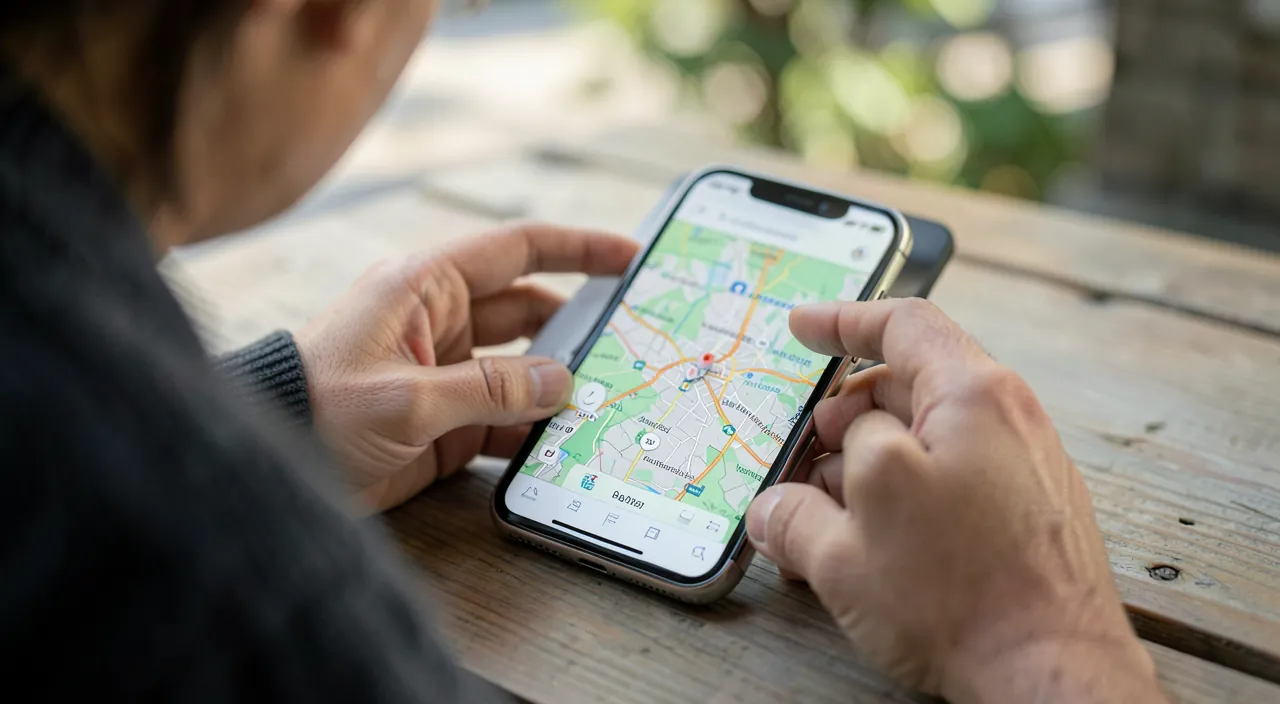
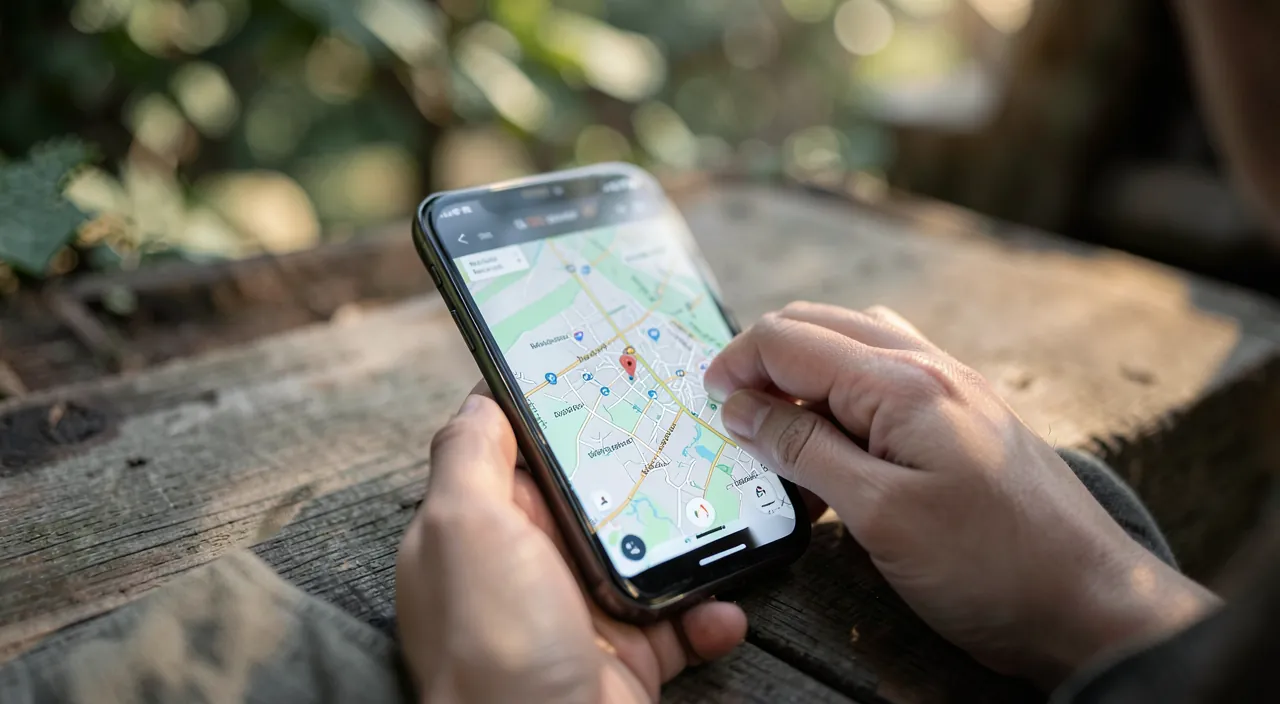
Here’s how to react concretely when an Apple device is lost, assuming that « Find My » was activated. Open « Find My » from another device — use the « Find My » app on another of your Apple devices (the iPad, Mac, or one of a family member), or log in to the Apple website from any browser with your Apple account—you will see the list of your devices and their positions. Check the POSITION on the map — the lost device appears on a map: this tells you where it is (at home, at the office, in a place you’ve visited)—useful to know if you’ve just left it somewhere. Make it RING — if it might be nearby: trigger a sound; it will ring even in silent mode, which helps to find it under a cushion, in a bag, in another room. Activate Lost Mode — if you don’t find it right away: Lost Mode locks the device, displays a MESSAGE on the screen (e.g., « Device lost, please call… »), with a way to contact you, and continues to track it—a honest person who finds it can contact you, and your data remain protected. Follow its movement — if the device moves, you can follow its position—useful to know if it has been taken. As a last resort: ERASE it remotely — if the device is really lost or stolen and you give up on retrieving it: erase your data remotely so they are not exploited; the device remains protected by the activation lock (unusable without your credentials). Some IMPORTANT TIPS and PRECAUTIONS: in case of THEFT, don’t be a hero—don’t go retrieve a stolen device in an unknown location— in case of theft, notify the POLICE (the position can help authorities), and secure your accounts. SECURE your accounts: change the password of your Apple account and important accounts (email, banking) if the device is lost, as a precaution (our guides on securing your accounts). Declare the loss to your OPERATOR (for a phone) to block the SIM card and the line. Keep your Apple account SECURE: it’s what protects everything (strong password, two-factor authentication — our guides on two-factor authentication). A REASSURING POINT: thanks to the activation lock, a lost or stolen Apple device, if properly configured, is very difficult to reuse by a third party: your data are protected, and the thief ends up with a locked device. In summary, if « Find My » was activated: open it from another device or the web, locate the position, make it ring (if it’s nearby), activate Lost Mode (lock + message), follow it, and as a last resort, erase it. Never retrieve a stolen device yourself (notify the police), secure your accounts, and declare the loss to your operator. « Find My » transforms a panic into a controlled process.
The right reflex. The most important action is to ACTIVATE « Find My » on all your Apple devices right now (in settings, at your Apple account), because it can’t be activated remotely once the device is lost — this is the condition for everything else. Also check that your Apple account is well secured (strong password, two-factor authentication) and that you know your credentials (you’ll need them to access « Find My »). The day an device disappears: open the « Find My » app from another of your devices, or log in to the Apple website from any browser with your Apple account. Check the position on the map (did you just leave it somewhere?), and if it might be nearby, make it RING (it rings even in silent mode — ideal for finding it under a cushion or in a bag). If you don’t find it right away, activate Lost Mode: it locks the device, displays a message with a way to contact you (an honest person can call you), and protects your data. As a last resort only, erase the device remotely (your data won’t fall into the wrong hands; the activation lock makes it unusable by a third party). ESSENTIAL PRECAUTION: in case of theft, never try to retrieve the device yourself in an unknown location — notify the police (the position can help). Also think about securing your accounts (change the password of your Apple account as a precaution) and declaring the loss to your operator to block the line. Well prepared (Find My activated, account secured), you transform the panic of a loss into a calm and controlled process — and your data remain protected no matter what. « Find My » transforms the anxiety of losing a device into a simple, mastered procedure — provided you have prepared for it.
Prepare to be at ease
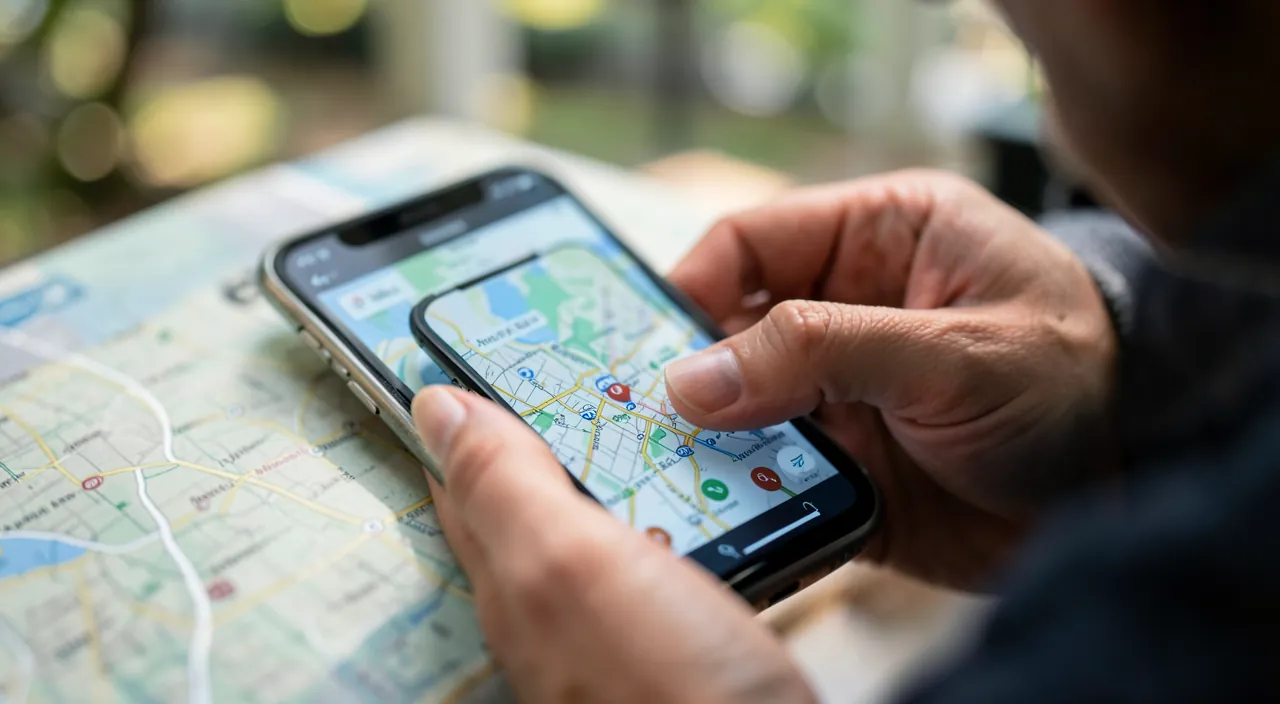
The real strength of « Find My » lies in PREPARATION: properly configured in advance, it makes you calm the day a device disappears. Here’s how to set everything up and adopt good habits. ACTIVATE « Find My » on ALL your devices: this is the base — check that the function is active on your iPhone, iPad, Mac, watch, earbuds — without this, nothing is possible in case of loss. CHECK the LOCATION network: some options allow you to find a device even when it is off or offline (thanks to the network of nearby Apple devices)—make sure they are activated to maximize your chances. SECURE your Apple account: this is the keystone — a strong and unique password, two-factor authentication — because whoever controls your account controls « Find My » (our guides on securing your Apple account, two-factor authentication). KNOW your credentials: know how to access your Apple account (username and password) from another device or the web — test that you can open « Find My » before you need it. Use FAMILY POSITION SHARING (with consent) for finding, reassuring, or locating a device of a family member who allows it (useful for children, elderly — with respect and consent). Consider ACCESSORIES for tracking important objects (AirTag) for your keys, bag, suitcase — they can be found via « Find My » like a device. Note the STEPS in case of loss: keep in mind the steps (Find My → Lost Mode → secure accounts → operator → police if theft), to not panic when the time comes. REGULARLY BACKUP your devices: if you have to erase or replace a lost device, a recent backup allows you to recover everything on a new device (photos, contacts, data — our guides on regular backups) — this is the indispensable complement to « Find My. » In summary, « Find My » is a valuable tool — find a device (map, ring), secure it remotely (lock, message, erase), protect your data against theft — BUT it only works if it has been ACTIVATED before the loss. Calmness is prepared: activate « Find My » on all your devices, secure your Apple account (strong password, two-factor authentication), know your credentials, activate advanced location options, consider family position sharing and tracking accessories, and regularly backup. Thus prepared, you don’t have to fear a loss: you know exactly what to do, your data are protected, and you can find the device or restore everything on a new one. « Find My » transforms the anxiety of losing a device into a simple, mastered procedure — provided you have prepared for it.
Warning: activate « Find My » before any loss, never retrieve a stolen device yourself, and secure your Apple account. Three crucial points. ACTIVATING TOO LATE — « Find My » must be ACTIVATED on the device BEFORE its loss: it can’t be activated remotely after the fact — a lost device without « Find My » activated is much harder to find and secure — don’t put off this activation for « later » — do it now on all your devices, this is the condition for everything else. RETRIEVING A STOLEN DEVICE YOURSELF — seeing your stolen device’s location on the map can make you want to go retrieve it — never do this — confronting a thief in an unknown location is dangerous — in case of theft, notify the POLICE (the location can help authorities), activate Lost Mode, and secure your accounts — your safety comes first. NEGLECTING THE SECURITY OF YOUR APPLE ACCOUNT — your Apple account is the keystone: it controls « Find My » and the activation lock — if it is poorly protected (weak password, no two-factor authentication), all the protection collapses — secure it seriously (strong and unique password, two-factor authentication), and beware of phishing attempts after a loss that seek to steal your Apple credentials (« Your device has been located, sign in here » — a frequent trap! never click on these links — our guides on recognizing phishing). Other precautions: think about REGULARLY BACKUPING your devices (to recover everything if you have to erase or replace a device), declare the loss of a phone to your OPERATOR (block the line), and use family position sharing only with the CONSENT of the people involved (privacy also counts in the family). « Find My » is an excellent protection, but it relies on PREPARATION (activation in advance, secure account) and CAUTION (don’t put yourself in danger, beware of phishing). Prepared and cautious, you are protected; negligent, the function won’t do much.
Frequently Asked Questions
How to find my lost iPhone (or iPad, Mac)?
If « Find My » was activated (essential), open the « Find My » app from another of your Apple devices, or log in to the Apple website from any browser with your Apple account. You will see your devices on a map. Check the position of the lost device (did you just leave it somewhere?). If it might be nearby, make it RING (it rings even in silent mode: ideal for finding it under a cushion or in a bag). If you don’t find it right away, activate Lost Mode: it locks the device, displays a message with a way to contact you, and tracks it. As a last resort, erase it remotely to protect your data. Never retrieve a stolen device yourself (notify the police), secure your accounts, and declare the loss to your operator for a phone. All this assumes that « Find My » was activated beforehand: it can’t be activated after the loss.
What to do if my device has been stolen?
First, YOUR SAFETY: never try to retrieve the device yourself by going to the displayed location — confronting a thief is dangerous — notify the POLICE (the location can help authorities to act). Then, via « Find My »: activate Lost Mode (the device is locked, a message is displayed, and it is tracked) and, if you give up on retrieving it, erase your data remotely; the activation lock will make the device unusable for the thief (linked to your Apple account). Secure your ACCOUNTS as a precaution: change the password of your Apple account and sensitive accounts (email, banking). Declare the loss to your OPERATOR to block the SIM card and the line (phone). Finally, beware of PHISHING: after a theft, phishing messages (e.g., « Your device has been found, sign in here ») seek to steal your Apple credentials — never click on these links. Thanks to the activation lock, your data are protected and the device is hard to reuse: the theft is frustrating, but your digital life remains safe.
Should « Find My » be activated in advance?
Absolutely, and this is the most important point: « Find My » must be ACTIVATED on the device BEFORE its loss, as it can’t be activated remotely once the device is lost or stolen. This is the condition for everything: retrieving the device, making it ring, locking it, erasing it, protecting it against theft. Therefore, activate the function now on ALL your Apple devices (in settings, at your Apple account), while you have them in hand. Take advantage of this to: secure your Apple account (strong password, two-factor authentication — this is the keystone), check advanced location options (find a device even off or offline), and ensure you can access « Find My » from another device or the web. Also think about regularly BACKUPING your devices (to restore everything if you have to replace a device). The calmness in the face of a loss is PREPARED: a few minutes of configuration in advance can save you real distress the day a device disappears. Don’t put off this activation for later: do it today.
What to remember
« Find My » (Find My) is one of the most reassuring functions of the Apple ecosystem: it allows you to RETRIEVE a lost device (position on a map, sound even in silent mode), SECURE it remotely (Lost Mode that locks and displays a message, last resort: erase data), and PROTECT your data and device against theft (activation lock: the device remains locked to your account, unusable by a third party). It also helps to locate family members (with their consent) and objects (via an accessory like an AirTag). BUT all this depends on a condition: « Find My » must be ACTIVATED on the device BEFORE its loss — it can’t be activated after the fact. That’s why it’s important to PREPARE everything: activate « Find My » on all your devices right now, secure your Apple account (strong password, two-factor authentication — this is the keystone), know your credentials, activate advanced location options, and regularly BACKUP (to restore everything if you have to replace a device). The day of a loss: open « Find My » from another device or the web, locate the position, make it ring if it’s nearby, activate Lost Mode, and erase as a last resort. ESSENTIAL PRECAUTIONS: never retrieve a stolen device yourself (notify the police — your safety comes first), secure your accounts, declare the loss to your operator, and beware of phishing which, after a loss, tries to steal your Apple credentials. Well prepared and cautious, you transform the panic of a loss into a calm and controlled process: you know what to do, your data are protected, and you can find the device or restore everything on a new one. The calmness in the face of the loss of a device is prepared — a few minutes of configuration today ensure it for tomorrow.
Want to fully exploit the potential of your iPhone, iPad, or Mac? Our Apple training courses will take you to the next level.
Leave a Reply
You must be logged in to post a comment.