
Typing on a small phone keyboard, constantly correcting the autocorrect, writing a long text with your thumb: text input is one of the most frequent and sometimes the most painful tasks on our devices. Yet, the iPhone, iPad, and Mac are packed with features to write FASTER and more comfortably: voice dictation, text shortcuts, well-tuned smart correction, and the keyboard glide. When properly utilized, they transform text input. Here’s how to write faster and with less effort on your Apple devices.
Dictation: writing by speaking
The most transformative function for text input: DICTATION. Instead of typing, you SPEAK, and your device transcribes your words into text, in almost any field (a message, an email, a note, a search). Its advantages are significant: it’s MUCH faster than typing (especially on mobile), it allows you to write with your hands occupied or on the move, and it’s restful for long texts. Modern dictation is surprisingly accurate, understands punctuation (say « comma », « period », « newline »), and on recent versions, it works continuously, allowing you to even continue typing while dictating. To use it: touch the microphone icon on the keyboard (or activate dictation), and speak naturally. A few seconds of adaptation, and you’ll be writing at the speed of speech. It’s particularly useful for: quickly responding to a message while walking, writing a long text without tiring your thumbs, or jotting down an idea on the fly. Dictation is also a formidable accessibility tool for those who have difficulty typing (our accessibility guides). If you’ve never tried it, this is the function to discover: it radically changes the relationship to text input on mobile, where typing is the most challenging. Many people who found it difficult to write long messages on their phones now dictate them effortlessly.
Dictation lets you type by speaking. It’s faster than typing, works while you’re moving, and even adds punctuation when you say it. It’s great for long messages or when your hands are busy.
You’re walking and need to reply to a message. Instead of typing with one thumb, you tap the microphone icon and say, “Hey, I’ll be there in 10 minutes.” The phone types it instantly—no typing needed.

Writing faster on the keyboard
For those who type, several functions speed up the input: the GLIDE (gesture typing) — instead of typing letter by letter, slide your finger from one letter to the next without lifting it; the keyboard guesses the word; once mastered, it’s noticeably faster with your thumb; the TEXT SHORTCUTS (typing shortcuts) — a powerful and little-known feature: define abbreviations that automatically transform into full text (for example, typing » @@ » inserts your email address, » adr » inserts your postal address, » bjr » becomes a complete greeting formula); you create these shortcuts in the keyboard settings, and they save you a lot of time on repetitive texts; the WORD SUGGESTIONS — the keyboard suggests the next word or completes; tap the suggestion to go faster; the SMART CORRECTION — well-tuned, it corrects typos on the fly (but can be annoying if it « corrects » incorrectly: see below); the THIRD-PARTY KEYBOARDS — you can install other keyboards with specific functions (but be careful about what they access: see the warning); and on Mac, the physical keyboard combined with shortcuts (our keyboard shortcut guides) and dictation offers very efficient input. The general principle: text input doesn’t have to be laborious; between dictation, glide, text shortcuts, and word suggestions, several methods allow you to write much faster. Choose those that suit you: some love glide, others dictation, others text shortcuts for their recurring formulas. The ideal is often to COMBINE them according to the context (dictate a long text, glide for a short message, a shortcut for a recurring formula).
- Glide: Slide your finger from one letter to the next without lifting it. The keyboard guesses the word, making typing faster with your thumb.
- Text shortcuts: Create abbreviations (like “@@” for your email) that expand into full text, saving time on repetitive phrases.
- Word suggestions: Tap the suggested next word to speed up typing.
- Smart correction: Corrects typos on the fly but can be adjusted if it overcorrects.
- Third-party keyboards: Offer extra features but require caution with privacy settings.
The good reflex. Create some TEXT SHORTCUTS for what you type often: in the keyboard settings, define abbreviations that automatically transform into full text. For example: » @@ » for your email address, » adr » for your postal address, » tel » for your professional number, or an abbreviation for a greeting formula you write often. Once configured, these shortcuts save you a lot of time on repetitive tasks — no more retyping the same information over and over. This is a little-known but extremely productive function: five minutes of configuration for a daily gain. Combine it with dictation for long texts (write by speaking, much faster with your thumb) and glide for short messages: you have several input methods to alternate according to the context. Text input doesn’t have to be laborious: these few tools transform the way you write on your devices.
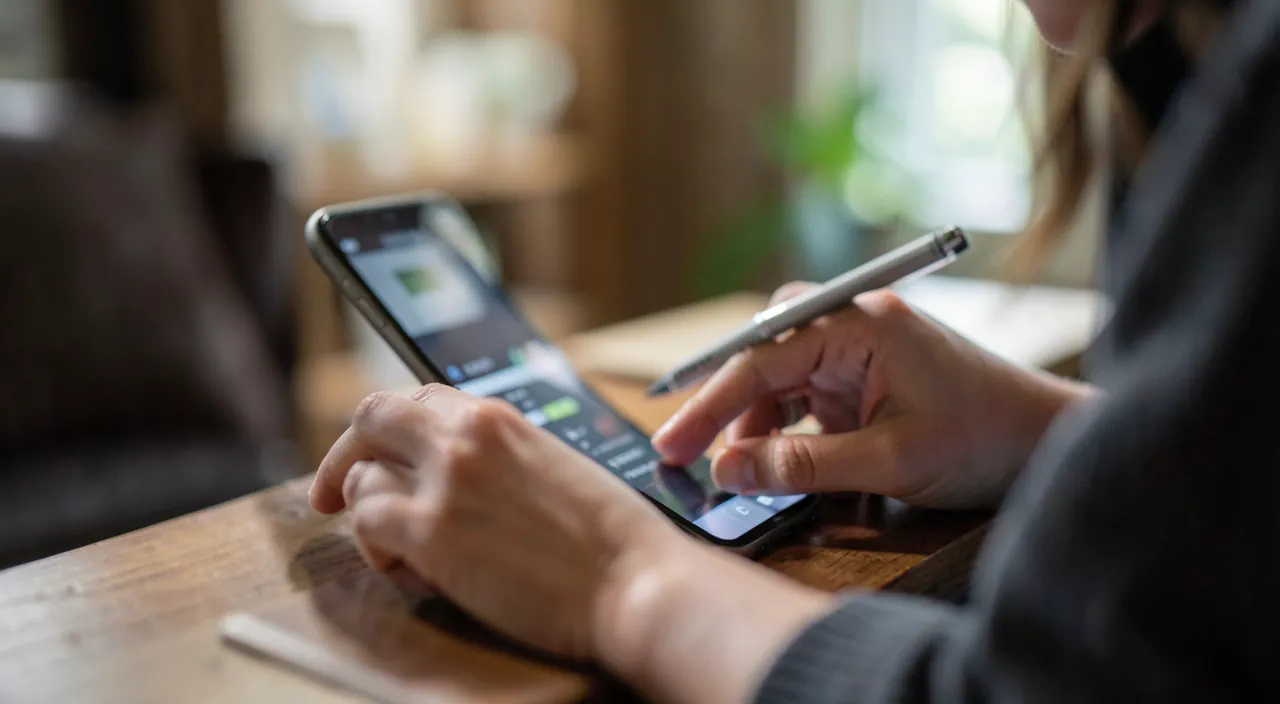
Fine-tuning correction and staying in control of input
Auto-correction is useful but can become frustrating when it « corrects » incorrectly (turning a word you want into another, or getting stuck on proper names, jargon, words in another language). Some settings improve the experience: you can adjust or disable certain corrections in the keyboard settings if they bother you; add the words the correction incorrectly refuses (via text shortcuts or by validating them); and on recent versions, the correction has become more intelligent and discreet. The goal is to keep the correction as an ASSISTANCE without it becoming a constraint: find the setting that suits you. Also think about LANGUAGES: if you write in multiple languages, configure the corresponding keyboards (the correction and suggestions adapt to the language). An important point concerns THIRD-PARTY KEYBOARDS and privacy: you can install alternative keyboards, but some require a « full access » that potentially allows them to see everything you type, including sensitive information (passwords, private messages, personal data). Grant this full access only to TRUSTED keyboards from reputable and recognized publishers, and beware of free keyboards of dubious origin that could collect and transmit your input (our privacy and security guides): a keyboard that sees everything you write is a powerful ability not to be entrusted lightly. Rest assured: Apple’s integrated keyboard is safe and very complete (dictation, glide, text shortcuts, correction, suggestions). For most uses, it suffices largely without needing to install anything. Regarding dictation, like any voice function, it processes your voice: Apple emphasizes a privacy-respecting approach (partial processing on the device), but keep in mind, as with everything, not to dictate very sensitive information in any context. Apple’s integrated input functions are safe and powerful: vigilance mainly concerns third-party keyboards that are granted access to your typing. Take the time to discover and adjust them to your liking: the comfort and time gain, on a task you repeat dozens of times a day, is significant.
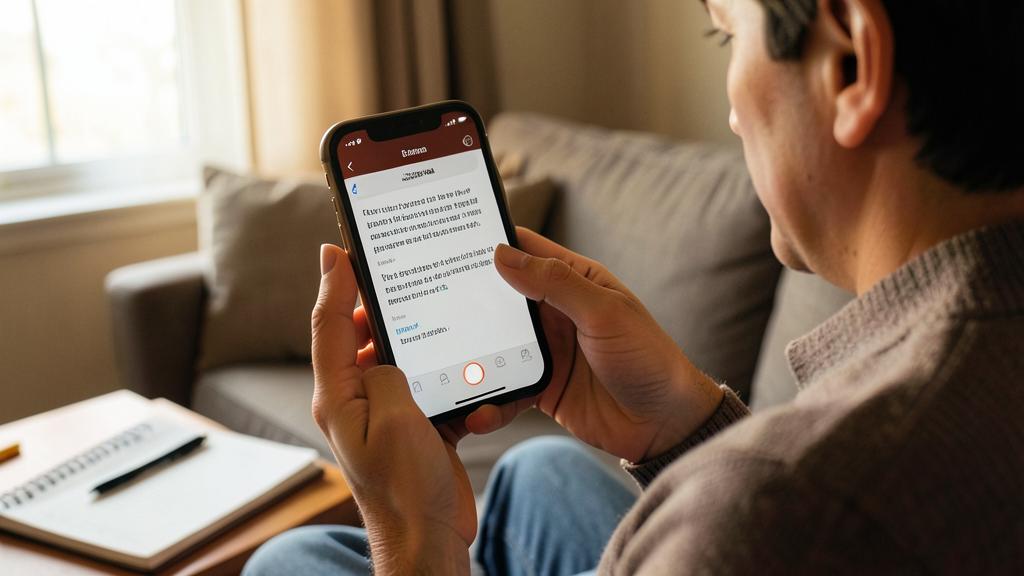
Be cautious with third-party keyboards and their access to your typing. An important security point: you can install alternative keyboards on your devices, but some require a « full access » that potentially allows them to see everything you type, including sensitive information (passwords, private messages, personal data). Grant this full access only to TRUSTED keyboards from reputable and recognized publishers, and beware of free keyboards of dubious origin that could collect and transmit your input (our privacy and security guides): a keyboard that sees everything you write is a powerful ability not to be entrusted lightly. Apple’s integrated keyboard is safe and very complete (dictation, glide, text shortcuts, correction, suggestions): for most uses, it suffices largely without needing to install anything. Regarding dictation, like any voice function, it processes your voice: Apple emphasizes a privacy-respecting approach (partial processing on the device), but keep in mind, as with everything, not to dictate very sensitive information in any context. Apple’s integrated input functions are safe and powerful: vigilance mainly concerns third-party keyboards that are granted access to your typing.
Frequently asked questions
How can I write faster on my iPhone?
Combine several methods: dictation (speak, the device transcribes — much faster than typing, especially for long texts; touch the microphone icon on the keyboard), glide (slide your finger from one letter to the next without lifting it, the keyboard guesses the word — fast with your thumb for short messages), and text shortcuts (abbreviations that transform into full text, perfect for repetitive information and formulas). Add word suggestions. Choose and combine according to the context: dictate a long message, glide for a short one, a shortcut for a recurring formula. These functions transform text input: it doesn’t have to be laborious.
Is voice dictation reliable?
Yes, modern dictation is surprisingly accurate: it transcribes faithfully, understands punctuation (say « comma », « period », « newline »), and on recent versions works continuously, allowing you to even continue typing while dictating. It’s much faster than typing, especially on mobile, and restful for long texts. A few seconds of adaptation are sufficient. A quick re-read is still useful (as with any transcription, occasional errors are possible, especially with proper names or in a noisy environment), but overall it’s very effective. If you’ve never tried it, this is the function to discover: it radically changes the relationship to text input on mobile.
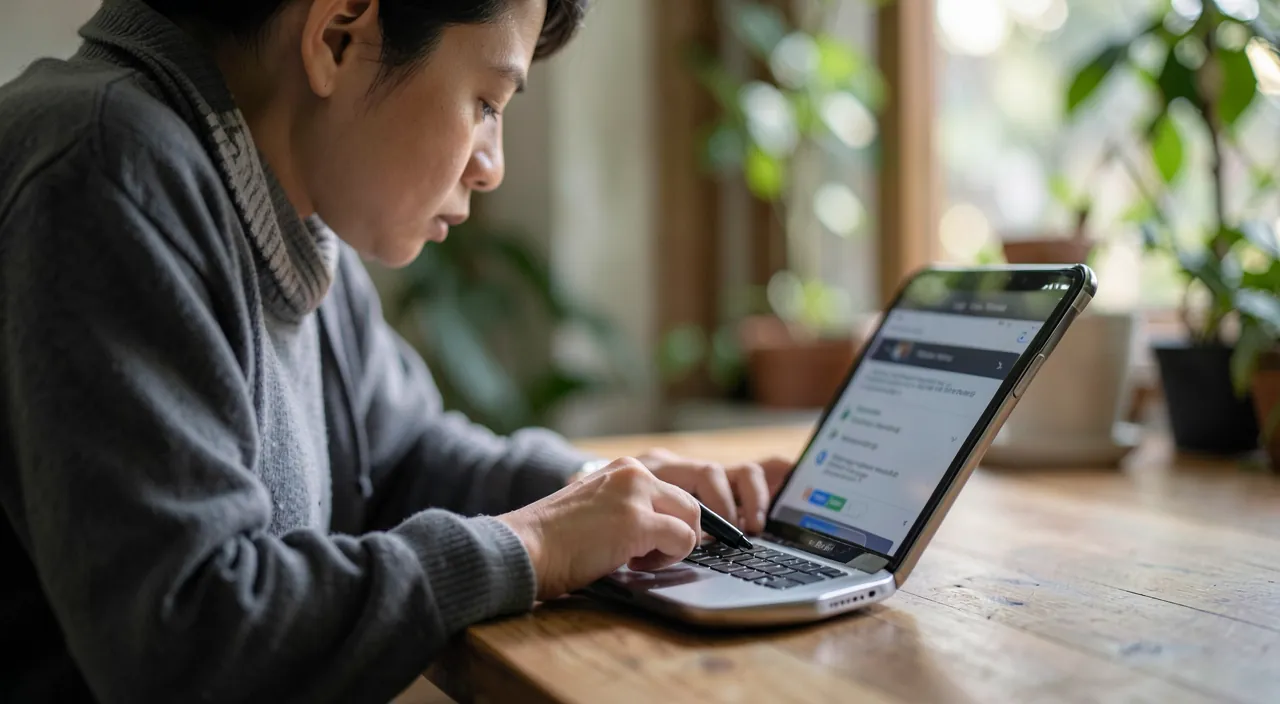
Are third-party keyboards safe?
It depends on the keyboard. You can install alternative keyboards, but some require a « full access » that potentially allows them to see everything you type, including sensitive information (passwords, private messages). Grant this full access only to TRUSTED keyboards from reputable publishers, and beware of free keyboards of dubious origin that could collect and transmit your input (our privacy and security guides): a keyboard that sees everything you write is a powerful ability not to be entrusted lightly. Apple’s integrated keyboard is safe and very complete (dictation, glide, text shortcuts, correction): for most uses, it suffices largely without needing to install anything. A keyboard sees everything you write: it’s a powerful ability to entrust only to reliable sources if you really need it.
What to remember
Text input doesn’t have to be laborious: your Apple devices offer several functions to write faster. The most transformative is dictation: speak, the device transcribes (much faster than typing, understands punctuation, works continuously) — ideal for long texts and occupied hands, and valuable in accessibility. For those who type: glide (slide your finger from one letter to the next, fast with your thumb), text shortcuts (abbreviations that become full text — extremely productive for repetitive information and formulas), and word suggestions. Combine these methods according to the context. Adjust auto-correction to your liking (it helps, but can be annoying if it corrects incorrectly: adjustable in settings), and configure languages if you write in multiple. A security point: beware of third-party keyboards that require « full access » (they see everything you type): grant this access only to trusted sources — Apple’s integrated keyboard is safe, complete, and sufficient for most uses. Properly utilized, these functions transform a daily, repetitive task into something fast and fluid: the comfort gain is significant.
Want to fully exploit the potential of your iPhone, iPad, or Mac? Our Apple training courses will take you to the next level.
Leave a Reply
You must be logged in to post a comment.