
Send a photo to a friend next to you, transfer a document from your iPhone to your Mac, share a video between Apple devices: AirDrop makes all of this instantaneous, without a cable, without internet, without a third-party app. It is one of the most practical features of the Apple ecosystem—and one of the most appreciated once mastered. Yet, many are unaware or do not know how to set it up. Here’s how to use AirDrop to share instantly between Apple devices, and especially how to do so safely.
AirDrop: Instant wireless sharing
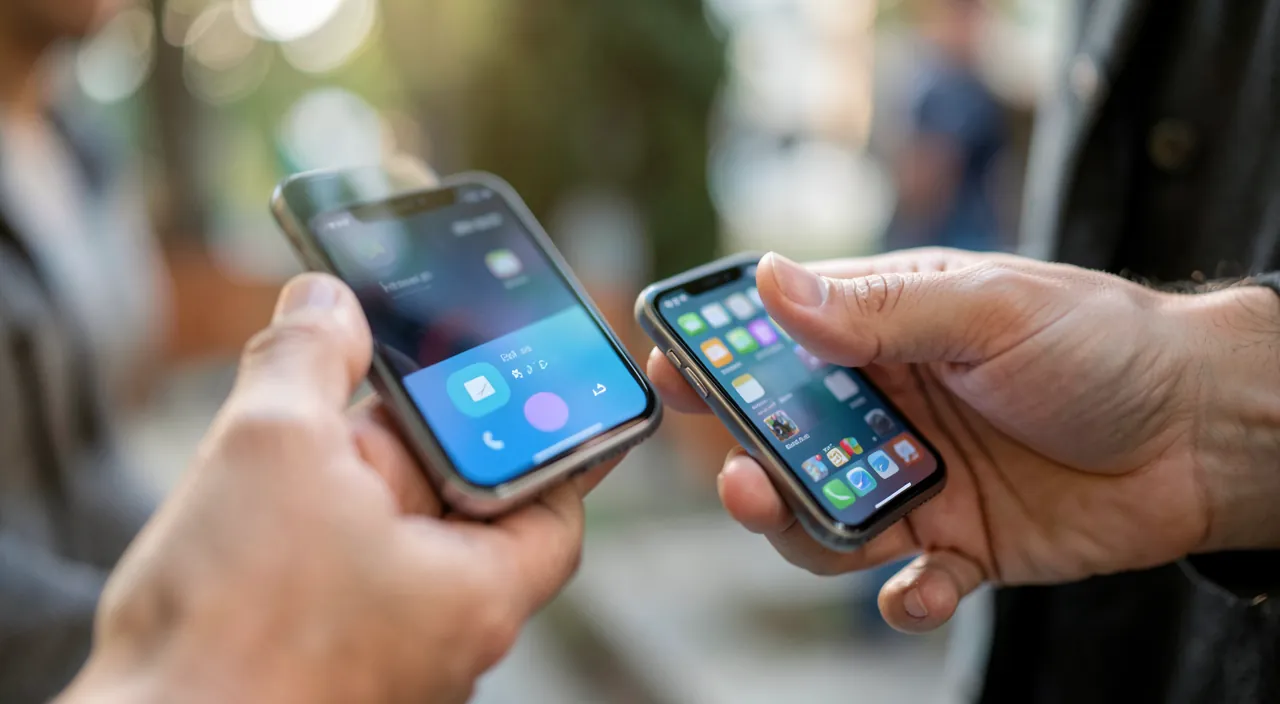
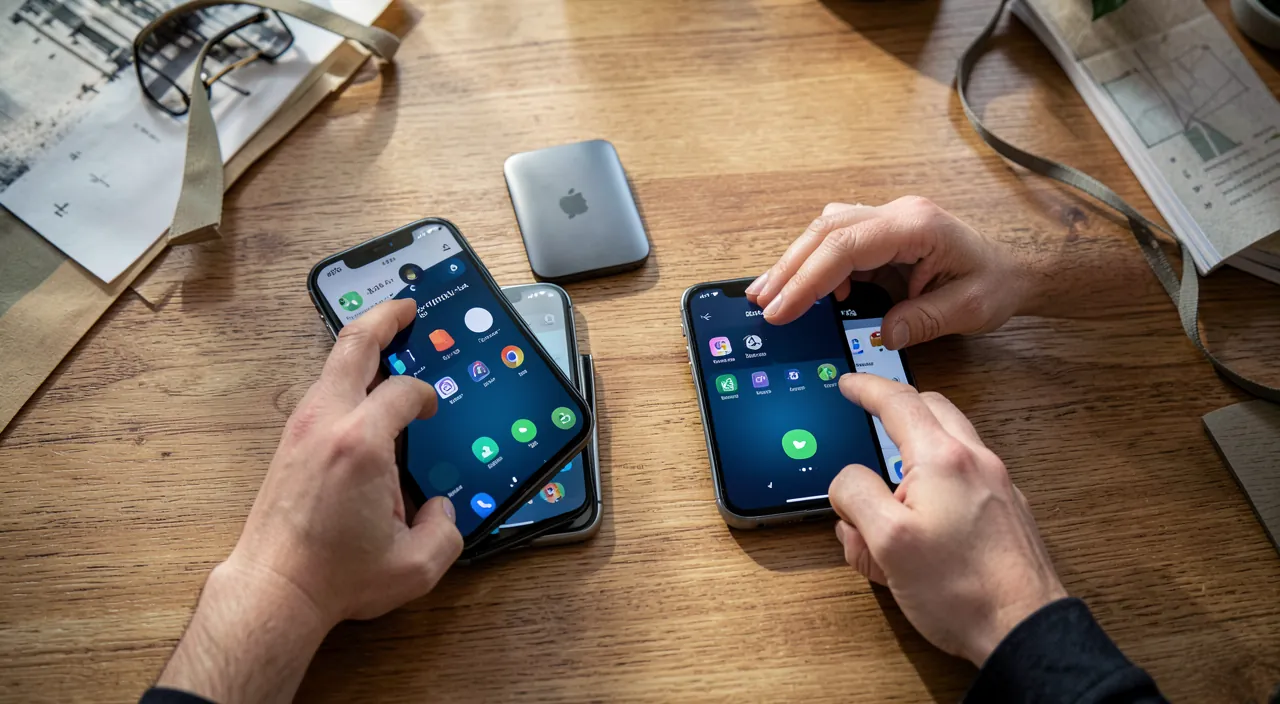
AirDrop allows you to directly send files (photos, videos, documents, contacts, links, and more) from one Apple device to another located at PROXIMITY, without a cable or internet connection: it uses short-range wireless technologies (a combination of Bluetooth and direct Wi-Fi between devices). Its advantages are considerable: it is FAST (the transfer is almost instantaneous, much faster than an email or message), LOSSLESS in quality (a photo or video arrives in full resolution, unlike some that compress), OFFLINE (it works even without a network, between devices directly—our guides for sending large files), and UNLIMITED in size (ideal for large files, videos, photo folders). Concretely: you select what you want to share, tap « share, » choose AirDrop, and select the recipient device that appears; it receives a request to accept, and the transfer happens. It works between all Apple devices (iPhone, iPad, Mac) — to share with someone next to you, or between YOUR own devices. Once you get used to it, AirDrop becomes the reflex for all nearby sharing: transferring photos from a night out to a friend, passing a document from your phone to your computer, sending a route—everything becomes immediate and effortless.

AirDrop lets Apple devices send files directly to each other without internet. It’s fast, keeps full quality, and works for any file size. You just pick what to share, choose the nearby device, and it transfers instantly.
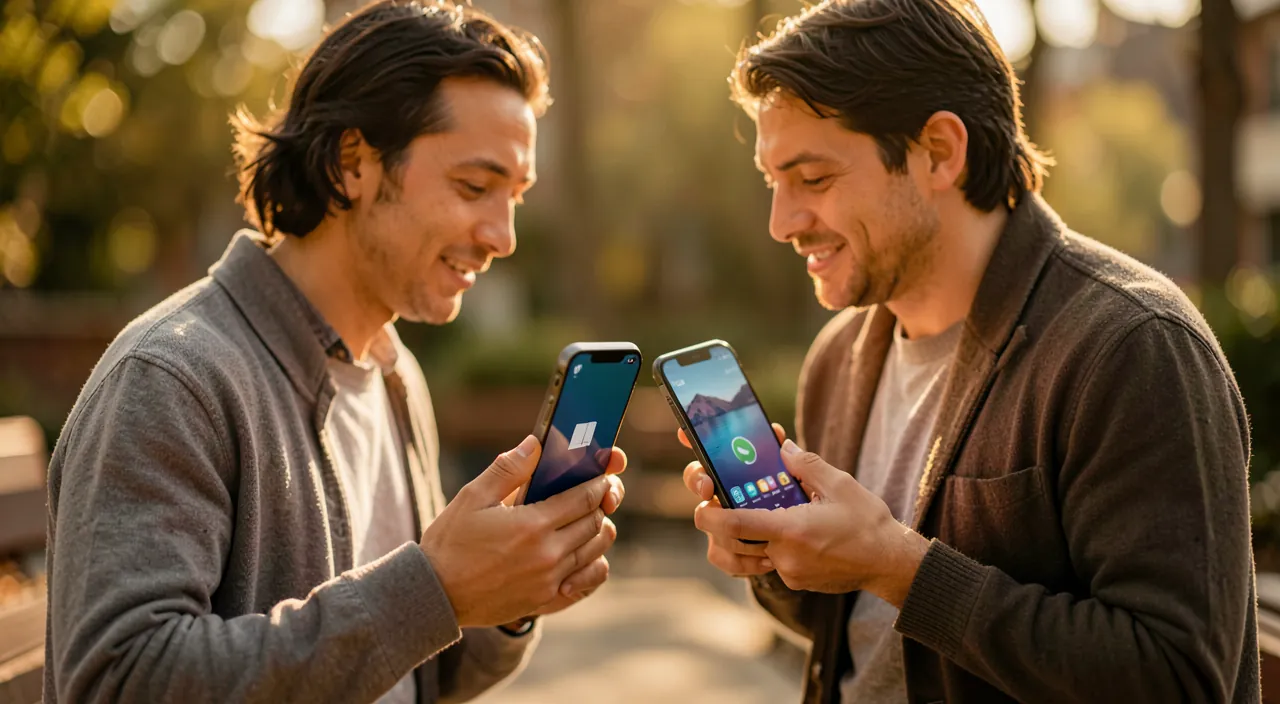
You’re at a café with a friend. You take a 4K video (1.5GB) on your iPhone and want to send it to their MacBook. You open the video, tap Share, select AirDrop, and choose their device. The transfer completes in seconds, with no compression or internet needed.
Use and configure it well
For AirDrop to work well: the PREREQUISITES — Wi-Fi and Bluetooth must be enabled on both devices (AirDrop uses them; if it doesn’t work, check this first), and the devices must be NEAR each other; the VISIBLE SETTING — this is the key (and security point): AirDrop offers three settings for who can « see » you to send you something: RECEIVING DISABLED (no one can send you via AirDrop), ONLY CONTACTS (only people in your address book can see you—recommended for daily use), and EVERYONE (any Apple device nearby can see you—practical occasionally, but not to leave on permanently, see below). The ACCEPTANCE — you always receive a REQUEST before a file arrives: nothing installs without your consent, you see what is being sent to you and who, and you accept or refuse. Tip: between YOUR own devices (connected to the same Apple account), the transfer is even smoother. If AirDrop doesn’t work: check that Wi-Fi and Bluetooth are enabled, that the devices are near, the visible setting (are you in « Only Contacts » when the person is not in your contacts? — temporarily switch to « Everyone » or add them), and a device restart may be needed. AirDrop is designed to be simple: once the prerequisites are met, the sharing is immediate.
The good reflex. Set AirDrop to « Only Contacts » for daily use: thus, only people in your address book can see you and send you something, which protects you from unwanted sends from strangers in public places. When you need to temporarily receive a file from someone not in your contacts (a new colleague, a acquaintance), temporarily switch to « Everyone » for the transfer, then revert to « Only Contacts » (recent versions even automatically revert after a while). This simple reflex — « Only Contacts » by default, « Everyone » only when necessary and briefly — gives you the comfort of AirDrop without the risk of receiving unsolicited files from strangers. It’s the right balance between convenience and security: enjoy the instant sharing, but keep control of who can reach you.
Security and best practices
AirDrop is secure by design (you always receive a request before a file arrives; transfers between devices are encrypted), but some common sense precautions are necessary: KEEP « Only Contacts » by default (to not be « visible » to anyone in a public place—leaving « Everyone » on permanently in crowded places can expose you to unwanted sends from strangers, sometimes undesirable—our privacy guides), ACCEPT ONLY WHAT YOU EXPECT — if you receive an unexpected AirDrop request from an unknown sender, REFUSE (as with any file from an unknown source—our security guides), VERIFY WHO RECEIVES — when you send, make sure you select the correct recipient device (especially in places where multiple devices appear), to avoid accidentally sending to an unknown person; BE CAREFUL WITH SENSITIVE CONTENT — think before sharing personal documents or photos, and with whom (our privacy guides). AirDrop is a great tool for instant sharing between Apple devices: wireless, without internet, without quality loss, and without a size limit. Properly configured (visibility « Only Contacts » by default) and used with common sense (accept only what you expect, verify the recipient), it combines maximum comfort and security. It is one of the most practical features of the Apple ecosystem, illustrating well the fluidity between devices (our guides for seamless device continuity, sharing between devices): once adopted, it is indispensable for all daily sharing with your loved ones and between your own devices.

BE CAREFUL: Do not leave AirDrop visible to « Everyone » permanently, and refuse unexpected sends. The main point of vigilance: if you leave AirDrop set to « Everyone » permanently, any nearby Apple device can see you and try to send you something—in crowded public places (transports, queues), this exposes you to receiving unsolicited sends from strangers, sometimes unwanted (our privacy guides). Keep the « Only Contacts » setting by default, and switch to « Everyone » only temporarily, for a precise transfer, before reverting. Second rule: NEVER ACCEPT an AirDrop file you did not expect, especially from an unknown sender—refuse, as with any suspicious file source (our security guides). Rest assured: nothing can happen on your device without your consent (AirDrop always asks for your permission before receiving), so the risk remains controlled as long as you refuse the unexpected. Finally, when you send, make sure the correct recipient is selected to avoid accidentally sharing with an unknown person nearby. Used with these simple precautions, AirDrop is both very practical and secure.
Frequently asked questions
How does AirDrop work?
AirDrop sends files (photos, videos, documents…) directly from one Apple device to another located nearby, without a cable or internet, via short-range wireless technologies. You select what you want to share, tap « share, » choose AirDrop, select the recipient device that appears; it accepts, and the transfer happens — almost instantly, in full quality, without a size limit. It works between all Apple devices (iPhone, iPad, Mac), with a nearby person or between your own devices. Prerequisites: Wi-Fi and Bluetooth enabled on both devices, and physical proximity. Once adopted, it is the reflex for all nearby sharing.
Is AirDrop secure?
Yes, by design: you always receive a request before a file arrives (nothing installs without your consent), and transfers are encrypted. The main point of vigilance is the VISIBLE SETTING: keep « Only Contacts » by default, to be visible only to your contacts; switch to « Everyone » only temporarily (in public places, « Everyone » permanently exposes you to unwanted sends from strangers). And never accept an unexpected file from an unknown sender. With these simple precautions — limited visibility by default, refusal of the unexpected — AirDrop combines comfort and security. The risk remains controlled as nothing happens without your consent.
Why doesn’t AirDrop work?
First, check the prerequisites: Wi-Fi AND Bluetooth must be enabled on both devices (AirDrop uses them), and the devices must be close. Then, check the visible setting: if you are in « Only Contacts » and the person is not in your address book, they won’t see you — temporarily switch to « Everyone » or add them. A device restart may also help. Finally, ensure the recipient has properly set their own visibility for you to receive. These simple checks resolve most cases where AirDrop « doesn’t work »: most often, it’s Bluetooth off or a visibility setting.
What to remember
AirDrop allows you to instantly share files (photos, videos, documents…) between nearby Apple devices, without a cable or internet: fast, full quality, without a size limit. You select, share via AirDrop, the recipient accepts, the transfer happens — with a nearby person or between your own devices. Prerequisites: Wi-Fi and Bluetooth enabled, and proximity. The key point, both practical and secure, is the VISIBLE SETTING: keep « Only Contacts » by default (only your contacts can see you), and switch to « Everyone » only temporarily, for a transfer, before reverting — because « Everyone » permanently exposes you to unwanted sends from strangers in public places. AirDrop is secure by design (you always receive a request before a file arrives, transfers are encrypted): never accept an unexpected file from an unknown sender, and verify the correct recipient when you send. Properly configured and used with common sense, AirDrop combines maximum comfort and security: one of the most practical features of the Apple ecosystem, indispensable once adopted.
Want to fully exploit the potential of your iPhone, iPad or Mac? Our Apple training courses will take you to the next level.
Leave a Reply
You must be logged in to post a comment.