
Your home screen doesn’t have to be just a grid of identical icons: widgets—those tiles that display live information without opening the app—let you customize your iPhone or iPad to show you the essentials at a glance. Weather, appointments, battery, activity, photos, reminders: well-chosen and well-placed, widgets make your phone more useful and enjoyable. Here’s how to use them for a screen that’s both beautiful and functional, tailored to YOUR needs.
Widgets: information without opening the app
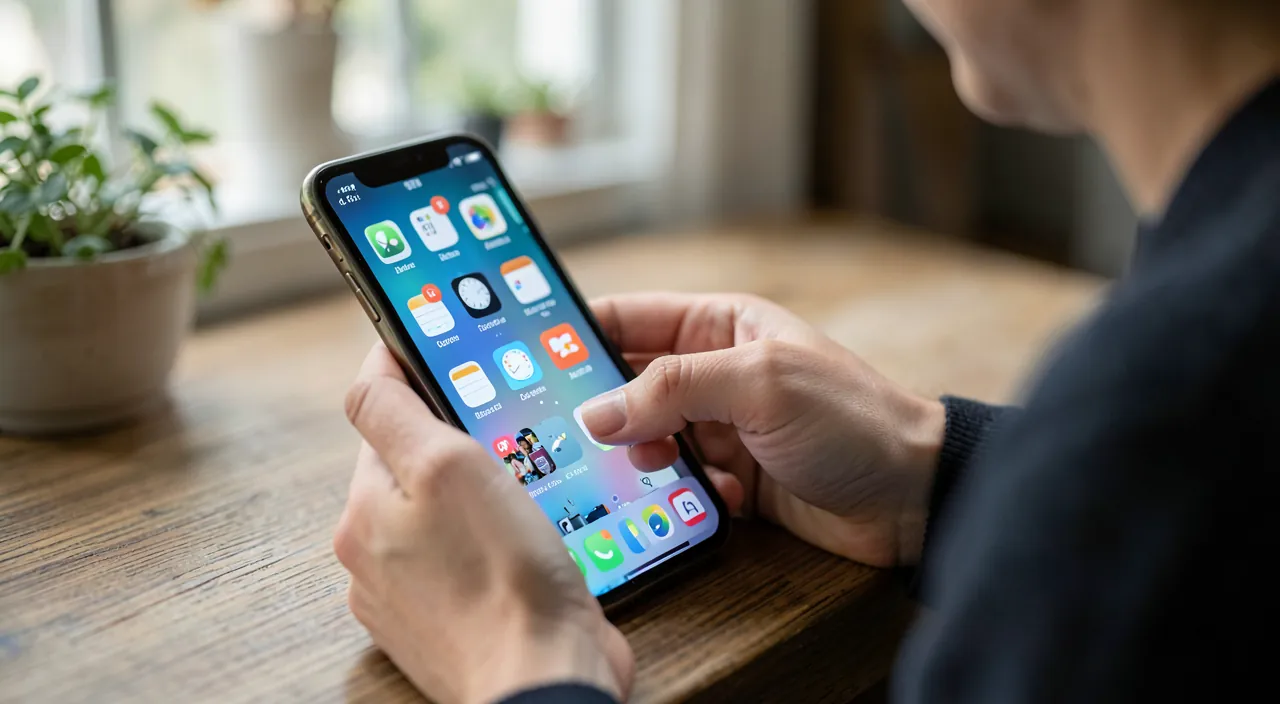
The principle of the widget is simple and powerful: instead of opening an app to see a piece of information, it appears directly on your home screen or lock screen, updated in real time. Today’s weather, your next appointment, the battery level of your devices, your physical activity, a memory photo, your daily reminders, the progress of a follow-up: all of this becomes visible at a glance, without touching anything. It’s a real time and comfort saver: the information you consult most often comes TO YOU, rather than forcing you to navigate between apps. Widgets come in several SIZES (small, medium, large: from a simple indicator to a detailed dashboard), and many apps offer them (Apple’s as well as many third-party apps). Some are even INTERACTIVE: you can check off a reminder or launch an action directly from the widget, without opening the app. Well thought out, widgets transform your home screen from a simple app launcher into a true CUSTOMIZED DASHBOARD that shows you what matters to you, when you need it. You just have to choose the right ones and place them intelligently—because a screen overloaded with useless widgets is as harmful as it is helpful.
Widgets show you important info right on your screen, so you don’t have to open apps. They can be small or big, and some even let you do things like check off reminders. The key is to pick only the ones you really need, or your screen will get too crowded.
Imagine you have a medium weather widget showing today’s forecast, a small calendar widget for your next meeting at 2:00 PM, and a large activity widget tracking your steps. You glance at your phone and instantly know it’s 18°C outside, your meeting is in 30 minutes, and you’ve walked 5,200 steps today—all without opening a single app.
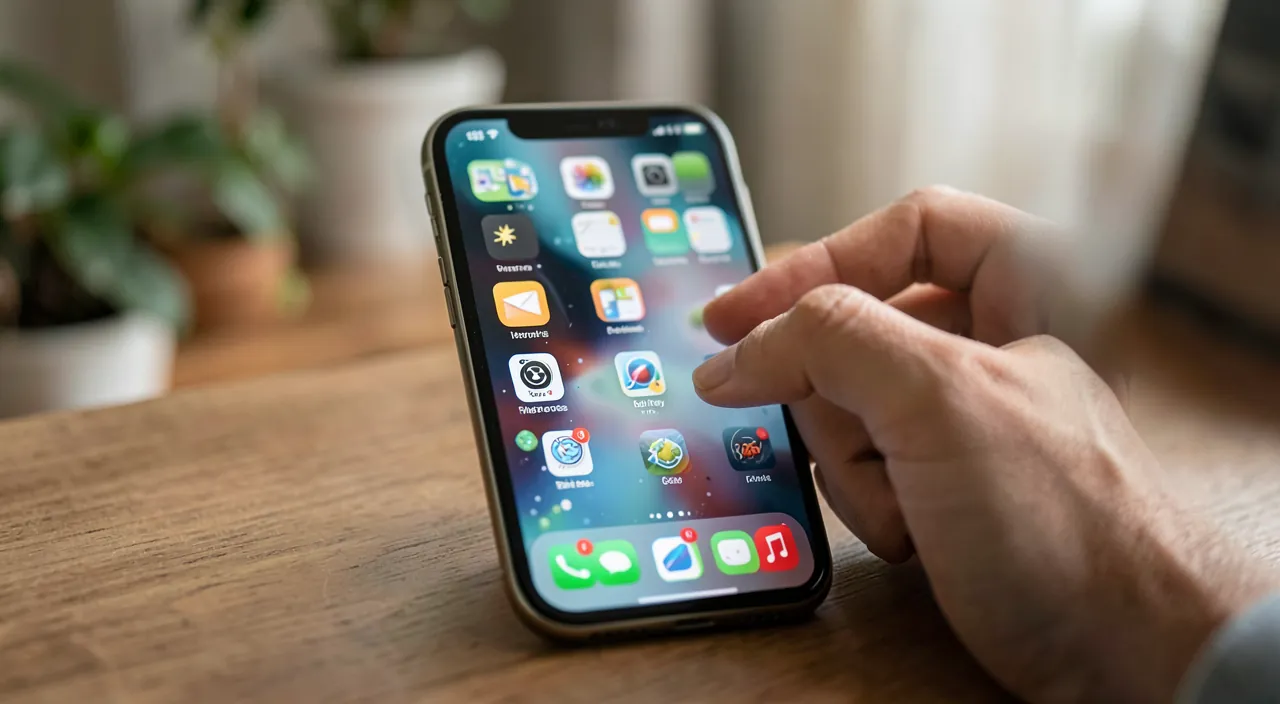
Adding, organizing, and stacking your widgets
In practice, a few key points for using them well:
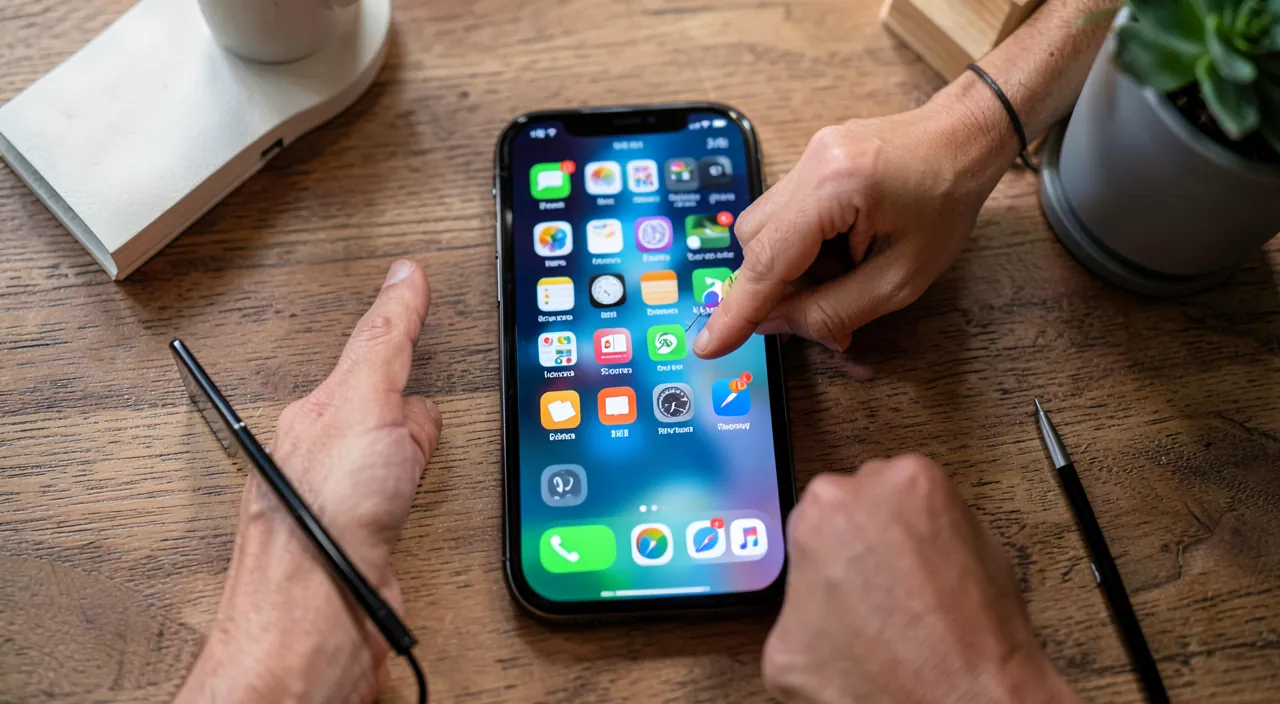
- ADDING a widget—from the home screen in edit mode, you choose a widget from those offered by the apps, select its size, and place it where you want;
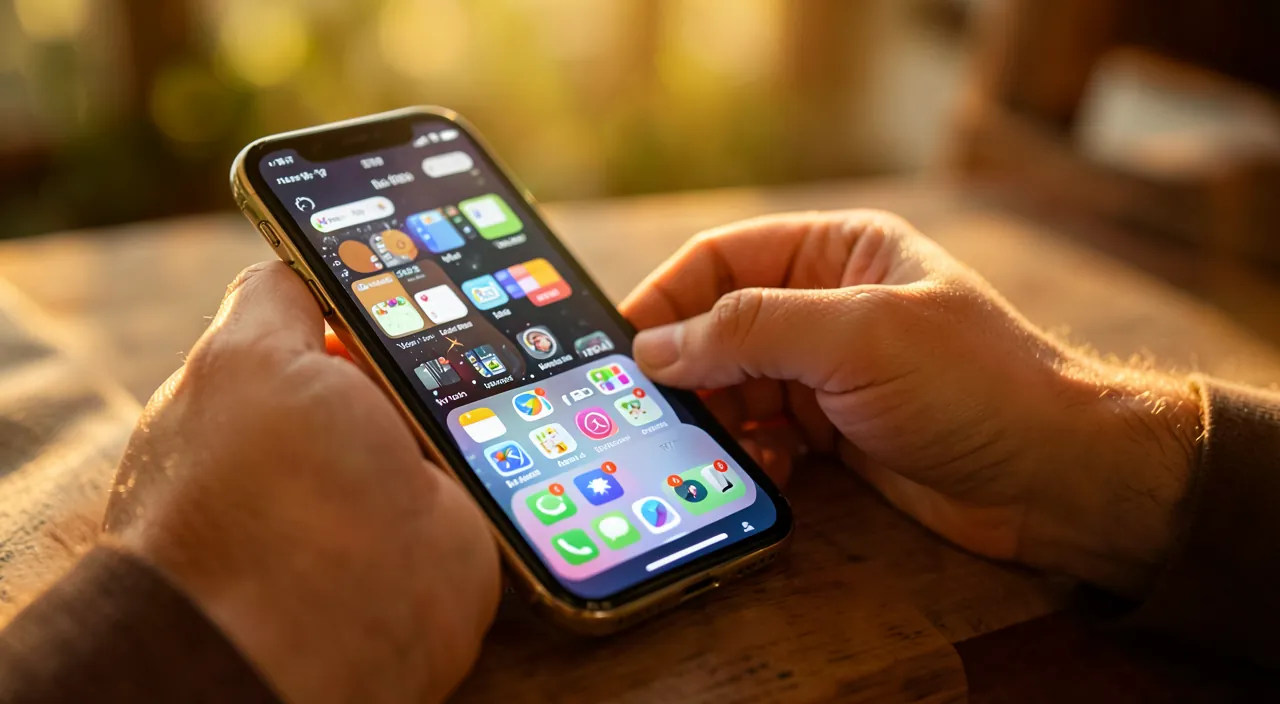
- STACKS (widget piles)—a clever feature: stack multiple widgets in the same spot and swipe through them (a stack of “weather + calendar + activity” in a single space, saving room);
- the SMART STACK—which automatically displays the most relevant widget based on the time of day (weather in the morning, your calendar before an appointment);
- LOCK SCREEN WIDGETS—on recent versions, you can place compact widgets on the lock screen (see the essentials without even unlocking);
- CUSTOMIZATION—many widgets can be configured (which city for the weather, which calendar, what information to display).
To ORGANIZE your screen intelligently: place the most USEFUL widgets on your main screen (those you actually check), group by theme, use stacks to save space, and keep a balance between widgets and icons (a screen full of widgets can become unreadable). The idea isn’t to accumulate, but to CHOOSE: what are the 3 or 4 pieces of information you want to see permanently? Those are the ones that deserve a widget. A successful home screen is one that shows you the essentials without effort, not the one that’s the most cluttered.
The right reflex. Before adding widgets, ask yourself what the 3 or 4 PIECES OF INFORMATION you check most often in a day are—weather? your next appointment? your activity? your reminders? THOSE ARE THE ONES that deserve a clearly visible widget on your main screen: you’ll see them at a glance, without opening an app. Resist the temptation to accumulate widgets “just because they’re pretty”: an overloaded screen becomes unreadable and counterproductive. Instead, use STACKS (piles) to group multiple widgets in the same spot and swipe through them, saving space while keeping access. The smart stack, which displays the right widget based on the time, is particularly practical. A successful home screen isn’t the most decorated one: it’s the one that shows YOU your essential information without effort. Choose based on your actual usage, not aesthetics: the best widget is the one that truly helps you every day.
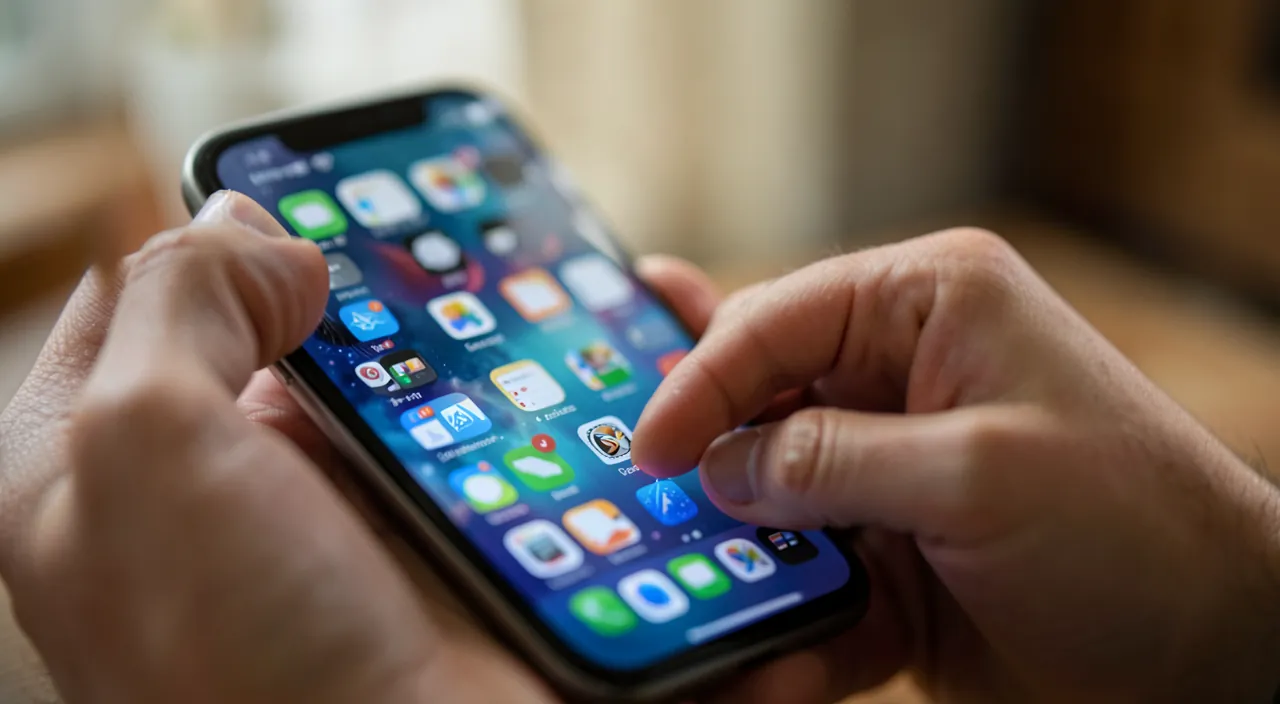
Customizing beyond widgets
Widgets fit into a broader customization of your device:
- multiple home screens—organize your apps across several themed pages (a “work” page, a “leisure” one), and hide those you want to streamline;
- the app library—which automatically sorts all your apps by category, letting you keep your home screen clean (only the apps you actually use are visible);
- the customized lock screen—wallpaper, time style, compact widgets, which you can even associate with focus modes (a “work” lock screen different from the “personal” one—our focus mode guides);
- wallpapers—photos, gradients, with depth effects;
- and the organization of icons based on your habits (the most-used apps within thumb’s reach).
All this customization aims for the same goal: adapting the device to YOUR way of using it, so it serves you better. The Apple ecosystem is designed for this flexibility: take the time to explore these settings, they transform a “standard” phone into a tool that’s truly yours and makes your life easier. One last tip: customization is a pleasure, but keep FUNCTIONALITY in mind: the most beautiful screen is the one that stays PRACTICAL every day. Useful widgets, well-organized apps, a clean and readable screen: successful customization serves your real usage, it doesn’t complicate it. A well-configured device is one that saves you time and peace of mind every day—that’s the whole point of taking a few minutes to adapt it to you.
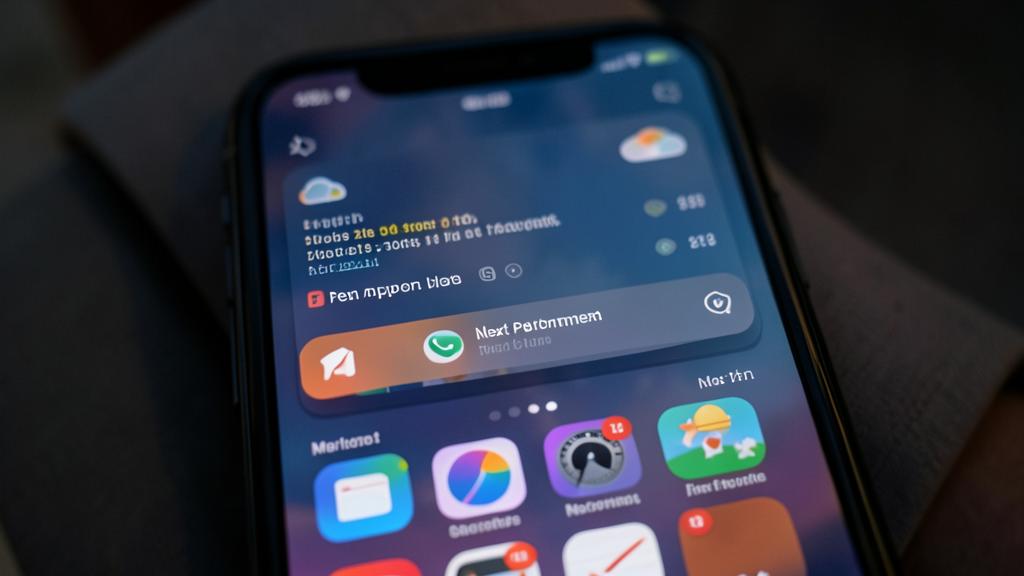
Warning: keep the screen readable, and check what widgets display publicly. Two points: customization shouldn’t harm LEGIBILITY and functionality—a screen overloaded with widgets, no matter how pretty, becomes unreadable and counterproductive; always prioritize utility (3-4 essential widgets, a clean screen) over decorative accumulation. And above all, be careful about the PRIVACY of widgets on the LOCK SCREEN: widgets and notifications on the lock screen are visible without unlocking the phone, so anyone looking at it can see them; think about what you display there—a widget showing the content of your messages, your next detailed appointment, or personal information can expose your private life to prying eyes (our privacy guides). Adjust the settings so the lock screen doesn’t reveal sensitive information (notification content can be hidden until unlock). A customized screen is nice; just make sure it stays readable AND doesn’t share your private information with just anyone. Successful customization combines pleasure, utility, and discretion.
Frequently asked questions
What do widgets actually do?
They display live information on your screen without opening the corresponding app: the weather, your next appointment, battery level, your activity, your reminders, a memory photo. You see the essentials at a glance, saving time and making the phone more useful. They come in several sizes, and some are interactive (check off a reminder directly). Well-chosen, widgets transform your home screen into a customized dashboard. The right approach: identify the 3-4 pieces of information you check most, and give them a visible widget—rather than accumulating decorative tiles.
How do I avoid cluttering my screen with too many widgets?
Only choose the information you REALLY check often (3-4 usually suffice), and use STACKS (piles): stack multiple widgets in the same spot and swipe through them, saving space. The smart stack automatically displays the most relevant widget based on the time. Keep a balance between widgets and icons for a readable screen. Tuck the rest of your apps into the app library to keep your home screen clean. The principle: a successful screen shows the essentials without effort, it’s not the most cluttered. Always prioritize utility over decorative accumulation.
Are lock screen widgets a risk to my privacy?
They can be if you’re not careful: widgets and notifications on the lock screen are visible WITHOUT unlocking the phone, so anyone looking at it can see them. A widget displaying the content of your messages, a detailed appointment, or personal information can expose your private life (our privacy guides). Think about what you place on the lock screen, and adjust the settings so notification content stays hidden until unlock. You thus keep the convenience of a quick glance (time, weather) without revealing your sensitive information to just anyone. Lock screen customization should balance practicality and discretion.
What to remember
Widgets display live information on your screen without opening the app: weather, appointments, battery, activity, reminders become visible at a glance, transforming your home screen into a customized dashboard. They come in several sizes, some are interactive, and STACKS (piles) let you group multiple widgets in the same spot to save space—the smart stack displaying the right one based on the time. The right reflex: identify the 3-4 pieces of information you actually check often and give them a visible widget, rather than accumulating decorative tiles (an overloaded screen becomes unreadable). Widgets fit into broader customization: multiple screens, app library to declutter, customized lock screen (associable with focus modes), wallpapers. Always keep FUNCTIONALITY in mind: the most beautiful screen is the one that stays practical and readable. And monitor the privacy of lock screen widgets (visible without unlocking): don’t expose sensitive information there. Well-configured, your device shows you the essentials without effort and feels like you: a few minutes of useful customization for daily comfort.
Want to unlock the full potential of your iPhone, iPad, or Mac? Our Apple training courses take you to the next level.
Leave a Reply
You must be logged in to post a comment.