
You type an « a » and a « q » suddenly appears, numbers now require the shift key, the question mark has disappeared, and the « m » has run off near the « l »: your keyboard has switched to QWERTY — the classic layout that switches after an accidental shortcut, update, or new computer. Behind this moment of solitude lies a simple mechanism (the software layout, independent of physical keys) and a 30-second fix. The complete guide — Windows, Mac, phones — plus accents, foreign keyboards, and ghost layouts.
In one minute: the key lies, the system decides
The revelation that explains it all: the keys on your keyboard do not « contain » their letters — they send positions, and it is the SYSTEM that decides which letter corresponds to which position via the layout (the « layout »): AZERTY (French), QWERTY (American and many others), QWERTZ (German)… When the active layout no longer matches the key inscriptions, the keyboard « lies »: physically AZERTY, logically QWERTY — hence the a-for-q (the two keys swapped between the two worlds, with w/z and m wandering: the signature of the switch). Common causes: the accidental switch shortcut pressed without knowing (systems offer a shortcut to switch between installed layouts — great when switching languages, a trap when you don’t know you have multiple), the update or installation that added a layout (Windows configured quickly keeping « US English » in ambush), the session or app with its own language (the layout can differ per application and window on Windows — the mystery of « only in this software »), and the login screen living its own life (password rejected at startup even though it’s correct: typed in QWERTY without seeing it — the q/a trap in passwords, solved by typing « as if » or showing the password when the eye exists).
The quick fix, system by system
Windows — the guilty and fixing shortcut: Maj + Alt (or Windows + Espace) switches between installed layouts: press it, test the « a » — fixed in three out of four cases; the definitive cure: Settings → Date & Time → Language & Region → in French, check the keyboard (AZERTY present) and REMOVE any intruding layouts (the lingering « US English » — as long as it exists, the accidental switch will return — removing it is the real fix; keep it intentionally if you use it, and learn the shortcut); Mac — the input menu in the menu bar (the small flag/symbol: click, choose French — and if it doesn’t appear: System Settings → Keyboard → Input Sources: add French, remove the intruder, check the display of the menu to see the active layout at a glance); phones and tablets — the virtual keyboard has its languages (a long press on the space bar or globe toggles — the pressed thumb on the globe is the QWERTY mystery on phones: Settings → Keyboard → languages, purge or learn the gesture); and the physical keyboard on tablets/TV — its layout is set separately (Settings Keyboard: the declared French Bluetooth keyboard). Everywhere, the same logic in two steps: the switch first (the quick fix), then the layout cleanup (the prevention).
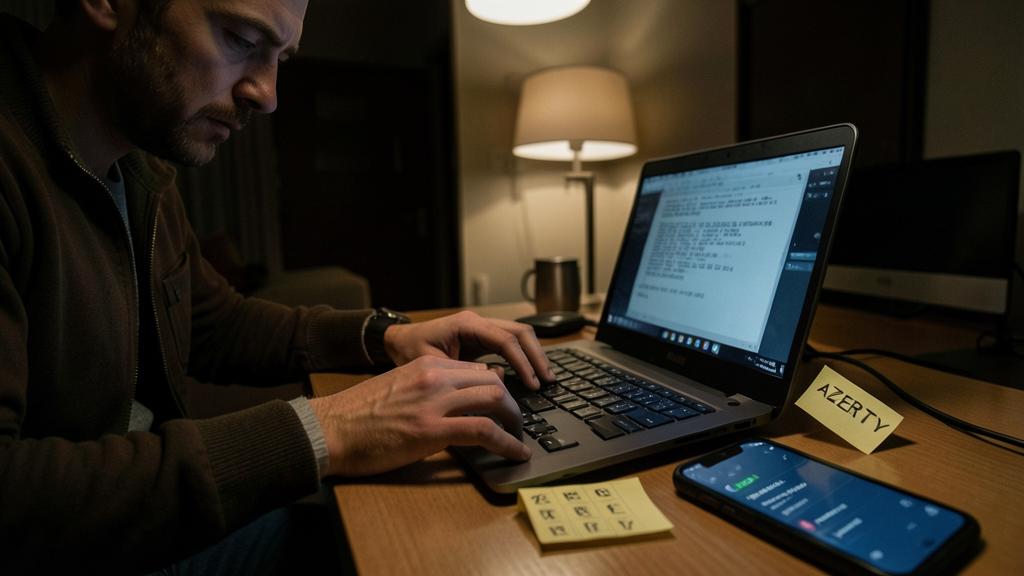
The right reflex. The universal test that separates everything: type the row azerty in a text field — what is displayed names the active layout (qwerty displayed = English layout; azerty = all is well, look elsewhere — the « funky keyboard » issue that is NOT a language switch: repeated keys, random characters, are covered in our keyboard stuck guides: crumbs, driver, hardware). Ten seconds, no doubt — and the same test on a friend’s phone in distress makes you the hero of the Sunday.

Your keyboard doesn’t actually have letters on the keys. It just sends signals to your computer, which then decides what letter to show based on the language layout you’ve selected. If you’re typing in French but the layout is set to English (QWERTY), the letters will be all mixed up. The fix is to switch back to the correct layout for your language.
Imagine you’re using a French AZERTY keyboard, but your computer is set to QWERTY. When you press the key that normally types “A,” it will instead type “Q” because the layout has changed. To fix this, you’d press the shortcut to switch back to the French layout, and then the “A” key would work normally again.
Accents and lost characters: the bonus chapter that changes lives
Since we’re talking about layout, let’s address the historical French frustrations: the capitalized accents — É, È, À, Ç are properly obtained: on Mac, the long press (the accent popover — É proposed when holding down E capital) or classic combinations; on Windows, the improved AZERTY (AFNOR) deserves its fame — the normalized French layout (addable in languages: « French AZERTY (norme) ») that finally puts É, capitalized accents, true French apostrophes and quotes at logical key reach — the best free upgrade for French typists, try it for a week; as a fallback, the long press exists on Windows 11, and the special characters panel (Windows + period: emojis AND characters) fixes it; the characters that moved after the switch — the at symbol, the hash, the brackets travel according to the layout: the azerty test confirms the correct layout first, and the keyboard viewer (Mac: the visible virtual keyboard; Windows: the visual keyboard) SHOWS where everything hides — the tool to know for exploring without guessing; and the bad language corrector — red underlining everywhere while the typing is correct: the document or app language check (distinct from the layout — a Word document « in English » underlines all your French — the text language is set in the app, our text processing guides); three languages coexist — that of the keys, that of the system, that of the corrector — and each is set in its place: the knowledge is never to look in the wrong place again.
Special situations: travel, sharing, foreign hardware
Real-life cases: the hotel or foreign computer — the QWERTY physical keyboard (or worse) under your French fingers: the French layout is added in two minutes in settings (you then type in blind on your AZERTY automatism — confusing but effective for a password), or the visible on-screen keyboard clicked with the mouse (the universal password fix in foreign lands — remember our travel guides: the bare minimum on shared machines, and changing passwords upon return); the foreign or second-hand keyboard — physically QWERTY: declare it as such in the system and it will type what it displays (or declare AZERTY and type French ignoring the inscriptions — conversion stickers exist to reconcile the eye); the multilingual home — assumed multiple layouts: the switch shortcut mastered (visible, known by all), the language indicator visible, and each user session with its own settings (separate accounts — our guides — also settle keyboard wars); the video game — the English game controls WASD on an AZERTY keyboard: modern games detect or reconfigure (keys remapped in options — ZQSD), and a temporary QWERTY switch fixes the recalcitrants; and the dictation and AI workaround — the day the keyboard derails and urgency strikes: voice dictation writes without a keyboard (our guides — the fix no one thinks of), and the clipboard transports from phone to computer (the ecosystem continuity: type on the phone, paste on the computer).
Be wary of the false QWERTY that hides a real issue. The layout switch is harmless — but check if it’s really him: the azerty test showing random, incoherent output (neither AZERTY nor QWERTY — numbers, repetitions, mute keys) is not a language issue: it’s the keyboard itself (recent liquid — our wet device guides —, driver, connector, hardware issue — our keyboard guides), and the « num lock » off on laptops transforms part of the letters into numbers (the integrated numeric keypad — the Fn+NumLock key turning « j » into « 1 » — the classic laptop issue, fixed in one press). And if the layout changes all by itself regularly without your doing so — on a shared device, ask who else touches it — on yours, a recent software explains (some tools impose their language): cleaning up the layouts AND recent programs restores peace.
Frequently asked questions
Why do AZERTY and QWERTY exist?
Inheritance from typewriters — each linguistic zone optimized (or froze) its layout in the 19th century, and computing inherited it all: the global QWERTY, the French AZERTY, the German QWERTZ, and dozens more. Hence the modern mechanics: neutral keys and a software layout per language — the flexibility that allows multilingualism… and your current issue.
My password is rejected at startup since the issue:
The login field uses its own layout — likely switched as well: look for the language indicator ON the login screen (it’s there, discreet — click it to choose French), show the password if the eye exists, or type « in translation » (your a is on the q key…). Once entered, clean up the layouts — the login screen will follow.
Can I create my own layout (customized keys)?
Yes — remapping tools exist on each system (official and reputable third-party utilities) to move a key that annoys you or create character shortcuts — powerful, but document it (a customized keyboard confuses other users — and you in a year: note your changes). For most, the improved normalized AZERTY already offers the best of customization, in standard form.

What to remember
The keyboard switched to QWERTY is a matter of SOFTWARE layout, not keys: the azerty test diagnoses in ten seconds, the switch fixes in thirty (Maj+Alt or Windows+Espace, the Mac input menu, the phone globe), and cleaning up any intruding layouts prevents recurrence — the « US English » in ambush removed, or assumed with its shortcut mastered. The chapter extends usefully: the login screen has its own language (the « rejected » password decoded), the corrector has its own (three languages, three settings), and the improved normalized AZERTY finally puts É, Ç, and French quotes at the fingertips of demanding typists. Real issues stand out (incoherent = hardware, laptop num lock = one key) — and the a-for-q mystery is finally solved: thirty seconds, and your fingers will find their home.


Persistent issue, finicky device? Our remote troubleshooting service quickly resolves your problem without jargon.
Leave a Reply
You must be logged in to post a comment.