
You plug in — nothing. No connection sound, no indicator light, no disk appearing: the USB port is dead. Before condemning the computer or living with one fewer port (then two, then three…), know that « dead » ports often come back to life: dust, standby power, sleeping drivers, or a saturated hub explain most apparent deaths. This guide walks you through the methodical resuscitation — from cleaning to power settings — and helps you recognize truly lost cases, along with their workarounds.
First: the port, the cable, or the device?
A silent connection puts three suspects in the picture — narrow them down in two minutes of swap test: the same device with the same cable on a different port (does it work? The port is at fault — follow this guide; still silent? Change suspects); a different cable — USB cables die far more often than ports, and some charging cables simply don’t carry data (the classic « charges but doesn’t connect » trap); a different device on the accused port — a simple USB key makes an excellent tester. This sorting avoids two symmetrical mistakes: inspecting a healthy computer for a dead cable, or buying new cables for a truly dead port. Verdict « port » confirmed? Resuscitation begins.

Resuscitation in five steps
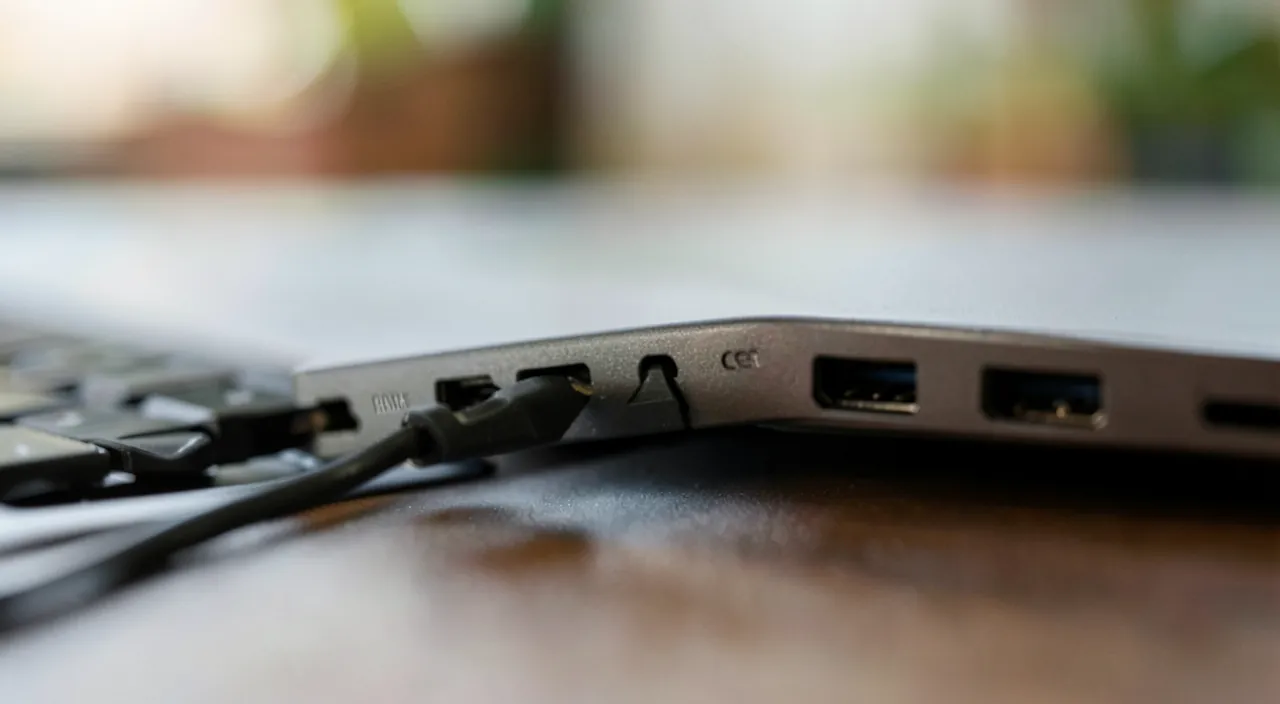
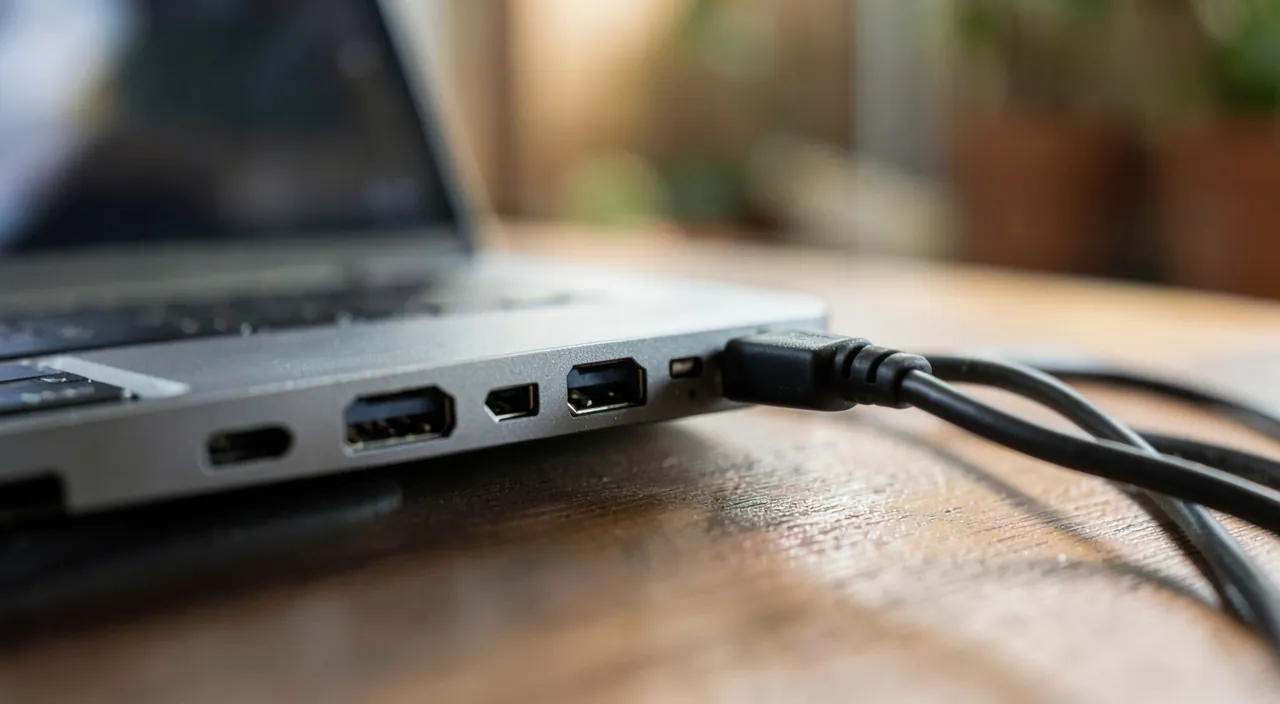
- Inspect and clean: with a flashlight, look inside the port — compacted dust, lint, bent pins: a clogged port makes a ghost connection. With the machine off, blow (dry air, at an angle), gently dislodge deposits with a non-metallic tip. A phone port stuffed with lint is an absolute classic.
- Restart properly: the USB controller sometimes freezes — a full restart resets it.
- The power cycle: turn off, unplug the power (battery if removable), hold the power button for a long time, then reconnect — the purge that revives ports affected by an electrical incident (the device that « fried » a temporary protection).
- Wake up the drivers: in the device manager, USB controllers reinstall with a gesture (uninstall, restart — the system recreates them healthy); take the opportunity to apply system updates.
- Track power saving: systems cut power to ports to save energy — and sometimes wake up poorly: disable selective USB suspension and the permission to turn off the device « to save energy » in power settings. This is THE little-known setting behind « dead ports on wake-up » that come back to life after a restart.
USB ports often stop working because of dust, power settings, or software issues. Most problems can be fixed by cleaning the port, restarting the computer, or adjusting power settings. If the port still doesn’t work, it might be damaged and need repair or a workaround.
The right reflex. If your devices work when plugged directly but die via a hub or USB power strip, the culprit is the power supply: an unpowered hub divides the meager current of the port among all its occupants — power-hungry devices (external drives first) give up. The solution: a hub with its own power supply, or direct connection of power-hungry devices. Half of « USB failures » at home are shared current failures.
 USB port, revealing debris.” loading=”lazy” />
A user connects an external hard drive to a laptop via an unpowered USB hub. The drive disconnects randomly during file transfers. After testing, the user finds that plugging the drive directly into the laptop’s USB port resolves the issue. The hub was splitting the power too thinly, causing the drive to lose connection. Adding a powered hub or connecting the drive directly fixes the problem.
Reading the signs: partial failures and messages
Intermediate symptoms speak: a port that charges but doesn’t transfer — damaged data pins or charging-only cable: after the cable test, it’s the hardware path; a device detected intermittently at the slightest movement — loose contact: port detached from the board (solder joints worn by forced connections) or worn plug: don’t insist, twisting makes it worse; the message « overvoltage on the USB port » or a cut-off as soon as a specific device is plugged in — the protection triggers: faulty device or cable in front, stop plugging it in; all ports dead at once — controller or main power supply: power cycle, then if nothing, professional diagnosis. Each failure reason tells its cause — observing it for three connections is worth all the forums.
The truly dead port: bypass or repair
Resuscitation failed? Two reasonable options remain: the bypass — a powered hub on a surviving port restores all lost ports (and of better quality): for a single dead port on an otherwise healthy machine, it’s the immediate and economical answer; the repair — replacing a port or daughter card is a reasonable workshop intervention on machines where the port is modular, more complex when it’s soldered to the motherboard: quote before deciding, balanced with the machine’s value. On a phone with a dead connector, note the modern lifeline: wireless charging keeps the device alive until repair — and backup can go through the network. A dead port is almost never the end of a machine: it’s a detour.
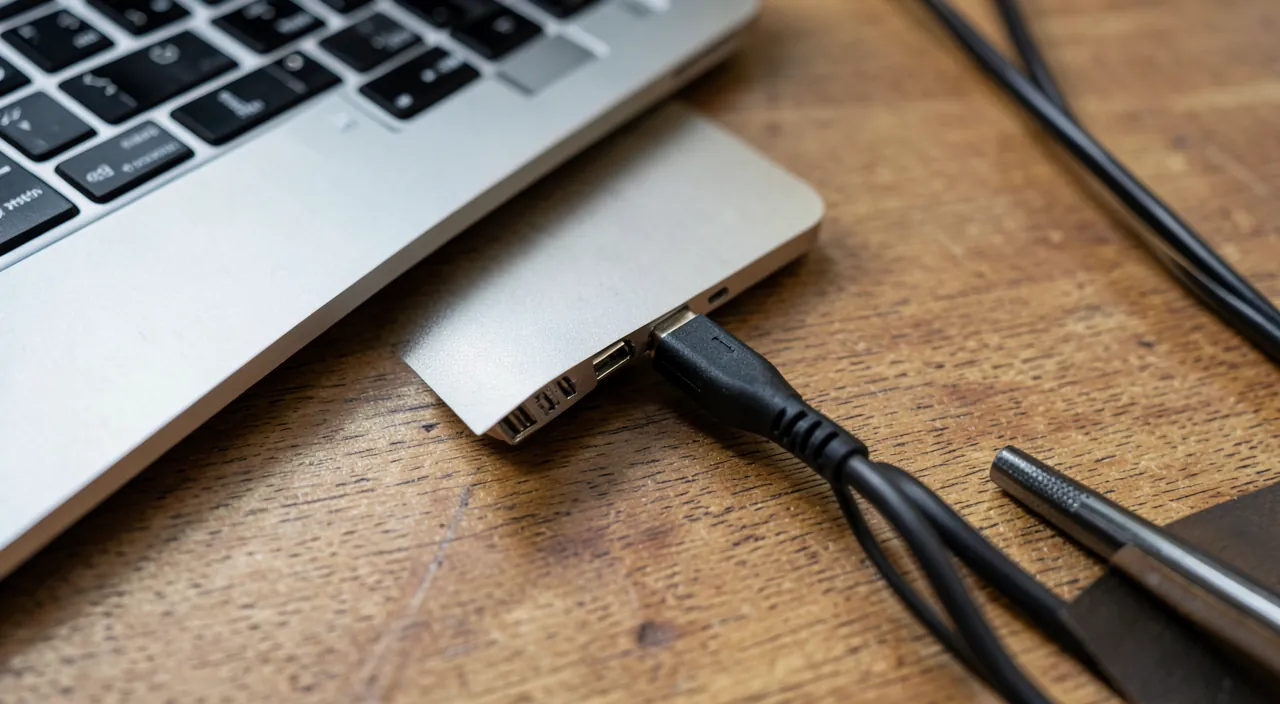
Gestures that kill ports. Forced insertion upside down (look before inserting — or switch to reversible connectors), levering on the plugged-in plug (the device hanging from its cable, the tablet placed on its connector), liquids, and cheap cables with flimsy plugs that wear out the pins: most destroyed ports die from mechanics, not electronics. A port is treated like a lock — in line, without force, in the right direction. And unknown devices (found USB keys, dodgy gadgets) are not plugged in: beyond security, a faulty peripheral can damage the port that hosts it.

Frequent questions
Can a USB port die « of old age »?
Connectors are rated for thousands of cycles — pure old age is rare; it’s mechanical wear (forcing, levering, dust) that kills. A well-treated port usually lasts longer than the machine.
Why does my external drive disconnect during copying?
The classic trio: insufficient power (unpowered hub, weak port — plug directly), worn-out cable, or USB power saving that cuts off mid-activity (disable it). The drive itself is only suspect after these three checks.
The front ports of my tower are dead, the rear ones work:
Front ports go through an internal cable to the motherboard — unplugged, poorly connected, or faulty: it’s a simple reconnection for those who open the case, or a quick workshop intervention. The rear, soldered to the board, remains your safe bet.
What to remember
The silent USB port is judged after sorting — other port, other cable, other device — then resuscitated in order: cleaning with a flashlight, full restart then power cycle, reinstalled drivers, and the USB power-saving setting, the little-known culprit of sleeping ports. Unpowered hubs explain half of the remaining failures: power them or plug directly. The truly dead port is bypassed (powered hub, wireless charging on the phone) or repaired on quote — while good gestures (in line, without force, without lever, without unknowns) preserve the survivors. Ports rarely die alone: they are killed — or resurrected. You now know how to do both… well, especially the latter.


Persistent failure, temperamental computer? Our remote troubleshooting service solves your problem quickly, without jargon.
Leave a Reply
You must be logged in to post a comment.