
The screen lights up, the logo appears, hope is reborn — and everything shuts down to start over: the boot loop is one of the most frustrating failures, precisely because the computer seems to be on the verge of succeeding each time. Behind this endless cycle, however, lies a logic: something fails at a specific startup stage, and the system relentlessly retries. This guide helps you identify this stage — failed update, faulty driver, worn-out hardware — and break the loop, methodically.
Understanding the loop: where does it break?
Starting a computer involves a series of steps — hardware checks, system loading, drivers, session — and the loop occurs when one of them fails severely enough to trigger an automatic restart. Observing where the cycle stops guides the entire diagnosis: immediate shutdown before any display → hardware issue (power supply, overheating, memory); restart on the system logo → software issue (corrupted update, driver, system files); crash after session login → application issue (a startup program). Also note the context of appearance — “since yesterday’s update,” “since the power outage,” “gradually, with loud fans” — the trigger almost always reveals the cause.

The first steps (which already fix many cases)
- Break the loop: force shutdown (long press on the power button), then unplug all non-essentials — USB peripherals, external drives, docking station: a faulty peripheral often causes loops. Restart with just the essentials.
- The power cycle: turn off and unplug the device (remove the battery if removable), hold the power button for about 30 seconds, then reconnect and try — the reset that resolves power-related freezes.
- Give updates a chance: if the loop follows an update, wait for two or three cycles — systems detect the failure and sometimes automatically cancel the faulty update (message “repair in progress”): never interrupt this automatic repair.
The right reflex. After several failed starts, modern systems offer a recovery menu on their own — this is your main way out: safe mode, startup repair, system restore, uninstalling the last update. If the menu doesn’t appear automatically, the classic move is to force a shutdown during startup two or three times in a row — the system then realizes there’s a problem and opens the toolbox.
A boot loop means your computer keeps restarting because something is broken at a specific point during startup. By watching where it stops, you can figure out if it’s a hardware or software problem and fix it step by step.
In the recovery menu: the strategy
Once the toolbox is open, proceed from the least invasive to the most radical: 1. Safe mode — minimal startup without third-party drivers or programs: if it works, the issue is software-related and you can act (uninstall the recent update or driver, disable startup programs, run an anti-malware). 2. Startup repair — the automatic tool that fixes damaged startup files (common after a power outage). 3. System restore — revert to the point before the issue: often decisive after a faulty update or installation, without affecting your files. 4. Uninstalling the last update — the dedicated option when the timeline clearly points to a system update. 5. As a last resort, reset while keeping files — the system starts fresh, your documents remain: drastic but effective when everything else has failed.

When hardware is the culprit
If the loop persists despite recovery, or if symptoms suggest hardware — shutdowns before any display, startup beeps, screaming fans, loop appearing with heat or noise — the usual suspects are: overheating (dust, dead ventilation — the computer shuts down to protect itself, cools down, restarts, overheats again: the classic thermal loop), a failing power supply (power brick or internal supply that falters under load), RAM (testable with built-in diagnostic tools), or a dying disk (the system can no longer read itself — possible clicking sounds). These diagnostics and repairs require a professional — but your observations (when it cuts out, the context in which it appeared) will save them time, and you money in diagnostic fees.
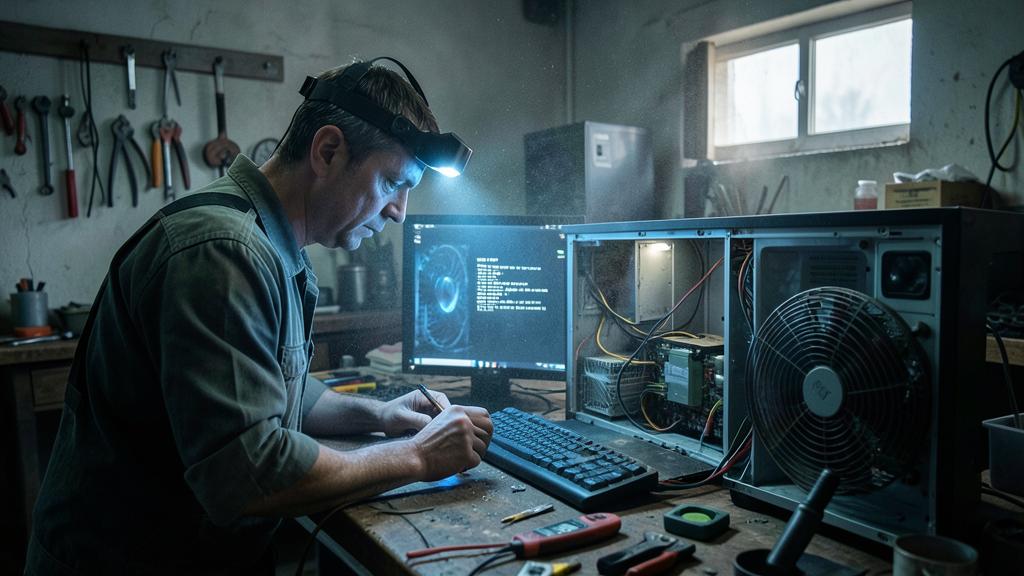
A gaming PC starts looping after a long session. The user notices the fans are running at full speed and the case feels hot. After cleaning the dust from the heatsink and fans, the computer boots normally. The issue was overheating caused by clogged ventilation.
Your data first. In the vast majority of boot loops, files are intact — the system just can’t start around them anymore. Never attempt a full reinstallation “just to see” without a backup: from safe mode or the recovery environment, copying documents to an external drive is often possible — and a professional can always extract the disk to recover before repair. The loop can be fixed; crushed data, not.

Frequent questions
The loop appeared after a power outage: is it serious?
Often not: the outage corrupted startup files, which the automatic repair in the recovery menu usually fixes. This is the loop scenario with the best prognosis — and a good argument for a surge-protected power strip.
My PC only loops on certain days or after a few hours: why?
Intermittence suggests temperature (progressive overheating) or a failing power supply under load. Start with dusting and checking ventilation; if the issue persists, hardware diagnostics.

How long should you let an “automatic repair” run?
A repair or update rollback can legitimately take a long time — be patient for up to an hour, especially if a percentage is progressing. Interrupting it is what turns slow repairs into real failures.
What to remember
The boot loop has a logic: a startup step fails, and observation — where it cuts out, how long it’s been happening, the context — points to the family of causes. The steps in order: unplug peripherals, power cycle, let automatic repairs run, then the recovery menu from least to most invasive — safe mode, startup repair, restore, update uninstall, reset with files kept. Hardware symptoms (immediate shutdown, beeps, heat) point to a professional — with your observations as clues. And the golden rule above all: your data is probably intact — no radical move without securing it first.



Persistent issue, temperamental computer? Our remote troubleshooting service resolves your problem quickly, without jargon.
Leave a Reply
You must be logged in to post a comment.