
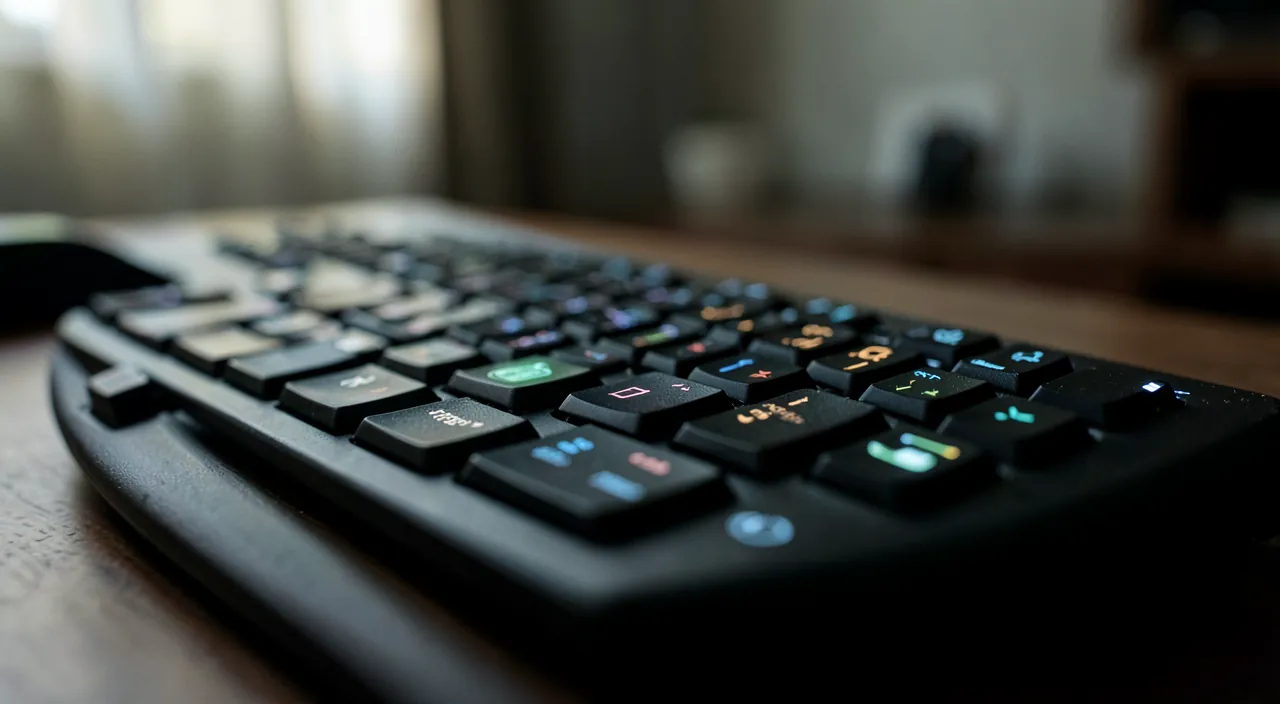
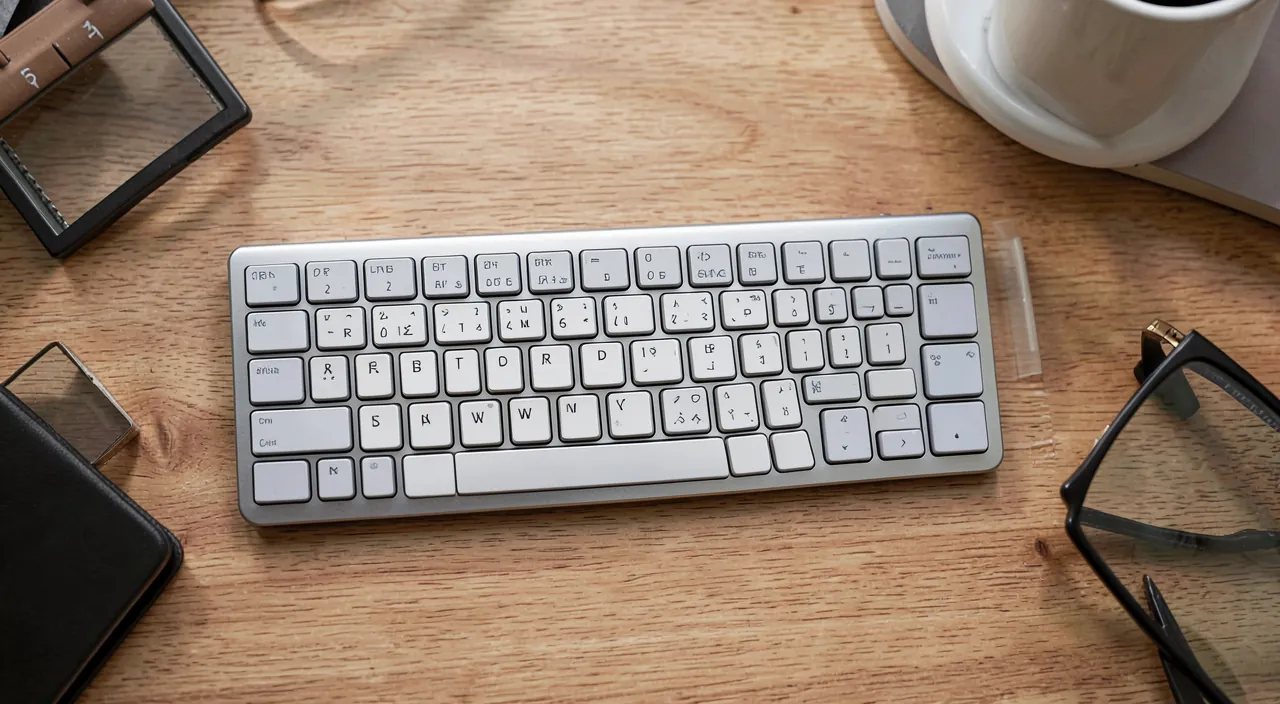
Every time your hand leaves the keyboard to grab the mouse, you lose a few seconds. Multiplied by hundreds of times a day, these seconds become hours. Keyboard shortcuts are the best-kept secret of productivity: they speed up everything once you know them. Good news: a few essential shortcuts are enough to transform your efficiency. This guide presents those that really change your life.
Why shortcuts change everything
The mouse is practical but slow for repetitive actions. A keyboard shortcut executes in an instant what takes several clicks and movements. Over a workday, the cumulative time saved is considerable—not to mention the comfort of no longer constantly juggling between keyboard and mouse. Learning a few shortcuts is one of the best productivity investments, paid off in just a few days.
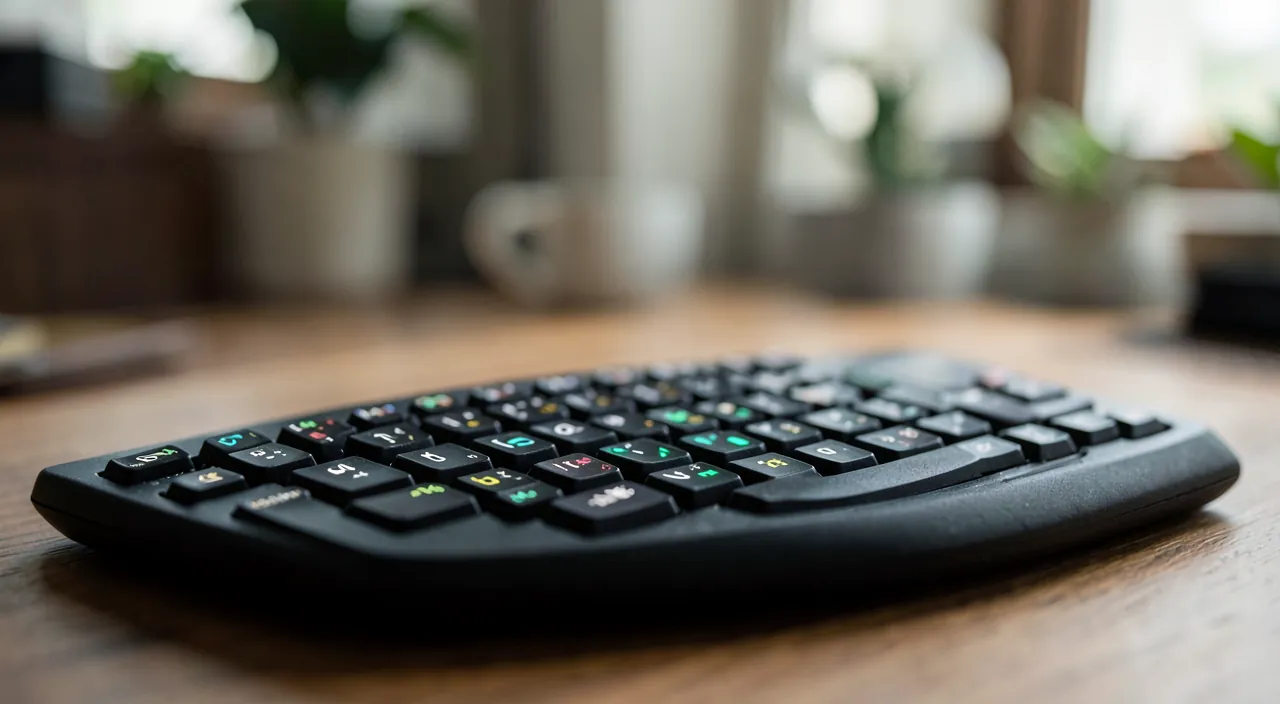
Shortcuts replace slow mouse clicks with fast key presses. Over time, this saves hours of work and reduces frustration.
If you use Ctrl+C and Ctrl+V instead of right-clicking to copy and paste 50 times a day, you save about 2 minutes. Over a year, that’s 40 hours—more than a workweek!
The must-know shortcuts
- Copy, cut, paste: the classics, absolutely essential to master.
- Undo and redo: to instantly correct a mistake.
- Search: find a word in a page or document in a flash.
- Switch between applications and tabs: navigate without the mouse.
- Save: a reflex that avoids many work losses.
The right reflex. Don’t try to memorize everything at once. Choose five or six shortcuts corresponding to your most frequent actions, and force yourself to use them for a few days. They quickly become automatic, and you’ll naturally add others.
Shortcuts by profession
Beyond the universals, each software has its own shortcuts, often very powerful. Whether you work on texts, spreadsheets, images, or code, learning the shortcuts of your daily tools multiplies your efficiency. Most software displays shortcuts next to commands in their menus: a quick glance reveals them as you use them.

Learn without effort
The best way to learn shortcuts is to integrate them into your real work, one by one. Every time you perform an action with the mouse, ask yourself if there’s a shortcut, and use it. At first, it’s a slight effort; very quickly, it’s a natural reflex. No need for dedicated training: daily practice is enough to anchor them permanently.
To keep in mind. Shortcuts sometimes vary from one system or software to another. If a shortcut doesn’t work as expected, check the correspondence for your specific tool: the principles are universal, but the key combinations may differ.
Your three-week learning plan
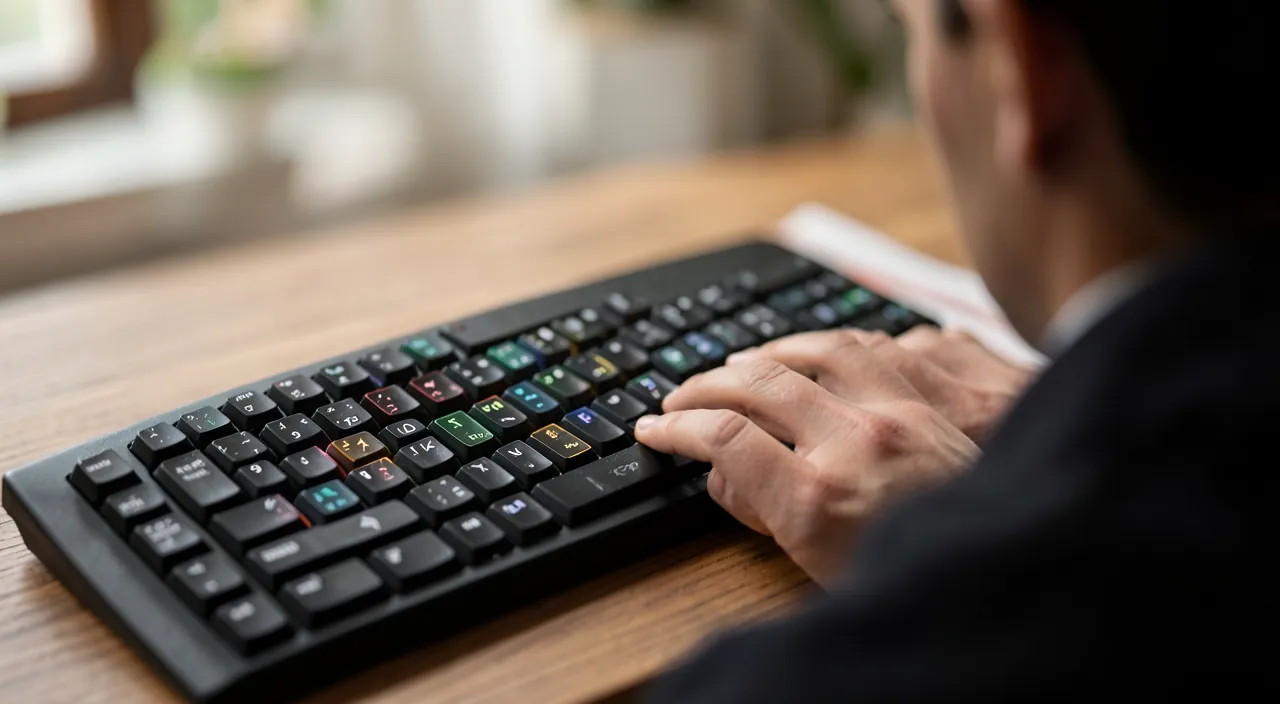
Week 1 — the foundation: copy, paste, cut, undo, save. Ban the right-click for these five actions: the discomfort of a few days forges the reflex. Week 2 — navigation: switch between applications, between tabs, close a tab, search in the page. This is the week where you feel the gain—the back-and-forth with the mouse collapses. Week 3 — your specifics: identify the three actions you repeat the most in YOUR main software (email, spreadsheet, professional tool) and learn their shortcuts, displayed in the menus. By the end: a dozen anchored reflexes, dozens of minutes saved every week—for life.
Frequently asked questions
Do you need to memorize everything?
No: a few essential shortcuts cover the vast majority of needs. The rest is learned naturally, as you use them, without particular effort.
Is it really a time-saver?
Yes, considerably over time. The seconds saved with each action, multiplied by hundreds of times a day, represent hours gained over the year.
Is there a way to see all the shortcuts of a software?
Almost always: menus display the shortcut next to each command, and the software documentation lists them all. Many applications also show a cheat sheet via a dedicated shortcut—search for “keyboard shortcuts” in their help.
What to remember
Keyboard shortcuts are an surprisingly powerful and underused productivity lever. Start with the essentials—copy, paste, undo, search, switch, save—then learn those of your daily software, one by one, in your real work. In a few days, these gestures become reflexes that speed up everything and save you precious time. It’s one of the few productivity investments that pays off almost immediately: it’s up to you to get started.

Want to gain efficiency on your tools?
Leave a Reply
You must be logged in to post a comment.