
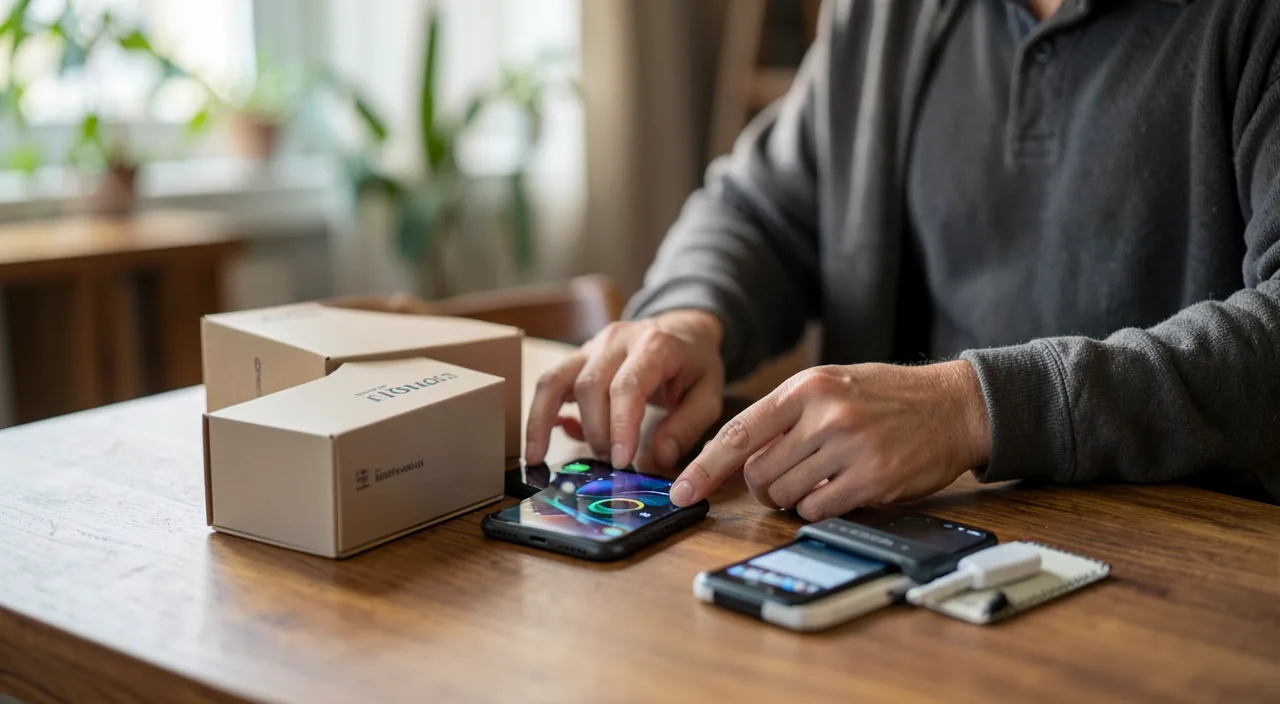
Unboxing a new smartphone has its thrill — quickly spoiled by a rushed setup: notifications in bursts from the first night, privacy settings left at maximum data collection, backups never activated, home screen delivered in chaos. An hour of thoughtful setup transforms years of daily use — it’s the object you’ll touch the most in the world. Here’s the complete guide to configuring your new phone as it deserves: secure, serene, and in your image.
The transfer: recovering everything properly
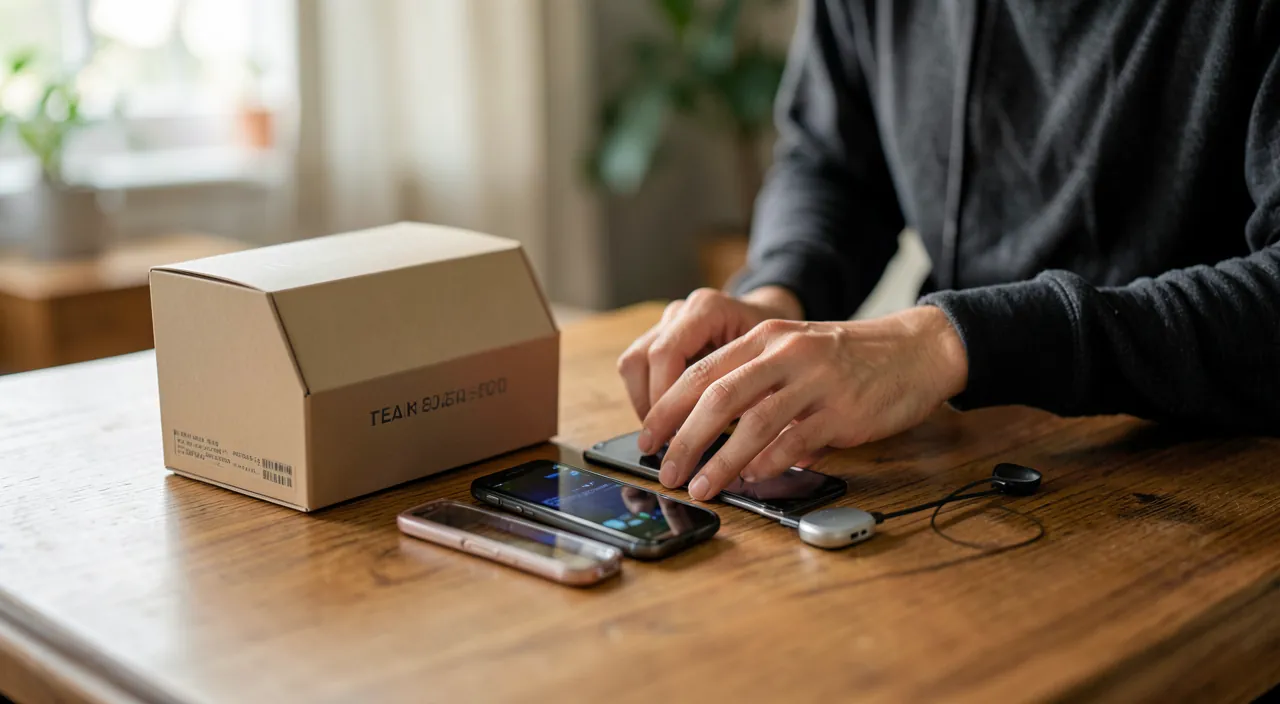
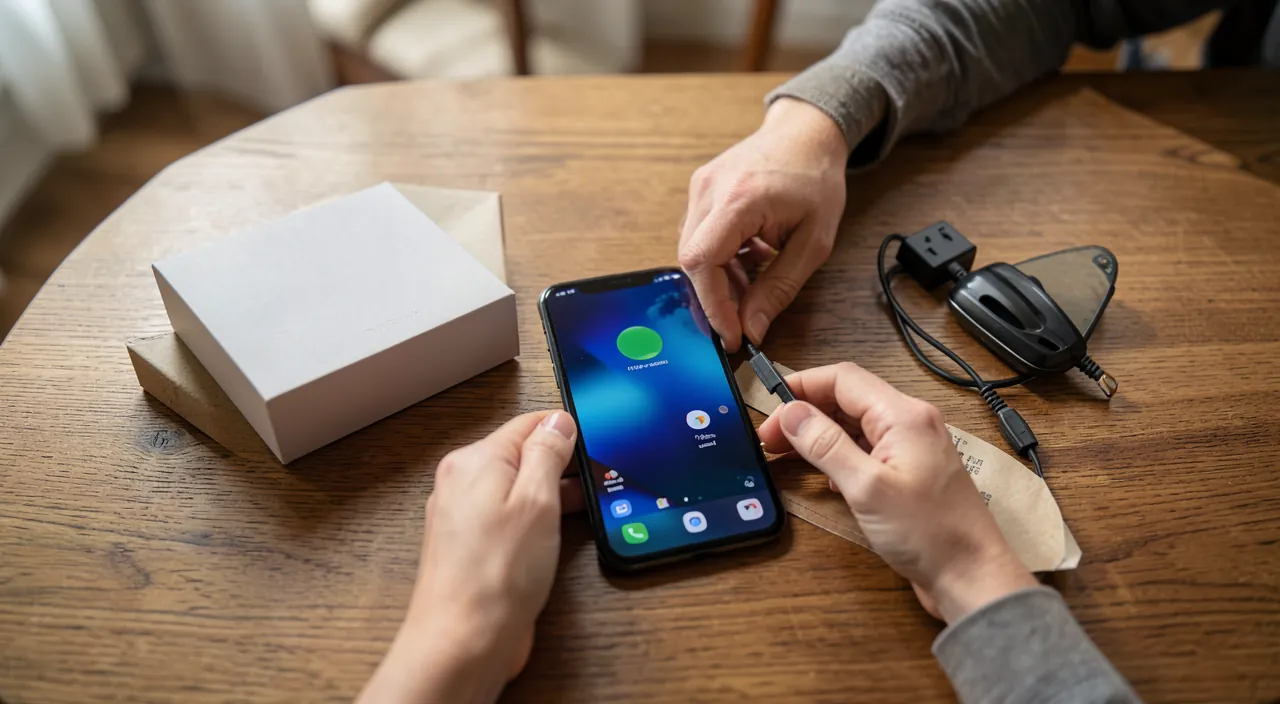
First step, the migration from the old phone — now remarkably simple: transfer assistants copy apps, photos, messages, settings, often by just placing the two devices side by side. Three conditions for everything to go smoothly: the two phones charged and on Wi-Fi, the latest backup up to date on the old one (check before starting!), and the time needed — count a good hour for a well-filled phone, without interruption. After the transfer, check the frequently forgotten items: double authentication codes (to re-migrate from their dedicated app), payment cards (to reactivate), and messaging conversations (some require their own backup).
Security: ten minutes that protect everything
- Locking: biometrics (face or fingerprint) + a strong code — six digits minimum, not your birth date. It’s the door to your entire digital life.
- Device location: enabled, with offline location network — the difference between a lost phone and a phone found (or at least locked and remotely wipeable).
- Two-factor authentication on the phone’s main account — the account that controls backups, purchases, and location deserves maximum protection.
- Automatic backup: enabled, on Wi-Fi, with photos included — check that it’s actually running in the following days.
The right reflex. Set up emergency information: ICE contact accessible from the locked screen, and medical record if relevant. No one thinks about it when unboxing — yet it’s the setting that can matter the most. Two minutes, in the security or health settings, and it’s done for the life of the device.
Your phone holds sensitive data. A strong lock, location tracking, and backups protect it. Emergency info can save lives in a crisis.
Privacy and notifications: taking back control from the start
The new phone is set for maximum data collection and interruptions — ten minutes reverse the trend. Privacy: review permissions as apps request them — « while in use » position only, photos « selected » rather than the entire photo library, and default refusal for what has nothing to do with the function. Disable the advertising ID and « improvement » shares that mean nothing to you. Notifications: only allow apps whose interruptions are worth it (messages, calendar) — refuse the rest from the first request; it’s a thousand times easier than cleaning up after. And set up a first focus mode for the night: your sleep will thank you from the first week.
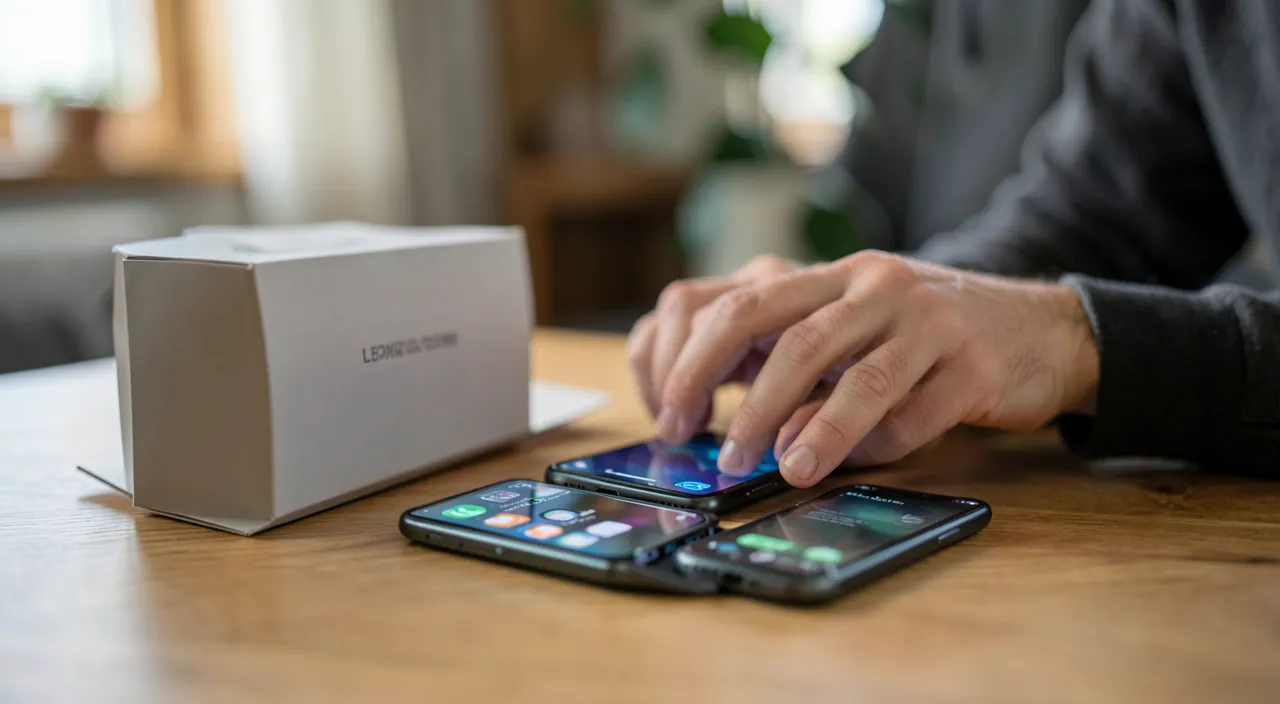
A user named Clara transferred 12,000 photos and 2,000 apps from her old Samsung Galaxy S22 to a new iPhone 15 Pro. She spent 15 minutes adjusting privacy settings, blocking 18 apps from accessing her location, and setting up a “Do Not Disturb” schedule. After one week, she noticed 80% fewer notifications and no unexpected data sharing.
The home screen: your control center
Last project, daily comfort. Compose a minimalist first page: your four to six essential apps, one or two useful widgets (weather, calendar), the rest in the library or following pages — a clean screen really changes your relationship with the device. Adjust the text size for your eyes (bigger isn’t an admission, it’s comfort), the automatic dark mode for evenings, and take five minutes to discover the navigation gestures of your new system. Finally, sort through the transferred apps: the migration copied everything, including what you hadn’t opened in two years — a new phone deserves better than the ghosts of the old one.
Before giving away the old phone. Wait a few days (time to verify that everything went well), then: remove it from your account (device list), deactivate its activation lock, and perform a complete wipe — not just a simple app deletion. A resold or given phone with your data or still linked to your account is a ticking time bomb: this step is not optional.
Frequently asked questions
Does the transfer really copy everything?
The essentials, yes — apps, photos, settings, messages depending on the case. Classic exceptions: double authentication codes, payment cards, and some messaging apps with their own backup. Hence the rule: keep the old one functional for a few days.
Should you reinstall everything « from scratch » instead of transferring?
The transfer suits most people: fast and complete. A fresh setup is justified if the old phone had issues ( unexplained slowness, massive clutter) — it’s longer, but you really start clean.
What if the new phone is from a different brand?
Cross-migration tools exist and transfer the essentials (contacts, photos, messages often). Plan a bit more manual work: reinstalling apps, reconfiguring accounts — and the same care for double authentication codes.
What to remember
Configuring a new smartphone is four one-hour projects in total: a prepared transfer (up-to-date backup, charged devices, checking for forgotten items — double authentication first), complete security (strong lock, location, automatic backups, emergency contact), taking back control of privacy and notifications from the first requests, and a clean home screen that looks like you. Add the thorough erasure of the old device before giving it away — and you’re set for years of safer and more serene daily use, with the object you’ll touch a hundred times a day. It was worth that hour.
Want to gain more confidence with your digital tools? Our personalized training adapts to your level.
Leave a Reply
You must be logged in to post a comment.