
Your once-fast computer now takes forever to start up and struggles with the slightest use? Before considering replacing it, know that a good deep clean can give it a new lease on life. Unnecessary files, accumulating programs, cluttered startup: a few simple steps often restore speed. This guide explains how to clean your PC effectively, safely, and without questionable software.
Why a PC Slows Down Over Time
A computer doesn’t slow down due to « mechanical » wear, but rather from accumulation: temporary files piling up, forgotten installed programs, apps launching at startup, a full disk. Each of these elements eats into performance. The good news: all of this can be cleaned, and the speed boost is often spectacular—without spending a cent or changing hardware.
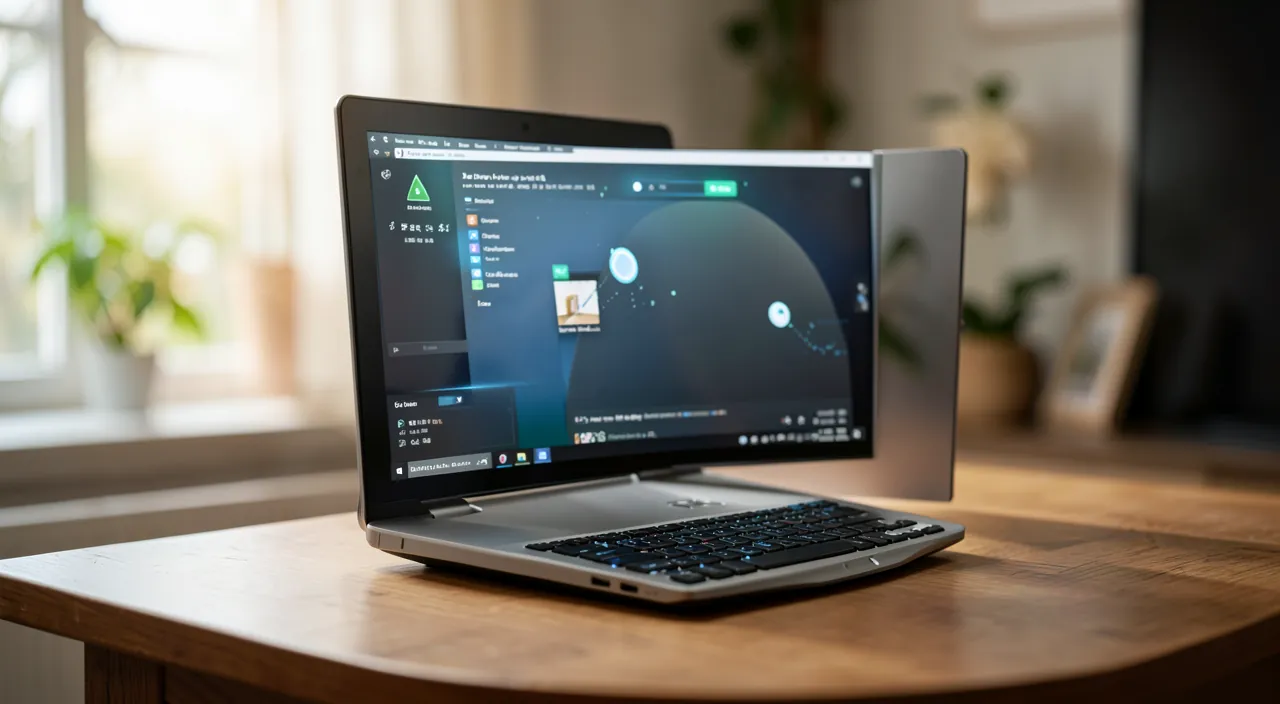
Your PC slows down because it gets clogged with junk files and unnecessary programs, not because it’s “worn out”. Cleaning these up is like decluttering a room – it makes everything work better.
A 5-year-old laptop with 500GB storage might have 100GB of temporary files, 50GB of unused programs, and 20 apps launching at startup. Cleaning these could reduce boot time from 2 minutes to 30 seconds.
Cleaning Steps
- Uninstall Unnecessary Programs: sort through apps you no longer use.
- Clear Temporary Files: cache, recycle bin, forgotten downloads—often several gigabytes.
- Lighten the Startup: prevent unnecessary apps from launching on boot.
- Free Up Disk Space: an overfull disk slows down the entire system.
The Right Reflex. Start by lightening the startup: it’s often the most spectacular gain. Many apps launch automatically on boot for no reason, significantly slowing down startup. Disabling them gives an immediate boost.
Use Built-in Tools
No need for questionable third-party software: your system already offers reliable tools. They allow you to delete temporary files, analyze disk space, and manage startup safely. Always prefer these built-in tools over « miracle cleaners » found online, which are often useless or even harmful. Simplicity and security come first.
Regular Maintenance
A one-time cleanup helps, but regular maintenance prevents clutter from returning. Get into the habit of occasionally clearing temporary files, uninstalling what you no longer use, and monitoring disk space. These small, regular actions keep your computer fast in the long run, far more effectively than a big cleanup once a year.
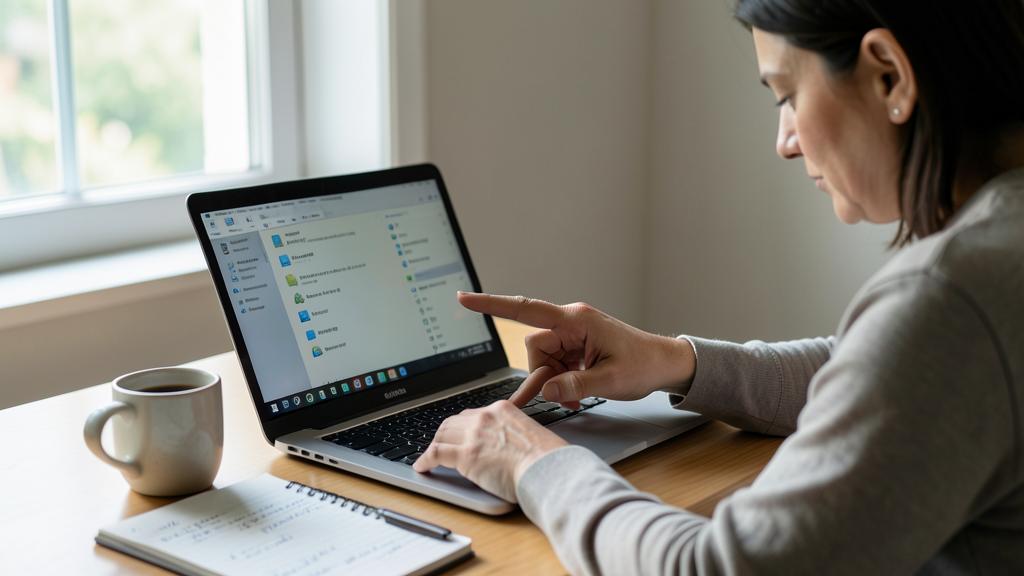
What to Avoid. Never download an « optimizer » or « cleaner » offered by an ad or pop-up: many are useless, and some are outright unwanted software. And never delete a system file you don’t recognize: focus on temporary files and your own data.
The Maintenance Schedule That Keeps a PC Fast
Effective maintenance comes down to three appointments. Every month (5 minutes): empty the recycle bin and Downloads folder, close tabs, and restart—yes, a simple regular restart fixes a surprising number of slowdowns. Every quarter (15 minutes): review startup programs, uninstall apps unused for three months, check remaining disk space. Every year (30 minutes): major file cleanup, physical dusting of vents, backup verification. Schedule these three appointments: a PC maintained this way stays smooth for years—it’s neglected accumulation, never age alone, that creates sluggish machines.
Frequently Asked Questions
Can cleaning damage my PC?
No, if you use built-in tools and only touch temporary files and unnecessary programs. Just avoid questionable third-party software.
Do I need paid software?
Absolutely not: the tools built into your system are more than enough and the safest. Beware of « miracle » paid solutions.
Is regular restarting really useful?
Yes, and it’s the most underrated action: it clears memory, closes leaking programs, and applies pending updates. A never-restarted computer accumulates slowdowns that no file cleanup can fix.
Key Takeaways
A slow PC isn’t doomed: a good cleanup often gives it a new lease on life. Uninstall unnecessary programs, clear temporary files, lighten the startup (the most spectacular gain), and free up disk space—using only your system’s built-in tools. Avoid questionable « miracle cleaners. » And maintain regularly instead of waiting for the big slowdown. These simple, free actions extend your computer’s life and avoid premature replacement.
Does Your PC Need Professional Cleaning?
Leave a Reply
You must be logged in to post a comment.