
Creating a poster, a social media post, a presentation, or a logo without being a graphic designer: that’s the promise of Canva, and it’s largely delivered. This tool has democratized design by making it accessible to everyone, for free for the most part. Whether you’re a freelancer, a small business manager, or just a private individual, here’s how to produce professional visuals without technical skills.
Why Canva Changed Everything
Before, creating a polished visual required expensive and complex software, or hiring a professional. Canva flipped this logic: an intuitive interface, thousands of ready-to-customize templates, and a drag-and-drop system. You start with an existing template that you adapt, rather than an intimidating blank page.
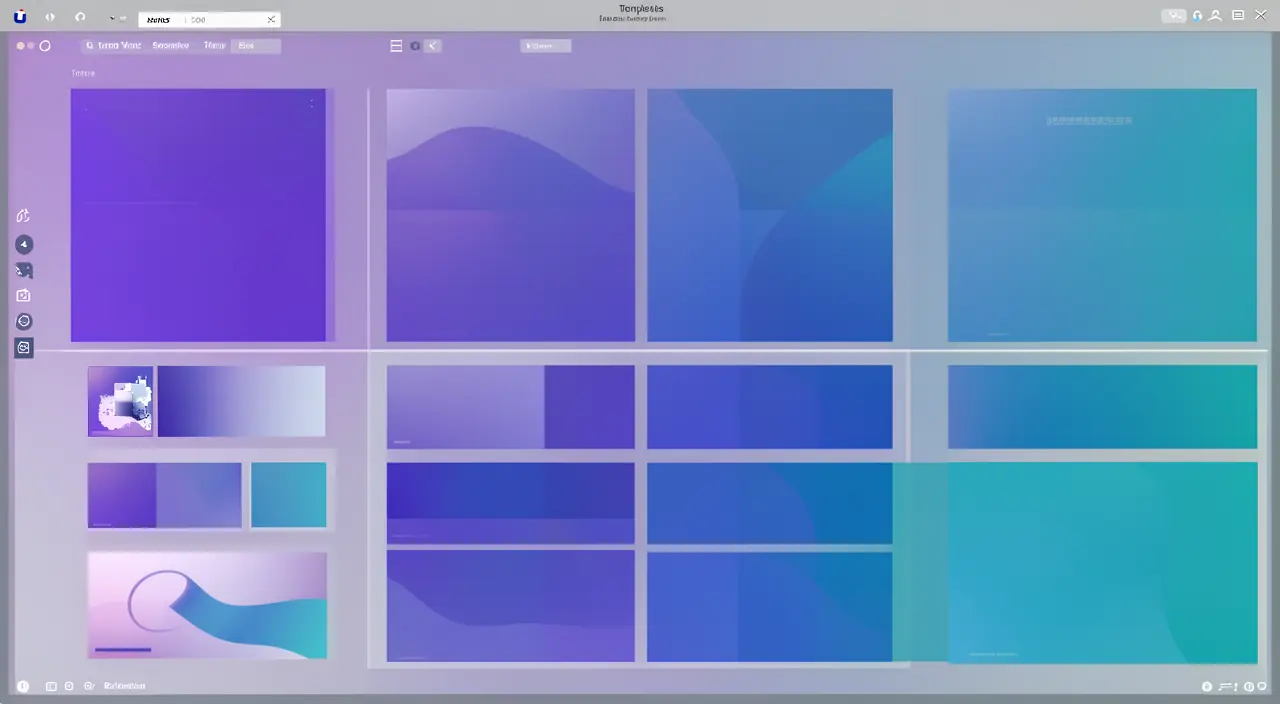
Result: in just a few minutes, you get a result you’d think was reserved for experts. It’s a fantastic tool for autonomy, allowing you to communicate without depending on anyone.
Canva makes design easy by giving you pre-made templates and simple tools. You don’t need to be an expert to create professional-looking visuals quickly.
A small bakery owner creates a social media post for a new cake launch. Using Canva, they pick a food-themed template, add their own photo, and adjust the colors in 10 minutes. The result looks polished and professional, ready to post.
Getting Started
- Choose a format: Instagram post, story, poster, presentation… Canva automatically provides the right dimensions.
- Start with a template: browse the library and select the one that best fits your needs.
- Customize: replace the text, change the colors, add your images. Everything is done with a simple click.
- Download or share: export as an image or PDF, ready to publish or print.
The right reflex. Define your brand colors and fonts once and for all, and reuse them across all your visuals. This consistency is what sets amateur communication apart from a professional image: regularity inspires trust.

Time-Saving Features
- Templates: the ideal starting point to never start from scratch.
- The elements library: photos, icons, illustrations, shapes, all integrated with a click.
- Automatic resizing: adapt the same visual to multiple formats instantly.
- Integrated AI tools: image generation, background removal, editing, and text writing.
A Few Design Principles to Know
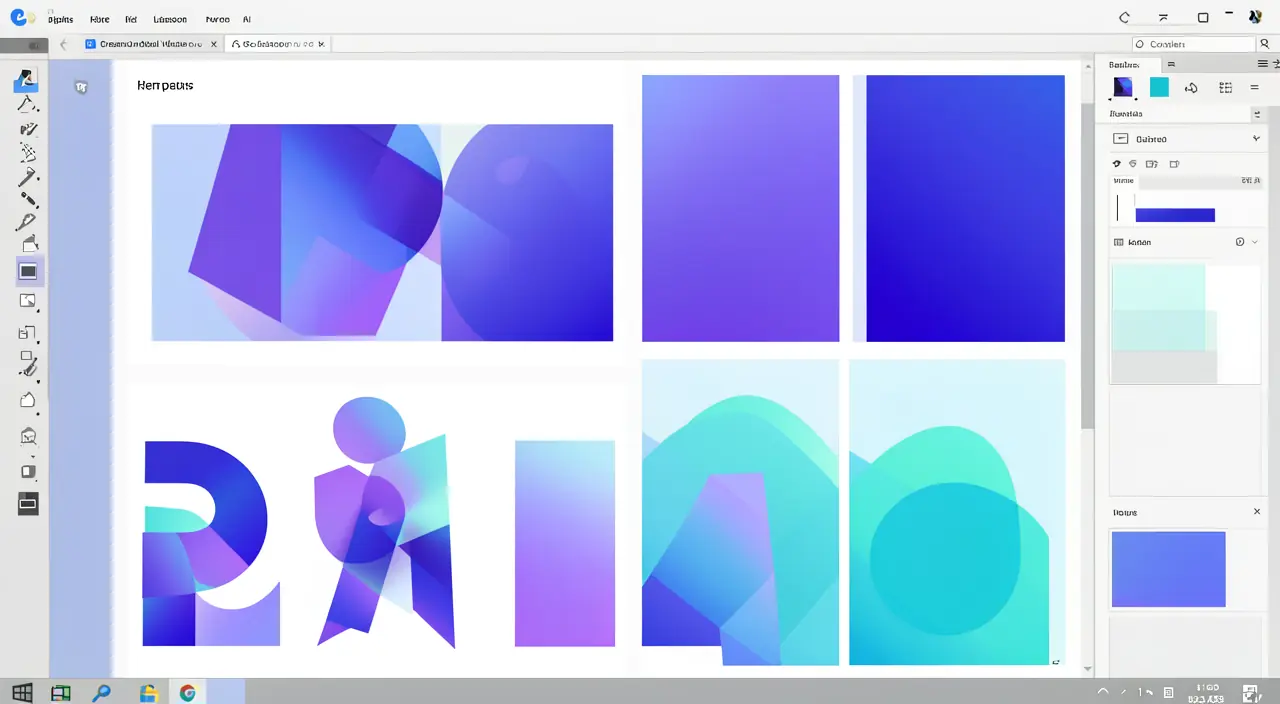
Even with a good tool, a few simple rules make all the difference: leave space (don’t overcrowd), limit yourself to two or three colors and two fonts, prioritize information (a strong title, a clear message), and favor high-quality images. These basic principles immediately elevate the level of your creations.
Avoid. Don’t give in to overloading: too many colors, too many fonts, too many elements harm readability and reveal amateurism. In design, sobriety is almost always the winner. In doubt, remove rather than add.
Frequently Asked Questions
Is the free version enough?
For most uses, yes. The paid version mainly unlocks premium elements and advanced branding features, useful if you produce a lot.
Can the creations be used commercially?
Generally yes for your own materials, but check the terms regarding certain premium elements or specific photos.
What to Remember
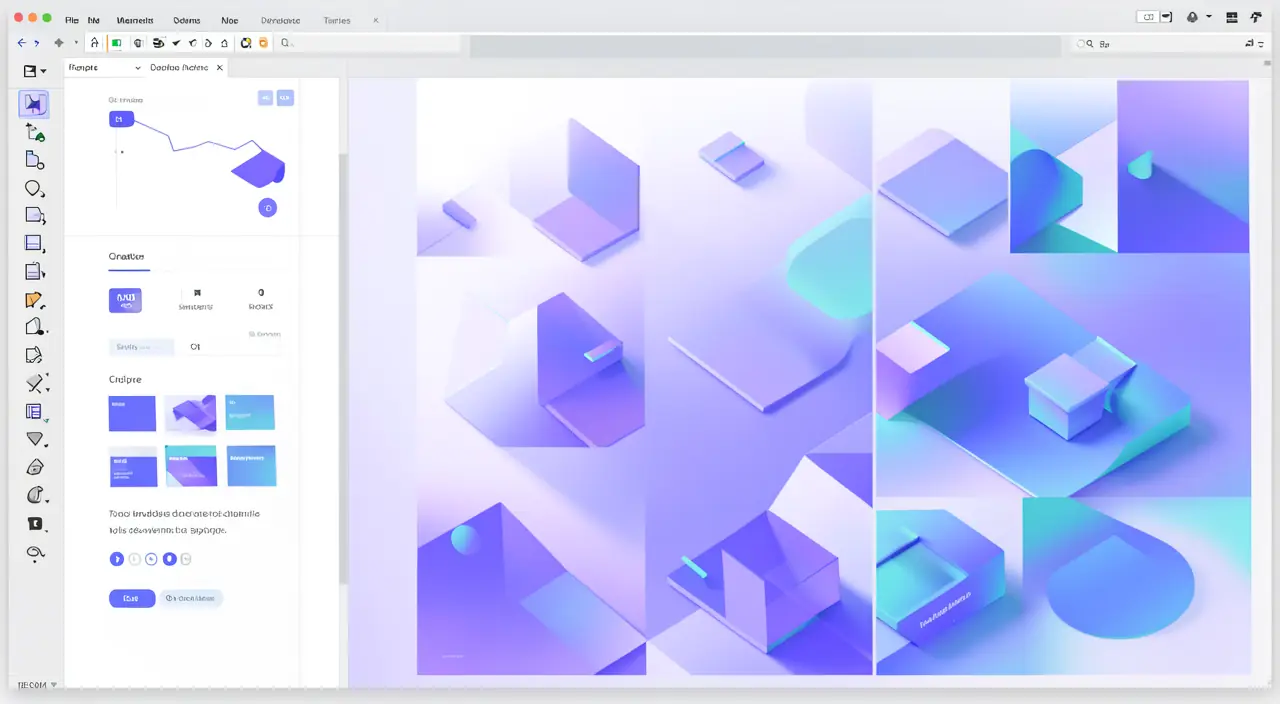
Canva has made professional design accessible to everyone: by starting with templates and following a few simple principles, anyone can produce polished and consistent visuals. The tool doesn’t replace a graphic designer for strategic brand identity, but for everyday communication, it makes you autonomous, fast, and effective. One golden rule to keep in mind: simplicity and consistency always beat accumulation.
Need a real professional visual identity?
Leave a Reply
You must be logged in to post a comment.